Page 280 of 565
279
uuRear Entertainment System*uOperating the System
Continued
Features
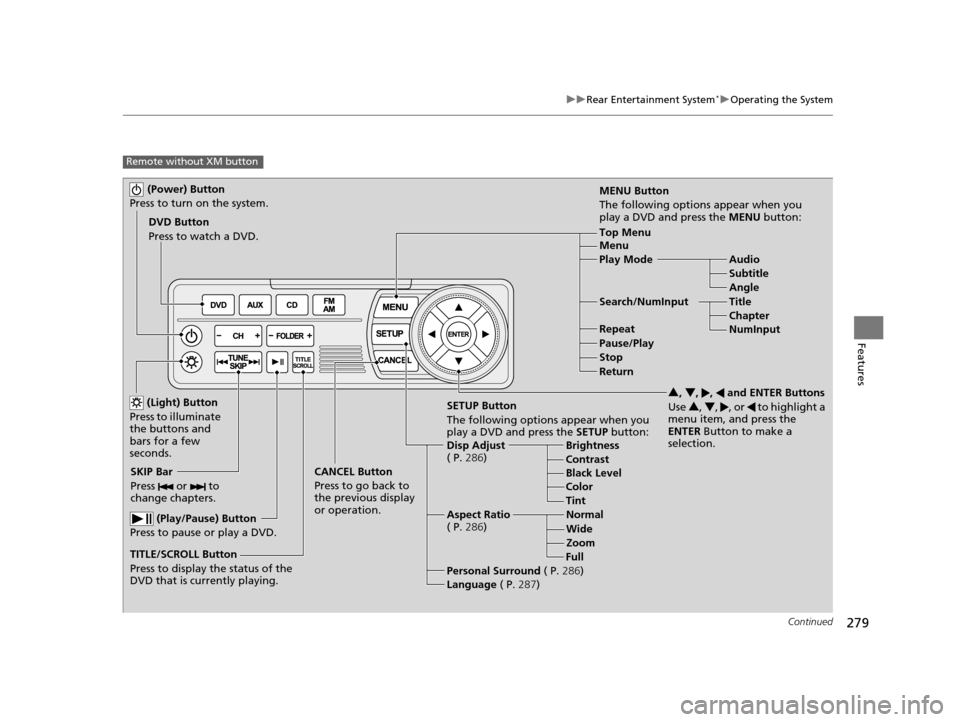
Remote without XM button
(Power) Button
Press to turn on the system.
DVD Button
Press to watch a DVD.
(Light) Button
Press to illuminate
the buttons and
bars for a few
seconds.
SKIP Bar
Press or to
change chapters.
(Play/Pause) Button
Press to pause or play a DVD.
TITLE/SCROLL Button
Press to display the status of the
DVD that is currently playing. MENU Button
The following options appear when you
play a DVD and press the
MENU button:
Top Menu
Menu
Play Mode Audio Subtitle
Angle
Search/NumInput Title Chapter
NumInput
Repeat
Pause/Play
Stop
Return
SETUP Button
The following options appear when you
play a DVD and press the SETUP button:
Disp Adjust
( P. 286) Brightness
Contrast
Black Level
Color
CANCEL Button
Press to go back to
the previous display
or operation. 3
, 4 , , and ENTER Buttons
Use 3, 4 , , or to highlight a
menu item, and press the
ENTER Button to make a
selection.
Tint
Normal
Wide Zoom
Full
Aspect Ratio
( P. 286)
Personal Surround ( P.286)
Language ( P.287)
17 US ODYSSEY (KA KC)-31TK86600.book 279 ページ 2016年10月24日 月曜日 午後4時2分
Page 282 of 565
Continued281
uuRear Entertainment System*uOperating the System
Features
Angle:
Changes the view angle.
1. Press the MENU button to display Menu in front.
2. Rotate to select Other Function, then press .
u Repeat the procedure to select Angle .
3. Rotate to select a desired angle, then press .
Search:
Selects the title or chapter you want to play.
1. Press the MENU button to display Menu in front.
2. Rotate to select Other Function, then press .
u Repeat the procedure to select Search .
3. Move and to select the upper and lower part of the screen.
4. In the upper part, rotate to s earch for a title, then press .
In the lower part, rotate to s earch for a chapter, then press .
Number Input:
Enters a three digit number, if issued to the DVD, to find the segment you want to
start to play.
1. Press the MENU button to display Menu in front.
2. Rotate to select Other Function, then press .
u Repeat the procedure to select Number Input .
3. Rotate to select number(s), then press .
4. Rotate to select OK, then press .1DVD setup from the front panel
If the DVD currently playing does not carry multiple
angles, only one option Angle 1 comes on.
17 US ODYSSEY (KA KC)-31TK86600.book 281 ページ 2016年10月24日 月曜日 午後4時2分
Page 284 of 565
283
uuRear Entertainment System*uOperating the System
Continued
Features
Top Menu:
The top page of the DVD’s title menu ap pears. The title menu also appears when
you press the MENU button while the DVD is in th e slot not playing. Press the
CANCEL or MENU button to return.
Menu:
The DVD’s title menu appears.
Play Mode:
You can change the following three settings:
If you press the MENU button while the DVD is not playing, the option Play Mode
changes to Initial Settings .
Audio - Select a language for audio that is available on the DVD. The sound
characteristics (Dolby Digital, LPCM, MPEG Audio, dts, etc) of that
audio is also displayed.
Subtitle - Select a subtitle th at is available on the DVD.
Angle - Select a view angle that is avai lable on the DVD. If the DVD currently
playing does not carry multiple angles, only one option Angle 1 comes
on. Press the CANCEL or MENU button to return.
When the DVD is not playing
17 US ODYSSEY (KA KC)-31TK86600.book 283 ページ 2016年10月24日 月曜日 午後4時2分
Page 285 of 565
uuRear Entertainment System*uOperating the System
284
Features
Initial Settings:
You can configure the initial Language, Dynamic Range, and Angle Mark settings
before playing DVD.
1. Select the language setting.
2. Select the language from English, French, Spanish, Arabic, German , Italian,
Dutch , Chinese , Korean , Thai , Japanese , and other.
3. If you select other, you need to enter the four digit language code number to
configure the language that is not listed. Select Yes to go to the number input
screen.
u To return to the language Setting screen, select No.
4. Press the ENTER button each time you input digit.
u If you want to delete a number, select DEL.
5. The cursor automatically goes to ENT after you input four digits. Press the ENTER
button to command.
Language
Settings -
Select the language for the DVD’s
displayed menus (Menu Language),
the DVD’s audio (Audio Language), and the DVD’s subtitle (Subtitle
Language).
Dynamic
Range - The feature reduces the difference between the loud and quiet sound
levels. Select
ON or OFF .
Angle
Mark - You can select whether to display
the angle mark appearing in the
upper right corner of the screen wh en you change the view angle while
the DVD is playing. Select ON or OFF .1MENU button on the remote
Initial Settings:
The prior language varies by disc. You may not be
able to configure your selected language setting.
17 US ODYSSEY (KA KC)-31TK86600.book 284 ページ 2016年10月24日 月曜日 午後4時2分
Page 286 of 565
285
uuRear Entertainment System*uOperating the System
Continued
Features
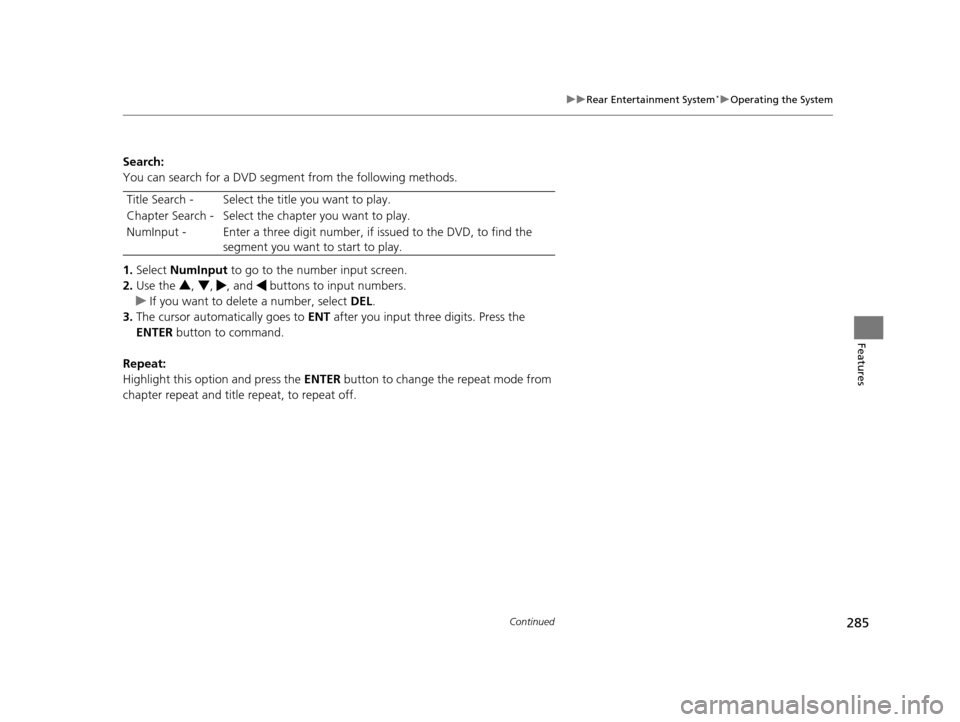
Search:
You can search for a DVD segment from the following methods.
1. Select NumInput to go to the nu mber input screen.
2. Use the 3, 4 , , and buttons to input numbers.
u If you want to delete a number, select DEL.
3. The cursor automatically goes to ENT after you input three digits. Press the
ENTER button to command.
Repeat:
Highlight this option and press the ENTER button to change the repeat mode from
chapter repeat and title repeat, to repeat off. Title Search - Select the ti
tle you want to play.
Chapter Search - Select the chapter you want to play.
NumInput - Enter a three digit number, if issued to the DVD, to find the
segment you want to start to play.
17 US ODYSSEY (KA KC)-31TK86600.book 285 ページ 2016年10月24日 月曜日 午後4時2分
Page 291 of 565
uuRear Entertainment System*uOperating the System
290
Features
■Playing AM/FM radio in the rear
Press the AM/FM button.
When you press the MENU button while the radio is playing, the audio menu
appears on the overhead screen. The availa ble functions are the same as those of
the front audio system. The TUNE/SKIP bar on the control panel works the same as
the Skip/Seek icons ( / ) on the front touchscreen for AM/FM radio operation.
2Playing AM/FM Radio P. 245
■Playing SiriusXM radio in the rear
Press the XM button.
When you press the MENU button while the radio is playing, the audio menu
appears on the overhead screen. The availa ble functions are the same as those of
the front audio system. The TUNE/SKIP bar on the control panel works the same as
the Skip/Seek icons ( / ) on the front touc hscreen for SiriusXM radio operation.
2Playing SiriusXM ® Radio* P. 249
To change the mode between category and channel, press and hold the TITLE/
SCROLL button for five seconds.
1 System Controls and Menus for Audio
If you press the REAR AUDIO button on the front
panel, you can opera te the rear entertainment system
from the front display. 2 REAR AUDIO button on the front panel
P. 277
* Not available on all models
17 US ODYSSEY (KA KC)-31TK86600.book 290 ページ 2016年10月24日 月曜日 午後4時2分
Page 298 of 565
297
uuCustomized Features u
Continued
Features
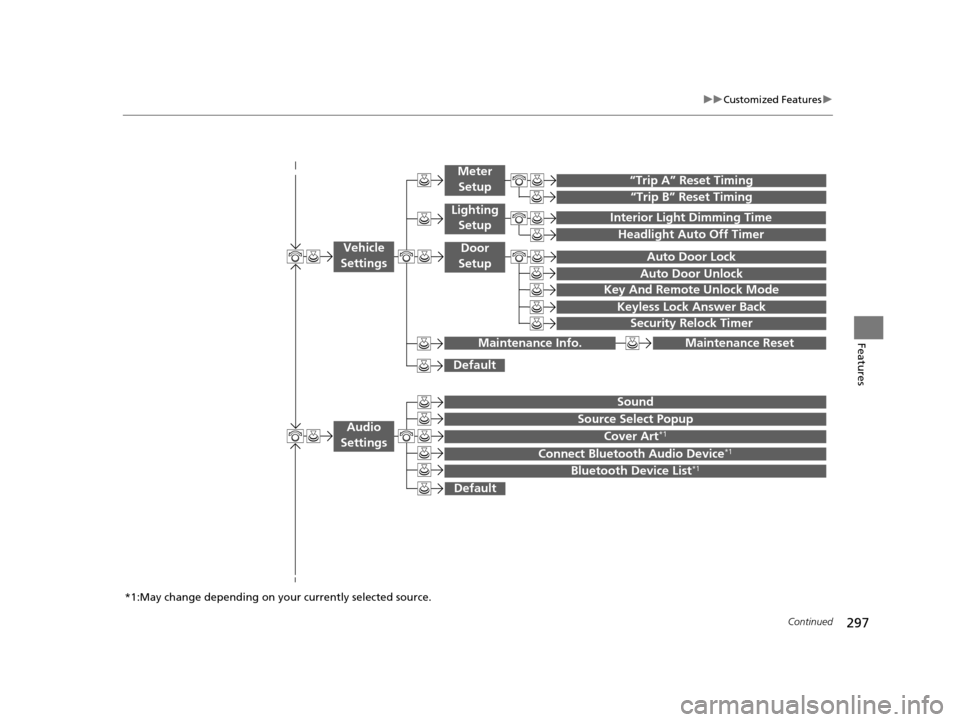
“Trip B” Reset Timing
“Trip A” Reset Timing
Auto Door Lock
Auto Door Unlock
Interior Light Dimming Time
Headlight Auto Off Timer
Key And Remote Unlock Mode
Keyless Lock Answer Back
Security Relock Timer
Maintenance Reset
Default
Vehicle
Settings
Meter
Setup
Lighting Setup
Door
Setup
Maintenance Info.
Source Select Popup
Sound
Default
Cover Art*1
Connect Bluetooth Audio Device*1
Bluetooth Device List*1
Audio
Settings
*1:May change depending on your currently selected source.
17 US ODYSSEY (KA KC)-31TK86600.book 297 ページ 2016年10月24日 月曜日 午後4時2分
Page 300 of 565
299
uuCustomized Features u
Continued
Features
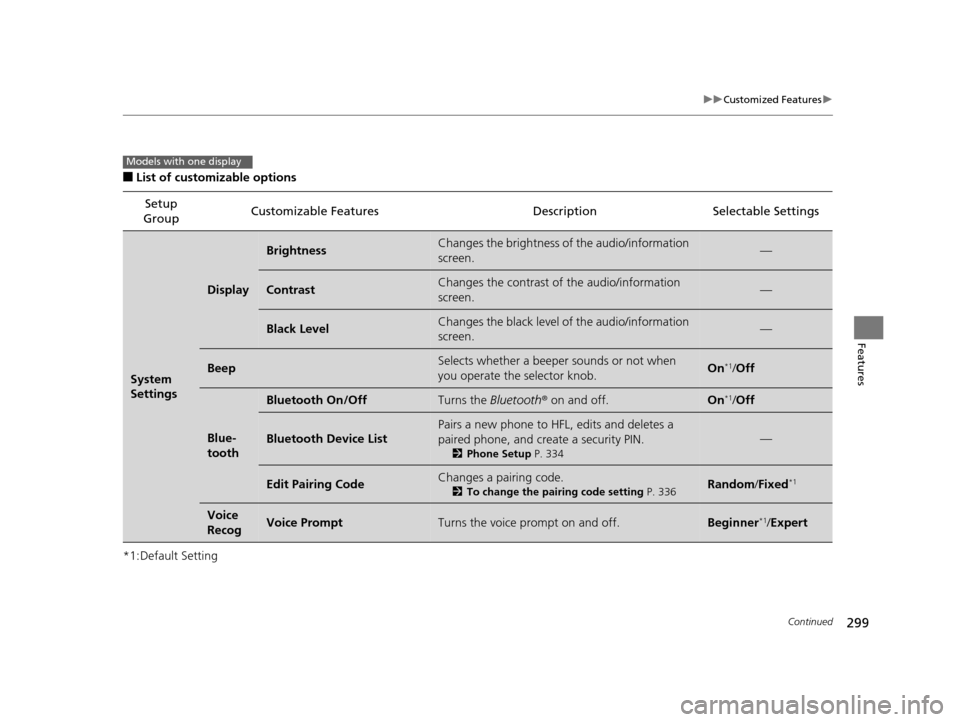
■List of customizable options
*1:Default Setting Setup
Group Customizable Features Description Selectable Settings
System
Settings
Display
BrightnessChanges the brightness of the audio/information
screen.—
ContrastChanges the contrast of the audio/information
screen.—
Black LevelChanges the black level of the audio/information
screen.—
BeepSelects whether a beeper
sounds or not when
you operate the selector knob.On*1/ Off
Blue-
tooth
Bluetooth On/OffTurns the Bluetooth® on and off.On*1/Off
Bluetooth Device List
Pairs a new phone to HFL, edits and deletes a
paired phone, and create a security PIN.
2 Phone Setup P. 334
—
Edit Pairing CodeChanges a pairing code.
2To change the pairing code setting P. 336Random/Fixed*1
Voice
RecogVoice PromptTurns the voice prompt on and off.Beginner*1/ Expert
Models with one display
17 US ODYSSEY (KA KC)-31TK86600.book 299 ページ 2016年10月24日 月曜日 午後4時2分