Page 331 of 565
330
uuBluetooth ® HandsFreeLink ®u HFL Menus
Features
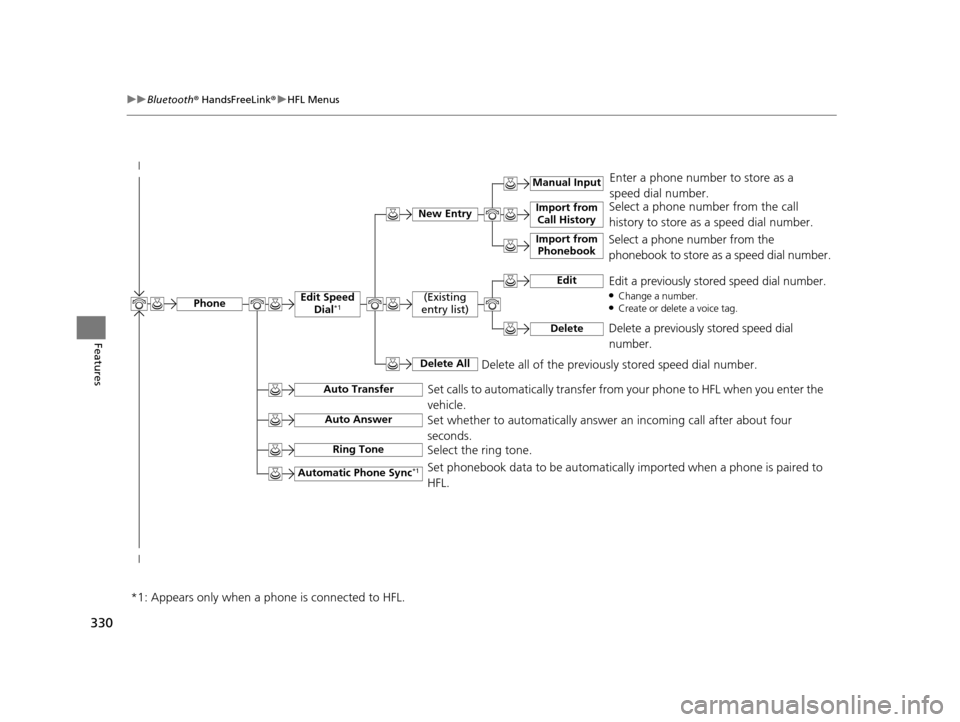
Select a phone number from the call
history to store as a speed dial number.
Manual Input
New Entry Import from
Call History
Import from Phonebook
Enter a phone number to store as a
speed dial number.
Delete all of the previously stored speed dial number.
Select a phone number from the
phonebook to store as a speed dial number.
EditEdit a previously stored speed dial number.●Change a number.●Create or delete a voice tag.
DeleteDelete a previously stored speed dial
number.
(Existing
entry list)
Delete All
Edit Speed Dial*1
Set calls to automatically transfer from your phone to HFL when you enter the
vehicle.Auto Transfer
Auto Answer
Ring Tone
Set whether to automatically answer an incoming call after about four
seconds.
Select the ring tone.
Automatic Phone Sync*1Set phonebook data to be automatically imported when a phone is paired to
HFL.
Phone
*1: Appears only when a phone is connected to HFL.
17 US ODYSSEY (KA KC)-31TK86600.book 330 ページ 2016年10月24日 月曜日 午後4時2分
Page 335 of 565
uuBluetooth ® HandsFreeLink ®u HFL Menus
334
Features
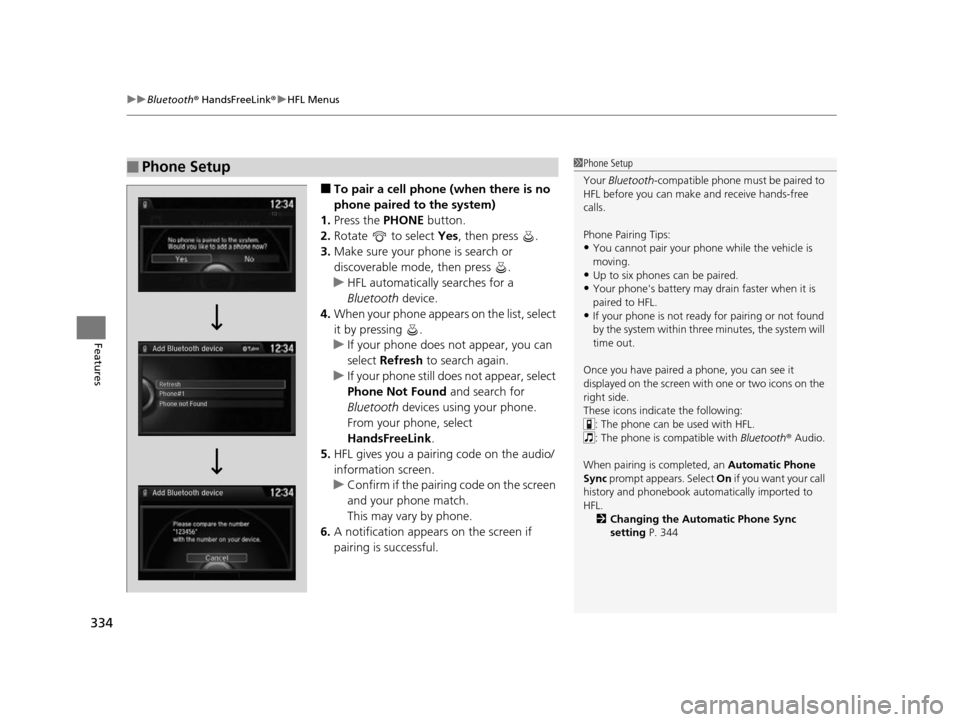
■To pair a cell phone (when there is no
phone paired to the system)
1. Press the PHONE button.
2. Rotate to select Yes, then press .
3. Make sure your phone is search or
discoverable mode, then press .
u HFL automatically searches for a
Bluetooth device.
4. When your phone appears on the list, select
it by pressing .
u If your phone does not appear, you can
select Refresh to search again.
u If your phone still does not appear, select
Phone Not Found and search for
Bluetooth devices using your phone.
From your phone, select
HandsFreeLink .
5. HFL gives you a pairing code on the audio/
information screen.
u Confirm if the pairing code on the screen
and your phone match.
This may vary by phone.
6. A notification appears on the screen if
pairing is successful.
■Phone Setup1Phone Setup
Your Bluetooth -compatible phone must be paired to
HFL before you can make and receive hands-free
calls.
Phone Pairing Tips:
•You cannot pair your phone while the vehicle is
moving.
•Up to six phones can be paired.
•Your phone's battery may dr ain faster when it is
paired to HFL.
•If your phone is not ready for pairing or not found
by the system within three minutes, the system will
time out.
Once you have paired a phone, you can see it
displayed on the screen with one or two icons on the
right side.
These icons indicate the following: : The phone can be used with HFL.
: The phone is compatible with Bluetooth ® Audio.
When pairing is completed, an Automatic Phone
Sync prompt appears. Select On if you want your call
history and phonebook automatically imported to
HFL.
2 Changing the Automatic Phone Sync
setting P. 344
17 US ODYSSEY (KA KC)-31TK86600.book 334 ページ 2016年10月24日 月曜日 午後4時2分
Page 336 of 565
335
uuBluetooth ® HandsFreeLink ®u HFL Menus
Continued
Features
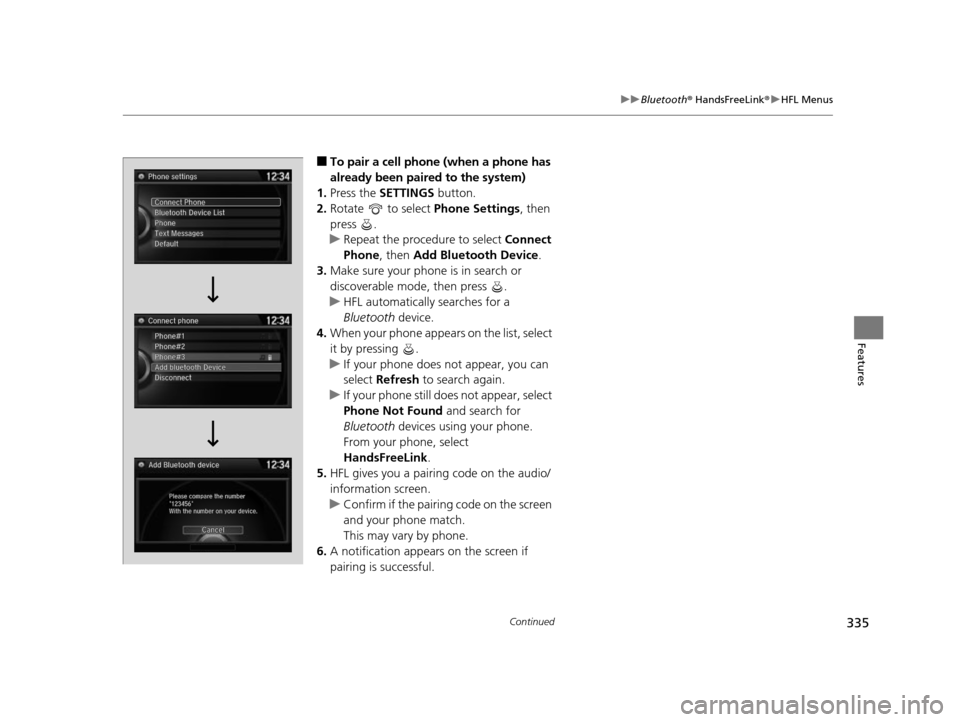
■To pair a cell phone (when a phone has
already been paired to the system)
1. Press the SETTINGS button.
2. Rotate to select Phone Settings, then
press .
u Repeat the procedure to select Connect
Phone , then Add Bluetooth Device .
3. Make sure your phone is in search or
discoverable mode, then press .
u HFL automatically searches for a
Bluetooth device.
4. When your phone appears on the list, select
it by pressing .
u If your phone does not appear, you can
select Refresh to search again.
u If your phone still do es not appear, select
Phone Not Found and search for
Bluetooth devices using your phone.
From your phone, select
HandsFreeLink .
5. HFL gives you a pairing code on the audio/
information screen.
u Confirm if the pairing code on the screen
and your phone match.
This may vary by phone.
6. A notification appears on the screen if
pairing is successful.
17 US ODYSSEY (KA KC)-31TK86600.book 335 ページ 2016年10月24日 月曜日 午後4時2分
Page 337 of 565
uuBluetooth ® HandsFreeLink ®u HFL Menus
336
Features
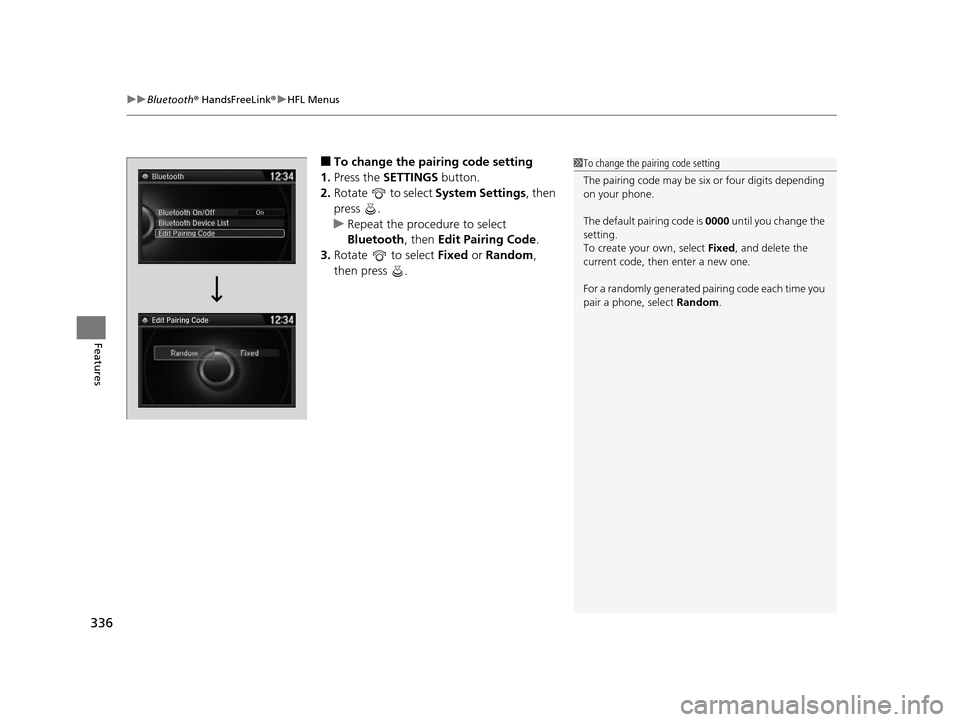
■To change the pairing code setting
1. Press the SETTINGS button.
2. Rotate to select System Settings, then
press .
u Repeat the procedure to select
Bluetooth , then Edit Pairing Code .
3. Rotate to select Fixed or Random ,
then press .1 To change the pairing code setting
The pairing code may be si x or four digits depending
on your phone.
The default pair ing code is 0000 until you change the
setting.
To create your own, select Fixed, and delete the
current code, then enter a new one.
For a randomly generated pa iring code each time you
pair a phone, select Random.
Edit Pairing Code
17 US ODYSSEY (KA KC)-31TK86600.book 336 ページ 2016年10月24日 月曜日 午後4時2分
Page 338 of 565
Continued337
uuBluetooth ® HandsFreeLink ®u HFL Menus
Features
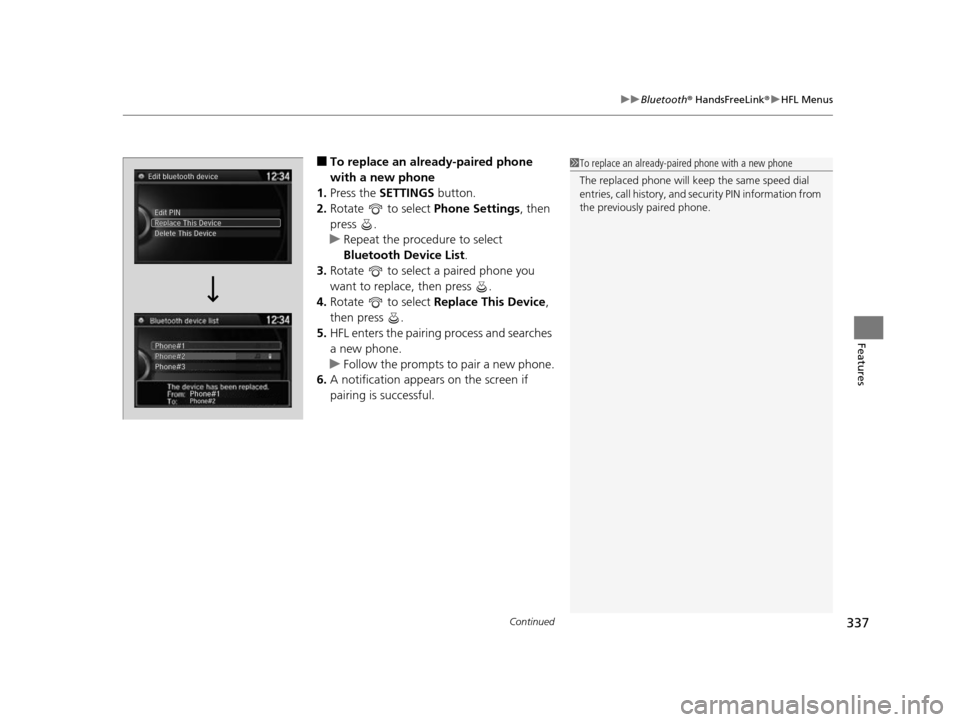
■To replace an already-paired phone
with a new phone
1. Press the SETTINGS button.
2. Rotate to select Phone Settings, then
press .
u Repeat the procedure to select
Bluetooth Device List .
3. Rotate to select a paired phone you
want to replace, then press .
4. Rotate to select Replace This Device ,
then press .
5. HFL enters the pairing process and searches
a new phone.
u Follow the prompts to pair a new phone.
6. A notification appears on the screen if
pairing is successful.1To replace an already-pair ed phone with a new phone
The replaced phone will keep the same speed dial
entries, call history, and security PIN information from
the previously paired phone.
17 US ODYSSEY (KA KC)-31TK86600.book 337 ページ 2016年10月24日 月曜日 午後4時2分
Page 342 of 565
Continued341
uuBluetooth ® HandsFreeLink ®u HFL Menus
Features
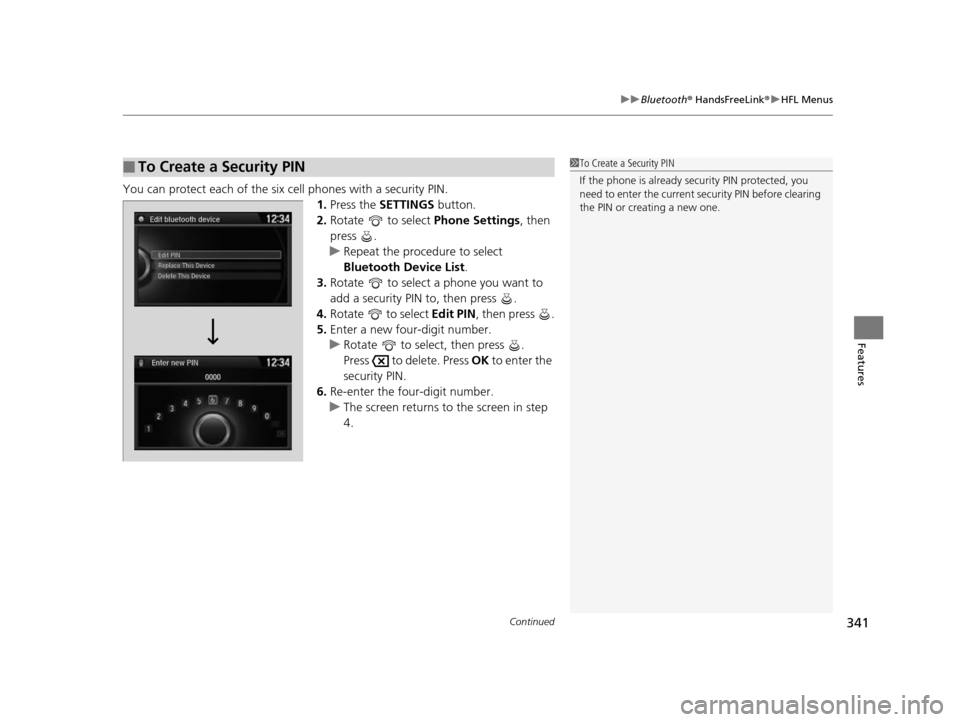
You can protect each of the six cell phones with a security PIN.
1.Press the SETTINGS button.
2. Rotate to select Phone Settings, then
press .
u Repeat the procedure to select
Bluetooth Device List .
3. Rotate to select a phone you want to
add a security PIN to, then press .
4. Rotate to select Edit PIN, then press .
5. Enter a new four-digit number.
u Rotate to select, then press .
Press to delete. Press OK to enter the
security PIN.
6. Re-enter the four-digit number.
u The screen returns to the screen in step
4.
■To Create a Security PIN1 To Create a Security PIN
If the phone is already secu rity PIN protected, you
need to enter the current security PIN before clearing
the PIN or creating a new one.
17 US ODYSSEY (KA KC)-31TK86600.book 341 ページ 2016年10月24日 月曜日 午後4時2分
Page 343 of 565
342
uuBluetooth ® HandsFreeLink ®u HFL Menus
Features
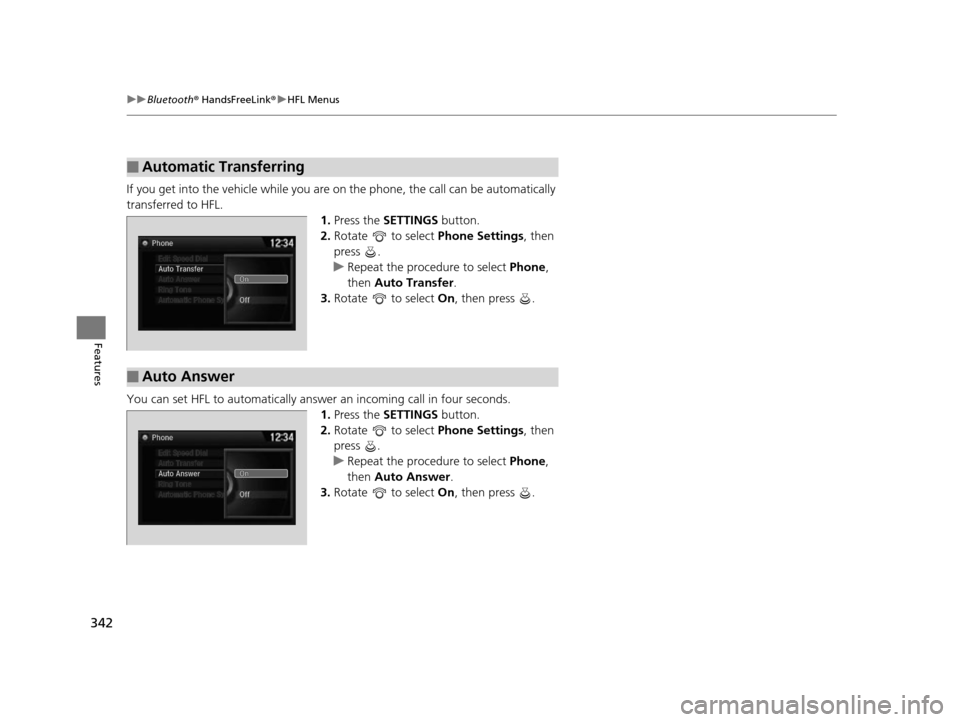
If you get into the vehicle while you are on the phone, the call can be automatically
transferred to HFL. 1.Press the SETTINGS button.
2. Rotate to select Phone Settings, then
press .
u Repeat the procedure to select Phone,
then Auto Transfer .
3. Rotate to select On, then press .
You can set HFL to automatically answer an incoming call in four seconds.
1. Press the SETTINGS button.
2. Rotate to select Phone Settings, then
press .
u Repeat the procedure to select Phone,
then Auto Answer .
3. Rotate to select On, then press .
■Automatic Transferring
■Auto Answer
17 US ODYSSEY (KA KC)-31TK86600.book 342 ページ 2016年10月24日 月曜日 午後4時2分
Page 344 of 565
Continued343
uuBluetooth ® HandsFreeLink ®u HFL Menus
Features
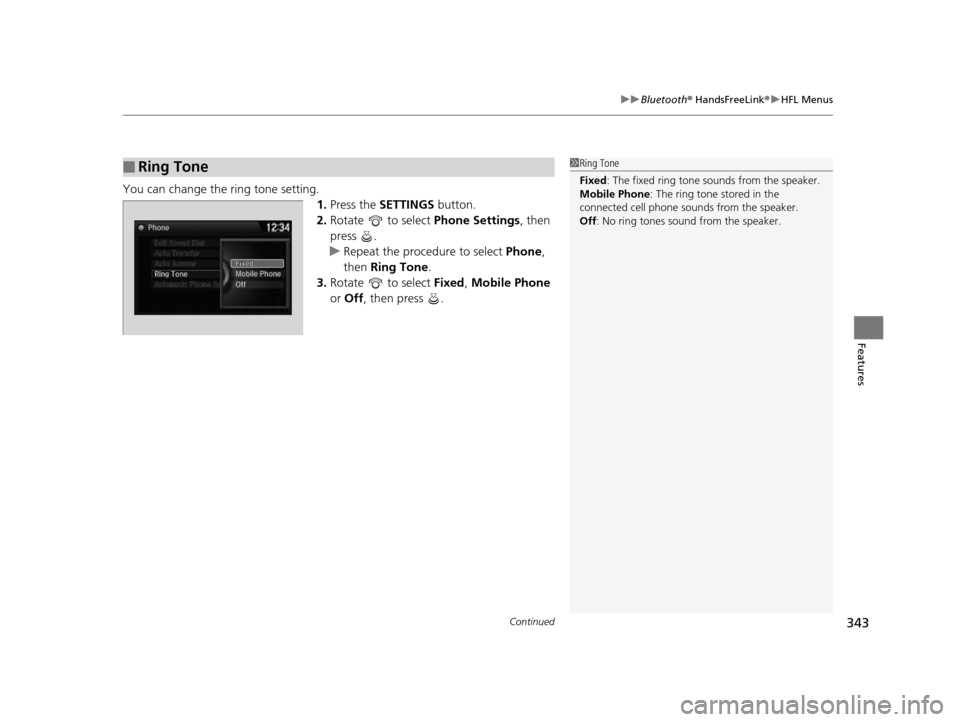
You can change the ring tone setting.
1.Press the SETTINGS button.
2. Rotate to select Phone Settings, then
press .
u Repeat the procedure to select Phone,
then Ring Tone .
3. Rotate to select Fixed, Mobile Phone
or Off , then press .
■Ring Tone1Ring Tone
Fixed: The fixed ring tone sounds from the speaker.
Mobile Phone: The ring tone stored in the
connected cell phone sounds from the speaker.
Off : No ring tones sound from the speaker.
17 US ODYSSEY (KA KC)-31TK86600.book 343 ページ 2016年10月24日 月曜日 午後4時2分