2017 FORD TAURUS bluetooth
[x] Cancel search: bluetoothPage 401 of 504
FunctionButton
Playlists
Artists
Albums
Songs
Genres
Podcasts
Audio books
Composers
This button allows you to choose a specificletter to view within the category you arebrowsing.
A-Z Jump
If available, this allows you to browse thefolders and files on your USB device.Explore Device
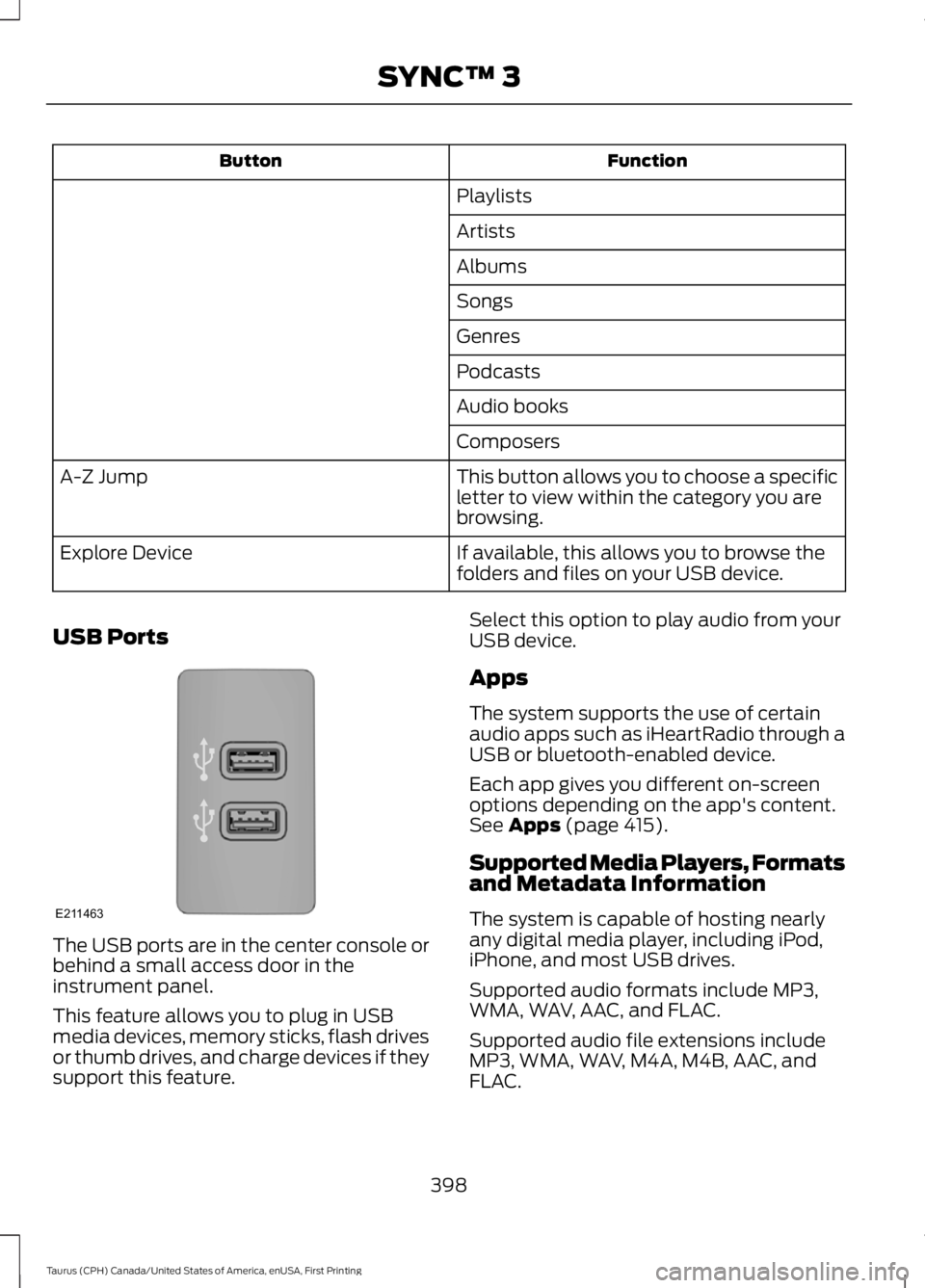
USB Ports
The USB ports are in the center console orbehind a small access door in theinstrument panel.
This feature allows you to plug in USBmedia devices, memory sticks, flash drivesor thumb drives, and charge devices if theysupport this feature.
Select this option to play audio from yourUSB device.
Apps
The system supports the use of certainaudio apps such as iHeartRadio through aUSB or bluetooth-enabled device.
Each app gives you different on-screenoptions depending on the app's content.See Apps (page 415).
Supported Media Players, Formatsand Metadata Information
The system is capable of hosting nearlyany digital media player, including iPod,iPhone, and most USB drives.
Supported audio formats include MP3,WMA, WAV, AAC, and FLAC.
Supported audio file extensions includeMP3, WMA, WAV, M4A, M4B, AAC, andFLAC.
398
Taurus (CPH) Canada/United States of America, enUSA, First Printing
SYNC™ 3E211463
Page 405 of 504
PHONE
WARNING
Driving while distracted can result inloss of vehicle control, crash andinjury. We strongly recommend thatyou use extreme caution when using anydevice that may take your focus off theroad. Your primary responsibility is the safeoperation of your vehicle. We recommendagainst the use of any hand-held devicewhile driving and encourage the use ofvoice-operated systems when possible.Make sure you are aware of all applicablelocal laws that may affect the use ofelectronic devices while driving.
Hands-free calling is one of the mainfeatures of the system. Once you pair yourcell phone, you can access many optionsusing the touchscreen or voice commands.While the system supports a variety offeatures, many are dependent on your cellphone’s functionality.
Pairing Your Cell Phone for theFirst Time
Pair your Bluetooth-enabled phone withthe system before using the functions inhands-free mode.
Switch on Bluetooth on your device tobegin pairing. See your phone’s manual ifnecessary.
To add a phone, select:
Menu Item
Add Phone
1. Follow the on-screen instructions.
2. A prompt alerts you to search for thesystem on your phone.
3. Select your vehicle's make and modelas it displays on your phone.
4. Confirm that the six-digit numberappearing on your phone matches thesix-digit number on the touchscreen.
5. The touchscreen indicates when thepairing is successful.
6. Your phone may prompt you to givethe system permission to accessinformation. To check your phone’scompatibility, see your phone’s manualor visit the website.
Alternatively, to add a phone, select:
Menu Item
Add Phone
Then select:
Discover Other Bluetooth Devices
1. Follow the on-screen instructions.
2. Select your phone's name when itappears on the touchscreen.
3. Confirm that the six-digit numberappearing on your phone matches thesix-digit number on the touchscreen.
4. The touchscreen indicates when thepairing is successful.
5. Your phone may prompt you to givethe system permission to accessinformation. To check your phone’scompatibility, see your phone’s manualor visit the website.
At a minimum, most cell phones withBluetooth wireless technology support thefollowing functions:
•Answering an incoming call.
•Ending a call.
•Dialing a number.
•Call waiting notification.
•Caller identification.
402
Taurus (CPH) Canada/United States of America, enUSA, First Printing
SYNC™ 3
Page 406 of 504
Other features, such as text messagingusing Bluetooth and automatic phonebookdownload, are phone-dependent features.
To check your phone’s compatibility,see your phone’s manual or visit thewebsite:
Websites
owner.ford.com
Websites
www.syncmyride.cawww.syncmaroute.ca
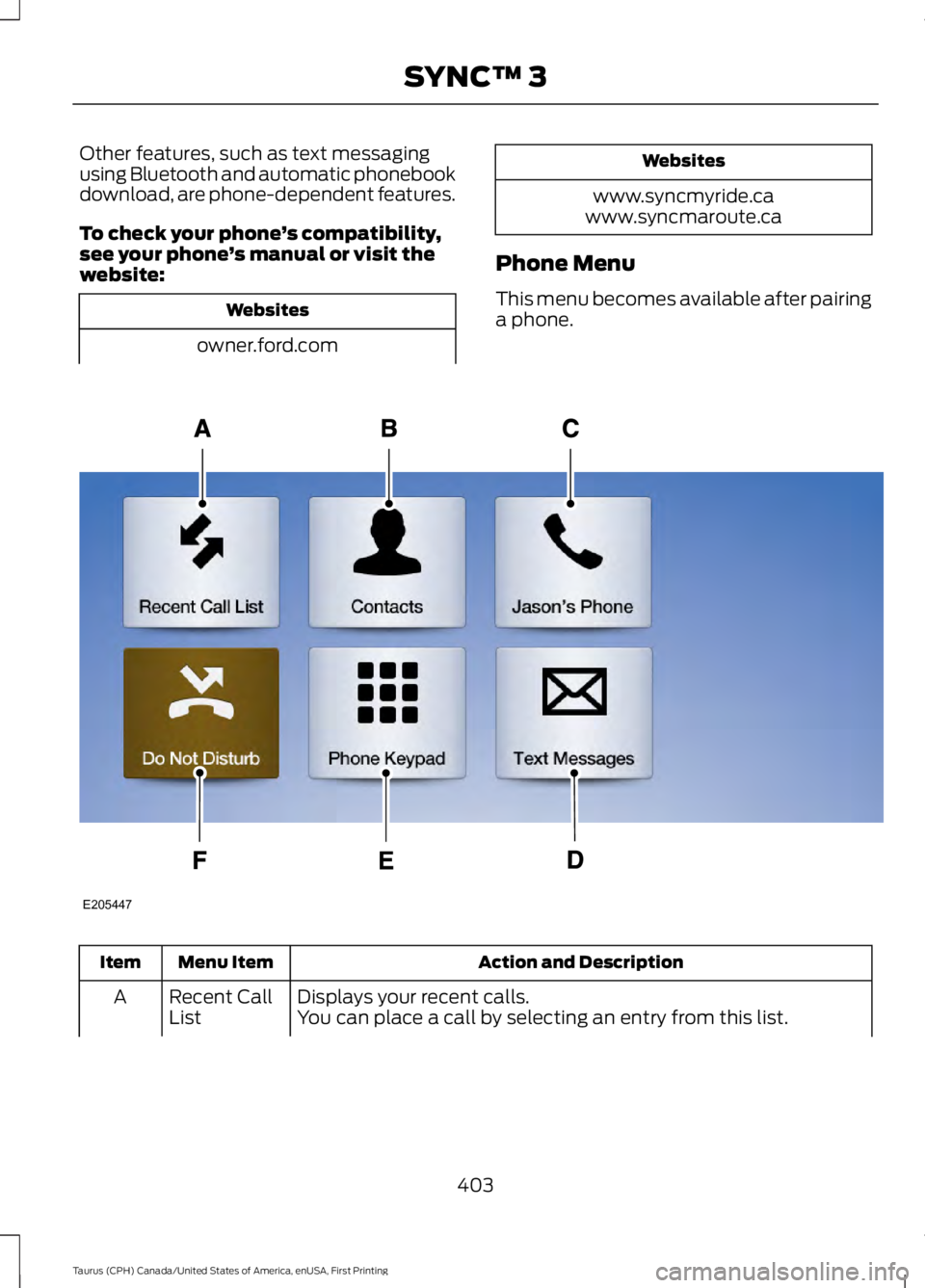
Phone Menu
This menu becomes available after pairinga phone.
Action and DescriptionMenu ItemItem
Displays your recent calls.Recent CallListAYou can place a call by selecting an entry from this list.
403
Taurus (CPH) Canada/United States of America, enUSA, First Printing
SYNC™ 3E205447
Page 409 of 504
Item
Immediately end aphone call. You canalso press thebutton on thesteering wheel.
End Call
Press this to accessthe phone keypad.Keypad
You can switch themicrophone off sothe caller does nothear you.
Mute
Item
PrivacyTransfer the call tothe cell phone orback to SYNC 3.
Text Messaging
Note:Downloading and sending textmessages using Bluetooth are cellphone-dependent features.
Note:Certain features in text messagingare speed-dependent and not availablewhen your vehicle is traveling at speeds over3 mph (5 km/h).
Receiving a Text Message
When a new message arrives, an audible tone sounds and the screen displays apop-up with the caller name and ID, if supported by your cell phone. You can select:
Action and DescriptionMenu Item
Have SYNC 3 read the message to you.Hear It
View the text on the touchscreen.View
To call the sender.Call
You can select from 15 preset messages. Press the messagethat you would like to use and confirm to send the message.SYNC 3 confirms when the message is sent successfully.
Reply
To exit the screen.Close
Smartphone Connectivity (If Equipped)
SYNC 3 allows you to use Apple CarPlayand Android Auto to access your phone.
When you use Apple CarPlay or AndroidAuto, you can:
•Make calls.
•Send and receive messages.
•Listen to music.
•Use your phone's voice assistant.
Apple CarPlay and Android Auto disablesome SYNC 3 features.
Most Apple CarPlay and Android Autofeatures use mobile data.
Apple CarPlay
Apple CarPlay requires an iPhone 5 ornewer with iOS 7.1 or newer. Updating tothe latest iOS version is recommended.
1. Plug your phone into a USB port. SeeUSB Port (page 326).
406
Taurus (CPH) Canada/United States of America, enUSA, First Printing
SYNC™ 3
Page 418 of 504
SiriusXM Traffic and Travel Link
SiriusXM Traffic and Travel Link is availableon vehicles equipped with navigation andonly in select markets. You must activateand subscribe to receive SiriusXM Trafficand Travel Link information. It helps youlocate the best gas prices, find movielistings, get current traffic alerts, view theweather map, get accurate ski conditionsand see current sports scores. See Apps(page 415).
The system calculates a reasonableefficient route based on available speedlimits, traffic, and road conditions. You mayknow a local short cut that is more efficientat a given time than the route provided bySYNC 3, but you should expect a slightdifference in minutes or miles with theSYNC 3 route.
Navigation Map Updates
Annual navigation map updates areavailable for purchase through yourdealership, by calling 1-866-462-8837 inthe United States and Canada or01-800-557-5539 in Mexico. You can alsovisit:
Website
www.navigation.com/sync
You need to specify the make and modelof your vehicle to determine if there is anupdate available.
HERE is the digital map provider for thenavigation application. If you find map dataerrors, you may report them directly toHERE by going towww.here.com/mapcreator. HEREevaluates all reported map errors andresponds with the result of theirinvestigation by e-mail.
Map coverage includes the USA (includingPuerto Rico and the US Virgin Islands),Canada and Mexico.
APPS
The system enables voice, steering wheel,and touch screen control of SYNC 3AppLink enabled smartphone apps. Oncean app is running through AppLink, you cancontrol main features of the app throughvoice commands and steering wheelcontrols.
Note:Available AppLink enabled apps willvary by market.
Note:You must pair and connect yoursmartphone via Bluetooth to SYNC 3 toaccess AppLink.
Note:iPhone users need to connect thephone to the USB port.
Note:For information on available apps,supported smartphone devices andtroubleshooting tips please visit:
Websites
owner.ford.comwww.syncmyride.cawww.syncmaroute.ca
Note:Make sure you have an active accountfor the app that you have downloaded.Some apps will work automatically with nosetup. Other apps will want you to configureyour personal settings and personalize yourexperience by creating stations or favorites.We recommend you do this at home oroutside of your vehicle.
Note:We encourage you to review thesmartphone app’s terms of service andprivacy policies because Ford is notresponsible for your app or its use of data.
415
Taurus (CPH) Canada/United States of America, enUSA, First Printing
SYNC™ 3
Page 422 of 504
Media Player
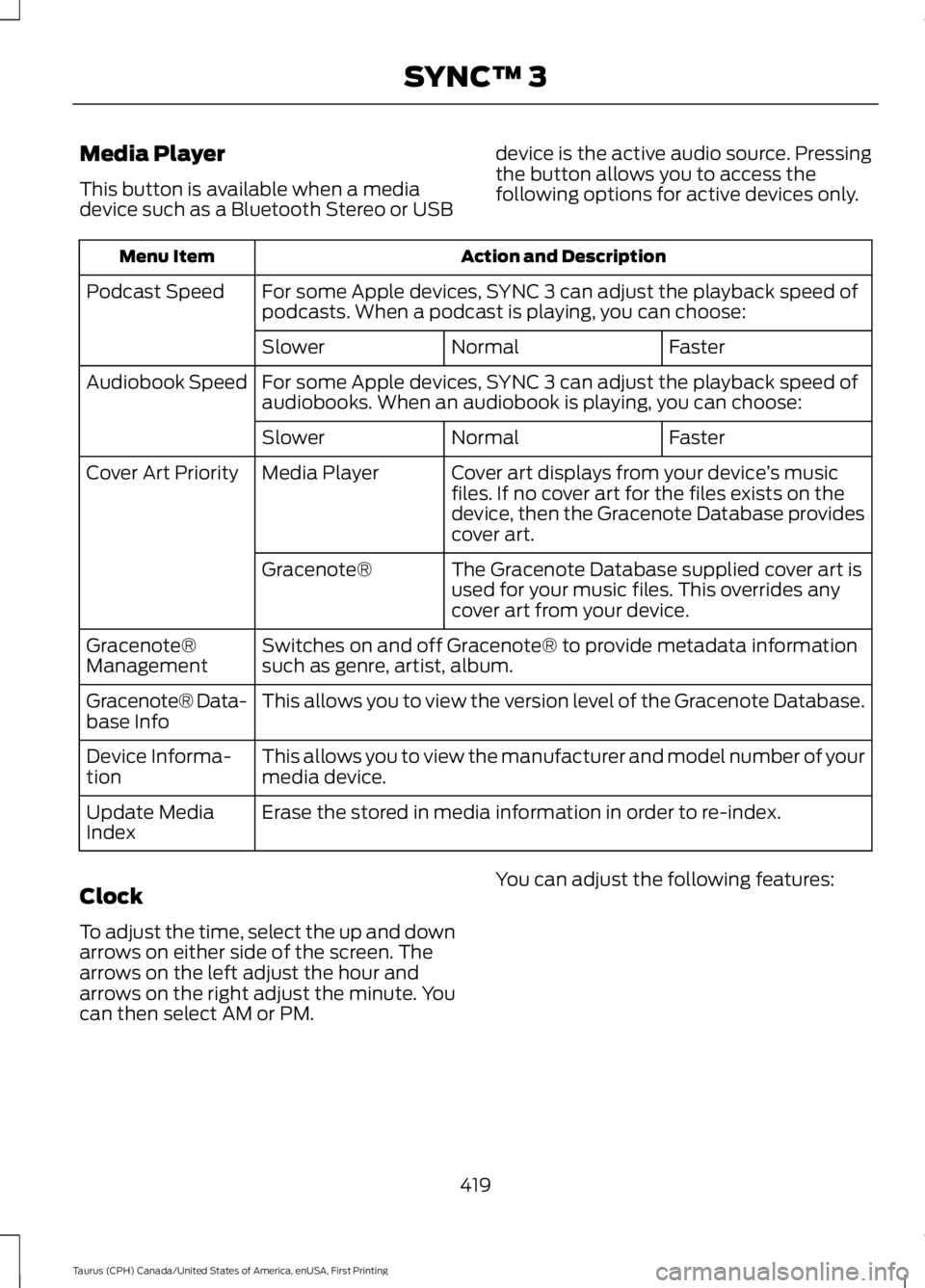
This button is available when a mediadevice such as a Bluetooth Stereo or USB
device is the active audio source. Pressingthe button allows you to access thefollowing options for active devices only.
Action and DescriptionMenu Item
For some Apple devices, SYNC 3 can adjust the playback speed ofpodcasts. When a podcast is playing, you can choose:Podcast Speed
FasterNormalSlower
For some Apple devices, SYNC 3 can adjust the playback speed ofaudiobooks. When an audiobook is playing, you can choose:Audiobook Speed
FasterNormalSlower
Cover art displays from your device’s musicfiles. If no cover art for the files exists on thedevice, then the Gracenote Database providescover art.
Media PlayerCover Art Priority
The Gracenote Database supplied cover art isused for your music files. This overrides anycover art from your device.
Gracenote®
Switches on and off Gracenote® to provide metadata informationsuch as genre, artist, album.Gracenote®Management
This allows you to view the version level of the Gracenote Database.Gracenote® Data-base Info
This allows you to view the manufacturer and model number of yourmedia device.Device Informa-tion
Erase the stored in media information in order to re-index.Update MediaIndex
Clock
To adjust the time, select the up and downarrows on either side of the screen. Thearrows on the left adjust the hour andarrows on the right adjust the minute. Youcan then select AM or PM.
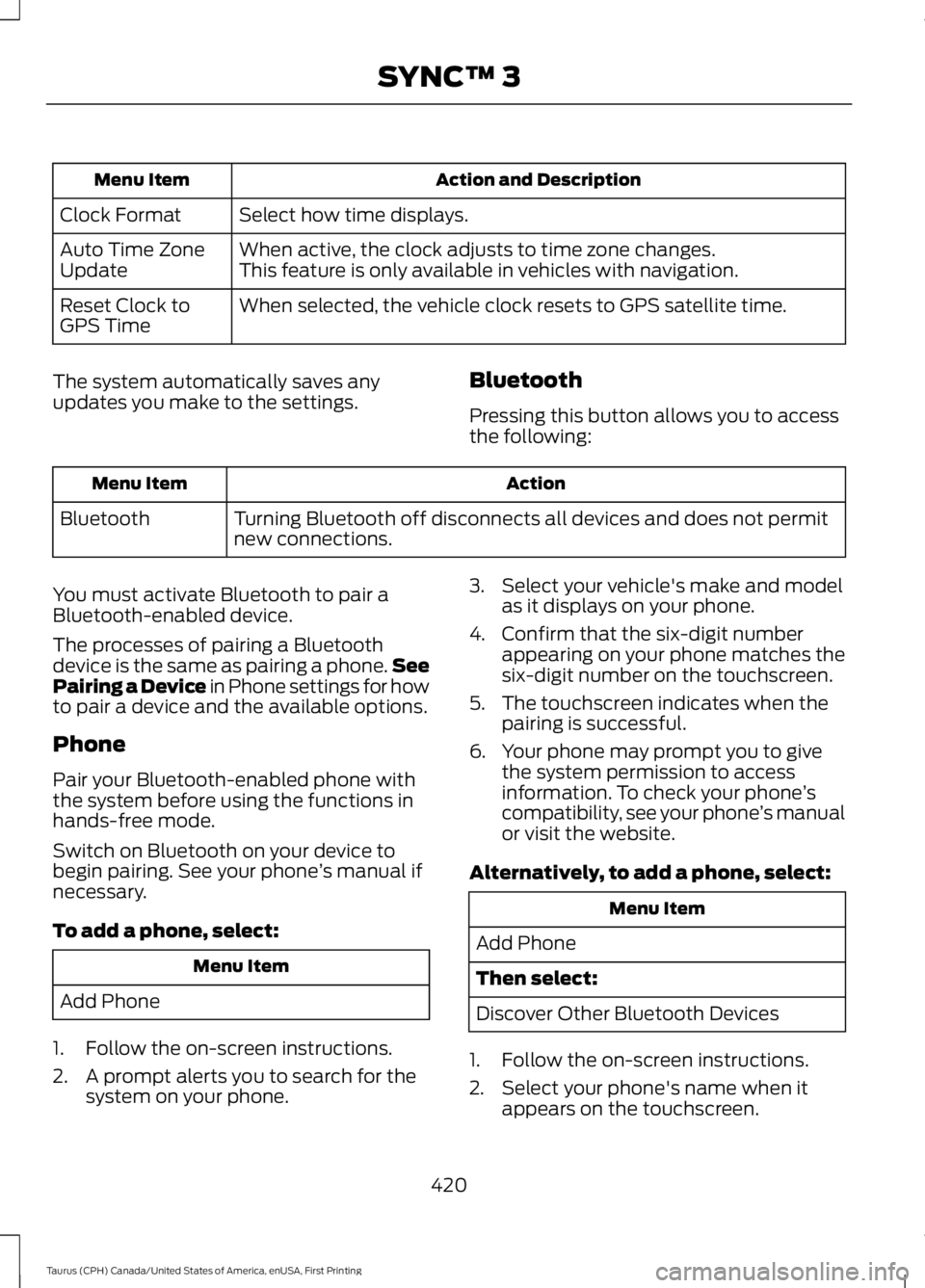
You can adjust the following features:
419
Taurus (CPH) Canada/United States of America, enUSA, First Printing
SYNC™ 3
Page 423 of 504
Action and DescriptionMenu Item
Select how time displays.Clock Format
When active, the clock adjusts to time zone changes.Auto Time ZoneUpdateThis feature is only available in vehicles with navigation.
When selected, the vehicle clock resets to GPS satellite time.Reset Clock toGPS Time
The system automatically saves anyupdates you make to the settings.Bluetooth
Pressing this button allows you to accessthe following:
ActionMenu Item
Turning Bluetooth off disconnects all devices and does not permitnew connections.Bluetooth
You must activate Bluetooth to pair aBluetooth-enabled device.
The processes of pairing a Bluetoothdevice is the same as pairing a phone.SeePairing a Device in Phone settings for howto pair a device and the available options.
Phone
Pair your Bluetooth-enabled phone withthe system before using the functions inhands-free mode.
Switch on Bluetooth on your device tobegin pairing. See your phone’s manual ifnecessary.
To add a phone, select:
Menu Item
Add Phone
1. Follow the on-screen instructions.
2. A prompt alerts you to search for thesystem on your phone.
3. Select your vehicle's make and modelas it displays on your phone.
4. Confirm that the six-digit numberappearing on your phone matches thesix-digit number on the touchscreen.
5. The touchscreen indicates when thepairing is successful.
6. Your phone may prompt you to givethe system permission to accessinformation. To check your phone’scompatibility, see your phone’s manualor visit the website.
Alternatively, to add a phone, select:
Menu Item
Add Phone
Then select:
Discover Other Bluetooth Devices
1. Follow the on-screen instructions.
2. Select your phone's name when itappears on the touchscreen.
420
Taurus (CPH) Canada/United States of America, enUSA, First Printing
SYNC™ 3
Page 424 of 504
3. Confirm that the six-digit numberappearing on your phone matches thesix-digit number on the touchscreen.
4. The touchscreen indicates when thepairing is successful.
5. Your phone may prompt you to givethe system permission to accessinformation. To check your phone’scompatibility, see your phone’s manualor visit the website.
Other features, such as text messagingusing Bluetooth and automatic phonebookdownload, are phone-dependent features.
To check your phone’s compatibility,see your phone’s manual or visit thewebsite:
Website
owner.ford.comwww.syncmyride.cawww.syncmaroute.ca
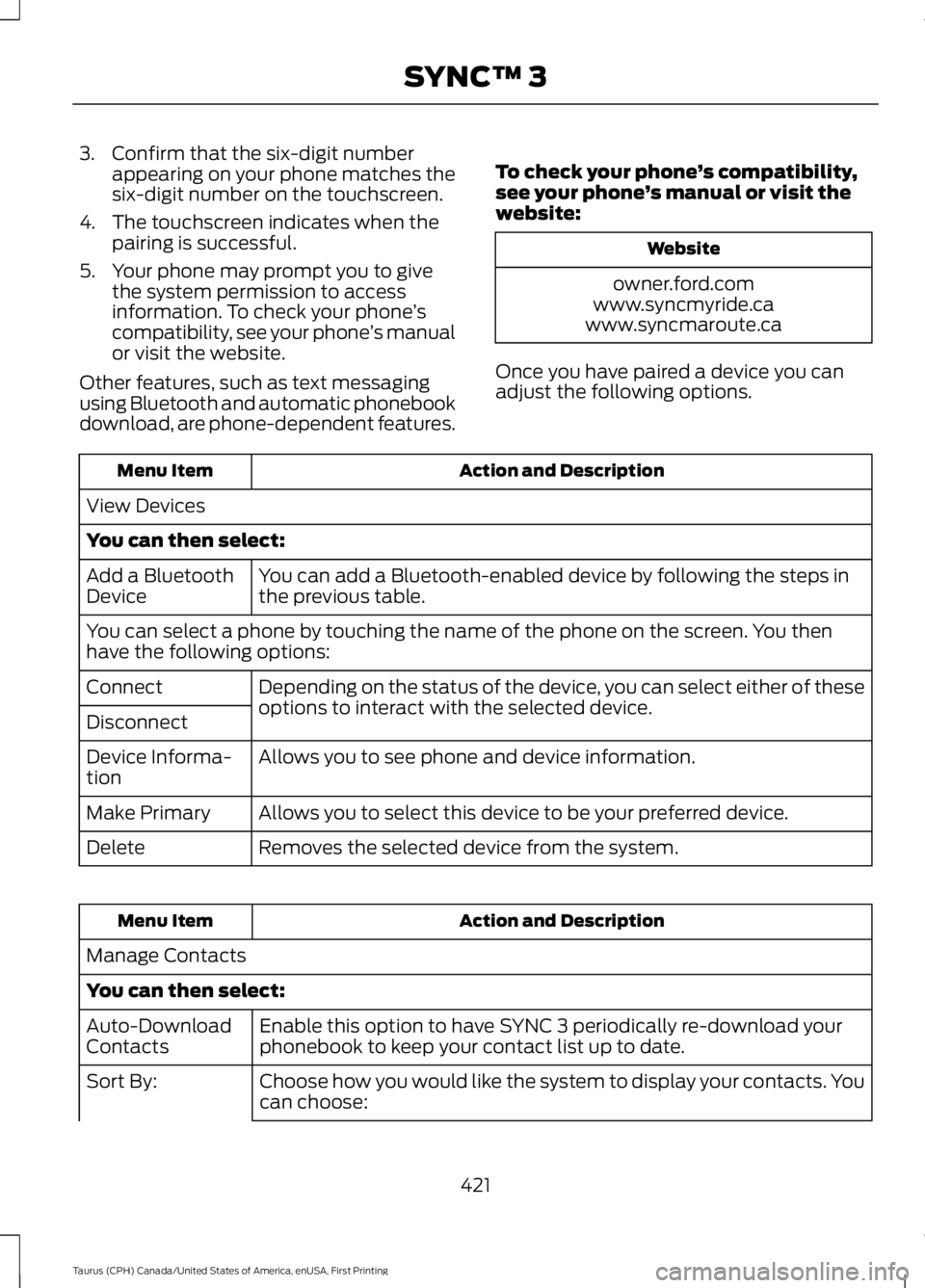
Once you have paired a device you canadjust the following options.
Action and DescriptionMenu Item
View Devices
You can then select:
You can add a Bluetooth-enabled device by following the steps inthe previous table.Add a BluetoothDevice
You can select a phone by touching the name of the phone on the screen. You thenhave the following options:
Depending on the status of the device, you can select either of theseoptions to interact with the selected device.Connect
Disconnect
Allows you to see phone and device information.Device Informa-tion
Allows you to select this device to be your preferred device.Make Primary
Removes the selected device from the system.Delete
Action and DescriptionMenu Item
Manage Contacts
You can then select:
Enable this option to have SYNC 3 periodically re-download yourphonebook to keep your contact list up to date.Auto-DownloadContacts
Choose how you would like the system to display your contacts. Youcan choose:Sort By:
421
Taurus (CPH) Canada/United States of America, enUSA, First Printing
SYNC™ 3