2017 CHEVROLET EXPRESS CARGO VAN radio
[x] Cancel search: radioPage 145 of 346
Chevrolet Express Owner Manual (GMNA-Localizing-U.S./Canada/Mexico-9967827) - 2017 - crc - 5/2/16
144 Infotainment System
Files accessed from the rootdirectory of a CD display asF1 ROOT.
Empty Folder
Folders that do not contain files areskipped, and the player advances tothe next folder that contains files.
Order of Play
Compressed audio files areaccessed in the following order:
.Playlists (Px).
.Files stored in the root directory.
.Files stored in folders in the rootdirectory.
Tracks are played in the followingorder:
.Play begins from the first track inthe first playlist and continuessequentially through all tracks ineach playlist. When the lasttrack of the last playlist hasplayed, play continues from thefirst track of the first playlist.
.Play begins from the first track inthe first folder and continuessequentially through all tracks in
each folder. When the last trackof the last folder has played,play continues from the firsttrack of the first folder.
File System and Naming
The song name that displays is thesong name contained in the ID3 tag.If the song name is not present inthe ID3 tag, then the radio displaysthe file name without the extension(such as .mp3) as the track name.
Track names longer than 32characters or four pages areshortened. The display does notshow parts of words on the lastpage of text, and the extension ofthe file name is not displayed.
Preprogrammed Playlists
CDs that have preprogrammedplaylists created using WinAmp®,MusicMatch®,orRealPlayer®
software can be accessed; however,there is no playlist-editing capabilityusing the radio. These playlists aretreated as special folders containingcompressed audio song files.
Playlists that have an .m3u or .plsfile extension and are stored on aUSB device may be supported bythe radio with a USB port.
Playlists can be changed by using
the softkeys below theScand
cTtabs, thefknob, the©SEEK
button, or the¨SEEK button. An
MP3 CD-R or CD-RW that has beenrecorded without using file folderscan be played. If a CD-R or CD-RWcontains more than the maximum of50 folders, 15 playlists, and512 folders and files, the playerallows access and navigates up tothe maximum, but all items over themaximum are not accessible.
Playing an MP3
4:Press to display additional textinformation related to the currentsong. If information is available, thesong title information displays onthe top line of the display and artistinformation displays on the bottomline. When information is notavailable, NO INFO displays.
f:Turn to select MP3s on the CDcurrently playing.
Page 146 of 346
Chevrolet Express Owner Manual (GMNA-Localizing-U.S./Canada/Mexico-9967827) - 2017 - crc - 5/2/16
Infotainment System 145
©SEEK :Press to go to the start ofthe track, if more than 10 secondshave played. Press and hold orpress multiple times to continuemoving backward through tracks.
¨SEEK :Press to go to the nexttrack. Press and hold or pressmultiple times to continue movingforward through tracks.
sREV :Press and hold to reverseplayback quickly. Sound is heard atareducedvolumeandtheelapsed
time of the file displays. Releases
REV to resume playing.
\FWD :Press and hold toadvance playback quickly. Sound isheard at a reduced volume and theelapsed time of the file displays.
Release\FWD to resume
playing. The elapsed time of the filedisplays.
Sc:Press the softkey below theSctab to go to the first track inthe previous folder.
cT:Press the softkey below thecTtab to go to the first track inthe next folder.
RDM :For Radios with CD/MP3.Press to listen to tracks in random,rather than sequential order.
To u s e r a n d o m :
1. Press the softkey under theRDM tab until Random CurrentDisc displays.
2. Press the softkey again to turnoff random play.
h:Press the softkey below thehtab to play the files in order byartist or album.
The player scans the disc to sort thefiles by artist and album ID3 taginformation. It can take severalminutes to scan the disc dependingon the number of files on the disc.The radio may begin playing while itis scanning in the background.
When the scan is finished, the discbegins playing files in order byartist. The current artist playing isshown on the second line of thedisplay. Once all songs by that artistare played, the player moves to thenext artist in alphabetical order andbegins playing files by that artist.
To l i s t e n t o f i l e s b y a n o t h e r a r t i s t ,press the softkey below either arrowtab. The disc goes to the next orprevious artist in alphabetical order.Continue pressing either softkeybelow the arrow tab until the desiredartist displays.
To c h a n g e f r o m p l a y b a c k b y a r t i s t t oplayback by album:
1. Press the softkey below theSort By tab.
2. Press one of the softkeysbelow the Album tab from thesort screen.
3. Press the softkey below theBack tab to return to the mainmusic navigator screen.
The album name displays on thesecond line between the arrows,and songs from the current albumbegin to play. Once all songs fromthat album have played, the playermoves to the next album inalphabetical order on the CD andbegins playing MP3s from thatalbum.
Page 147 of 346
Chevrolet Express Owner Manual (GMNA-Localizing-U.S./Canada/Mexico-9967827) - 2017 - crc - 5/2/16
146 Infotainment System
To e x i t m u s i c n a v i g a t o r m o d e , p r e s sthe softkey below the Back tab toreturn to normal MP3 playback.
CD Player Messages
CHECK DISC :If this messagedisplays and/or the CD ejects, itcould be for one of the followingreasons:
.It is very hot. When thetemperature returns to normal,the CD should play.
.The road is very rough. Whenthe road becomes smoother, theCD should play.
.The CD is dirty, scratched, wet,or upside down.
.The air is very humid. If so, waitabout an hour and try again.
.There was a problem whileburning the CD.
.The label is caught in the CDplayer.
If the CD is not playing correctly, forany other reason, try a knowngood CD.
If any error occurs repeatedly or ifan error cannot be corrected,contact your dealer. If the radiodisplays an error message, write itdown and provide it to your dealerwhen reporting the problem.
Auxiliary Devices
Using the Auxiliary Input Jack
Radios with an auxiliary input jackon the lower right side of thefaceplate can connect to an externalaudio device such as an iPod®,MP3 player, or CD player, for use asanother source for audio listening.This input jack is not an audiooutput; do not plug headphones intothe front auxiliary input jack.
Drivers are encouraged to set upany auxiliary device while thevehicle is in P (Park). SeeDefensive Driving0165for moreinformation on driver distraction.
To u s e a p o r t a b l e a u d i o p l a y e r ,connect a 3.5 mm (1/8 in) cable tothe radio's front auxiliary input jack.When a device is connected, press
the radio CD/AUX button to beginplaying audio from the device overthe vehicle speakers.
For optimal sound quality, increasethe portable audio device's volumeto the loudest level.
It is always best to power theportable audio device through itsown battery while playing.
O:Turn clockwise orcounterclockwise to increase ordecrease the volume of the portableplayer. Additional volumeadjustments might have to be madefrom the portable device if thevolume is not loud or soft enough.
BAND :If equipped, press to listento the radio when a portable audiodevice is playing. The portableaudio device continues playing.
CD/AUX :If equipped, press to playaCDwhenaportableaudiodeviceis playing. Press again and thesystem begins playing audio fromthe connected portable audio player.If a portable audio player is notconnected,“No Input Device Found”displays.
Page 148 of 346
Chevrolet Express Owner Manual (GMNA-Localizing-U.S./Canada/Mexico-9967827) - 2017 - crc - 5/2/16
Infotainment System 147
SRCE :If equipped, press to listento the radio when a portable audiodevice is playing. The portableaudio device continues playing.
Press to play a CD when a portableaudio device is playing. Press againand the system begins playingaudio from the connected portableaudio player. If a portable audioplayer is not connected,“No InputDevice Found”displays.
Using the USB Port
Radios with a USB port can controlaUSBstoragedeviceoraniPod®
using the radio buttons and knobs.See“Playing an MP3”inCD Player0141for information about how toconnect and control a USB storagedevice or an iPod.
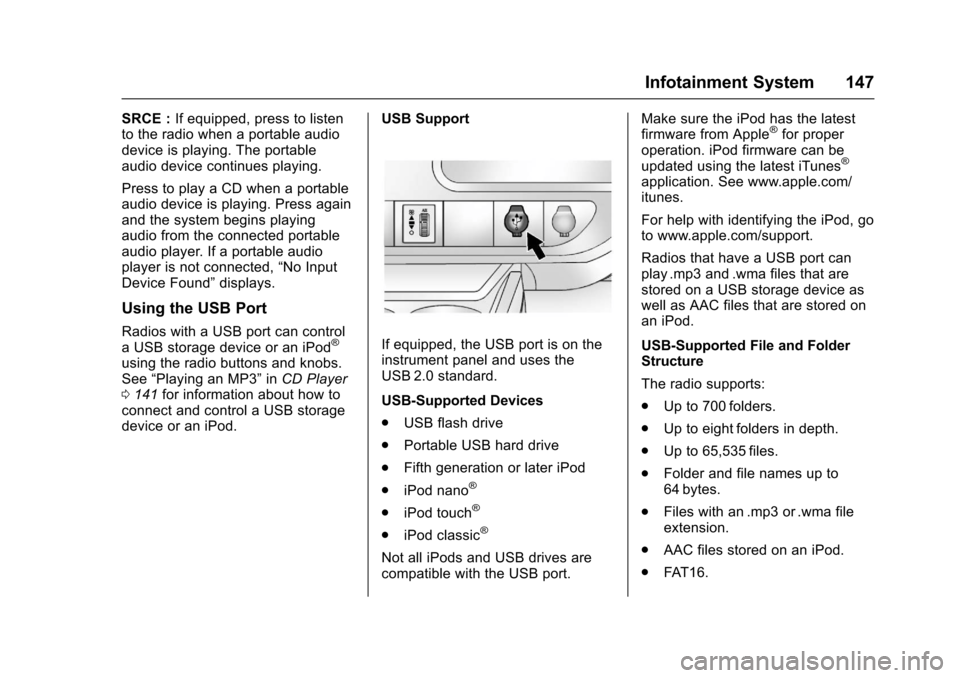
USB Support
If equipped, the USB port is on theinstrument panel and uses theUSB 2.0 standard.
USB-Supported Devices
.USB flash drive
.Portable USB hard drive
.Fifth generation or later iPod
.iPod nano®
.iPod touch®
.iPod classic®
Not all iPods and USB drives arecompatible with the USB port.
Make sure the iPod has the latestfirmware from Apple®for properoperation. iPod firmware can beupdated using the latest iTunes®
application. See www.apple.com/itunes.
For help with identifying the iPod, goto www.apple.com/support.
Radios that have a USB port canplay .mp3 and .wma files that arestored on a USB storage device aswell as AAC files that are stored onan iPod.
USB-Supported File and FolderStructure
The radio supports:
.Up to 700 folders.
.Up to eight folders in depth.
.Up to 65,535 files.
.Folder and file names up to64 bytes.
.Files with an .mp3 or .wma fileextension.
.AAC files stored on an iPod.
.FAT 1 6 .
Page 149 of 346
Chevrolet Express Owner Manual (GMNA-Localizing-U.S./Canada/Mexico-9967827) - 2017 - crc - 5/2/16
148 Infotainment System
.FAT 3 2 .
Connecting a USB Storage
Device or iPod
The USB port can be used tocontrol an iPod or a USB storagedevice.
To c o n n e c t a U S B s t o r a g e d e v i c e ,connect the device to the USB porton the instrument panel.
To c o n n e c t a n i P o d , c o n n e c t o n eend of the USB cable that camewith the iPod to the iPod’sdockconnector and connect the otherend to the USB port on theinstrument panel. If the vehicle is onand the USB connection works,“OKto disconnect”and a GM logo mayappear on the iPod, and iPodappears on the radio display. TheiPod music appears on the radiodisplay and begins playing.
The iPod charges while it isconnected to the vehicle if thevehicle is in the ACC/ACCESSORYor ON/RUN position. When thevehicle is turned off, the iPod
automatically powers off and will notcharge or draw power from thevehicle's battery.
If you have an older iPod model thatis not supported, it can still be usedby connecting it to the auxiliaryinput jack using a standard 3.5 mm(1/8 in) stereo cable. See“Using theAuxiliary Input Jack”previously inthis section.
Using the Radio to Control a
USB Storage Device or iPod
The radio can control a USBstorage device or an iPod using theradio buttons and knobs, anddisplay song information on theradio display.
f:Turn to select files.
©SEEK :Press to go to the start ofthe track, if more than 10 secondshave played. Press and hold orpress multiple times to continuemoving backward through tracks.
¨SEEK :Press to go to the nexttrack. Press and hold or pressmultiple times to continue movingforward through tracks.
sREV :Press and hold to reverseplayback quickly. Sound is heard at
areducedvolume.ReleasesREV
to resume playing. The elapsed timeof the file displays.
\FWD :Press and hold toadvance playback quickly. Sound isheard at a reduced volume. Release\FWD to resume playing. Theelapsed time of the file displays.
4:Press to display additionalinformation about the selected track.
Using Softkeys to Control a
USB Storage Device or iPod
The five softkeys below the radiodisplay are used to control thefunctions listed below.
To u s e t h e s o f t k e y s :
1. Press the first or fifth softkeybelow the radio display todisplay the functions listedbelow, or press the softkeybelow the function if it iscurrently displayed.
2. Press the softkey below the tabwith the function on it to usethat function.
Page 158 of 346
Chevrolet Express Owner Manual (GMNA-Localizing-U.S./Canada/Mexico-9967827) - 2017 - crc - 5/2/16
Infotainment System 157
Transferring Audio to theBluetooth System from a CellPhone
During a call with the audio on the
cell phone, pressb/g.Theaudio
transfers to the vehicle. If the audiodoes not transfer to the vehicle, usethe audio transfer feature on the cellphone. See your cell phonemanufacturer's user guide for moreinformation.
Voice Pass-Thru
Voice pass-thru allows access to thevoice recognition commands on thecell phone. See your cell phonemanufacturer's user guide to see ifthe cell phone supports this feature.
To a c c e s s c o n t a c t s s t o r e d i n t h e c e l lphone:
1. Press and holdb/gfor
two seconds.
2. Say“Bluetooth.”This commandcan be skipped.
3. Say“Vo i c e .”The systemresponds“OK, accessing
The cell phone's normal promptmessages will go through their cycleaccording to the phone's operatinginstructions.
Dual Tone Multi-Frequency
(DTMF) Tones
The Bluetooth system can sendnumbers and the numbers stored asname tags during a call. You canuse this feature when calling amenu-driven phone system.Account numbers can also bestored for use.
Sending a Number or Name TagDuring a Call
1. Pressb/g.Thesystem
responds“Ready,”followed byatone.
2. Say“Dial.”
3. Say the number or name tagto send.
Clearing the System
Unless information is deleted out ofthe in-vehicle Bluetooth system, itwill be retained indefinitely. Thisincludes all saved name tags in the
phone book and phone pairinginformation. For information on howto delete this information, see theprevious section“Deleting a PairedPhone”and the previous sectionson deleting name tags.
Other Information
The Bluetooth®word mark andlogos are owned by the Bluetooth®
SIG, Inc. and any use of such marksby General Motors is under license.Other trademarks and trade namesare those of their respective owners.
SeeRadio FrequencyStatement0322.
Page 166 of 346
Chevrolet Express Owner Manual (GMNA-Localizing-U.S./Canada/Mexico-9967827) - 2017 - crc - 5/6/16
Driving and Operating 165
Driving Information
Distracted Driving
Distraction comes in many formsand can take your focus from thetask of driving. Exercise goodjudgment and do not let otheractivities divert your attention awayfrom the road. Many localgovernments have enacted lawsregarding driver distraction. Becomefamiliar with the local laws inyour area.
To a v o i d d i s t r a c t e d d r i v i n g , k e e pyour eyes on the road, keep yourhands on the steering wheel, andfocus your attention on driving.
.Do not use a phone indemanding driving situations.Use a hands-free method toplace or receive necessaryphone calls.
.Watch the road. Do not read,take notes, or look upinformation on phones or otherelectronic devices.
.Designate a front seatpassenger to handle potentialdistractions.
.Become familiar with vehiclefeatures before driving, such asprogramming favorite radiostations and adjusting climatecontrol and seat settings.Program all trip information intoany navigation device prior todriving.
.Wait until the vehicle is parkedto retrieve items that have fallento the floor.
.Stop or park the vehicle to tendto children.
.Keep pets in an appropriatecarrier or restraint.
.Avoid stressful conversationswhile driving, whether with apassenger or on a cell phone.
{Warning
Ta k i n g y o u r e y e s o f f t h e r o a d t o o
long or too often could cause a
crash resulting in injury or death.
Focus your attention on driving.
Refer to the infotainment section formore information on using thatsystem and the navigation system,if equipped, including pairing andusing a cell phone.
Defensive Driving
Defensive driving means“alwaysexpect the unexpected.”The firststep in driving defensively is to wearthe safety belt. SeeSafetyBelts046.
.Assume that other road users(pedestrians, bicyclists, andother drivers) are going to becareless and make mistakes.Anticipate what they might doand be ready.
.Allow enough following distancebetween you and the driver infront of you.
.Focus on the task of driving.
Page 178 of 346
Chevrolet Express Owner Manual (GMNA-Localizing-U.S./Canada/Mexico-9967827) - 2017 - crc - 5/6/16
Driving and Operating 177
1(ACC/ACCESSORY):This is theposition in which you can operatethings like the radio and thewindshield wipers when the engineis off.
2(ON/RUN):This position can beused to operate the electricalaccessories and to display someinstrument cluster warning andindicator lights. This position canalso be used for service anddiagnostics, and to verify the properoperation of the malfunctionindicator lamp as may be requiredfor emission inspection purposes.The switch stays in this positionwhen the engine is running.
If you leave the key in the ACC/ACCESSORY or ON/RUN positionwith the engine off, the battery couldbe drained. You may not be able tostart the vehicle if the battery isallowed to drain for an extendedperiod of time.
3(START):This is the position thatstarts the engine. When the enginestarts, release the key. The ignitionswitch returns to ON/RUN fordriving.
Awarningtonewillsoundwhenthedriver door is opened, the ignition isin ACC/ACCESSORY or LOCK/OFFand the key is in the ignition.
Starting the Engine
If the vehicle has a diesel engine,see the Duramax dieselsupplement.
To p l a c e t h e t r a n s m i s s i o n i n t h eproper gear:
Move the shift lever to P (Park) orN(Neutral). The engine will not startin any other position. To restart theengine when the vehicle is alreadymoving, use N (Neutral) only.
Caution
If you add electrical parts or
accessories, you could change
the way the engine operates. Any
resulting damage would not be
covered by the vehicle warranty.
SeeAdd-On Electrical
Equipment0212.
Caution
Do not try to shift to P (Park) if the
vehicle is moving. If you do, you
could damage the transmission.
Shift to P (Park) only when the
vehicle is stopped.
Caution
If the steering wheel is turned
until it reaches the end of its
travel, and is held in that position
while starting the vehicle, damage
may occur to the hydraulic power
steering system and there may be
loss of power steering assist.
Starting Procedure
1. With your foot off theaccelerator pedal, turn theignition key to START. Whenthe engine starts, let go of thekey. The idle speed will godown as your engine getswarm. Do not race the engineimmediately after starting it.