2017 CHEVROLET COLORADO lock
[x] Cancel search: lockPage 155 of 419
Chevrolet Colorado Owner Manual (GMNA-Localizing-U.S./Canada/Mexico-10122675) - 2017 - crc - 8/22/16
154 Infotainment System
The infotainment system has built-infeatures intended to help avoiddistraction by disabling somefunctions when driving. Thesefunctions may gray out when theyare unavailable. Many infotainmentfeatures are also available throughthe instrument cluster and steeringwheel controls.
Before driving:
.Become familiar with theoperation, faceplate buttons, andscreen buttons.
.Set up the audio by presettingfavorite stations, setting thetone, and adjusting thespeakers.
.Set up phone numbers inadvance so they can be calledeasily by pressing a singlebutton or by using a single voicecommand if equipped withBluetooth phone capability.
SeeDefensive Driving0215.
To p l a y t h e i n f o t a i n m e n t s y s t e m w i t hthe ignition off, seeRetainedAccessory Power (RAP)0237.
Theft-Deterrent Feature
TheftLock®is designed todiscourage theft of the vehicle'sradio by learning a portion of theVehicle Identification Number (VIN).The radio does not operate if it isstolen or moved to a differentvehicle.
Page 159 of 419

Chevrolet Colorado Owner Manual (GMNA-Localizing-U.S./Canada/Mexico-10122675) - 2017 - crc - 8/22/16
158 Infotainment System
4.6
.Radio: Press and release togo to the next station orchannel. Press and hold tofast seek the next strongeststation or channel.
.USB/BT Music/Pictures:Press and hold to go to thenext content. Press andhold to fast forward.
5.#
.Press and release toaccess the phone screen,answer an incoming call,or access the device homescreen. Press and hold toaccess Press to Talk.
Home Page (Base Radio)
Home Page Features
The infotainment system displays aHome Page to access all of theapplications. Turn the MENU knobto highlight feature icons. Press theMENU knob to access the feature’soptions.
Va r i o u s f u n c t i o n s a r e d i s a b l e d w h e nthe vehicle is moving.
AUDIO :Select the AUDIO screenicon to display the active sourcepage. The sources available areAM, FM, SXM (if equipped), USB/iPod, AUX Input, and BluetoothAudio (if equipped). SeeAM-FMRadio (Base Radio)0161orAM-FM Radio (Base Radio withTo u c h s c r e e n )0163,Satellite Radio(Base Radio)0164orSatelliteRadio (Base Radio withTo u c h s c r e e n )0165,Auxiliary Jack0179,andBluetooth Audio0180.
PHONE :Select the PHONE screenicon to display the Phone mainpage. SeeBluetooth (Overview)0187orBluetooth (InfotainmentControls - Base Radio)0188orBluetooth (Voice Recognition)0192orBluetooth (Infotainment Controls -Base Radio withTo u c h s c r e e n )0197.
NAV (Navigation, If Equipped) :Select the NAV screen icon todisplay the OnStar Turn-by-TurnNavigation. SeeOnStar Overview0397,ifequipped.
SETTINGS :Select the SETTINGSscreen icon to display the Settingsmain page. See“Setting RadioPreferences”following.
Pandora (If Equipped)
Select the PANDORA icon to beginPandora. SeePandora InternetRadio0167.
Setting Radio Preferences
Select the SETTINGS screen iconto display the Settings menu andthe following may display:
Time and Date :SeeClock0106.
Language (Current Language) :This will set the display language inthe radio and instrument cluster.Select to display a list of languages.
SelectoBACK to go back to the
previous menu.
Valet Mode:
Using the circular numeric keypad,enter a four-digit code:
1. Turn the MENU knob tohighlight a number.
Page 160 of 419
Chevrolet Colorado Owner Manual (GMNA-Localizing-U.S./Canada/Mexico-10122675) - 2017 - crc - 8/22/16
Infotainment System 159
2. Press the MENU knob to selectit. Do this for each one of thefour digits. Select Enter to go tothe confirmation screen.
3. Re-enter the four-digit code.Select LOCK to lock thesystem.
4. Enter the four-digit code to
unlock the system. Selecto
BACK to go back to theprevious menu.
Radio :See“Radio Setup”later inthis section.
Vehicle :SeeVehiclePersonalization0139.
Display :Press the MENU knob toturn the display on or off.
Return to Factory Settings :See“Return to Factory Settings”later inthis section.
Software Information (IfEquipped) :Press the MENU knobto select Save Vehicle Info to USB.Press the MENU knob again to startdownloading the vehicle informationto the USB.
Radio Setup
Press the RADIO button and thefollowing may display:
Manage Favorites:
.Turn the MENU knob and pressto select a favorite.
.To d e l e t e a f a v o r i t e , p r e s sthe menu key just below theDELETE menu item.
.To m o v e a f a v o r i t e , p r e s s t h emenu key just below theMOVE menu item. Turn theMENU knob to select a newlocation, then press themenu key just below theDROP menu item to selectthe new location.
.SelectoBACK to go back to
the previous menu.
Number of Favorites Shown :Select Auto and the system willautomatically adjust the number offavorite pages when favorites areadded and removed, or select anumber from 5–25 to manuallyadjust the number of favoritesshown.
Audible Touch Feedback (IfEquipped) :Select Audible TouchFeedback to turn feedback off or on.
Auto Volume (If Equipped) :Thisfeature adjusts the volume based onvehicle speed. The options are Off,Low, Medium-Low, Medium,Medium-High, or High. Select thedesired volume.
Maximum Startup Volume :Thisfeature sets the maximum startupvolume. If the vehicle is started andthe volume is greater than this level,the volume is adjusted to this level.To s e t t h e m a x i m u m s t a r t u p v o l u m e ,Turn the MENU knob to increase ordecrease.
Rear Camera (If Equipped)
From the Rear Camera menu item,the following may display:
Return to Factory Settings
Select Return to Factory Settingsand the following may display:
Restore Vehicle Settings :Thisoption will restore factory vehiclepersonalization settings. SelectRestore Vehicle Settings. A screen
Page 169 of 419
Chevrolet Colorado Owner Manual (GMNA-Localizing-U.S./Canada/Mexico-10122675) - 2017 - crc - 8/22/16
168 Infotainment System
Using an iPhone
1. Plug the device into the USBport. The phone screen mustbe unlocked.
2. Launch Pandora from theHome Page by selecting thePandora icon.
If nothing happens when theavailable Pandora screen button istouched, download the latestPandora application and retry.
The login screen may display on thedevice.
Using an Android or BlackBerryPhone
The BlackBerry phone must beunlocked to launch Pandora service.
1. Pair the phone using Bluetooth.
2. Launch Pandora by selectingPandora on the Home Page.
If nothing happens when theavailable Pandora screen button isselected, download the latestPandora application and retry.
The login screen may display on thedevice.
Pandora Menus
Press MENU.
Pandora has a menu with thefollowing:
To n e S e t t i n g s :Select to adjust thetone settings. SeeAM-FM Radio(Base Radio)0161orAM-FMRadio (Base Radio withTo u c h s c r e e n )0163.
Bookmark Artist :Select tobookmark the artist.
Bookmark Song :Select tobookmark the song.
Auto Volume :This feature sets theauto volume based on the speed ofthe vehicle and noise in the vehicle.SeeAM-FM Radio (Base Radio)0161orAM-FM Radio (Base Radiowith Touchscreen)0163.
Pandora Features
Pandora service has features to ratetracks, skip tracks, or changestations.
}:When selected during a track, achoice displays to bookmark theartist or track. This sends thebookmark to the Pandora account.
,:When selected, Pandora storesthis information, changes to the nexttrack, and does not play this trackon this station again. This helpsPandora choose which tracksshould not play on this station. Thisfeature is only available on usercreated stations.
-:When selected, Pandora stores
this information and-is
highlighted for the remainder of thetrack. This helps Pandora choosewhich tracks should play on thisstation.
d:When selected, Pandorachanges to the next track.
rorj:Select to play or pauseplayback.
Pandora Skip Limit
Pandora limits the number of skipsallowed on their service. When the
skip limit is reached,,or the next
arrow will not skip the currently
playing track, but the,feedback
will be recorded.
Page 170 of 419
Chevrolet Colorado Owner Manual (GMNA-Localizing-U.S./Canada/Mexico-10122675) - 2017 - crc - 8/22/16
Infotainment System 169
Advertisement on Pandora
Pandora may displayadvertisements. The artist nameand track title will not be displayedand the skip track button will not beavailable.
Pandora Troubleshooting
Unable to Connect Device toVehicle
If the device is unable to connect tothe USB or Bluetooth:
1. Turn the vehicle off.
2. Take the Remote Keyless Entry(RKE) transmitter at least 6 m(20 ft) away from the vehicle.
3. Wait about 30 seconds, and tryto connect the device again.SeeBluetooth (Overview)0187orBluetooth(Infotainment Controls - BaseRadio)0188orBluetooth(Voice Recognition)0192orBluetooth (InfotainmentControls - Base Radio withTo u c h s c r e e n )0197.
Unable to Start Pandora
If the device is unable to launchPandora:
.Check that the latest version ofPandora is installed.
.Check that there is an activeaccount logged into Pandora.
.Have at least one stationcreated.
.For Android and BlackBerrydevices, check that the device ispaired with the vehicle, andwhether the device displays inthe Connected phone sourceslist under the Phone icon fromthe Home Page.
.For an iPhone, check that theUSB cable is connected to theUSB port and the screen isunlocked.
.Close Pandora on the deviceand launch again. Devices thatallow multitasking may requirean extra step to quit the Pandoraapplication. See the cell phonemanufacturer's user guide.
Thumbs Up or Thumbs DownError
If there is an error trying to rate a
track with,or-,themessage
“Thumbs Down Error”or“ThumbsUp Error”will display. Touch OK todismiss.
Loss of Audio
Loss of Pandora audio can happenin different ways:
.Weak or lost data connection.
.Device needs to be charged.
.Application needs to berelaunched.
.Connection between phone andradio lost.
.An iPhone is connected to bothBluetooth and the USB port.
Playback can be resumed fromalossofaudiobydoubletapping the iPhone home buttonthen scrolling through the iconsto find an icon that allows achange of flow betweenBluetooth and USB cable.
Page 180 of 419

Chevrolet Colorado Owner Manual (GMNA-Localizing-U.S./Canada/Mexico-10122675) - 2017 - crc - 8/22/16
Infotainment System 179
.Clock, Temp. Display:Allows selection of On orOff to show the clock andtemperature on the fullscreen.
.Display Settings: Adjustsfor Brightness and Contrast.
3. Touch0to exit.
Auxiliary Jack
If equipped, an AUX jack is locatedon the center stack or in the centerconsole storage. SeeCenterConsole Storage0101.
Possible auxiliary audio sourcesinclude:
.Laptop computer
.Audio music player
This jack is not an audio output. Donot plug headphones into theauxiliary input jack. Auxiliarydevices should be set up while thevehicle is in P (Park).
Connect a 3.5 mm (1/8 in) cablefrom the auxiliary device to theauxiliary input jack.
Base Radio
Playing from the AUX Jack
An auxiliary device is playedthrough the audio system andcontrolled through the device itself.
If an auxiliary device has alreadybeen connected, but a differentsource is currently active, press theMEDIA faceplate button repeatedlyto scroll through all of the availableaudio source screens, until the AUXsource screen is shown.
AUX Menu
Press the MENU knob to display theAUX menu and the following maydisplay:
To n e S e t t i n g s :Select to adjustBass, Midrange, Treble, Balance,Fade, and EQ (Equalizer). See“To n e S e t t i n g s”inAM-FM Radio(Base Radio)0161orAM-FMRadio (Base Radio withTo u c h s c r e e n )0163.
Auto Volume :If equipped, see“Auto Volume”under“Base Radio”inAM-FM Radio (Base Radio)0161orAM-FM Radio (Base Radio withTo u c h s c r e e n )0163.
DSP :If equipped, this featureadjusts the pre-defined settings.See“DSP”inAM-FM Radio (BaseRadio)0161orAM-FM Radio(Base Radio withTo u c h s c r e e n )0163.
EQ :If equipped, this featureadjusts the pre-defined equalizersettings. See“EQ (Equalizer)”inAM-FM Radio (Base Radio)0161orAM-FM Radio (Base Radio withTo u c h s c r e e n )0163.
Base Radio with Touchscreen
Play will begin when the system hasfinished reading the information onthe device.
Playing Music
To p l a y t h e m u s i c f r o m t h e d e v i c e ,if the device is already connected:
1. Press{.
2. Touch AUDIO.
Page 204 of 419
Chevrolet Colorado Owner Manual (GMNA-Localizing-U.S./Canada/Mexico-10122675) - 2017 - crc - 8/22/16
Infotainment System 203
channel name. Channel blocking isavailable for SiriusXM SatelliteRadio receivers by notifyingSiriusXM:
.USA Customers—Seewww.siriusxm.com or call1-888-601–6296.
.Canadian Customers—Seewww.siriusxm.ca or call1-877-438-9677.
It is prohibited to copy, decompile,disassemble, reverse engineer,hack, manipulate, or otherwisemake available any technology orsoftware incorporated in receiverscompatible with the SiriusXM®
Satellite Radio System or thatsupport the SiriusXM website, theOnline Service or any of its content.Furthermore, the AMBER voicecompression software included inthis product is protected byintellectual property rights includingpatent rights, copyrights, and tradesecrets of Digital VoiceSystems, Inc.
General Requirements:
1. A License Agreement fromSiriusXM®is required for anyproduct that incorporatesSiriusXM Technology and/or foruse of any of the SiriusXMmarks to be manufactured,distributed, or marketed in theSiriusXM Service Area.
2. For products to be distributed,marketed, and/or sold inCanada, a separate agreementis required with CanadianSatellite Radio Inc. (operatingas SiriusXM Canada).
Other Information
The Bluetooth®word mark andlogos are owned by the Bluetooth®
SIG, Inc. and any use of such marksby General Motors is under license.Other trademarks and trade namesare those of their respective owners.
Schedule I: Gracenote EULA
Music recognition technology andrelated data are provided byGracenote®.Gracenoteistheindustry standard in musicrecognition technology and relatedcontent delivery. For moreinformation visitwww.gracenote.com.
Music-related data from Gracenote,Inc., copyright © 2000 to presentGracenote. Gracenote Software,copyright © 2000 to presentGracenote. One or more patentsowned by Gracenote may apply tothis product and service. See theGracenote website for anon-exhaustive list of applicableGracenote patents. Gracenote,CDDB, MusicID, MediaVOCS, theGracenote logo and logotype, andthe "Powered by Gracenote" logo
Page 209 of 419
Chevrolet Colorado Owner Manual (GMNA-Localizing-U.S./Canada/Mexico-10122675) - 2017 - crc - 8/22/16
208 Climate Controls
Climate Controls
Climate Control Systems
Climate Control Systems . . . . . 208Automatic Climate ControlSystem . . . . . . . . . . . . . . . . . . . . . . 210
Air Vents
Air Vents . . . . . . . . . . . . . . . . . . . . . 212
Maintenance
Passenger Compartment AirFilter . . . . . . . . . . . . . . . . . . . . . . . . 213
Climate Control Systems
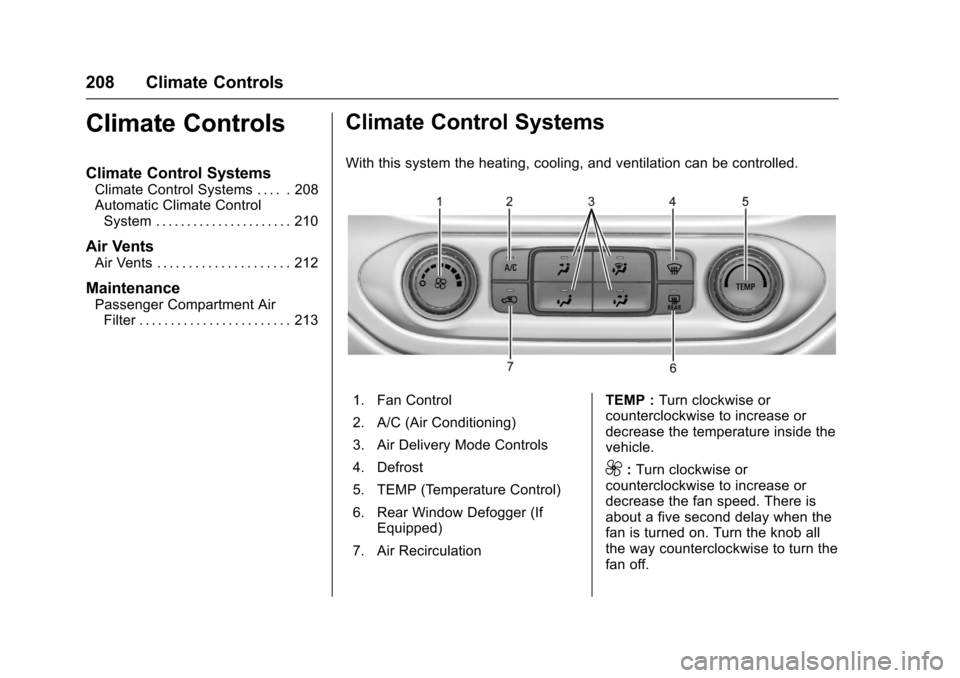
With this system the heating, cooling, and ventilation can be controlled.
1. Fan Control
2. A/C (Air Conditioning)
3. Air Delivery Mode Controls
4. Defrost
5. TEMP (Temperature Control)
6. Rear Window Defogger (IfEquipped)
7. Air Recirculation
TEMP :Turn clockwise orcounterclockwise to increase ordecrease the temperature inside thevehicle.
9:Turn clockwise orcounterclockwise to increase ordecrease the fan speed. There isabout a five second delay when thefan is turned on. Turn the knob allthe way counterclockwise to turn thefan off.