2017 AUDI TT ROADSTER display
[x] Cancel search: displayPage 88 of 314
Parking systems
Switching off
.. Drive faster than 6 mph (10 km/h), or
.. Press the
P"1A button, or
.. Switch the ignition
off.
(D) Tips
- The visual display in the left part of the dis
play should help you detect the critical vehi
cle areas .
- You can change the volume of the sig nals
and the display
¢page 86.
Perpendicular parking
Appl ies to: ve hicles with rea rview ca mera
This view may be used when parking in a garage
or in a parking space.
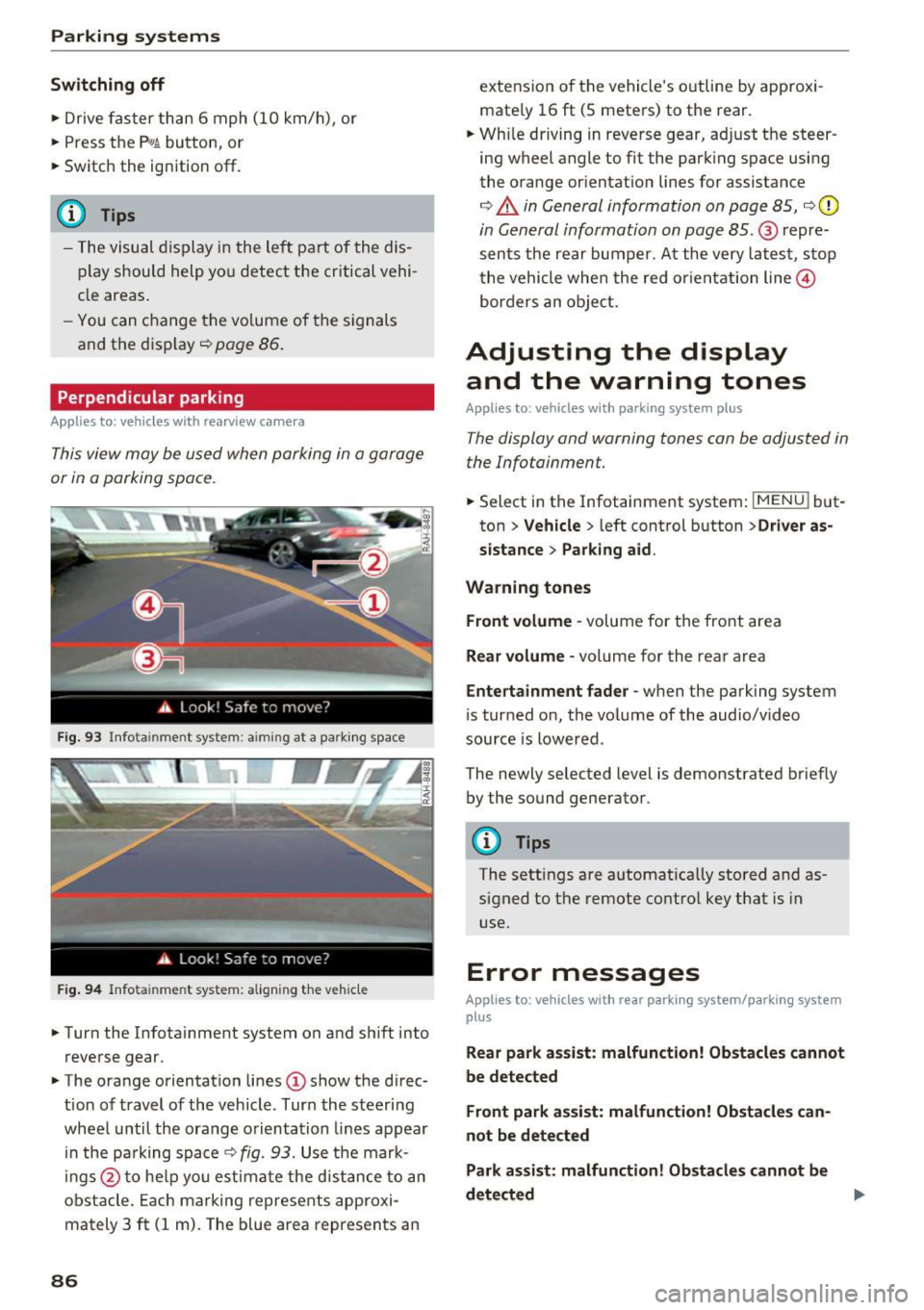
Fig. 93 Info ta inment syste m: aim ing at a pa rking space
Fig. 94 Infota inme nt sys tem: aligning the vehicle
.. Turn the Infotainment system on and shift into
reverse gear.
.. The orange orientation lines
(I) show the direc
tion of travel of the vehicle . Turn the steering
wheel until the orange orientation lines appear
in the pa rking space
c:!;> fig. 93. Use the mark
ings @to help you estimate the d istance to an
obstacle. Each marking represents approxi
mately 3
ft (1 m). The blue area represents an
86
extension of the vehicle 's outline by approxi
mate ly 16
ft (5 meters) to the rear .
.. Wh ile driving in reverse gear, adjust the steer
ing wheel angle to fit the parking space using
the orange orientation lines for assistance
¢ &. in General information on page 85, ¢(D
in General information on page 85. @ repre
sents the rear bumper. At the very latest, stop
the vehicle when the red or ientation line@
borders an object.
Adjusting the display
and the warning tones
Applies to: vehicles with parkin g sys tem plus
The display and warning tones can be adjusted in
the Infotainment.
.. Select in the Infotainment system : IMENUj but
ton
> Vehicle > left control button >Driver as
sistance> Parking aid .
Warning tones Front volume -
volume for the front area
Rear volume -volume for the rear area
Entertainment fader -when the parking system
is turned on, the volume of the audio/video
source is lowered .
The newly selected level is demonstrated briefly by the sound generator.
{!) Tips
The settings are automat ically stored and as
signed to the remote control key that is in
use.
Error messages
App lies to : vehicles wit h rear parking system/parking system
plus
Rear park assist: malfunction! Obstacles cannot
be detected
Front park assist: malfunction! Obstacles can
not be detected
Park assist: malfunction! Obstacles cannot be
detected ..,._
Page 89 of 314
co
co
.... N
" N .... 0
" "' c:o
There is a system malfunct ion if the L ED in the
p,g! button blinks when switching on the system .
If the error is not corrected before yo u switch off
the ignition, the L ED in the
P' #A button will blink
the next time you switc h on the parking system
by shifting into reve rse . As long as the error is ac
tive, you can display the error messages in the
second tab of the dr iver information system .
Parking system plus*
If a sensor or speaker is faulty, the .IM symbol
will appear in front of/behind the vehicle i n the
Infotainment d isplay . If a rear sensor is faulty,
only obstacles that are in areas
(D and
@<=:> page 83, fig . 87 are shown . If a front sensor
i s faulty , on ly obsta cles that are in areas @ and
@ are show n.
Drive to an authorized Aud i dealer o r a uthorized
Aud i Service Fac ility immediately to have the
malfunct ion corre cted.
Parking system s
87
Page 96 of 314

Intelligent Technology
greater than the amount being generated in or
der to maintain an optimal vehicle battery charge
level.
(D Tips
- Energy management cannot overcome the laws of physics. Note that the charge level
and length of the vehicle battery life are
limited.
- When the starting ability is jeopardized, the
(•j indicator light turns on¢ page 13.
What you should know
Maintaining the starting ability is the highest
priority.
A lot of stress is placed on the vehicle battery
when driving short distances, during city driving,
and at cold times of the year. A lot of energy is
used but little is generated. It is also critical
when the engine is not running but electrical
equipment is switched on. In this case, energy is used but none is generated .
In situations like this, energy management will
actively regulate the distribution of energy.
Long periods without use
If you do not drive your vehicle for several days or
weeks, electrical equipment is gradually scaled
back or switched off. This reduces energy use and
ensures the vehicle will be able to start after long
periods of time. Some convenience functions
such as opening with the remote control key may not be available . These convenience functions
will be available again once you switch the igni tion on and start the engine.
With the engine switched off
The vehicle battery will drain if you use Infotain ment functions such as listening to the radio
while the engine is switched off .
If the vehicle's ability to start may be impaired by
the energy use, a message will appear in the In
fotainment system display. The message indi cates that the system will switch off automatically soon .
If you would like to continue using the
functions, you must start the engine.
94
With the engine running
Although e lectrical energy is generated while
driving , the vehicle battery can drain . This can
happen if little energy is generated but much is
used, and the charge level of the vehicle battery
is not optimal.
To restore the balance of energy , components
that require large amounts of energy are tempo
rarily scaled back or switched off. Heating sys
tems in particular require a great deal of energy.
If you notice, for example, that the seat heating*
or rear window defroster is not working, then it has been temporarily reduced or switched off .
These systems are available again as soon as the energy supply has been restored.
In addition, you may notice that the idle speed
has slightly increased . That is normal and no
cause for concern . By increasing the idling speed ,
the additional required energy will be generated
and the vehicle battery will be charged.
Information about data
recorded by vehicle
control modules
Your vehicle is not equipped with a crash data re
corder . This device is installed by some vehicle
manufacturers to record data about crashes so
that it can be analyzed later. Crash data record
ers are also called "Event Data Recorders (EDR)".
In some legal jurisdictions, it is not permitted to
access or download data recorded by pre-instal
led crash data recorders in order to evaluate a
crash without clear consent of the vehicle owner.
Your vehicle is not equipped with a crash data re
corder. However it does contain a variety of elec
tronic control modules for various vehicle sys
tems such as engine function, exhaust treatment
or airbags and safety belts.
These electronic control modules record vehicle
data during normal driving for diagnosis and re
pair purposes. The recording capability of the
electronic control modules is limited to data only
- no sound is recorded. If the control module de
tects a system malfunction or other change in
status, a very limited amount of data is recorded .,,.
Page 99 of 314
CD
CD
.... N
" N .... 0 r--. V, co
police and fire sirens, can be heard easily at
all times.
(D Tips
The M MI switches off automatically if the en
gine is not running and the vehicle battery is
low.
MMI operation
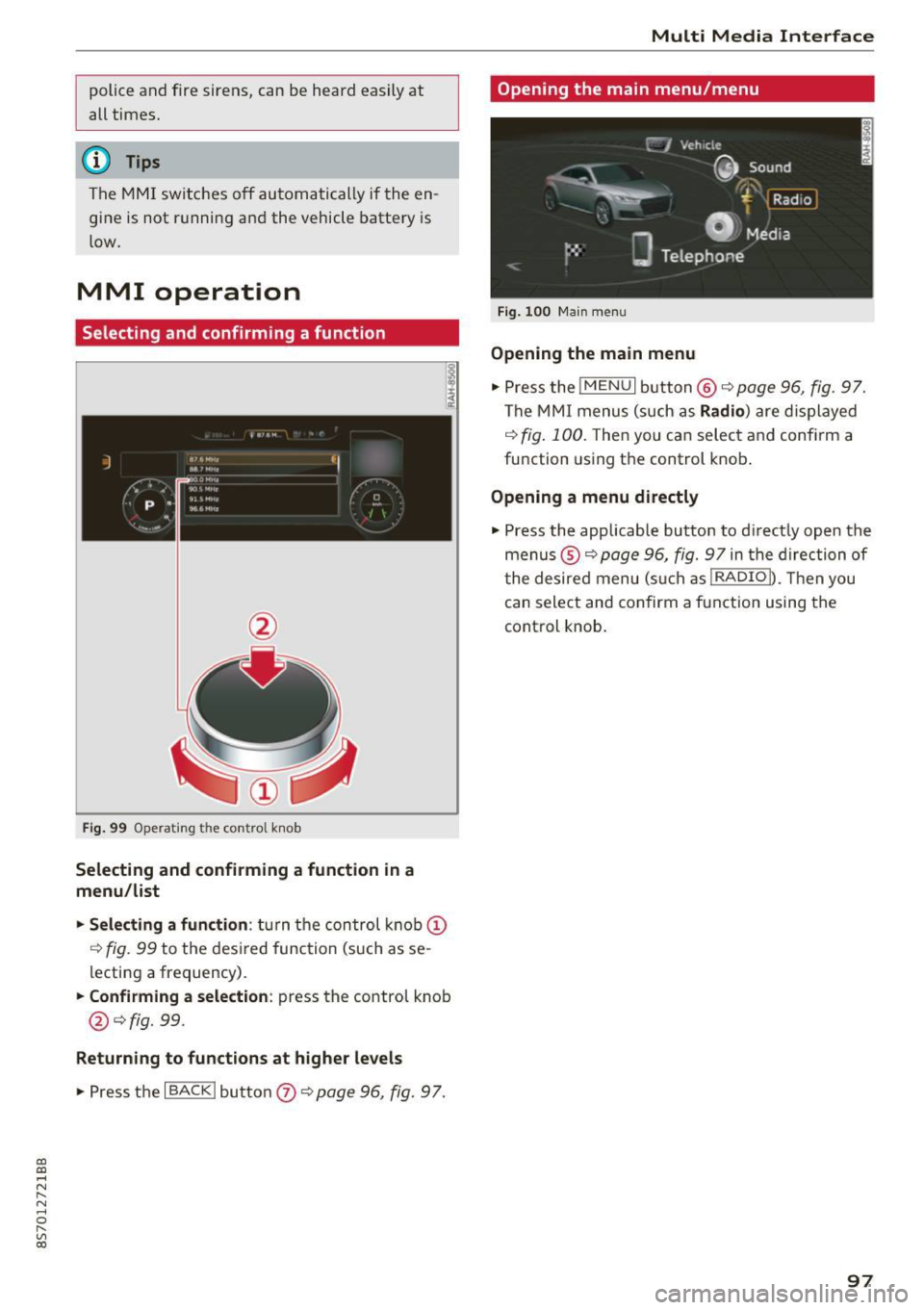
Selecting and confirming a function
Fig. 99 Operating t he cont ro l knob
Selecting and confirming a function in a
menu/list
"'Selecting a function:
turn the control knob(!)
r:!>fig. 99 to the des ired function (such as se
lecting a frequency) .
"'Confirming a selection: press the control knob
@¢fig. 99.
Returning to functions at higher levels
"'P ress the I BACK I button 0 ¢ page 96, fig. 97.
Multi Media Interface
Opening the main menu/menu
Fig. 100 Main menu
Opening the main menu
"' Pressthe lMENUlbutton @¢page96, fig. 97.
The MMI menus (such as Radio) are displayed
¢fig. 100. Then you can select and confirm a
function using the control knob.
Opening a menu directly
"' Press the applicable button to d irectly open the
menus ®¢
page 96, fig. 97 in the direction of
t he desired menu (such as!RADIOn. Then you
can select and confirm a function using the
control knob.
97
Page 100 of 314
Multi Media Interface
Opening the selection/options menu with
the control buttons
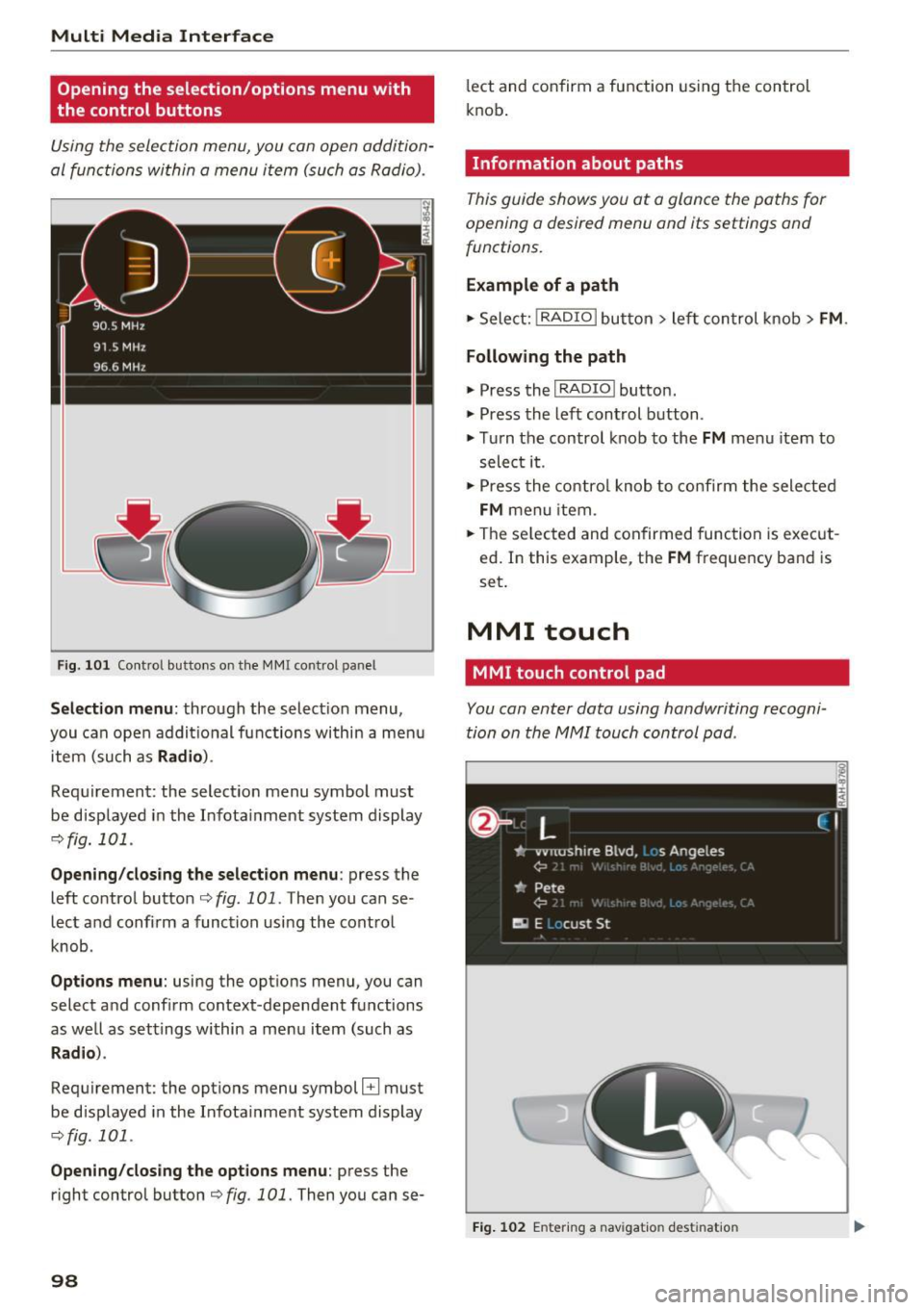
Using the selection menu, you con open addition
al functions within a menu item (such as Radio).
F ig. 101 Control buttons on the MMI control panel
Selection menu : through the select ion menu,
you can open additional functions within a menu
item (such as
Radio ).
Requirement: the select ion menu symbol must
be displayed in the Infotainment system display
¢fig. 101 .
Opening/closing the selection menu: press the
left contro l button ¢
fig. 101. Then you can se
lect and confirm a function using the control
knob.
Options menu: using the options menu, you can
select and confirm context-dependent functions
as well as settings within a menu item (such as
Rad io).
Requirement: the options menu symbol B must
be displayed in the Infotainment system display
¢fig. 101 .
Opening/closing the options menu : press the
right control button¢
fig. 101. Then you can se-
98
lect and confirm a function using the control
knob .
Information about paths
This guide shows you at a glance the paths for
opening a desired menu and its settings and
functions.
Example of a path
1-Select: ! RADIO I button> left con trol knob > FM.
Following the path
" Press the I RADIO I button.
" Press the left control button .
.. Turn the control knob to the
FM menu item to
select it .
" Press the control knob to confirm the selected
FM menu item.
" The selected and confirmed function is execut
ed. In this example, the
FM frequency band is
set.
MMI touch
MMI touch control pad
You con enter data using handwriting recogni
tion on the MMI touch control pad .
Fig. 102 En tering a nav igatio n dest ination
Page 101 of 314
CD
CD
.... N
" N ...... 0 r--. V, co
The MMI touch control pad@q page 96, fig. 97
is located on the control knob
(I)¢ page 96,
fig. 97.
Entering letters, numbers and symbols
Applies to: veh icles with MMI touch
The MMI touch allows you to enter data on the
MMI touch control pad using handwriting recog
nition.
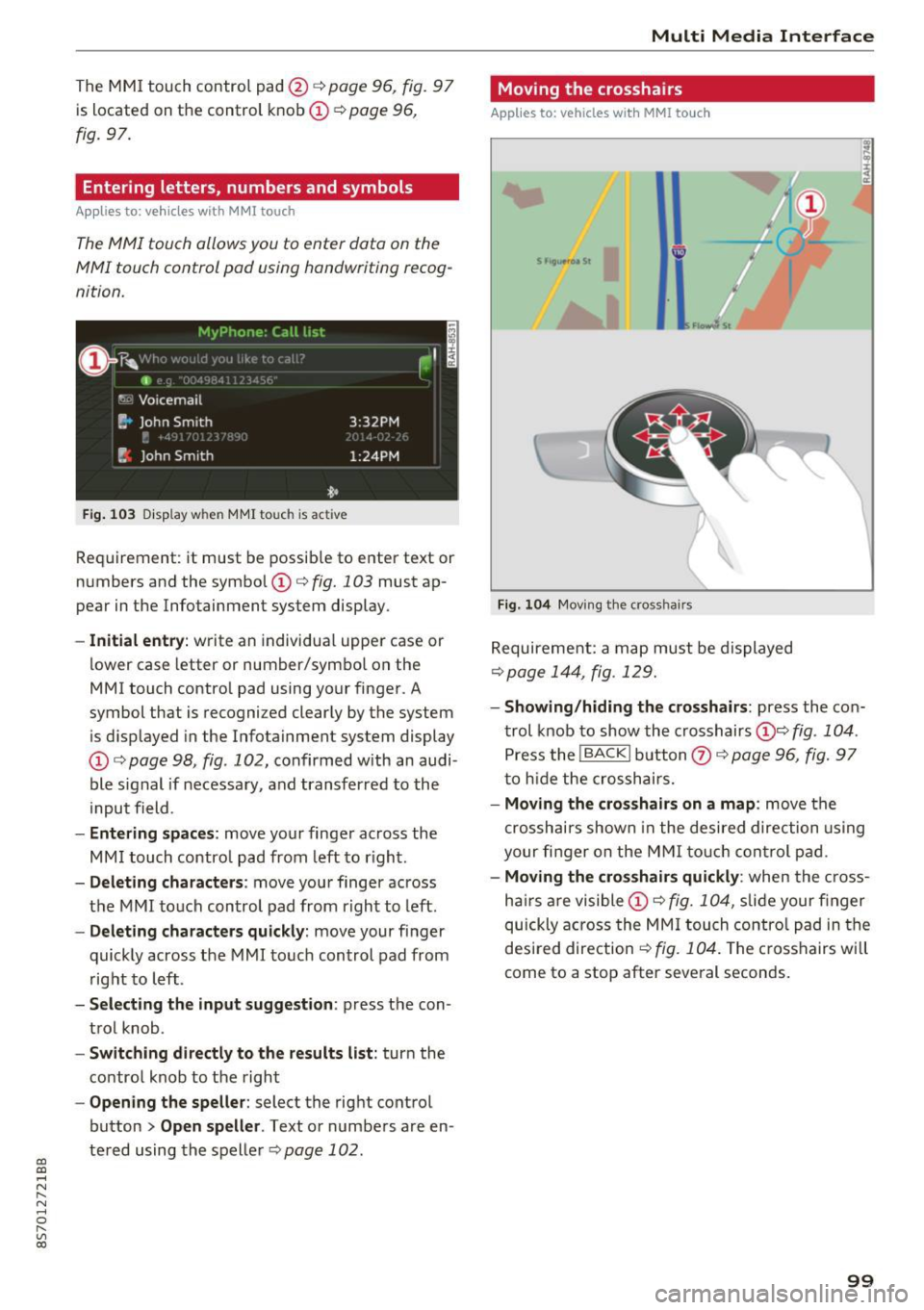
F ig. 103 Disp lay w hen MMI touch is ac tive
Requirement : it must be possible to enter text or
numbers and the symbol
(I) q fig. 103 must ap
pear in the Infotainment system display.
- Initial entry : write an individual upper case or
lower case letter or number/symbol on the
MMI touch control pad using your finger . A
symbol that is recognized clearly by the system
is d isplayed in the Infotainment system display
(I) ¢ page 98, fig . 102, confirmed with an audi
ble signal if necessary, and transferred to the
input field .
-Entering spaces: move your finge r across the
MM I touch contro l pad from left to right.
- Deleting characters : move your finger across
t h e MMI touch control pad from right to left.
-Deleting characters quickly: move your finger
quickly across the MMI touch control pad from
right to left .
-Selecting the input suggestion: press the con
trol knob .
-Switching directly to the results list: turn the
contro l knob to the right
-Opening the speller : select the right control
button
> Open speller . Text or numbers are en
tered using the speller
q page 102.
Multi Media Interface
Moving the crosshairs
Applies to: vehicles with MMI touch
Fig. 104 Moving the cross hair s
Requirement: a map must be displayed
¢page 144, fig . 129.
- Showing/hiding the crosshairs: press the con
trol knob to show the crosshairs
(!)¢ fig . 104 .
Press the !BACKI button Q) ¢ page 96, fig. 97
to hid e the crosshairs.
- Moving the crosshairs on a map : move the
crosshai rs shown in the desired direction using
your fi nger on the MMI touch control pad.
-Moving the crosshairs quickly : when the cross
ha irs are visible
(I)¢ fig. 104, slide your finger
quickly across the MMI touch control pad in the
desired direction
¢ fig. 104. The crosshairs w ill
come to a stop after several seconds.
99
Page 102 of 314
Multi Media Interface
Moving the map
Applies to: vehicles with MMI touch
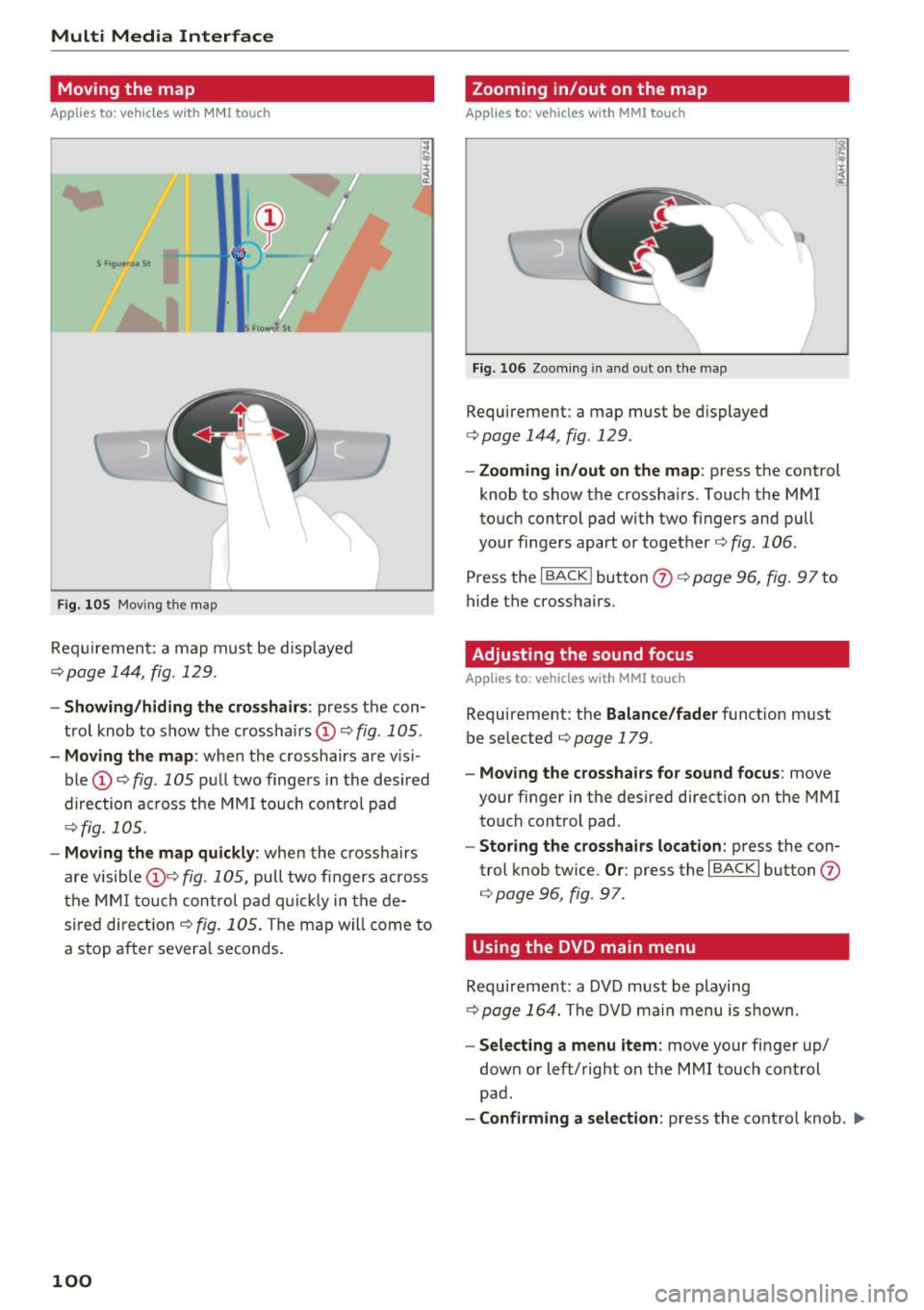
F ig . 10 5 Mov ing the map
Req uirement: a map must be d isp layed
¢page 144, fig. 129 .
I
-Showing /hiding the cro sshairs : press the con
trol knob to show the crossha irs
(!) ¢fig . 105 .
-Moving the map : when the crosshairs are vis i
ble
(D ¢ fig . 105 pull two fingers i n the desired
direction ac ross the MMI touch cont rol pad
¢fig. 105.
- Moving the map qu ickl y: when the cross hairs
are visible (!)¢
fig . 105, pull two fingers across
the MMI to uc h con trol pad q uic k ly in the de
s ired direct io n ¢
fig . 105. The map w ill come to
a stop a fte r several seconds.
100
Zooming in/out on the map
Applies to: vehicles with MMI touch
Fi g. 106 Zoo ming in a nd o ut on the m ap
Requirement : a map must be displayed
¢ page 144 , fig. 129.
-Zooming in /out on the map : press the control
knob to show the crossha irs . Touch the MMI
touc h control pad with two fingers and pull
your fingers apart or toget her ¢
fig . 106.
Press the I BACK ! button (J) ¢ page 96, fig. 97 to
hide the crossha irs .
Adjusting the sound focus
Applies to : vehicles with MM! touch
Requirement: the Balance /fad er funct ion must
be se lected
¢ page 179 .
-Moving the crossha ir s for sound focus : move
your finger in the des ired direction on the MMI
touch control pad.
- Storing the crosshairs location : press the con
trol knob twice.
Or : press the I BACK I button (J)
¢page 96, fig . 97.
Using the DVD main menu
Requirement: a DVD must be playing
c:} page 164. The DVD ma in menu is s hown.
- Select ing a menu item: move your finger up/
down or left/right on the M MI touch con trol
pad .
-Confirming a selection : press the control knob . .,.
Page 103 of 314
co
co
.... N
" N .... 0 r---
"' c:o
@ Tips
The volume of the prompts for the MMI
touch * can be adjusted separately
¢ page 180.
Operating
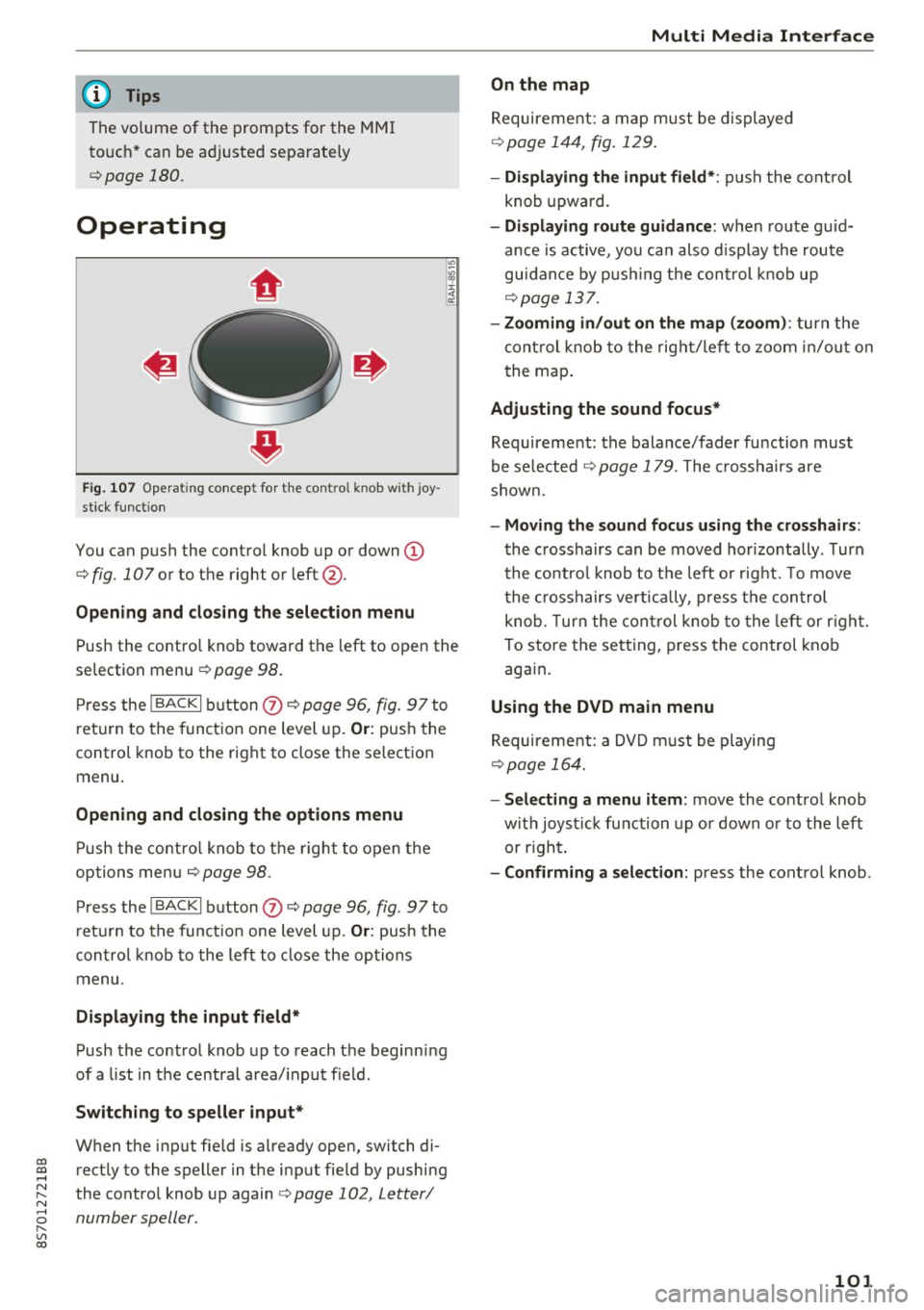
Fig . 107 Operat ing concept for t he cont ro l kn ob wi th joy
stick funct ion
You can push the control knob up or down (D
c::;, fig. 107 or to the right or left@.
Open ing and closing th e selecti on menu
Push the contro l knob toward the left to open the
selection menu
¢ page 98 .
Press the !BACKI button (I) ¢ page 96, fig. 97 to
r et urn to the function one level up.
Or: push the
control knob to the right to close the selection
menu .
Opening and clo sing th e opt ions menu
Push the contro l knob to the right to open the
options menu
c::;, page 98.
Press the !BACKI button (I) c::;, page 96, fig . 97to
ret urn to the funct ion one level up.
Or : push the
control k nob to the left to close the options
menu .
Displaying the input field *
Push the control knob up to reach the beginning
of a list in the centra l area/ input field .
Switching to speller input *
When the input fie ld is already open, switch di
rectly to the speller in the input fie ld by pushing
the control knob up again
c::;, page 102, Letter/
number speller .
Multi Media Interfac e
On the map
Requirement: a map must be displayed
¢page 144, fig. 129 .
-Displ aying th e input field* : push the cont rol
knob upwa rd .
- Di spl aying rout e gu idance : when route gu id
ance is active, you can also d isplay the route
guidance by push ing the control knob up
¢ page 137.
-Zooming in /out on th e map (zoom ): turn the
cont rol knob to the right/left to zoom in/out on
t he map .
Adjusting the sound focus*
Requirement: the balance/fader function must
be se lected
c::;, page 179 . The crosshairs are
shown.
- Moving th e sound focu s using th e crossh airs :
the crosshairs can be moved hor izontally . Turn
the co ntro l knob to the left o r rig ht. To move
the c rosshairs vertica lly, press the control
knob . T urn the cont rol knob to the left or r ight.
To store the setting, press the control knob again .
Using the DVD main menu
Requirement: a DVD m ust be playing
¢page 164.
-Selecting a menu item: move the co ntrol knob
w ith joystick function up or down or to the left
or r ight.
- Confirming a s election: press the control knob .
101