2017 AUDI TT ROADSTER ECU
[x] Cancel search: ECUPage 136 of 314
Audi connect
-An initial registration/activation on the
myAudi platform at
my.audiusa.com is re
quired to use individual services. You can
contact an authorized Audi dealer or Audi
connect customer service at 1 (877) SOS
AUDI (2834) to receive information on op
tions for expanding your usage and any
costs that may result.
- It is only possible to use Audi connect serv
ices with a valid Audi connect SIM card.
- To ensure all of the Audi connect features
work correctly, Audi recommends setting up
data service and a Wi-Fi package with your
network service provider. Your network
service provider can be authorized by law,
through a judicial order or other lawful in
structions, to disclose the position of your
vehicle. Additional information on your cell phone service provider's privacy policies can
be found in their Terms of Use.
- The Audi connect services are a Wi-Fi/Inter
net-based system.
If the system does not
function correctly even though all of the re
quirements are met, please try again later
or contact Audi connect customer service at 1 (877) SOS-AUDI (2834).
- For detailed information on Audi connect
and the Terms of Use, visit
www.audiusa.com/audiconnect.
Data protection
A ppl ies to: ve hicles with Audi co nnect
(D Tips
-You can find additional information in your
MMI in the options menu¢
page 98 for the
selected Audi connect service and also on
the Internet at
www.audiusa.com/audicon
nect.
- Your privacy is important to us.
- AUDI AG collects, processes, shares and
transmits your personal information in ac
cordance with legal regulations in order to
ensure proper function and availability of
the individual Audi connect services. You
can view the complete, current and valid
Audi connect data protection policy in your
134
MMI. The myAudi website is available for to
you to activate additional Audi connect serv
ices and to transfer data with your vehicle,
among other services. A one-time registra
tion is required to establish a connection to
your vehicle. For this purpose, AUDI AG col lects, processes, transmits and uses your re
quired personal information as required for
you to use the services provided by AUDI
AG. Your information is not distributed to
third parties. Using your cell phone with the
help of your myAudi platform, you can
transfer information for Audi connect serv
ices functions to your vehicle and allow spe
cific information to be transmitted from
your vehicle.
- By activating special information services
that are part of your Audi connect portfolio,
you can use these functions directly in your
vehicle by entering data to confirm your
identity (to use social networks, for exam
ple). To do this, the identification informa
tion you provided is forwarded with the re
quest to the respective service provider.
T hen you can access your personal content
using a secure connection. This content is
displayed in the vehicle for your use. Your
personal content is not stored within Audi
AG. The necessary connection information is
processed and used for providing services
and the proper function of the services in
accordance with applicable legal guidelines.
- By providing Audi connect services, Audi of America is authorized to collect, process,
transmit and transfer information about
you and your vehicle. Additional information can also be found in your MMI in the options
menu¢
page 98 for the selected Audi con
nect service.
- Information on our data protection meas
ures in conjunction with the mobile Audi
connect application can be found in the ap
plication's privacy policy. For additional in
formation about the
my.audiusa.com web
site or other applications, websites or on line
services connected to Audi, visit
www.audiusa.com/privacy.
Page 158 of 314
Media
Media
Introduction
There are various media drives and connections
available in the MMI. You can play , for example,
audio/video files from the Jukebox* or connect
your mobile device to the Audi music interface*
and operate it through the MMI.
Notes
General information
Media and format restrictions:
the MMI (includ
ing the SD card reader and the USB storage de
vice connection*) was tested with a variety of products and media on the market. However,
there may be cases where individual devices or media and audio/video* files may not be recog
nized, may play only with restrictions or may not
play at all.
Digital Rights Management: please note that
t he audio/video files are subject to copyright pro
tection .
The media drives do not play files that are pro
tected by ORM and that are identified with the
symbol
!'.TI.
Data security: never store important data on SD
cards, the Jukebox*, CDs/DVDs or mobile devices.
Audi AG is not responsible for damaged or lost
files and media .
Loading times: the more files/folders/playlists
that are on a storage medium, the longer it will
take to load the audio/video files* . Audi recom
mends using storage media tha t only contain au
dio/video files* . To decrease the time it takes to
load audio/video files*, create subfolders (for ex
ample , for the artist or album). The loading time
will also increase when importing files.
Additional information: when playing, audio
files are automatically displayed with any addi
tional information that is stored (such as the ar
tist, track and album cover).
If this information is
not available on the storage medium, the MMI
will check the Grace note metadata database.
156
However, in some cases, the additional informa
tion may not be displayed.
Restricted functionality: reset the Media set
tings
to the factory default settings if functional
ity is restricted
¢ page 176.
Reset the Jukebox* to the factory default set
tings if functionality is restricted
¢page 176.
For information about the properties of support
ed media and file formats, see
¢ page 169 .
((D} Note
You are responsible for all precautions taken
for data protection, anti-virus protection and
protection against loss of data on mobile de
vices that are used to access the Internet
through the Wi-Fi hotspot.
CD/DVD operation
CD/DVD and format restrictions:
the functionali
ty of individual storage media may be limited due
to the variety of blank CDs/DVDs available and
the various capacities . Aud io CDs or video DVDs
with copy protection, CDs/DVDs that do not con
form to the standard and multisession CDs may
have limited playback or may not play at all. Audi
recommends finalizing the recording process
when creating multisession CDs . Multisession is
not supported for DVDs .
Using CDs/DVDs, the CD drive or the DVD drive:
to ensure correct, high-quality playback and to
prevent damage to the drive or disc reading er
rors, always store CDs/DVDs in a protective
sleeve and do not expose them to direct sunlight.
Do
not use:
- Damaged, dirty or scratched CDs/DVDs
- Single CDs/DVDs (3 inch/8 cm diameter)
- CD/DVDs that are not round
- CDs/DVDs with labels
- Protective rings
- Cleaning CDs
Thermal protection switch : CD/DVD playback
may be temporarily unavailable if outside tem
peratures are extremely hot or cold. A thermal
Page 162 of 314
Media
-Multiple Bluetooth audio players can be
connected to the MMI, but only one mobile
device can be active.
- Bluetooth protocols AVRCP ( 1.0/1.3/1.4)
and A2DP are supported.
- Note the volume se tting on your Bluetooth
device. A udi recommends setting your mo
bile device to the maxim um vo lume when
us ing it as a Bluetooth audio player.
- The supported media functions (such as
shuffle) depend on the Bluetooth device be
i ng used.
- For more information on the supported de
vices, visit
www.audi.com /bluetooth or
contact your author ized Audi dealer or au
thorized Audi Service Facility.
Wi-Fi audio player
A ppl ies to: ve hicles w ith Wi-F i
Using the Wi-Fi audio player media source on the
MMI, you can connect and operate your Wi-Fi-ca
pable media player (su ch as a smartphone) to
wirelessly play music from your media player
li
brary. The media player is connected through the
vehicle's Wi-Fi hotspot . A UPnP Server opp or an
integrated UPnPIDLNA server on your media
player is required to access your media player
li
brary.
Req uirement: the Wi-Fi function on your media
p layer must be switched on. The
Audi MMI con
nect
app or a UPnP server app must be installed
on your med ia player .
Or: you must be us ing a
media player wit h an integrated UPnP/DLNA
server .
-Connecting a media player : press the I MEDIA!
button. Press the left control button unti l the
sources overview
c::;,page 164 is d isp layed. Se
lect and co nfirm
W i-Fi audio player
(J) c::;, page 164, fig . 145.
- If necessary, select a nd confirm Wi -Fi off >
Turn on Wi-Fi
to activate Wi-Fi in the MMI. Se
lect
Wi-Fi settings , if necessary. Select the
same settings on the wire less media player
that are used for the Wi -Fi hotspot .
-Start ing the Wi -Fi audio pl ayer : start the Audi
MMI conne ct
app or a UPn P serve r app . Or: al
low medi a shar ing o n your medi a player.
160 Operating the medi
a playe r:
the med ia p layer is
operated through the MMI.
- Press the left control b utton repeatedly until
the
Folders menu item appears . Select and con
firm
Folders.
- Playing mu sic from the media player:
select
and confirm
Media cent er.
Web radio :
see c::;, page 161.
A WARNING
-As t he d river, do not allow usage of the Wi
Fi ho tspot to distract you from driv ing, as
this could increase the r isk of an accide nt.
- It is o nly safe to use tablets, laptops, mo
b ile devices and other s imilar devices when
t he vehicle is stat ionary because , like all
loose objec ts, they co uld be thrown a round
t he inside o f th e ve hicle in a crash and ca u se
serious inju ries. Store these types of devices
secure ly w hile d riving .
- Do no t use any W i-Fi devices wit hin range of
t he airbags while dr iv ing. A lso rea d the
warn ings in the chapter
¢page 196.
(D Note
You are re spon sib le fo r all pre ca utio ns taken
fo r d ata p rotection, an ti- v irus pro te cti on and
protection ag ain st loss o f data on mobi le de
v ices that a re used to access the Internet
thro ugh the W i-F i hotspot .
(D Tips
-The Wi-Fi connec tion is reconf igure d when
inserting or removin g the m ini SIM ca rd in
t h e SIM card reader*. There may be a tem
porary interr upt ion in aud io playback, de
pend ing o n the media player.
- Always read the chapter
c::;, page 133, About
Audi connect.
- Please note that a Wi-Fi connection does
not automatically make it possible to use
t h e Internet. For addit ional information,
see
c::;, page 127.
-To avoid interr upt ions during playback, de
act ivate the power sav ing funct io n on the
media player or co nnect it to a cha rger.
Page 163 of 314
co
co
.... N
" N .... 0
" "' c:o
-The loading times for the audio data depend
on the media player used and the number of
files that it contains.
- A maximum of 2,000 entries per directory
are displayed in the MMI.
- Songs downloaded for offline use using mu
sic streaming services are stored on your mobile device (such as a smartphone) and
may be DRM protected. The Wi-Fi audio
player will not play DRM protected files.
- Contact your authorized Audi dealer or au
thorized Audi Service Facility for additional
information on the Wi-Fi audio player.
Online media and
Internet radio
Applies to: vehicles with Audi connect
You can playback and operate various online me
dia services and Internet radio using the MMI.
• Press the I MEDIAi button. Press the left control
button until the sources overview<>
page 164,
fig. 145
is displayed .
Applies to: using online media and Internet radio
Requirement:
- The
Audi MMI connect app must be installed
and open on your mobile device.
- You must be logged into your my Audi account
in the
Audi MMI connect app and you must
have selected your vehicle.
- The Wi-Fi function on the mobile device and on
the MMI must be switched on.
- If necessary, check in the connection manager
<=> page 176 if the mobile device you connected
is selected under the
MMI connect app (~).
-The MMI must be connected to the network.
- The symbol for the
Online media* source @
<=> page 164, fig . 145 is shown in the MMI.
Applies to: using online media
Additional requirement:
- A supported online media service must be avail
able in your country.
- You must have an account with a supported on
line media service.
- Depending on the online media service, you
must install and open an app on your mobile
device .
Media
Starting Online media
- Press the I MEDIA i button. Press the left control
button until the sources overview
c:> page 164
is displayed.
- Select and confirm an online media service.
Starting Internet radio
- Press the I MEDIA ! button. Press the left control
button until the sources overview
c:> page 164
is displayed.
- Select and confirm
Internet radio . The Internet
radio browser or the last station that was play
ing is shown.
- Selecting the station : if necessary, select and
confirm a category in the Internet radio
Brows
er
> a station.
Online media and Internet radio: additional op
tions
- Press the right control button.
The following options may be available, depend
ing on the information shown (such as the sta
tion/track that is currently playing):
-Sound settings: see<> page 179.
-Wi-Fi settings: see <> page 131, Wi-Fi hotspot.
-Connection manager : see<> page 176.
-Additional options may be available, depending
on the active online media service or Internet
radio.
A WARNING
- It is only safe to use tablets, laptops, mo
bile devices and other similar devices when
the vehicle is stationary because, like all loose objects, they could be thrown around
the inside of the vehicle in a crash and cause
serious injuries . Store these types of devices
securely while driving.
- Do not use any Wi-Fi devices within range of
the airbags while driving . Also read the
warnings in the chapter <>
page 196.
Q) Note
Please note that there generally are addition
al costs when using an online media service
account, especially when it is used interna
tionally.
-
161
Page 171 of 314
co
co
.... N
" N .... 0
" "' c:o
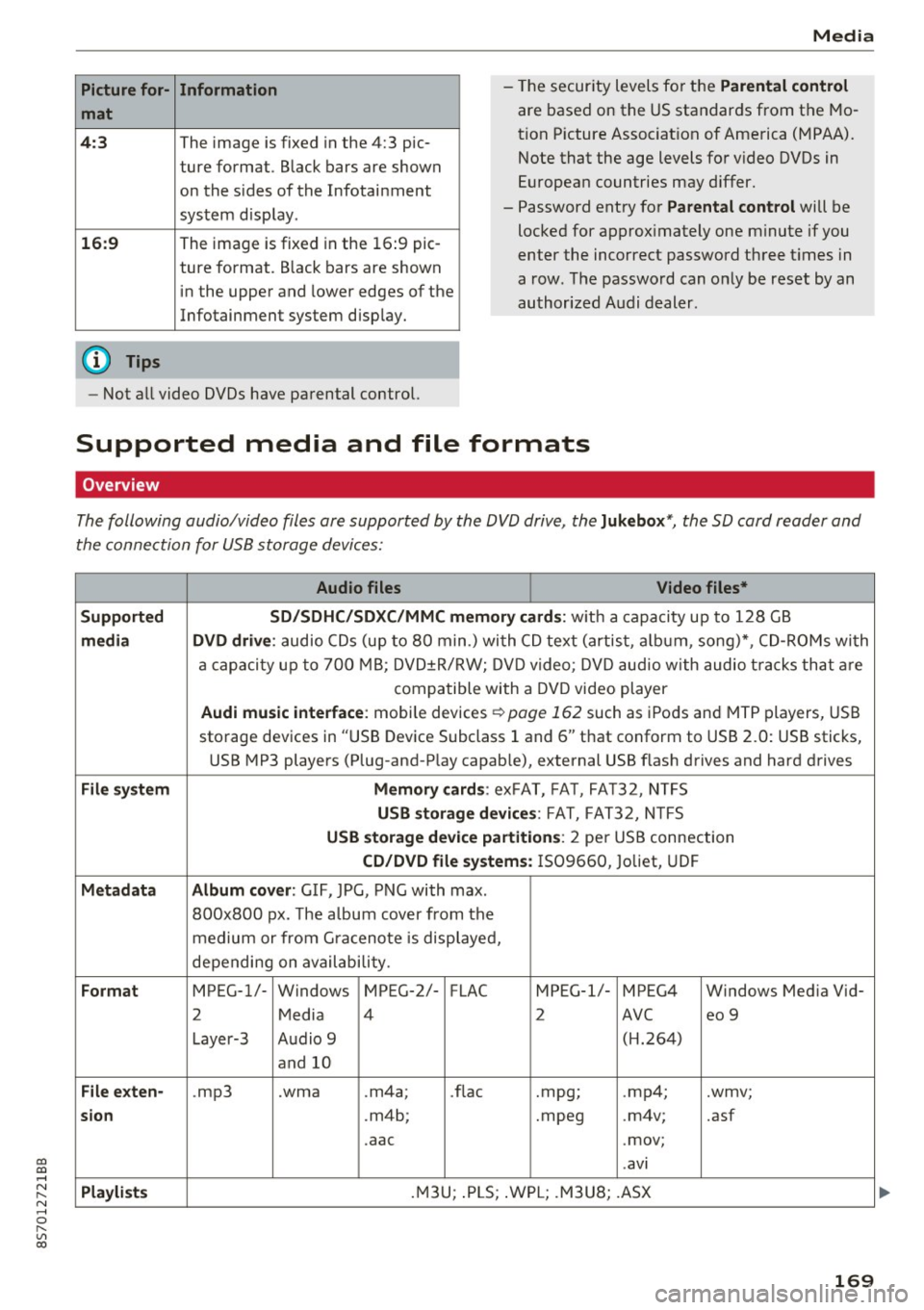
Picture for-
mat
4:3
16: 9
(D Tips Information
The image is fixed in the 4:3 pie-
ture format.
Black bars are shown
on the s ides of the Infotainment
system display.
The image is fixed in the 16 :9 pie-
ture format . B lack bars are shown
in the upper and lower edges of the
Infotainment system display.
Media
- The security levels for the Parental cont rol
are based on the US standards from the Mo
tion P icture Associat ion of America (MPAA).
Note that the age levels for v ideo DVDs in
European countries may differ.
- Password entry for
P ar ental contro l will be
locked for approx imately one m inute if you
enter the incorrect password three t imes in
a row. The password can only be reset by an
authorized Audi dealer.
- Not a ll video DVDs have parental control.
Supported media and file formats
Overview
The following audio/video files are supported by the DVD drive, the Juk eb ox*, the SD card reader and
the connection for USB storage devices:
Audio fil es Vid eo fil es*
Support ed SD/SDH C/SDX C/MM C me mory ca rds:
w ith a capacity up to 128 GB
m edi a DV D driv e: audio CDs (up to 80 min .) with CD text (artist, a lbum, song)*, CD-ROMs with
a capacity up to 700 MB; DVD±R/RW; DVD video; DVD audio with audio t racks that are
compatible with a DVD video player
Aud i mu sic int erfac e: mobile devices r=>page 162 such as iPods and MTP players, USB
storage devices in "USB Device Subclass 1 and 6" that conform to USB 2.0: USB sticks,
USB MP3 players (Plug-and-Play capable), external USB flash drives and hard drives
File syste m Memory c ard s: exFAT, FA T, FA T32, NTFS
USB sto rag e devices: FAT, FAT32, N TFS
USB stora ge device pa rtition s: 2 per USB connection
CD/DV D file sy ste ms: IS09660, Joliet, UDF
Metadat a Album co ver: GIF, JPG, PNG with max.
800x800 px. The a lbum cover from the
medium or from Gra cenote is displayed,
depending on availability.
Form at MPEG-1/- Windows MPEG-2/- FLAC MPEG-1/- MPEG4 Windows Media Vid-
2 Media 4 2 AVC
eo 9
Layer-3 Audio 9 (H.264)
and 10
Fil e ex ten -.mp3 .wma .m4a;
.flac .mpg;
.mp4; .wmv;
si on .m4b; .mpeg .m4v; .asf
.aac .mov;
.avi
Playlist s .M3U; .PLS; .WPL; .M3U8; .ASX
169
Page 180 of 314
System settings
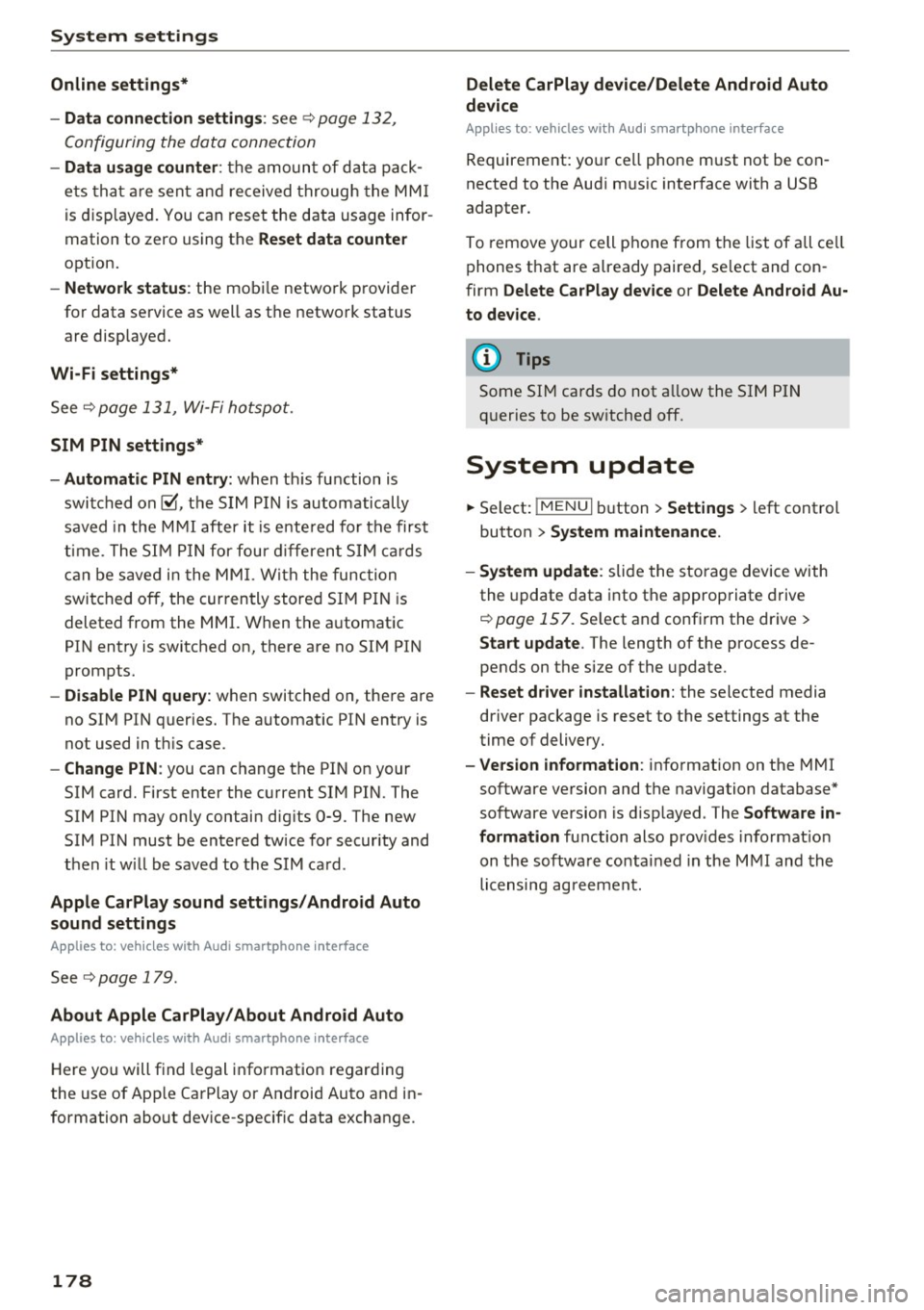
Online settings*
- Data connection setting s:
see~ page 132,
Configuring the data connection
- Data u sage counter : the amount of d ata p ack
e ts tha t ar e sent and received throug h the MM I
is d isp layed. You can reset the data usage infor
mation to zero using the
Reset data counter
option.
- Network statu s: the mobile netwo rk p rovider
for data se rvice as well as t he network status
are displayed.
Wi -Fi settings*
See Q page 131, Wi- Fi ho tspo t.
SIM PIN settings*
- Automatic PIN entry:
when t his fu nction is
swi tched on@', th e S IM PI N is automatically
saved in the M MI after it is e nte red for the f irst
t im e. The S IM PIN for four dif feren t SIM cards
c a n be save d in t he MM I. W ith the func tion
swi tc h ed o ff, the cur ren tly store d SI M P IN i s
deleted from the MMI. When the a utomatic
PI N entry is switched on, there are no SI M PIN
prompts.
- Disable PIN query : when switched on, the re are
no SI M PIN queries. The a utomat ic PIN entry is
not used in t his case .
-Change PIN : you can change the PI N on your
SIM card. First enter the c urrent SIM PI N. The
SIM PIN may only contain d ig its 0-9. The new
SIM PIN must be ente red tw ice for secur ity and
then it w ill be saved to t he SIM ca rd .
Apple CarPlay sound settings/ Android Auto
sound settings
A ppl ies to: ve hicles w ith Audi smartpho ne inte rface
See Qpoge 179.
About Apple CarPlay/About Android Auto
Appl ies to: ve hicles w ith Audi smartpho ne inte rface
Here you will f ind lega l in fo rmation regar ding
the use of App le Ca rPlay or Android Auto and in
formation abo ut dev ice-specif ic data excha nge.
178
Delete CarPlay device/Delete Android Auto
device
App lies to: vehicles wi th Audi s m art ph one interface
Requirement: yo ur cell phone m ust not be con
nected to the Aud i m usic interface with a USB
adapter.
To remove your cell phone from t he list of all ce ll
p hones t hat are a lready paired, se lect and con
firm
Delete CarPlay device or Delete Android Au·
to device .
(D Tips
Some SIM cards do not a llow the SI M PIN
qu eries to be sw itche d off.
System update
.,. Select: !ME NUI bu tton> Settings > left control
button >
System maintenance .
- System update :
slide the storage device with
the update data into t he a pprop riate drive
r=> poge 157. Se lect and confi rm the dr ive>
Start update . The length of the process de
pends on the size of the update .
-Reset driver installation: the selecte d media
driver package is reset to the settings at the
time of delivery.
- Version informat ion : info rmation on the MMI
software ve rsion and the navigation database*
so ftware ve rsion is d isp layed . The
Software in
formation
fu nction also prov ides infor mat ion
on t he softwa re contai ned in the M MI and the
li censing ag ree men t.
Page 186 of 314
Safe dri ving
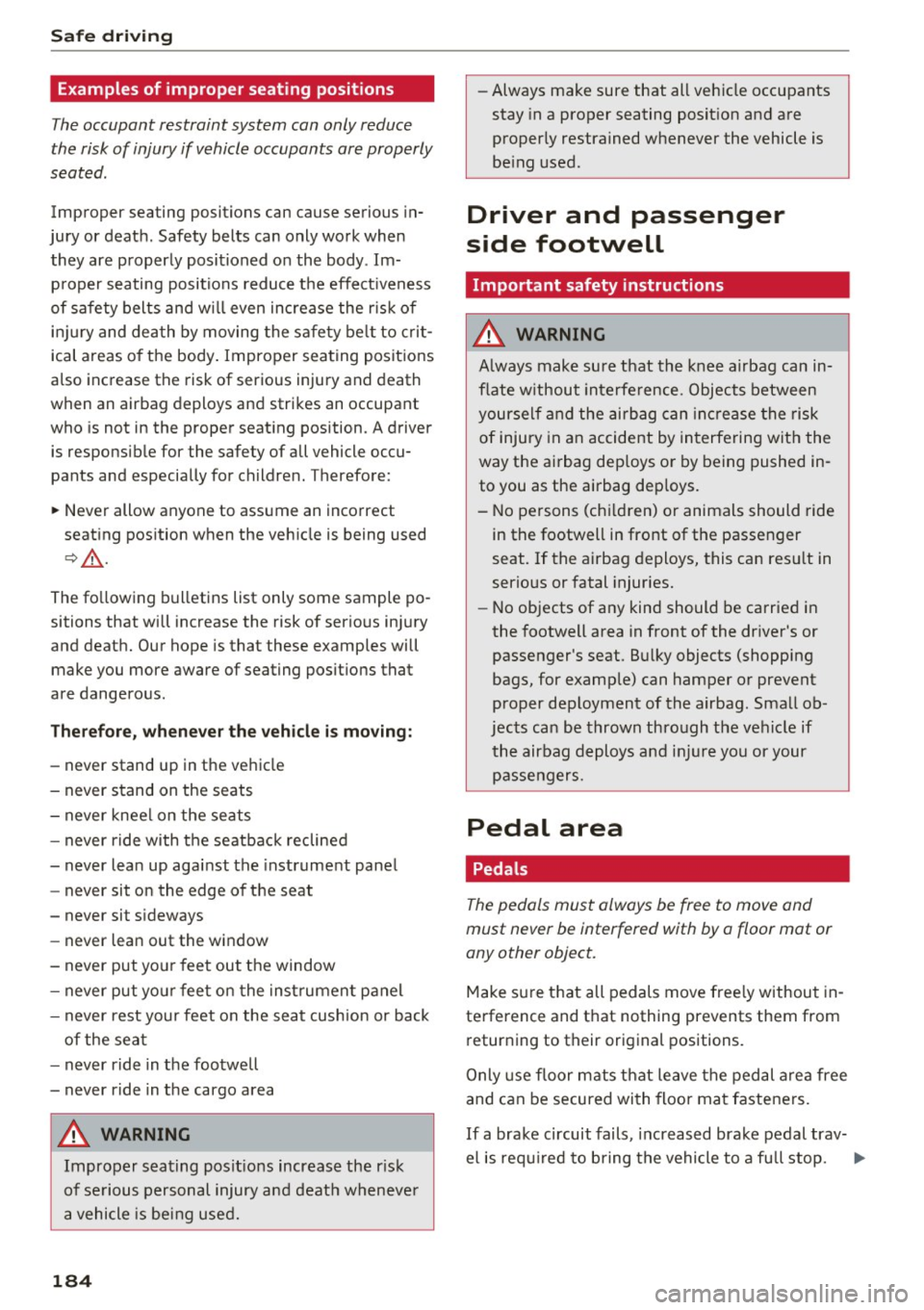
Examples of improper seating positions
The occupant restraint system can only reduce
the risk of injury if vehicle occupants are properly
seated.
Improper seating positions can cause serious in
jury or death . Safety belts can only work when
they are properly positioned on the body . Im
proper seating positions reduce the effect iveness
of safety belts and w ill even increase the r isk of
inj ury and death by moving the safety be lt to crit
ical areas o f the body . Improper seating positions
also increase the risk of serious injury and death
when an airbag deploys and strikes an occupant
who is not in the proper seating position. A driver
is responsible for the safety of all vehicle occu
pants and especially for children. Therefore :
~ Never allow anyone to assume an incorrect
seating position when the vehicle is being used
c:> .&_ .
The fo llowing bulletins list only some sample po
sitions that will increase the risk of serio us inj ury
and death. Our hope is that these examples will
make you more aware of seating posit ions that
are dangerous .
Therefore, whenever the vehicle is moving:
- never stand up in the ve hicle
- never stand on the seats
- never knee l on the seats
- never r ide with the seatback reclined
- never lean up against the instrument panel
- never sit on the edge of the seat
- never sit s ideways
- never lean out the window
- never put yo ur feet out the window
- never put yo ur feet on the instrument panel
- never rest your feet on the seat cushion or back
of the seat
- never ride in the footwell
- never r ide in the cargo area
A WARNING
Improper seating posit ions increase the r isk
of se rious personal injury and death wheneve r
a vehicle is being used.
184 -
Always make sure that all vehicle occupants
stay in a proper seating posit ion and are
properly restrained whenever the vehicle is
be ing used .
Driver and passenger
side footwell
Important safety instructions
A WARNING
A lways make sure that the knee airbag can in
flate without interfe rence. Objects between
yourself and the airbag can increase the risk
of injury in an accident by interfering with the
way the ai rbag dep loys o r by being pushed in
to you as the airbag dep loys.
- No persons (chi ldren) or animals should ride
in the footwell in front of the passenger
seat. If the airbag deploys, this can res ult in
serious or fatal injuries.
- No objects of any kind should be carried in
the footwell area in front of the driver's or
passenger 's seat. Bu lky objects (shopping
bags, for examp le) can hamper or prevent
proper deployment of the airbag. Small ob
jects can be thrown through the vehicle if
the airbag deploys and injure you or your
passengers.
Pedal area
' Pedals
The pedals must always be free to move and
must never be interfered with by a floor mat or
any other object.
Make sure that all pedals move free ly without in
terference and that nothing prevents them from
returning to their original positions.
Only use floor m ats that leave the pedal area free
and can be secured with floor mat fasteners.
If a brake circuit fails , in creased brake pedal trav-
el is required to bring the vehicle to a fu ll stop. .,..
Page 187 of 314
co
co
.... N
" N .... 0
" "' c:o
A WARNING ,~
Pedals that cannot move freely can cause loss
of vehicle control and increase the risk of seri
ous injury .
- Never place any objects in the driver's foot
well. An object could get into the pedal area
and interfere w ith pedal function . In case of
sudden braking or an accident, you would
not be able to brake or accelerate!
- Always make sure that nothing can fall o r
move into the dr iver's footwe ll.
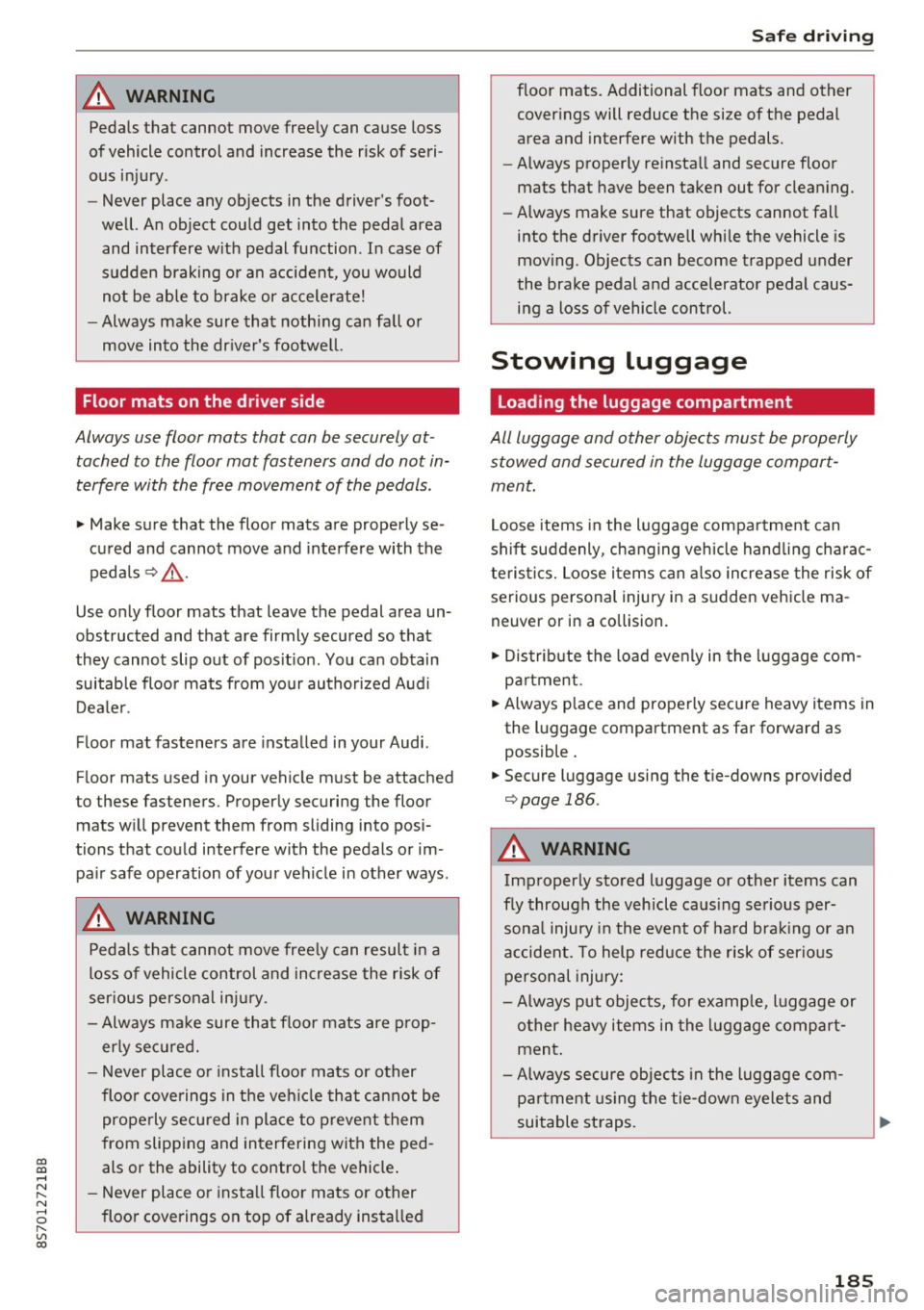
Floor mats on the driver side
Always use floor mats that can be securely at
tached to the floor mat fasteners and do not in
terfere with the free movement of the pedals .
.,. Make sure that the floor mats are properly se
cured and cannot move and interfe re with the
peda ls ¢ ,&. .
Use o nly floor mats that leave the pedal area un
obstructed and that are firmly secured so that
they cannot slip out of pos it ion . You can obtain
suitable floo r mats from yo ur au tho riz ed A ud i
Dea le r.
Floor mat fasteners are installed in your Audi.
F loor mats used in your vehicle must be attached
to these fasteners. Properly securing the floor mats w ill prevent them from sliding into posi
tions that could interfere with the pedals or im
pa ir safe operation of your veh icle in other ways .
A WARNING
Pedals that cannot move free ly can resul t in a
loss of vehicle control and increase the risk of
ser ious personal in jury.
- Always ma ke sure tha t floor mats are p rop
erly se cured.
- Never place o r insta ll floo r mats or other
floo r coverings in the ve hicle tha t cannot be
properly se cured in place to prevent them
from slipp ing and interfering with the ped
als or the ability to control the vehicle .
- Never place or inst all floo r ma ts or o ther
floo r coverings on top of a lready installed
Safe d riv ing
floor mats. Additional floor mats and other
cover ings will reduce the size of the pedal
area and interfere with the pedals.
- Always properly re insta ll and secure floor
mats that have been taken out for clean ing .
- Always make sure that objects cannot fall
into the driver footwell whi le the vehicle is
mov ing . Objects can become trapped under
the brake pedal and accelerator pedal caus i n g a loss of vehicle control.
Stowing luggage
Loading the luggage compartment
All luggage and other objects must be properly
stowed and secured in the luggage compart
ment .
Loose items in the luggage compa rtme nt can
shift suddenly , changing veh icle hand lin g charac
te ris tics. Loose i tems can a lso incre ase the risk of
serious persona l injury in a sudden veh icle ma
neuver or in a collision.
.. Distribute the load evenly in the luggage com
par tment .
.. Always p lace and properly sec ure heavy items in
the l uggage compartment as far forward as
possible .
.. Secure luggage using the t ie-downs provided
¢page 186.
A WARNING ~
Improperly stored luggage or o ther items can
f ly through the veh icle ca using se rious per
sona l injury i n the event of ha rd bra king or an
a ccident. To help reduce the risk of serio us
p ersonal injury:
- Always put objects, for example, l uggage or
o ther heavy items in the l uggage compart
ment .
- Always secure objects in the luggage com
pa rtment us ing the tie-down eyelets and
suitable st raps.
185