2017 AUDI Q7 trailer
[x] Cancel search: trailerPage 144 of 402

Parking systems
.,. Press the Pw~ button in the center console
¢ page 140 , fig. 136. A short confirmation
tone sounds and the LED in the button turns
on.
Switching off
.,. Drive faster than 6 mph (10 km/h), or
.,. Press the
p,q~ button, or
.,. Switch the ignition off.
@ Tips
- The visual display in the right part of the
display should help you detect the critical
vehicle area.
- You can change the volume of the signals and the display
¢page 146.
Perpendicular parking
App lies to : ve hicles w ith rearview ca mera
This view may be used when parking in a garage
or in a parking space.
Fig. 141 In fotainme nt system: aim ing at a park ing space
Fig . 142 Infotainment syste m: alig ning the vehicle
.,. Turn the Infota inment system on and shift into
reverse gear .
.,. The orange orientation lines(!) show the vehi
cle's direction of travel. Turn the steering wheel
until the orange orientat ion lines appear in the
parking space ¢
fig. 141. Use the markings @
to help you estimate the distance to an obsta-
142
cle. Each marking represents approximately 3
ft (1 m). The blue area represents an extension
of the vehicle's outline by approximate ly
16 ft
(5 meters) to the rear.
.,. While driving in reverse gear, adjust the steer
ing wheel angle to fit the parking space using
the orange orientat ion lines for assistance
¢ .&, in General information on page 141, ¢(D
in General information on page 141 . ® repre
sents the rear bumper. At the very latest, stop
the vehicle when the red orientation line@
borders an object.
Trailer view
Appl ies to : vehicles wit h rearview camera/peripheral ca meras
and trailer hitch
This view assists you in positioning the vehicle in
front of a trailer.
Fig. 143 Infota inment system : tra iler view
Requirement : Trailer view must be selected
~page 146.
.,. Now you can position your vehicle in front of
the trailer
¢ .&, in General information on
page 143, ¢(Din General information on
page 143.
The orange orientation line indi
cates the expected path toward the trailer
hitch . Use the blue lines to help you estimate
the distance to the trailer hitch.
Page 146 of 402

Parking system s
Switching on/off
Applies to: vehicle s with per ipheral cameras
·- --- --=-
•=L--:-:---
Fig. 14 5 Ce nter console: Pw .!. butto n
Fig. 146 In fo tai nme nt system : se lec t t he mode
Sw itching on
• Shi ft in to reverse, or
• Press the
P" IA button in the center console
¢ fig. 145 . A short confirmation tone sounds
and the LED in the bu tton turns on .
Selecting the mode
• Turn the cont rol knob to the symbol fo r the de
s ired mode @thr ough ©¢fig.
146 and press
the con trol k nob.
Sw itch ing off
• Drive faster than 6 mph (10 km/h) , or
• Press the
P"1A button, or
• Swi tc h the ignition off .
You may select from the following modes:
@ -Corner view (front) ¢
page 144
@-Front ¢ page 144
©-Area ¢ page 145
@-Rear ¢ page 145
©-Corner view (rear) ¢ page 144
You can a lso swi tch to trailer view¢ page 142.
144
Corner view (front)/corner view (rear)
Applies to: vehicles with peripheral cameras
Fig. 147 In fota in m ent sys tem: Corner v iew (fro nt)
Fig. 148 In fotainm ent sy stem : Corner v iew (re ar)
This view can assist you for example , when you
are ex iting from an area with poor visib ility . The
area at the front and rear sides of the veh icles is
displayed .
• To show the side v iew toward the front, select
the symbol @¢
fig. 147 with the control knob
and press the control knob .
• To show the side v iew toward the rear , se lect
the symbol ©¢
fig. 148 with the con trol knob
and press the cont rol knob .
Front
Applies to: vehicles with peripheral cameras
Fig . 14 9 Info ta inme nt sys te m : fron t mo de
This view assists you for example , in using the
full maneuvering range in front of the vehicle.
The area in front of the vehicle is displayed. The
vehicle surround ings are shown in the right area
IJJI,
Page 148 of 402

Parking sy stem s
Adjusting the parking aid
Applies to: vehicles w ith a rear parking system/parking sys
tem plus/rearview camera/peripheral cameras
The functions are adjusted in the Infotainment
system .
.. Se lect in the Info tainment system: IMENU I but
ton
> Vehi cle > left contro l button > Driver a s
s is ta nc e> Pa rking aid .
Or
.. When the parking aid is active, se lect in the In -
fota inme nt system: right contro l button *.
End sy stem * -stop the parking aid
Activ ate automatically * -sw itch automatic acti
vation on/off
Front volume * -vo lume for the front area
Rear volume -volume for the rear area
Entertainment fader -the volume of the aud io/
video source is lowered when the parking system
is turned on
The new ly selected leve l is demons trated briefly
by the sound generator.
Vi ew * -switch betwee n an optical d isplay
( Graphic ) and camera image ( Camera ) in the
right section of the display.
Trail er view * -sh ow trailer view
*Auto. front /rear came ra change * -the view be
h ind the veh icle
( Rear mode) is displayed auto
mat ica lly when you shift into reverse gear. The
view in front of the vehicle
( Front mode) is d is
p layed automatically when you shift i nto the for
ward gea rs. When first activat ing in a forward
gea r with the
P" IA bu tton, the front s ide view is
d isp layed
( Corner view (front) mode).
If you do not se t the../, the view behind the vehi
cle
( Rear mode) is a lways d isplayed and it does
not swi tch to the
Front mode when a forward
gea r is selec ted .
(D Tips
-Seve ral menus can be accessed w ith the
r ight contro l button only when the park ing
a id is ac tive.
- T he settings for volume and automatic a ct i
vation* are au toma tically s to red and as-
146
signed to the remote con trol key be ing
used.
Error messages
Applies to: vehicles with a rear parking system/parking sys
tem plus/rearview camera/peripheral cameras
Ill Rear park ass ist: malfunction! Ob stacle s
cannot be detected
Ill Front par k ass ist : malfun ct ion! Ob st a cl es
cannot be detect ed
ml Par k assist: malfunction! Obstacles cannot
be detected
When one of these messages appears, there is a
system malfunction. The L ED in the P'#~ button al
so blinks when sw itching it on. The relevant mes
sage on ly appears again w hen you manually acti
vate the park ing aid with the button.
Ill Rea r parking aid : obstacle detection re stri ct
ed
The rear cross -traffic assist* ¢ page 130, Rear
cross-traffic assist
is not available. Either the ESC
i s sw itched off, or the radar sensors may be cov
ered by a bike rack, stickers, leaves, snow or oth
er objects. Switch the ESC on , or clean the area in
front of the sensors if necessary ¢
page 12 7,
fig. 122 . If this message cont in ues to be d is
played, drive immed iate ly to an authorized A udi
dealer or au thor ized A udi Service Faci lity to have
the mal funct ion rep aired.
Parking system plus *
If a sensor or speaker is faulty, the J¼ symbol
will appear i n front of/behind the vehicle in the
I nfotai nment system d isplay. If a rear sensor is
faulty, only obs tacles that are in areas @and @
are show n¢
page 139, fig. 135 . If a fron t senso r
i s fa ulty, only obs tacles tha t are in a reas © and
@ are shown.
Peripheral cameras*
There is a system malfunction if the % symbo l
appe ars and the co rresponding area of the dis
play is shown in black . The camera is not wo rking
i n th is area.
Page 149 of 402

u co .... N r-... N .... 0
0
:E: '
Audi Service Facility immediately to have the
malfunct ion corrected.
Trailer hitch
Applies to: vehicles with a rear parking system/parking sys
tem plus/ rearv iew camera/peripheral cameras and trailer
hitch
When the tra iler socket is in use, the parking sys
tem rear sensors are not activated when you shift i nto reve rse gear or w hen you press the
PwA but
ton. This results i n the following restr ictions .
Rear parking system *
There is no d istance warning.
Par king sy stem plus *
There is no distance warning fo r the rear. The
front sensors remain activated . The visual display
sw itches to tra iler mode.
Rearview camera* /pe riph eral cameras*
There is no d istance warn ing fo r the rear. The
front sensors remain ac tivated . The visual display
switches to trai ler mode. The rearview camera
image will not show the orientation lines and the
b lue surfaces.
(D Tips
Trailer hitches that are not installed at the
factory may cause the parking system to ma l
function o r they may restrict its function.
Parking system s
147
Page 216 of 402
Navig ation
a list o f gas stations in the area. When a gas sta
tion is selected, route guidance from the current
veh icle position is calc ulated.
Trail er mode *
Trailer mode is sw itched off at the factory.
When the function is switched on~' the maxi
m um permitted speed for vehicles with trailers is
incorpo ra ted into the rou te g uidance and the ca l
culated arrival time is adjusted according ly. Trail
e r mode is disp layed using symbols-"' in the side
menu on the map .
Personal route assistance *
Personal route assistance is sw itched off at the
factory.
Your trips are recorded and destinations are sug
gested by the MMI when this f unct ion is switched
on~
¢ page 211 .
The personal route ass istance is indicated by the
~ symbol in the status line of the Infotainment
system display.
Notification when n ea rby *
The notification when nearby is switched off at
the factory .
The MMI notifies you when you are approaching
selected po ints of int erest whe n this function is
sw itched on~- You can a lso have a
Notification
tone .
Presentation mode
The Presentation mode helps yo u to effect ively
p lan a trip and follow the p lanned route without
moving the ve hicle . You can
Select starting point
when, for example , you would like to ca lculate a
route star ting from a locat ion other than the ve
h icle pos it io n. Start
Presentation mod e to simu
late route gu idance .
1> High occu pan cy vehi cle
214
' Route criteria
Applies to: vehicles with navigation system
J(
Fig . 195 Poss ible ro ute c riter ia
.. Press the I NAV /MAP I button repeatedly until
the
Enter des tinat ion menu is displayed
¢page 205, fig. 189 .
.. Select: r ight control button> Rout e criteria .
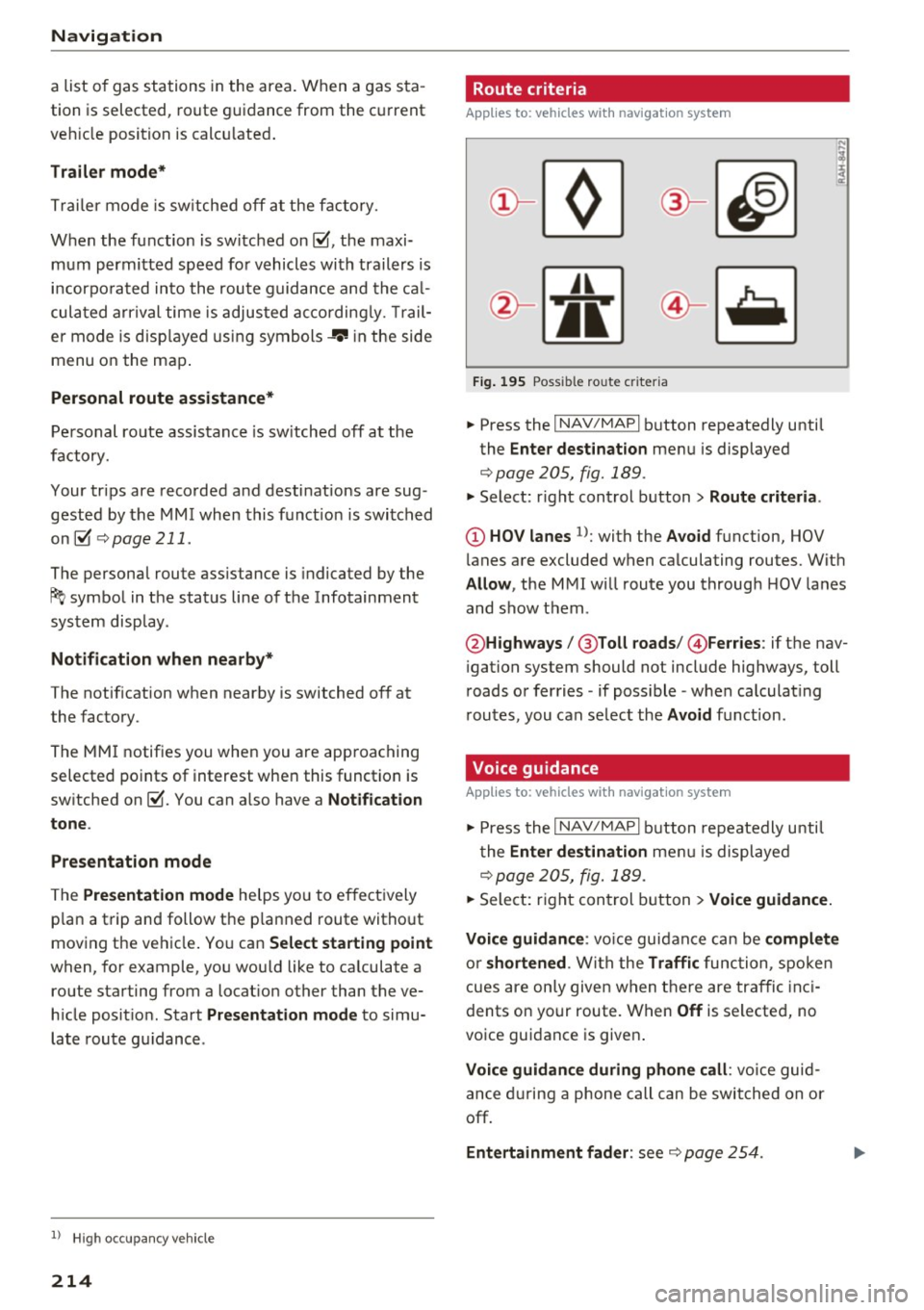
(D HOV lanes 1>: with the Avoid function, HOV
l anes are excluded when ca lculating routes. With
Allow , the MMI will route you through HOV lanes
and show them .
@Highways /@ Toll roads /@ Ferries : if the nav
i gation system should not include highways, toll
roads or ferries -if poss ible -when calculat ing
routes, you can select the
Avoid f u nction.
Voice guidance
Applies to: vehicles with navigation system
.. Press the I NAV /MAPI button repeatedly unti l
the
En ter de stination me nu is displayed
¢page 205, fig. 189 .
.. Select: r ight con trol b utton> Voice guidance.
Voic e guidan ce :
vo ice guidance can be compl ete
o r shortened . With the Traffic func tion , spoken
cues are on ly given when there are traffic inc i
dents on your route. When
Off is se lected, no
voice guidance is given .
Voice guidan ce during phone call : voice guid
ance d uring a phone call can be swi tched on or
off.
Entertainment fader : see c::> page 254.
Page 217 of 402

u (0 ...... N r--. N ...... 0
0
:E
ume d uring voice guidance using the On/Off knob
c::> page 156 Yo u can also f ind additional in fo rma
tion under
c::> page 254.
Map
Operating the map
A ppl ies to: ve hicles with naviga tion system
F ig. 19 6 Exam ple: 30 map with th e cross hairs sw itched off
H4M
~
S FIQUt ra• St
F ig . 197 Exa mpl e: sta n dard m ap with t he cros sha ir s
sw itc hed o n
.. Press the I NAV/MAPI button repeated ly until
the map is d isplayed
<=> fig. 196.
Zoom ing in /out on the map
- T urn the cont rol k nob to the le ft or to the r ight.
Alte rn atively , you can also zoom in/out on the
map using the MM I touch contro l pad*
<=> page 161, if the c ross hairs are switched on .
Or: turn the left thumbwheel on the mu ltifunc
t ion steer ing whee l*<=>
page 13.
Turning the crosshairs on/off
- Switching th e crosshairs on :
press t he control
k no b in t he ma p view
c::> fig. 19 6.
- Switching the crosshairs off : press the I BACKI
button.
1l Only app lies to ve hicles w it h ou t camer a-based speed limit
disp lay .
Navigation
When the crosshairs are switched off
c::> fig. 196:
(D D irection . Fo r additional informa tion, see
c::>page 21 7.
@ The distance to the destinat ion includes the
calculated arrival time .
@ When the trailer mode func tion is sw itched
on~, the cor respond ing sy mbol is displayed
n ext to the arrival time.
@ Sca le: t urn the control knob to the left o r
right to decrease or increase the sca le . When
the
Automatic zoom function is sw itched on
~, an "A" for "A utomat ic" is d isplayed in the
magn ifying g lass .
® Altitude
@ Vehicle position
0 Route info rmation: var ious informa tion will
be displayed dur ing rou te g uidance ( fo r ex
amp le, the upcoming maneuver includin g
ca lculated distance and street names o r haz
ard info rmation*) . The display a lso provi des
traff ic information or po ints of interest on
the current route .
@ Road currently being d rive n on
When the crosshairs are switched on <=> fig. 197:
® The crosshairs: move the c rosshairs in the de-
s ired direct ion and set a point on the map us
i ng the MMI touc h control pad* or the con
trol knob . When the crosshairs are tur ned
off, the road be ing curren tly driven on is
shown .
@ Speed limit display1>: dis play of the max i
mum pe rm itted speed on t he expressways
and highways.
@ Ente rtain men t slidi ng menu*: only available
when media is active. More i nfo rmat ion can
b e fo und under
c::> page 162.
@ Additional information on the c ross hairs po
s it ion: if you move the crosshairs to a loca
t ion on the map, available information fo r
the current crosshairs position is displayed. Press the control knob to open desti nat ion
de tails or to start rou te g uidance.
215
Page 348 of 402

Wheels
&_ WARNING
Please note the important safe
ty precautions regarding tire
pressure¢
page 343 and load
limits¢
page 346.
Tires and vehicle load limits
There are limits to the amount of load or weight that any vehicle
and any tire can carry . A vehicle
that is overloaded will not handle
well and is more difficult to stop .
Overloading can not only lead to loss of vehicle control, but can al
so damage important parts of the
vehicle and can lead to sudden
tire failure, including a blowout
and sudden deflat ion that can
cause the vehicle to crash.
Your safety and that of your pas
sengers also depends on making
sure that load limits are not ex
ceeded. Vehicle load includes ev
erybody and everything in and on
the vehicle . These load limits a re
technically referred to as the vehi
cle's
Gross Vehicle Weight Rat
ing
("GVWR") .
The "GVWR" includes the weight of the basic vehicle, all factory in
stalled accessories, a full tan k of
fuel, oil, coolant and other fluids
3 4 6
plus maximum load. The maxi
mum load includes the number of
passengers that the veh icle is in
tended to carry ("seating capaci
ty") with an assumed weight o f
150 lbs (68 kg) for each passen
ger at a designated seat ing pos i
tion and the total weight of any luggage in the veh icle. If you tow
a trailer, the weight of the trailer
hitch and the tongue we ight of
the loaded trailer must be includ ed as part of the vehicle load.
The
Gross Axle Weight Rating
("GAWR") is the maximum load
that can be applied at each of the
vehicle's two axles .
The fact that there is an upper
limit to your vehicle's Gross Vehi
cle Weight Rating means that the
total weight of whatever is being
carried in the vehicle (inc luding
the weight of a trailer h itch and
the tongue weight of the loaded
trailer) is limited . The more pas
sengers in the vehicle or passen
gers who are heavier than the
standard weights assumed mean
that less weight can be carried as luggage .
The Gross Vehicle Weight Rating and the Gross Axle Weight Rat ing .,.
Page 349 of 402

u
"' ... N
" N ... 0
~ ...
are listed on the safety compli
ance sticker label located on the
driver's side 8-pillar.
.&_ WARNING
Overloading a vehicle can cause loss of vehicle control, a crash
or other accident, serious per
sonal injury, and even death.
-Carrying more weight than
your vehicle was designed to carry will prevent the vehicle
from handling properly and increase the risk of the loss of
vehicle control.
-The brakes on a vehicle that
has been overloaded may not
be able to stop the vehicle
within a safe distance.
-Tires on a vehicle that has
been overloaded can fail sud
denly, including a blowout and
sudden deflation, causing loss
of control and a crash.
-Always make sure that the to
tal load being transported - incl uding the weight of a trail
er hitch and the tongue
weight of a loaded trailer -
does not make the vehicle heavier than the vehicle's
Gross Vehicle Weight Rating.
Wheels
Determining correct load
limit
Use the example below to calcu
late the total weight of the pas
sengers and luggage or other
things that you plan to transport
so that you can make sure that
your vehicle will not be overload
ed.
Steps for Determining Correct Load Limit
1. Locate the statement "THE
COMBINED WEIGHT OF OCCU
PANTS AND CARGO SHOULD
NEVER EXCEED XXX KG OR XXX
LBS" on your vehicle's placard
(tire inflation pressure label)
¢ page 343, fig. 2 76.
2. Determine the combined
weight of the driver and pas
sengers that will be riding in
your vehicle.
3. Subtract the combined weight of the driver and passengers
from
"XXX" kilograms or "XXX"
pounds shown on the stick
er ¢
page 343, fig. 2 76.
4. The resulting figure equals the
available amount of cargo and
luggage load capacity. For ex
ample, if the
"XXX" amount
equals 1400 lbs. and there will.,,.
347