Page 431 of 741
430
RAV4_OM_OM42A41U_(U)
5-18. Connecting Bluetooth®
To display the screen shown below, press the “SETUP” button and
select “Bluetooth
*” on the “Setup” screen.
Select to connect the device to
be used with audio system.
( → P. 435)
Select to register a Bluetooth
®
device to be used with audio
system. ( →P. 433)
Select to set detailed
Bluetooth
® system settings.
( → P. 438)
Select to delete registered devices. ( →P. 434)
*: Bluetooth is a registered trademark of Bluetooth SIG, Inc.
Registering and connecting from the “Bluetooth* Setup” screen
1
2
3
4
Page 437 of 741

436
RAV4_OM_OM42A41U_(U)
5-18. Connecting Bluetooth®
To turn auto connection mode on, set “Bluetooth* Power” to on.
(→ P. 438)
When you register a phone, auto connection will be activated. Always
set it to this mode and leave the Bluetooth
® phone in a place where a
connection can be established.
When the engine switch is turned to the “ACC” or “ON” position (vehicles
without smart key system) or ACCESSORY or IGNITION ON mode (vehi-
cles with smart key system), the system will search for a nearby cellular
phone you have registered.
Next, the system automatically connects with the most recent of the
phones connected to in the past. Then, the connection result is displayed.
*: Bluetooth is a registered trademark of Bluetooth SIG, Inc.
When auto connection has failed or “Bluetooth* Power” is turned off,
you must connec t the Bluetooth® device manually.
*: Bluetooth is a registered trademark of Bluetooth SIG, Inc.
Follow the steps in “Connecting a Bluetooth® device” from .
( → P. 435)
■When connecting from the Bluetooth® audio control screen
Registering an additional device
Select “Select Device” on the Bluetooth
® audio control screen.
For more information: → P. 4 3 3
Selecting a registered device
Select “Select Device” on the Bluetooth
® audio control screen.
For more information: → P. 4 3 5
■Reconnecting a Bluetooth® phone
If the system cannot connect due to poor signal strength with the engine
switch in the “ACC” or “ON” position (vehicles without smart key system) or
ACCESSORY or IGNITION ON mode (vehicles with smart key system), the
system will automatically attempt to reconnect.
If the phone is turned off, the system will not attempt to reconnect. In this
case, the connection must be made manually, or the phone must be rese-
lected.
Auto connection
Manual connection
1
Page 439 of 741
438
RAV4_OM_OM42A41U_(U)
5-18. Connecting Bluetooth®
Detailed Bluetooth® settings
Display the “Bluetooth* Setup” screen. (→P. 430)
Select “System Settings”.
The following screen is displayed:
Bluetooth
® Power on/off
You can change Bluetooth®
function on/off
Bluetooth
® Name
Change PIN-code ( →P. 439)
Bluetooth
® Address
Display Phone Status
You can set the system to show
the status confirmation display
when connecting a telephone
Display Audio Player Status
You can set the system to show
the status confirmation display
when connecting an audio
player
Compatibility profile of the system
Restore default settings
*: Bluetooth is a registered trademark of Bluetooth SIG, Inc.
You can confirm and change the detailed Bluetooth® settings.
How to check and change detailed Bluetooth® settings
1
2
3
1
2
3
4
5
6
7
8
Page 471 of 741

470
RAV4_OM_OM42A41U_(U)
5-22. Bluetooth®
When registering/connecting a cellular phone
When making/receiving a call
A cellular phone cannot be registered.
An incorrect passcode was entered on the cellular phone.
→Enter the correct passcode on the cellular phone.
The registration operation has not been completed on the cellular phone
side.
→Complete the registration operation on the cellular phone (approve
registration on the phone).
Old registration information remains on either this system or the cellular
phone.
→Delete the existing registration information from both this system
and the cellular phone, then regist er the cellular phone you wish to
connect to this system. ( →P. 434)
A Bluetooth® connection cannot be made.
Another Bluetooth® device is already connected.
→ Manually connect the cellular phone you wish to use to this sys-
tem. ( →P. 436)
Bluetooth® function is not enabled on the cellular phone.
→ Enable the Bluetooth® function on the cellular phone.
Automatic Bluetooth® connection on this system is set to off.
→ Set automatic Bluetooth® connection on this system to on when
the engine switch is turned to th e “ACC” or “ON” position (vehicles
without smart key system) or ACCE SSORY or IGNITION ON mode
(vehicles with smart key system). (→P. 436)
“Please check your device settings.” message is displayed.
Bluetooth® function is not enabled on the cellular phone.
→ Enable the Bluetooth® function on the cellular phone.
Old registration information remains on either this system or the cellular
phone.
→Delete the existing registration information from both this system
and the cellular phone, then regist er the cellular phone you wish to
connect to this system. ( →P. 434)
A call cannot be made/received.
Your vehicle is in a “Out of cellular service area. Please try again later.”
area.
→ Move to where “Out of cellular ser vice area. Please try again later.”
no longer appears on the display.
Page 472 of 741
RAV4_OM_OM42A41U_(U)
4715-22. Bluetooth®
5
Audio system
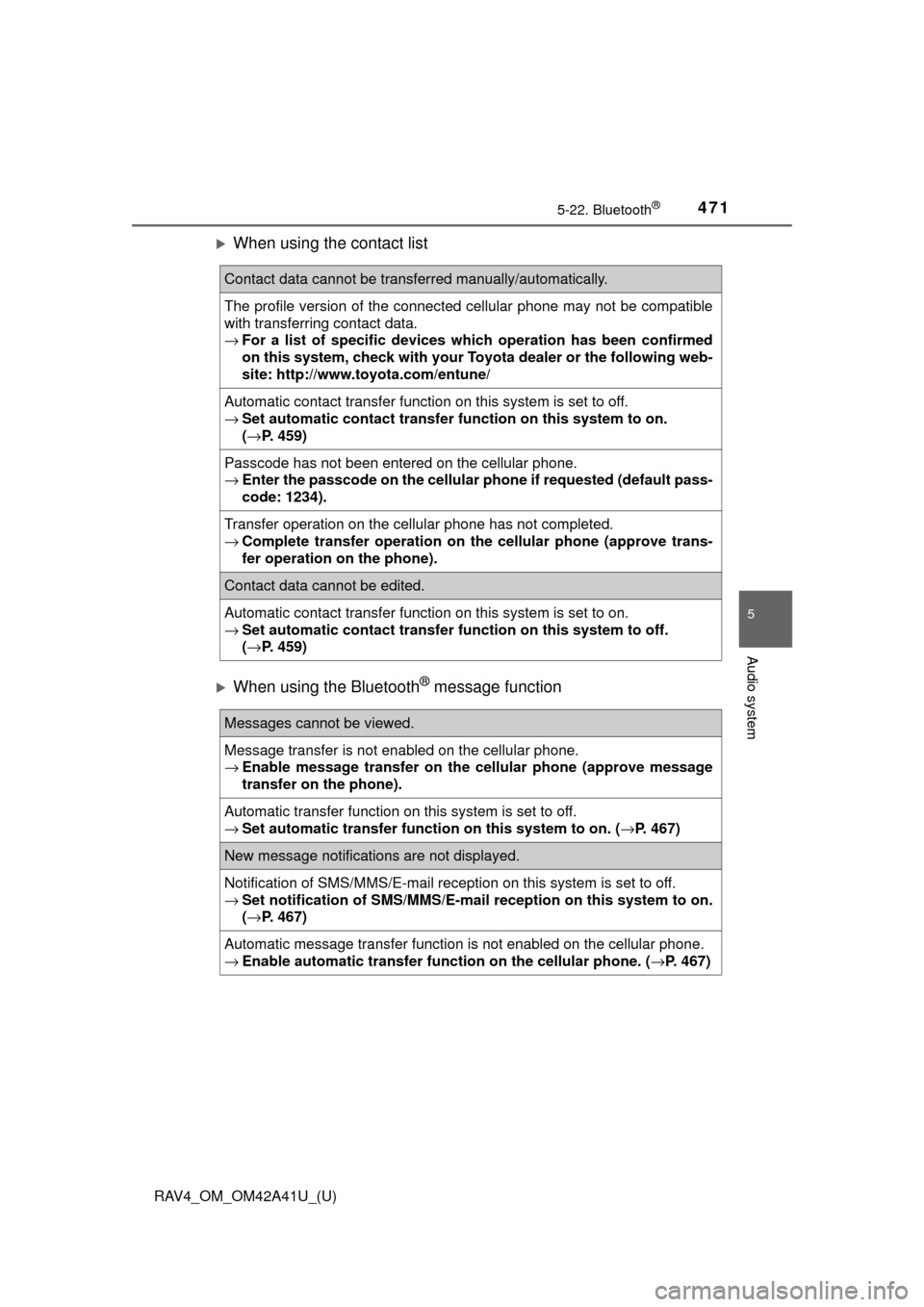
When using the contact list
When using the Bluetooth® message function
Contact data cannot be transferred manually/automatically.
The profile version of the connected cellular phone may not be compatible
with transferring contact data.
→For a list of specific devices whic h operation has been confirmed
on this system, check with your To yota dealer or the following web-
site: http://www.toyota.com/entune/
Automatic contact transfer function on this system is set to off.
→ Set automatic contact transfer fu nction on this system to on.
( → P. 459)
Passcode has not been entered on the cellular phone.
→ Enter the passcode on the cellular pho ne if requested (default pass-
code: 1234).
Transfer operation on the cellular phone has not completed.
→ Complete transfer operation on the cellular phone (approve trans-
fer operation on the phone).
Contact data cannot be edited.
Automatic contact transfer function on this system is set to on.
→ Set automatic contact transfer fu nction on this system to off.
( → P. 459)
Messages cannot be viewed.
Message transfer is not enabled on the cellular phone.
→ Enable message transfer on the cellular phone (approve message
transfer on the phone).
Automatic transfer function on this system is set to off.
→ Set automatic transfer functi on on this system to on. (→P. 467)
New message notifications are not displayed.
Notification of SMS/MMS/E-mail reception on this system is set to off.
→Set notification of SMS/MMS/E-mail reception on this system to on.
(→ P. 467)
Automatic message transfer function is not enabled on the cellular phone.
→ Enable automatic transfer func tion on the cellular phone. (→P. 467)
Page 473 of 741

472
RAV4_OM_OM42A41U_(U)
5-22. Bluetooth®
In other situations
The Bluetooth® connection status is displayed at the top of the screen each
time the engine switch is turned to the “ACC” or “ON” position (vehicles
without smart key system) or ACCESSORY or IGNITION ON mode (vehi-
cles with smart key system).
Connection confirmation display on this system is set to on.
→ To turn off the display, set conn ection confirmation display on this
system to off. ( →P. 438)
Even though all conceivable measures have been taken, the symptom sta-
tus does not change.
The cellular phone is not close enough to this system.
→Bring the cellular phone closer to this system.
The cellular phone is the most likely cause of the symptom.
→Turn the cellular phone off, remo ve and reinstall the battery pack,
and then restart the cellular phone.
→ Enable the cellular phone’s Bluetooth
® connection.
→ Stop the cellular phone’s security software and close all applica-
tions.
→ Before using an appli cation installed on the cellular phone, care-
fully check its source and how its operation might affect this sys-
tem.
Page 474 of 741

473
RAV4_OM_OM42A41U_(U)
5-22. Bluetooth®
5
Audio system
Bluetooth®
■When using the Bluetooth® audio system
● In the following conditions, the system may not function.
• If the portable audio player is turned off
• If the portable audio player is not connected
• If the portable audio player’s battery is low
● There may be a delay if a cellular phone connection is made during
Bluetooth
® audio play.
● Depending on the type of portable audio player that is connected to the \
sys-
tem, operation may differ slightly and certain functions may not be available.
■ When using the hands-free system
●The audio system is muted when making a call.
● If both parties speak at the same time, it may be difficult to hear.
● If the received call volume is overly loud, an echo may be heard.
If the Bluetooth
® phone is too close to the system, quality of the sound may
deteriorate and connection status may deteriorate.
● In the following circumstances, it may be difficult to hear the other party:
• When driving on unpaved roads
• When driving at high speeds
• If a roof or window is open
• If the air conditioning is blowing directly on the microphone
• If there is interference from the network of the cellular phone
■ Conditions under which th e system will not operate
● If using a cellular phone that does not support Bluetooth
®
●If the cellular phone is turned off
● If you are outside of cellular phone service coverage
● If the cellular phone is not connected
● If the cellular phone’s battery is low
● When outgoing calls are controlled, due to heavy traffic on telephone lines,
etc.
● When the cellular phone itself cannot be used
● When transferring contact data from the cellular phone
Page 483 of 741
482
RAV4_OM_OM42A41U_(U)
5-23. Other function
■Notes about Mobile Assistant
●The available features and functions may vary based on the iOS version
installed on the connected device.
● Some Siri features are limited in Eyes Free mode. If you attempt to use an
unavailable function, Siri will inform you that the function is not avai\
lable.
● If Siri is not enabled on the cellular phone connected via Bluetooth
®, an
error message will be displayed on the screen.
● While a phone call is active, the Mobile Assistant cannot be used.
● If using the navigation feature of the cellular phone, ensure the active audio
source is Bluetooth
® audio or iPod in order to hear turn by turn direction
prompts.