2016 SUBARU IMPREZA Tail
[x] Cancel search: TailPage 281 of 594

Audio/Audio set
To clean a disc: Wipe it with a soft, lint-
free cloth that has been dampened with
water. Wipe in a straight line from the
center to the edge of the disc (not in
circles). Dry it with another soft, lint-free
cloth. Do not use a conventional record
cleaner or anti-static device.
!CD-R/RW discs
. CD-R/CD-RW discs that have not been
subject to the “finalizing process ”(a
process that allows discs to be played
on a conventional CD player) cannot be
played.
. It may not be possible to play CD-R/
CD-RW discs recorded on a music CD
recorder or a personal computer because
of disc characteristics, scratches or dirt on
the disc, or dirt, condensation, etc. on the lens of the unit.
.
It may not be possible to play discs
recorded on a personal computer depend-
ing on the application settings and the
environment. Record with the correct
format. (For details, contact the appropri-
ate application manufacturers of the ap-
plications.)
. CD-R/CD-RW discs may be damaged
by direct exposure to sunlight, high tem-
peratures or other storage conditions. The
unit may be unable to play some damaged
discs.
. If you insert a CD-RW disc into the
player, playback will begin more slowly
than with a conventional CD or CD-R disc.
. Recordings on CD-R/CD-RW cannot
be played using the DDCD (Double
Density CD) system.
! USB memory device
. USB communication formats: USB
1.1/2.0 HS (480 Mbps) and FS (12 Mbps)
. File formats: FAT 16/32
. Correspondence class: Mass storage
class
! iPod
The following iPod, iPod nano, iPod
classic, iPod touch and iPhone devices
can be used with this system. Made for
.
iPod touch (5th generation)*
. iPod touch (4th generation)
. iPod touch (3rd generation)
. iPod touch (2nd generation)
. iPod touch (1st generation)
. iPod classic
. iPod nano (7th generation)*
. iPod nano (6th generation)*
. iPod nano (5th generation)
. iPod nano (4th generation)
. iPod nano (3rd generation)
. iPod nano (2nd generation)*
. iPod nano (1st generation)*
. iPhone 5s*
. iPhone 5c*
. iPhone 5*
. iPhone 4s
. iPhone 4
. iPhone 3GS
. iPhone 3G
. iPhone
*: iPod video not supported
Depending on differences between mod-
els or software versions etc., some mod-
els might be incompatible with this sys-
tem.
5-10
Page 289 of 594
Audio/Audio set
only the first two connected devices
will be recognized.
&Basic operation
This section describes some of the basic
features of the audio/visual system. Some
information may not pertain to your sys-
tem.
Your audio/visual system works when the
ignition switch is turned to the “ACC”or
“ON ”position.
CAUTION
To prevent the battery from being
discharged, do not leave the audio/
visual system on longer than neces-
sary when the engine is not running.
NOTE
Some functions can also be operated
by using the voice command system.
For details, refer to “Voice command
system ”F 5-82. !
Turning the system on and off
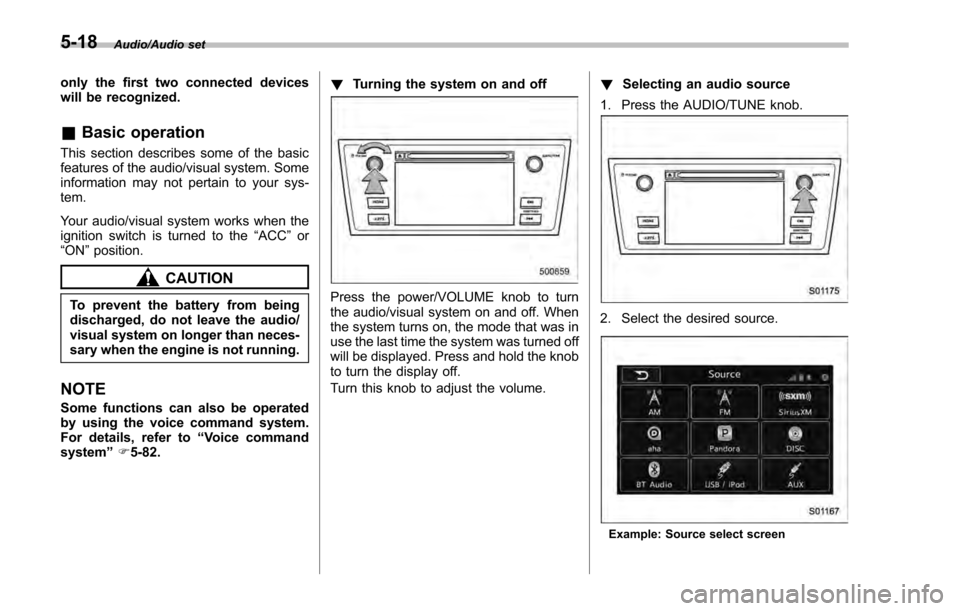
Press the power/VOLUME knob to turn
the audio/visual system on and off. When
the system turns on, the mode that was in
use the last time the system was turned off
will be displayed. Press and hold the knob
to turn the display off.
Turn this knob to adjust the volume. !
Selecting an audio source
1. Press the AUDIO/TUNE knob.
2. Select the desired source.
Example: Source select screen
5-18
Page 291 of 594
Audio/Audio set
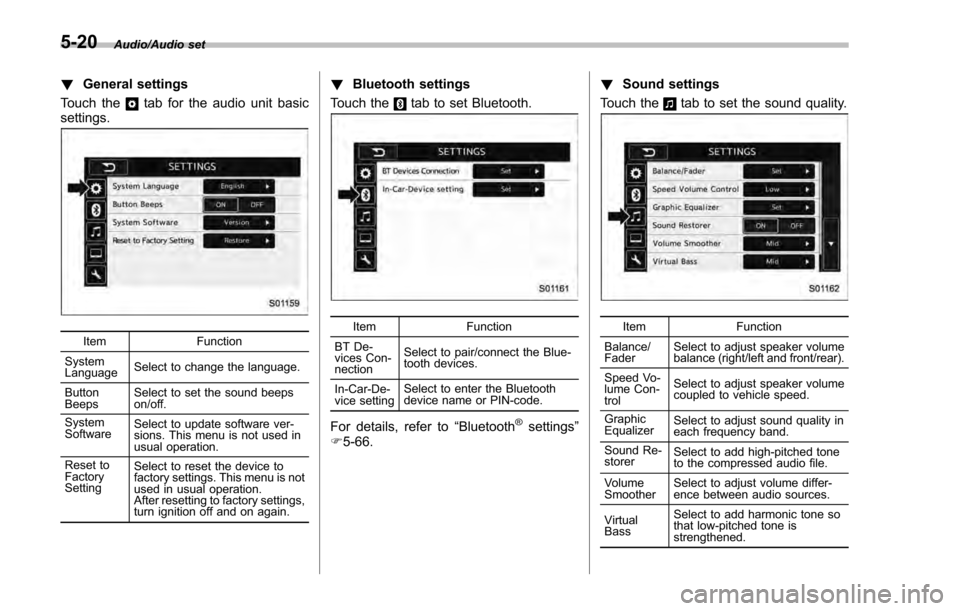
!General settings
Touch the
tab for the audio unit basic
settings.
Item Function
System
Language Select to change the language.
Button
Beeps Select to set the sound beeps
on/off.
System
Software Select to update software ver-
sions. This menu is not used in
usual operation.
Reset to
Factory
Setting Select to reset the device to
factory settings. This menu is not
used in usual operation.
After resetting to factory settings,
turn ignition off and on again.
!
Bluetooth settings
Touch the
tab to set Bluetooth.
Item Function
BT De-
vices Con-
nection Select to pair/connect the Blue-
tooth devices.
In-Car-De-
vice setting Select to enter the Bluetooth
device name or PIN-code.
For details, refer to
“Bluetooth®settings”
F 5-66. !
Sound settings
Touch the
tab to set the sound quality.
Item Function
Balance/
Fader Select to adjust speaker volume
balance (right/left and front/rear).
Speed Vo-
lume Con-
trol Select to adjust speaker volume
coupled to vehicle speed.
Graphic
Equalizer Select to adjust sound quality in
each frequency band.
Sound Re-
storer Select to add high-pitched tone
to the compressed audio file.
Volume
Smoother Select to adjust volume differ-
ence between audio sources.
Virtual
Bass Select to add harmonic tone so
that low-pitched tone is
strengthened.
5-20
Page 297 of 594
Audio/Audio set
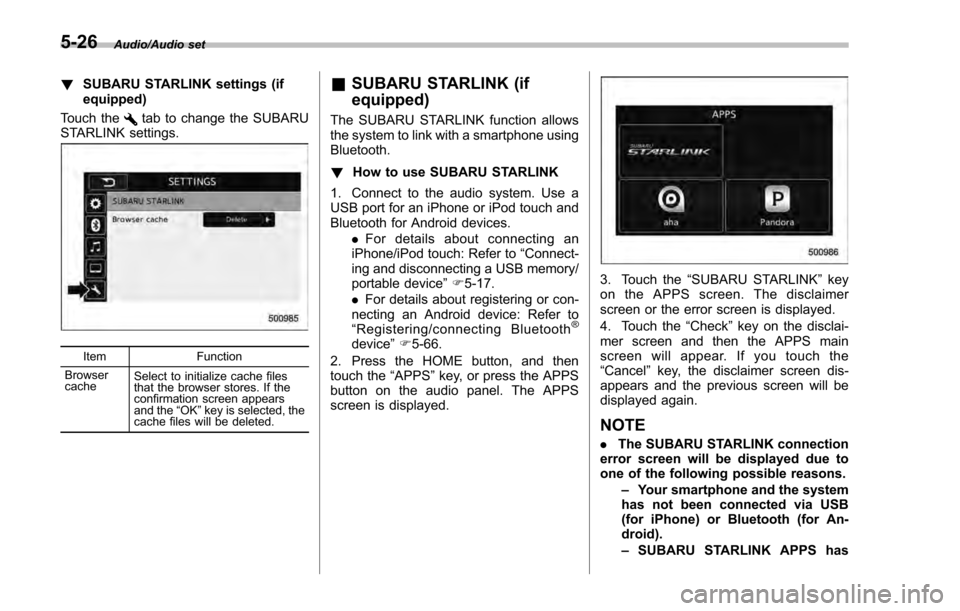
!SUBARU STARLINK settings (if
equipped)
Touch the
tab to change the SUBARU
STARLINK settings.
Item Function
Browser
cache Select to initialize cache files
that the browser stores. If the
confirmation screen appears
and the
“OK ”key is selected, the
cache files will be deleted.
& SUBARU STARLINK (if
equipped)
The SUBARU STARLINK function allows
the system to link with a smartphone using
Bluetooth.
! How to use SUBARU STARLINK
1. Connect to the audio system. Use a
USB port for an iPhone or iPod touch and
Bluetooth for Android devices. .For details about connecting an
iPhone/iPod touch: Refer to “Connect-
ing and disconnecting a USB memory/
portable device ”F 5-17.
. For details about registering or con-
necting an Android device: Refer to
“ Registering/connecting Bluetooth
®
device ”F 5-66.
2. Press the HOME button, and then
touch the “APPS”key, or press the APPS
button on the audio panel. The APPS
screen is displayed.
3. Touch the “SUBARU STARLINK ”key
on the APPS screen. The disclaimer
screen or the error screen is displayed.
4. Touch the “Check”key on the disclai-
mer screen and then the APPS main
screen will appear. If you touch the
“Cancel ”key, the disclaimer screen dis-
appears and the previous screen will be
displayed again.
NOTE
. The SUBARU STARLINK connection
error screen will be displayed due to
one of the following possible reasons.
–Your smartphone and the system
has not been connected via USB
(for iPhone) or Bluetooth (for An-
droid).
– SUBARU STARLINK APPS has
5-26
Page 299 of 594
Audio/Audio set
&AM/FM radio
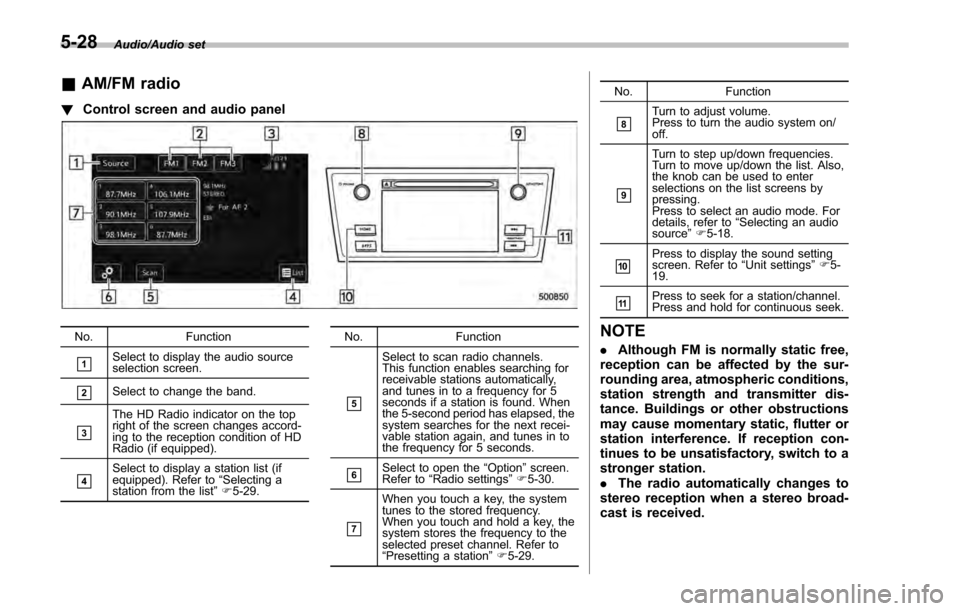
! Control screen and audio panel
No. Function
&1Select to display the audio source
selection screen.
&2Select to change the band.
&3
The HD Radio indicator on the top
right of the screen changes accord-
ing to the reception condition of HD
Radio (if equipped).
&4Select to display a station list (if
equipped). Refer to“Selecting a
station from the list ”F 5-29. No. Function
&5
Select to scan radio channels.
This function enables searching for
receivable stations automatically,
and tunes in to a frequency for 5
seconds if a station is found. When
the 5-second period has elapsed, the
system searches for the next recei-
vable station again, and tunes in to
the frequency for 5 seconds.
&6Select to open the
“Option ”screen.
Refer to “Radio settings ”F 5-30.
&7
When you touch a key, the system
tunes to the stored frequency.
When you touch and hold a key, the
system stores the frequency to the
selected preset channel. Refer to
“Presetting a station ”F 5-29. No.
Function
&8Turn to adjust volume.
Press to turn the audio system on/
off.
&9
Turn to step up/down frequencies.
Turn to move up/down the list. Also,
the knob can be used to enter
selections on the list screens by
pressing.
Press to select an audio mode. For
details, refer to“Selecting an audio
source ”F 5-18.
&10Press to display the sound setting
screen. Refer to “Unit settings ”F 5-
19.
&11Press to seek for a station/channel.
Press and hold for continuous seek.
NOTE
. Although FM is normally static free,
reception can be affected by the sur-
rounding area, atmospheric conditions,
station strength and transmitter dis-
tance. Buildings or other obstructions
may cause momentary static, flutter or
station interference. If reception con-
tinues to be unsatisfactory, switch to a
stronger station.
. The radio automatically changes to
stereo reception when a stereo broad-
cast is received.
5-28
Page 311 of 594

Audio/Audio set
NOTE
.SiriusXM Satellite Services —De-
scriptions
–Only SiriusXM Satellite Radio
®
brings you more of what you love,
all in one place. Get over 175
channels, including commercial-
free music, plus the best sports,
news, talk, comedy and entertain-
ment. Welcome to the world of
satellite radio. More information
about SiriusXM Satellite Radio is
available online at
www.siriusxm.com (U.S.) and
www.siriusxm.ca (Canada).
. SiriusXM Satellite Services —Sub-
scription Instructions
–For SiriusXM Services requiring
a subscription (such as SiriusXM
Satellite Radio, and some Infotain-
ment & data services), the following
paragraph shall be included.
Required SiriusXM Satellite Radio
and some Infotainment & data ser-
vices monthly subscriptions sold
separately after trial period. Sub-
scription fee is consumer only. All
fees and programming subject to
change. Subscriptions are subject
to the Customer Agreement avail-
able at www.siriusxm.com (U.S.) or
www.siriusxm.ca (Canada). Sirius, XM and all related marks and logos
are trademarks of Sirius XM Radio
Inc. All other marks, channel names
and logos are the property of their
respective owners.
For more information, program
schedules, and to subscribe or
extend subscription after compli-
mentary trial period; more informa-
tion is available at:
.
U.S. customers:
Visit www.siriusxm.com or call
1-866-635-2349
. Canadian customers:
Visit www.siriusxm.ca or call
1-877-209-0079
. SiriusXM Satellite Radio is solely
responsible for the quality, availability
and content of the satellite radio ser-
vices provided, which are subject to
the terms and conditions of the
SiriusXM Satellite Radio customer ser-
vice agreement.
. Customers should have their radio
ID ready; the radio ID can be found by
tuning to “Ch 000” on the radio. For
details, see “DISPLAYING THE RADIO
ID ”below.
. All fees and programming are the
responsibility of SiriusXM Satellite
Radio and are subject to change. !
How to change the source
Select the “Sirius XM ”key on the source
select screen. Refer to “Selecting an audio
source” F5-18.
5-40
Page 319 of 594

Audio/Audio set
provider for additional information.
.Ability of this product to access
connected content is subject to change
without notice and could be affected by
any of the following: compatibility
issues with future firmware versions
of the smartphone; compatibility is-
sues with future versions of the con-
nected content application(s) for the
smartphone; changes to or disconti-
nuation of the connected content ap-
plication(s) or service by its provider.
. Communication and phone call
charges for smartphones should be
paid by the wireless subscriber.
. If you lose the data in a smartphone
or other device while using it with the
system, no compensation will be given
for the lost data.
. Fuji Heavy Industries makes no
guarantee regarding the content pro-
vided by aha.
. aha may not work due to factors on
smartphones, smartphone applications
or stations. Fuji Heavy Industries is not
responsible for it. !
About the supported devices
This system supports the following de-
vices.
. For iPhone/iPod touch users
Type Generation Firmware
version or OS
iPhone iPhone 3G iOS 4.2.x
iPhone 3GS iOS 6.1.x iPhone 4 iOS 7.0.x
iPhone 4s iOS 7.0.x iPhone 5 iOS 7.0.x
iPhone 5c iOS 7.0.x
iPhone 5s iOS 7.0.x
iPod touch iPod touch iOS 3.1.x
iPod touch 2 iOS 4.2.x
iPod touch 3 iOS 5.1.x
iPod touch 4 iOS 6.1.x
iPod touch 5 iOS 7.0.x
NOTE
Note that the warranty does not apply if
an unsupported iPhone/iPod touch is
connected. .
For Android device users
Android OS Specification Profile
Android Ver. 2.2 or Ver.
2.3 Bluetooth
Specification
Ver. 1.1 or higher
(Ver. 2.0 +
EDR or higher is recom-
mended) .
aha Con-
nect Bin-
ary API
over SPP
. Digital
audio by
A2DP
NOTE
The available functions may vary de-
pending on the type of Android device.
! Connecting a smartphone
If you connect a smartphone to this
system after starting a supported aha
application on the smartphone, you can
display and operate the aha application
displayed on the smartphone on the
system screen.
1. Run the aha application on your
smartphone.
2. Connect the iPhone/iPod touch to the
USB port or connect the Android device
by utilizing the Bluetooth connection (SPP
and A2DP profile). .For details about connecting an
iPhone/iPod touch: Refer to “Connect-
ing and disconnecting a USB memory/
portable device ”F 5-17.
. For details about registering or con-
5-48
Page 320 of 594
necting an Android device: Refer to
“Registering/connecting Bluetooth®
device ”F 5-66.
NOTE
When iPhone/iPod touch and Android
devices are connected at the same
time, iPhone/iPod touch is prioritized.
! How to change the source
. Select the “aha”key on the source
select screen. Refer to “Basic operation ”
F 5-18.
. Select the “aha”key on the APPS
screen. Refer to “SUBARU STARLINK ”
F 5-26.
NOTE
When starting-up “aha ”,thereare
some smartphone models for which
“aha ”application does not start up
automatically. !
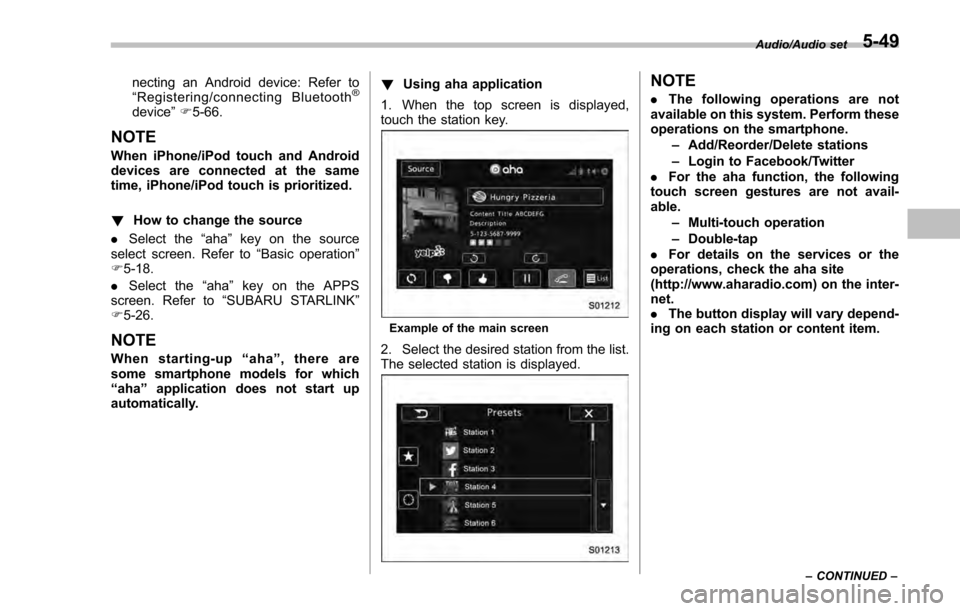
Using aha application
1. When the top screen is displayed,
touch the station key.
Example of the main screen
2. Select the desired station from the list.
The selected station is displayed.
NOTE
. The following operations are not
available on this system. Perform these
operations on the smartphone.
–Add/Reorder/Delete stations
– Login to Facebook/Twitter
. For the aha function, the following
touch screen gestures are not avail-
able.
–Multi-touch operation
– Double-tap
. For details on the services or the
operations, check the aha site
(http://www.aharadio.com) on the inter-
net.
. The button display will vary depend-
ing on each station or content item.
Audio/Audio set
–CONTINUED –5-49