Page 348 of 594
!Delete contacts
When the “Delete All ”key is selected, all
contact data downloaded into the in-
vehicle equipment will be deleted.
Refer to “Deleting the contact data ”F 5-
81.
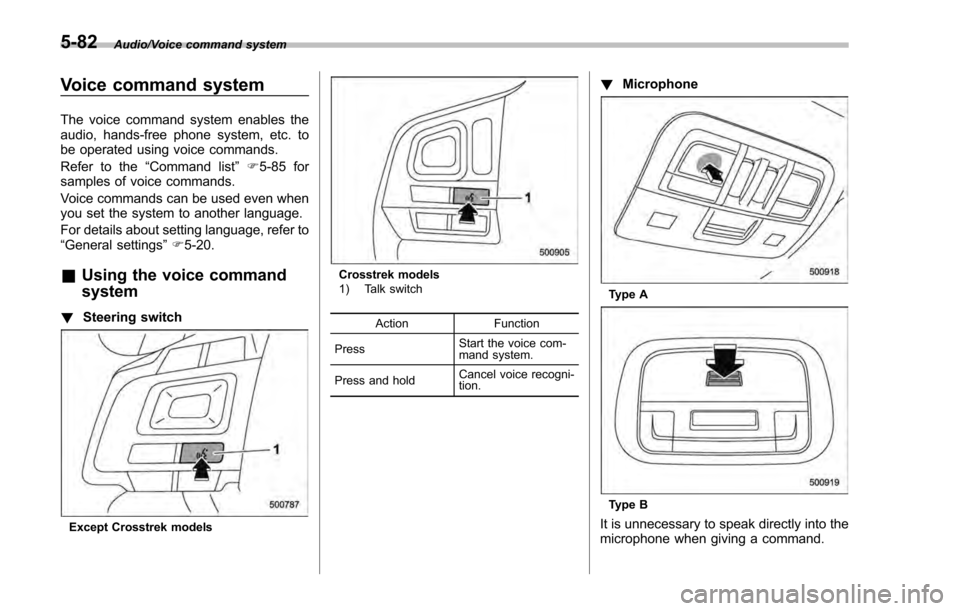
! By Dialpad
Input the phone number manually using
the keypad displayed on the screen.
Phone (Dialpad) screen
No. Function
&1Allow you to enter numbers from 0 to
9 and *, #, and +. To enter “+” , press
and hold the “0 ” key.
&2Delete one character from the entered
characters. No. Function
&3Switch the screen to the phone
(menu) screen.
&4
Open the
“Outgoing Calls ”screen and
dials the entered phone number. This
is the same as pressing the off hook
switch on the steering wheel. This key
is cross-hatched and cannot be se-
lected until the phone number is
entered.
&5Open the “Options ”screen. Refer to
“ Phone volume settings ”F 5-80.
&6Open the “BT Devices Connection ”
screen. Refer to “Setting Bluetooth
details ”F 5-69.
When you enter a phone number on the
screen and select thekey, the “Out-
going Call ”screen opens.
! By off hook switch
Calls can be made using the latest call
history item.
1. Press the off hook switch on the
steering wheel to display the phone
(menu) screen.
2. Check that the call screen is dis-
played. !
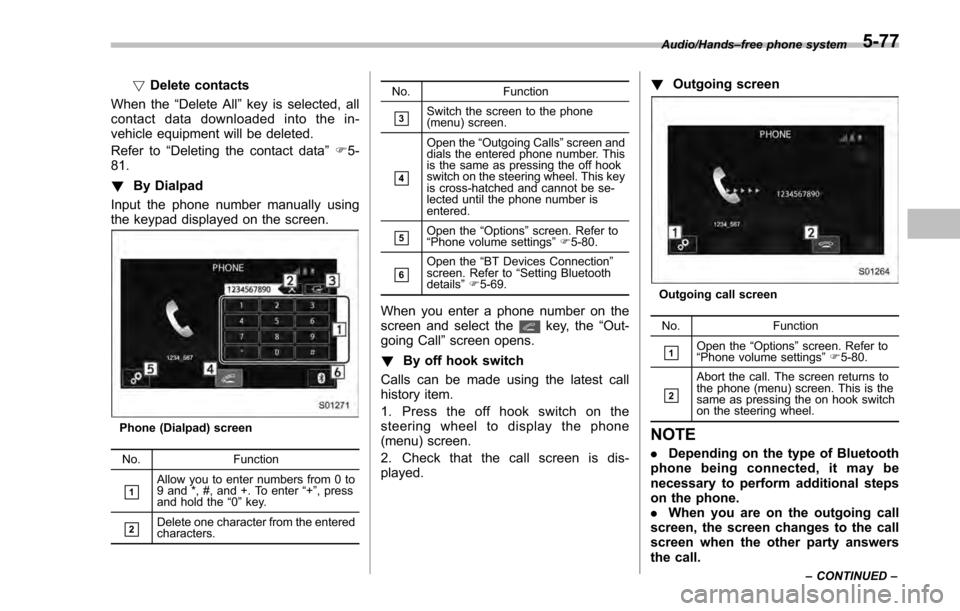
Outgoing screen
Outgoing call screen
No. Function
&1Open the “Options ”screen. Refer to
“ Phone volume settings ”F 5-80.
&2
Abort the call. The screen returns to
the phone (menu) screen. This is the
same as pressing the on hook switch
on the steering wheel.
NOTE
. Depending on the type of Bluetooth
phone being connected, it may be
necessary to perform additional steps
on the phone.
. When you are on the outgoing call
screen, the screen changes to the call
screen when the other party answers
the call.
Audio/Hands –free phone system
–CONTINUED –5-77
Page 350 of 594
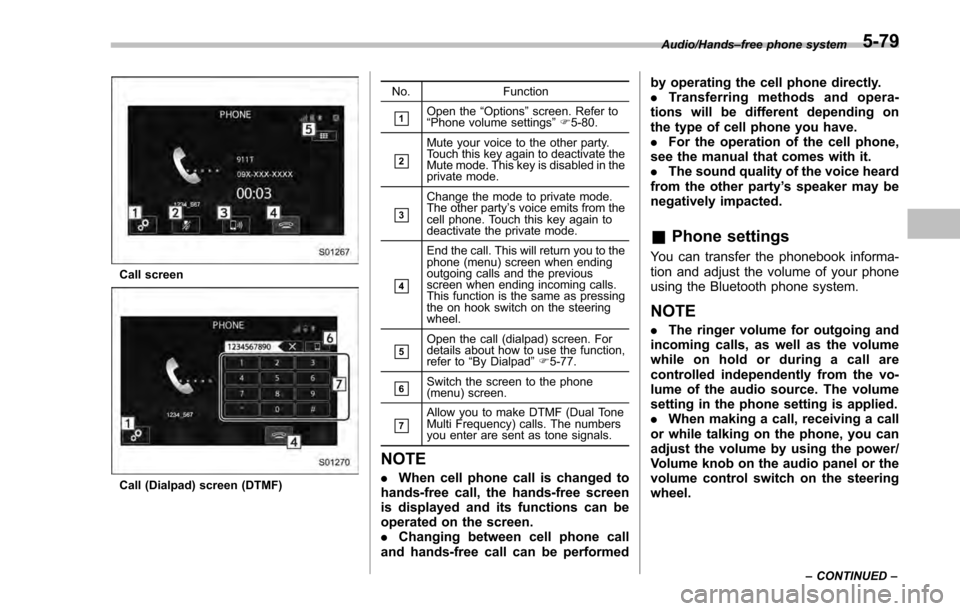
Call screen
Call (Dialpad) screen (DTMF)No. Function
&1Open the
“Options ”screen. Refer to
“ Phone volume settings ”F 5-80.
&2
Mute your voice to the other party.
Touch this key again to deactivate the
Mute mode. This key is disabled in the
private mode.
&3
Change the mode to private mode.
The other party ’s voice emits from the
cell phone. Touch this key again to
deactivate the private mode.
&4
End the call. This will return you to the
phone (menu) screen when ending
outgoing calls and the previous
screen when ending incoming calls.
This function is the same as pressing
the on hook switch on the steering
wheel.
&5Open the call (dialpad) screen. For
details about how to use the function,
refer to “By Dialpad ”F 5-77.
&6Switch the screen to the phone
(menu) screen.
&7Allow you to make DTMF (Dual Tone
Multi Frequency) calls. The numbers
you enter are sent as tone signals.
NOTE
. When cell phone call is changed to
hands-free call, the hands-free screen
is displayed and its functions can be
operated on the screen.
. Changing between cell phone call
and hands-free call can be performed by operating the cell phone directly.
.
Transferring methods and opera-
tions will be different depending on
the type of cell phone you have.
. For the operation of the cell phone,
see the manual that comes with it.
. The sound quality of the voice heard
from the other party’ s speaker may be
negatively impacted.
& Phone settings
You can transfer the phonebook informa-
tion and adjust the volume of your phone
using the Bluetooth phone system.
NOTE
. The ringer volume for outgoing and
incoming calls, as well as the volume
while on hold or during a call are
controlled independently from the vo-
lume of the audio source. The volume
setting in the phone setting is applied.
. When making a call, receiving a call
or while talking on the phone, you can
adjust the volume by using the power/
Volume knob on the audio panel or the
volume control switch on the steering
wheel.
Audio/Hands –free phone system
–CONTINUED –5-79
Page 353 of 594
Audio/Voice command system
Voice command system
The voice command system enables the
audio, hands-free phone system, etc. to
be operated using voice commands.
Refer to the“Command list ”F 5-85 for
samples of voice commands.
Voice commands can be used even when
you set the system to another language.
For details about setting language, refer to
“ General settings” F5-20.
& Using the voice command
system
! Steering switch
Except Crosstrek models
Crosstrek models
1) Talk switch
Action Function
Press Start the voice com-
mand system.
Press and hold Cancel voice recogni-
tion.
!
Microphone
Type A
Type B
It is unnecessary to speak directly into the
microphone when giving a command.
5-82
Page 360 of 594
What to do if...
&Troubleshooting
If there is a problem with the hands-free system or a Bluetooth device, first check the table below.
When using the hands-free system with a Bluetooth device
Symptom Likely cause SolutionPage
Cell
phone This
system
The hands-free system or Bluetooth
device does not work. The connected device may not be a
compatible Bluetooth cell phone. For USA customers, please visit
www.subaru.com for details. Outside of the
USA customers, contact your local dealer to
arrange a demonstration in order to confirm
whether or not the device can be paired with
the vehicle.
*
—
The Bluetooth version of the connected
cell phone may be older than the
specified version. Use a cell phone with Bluetooth version 1.1 or
higher (recommended: Ver. 2.1 + EDR or
higher).
*
5-68
*: For details, refer to the owner ’s manual that came with the cell phone. Audio/What to do if...
–CONTINUED –
5-89
Page 361 of 594

Audio/What to do if...
When registering/connecting a cell phone
SymptomLikely cause SolutionPage
Cell
phone This
system
A cell phone cannot be registered. An incorrect passcode was entered
on the cell phone.
Enter the correct passcode on the cell phone. *
—
The registration operation has not
been completed on the cell phone
side. Complete the registration operation on the cell
phone (approve registration on the phone).
*
—
Old registration information remains
on either this system or the cell
phone. Delete the existing registration information from
both this system and the cell phone, then register
the cell phone you wish to connect to this system.
*5-69
A Bluetooth connection cannot be
made. Another Bluetooth device is already
connected.
Manually connect the cell phone you wish to use to
this system.
—
5-69
Bluetooth function is not enabled on
the cell phone. Enable the Bluetooth function on the cell phone. *
—
Automatic Bluetooth connection on
this system is set to off. Set automatic Bluetooth connection on this system
to on when the ignition switch is turned to the
“ACC ”
or “ON ”position. —
5-69
*: For details, refer to the owner ’s manual that came with the cell phone.
5-90
Page 362 of 594
When using the phonebook
SymptomLikely cause SolutionPage
Cell
phone This
system
Phonebook data cannot be trans-
ferred manually. The profile version of the connected cell
phone may not be compatible with
transferring phonebook data. For USA customers, please visit
www.subaru.com for details. Outside of the
USA customers, contact your local dealer to
arrange a demonstration in order to confirm
whether or not the device can be paired with
the vehicle.
*
—
Transfer operation on the cell phone has
not completed. Complete transfer operation on the cell phone
(approve transfer operation on the phone).
*
—
Phonebook data cannot be edited. Editing function is not available on this
system.
——
5-79
*: For details, refer to the owner ’s manual that came with the cell phone. Audio/What to do if...
–CONTINUED –
5-91
Page 363 of 594
Audio/What to do if...
In other situations
SymptomLikely cause SolutionPage
Cell
phone This
system
Even though all conceivable mea-
sures have been taken, the symptom
status does not change. The cell phone is not close enough to
this system.
Bring the cell phone closer to this system.
——
The cell phone is the most likely cause
of the symptom. Turn the cell phone off, remove and reinstall
the battery pack, and then restart the cell
phone.
*
—
Enable the cell phone ’s Bluetooth connection. * —
Stop the cell phone ’s security software and
close all applications. *
—
Before using an application installed on the
cell phone, carefully check its source and how
its operation might affect this system. *
—
*: For details, refer to the owner ’s manual that came with the cell phone.
5-92
Page 364 of 594
Appendix
&Certification
. Bluetooth
The Bluetooth word mark and logo are
registered trademarks of Bluetooth SIG,
Inc. and any use of such marks by Clarion
Co., Ltd. is under license.
. SiriusXM Satellite Radio (if
equipped)
SiriusXM
TMand all related marks and
logos are trademarks of SiriusXM Radio
Inc. All rights reserved.
. Pandora (if equipped)
Pandora, the Pandora logo, and other
Pandora marks are trademarks or regis-
tered trademarks of Pandora Media, Inc.,
or its subsidiaries worldwide.
If you have any issues with the Pandora
application on your mobile phone, please
direct them to
[email protected].
. iPod
“Made for iPod ”and “Made for iPhone”
mean that an electronic accessory has
been designed to connect specifically to
iPod or iPhone respectively, and has been
certified by the developer to meet Apple
performance standards. Apple is not
responsible for the operation of this device
or its compliance with safety and regula-
tory standards. Please note that the use of
this accessory with iPod or iPhone may
affect wireless performance.
iPhone, iPod, iPod classic, iPod nano,
iPod touch, and iTunes are trademarks of
Apple Inc., registered in the U.S. and other
countries.
. How to get the source code using
the open source
This system implements software using
the open source. For customers who
would like to get the source code of the
software, it is available by downloading it
from the web site of Clarion Co., Ltd.
For details, refer to the following web site. http://www.clarion.com/us/en/support/in-
dex.html
&
Certification for the Hands-
free system
This device complies with Part 15 of FCC
Rules and Industry Canada licence-ex-
empt RSS standard(s). Operation is sub-
ject to the following two conditions: (1)
This device may not cause harmful inter-
ference, and (2) this device must accept
any interference received, including inter-
ference that may cause undesired opera-
tion.
Le présent appareil est conforme à la
partie 15 des règles de la FCC et CNR
d’Industrie Canada applicables aux appa-
reils radio exempts de licence. L ’exploita-
tion est autorisée aux deux conditions
suivantes : (1) l ’appareil ne doit pas
produire de brouillage, et (2) l ’utilisateur
de l ’appareil doit accepter tout brouillage
radioélectrique subi, même si le brouillage
est susceptible d ’en compromettre le
fonctionnement.
This equipment complies with FCC/IC
radiation exposure limits set forth for an
uncontrolled environment and meets the
FCC radio frequency (RF) Exposure
Guidelines in Supplement C to OET65
and RSS-102 of the IC radio frequency
Audio/Appendix
–CONTINUED –5-93