2016 SUBARU IMPREZA ECU
[x] Cancel search: ECUPage 252 of 594
6. When the indicator light flashes slowly
and then rapidly after several seconds,
release both buttons.
7. Plug the motor of the entrance gate/
garage door opener to the outlet.
8. Test your entrance gate/garage door
opener by pressing the programmed
HomeLink
®button.
! Operating the HomeLink
®Wire-
less Control System
Once programmed, the HomeLink
®Wire-
less Control System can be used to
remote-control the devices to which its
buttons are programmed. To activate a
device, simply press the appropriate but-
ton. The indicator light illuminates, indicat-
ing that the signal is being transmitted.
!Programming other devices
To program other devices such as door
locks, home lighting and security systems,
contact HomeLink
®at www.homelink.com
or call 1-800-355-3515.
! Reprogramming a single
HomeLink
®button
1. Press and hold the HomeLink
®button
you wish to reprogram. DO NOT release
the button until step 4 has been com-
pleted.
2. When the HomeLink
®indicator light begins to flash slowly (after approximately
20 seconds), position the hand-held trans-
mitter of the device between 1 to 3 inches
(25 to 76 mm) away from the HomeLink
®button you wish to program.
3. Press and hold the hand-held trans-
mitter button. The HomeLink
®indicator
light will flash, first slowly and then rapidly.
4. When the indicator light begins to flash
rapidly, release both buttons.
The programming for the previous device
is now erased and the new device can be
operated by pressing the HomeLink
®button.
!Erasing HomeLink
®button mem-
ory
NOTE
. Performing this procedure erases
the memory of all the preprogrammed
buttons simultaneously. The memory
of individual buttons cannot be erased.
. It is recommended that upon the
sale of the vehicle, the memory of all
programmed HomeLink
®buttons be
erased for security purposes.
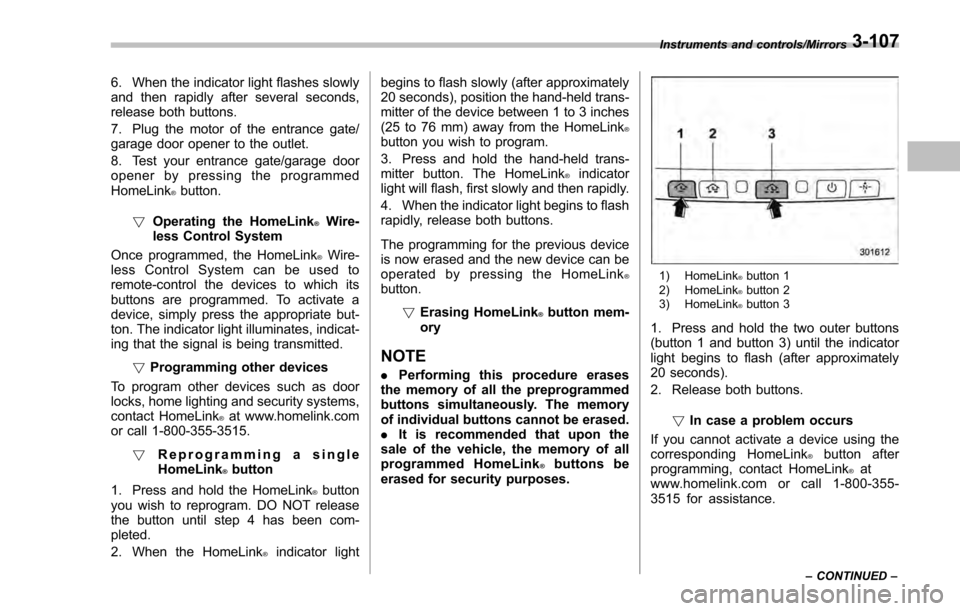
1) HomeLink®button 1
2) HomeLink®button 2
3) HomeLink®button 3
1. Press and hold the two outer buttons
(button 1 and button 3) until the indicator
light begins to flash (after approximately
20 seconds).
2. Release both buttons.
!In case a problem occurs
If you cannot activate a device using the
corresponding HomeLink
®button after
programming, contact HomeLink®at
www.homelink.com or call 1-800-355-
3515 for assistance.
Instruments and controls/Mirrors
–CONTINUED –3-107
Page 255 of 594
Instruments and controls/Tilt/telescopic steering wheel
of the rear window. They may
damage the conductors printed
on the window.
NOTE
.Turn on the defogger and deicer
system if the wipers are frozen to the
windshield.
. If the windshield is covered with
snow, remove the snow so that the
windshield wiper deicer works effec-
tively.
. While the defogger and deicer sys-
tem is in the continuous operation
mode, if the vehicle speed remains at
9mph(15km/h)orlowerfor15
minutes, the windshield wiper deicer
automatically stops operating, though
the rear window defogger and outside
mirror defogger maintain continuous
operation in this condition.
. While the defogger and deicer sys-
tem is in the continuous operation
mode, if the battery voltage drops
below the permissible level, continu-
ous operation of the defogger and
deicer system is canceled and the
system stops operating.
Tilt/telescopic steering wheel
WARNING
. Do not adjust the steering wheel
tilt/telescopic position while driv-
ing. This may cause loss of
vehicle control and result in
personal injury.
. If the lever cannot be raised to
the fixed position, adjust the
steering wheel again. It is dan-
gerous to drive without locking
the steering wheel. This may
cause loss of vehicle control
and result in personal injury.
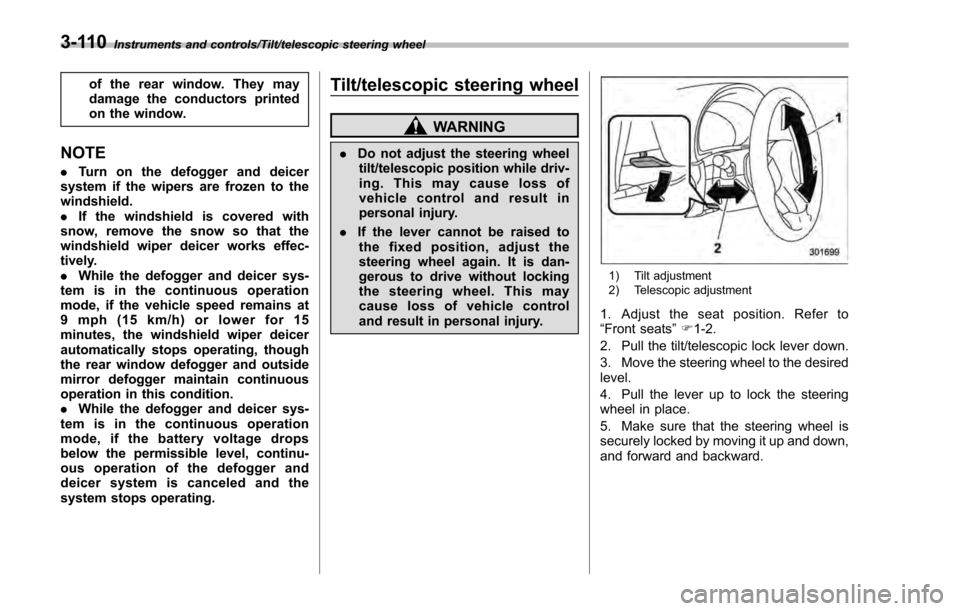
1) Tilt adjustment
2) Telescopic adjustment
1. Adjust the seat position. Refer to
“Front seats ”F 1-2.
2. Pull the tilt/telescopic lock lever down.
3. Move the steering wheel to the desired
level.
4. Pull the lever up to lock the steering
wheel in place.
5. Make sure that the steering wheel is
securely locked by moving it up and down,
and forward and backward.
3-110
Page 300 of 594
.The radio automatically blends to an
HD Radio signal (if equipped) in AM or
FM where available.
! How to change the source
Select the “AM ”or “FM ”key on the source
select screen. Refer to “Selecting an audio
source” F5-18.
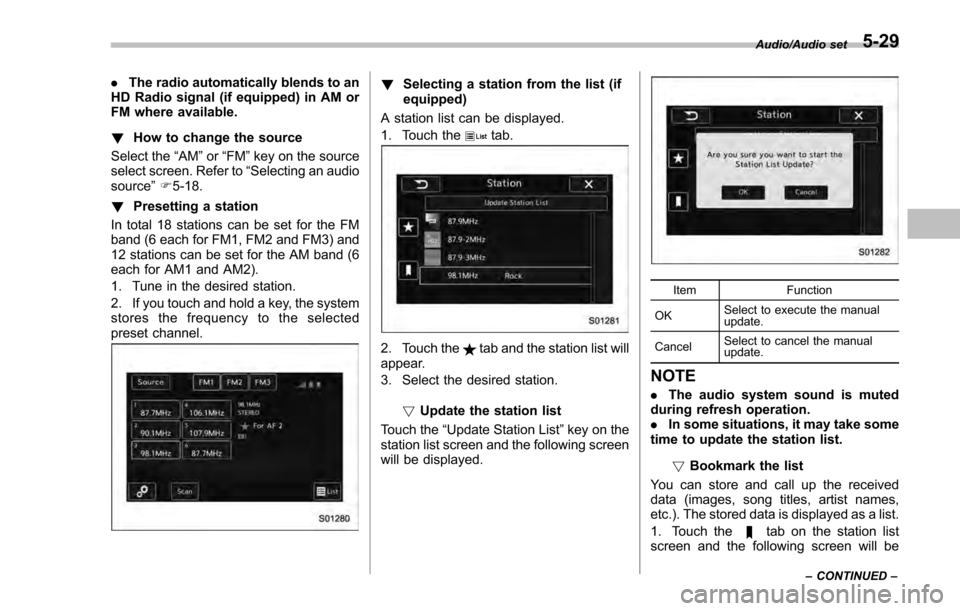
! Presetting a station
In total 18 stations can be set for the FM
band (6 each for FM1, FM2 and FM3) and
12 stations can be set for the AM band (6
each for AM1 and AM2).
1. Tune in the desired station.
2. If you touch and hold a key, the system
stores the frequency to the selected
preset channel.! Selecting a station from the list (if
equipped)
A station list can be displayed.
1. Touch the
tab.
2. Touch thetab and the station list will
appear.
3. Select the desired station.
!Update the station list
Touch the “Update Station List ”key on the
station list screen and the following screen
will be displayed.
Item Function
OK Select to execute the manual
update.
Cancel Select to cancel the manual
update.
NOTE
.
The audio system sound is muted
during refresh operation.
. In some situations, it may take some
time to update the station list.
!Bookmark the list
You can store and call up the received
data (images, song titles, artist names,
etc.). The stored data is displayed as a list.
1. Touch the
tab on the station list
screen and the following screen will be
Audio/Audio set
–CONTINUED –5-29
Page 317 of 594

Audio/Audio set
Audio panel
No. Function
&1Turn to adjust volume.
Press to turn the audio system on/off.
&2Press to display the sound setting
screen. Refer to“Unit settings ”F 5-19.
&3Press to display the station operation
screen.
Press to select an audio mode.
&4
Turn to display the next/previous con-
tent item.
Press to select an audio source. Refer
to “Selecting an audio source ”F 5-18.
&5Press to display the next/previous con-
tent item.
NOTE
. For safety reasons, certain func-
tions are not available while your
vehicle is in motion.
. In order to maximize signal recep-
tion, performance and precision of the
smartphone, please ensure the smart-
phone is placed as close to the system
as possible, while ensuring it is stowed
and secure while driving.
. When the ignition switch is in the
“ACC ”or “ON ”position, the battery of
the connected iPhone/iPod touch is
charged.
. iPhone/iPod touch may not be re-
cognized when the ignition switch is in
the “ACC ”or “ON ”position. In this
case, remove the iPhone/iPod touch
and reconnect it.
. The accuracy of the displayed in-
formation or the signal reception per-
formance depends on the smartphone
or the connected device, and it ’s wire-
less connection.
. Since the aha application uses sig-
nals from GPS satellites and wireless
communication lines, it may not work
properly in the following locations.
–In a tunnel
– In underground parking lots
5-46
Page 338 of 594
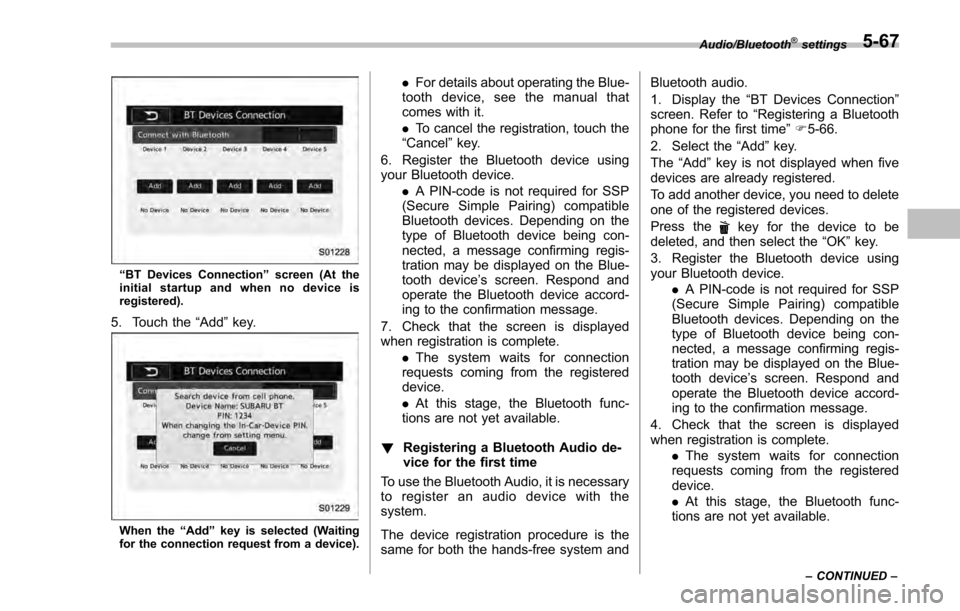
“BT Devices Connection ”screen (At the
initial startup and when no device is
registered).
5. Touch the “Add”key.
When the “Add ”key is selected (Waiting
for the connection request from a device).
. For details about operating the Blue-
tooth device, see the manual that
comes with it.
. To cancel the registration, touch the
“Cancel” key.
6. Register the Bluetooth device using
your Bluetooth device. .A PIN-code is not required for SSP
(Secure Simple Pairing) compatible
Bluetooth devices. Depending on the
type of Bluetooth device being con-
nected, a message confirming regis-
tration may be displayed on the Blue-
tooth device ’s screen. Respond and
operate the Bluetooth device accord-
ing to the confirmation message.
7. Check that the screen is displayed
when registration is complete. .The system waits for connection
requests coming from the registered
device.
. At this stage, the Bluetooth func-
tions are not yet available.
! Registering a Bluetooth Audio de-
vice for the first time
To use the Bluetooth Audio, it is necessary
to register an audio device with the
system.
The device registration procedure is the
same for both the hands-free system and Bluetooth audio.
1. Display the
“BT Devices Connection ”
screen. Refer to “Registering a Bluetooth
phone for the first time ”F 5-66.
2. Select the “Add”key.
The “Add” key is not displayed when five
devices are already registered.
To add another device, you need to delete
one of the registered devices.
Press the
key for the device to be
deleted, and then select the “OK ”key.
3. Register the Bluetooth device using
your Bluetooth device. .A PIN-code is not required for SSP
(Secure Simple Pairing) compatible
Bluetooth devices. Depending on the
type of Bluetooth device being con-
nected, a message confirming regis-
tration may be displayed on the Blue-
tooth device ’s screen. Respond and
operate the Bluetooth device accord-
ing to the confirmation message.
4. Check that the screen is displayed
when registration is complete. .The system waits for connection
requests coming from the registered
device.
. At this stage, the Bluetooth func-
tions are not yet available.
Audio/Bluetooth®settings
– CONTINUED –5-67
Page 346 of 594
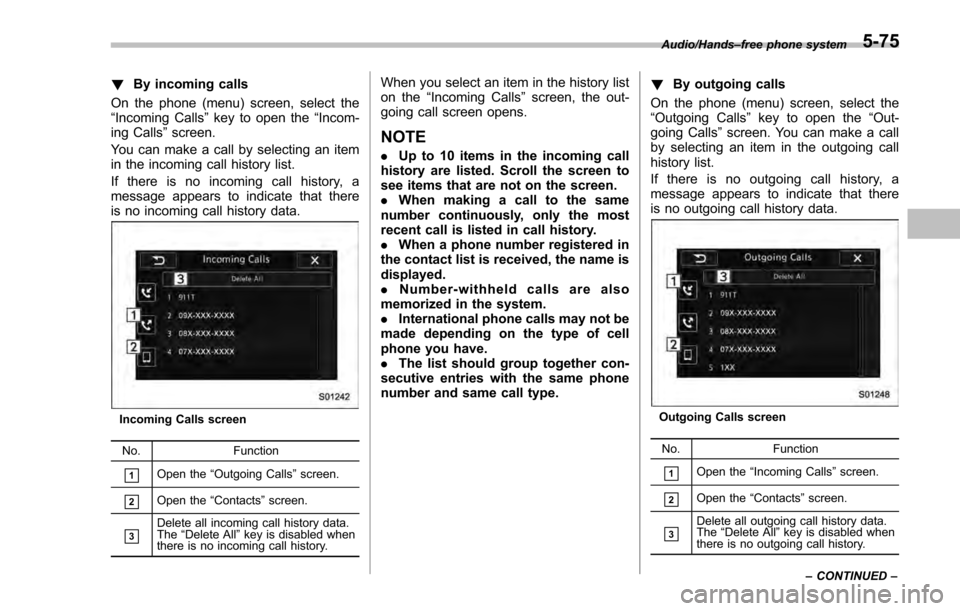
!By incoming calls
On the phone (menu) screen, select the
“Incoming Calls ”key to open the “Incom-
ing Calls” screen.
You can make a call by selecting an item
in the incoming call history list.
If there is no incoming call history, a
message appears to indicate that there
is no incoming call history data.
Incoming Calls screen
No. Function
&1Open the“Outgoing Calls ”screen.
&2Open the “Contacts ”screen.
&3Delete all incoming call history data.
The “Delete All” key is disabled when
there is no incoming call history.
When you select an item in the history list
on the “Incoming Calls ”screen, the out-
going call screen opens.
NOTE
. Up to 10 items in the incoming call
history are listed. Scroll the screen to
see items that are not on the screen.
. When making a call to the same
number continuously, only the most
recent call is listed in call history.
. When a phone number registered in
the contact list is received, the name is
displayed.
. Number-withheld calls are also
memorized in the system.
. International phone calls may not be
made depending on the type of cell
phone you have.
. The list should group together con-
secutive entries with the same phone
number and same call type. !
By outgoing calls
On the phone (menu) screen, select the
“Outgoing Calls ”key to open the “Out-
going Calls ”screen. You can make a call
by selecting an item in the outgoing call
history list.
If there is no outgoing call history, a
message appears to indicate that there
is no outgoing call history data.
Outgoing Calls screen
No. Function
&1Open the“Incoming Calls ”screen.
&2Open the “Contacts ”screen.
&3Delete all outgoing call history data.
The “Delete All ”key is disabled when
there is no outgoing call history.
Audio/Hands
–free phone system
–CONTINUED –
5-75
Page 347 of 594
Audio/Hands–free phone system
When you select an item in the history list
on the “Outgoing Calls ”screen, the out-
going call screen opens.
NOTE
. Up to 10 items in the outgoing call
history are listed. Scroll the screen to
see items that are not on the screen.
. When making a call to the same
number continuously, only the most
recent call is listed in call history.
. When a phone number registered in
the contact list is received, the name is
displayed.
. Number-withheld calls are also
memorized in the system.
. International phone calls may not be
made depending on the type of cell
phone you have.
. The list should group together con-
secutive entries with the same phone
number and same call type.
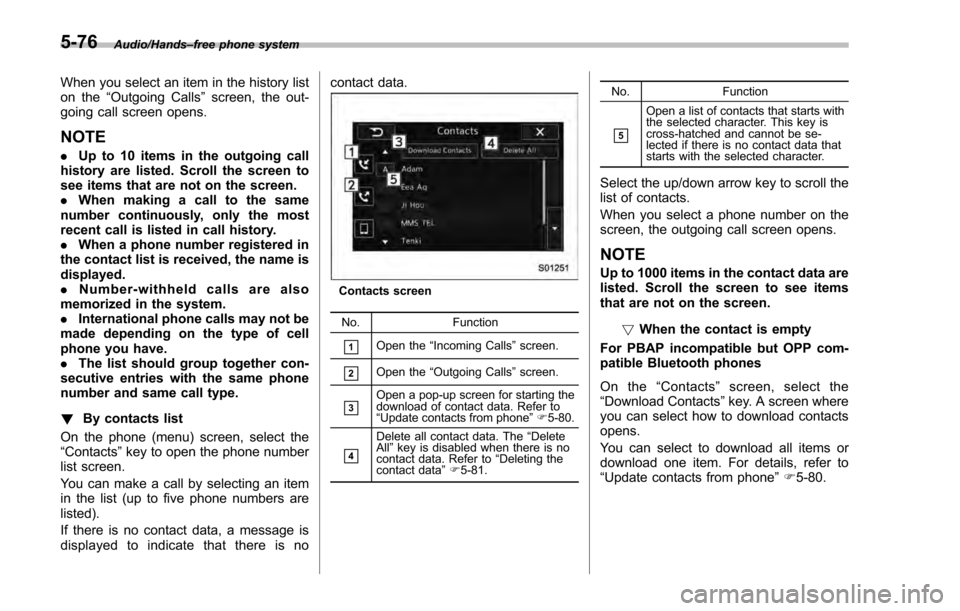
! By contacts list
On the phone (menu) screen, select the
“Contacts” key to open the phone number
list screen.
You can make a call by selecting an item
in the list (up to five phone numbers are
listed).
If there is no contact data, a message is
displayed to indicate that there is no contact data.
Contacts screen
No. Function
&1Open the“Incoming Calls ”screen.
&2Open the “Outgoing Calls ”screen.
&3Open a pop-up screen for starting the
download of contact data. Refer to
“Update contacts from phone ”F 5-80.
&4
Delete all contact data. The “Delete
All” key is disabled when there is no
contact data. Refer to “Deleting the
contact data ”F 5-81. No.
Function
&5
Open a list of contacts that starts with
the selected character. This key is
cross-hatched and cannot be se-
lected if there is no contact data that
starts with the selected character.
Select the up/down arrow key to scroll the
list of contacts.
When you select a phone number on the
screen, the outgoing call screen opens.
NOTE
Up to 1000 items in the contact data are
listed. Scroll the screen to see items
that are not on the screen.
!When the contact is empty
For PBAP incompatible but OPP com-
patible Bluetooth phones
On the “Contacts ”screen, select the
“ Download Contacts ”key. A screen where
you can select how to download contacts
opens.
You can select to download all items or
download one item. For details, refer to
“Update contacts from phone ”F 5-80.
5-76
Page 363 of 594

Audio/What to do if...
In other situations
SymptomLikely cause SolutionPage
Cell
phone This
system
Even though all conceivable mea-
sures have been taken, the symptom
status does not change. The cell phone is not close enough to
this system.
Bring the cell phone closer to this system.
——
The cell phone is the most likely cause
of the symptom. Turn the cell phone off, remove and reinstall
the battery pack, and then restart the cell
phone.
*
—
Enable the cell phone ’s Bluetooth connection. * —
Stop the cell phone ’s security software and
close all applications. *
—
Before using an application installed on the
cell phone, carefully check its source and how
its operation might affect this system. *
—
*: For details, refer to the owner ’s manual that came with the cell phone.
5-92