2016 SKODA KODIAQ phone
[x] Cancel search: phonePage 151 of 344

Bluetooth®
player
Infotainment allows audio files of a connected Bluetooth ®
player to play using
the A2DP and AVRCP audio profile.
With Infotainment, multiple devices can be paired using Bluetooth ®
, but only
one of them can be used as a Bluetooth ®
player.
Connect / disconnect›
To connect the Bluetooth ®
player with Infotainment- follow the same in-
structions as for pairing Infotainment with a telephone » page 160.
›
To disconnect the Bluetooth ®
player, end the connection in the list of paired
external devices » page 160.
Replace Bluetooth ®
player (applies to Infotainment Amundsen, Bolero)
If you would like to replace a Bluetooth ®
-Player which is connected to Info-
tainment as a phone at the same time, , then a relevant information message
appears on the Infotainment screen.
›
End the connection to the currently connected Bluetooth ®
player and repeat
the pairing procedure » page 160, Managing paired external devices .
CAUTION
If an external device is connected to Infotainment using Apple CarPlay or
Android Auto, then it cannot be connected using Bluetooth ®
.
Jukebox
Only valid for Infotainment Columbus.
In the Jukebox (in the Infotainment internal memory), supported audio / video files can be imported from connected external devices.
Import files
›
Tap the function surface in the Media main menu
→
Manage jukebox
→
Im-port
.
›
Select the desired source.
›
Select the desired folders or files.
›
Tap the function surface
.
Delete files
›
Tap the function surface in the Media main menu
→
Manage jukebox
→
De-lete
.
›
Select the desired folder or files in the selected category.
›
Tap the function surface
→
Delete
.
Show level of Infotainment memory›Tap the function surface in the Media main menu
Manage jukebox
.
information about the occupied and free space of the Infotainment memory
and the number of files that cannot be imported is displayed.
Note
■ Files that have already been copied are recognised and cannot be copied
again (shown in grey).■
It is not possible to copy files while simultaneously playing back audio/video
files in the CD/DVD drive.
WLAN
Applies to Infotainment Columbus, Amundsen.
Infotainment allows you to play audio files from one of the external devices
connected to the Infotainment WLAN.
›
Connect an external device that supports the DLNA (Digital Living Network
Alliance), with Infotainment WLAN » page 170.
›
If necessary use the UPnP application (Universal Plug and Play) in the con-
nected device, which allows playback to start.
›
Select the audio source WLAN .
149Media
Page 152 of 344
Supported audio sources and file formats - Columbus, Amundsen,
Bolero
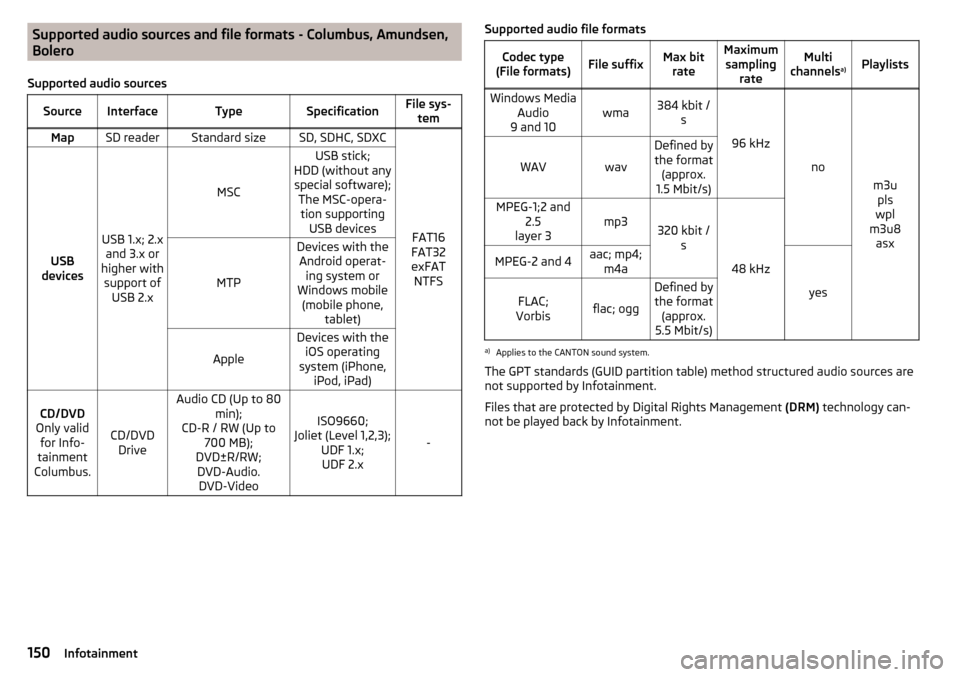
Supported audio sourcesSourceInterfaceTypeSpecificationFile sys- temMapSD readerStandard sizeSD, SDHC, SDXC
FAT16
FAT32
exFAT NTFSUSB
devices
USB 1.x; 2.x and 3.x or
higher with support of USB 2.x
MSC
USB stick;
HDD (without any special software); The MSC-opera-tion supporting USB devices
MTP
Devices with theAndroid operat- ing system or
Windows mobile (mobile phone, tablet)
Apple
Devices with theiOS operating
system (iPhone, iPod, iPad)CD/DVD
Only valid for Info-
tainment
Columbus.
CD/DVD Drive
Audio CD (Up to 80 min);
CD-R / RW (Up to 700 MB);
DVD±R/RW; DVD-Audio. DVD-Video
ISO9660;
Joliet (Level 1,2,3); UDF 1.x;UDF 2.x
-
Supported audio file formatsCodec type
(File formats)File suffixMax bit rateMaximumsampling rateMulti
channels a)PlaylistsWindows Media
Audio
9 and 10wma384 kbit / s
96 kHz
no
m3upls
wpl
m3u8 asx
WAVwav
Defined bythe format (approx.
1.5 Mbit/s)MPEG-1;2 and 2.5
layer 3mp3320 kbit / s
48 kHz
MPEG-2 and 4aac; mp4;m4a
yes
FLAC;
Vorbisflac; ogg
Defined by the format (approx.
5.5 Mbit/s)a)
Applies to the CANTON sound system.
The GPT standards (GUID partition table) method structured audio sources are
not supported by Infotainment.
Files that are protected by Digital Rights Management (DRM) technology can-
not be played back by Infotainment.
150Infotainment
Page 153 of 344

Supported audio sources and file formats - Swing
Supported audio sourcesSourceInterfaceTypeSpecificationFile systemMapSD readerStandard sizeSD, SDHC, SDXC
FAT16VFAT
FAT32
exFATUSB
devices
USB 1.x; 2.x and 3.x or
higher with support of USB 2.x
MSC
USB stick;
HDD (without any spe- cial software);
The MSC-operation
supporting USB devices
MTP
Devices with the An-
droid operating system or Windows mobile
(mobile phone, tablet)AppleDevices with the iOS operating system
(iPhone, iPod, iPad)Blue-
tooth ®
-
Player--Bluetooth protocols
A2DP and AVRCP (1.0 - 1.4)-
Supported audio file formats
Codec type
(File formats)File suffixMax bit rateMaximum sampling ratePlaylistsWindows MediaAudio 9 and 10wma384 kbit / s96 kHzm3u pls
wpl asxMPEG-1; 2 and 2.5 (Layer-3)mp3320 kbit / s48 kHz
The GPT standards (GUID partition table) method structured audio sources are
not supported by Infotainment.
Files that are protected by Digital Rights Management (DRM) technology can-
not be played back by Infotainment.
Images
Image viewer
main menu
Does not apply to Infotainment Swing.
Fig. 183
Images: Main Menu
›
To display press the button in the main menu, then the function surface
.
Main menu » Fig. 183
Select the image source
Folder / Image List
Display the previous image
Switching on the slideshow
Switching off the slideshow
Display of the next image
Images menu settings
Rotate the image 90° anticlockwise
Rotate the image 90° clockwise
Display the initial image size while retaining the aspect ratio
Guidance to GPS coordinates (Amundsen; the display only occurs if the im-
age contains GPS coordinates) (applies to Infotainment Columbus, Amund-
sen) » page 189
A151Images
Page 158 of 344

NoteSome tablet types allow playback of audio files or videos by an inserted SD
card in the tablet. Playback of these tracks may be limited.
Supported file formats
TypeFormatOperating system AndroidOperating system iOS
Video
MPEG-4 Part 2MPEG-4 Part 10(H264)XVID
Audio
MPEG-1;2 and 2.5Layer 3 (mp3)AAC (4,1)M4A (4,1)OGGFLACWAV (4,1)Telephone
Introductory information
Introduction to the subject
Applies to Infotainment Columbus, Amundsen, Bolero
This chapter deals with the operation of Infotainment with the telephone con-
nected via Bluetooth ®
as well as the use of the SIM-card in the external mod-
ule.
Depending on the Bluetooth ®
-profile used it is possible to connect to a tele-
phone or two phones simultaneously to Infotainment.
The SIM card in the external module can be used for data and telephone serv-
ices (Columbus).
If telephones are connected to Infotainment with multiple SIM cards, then calls
can be accepted by all SIM cards of the connected telephones.
For outgoing calls, it depends on the type of connected telephone, either only
the primary SIM card or one of the other SIM cards can be selected.
The Infotainment allows you to choose if you want to text messages of the
main phone (if this is supported by the phone), or work with text messages
from the SIM card inserted in the external module.
If Infotainment is connected to an external device via Apple CarPlay then the
use of the Bluetooth ®
connection is not possible and the Telephone menu is
not available. A possible data connection via the SIM card remains operational
» page 171 .
Applies to Infotainment Swing
This chapter covers the operation of a Bluetooth ®
device connected to Info-
tainment.
If a telephone is connected to Infotainment with multiple SIM cards, then calls
can be accepted by all SIM cards of the connected phone.
For outgoing calls, it depends on the type of connected telephone, either only
the primary SIM card or one of the other SIM cards can be selected.
WARNINGThe general binding country-specific regulations for operating mobile
phones in the vehicle must be observed.156Infotainment
Page 159 of 344

Possible connection typesDepending on the number of connected Bluetooth®
devices, connection type, as well as the use of the SIM card in the external module, the following functions
are available.
Only valid for Infotainment Columbus.
Connection variant
The first device (main phone)The second device (additional phone)
Third deviceFourth deviceTelephoneSIM card
(In the external mod- ule)TelephoneSIM card
(In the external mod- ule)
1.
rSAP
incoming / outgoing
Calls, text messages, Phone contacts,
Data connection:
Bluetooth ®
player a)
-HFP
(incoming calls),
Bluetooth ®
player a)-Bluetooth
®
player a)-. 2
HFP
(Incoming / outgo-
ing
Calls), text messages, Phone contacts,
Bluetooth ®
player a)
-HFP
(incoming calls),
Bluetooth ®
player a)Data connectionBluetooth ®
player a)-. 3
HFP
(Incoming / outgo-
ing
Calls), text messages, Phone contacts,
Bluetooth ®
player a)
--Incoming calls,
Text messages
Data connectionBluetooth ®
player a)-. 4-
incoming / outgoing
Calls, text messages, Phone contacts b)
,
Data connectionHFP (incoming calls),
Text messages
Bluetooth ®
player a)-Phone contacts b)
,
Bluetooth ®
player a)Bluetooth ®
player a)
a)
In every connection variant, there is an option to only connect an external device as a Bluetooth connection
®
player with Infotainment.
b)
If phone contacts from the third device are imported into infotainment, the telephone contacts of the SIM card inserted in the external module cannot be used.
Applies to Infotainment Amundsen, BoleroThe first device (main phone)The second device (additional phone)HFP (Incoming / outgoing calls), SMS,
Phone contacts,
Bluetooth ®
player a)HFP
(incoming calls),
Bluetooth ®
player a)a)
Only an external device can be connected to Infotainment as a Bluetooth
®
player.
Applies to Infotainment SwingThe first device (main phone)The second device (additional phone)HFP (Incoming / outgoing calls),
Phone contacts,
Bluetooth ®
player a)Bluetooth ®
player a)
a)
Only an external device can be connected to Infotainment as a Bluetooth
®
player.
157Telephone
Page 160 of 344
Telephone
Applies to Infotainment Columbus, Amundsen, Bolero.Fig. 189
Phone: Main Menu
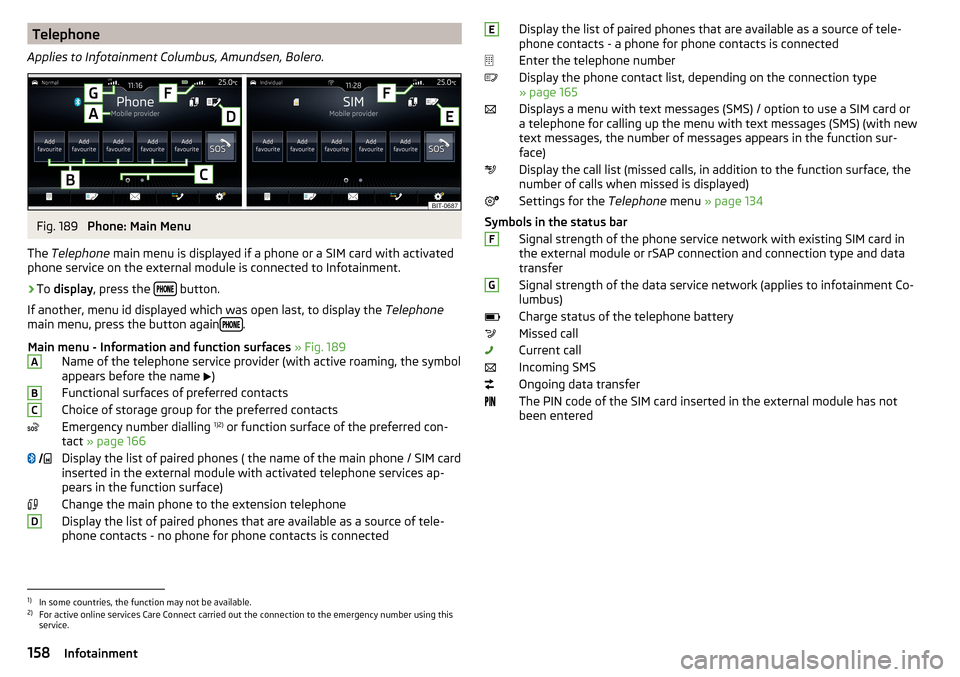
The Telephone main menu is displayed if a phone or a SIM card with activated
phone service on the external module is connected to Infotainment.
›
To display , press the button.
If another, menu id displayed which was open last, to display the Telephone
main menu, press the button again
.
Main menu - Information and function surfaces » Fig. 189
Name of the telephone service provider (with active roaming, the symbol
appears before the name )
Functional surfaces of preferred contacts
Choice of storage group for the preferred contacts
Emergency number dialling 1)2)
or function surface of the preferred con-
tact » page 166
Display the list of paired phones ( the name of the main phone / SIM card
inserted in the external module with activated telephone services ap-
pears in the function surface)
Change the main phone to the extension telephone
Display the list of paired phones that are available as a source of tele-
phone contacts - no phone for phone contacts is connected
ABC DDisplay the list of paired phones that are available as a source of tele-
phone contacts - a phone for phone contacts is connected
Enter the telephone number
Display the phone contact list, depending on the connection type
» page 165
Displays a menu with text messages (SMS) / option to use a SIM card or
a telephone for calling up the menu with text messages (SMS) (with new
text messages, the number of messages appears in the function sur-
face)
Display the call list (missed calls, in addition to the function surface, the
number of calls when missed is displayed)
Settings for the Telephone menu » page 134
Symbols in the status bar Signal strength of the phone service network with existing SIM card inthe external module or rSAP connection and connection type and data
transfer
Signal strength of the data service network (applies to infotainment Co-
lumbus)
Charge status of the telephone battery
Missed call
Current call
Incoming SMS
Ongoing data transfer
The PIN code of the SIM card inserted in the external module has not
been enteredEFG1)
In some countries, the function may not be available.
2)
For active online services Care Connect carried out the connection to the emergency number using this
service.
158Infotainment
Page 161 of 344
Telephone
Applies to Infotainment Swing.Fig. 190
Phone: Main Menu
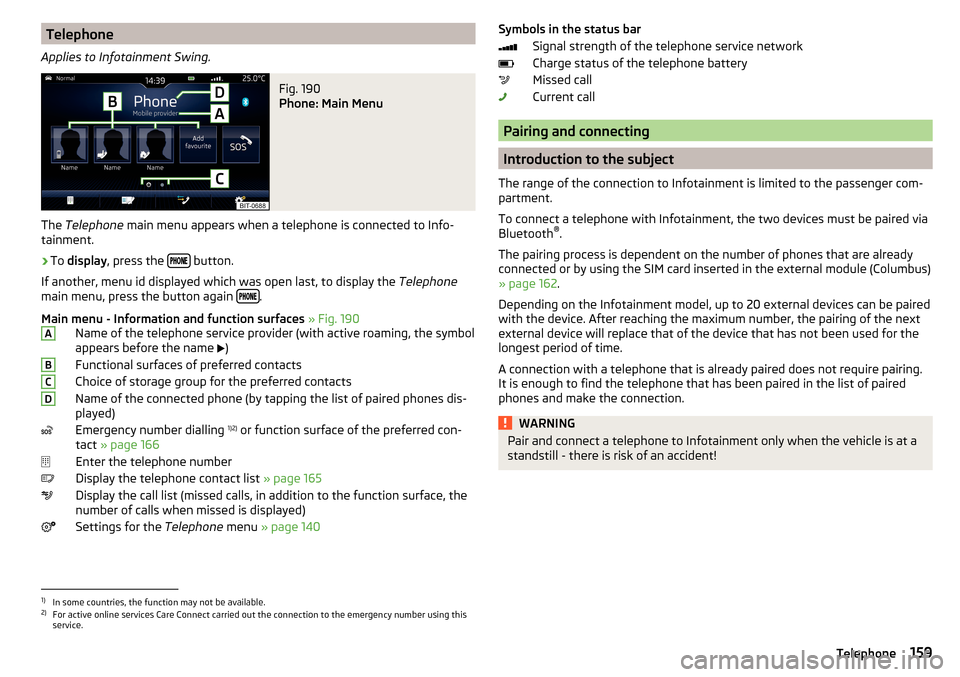
The Telephone main menu appears when a telephone is connected to Info-
tainment.
›
To display , press the button.
If another, menu id displayed which was open last, to display the Telephone
main menu, press the button again
.
Main menu - Information and function surfaces » Fig. 190
Name of the telephone service provider (with active roaming, the symbol
appears before the name )
Functional surfaces of preferred contacts
Choice of storage group for the preferred contacts
Name of the connected phone (by tapping the list of paired phones dis- played)
Emergency number dialling 1)2)
or function surface of the preferred con-
tact » page 166
Enter the telephone number
Display the telephone contact list » page 165
Display the call list (missed calls, in addition to the function surface, the
number of calls when missed is displayed)
Settings for the Telephone menu » page 140
ABCDSymbols in the status bar
Signal strength of the telephone service network
Charge status of the telephone battery
Missed call
Current call
Pairing and connecting
Introduction to the subject
The range of the connection to Infotainment is limited to the passenger com-
partment.
To connect a telephone with Infotainment, the two devices must be paired via
Bluetooth ®
.
The pairing process is dependent on the number of phones that are already
connected or by using the SIM card inserted in the external module (Columbus)
» page 162 .
Depending on the Infotainment model, up to 20 external devices can be paired
with the device. After reaching the maximum number, the pairing of the next
external device will replace that of the device that has not been used for the
longest period of time.
A connection with a telephone that is already paired does not require pairing.
It is enough to find the telephone that has been paired in the list of paired
phones and make the connection.
WARNINGPair and connect a telephone to Infotainment only when the vehicle is at a
standstill - there is risk of an accident!1)
In some countries, the function may not be available.
2)
For active online services Care Connect carried out the connection to the emergency number using this
service.
159Telephone
Page 162 of 344
conditions for pairingFig. 191
QR code with reference to the
ŠKODA websites
The telephone can be paired with Infotainment under the following conditions.
The ignition is switched on.
The Bluetooth ®
function of the infotainment and the telephone is switch-
ed on.
The visibility of the infotainment and the telephone is switched on.
The telephone is within range of the Bluetooth ®
signal of Infotainment.
The telephone is compatible with the infotainment.
There is no external device connected to Infotainment using Apple
CarPlay.
The pairing can be initiated from Infotainment or from the telephone.
During the pairing and connection process, information messages are dis-
played on the Infotainment screen and the telephone screen. These messages
must be observed and if necessary confirmed (e.g. enabling the contact import,
connecting the Bluetooth ®
player among others).
Compatibility and update
By reading the QR code » Fig. 191 or after typing the following address into the
web browser, information about the compatibility of phones and updates are
available for Infotainment Bluetooth ®
can be displayed.
http://go.skoda.eu/compatibility
Pairing and connection process
Pair the telephone with Infotainment
›
Search available Bluetooth ®
devices in your telephone.
›
Select Infotainment (name of Infotainment
→
Bluetooth
→
Name:
).
›
Confirm or enter the PIN code to confirm the pairing.
The phone is connected to the infotainment or merely coupled, depending on
the number of already connected external devices and using the SIM card in-
serted in the external module (Columbus).
Pair Infotainment with the telephone›
If there is no telephone connected to Infotainment, then press the but-
ton then tap the function surface
Find telephone
.
›
or If Infotainment is connected to a phone, then in the main menu Telephone
tap on the function surface
→
Search phone
.
›
or: If a SIM card with activated telephone services is inserted in the external
module of infotainment Columbus, then, in the main menu Telephone, tap on
the function surface
→
Find telephone
.
›
Select the desired telephone from the list of visited external Bluetooth ®
de-
vices.
›
Confirm the PIN code (enter and confirm if necessary to confirm the pairing.
If external Bluetooth ®
devices are already connected to Infotainment, then
during the Infotainment pairing and connection process, messages and op-
tions for the possible connection type (e.g. replacement of the connected ex-
ternal Bluetooth ®
device) are displayed.
Possible connection types for phones, if required, for the SIM card in the exter- nal module » page 157 .
Managing paired external devices
Fig. 192
Infotainment Columbus: list of paired external devices / list of
available Bluetooth® profiles
160Infotainment