2016 SKODA KODIAQ phone
[x] Cancel search: phonePage 120 of 344

Applies to Infotainment Columbus, Amundsen, Bolero
▶ The Enter the activation PIN code takes place in the Infotainment menu
→
→
ŠKODA Connect (online services)
→
registration
,
Applies to Infotainment Swing ▶ The Enter the activation PIN code takes place in the Infotainment menu
→
ŠKODA Connect (online services)
→
registration
,
▶ After entering the activation PIN code to activate the user profile on the
website ŠKODA Connect Portal complete.
Care Connect-Services
Introduction to the subject
The Care ConnectServices enable information / breakdown / emergency, the transmission of information concerning the vehicle condition to the selected
service partner or to control some vehicle functions by means of installed in
the mobile phone ŠKODA Connect-Application.
To the Care ConnectTo use services, the following conditions must be met. The registration in the user profile on the website ŠKODA Connect Portal
has taken place.
Entering the Activation PIN code for online services in infotainment is
done.
A wireless network is available.
Information / breakdown / emergency
Only valid for some countries.
Fig. 157
Warning light and information /
breakdown / emergency keys
The information / breakdown / emergency call system (hereinafter only sys-
tem) is used to connect to a information / breakdown or emergency number.
After connection, communication with the associated control center via the
loudspeaker and microphone built into the vehicle.
The information / breakdown / emergency is free of charge.
Warning light and system keys » Fig. 157
Warning light
- Connection to the info number
C - establishment of connection to breakdown call in case of a break-
down
D - establishment of connection to emergency number
» page 14
initiate connection to information / Breakdown call›
The key
B
or.
C
» Fig. 157 press (the connection by pressing the button
again completed will).
information call
The information call may problems with the online services or for information
regarding the products and services of the brand ŠKODA be used.
breakdown call
The breakdown call is used for quick connection to the breakdown number in the event of a breakdown.
During Pannenrufs the vehicle transmits information related to the vehicle and
the vehicle position to the road service. The solution to your problem occurs
faster.
The Function of the system after switching on the ignition by the warning
light
A
appropriate » Fig. 157,
▶ In functional system, the indicator will light green.
▶ If a fault, the warning light illuminates red.
infotainment online-Services
Introduction to the subject
Applies to Infotainment Columbus, Amundsen.
The infotainment onlineServices are an extension of the functions of the Inter-
net-connected infotainment shows (e.g. To the weather forecast, the petrol
station search with information regarding fuel prices u. Ä.).
ABCD118Operation
Page 122 of 344

Infotainment
Introductory information
Important information
Introduction to the subject
WARNING■Only use Infotainment in such a way that you have control of the vehicle
in every traffic situation (e.g. Do not write text messages while driving, do
not link or connect the telephone, do not work with the contact list, do not
enter any destinations, do not connect WLAN or SmartLink etc.)- Otherwise
there is a risk of an accident!■
Always route the connection cable of the external device such that is
does not restrict you when driving.
WARNING■ Adjust the volume to ensure that acoustic signals from outside the vehi-
cle, e.g. sirens from emergency vehicles, can be heard at all times.■
High volumes can cause hearing damage!
CAUTION
In some countries, some Infotainment functions can no longer be selected
when the vehicle is running faster than a certain speed. This is not a malfunc-
tion, but complies with the national legal regulations.
Mobile phones and applications
Fig. 159
QR code with reference to web
pages for checking the compati-
bility of devices
The availability of some of the functions described in this Owner's Manual
depends on the type of device to be connected and the applications installed
in it.
Mobile phones
On the ŠKODA pages, check to see if Infotainment is compatible with the se-
lected mobile phones. This verification is carried out by reading the QR code
» Fig. 159 or after typing the following address into the web browser.
http://go.skoda.eu/compatibility
Due to the multitude of mobile phones as well as the ongoing development of
these devices, ŠKODA AUTO cannot always ensure compatibility with Infotain-
ment unconditionally. It is always recommended to physically check the func-
tion on the associated vehicle, including the ŠKODA Partners, beforehand.
Only those versions of the selected phones will be tested and supported which
originate from the official distribution network. The same also applies to their
firmware and software.
The functions of the mobile phone to be tested may differ from the same type
of mobile phone depending on the specification for the respective country or
the specific service.
Mobile phones with the operating system and in the version available at the
time of these tests will be tested. In this regard, it could be the case that the
functions of a mobile phone may differ with a different operating system ver-
sion compared to the one used with the tested phone.
ŠKODA AUTO can accept no responsibility for the continuous changes made by
the mobile phone manufacturers and application vendors.
ŠKODA AUTO does not accept any liability for any damage to Infotainment or
vehicle due to the use of incorrect or illegal applications or the improper or un-
authorised use of mobile phones.
Applications
Applications can be installed in external devices (e.g. Mobile, tablet) making it possible to display additional information on the Infotainment screen or to op-
erate Infotainment.
Due to the variety of applications as well as their ongoing development, the
available applications may not work in all external devices. ŠKODA AUTO can
accept no liability for their proper function.
Applications, their use and the required data connection may be chargeable. 120Infotainment
Page 123 of 344

The range of available applications and their functionality is dependent on the
Infotainment model, vehicle and region.
The function of mobile applications can be influenced by the quality of the In- ternet connection.
Some applications are dependent on the availability of services that are provi-
ded by third parties.
Infotainment Overview
Description - Infotainment Columbus
Does not apply to South Korea.
Fig. 160
Infotainment Columbus
Left control dial for switching Infotainment on and off; volume adjustment
Control dial for calls and confirmations
Radio menu » page 141
Media menu » page 144
Telephone menu » page 156
Voice control: » page 127
Navigation menu » page 178
SmartLink menu » page 172
Vehicle system settings » page 201
Overview of Infotainment menu » page 126
Touchscreen » page 123
123456789Description - Infotainment AmundsenFig. 161
Infotainment Amundsen
Left control dial for switching Infotainment on and off; volume adjustment
Control dial for calls and confirmations
Radio menu » page 141
Media menu » page 144
Telephone menu » page 156
Voice control: » page 127
Navigation menu » page 178
SmartLink menu » page 172
Vehicle system settings » page 201
Overview of Infotainment menu » page 126
Touchscreen » page 123
123456789121Introductory information
Page 124 of 344
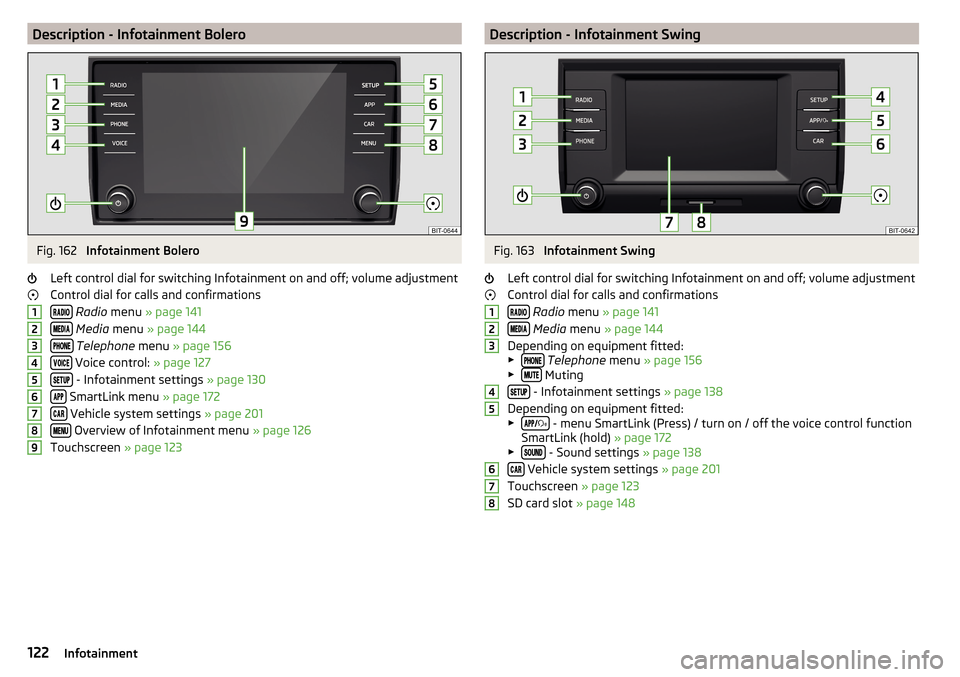
Description - Infotainment BoleroFig. 162
Infotainment Bolero
Left control dial for switching Infotainment on and off; volume adjustment
Control dial for calls and confirmations
Radio menu » page 141
Media menu » page 144
Telephone menu » page 156
Voice control: » page 127
- Infotainment settings » page 130
SmartLink menu » page 172
Vehicle system settings » page 201
Overview of Infotainment menu » page 126
Touchscreen » page 123
123456789Description - Infotainment SwingFig. 163
Infotainment Swing
Left control dial for switching Infotainment on and off; volume adjustment
Control dial for calls and confirmations
Radio menu » page 141
Media menu » page 144
Depending on equipment fitted:
▶
Telephone menu » page 156
▶ Muting
- Infotainment settings » page 138
Depending on equipment fitted: ▶
- menu SmartLink (Press) / turn on / off the voice control function
SmartLink (hold) » page 172
▶
- Sound settings » page 138
Vehicle system settings » page 201
Touchscreen » page 123
SD card slot » page 148
12345678122Infotainment
Page 127 of 344

Alphanumeric keyboardFig. 168
Example of the keyboard display
The alphanumeric keypad is used to enter for letters, numbers and characters.
Description of the alphanumeric keyboard » Fig. 168
Input line
Context-dependent: ▶ - Switch to capital letters
▶ - Switch to special characters
▶ - Switch to numbers
Context-dependent: ▶ - Switch to numbers
▶ - Switch to Latin letters
▶ - Switch to Cyrillic letters
- Display of visited entries (the number of visited entries is displayed in the
function surface)
Erase the entered characters
By holding the variants of each type are displayed. Switching between keyboards with specific characters of the selected lan-
guages » page 131 or. » page 139
Enters a blank
Move the cursor within the input line to the left
Move the cursor within the input line to the right
Confirmation of the entered number
Search
While entering characters, a search is made for corresponding entries.
The entry such as a telephone contact to be searched for must be entered
along with the special characters (diacritics).
By tapping on the function surface a list of matching entries opens .
ABCRestart Infotainment Switching Infotainment on / off›
To
switch on/off Infotainment, press .
Automatic switch-on of Infotainment
If Infotainment was not turned off with the control switch
before the igni-
tion was turned off, it will automatically switch on after the ignition is switch-
ed on.
Automatic switch-off of Infotainment
If the vehicle key is pulled out of the ignition lock while Infotainment is switch-
ed on, Infotainment will switch off automatically.
If the vehicle is fitted with the starter button, Infotainment will switch off au-
tomatically after the engine is switched off and the door is opened.
With the ignition off, Infotainment will automatically turn off after about 30
minutes.
Infotainment turns off automatically under certain circumstances. Infotain-
ment informs of this via a text message on the Infotainment display.
Restart of Infotainment
If Infotainment does not respond (if it “freezes”) This can be restarted by hold-
ing
for longer than 10 s.
Show time and date in standby mode
With the ignition off and infotainment (standbyMode), it is possible to display
the time and date in the Infotainment screen.
The display mode can be changed by finger motion across the screen side-
ways.
Applies to Infotainment Columbus, Amundsen, Bolero
▶ To Turn on / off the Infotainment WLAN press the button
, then the func-
tion surface →
→
Screen
Show clock in standby mode
Tap.
Applies to Infotainment Swing ▶ To activate / deactivate the time and date display button
press, then the
function surface
screen
→
Show clock in standby mode
Tap.
Adjusting the volume
Every change in volume is displayed on the screen.
›
To increase the volume , turn the controller clockwise.
125Infotainment operation
Page 128 of 344

›To
reduce volume , turn the controller anticlockwise.›To
mute , turn the controller to the left to 0.›
or:
press the button (applies to Infotainment Swing).
The following symbol appears on the screen when the sound is muted
,
If, at the time of muting, sound is played from the source in the Media menu,
then the playback is interrupted (pause) 1)
.
CAUTION
■ High volumes can cause sound resonance in the vehicle.■When changing or connecting an audio source, this may cause sudden
changes in volume. Reduce the volume before changing or connecting an au-
dio source.
Electronic voice amplification for driver and passenger
Applies to Infotainment Columbus, Amundsen, Bolero.
The voice enhancer allows transmission of the driver's and passenger's voice
on the speakers in the rear.
The volume of the voice can gain by pressing the button
and tapping the
functional face
→
Voice enhancer
be adjusted.
Infotainment menus
Applies to Infotainment Columbus, Amundsen, Bolero.
Fig. 169
Overview of Infotainment menu
›
To display the overview of the Infotainment menu press the button .
Overview of Infotainment menu
» Fig. 169
Radio menu » page 141
Media menu » page 144
Images menu » page 151
- Sound settings » page 130
Infotainment settings
Online services » page 117
Vehicle system settings » page 201
List of traffic messages (TMC) » page 199 (Applies to Infotainment Colum-
bus, Amundsen)
Navigation menu » page 178 (Applies to Infotainment Columbus, Amund-
sen)
Telephone menu » page 156
Media Command menu» page 154 (Applies to Infotainment Amundsen)
SmartLink menu » page 172
When connecting a supported external device instead of the symbol
the actual connection is shown instead of a symbol ▶ Android Auto
» page 173
▶
Apple CarPlay
» page 174
▶
MirrorLink®
» page 175
Configuration wizard
Fig. 170
Configuration Wizard: Display
example
The configuration wizard is automatically displayed if there are at least two
non-selected menu items after turning on Infotainment, or if a new personali-
sation user account is selected.
1)
Does not apply for AUX.
126Infotainment
Page 129 of 344

Deactivate the automatic display of the Configuration wizard by tapping the
function surface Don´t show again
.›
To manually display in Infotainment Columbus, Amundsen, Bolero, press the
button , then tap on the function surface
→
Configuration wizard
.
›
For manual display in Infotainment Swing, press the button, then tap the
function surface
Configuration wizard
.
The Configuration wizard allows you to set the following menu items in se-
quence.
Identification of personalisation user account » page 50
Time and date format
Storing the radio stations with the currently strongest reception signal
in the first memory group of each individual broadcast area
Pairing and connecting a phone to Infotainment
Home address (applies to Infotainment Columbus, Amundsen)
Online services
The selected menu item is provided with the symbol.
Menu items which can be set by tapping on the respective function surface in the
A
» Fig. 170 area.
Operating using an application in the external device
Applies to Infotainment Columbus, Amundsen.
Some Infotainment functions can be operated using an application in the sup-
ported external device.
›
Activate data transfer in Infotainment. To do this, press and then
Tap →
Mobile device data transfer
→
Activate data transfer for ŠKODA Apps
.
›
Release Infotainment operation using the application. To do this, press
and then
→
Data transfer mobile devices
→
Use apps to operate:
→
To con-firm
/
Allow
Tap.
›
Connect Infotainment to an external device via WLAN » page 170.
›
In the external device, install an application for Infotainment operation (e.g.
Start ŠKODA Media Command).
Note
The description of Infotainment operation ŠKODA Media Command is part of
the application.Voice control
Introduction to the subject
Applies to Infotainment Columbus, Amundsen, Bolero.
The navigation, telephone, radio and media menu can be operated by voice
commands.
The voice control system can be used either by the driver or by the front pas-
senger.
Function requirements for voice control Infotainment is switched on.
There will be no telephone call using a phone connected to Infotainment.
The parking aid is not active.
Requirements for optimum voice command recognition
▶ Speak at your normal volume without intonation and long pauses.
▶ Avoid bad pronunciation.
▶ Close the doors and windows in order to avoid disturbing environmental in-
fluences on the function of the voice commands.
▶ You are recommended to speak louder at higher speeds, so that the sound of
your voice is not drowned out by the increased ambient noise.
▶ During voice control, limit additional noise in the vehicle, e.g. passengers
talking at the same time.
WARNINGThe emergency number should be dialled manually. Your voice commands
may not be recognised in such situations. The telephone connection may
not be established or the connection may take too much time to complete.
CAUTION
■ The messages are generated by Infotainment. Flawless clarity (e.g. road or
city name) cannot always be guaranteed.■
For some Infotainment languages, there is no voice control available. Info-
tainment indicates this fact through a text message that is displayed on the
screen after setting the Infotainment language.
Note
During voice control, no nav. announcements and traffic announcements are
played.127Infotainment operation
Page 131 of 344

Not recognising a voice command
If a voice command is not detected three times in succession from Infotain-
ment, then the voice control is stopped.
Correction of a voice command input
A voice command can be corrected, modified or re-entered by pressing the
button
or the button
on the multifunction steering wheel. However,
this is only possible as long as the symbol
appears on the screen.
You do not have to wait until the voice command is recognised by Infotain-
ment.
Voice commands can be used anytime during voice control
Voice commandOperation“ Back ”Return to the previous menu“Help ”reproducing and displaying possible voice com-
mands
Voice commands that can be used while browsing the list entries
Voice commandOperation“ Next page ”
Browse menu / list / directory
“Previous page ”“First page ”“Last page ”
Additional Information
Navigation - applies to Infotainment Columbus
If the set Infotainment language matches with the language of the currently
selected country when entering the destination, then the destination address
is entered in one step .
The voice command “ Navigate” and immediately the city, street and street
number (if it is included in the navigation data) Interest (POI) or a contact with
the previously stored address, can be issued.
Navigation - applies to Infotainment Amundsen
To the destination, you are first required to issue the command “enter ad-
dress” and then follow Infotainment instructions.
You can say the house number and a further additional address in the form of
a number where necessary. Infotainment will then offer the number combina-
tion it has found if the house number and the further address supplement,
where appropriate, exists in the street entered.
It is not necessary to spell city and street names if the entered destination is
located in a country that has no voice control available for the language.
Navigation - activated online services
When activated online services ŠKODA Connect » page 117 a POI search online
by Pronouncing “ Search Online POI ” possible.
Radio
In order for a radio station can be selected using voice command, the station
must be stored in the list of available stations » page 142 or in the preset list
» page 143 .
Updating the Infotainment software
Fig. 173
Available software updates on
the ŠKODA websites
The software update ensures optimum operation of Infotainment (e.g. Com-
patibility with new phones).
Current information on Infotainment compatibility can be found on the follow-
ing ŠKODA Internet pages. This is carried out by reading the QR code » Fig. 173
or after entering the following address into the web browser.
http://go.skoda.eu/updateportal
Applies to Infotainment Columbus, Amundsen, Bolero
▶ To determine the software version , press the
button, then tap on the
System information function surface Tap on
→
System information
.
▶ To start the software update , press the button, then tap on the system
information function surface
→
system information
→
Update software
Tap.
129Infotainment operation