2016 SKODA KODIAQ phone
[x] Cancel search: phonePage 48 of 344

Skip to next track/station
Switch to previous track/station
Display the assistance systems menu
Press - display the telephone menu; accept/end the call; select contact
Hold - repeat last call; reject call
Operating the multifunction display Turn - select data / set values
Press - display / confirm indication
Operating the MAXI DOT display Hold - display main menu
Press - return to a previous level in the menu
Turn - move in the selected menu
Press - confirm selected menu item
Note
Depending on equipment not all functions may be available. The system indi-
cates this by means of a text message on the Infotainment screen.
Driving data (Multifunction display)
Introduction
This chapter contains information on the following subjects:
Information Overview
46
Infotainment display
47
Warning when exceeding the set speed
47
Memory
47
The driving data display is only possible with the ignition switched on. After
the ignition is switched on, the function that was last selected before switch-
ing off the ignition is displayed.
If vehicles with MAXI DOTdisplay do not show the journey data after switching
on the ignition, select the menu item
Journey data
in the main menu and confirm
» page 48 .
The units and the display of some information can be adjusted in Infotainment
by tapping
→
→
Units
.
BBNoteThe setting of the information display is stored in the active user account per-
sonalisation » page 50.
Information Overview
Overview of driving data (depending on the vehicle equipment).
Range - drive distance in km which can be covered with the existing tank ca-
pacity and with the same driving style. If you drive more efficiently this value
can increase.
AdBlue ®
range - drive distance in km which can be covered with the existing
AdBlue ®
tank capacity and with the same driving style. If you drive more effi-
ciently this value can increase.
Average fuel consumption - is calculated continuously since the last time the
memory was deleted. After erasing the memory, no data will appear for the
first 100 m driven.
Current fuel consumption - when the vehicle is stationary or slowly moving,
the fuel consumption is displayed in l/h (--,- km/l appears on models for some
countries).
Oil temperature - if the temperature is lower than 50 °C or if there is a fault in
the system for checking the oil temperature, the symbols are displayed.
Warning when the preset speed is exceeded - allows the setting of a speed
limit where, if exceeded, an acoustic warning signal and a warning message
appears on the display of the instrument cluster.
Traffic sign recognition - traffic signs display » page 257, Traffic sign recogni-
tion .
Current speed - digital speedometer.
Average speed - is calculated continuously since the last time the memory
was deleted. After erasing the memory, no data will appear for the first 300 m
driven.
Driving route - distance driven since the last time the memory was deleted.
Driving time - driving time since the last time the memory was deleted.
Comfort consumers - information about the total consumption of the comfort
consumers in l/h and a list of three consumers (e.g. air conditioning etc.), which
have the largest share of fuel consumption.
46Operation
Page 50 of 344
The indicator is automatically set back to zero if one of the indicated values is
exceeded.Since refuel
(
) or “3” (
)
The driving data is stored in the memory since the last fuel refuelling.
The memory is erased automatically the next time you fill up.
›
For the Storage choice , repeatedly confirm the selected indication and select
the desired memory.
›
For Deleting the memory for the selected information, hold down the button
confirming the specification.
The following driving data are stored. ▶ Average fuel consumption.
▶ Distance driven.
▶ Average speed.
▶ Driving time.
Note
Disconnecting the vehicle battery will delete all memory data.
MAXI DOT display
Introduction
This chapter contains information on the following subjects:
Menu item
Navigation48
Menu item
Audio48
Menu item
Telephone48
Menu item
Assist systems49
The MAXI DOT display is a user interface which, depending on the equipment
configuration, provides information about the Infotainment, the multifunction
display, the assistance systems etc.
The menus with details can be operated and displayed using the buttons on
the operating lever or the multifunction steering wheel » page 45.
Main menu items (depending on vehicle equipment) ■
Journey data
» page 46
■
Assist systems
» page 49
■
Navigation:
» page 48
■
Audio
» page 48
■Telephone » page 48 ;
■Vehicle
» page 45
Note
■
If warning messages are displayed, these messages must first be confirmed
to access the main menu.■
The display language can be set in Infotainment » page 131, Setting the In-
fotainment language and » page 139 , Setting the Infotainment language .
Menu item
Navigation
The following information is displayed in the
Navigation
menu item.
▶ Driving recommendations
▶ Compass
▶ Last destinations
Menu item
Audio
The following information is displayed in the
Audio
menu item.
Radio
▶ Currently playing station (name/frequency).
▶ The selected frequency range (e.g. FM) optionally with the number of the sta-
tion button (e.g. FM3), if the station is stored in the memory list.
▶ List of available stations (if more than 5 stations can be received).
▶ TP traffic announcements.
Media
▶ Name of the track being played, if necessary, further information regarding
title (e.g. artist, album name), if this information is stored as a so called ID3
tag on the audio source.
Menu item
Telephone
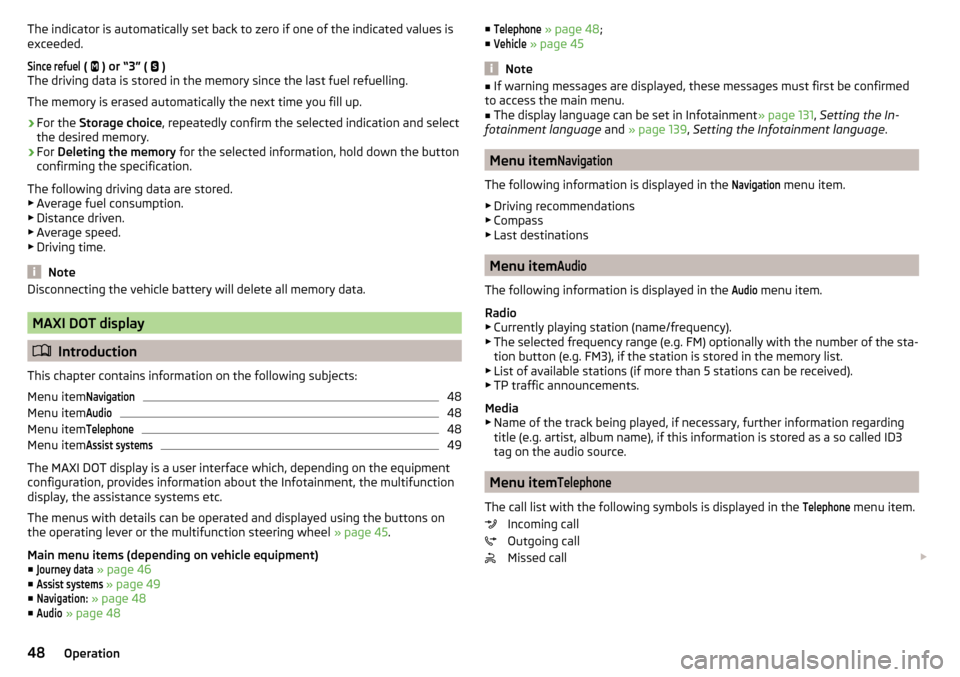
The call list with the following symbols is displayed in the
Telephone
menu item.
Incoming call
Outgoing call
Missed call
48Operation
Page 51 of 344
Symbols in the displayCharge status of the telephone battery 1)
Signal strength 1 )
A telephone is connected to the unit
Missed calls (if there are several missed calls, the number of calls is shown
next to the symbol)
Switch-off microphone
Menu item
Assist systems
The following systems are activated/deactivated in the
Assist systems
menu
item.
▶ Front Assist
▶ Lane Assist
▶ Rear Traffic Alert
▶ Assist system for blind spot monitoring
Service interval display
Introduction
This chapter contains information on the following subjects:
Displaying the distance and days until the next service interval
49
Service messages
49
Resetting the service interval display
50
The service interval display shows the kilometres or days until the next service
event.
Information regarding the service intervals » page 268.
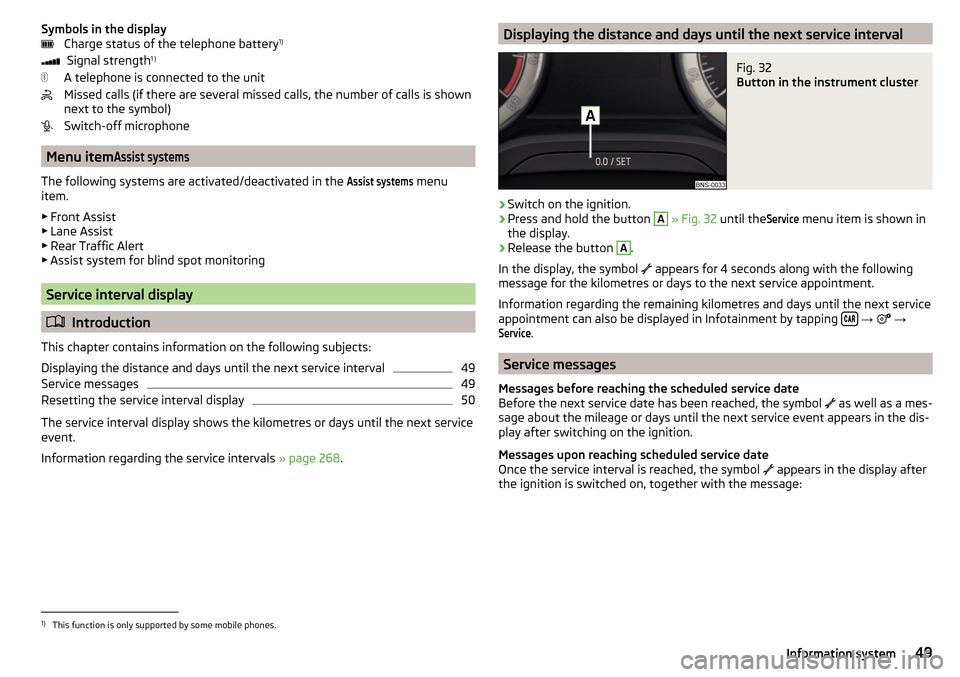
Displaying the distance and days until the next service intervalFig. 32
Button in the instrument cluster
›
Switch on the ignition.
›
Press and hold the button
A
» Fig. 32 until the
Service
menu item is shown in
the display.
›
Release the button
A
.
In the display, the symbol appears for 4 seconds along with the following
message for the kilometres or days to the next service appointment.
Information regarding the remaining kilometres and days until the next service appointment can also be displayed in Infotainment by tapping
→
→
Service
.
Service messages
Messages before reaching the scheduled service date
Before the next service date has been reached, the symbol as well as a mes-
sage about the mileage or days until the next service event appears in the dis-
play after switching on the ignition.
Messages upon reaching scheduled service date
Once the service interval is reached, the symbol appears in the display after
the ignition is switched on, together with the message:
1)
This function is only supported by some mobile phones.
49Information system
Page 89 of 344

Switching steering wheel heating on/off using Infotainment›To switch on / off press the button on the Climatronic → Tap on the
function surface
on the Infotainment screen. When the heating is switched
on, the symbol in the function surfaceA
is orange » Fig. 91.
Heated steering wheel, along with the driver's seat heating
›
To activate / deactivate the heated steering wheel with the driver's seat
heating, press the button
on the Climatronic, then tap the function sur-
face
→
Link seat/steering wheel heating
in the Infotainment screen.
›
To switch on / off the heated steering wheel, press the button for the driver
seat heating.
Setting the heat output of the steering wheel heater
›
Press the button on the Climatronic, then tap the function surface
→
intensity
on the Infotainment screen.
›
Select one of the three heating levels (this remains stored even after switch-
ing off the engine).
The selected heat output of the heated steering wheel is shown (number of
segments) on the Infotainment screen
B
» Fig. 91 .
Note
■
The heated steering wheel only works when the engine is running.■If the on-board voltage decreases, the heated steering wheel switches off
automatically.Practical features
Interior equipment
Introduction
This chapter contains information on the following subjects:
Parking ticket holder
88
Storage compartment on the driver's side
88
stowage compartments in the doors
89
Storage compartment in the front centre console
89
Phonebox
89
USB and AUX inputs
90
Cup holders
90
Waste container
91
Storage compartment under the front arm rest
92
Storage net in the front centre console
92
Glasses compartment
92
Storage compartment on the front passenger side
93
Storage compartment under the passenger seat
93
Storage compartments for umbrella
94
Clothes hook
94
Storage pockets on the backs of the front seats
94
Folding table on the front seat rest
95
Storage compartment in the rear centre console
95
Removable through-loading bag
95
Blanket
96WARNING■ Do not place anything on the dashboard. These objects might slide or fall
down when driving and may distract you from concentrating on the traffic –
risk of accident!■
Make sure that while driving no objects can enter the driver's footwell -
cause an accident!
■
Do not carry any objects on the front passenger seat except objects de-
signed for this purpose (e.g. child seats) – risk of accident!
87Practical features
Page 91 of 344

stowage compartments in the doorsFig. 94
Storage compartmen: in the front door/in the rear door
Read and observe
and on page 87 first.
Storage compartments » Fig. 94
Storage compartment
Bottle holder with a capacity of max. 1.5 l
WARNINGThe storage compartment A » Fig. 94 n the front door is to be used exclu-
sively for storing objects which do not protrude - there is the danger of lim-
iting the operating range of the side airbags.
Storage compartment in the front centre console
Fig. 95
Opening storage compartment/ non-lockable storage compart-
ment
ABRead and observe and on page 87 first.›
To open , press the edge of the lid in the direction of arrow » Fig. 95
.
›
To close , pull on the lid edge against the direction of the arrow.
Certain models do not have a storage compartment lid » Fig. 95 -
.
Phonebox
Fig. 96
Phonebox
Read and observe and on page 87 first.
The storage compartment in the front centre console can be equipped with
the Phonebox function.
If a phone is directed with its rear side downwards on the pad in the storage
compartment » Fig. 96, the phone signal is amplified by the roof antenna.
Telephones that support the Qi standard for wireless charging, can also be
charged wirelessly in the storage compartment.
While wireless charging is taking place, no objects may be between the pad
and the telephone being charged.
WARNING■ The phone may become warm during wireless charging, so it should be
removed carefully from the tray.■
Metal objects between the pad and the phone to be charged can become
hot due to the action of the induction field - this is a risk of injury. If there is
a metal object in the storage compartment that has become hot, then take
out the telephone and let the object cook in the storage compartment!
89Practical features
Page 92 of 344

CAUTION■Metal objects between the pad and the phone to be charged can become hot
due to the action of the induction field - this is a risk of damage to the tele-
phone.■
With some phones, the charging process can be interrupted or the phone can
switch off due to heating up.
■
Do not insert any electronic or magnetic storage media (e.g. SD cards, USB
sticks, cards with magnetic strips or chips) between the pad and the phone to
be charged- there is a risk of data loss and damage to these data carriers.
■
If a message appears in the Infotainment screen that the phone cannot be
charged, then proceed as follows. ■Check that there is no object between the support and the phone to be
charged. If this is the case, then take out the object and the phone. Place the
phone centrally on the phone symbol on the pad again.
■ Check if the position of the phone to be charged has not changed during
the journey. If this is the case, then take out the phone and put it back cen-
trally on the phone symbol on the pad.
Note
■ At the start of the wireless charging, the appropriate message appears on
the Infotainment screen.■
For the optimum phone signal strength and uninterrupted wireless charging,
we recommend position the phone in the storage compartment without the
protective sleeve, if possible.
■
Place a max. 160x80 mm phone in the storage compartment.
USB and AUX inputs
Fig. 97
USB and auxiliary inputs front
Fig. 98
rear USB input
Read and observe and on page 87 first.
The USB input (marked with in) and AUX input (marked with
) are located
above the storage compartment in the front centre console » Fig. 97.
The USB input (marked with ) is also located in the rear centre console de-
pending on the equipment » Fig. 98.
Information for use » page 148, USB input and » page 148 , AUX input .
Cup holders
Fig. 99
Cup holder in front/rear centre console
90Operation
Page 93 of 344

Fig. 100
Cup holder in the armrest: second/third seat row
Read and observe
and on page 87 first.
The cup holders are located in the front centre console
A
, rear
B
» Fig. 99
and in the rear armrest
C
--
» Fig. 100 .
The cup holder is also located in the folding table » page 95.
WARNING■
Do not use any cups or beakers which are made of brittle material (e.g.
glass, porcelain). This could lead to injuries in the event of an accident.■
Never put hot beverage containers in the cup holder. If the vehicle moves,
they may spill – risk of scalding!
CAUTION
Do not leave open beverage containers in the cup holder during the journey.
There is a risk of spilling e.g. when braking which may cause damage to the
electrical components or seat upholstery.
Note
Behind the cup holders D there is a storage compartment for the mobile
phone.Waste containerFig. 101
Waste container: inserting and moving/opening
Fig. 102
Replace bags
Read and observe
and on page 87 first.
The waste container can be inserted into the slot in the door.
Insert waste container
›
Position the waste container at the front edge of the slot.
›
Push the waste container in the rear area in the direction of the arrow
A
» Fig. 101 .
›
If required, push the waste container in the direction of arrow
B
.
Remove the waste container
›
Remove the waste container in the opposite direction to the arrow
A
» Fig. 101 .
Open/close waste container
›
Lift the cover in the direction
C
» Fig. 101 .
91Practical features
Page 101 of 344
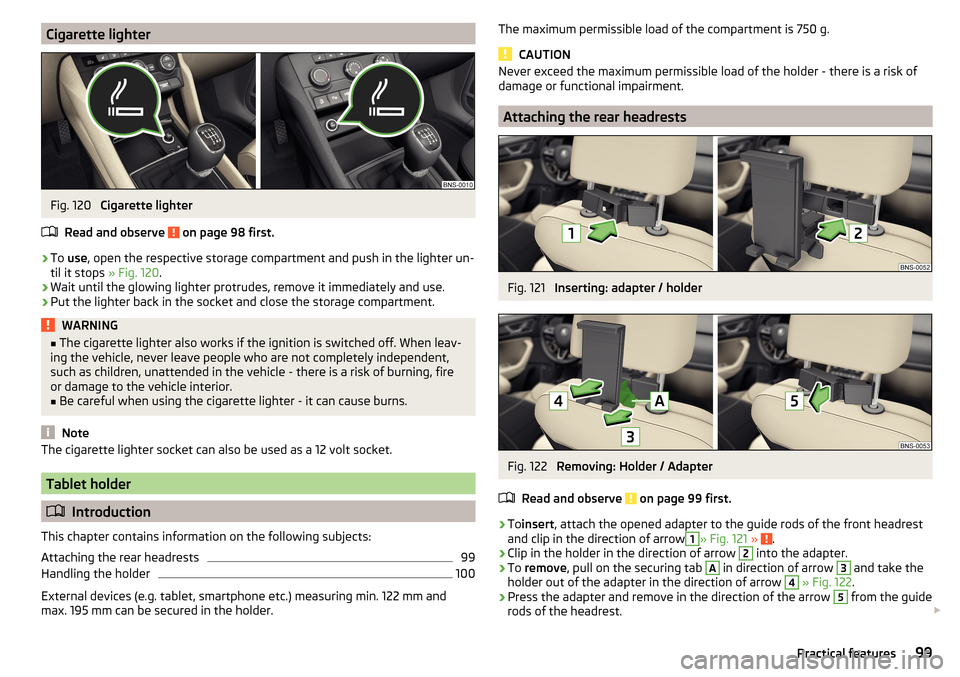
Cigarette lighterFig. 120
Cigarette lighter
Read and observe
on page 98 first.
›
To use , open the respective storage compartment and push in the lighter un-
til it stops » Fig. 120.
›
Wait until the glowing lighter protrudes, remove it immediately and use.
›
Put the lighter back in the socket and close the storage compartment.
WARNING■
The cigarette lighter also works if the ignition is switched off. When leav-
ing the vehicle, never leave people who are not completely independent,
such as children, unattended in the vehicle - there is a risk of burning, fire
or damage to the vehicle interior.■
Be careful when using the cigarette lighter - it can cause burns.
Note
The cigarette lighter socket can also be used as a 12 volt socket.
Tablet holder
Introduction
This chapter contains information on the following subjects:
Attaching the rear headrests
99
Handling the holder
100
External devices (e.g. tablet, smartphone etc.) measuring min. 122 mm and
max. 195 mm can be secured in the holder.
The maximum permissible load of the compartment is 750 g.
CAUTION
Never exceed the maximum permissible load of the holder - there is a risk of
damage or functional impairment.
Attaching the rear headrests
Fig. 121
Inserting: adapter / holder
Fig. 122
Removing: Holder / Adapter
Read and observe
on page 99 first.
›
To insert , attach the opened adapter to the guide rods of the front headrest
and clip in the direction of arrow
1
» Fig. 121 » .
›
Clip in the holder in the direction of arrow
2
into the adapter.
›
To remove , pull on the securing tab
A
in direction of arrow
3
and take the
holder out of the adapter in the direction of arrow
4
» Fig. 122 .
›
Press the adapter and remove in the direction of the arrow
5
from the guide
rods of the headrest.
99Practical features