2016 SKODA KODIAQ length
[x] Cancel search: lengthPage 12 of 344

Structure of the Owner´s Manual and further
information
Structure of the manual
The Owner's Manual is hierarchically divided into the following areas.
■ Paragraph (e.g. Operating instructions) - the title of the paragraph is always
indicated on the lower left-hand side ■ Main chapter (e.g. Checking and refilling) - the title of the main chapter is
always indicated on the lower right-hand side ■ Chapter (e.g. Engine oil)
■ Introductory information
- Module overview within the chapter, in-
troductory information about the chapter content and, where appropri-
ate, information relevant to the whole chapter
■ Module (e.g. Checking and refilling)
Information search
When searching for information in the Owner´s Manual, we recommend using
the Index at the end of the Owner's Manual.
Direction indications
All direction indications such as “left”, “right”, “front”, “rear” relate to the for- ward direction of travel of the vehicle.
Units
The volume, weight, speed and length data are given in metric units, unless
otherwise indicated.
Display
In this Owner's Manual, the MAXI DOT display is used as the display in the in-
strument cluster unless otherwise stated.
Emergency assistance
In the case of a breakdown, the required breakdown service contact informa- tion can be found in the following locations.
▶ Contact information from ŠKODA Partner (e.g. window sticker)
▶ Infotainment (Phone - breakdown service / information service menu)
▶ Mobile application ŠKODA
▶ ŠKODA websites10Structure of the Owner´s Manual and further information
Page 82 of 344

Folding front passenger seatFig. 72
Folding the front passenger seat
forward
Read and observe on page 78 first.
The front passenger seat can, (depending on vehicle equipment fitted), be fol- ded forward into a horizontal position.
›
To fold down , pull the lever in direction of arrow
1
, fold the seat backrest in
the direction of arrow
2
» Fig. 72 . The locking mechanism must audibly snap
into place.
›
To fold up , pull the lever in direction of arrow
1
, fold back the seat backrest
against the direction of arrow
2
. The locking mechanism must audibly snap
into place.
›
Check this by pulling on the seat and on the seat backrest.
WARNING■ If the seat backrest is folded down, only the seat behind the driver´s seat
can be used to transport passengers.■
The front passenger airbag should be switched off when transporting ob-
jects on the seat which was folded forwards » page 22.
■
Do not adjust the seat backrest while driving - it can cause injury and ac-
cidents!
■
When moving the seat backrest, keep limbs out of the area between the
seat and seat backrest – risk of injury!
■
Never transport the following items on the seat backrest when folded
forwards. ■ Objects that could restrict the driver's view.
■ Objects which make it impossible for the driver to control the vehicle,
e.g. if they roll under the pedals, or could protrude into the driver's zone. ■ Objects which could lead to injury to passengers due to a change of di-
rection or braking manoeuvre when accelerating sharply.
Armrest settingFig. 73
Adjust armrest
Read and observe on page 78 first.
›
To adjust the height , lift the armrest in the direction of the arrow
A
into one
of the locking positions » Fig. 73.
›
To close , lift the armrest in the direction of arrow
A
past the stop and then
fold down again.
›
To Set the armrest lengthways in the direction of arrow
B
Move to the de-
sired position.
Rear seats
Introduction
This chapter contains information on the following subjects:
Setting the second seat row
81
Easy Entry function
81
Fold down outer backrests of the second seat row
81
Fold forward middle seat backrest
82
Folding seat backs of the third row of seats up / down
82
Third-row seats fold up / fold down
83
Fold down armrest
8380Operation
Page 97 of 344
Folding table on the front seat restFig. 112
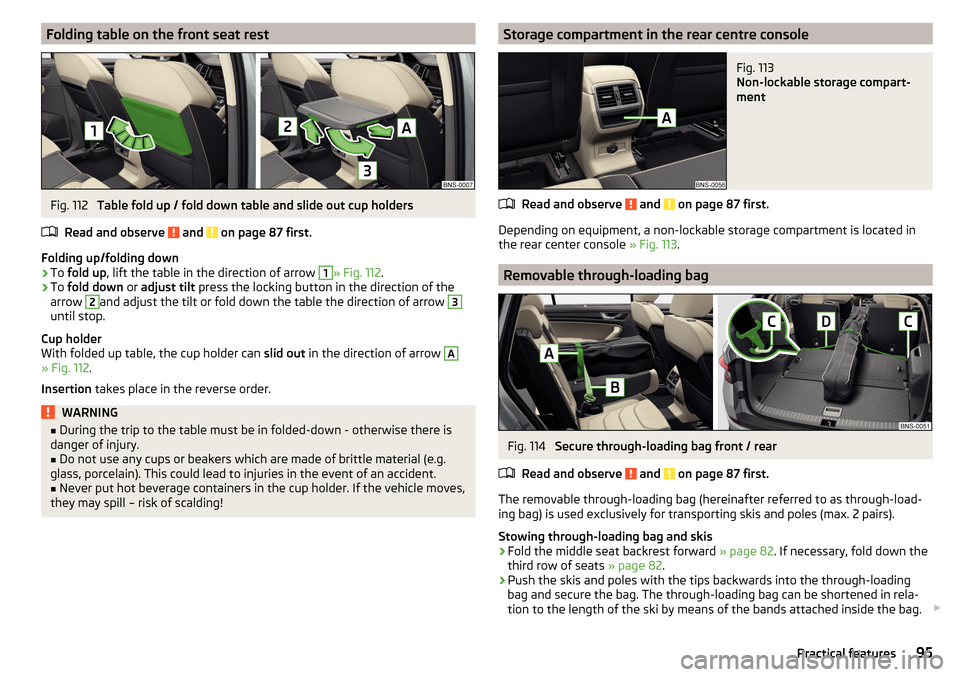
Table fold up / fold down table and slide out cup holders
Read and observe
and on page 87 first.
Folding up/folding down
›
To fold up , lift the table in the direction of arrow
1
» Fig. 112 .
›
To fold down or adjust tilt press the locking button in the direction of the
arrow
2
and adjust the tilt or fold down the table the direction of arrow
3
until stop.
Cup holder
With folded up table, the cup holder can slid out in the direction of arrow
A
» Fig. 112 .
Insertion takes place in the reverse order.
WARNING■
During the trip to the table must be in folded-down - otherwise there is
danger of injury.■
Do not use any cups or beakers which are made of brittle material (e.g.
glass, porcelain). This could lead to injuries in the event of an accident.
■
Never put hot beverage containers in the cup holder. If the vehicle moves,
they may spill – risk of scalding!
Storage compartment in the rear centre consoleFig. 113
Non-lockable storage compart-
ment
Read and observe and on page 87 first.
Depending on equipment, a non-lockable storage compartment is located in
the rear center console » Fig. 113.
Removable through-loading bag
Fig. 114
Secure through-loading bag front / rear
Read and observe
and on page 87 first.
The removable through-loading bag (hereinafter referred to as through-load-
ing bag) is used exclusively for transporting skis and poles (max. 2 pairs).
Stowing through-loading bag and skis
›
Fold the middle seat backrest forward » page 82. If necessary, fold down the
third row of seats » page 82.
›
Push the skis and poles with the tips backwards into the through-loading
bag and secure the bag. The through-loading bag can be shortened in rela-
tion to the length of the ski by means of the bands attached inside the bag.
95Practical features
Page 195 of 344

Alternative routes
With selection of alternative routes turned on, the following menu is displayed
after the calculation of a new route » Fig. 240.
Calculate the most economical route with shortest travelling time and
distance travelled – the route is highlighted green
Calculate the fastest route to the destination, even if a detour is neces-
sary - the route is highlighted in red
Calculate the shortest route to the destination, even if a longer travel-
ling time is required - the route is highlighted in orange
In the function surfaces of the alternative routes, information on the route
length and the estimated travel time and the following symbols are displayed
(applies to Infotainment Columbus).
Use of a toll motorway
Use of a train / ferry
Using a toll tunnel
Use of a toll road
Using a vignette duty highway
It is possible to select an already calculated alternative route before the calcu- lation of the remaining routes is completed.
Selecting the type of route will start the route guidance.
If no route selection is made within 30 s after the calculation of all routes, the
route guidance is automatically started according to the preferred route type.
Route calculation for the trailer
When driving with a trailer or any other accessory connected to the trailer
socket, we recommend that you switch on the trailer recognition, if necessary
to set the maximum speed for towing a trailer.
›
For calculating the route for towing a trailer, tap the function surface in the
main navigation menu
→
Route options
→
.
›
To set the top speed of the trailer, press the button, then tap on the
function surface
→
Driver assistance
→ Trailer recognition →
Maximum speedfor trailer
.
Demo mode
The Demo mode provides a travel simulation to the entered destination. The
function offers the option to travel through the calculated route “virtually”.
ABCWhen the Demo mode is turned on, a menu for route guidance in the Demo
mode or in normal operation is displayed before the start of route guidance.›
To switch on/off in the main menu Navigation, tap on the function surface
Tap →
Advanced settings
→
Demo mode
.
When the Demo mode is switched on, the route starting point can be defined.
›
In the Navigation main menu, tap the function surface
Tap →
Advanced set-tings
→
Define demo mode starting point
.
›
Define the starting point by entering the address or the current vehicle posi-
tion.
›
The demo mode starting point can also be set as long as the demo mode is
turned on by tap the desired map location and the menu item
Start Demo Mode
is selected » page 189 , Tap map point .
Graphical driving recommendations
Fig. 241
Driving recommendations / travel recommendation detail
The display of the graphical driving recommendations is in the split screen
Ma-noeuvre
as well as the display of the instrument cluster.
In the split screen
Manoeuvre
the following driving recommendations are shown
» Fig. 241 .
Street name / street number of the current vehicle position
Driving recommendations with street names / road numbers, with the
route and the travel time to the manoeuvre location
Details of driving recommendation (is displayed near the manoeuvre)
Lane guidance
In the split screen
Manoeuvre
, Infotainment also announces TMC traffic obstruc-
tions and on motorways, car parks, petrol stations or restaurants.
ABCD193Navigation
Page 201 of 344

Traffic reports
List of traffic reports
Fig. 248
List of traffic messages: TMC source / online source
The infotainment enables the reception of traffic reports, which include infor-
mation regarding traffic congestion, using TMC (Traffic Message Channel) or
online (when activated online services infotainment online » page 118).
›
To display the software information , press the button, then tap on the
System information function surface .
In the list of traffic messages and the map, a max. of 6 messages are dis- played, that have a letter and the traffic obstruction symbol (e.g. ,
,
)
» Fig. 248 .
At present on the route traffic information is taken by using a nav. announce-
ment.
Source of Traffic Information
On the position
C
» Fig. 248 can the following symbols are displayed.
TMC Traffic Information (with strikethrough icon, the Infotainment is out
of range of any traffic information provider)
Online traffic report
Display options ▶ Route guidance is disabled - All traffic messages are displayed.
▶ Route guidance is taking place - After tapping the function surface
B
» Fig. 248 in the displayed menu all traffic messages can be selected by tap-
ping the function surface
All
, or by tapping the function surface
route
Only the
traffic messages present on the route can be selected.
A traffic report may contain some of the following information.
▶ Symbol of the traffic obstruction
▶ Number of road affected
▶ Name of the location affected
▶ Description of the traffic obstruction
Distinguish the importance of a TMC message traffic obstruction using colour
The symbol for traffic obstruction (e.g.
,
,
) precedes the obstruction and
the length of the obstruction is shown in the map on the right along the route.
Depending on the context, the symbol for the obstruction is displayed in one
of the following ways.
No route guidance is taking place ▶ Red - All traffic obstructions
Route guidance is not taking place ▶ Grey - The traffic obstruction is not on the route
▶ Red - The traffic obstruction is on the route, the route will not be recalcula-
ted and the route passes through the traffic obstruction
▶ Orange - The traffic obstruction is on the route, the route is recalculated and
an alternative route is available
Distinguish the importance of a TMC message traffic obstruction using colour
The colour differentiation of traffic conditions on the provider of the online
traffic reports depends.
to Change the map orientation From the main menu navigation the function
surface
→ Map
→ Tap
Traffic flow settings
.
Update
The list of traffic reports will be updated by Infotainment on a continuous ba-
sis.
199Navigation
Page 202 of 344

Detail of the traffic reportFig. 249
Detail of traffic message: TMC source / online source
The display of a traffic report details is dependent on whether the respective
traffic message TMC source » Fig. 249 -
or the online source
» Fig. 249 -
underlying.
›
To display this, select the desired traffic report from the list of traffic reports.
›
Or: Tip on the traffic obstruction icon in the map.
Depending on the context, the following information and functional surfaces
are displayed » Fig. 249.
Map of the affected location
Description of the traffic obstruction Reception timing and information relating to the traffic report provider
(is ŠKODA Connect the provider, it is an online traffic report)
Symbol of the traffic obstruction
Length of the traffic obstruction
available Google Street View ™
-Display » page 180
Dynamic route
Infotainment allows an evaluation of the traffic reports received during the
route guidance. In fulfilling the following conditions, a bypass route is calcula-
ted, and the appropriate announcement is issued.
The dynamic route function is turned on.The traffic congestion included in the traffic information is on the route.
The traffic obstruction will be evaluated by Infotainment as of great im-
portance.
ABCDE› To
switch on/off in the main menu Navigation, tap on the function surface
→ Route options
→
Dynamic route
.
enter / remove traffic conditions on your route manually
If a traffic obstruction is detected during route guidance (e.g. traffic jam), this
traffic obstruction be manually entered into the route.
After entering, Infotainment calculates and provides an alternative route.
Enter traffic obstruction
›
In the Navigation main menu, tap the function surface
→
Congestion ahead
.
›
Adjust the length of the traffic obstruction.
The traffic obstruction will be displayed in red in the map to the right along the
route.
Remove traffic obstruction
The traffic obstruction is removed from the route after completion of the route
guidance or can manually be removed as follows.
›
In the Navigation main menu, tap the function surface
→
Cancel "congest.ahead"
.
200Infotainment
Page 240 of 344

WARNING (Continued)■During manoeuvring, always observe the movement of the trailer and if
neccesary cancel the manoeuvring autonomously to prevent accidents or
damage to the vehicle and the trailer.■
During the parking process, the system automatically performs rapid
steering movements. While it is doing so, do not place your hands between
the steering wheel – risk of injury!
■
During parking manoeuvres on loose or slippery surfaces (gravel, snow,
ice, etc.) it is possible to stray from the calculated road. Therefore, use the
system with extreme caution in such situations.
CAUTION
■ The trailer position is evaluated by the rear camera based on the bending an-
gle of the drawbar and the steering movement carried out by the system. For
this reason, the drawbar must not be obstructed by external influences.■
The rear camera lens must not be contaminated, otherwise the system may
be unavailable or the system function my be significantly impaired.
Note
■ We recommend performing the parking at a safe speed of up to about 5
km/h.■
The parking process can be terminated at any time by pressing the button
» Fig. 294 on page 238 or by a steering intervention.
■
The correct system function can only be ensured if a one- or two-axle trailer
is hitched without steered axle.
Operating principle
Fig. 294
System button
Read and observe and on page 237 first.
The trailer position is detected by the system based on the information of the
rear camera. Trailer is steered in the direction set by the driver using steering
wheel movements.
Conditions for the system function The engine is running.
The system is activated.
The parking aid is activated.
The driver's door and the boot lid are fully closed.
The trailer is plugged into the trailer socket.
The trailer is not veering too much.
Determining the drawbar length
The system must know the drawbar length in order that the driver is offered
the maximum possible setting angle with respect to the target position of the
trailer.
The system needs some turning manoeuvres or cornering with a hitched trailer
in order to determine the drawbar length.
The manoeuvring dimensions are shown in the display
5
» Fig. 295 on
page 239 .
Activation / deactivation
Read and observe
and on page 237 first.
The system is activated by engaging reverse gear and pressing
the button
» Fig. 294 on page 238 .
When the system is activated, the symbol lights up in the button.
The system is deactivated by pressing the button
(the symbol
in the but-
ton is no longer illuminated).
238Driving
Page 264 of 344
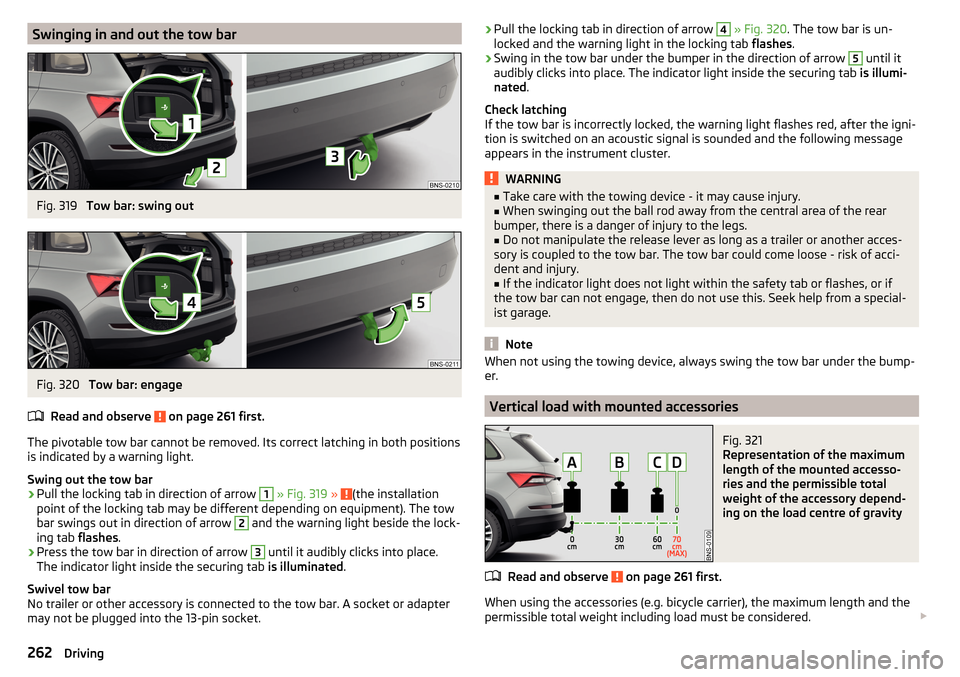
Swinging in and out the tow barFig. 319
Tow bar: swing out
Fig. 320
Tow bar: engage
Read and observe
on page 261 first.
The pivotable tow bar cannot be removed. Its correct latching in both positions is indicated by a warning light.
Swing out the tow bar
›
Pull the locking tab in direction of arrow
1
» Fig. 319 » (the installation
point of the locking tab may be different depending on equipment). The tow
bar swings out in direction of arrow
2
and the warning light beside the lock-
ing tab flashes.
›
Press the tow bar in direction of arrow
3
until it audibly clicks into place.
The indicator light inside the securing tab is illuminated.
Swivel tow bar
No trailer or other accessory is connected to the tow bar. A socket or adapter
may not be plugged into the 13-pin socket.
› Pull the locking tab in direction of arrow 4
» Fig. 320 . The tow bar is un-
locked and the warning light in the locking tab flashes.›
Swing in the tow bar under the bumper in the direction of arrow
5
until it
audibly clicks into place. The indicator light inside the securing tab is illumi-
nated .
Check latching
If the tow bar is incorrectly locked, the warning light flashes red, after the igni-
tion is switched on an acoustic signal is sounded and the following message
appears in the instrument cluster.
WARNING■ Take care with the towing device - it may cause injury.■When swinging out the ball rod away from the central area of the rear
bumper, there is a danger of injury to the legs.■
Do not manipulate the release lever as long as a trailer or another acces-
sory is coupled to the tow bar. The tow bar could come loose - risk of acci-
dent and injury.
■
If the indicator light does not light within the safety tab or flashes, or if
the tow bar can not engage, then do not use this. Seek help from a special-
ist garage.
Note
When not using the towing device, always swing the tow bar under the bump-
er.
Vertical load with mounted accessories
Fig. 321
Representation of the maximum
length of the mounted accesso-
ries and the permissible total
weight of the accessory depend-
ing on the load centre of gravity
Read and observe on page 261 first.
When using the accessories (e.g. bicycle carrier), the maximum length and the
permissible total weight including load must be considered.
262Driving