Page 331 of 398
329
308_en_Chap10c_SMegplus_ed02-2015
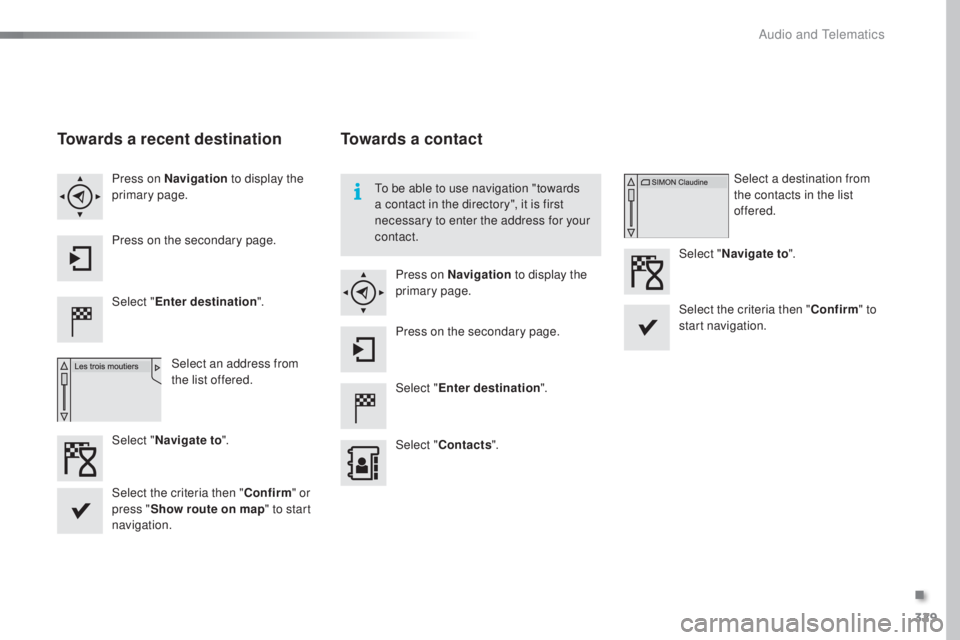
Towards a recent destination
Select "Enter destination ".
Select an address from
the list offered.
Press on Navigation
to display the
primary page.
Press on the secondary page.
Select " Navigate to ".
Towards a contact
Select "Enter destination ".
Select " Contacts ".
Press on Navigation
to display the
primary page.
Press on the secondary page. Select a destination from
the contacts in the list
offered.
Select " Navigate to ".
Select the criteria then " Confirm" to
start navigation.
to be a
ble to use navigation "towards
a contact in the directory", it is first
necessary to enter the address for your
contact.
Select the criteria then " Confirm" or
press " Show route on map " to start
navigation.
.
Audio and telematics
Page 332 of 398
330
308_en_Chap10c_SMegplus_ed02-2015
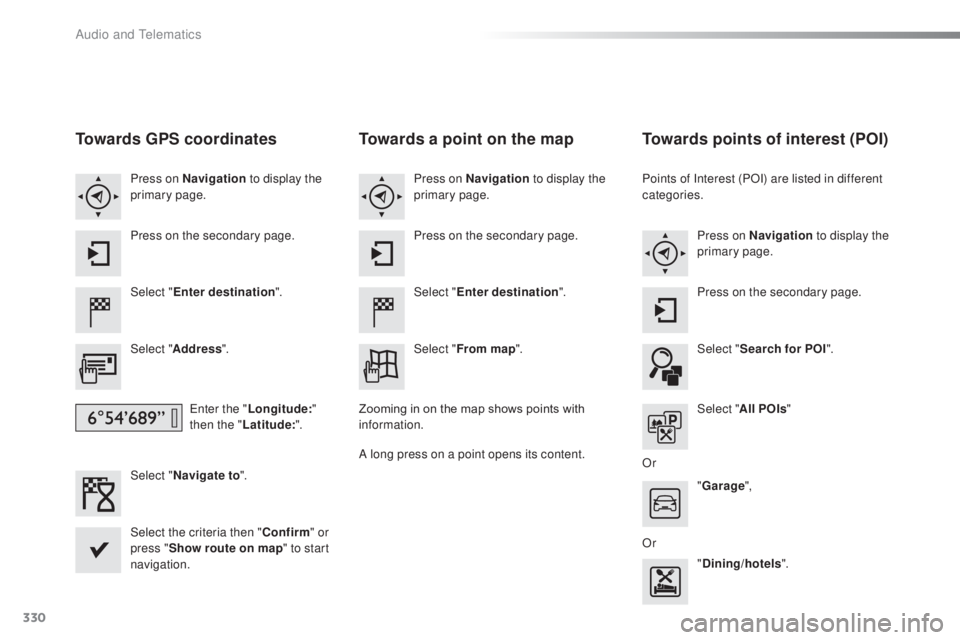
Towards GPS coordinates
Select "Enter destination ".
Select " Address ".
ent
er the "Longitude: "
then the " Latitude: ".
Select " Navigate to ".
Select the criteria then " Confirm" or
press " Show route on map " to start
navigation. Press on Navigation to display the
primary page.
Press on the secondary page.
Towards a point on the map
Select " Enter destination ".
Select " From map ".
Press on Navigation
to display the
primary page.
Press on the secondary page.
Zooming in on the map shows points with
information.
A long press on a point opens its content.
Towards points of interest (POI)
Points of Interest (POI) are listed in different
categories. Press on Navigation to display the
primary page.
Press on the secondary page.
Select " Search for POI ".
Select " All POIs "
Or "Garage ",
Or "Dining/hotels ".
Audio and telematics
Page 343 of 398
341
308_en_Chap10c_SMegplus_ed02-2015
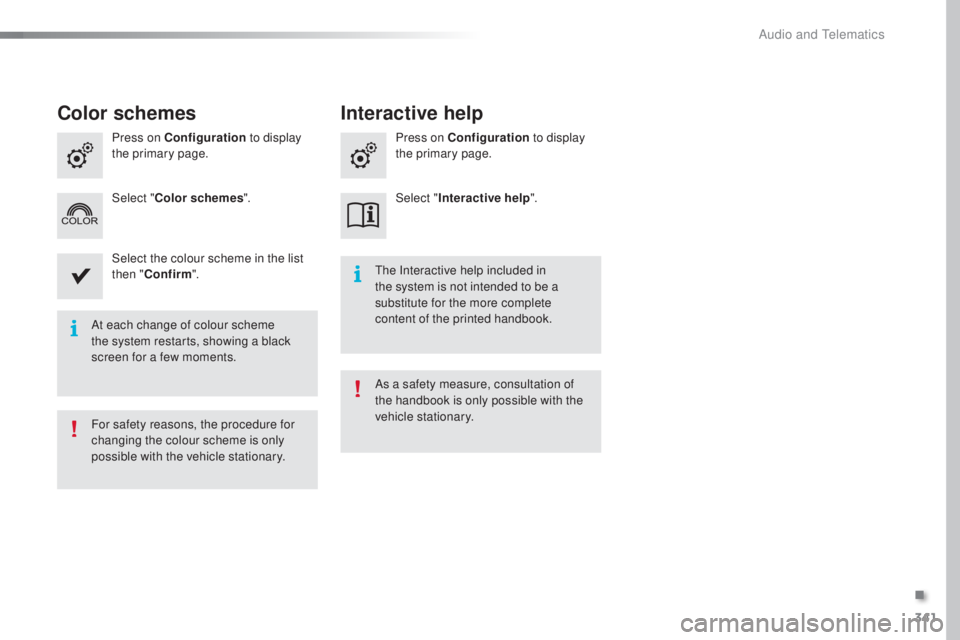
At each change of colour scheme
the system restarts, showing a black
screen for a few moments.
the I
nteractive help included in
the system is not intended to be a
substitute for the more complete
content of the printed handbook.
For safety reasons, the procedure for
changing the colour scheme is only
possible with the vehicle stationary. As a safety measure, consultation of
the handbook is only possible with the
vehicle stationary.
Press on Configuration
to display
the primary page. Press on Configuration
to display
the primary page.
Select " Color schemes ". Select "Interactive help ".
Select the colour scheme in the list
then " Confirm ".
Color schemes Interactive help
.
Audio and telematics
Page 349 of 398
347
308_en_Chap10c_SMegplus_ed02-2015
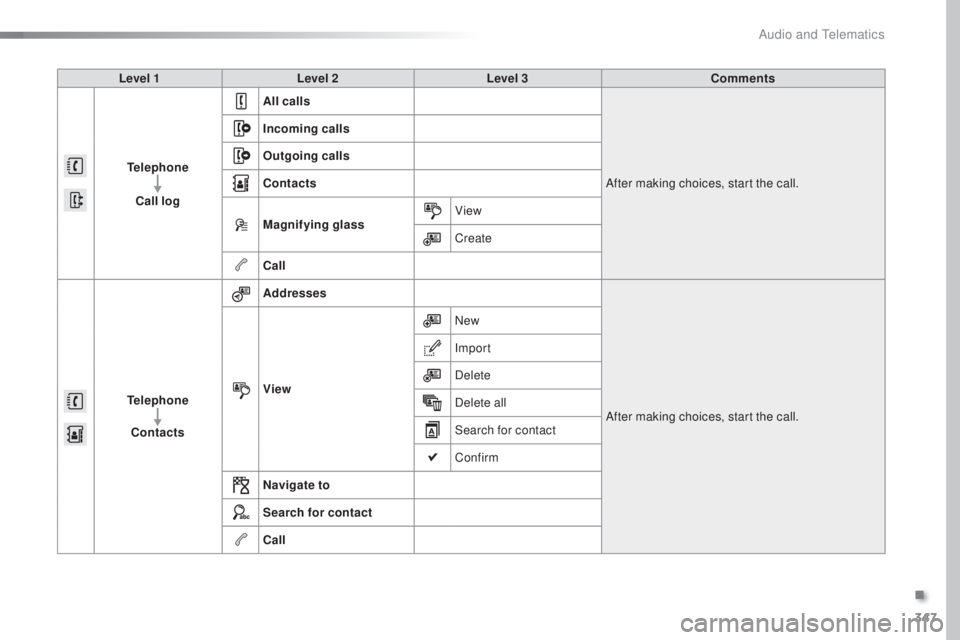
Level 1Level 2 Level 3 Comments
Telephone Call log All calls
After making choices, start the call.
Incoming calls
Outgoing calls
Contacts
Magnifying glass
View
Create
Call
Telephone Contacts Addresses
After making choices, start the call.
View New
Import
Delete
Delete all
Search for contact
Confirm
Navigate to
Search for contact
Call
.
Audio and telematics
Page 351 of 398
349
308_en_Chap10c_SMegplus_ed02-2015
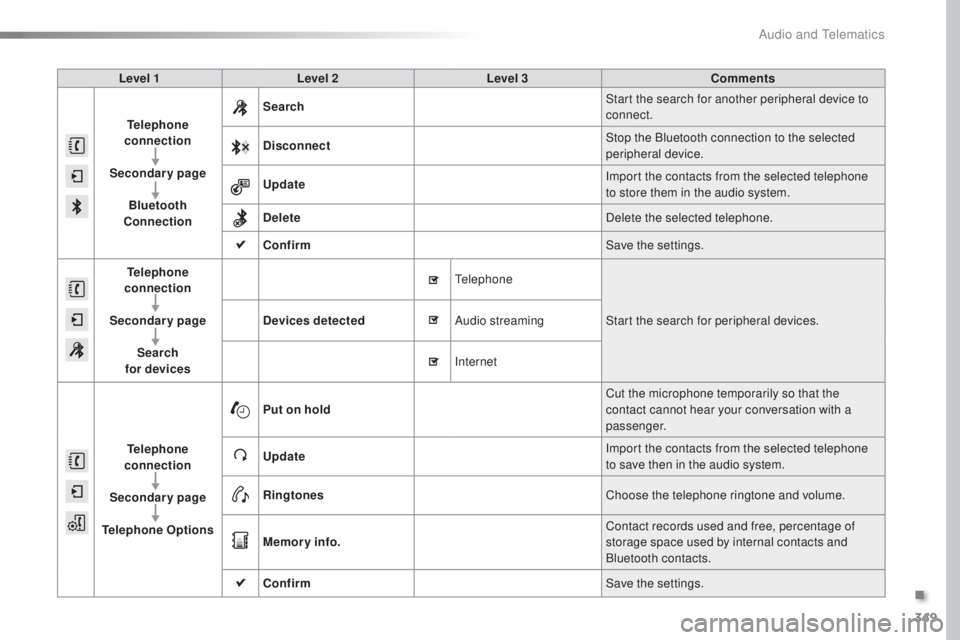
Level 1Level 2 Level 3 Comments
Telephone
connection
Secondary page Bluetooth
Connection Search
Start the search for another peripheral device to
connect.
Disconnect Stop the Bluetooth connection to the selected
peripheral device.
Update Import the contacts from the selected telephone
to store them in the audio system.
Delete Delete the selected telephone.
Confirm Save the settings.
Telephone
conn ection
Secondary page Search
for devices Devices detected
tele
phoneStart the search for peripheral devices.
Audio streaming
Internet
Telephone
connection
Secondary page
Telephone Options Put on hold
Cut the microphone temporarily so that the
contact cannot hear your conversation with a
passenger.
Update Import the contacts from the selected telephone
to save then in the audio system.
Ringtones Choose the telephone ringtone and volume.
Memory info. Contact records used and free, percentage of
storage space used by internal contacts and
Bluetooth contacts.
Confirm Save the settings.
.
Audio and telematics
Page 354 of 398
352
308_en_Chap10c_SMegplus_ed02-2015
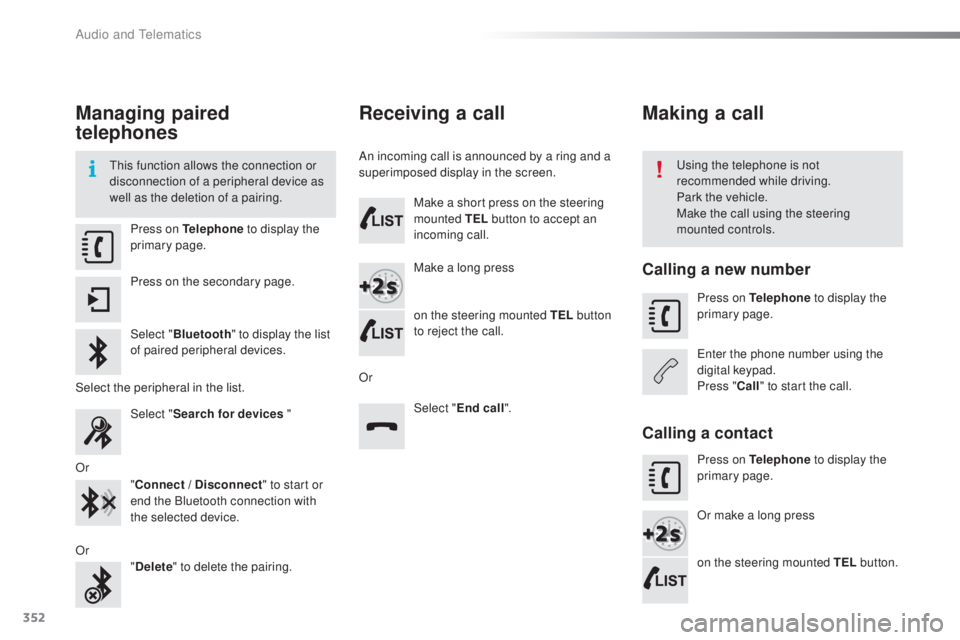
Managing paired
telephones
this function allows the connection or
d isconnection of a peripheral device as
well as the deletion of a pairing.usi ng the telephone is not
recommended while driving.
Park the vehicle.
Make the call using the steering
mounted controls.
Press on Telephone
to display the
primary page.
Press on the secondary page.
Select " Bluetooth " to display the list
of paired peripheral devices.
Select the peripheral in the list. Select "Search for devices "
Or "Connect / Disconnect " to start or
end the Bluetooth connection with
the selected device.
Or "Delete " to delete the pairing.
Receiving a call
An incoming call is announced by a ring and a
superimposed display in the screen.
Make a short press on the steering
mounted TEL button to accept an
incoming call.
Make a long press
on the steering mounted TEL button
to reject the call.
Or Select "End call".
Making a call
Calling a new number
Press on Telephone to display the
primary page.
ent
er the phone number using the
digital keypad.
Press " Call" to start the call.
Calling a contact
Press on Telephone to display the
primary page.
Or make a long press
on the steering mounted TEL button.
Audio and telematics
Page 357 of 398
355
308_en_Chap10c_SMegplus_ed02-2015
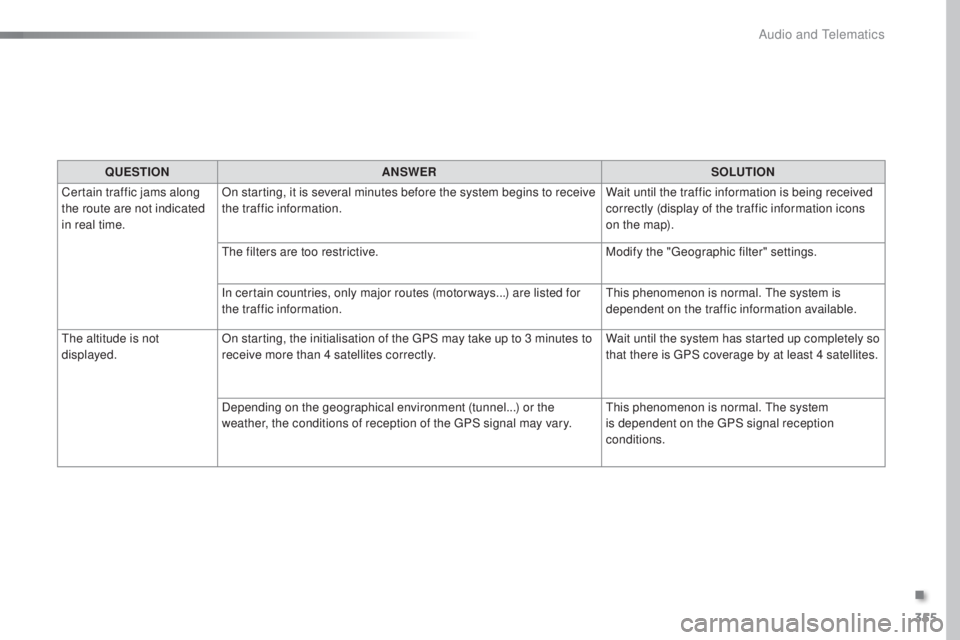
QUESTIONANSWER SOLUTION
Certain traffic jams along
the route are not indicated
in real time. On starting, it is several minutes before the system begins to receive
the traffic information.
Wait until the traffic information is being received
correctly (display of the traffic information icons
on the map).
the f
ilters are too restrictive. Modify the "
geo
graphic filter" settings.
In certain countries, only major routes (motor ways...) are listed for
the traffic information.
thi
s phenomenon is normal.
the s
ystem is
dependent on the traffic information available.
the a
ltitude is not
displayed. On starting, the initialisation of the
gPS m
ay take up to 3 minutes to
receive more than 4 satellites correctly. Wait until the system has started up completely so
that there is
gPS c
overage by at least 4
s
atellites.
Depending on the geographical environment (tunnel...) or the
weather, the conditions of reception of the
gPS s
ignal may vary.
thi
s phenomenon is normal.
the s
ystem
is dependent on the
gPS s
ignal reception
conditions.
.
Audio and telematics
Page 359 of 398
357
308_en_Chap10c_SMegplus_ed02-2015
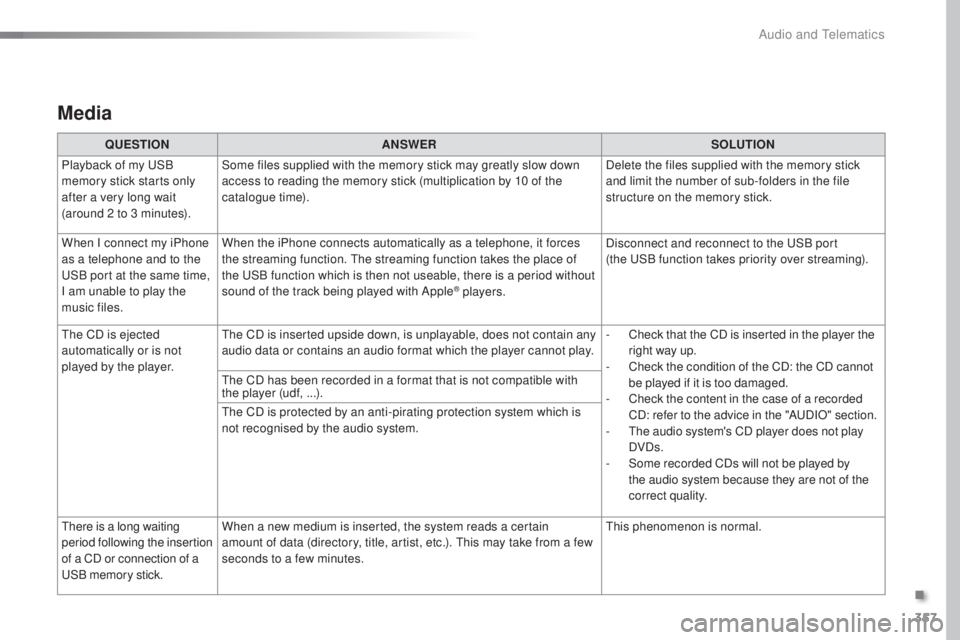
Media
QUESTIONANSWER SOLUTION
Playback of my
uSB
m
emory stick starts only
after a very long wait
(around 2 to 3 minutes). Some files supplied with the memory stick may greatly slow down
access to reading the memory stick (multiplication by 10 of the
catalogue time).
Delete the files supplied with the memory stick
and limit the number of sub-folders in the file
structure on the memory stick.
When I connect my iPhone
as a telephone and to the
uSB p
ort at the same time,
I am unable to play the
music files. When the iPhone connects automatically as a telephone, it forces
the streaming function.
the s
treaming function takes the place of
the
uSB f
unction which is then not useable, there is a period without
sound of the track being played with Apple
® players. Disconnect and reconnect to the
uSB p
ort
(the
uSB f
unction takes priority over streaming).
the C
D is ejected
automatically or is not
played by the player.
the C
D is inserted upside down, is unplayable, does not contain any
audio data or contains an audio format which the player cannot play. -
Ch
eck that the CD is inserted in the player the
right way up.
-
Ch
eck the condition of the CD: the CD cannot
be played if it is too damaged.
-
Ch
eck the content in the case of a recorded
CD: refer to the advice in the "A
uDI
O" section.
-
t
he a
udio system's CD player does not play
DVDs.
-
So
me recorded CDs will not be played by
the audio system because they are not of the
correct quality.
the C
D has been recorded in a format that is not compatible with
the player (udf, ...).
the C
D is protected by an anti-pirating protection system which is
not recognised by the audio system.
there
is a long waiting
period following the insertion
of a CD or connection of a
uSB
memory stick. When a new medium is inserted, the system reads a certain
amount of data (directory, title, artist, etc.).
thi
s may take from a few
seconds to a few minutes.
thi
s phenomenon is normal.
.
Audio and telematics