2016 NISSAN NV PASSENGER VAN reset
[x] Cancel search: resetPage 117 of 380
CAUTION
●Use power outlets with the engine run-
ning to avoid discharging the vehicle
battery.
● Do not attempt to use this while driving.
● Do not use double adapters or more
than one electrical accessory, doing so
could significantly drain the battery of
your vehicle.
WARNING
The rear sonar system is a convenience
but it is not a substitute for proper back-
ing. Always turn and check that it is safe to
do so before backing up. Always back up
slowly.
The rear sonar system is active when the ignition
switch is placed to the ON position and the shift
lever is in R (Reverse) .
When sensors detect obstacles within 5.9 ft
(1.8 m) of the rear bumper, a beeping tone is
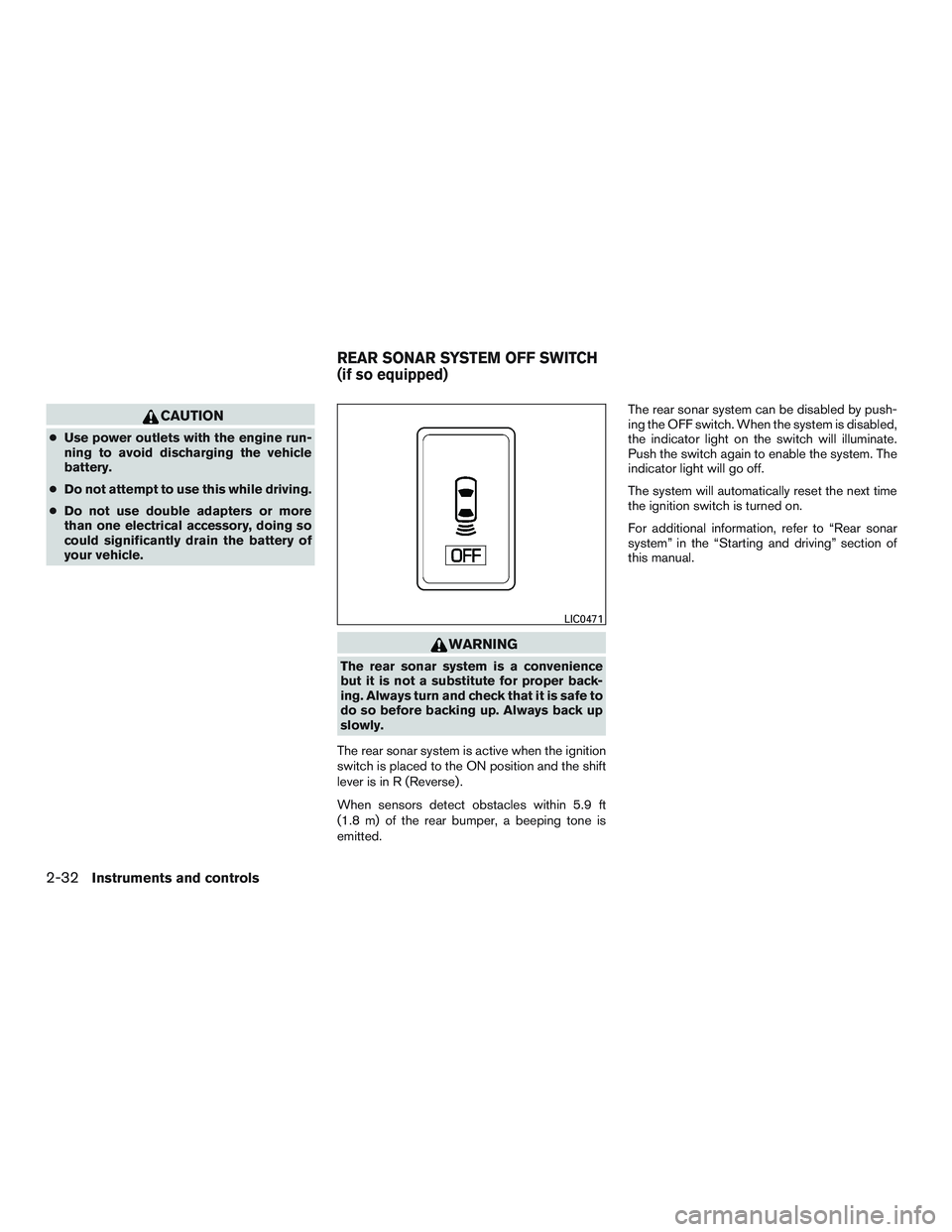
emitted. The rear sonar system can be disabled by push-
ing the OFF switch. When the system is disabled,
the indicator light on the switch will illuminate.
Push the switch again to enable the system. The
indicator light will go off.
The system will automatically reset the next time
the ignition switch is turned on.
For additional information, refer to “Rear sonar
system” in the “Starting and driving” section of
this manual.
LIC0471
REAR SONAR SYSTEM OFF SWITCH
(if so equipped)
2-32Instruments and controls
Page 118 of 380
WARNING
●The front sonar system is a convenience
but it is not a substitute for proper
driving.
● The rear sonar system is a convenience
but it is not a substitute for proper back-
ing. Always turn and check that it is safe
to do so before backing up. Always
back up slowly. The front sonar system:
● is active when the ignition is in the ON
position and the shift lever is in a forward
gear position.
● a beeping tone is emitted when the sensors
detect obstacles within 3 ft (1.0 m) of the
front bumper.
The rear sonar system: ● is active when the ignition is in the ON
position and the shift lever is in R (Reverse) .
● a beeping tone is emitted when the sensors
detect obstacles within 5.9 ft (1.8 m) of the
rear bumper.
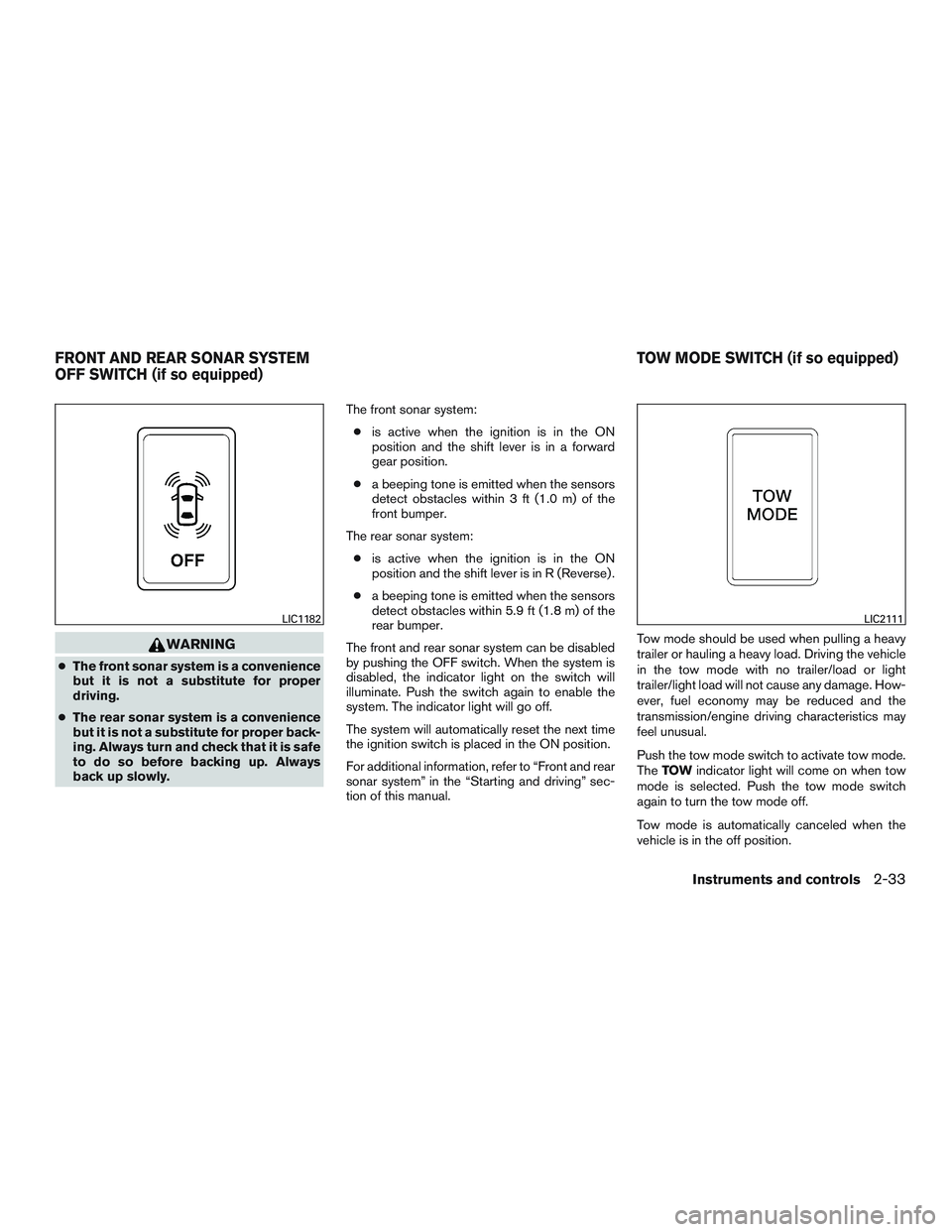
The front and rear sonar system can be disabled
by pushing the OFF switch. When the system is
disabled, the indicator light on the switch will
illuminate. Push the switch again to enable the
system. The indicator light will go off.
The system will automatically reset the next time
the ignition switch is placed in the ON position.
For additional information, refer to “Front and rear
sonar system” in the “Starting and driving” sec-
tion of this manual. Tow mode should be used when pulling a heavy
trailer or hauling a heavy load. Driving the vehicle
in the tow mode with no trailer/load or light
trailer/light load will not cause any damage. How-
ever, fuel economy may be reduced and the
transmission/engine driving characteristics may
feel unusual.
Push the tow mode switch to activate tow mode.
The
TOW indicator light will come on when tow
mode is selected. Push the tow mode switch
again to turn the tow mode off.
Tow mode is automatically canceled when the
vehicle is in the off position.
LIC1182LIC2111
FRONT AND REAR SONAR SYSTEM
OFF SWITCH (if so equipped) TOW MODE SWITCH (if so equipped)
Instruments and controls2-33
Page 122 of 380
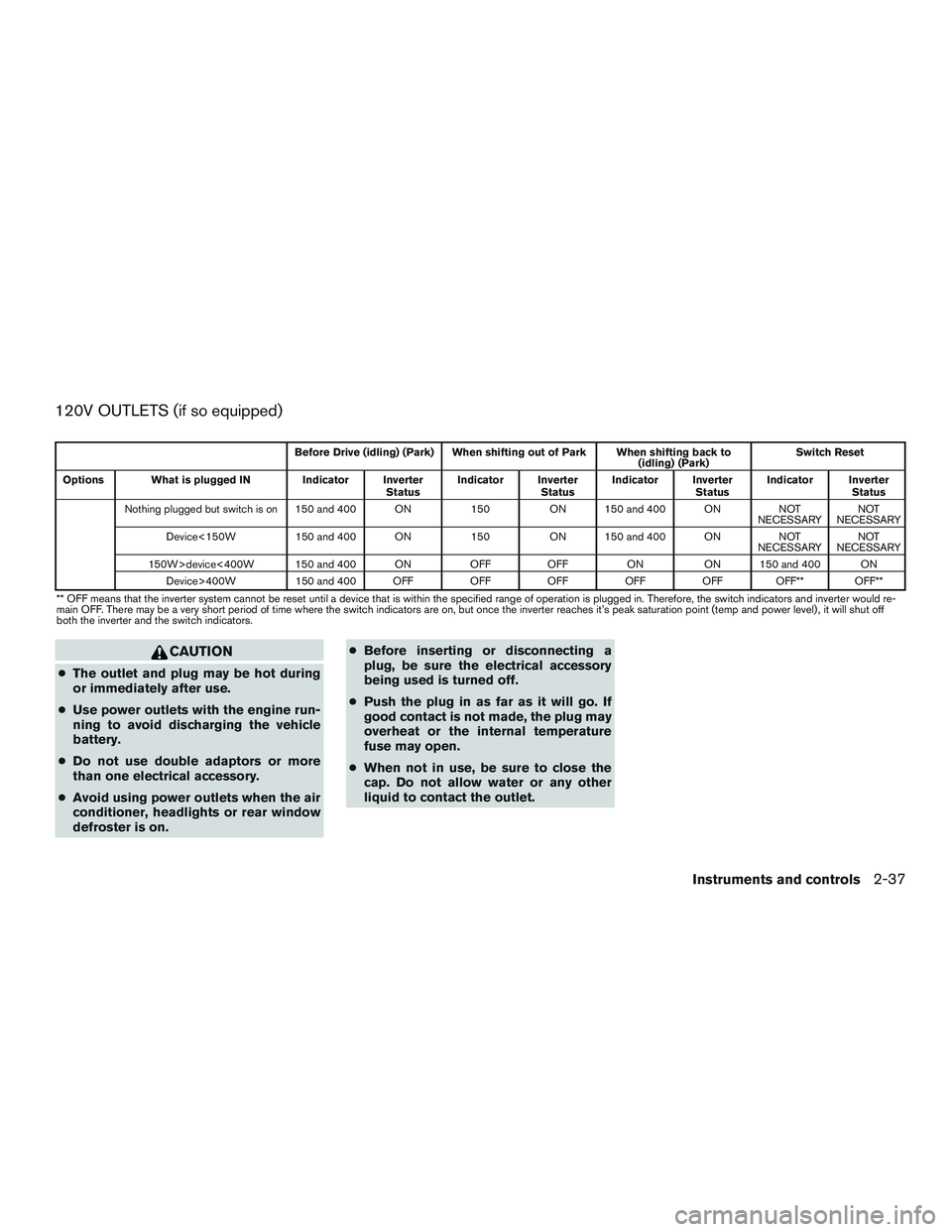
120V OUTLETS (if so equipped)
Before Drive (idling) (Park) When shifting out of Park When shifting back to(idling) (Park)Switch Reset
Options What is plugged IN Indicator Inverter StatusIndicator Inverter
StatusIndicator Inverter
StatusIndicator Inverter
Status
Nothing plugged but switch is on 150 and 400 ON 150ON 150 and 400 ON NOT
NECESSARY NOT
NECESSARY
Device<150W 150 and 400 ON 150ON 150 and 400 ON NOT
NECESSARY NOT
NECESSARY
150W>device<400W 150 and 400 ON OFFOFF ONON 150 and 400 ON
Device>400W 150 and 400 OFF OFFOFFOFFOFF OFF** OFF**
** OFF means that the inverter system cannot be reset until a device that is within the specified range of operation is plugged in. Therefore, the switch indicators and inverter would re-
main OFF. There may be a very short period of time where the switch indicators are on, but once the inverter reaches it’s peak saturation point (temp and power level) , it will shut off
both the inverter and the switch indicators.
CAUTION
● The outlet and plug may be hot during
or immediately after use.
● Use power outlets with the engine run-
ning to avoid discharging the vehicle
battery.
● Do not use double adaptors or more
than one electrical accessory.
● Avoid using power outlets when the air
conditioner, headlights or rear window
defroster is on. ●
Before inserting or disconnecting a
plug, be sure the electrical accessory
being used is turned off.
● Push the plug in as far as it will go. If
good contact is not made, the plug may
overheat or the internal temperature
fuse may open.
● When not in use, be sure to close the
cap. Do not allow water or any other
liquid to contact the outlet.
Instruments and controls2-37
Page 191 of 380
USB (Universal Serial Bus)
Connection Port (if so equipped)
WARNING
Do not connect, disconnect or operate the
USB device while driving. Doing so can be
a distraction. If distracted you could lose
control of your vehicle and cause an acci-
dent or serious injury.
CAUTION
●Do not force the USB device into the
USB port. Inserting the USB device
tilted or up-side-down into the port may
damage the port. Make sure that the
USB device is connected correctly into
the USB port.
● Do not grab the USB port cover (if so
equipped) when pulling the USB device
out of the port. This could damage the
port and the cover.
● Do not leave the USB cable in a place
where it can be pulled unintentionally.
Pulling the cable may damage the port.
The vehicle is not equipped with a USB device.
USB devices should be purchased separately as
necessary. This system cannot be used to format USB de-
vices. To format a USB device, use a personal
computer.
In some states/area, the USB device for the front
seats plays only sound without images for regu-
latory reasons, even when the vehicle is parked.
This system supports various USB memory de-
vices, USB hard drives and iPod® players. Some
USB devices may not be supported by this sys-
tem.
● Partitioned USB devices may not play cor-
rectly.
● Some characters used in other languages
(Chinese, Japanese, etc.) may not appear
properly in the display. Using English lan-
guage characters with a USB device is rec-
ommended.
General notes for USB use: ● Refer to your device manufacturer’s owner
information regarding the proper use and
care of the device.
Notes for iPod® use:
iPod® is a trademark of Apple Inc., registered in
the U.S. and other countries. ●
Improperly plugging in the iPod® may cause
a checkmark to be displayed on and off
(flickering) . Always make sure that the
iPod® is connected properly.
● An iPod® nano (1st Generation) may remain
in fast forward or rewind mode if it is con-
nected during a seek operation. In this case,
please manually reset the iPod®.
● An iPod® nano (2nd Generation) will con-
tinue to fast-forward or rewind if it is discon-
nected during a seek operation.
● An incorrect song title may appear when the
Play Mode is changed while using an iPod®
nano (2nd Generation) .
● Audiobooks may not play in the same order
as they appear on an iPod®.
● Large video files cause slow responses in an
iPod®. The vehicle center display may mo-
mentarily black out, but will soon recover.
● If an iPod® automatically selects large video
files while in the shuffle mode, the vehicle
center display may momentarily black out,
but will soon recover.
4-36Monitor, climate, audio, phone and voice recognition systems
Page 193 of 380
When no CD is loaded, the radio comes on.
Pressing the PWR button again turns the system
off.
Turn the VOL control knob to the right to increase
volume or to the left to decrease volume.
MENU button (BASS, TREBLE, FADE,
BALANCE and CLOCK)
Press the MENU button to change the mode as
follows:
BAS→TRE →FAD →BAL →CLOCK →BAS
To adjust Bass, Treble, Fade and Balance, press
the MENU button until the desired mode appears
in the display. Press the SEEK button to adjust
Bass and Treble to the desired level. You can also
use the SEEK button to adjust Fade and Balance
modes. Balance adjusts the sound between the
right and left speakers. Since this vehicle is not
equipped with rear speakers, adjusting the fade
to the rear of the vehicle will reduce the volume
until no sound is played.
Once you have adjusted the sound quality to the
desired level, press the MENU button repeatedly
until the radio or CD display reappears. Other-
wise, the radio or CD display will automatically
reappear after about 10 seconds. NOTE:
If the clock is enabled, pressing the MENU
button will change the mode as follows:
BAS
→TRE →FAD →BAL →CLOCK →
Hour adjustment →Minute adjustment →
BAS
For additional information on setting the clock,
refer to “Clock set” in this section.
Clock operation
Press the MENU button until CLOCK is dis-
played; use the SEEK button to turn the clock
display on (CLK ON) or off (CLK OFF) .
Clock set
If the clock is not displayed with the ignition
switch in the ACC or ON position, you need to
select the CLK ON mode. Press the MENU but-
ton repeatedly until CLOCK is displayed. Use the
SEEK button to enable CLK ON mode.
1. Press the MENU button repeatedly until CLOCK mode appears; press the SEEK
button until CLK ON appears.
2. Press the MENU button again; the hours will start flashing.
3. Press the SEEK button
orto
adjust the hour. 4. Press the MENU button again; the display
will switch to the minute adjustment mode.
5. The minutes will start flashing. Press SEEK button
orto adjust the minutes.
6. Press the MENU button again to exit the clock set mode.
The display will return to the regular clock display
after 10 seconds, or press the MENU button
again to return to the regular clock display.
Resetting the time
Hold the MENU button down and then press the
TUNE or SEEK button; the time will reset as
follows:
● If the displayed minutes before the reset are
in the range of :00 - :29, the hour displayed
before the reset will stay the same and the
minutes will be reset to :00.
● If the displayed minutes before the reset are
in the range of :30 - :59, the hour displayed
before the reset will advance by one hour
and the minutes will be reset to :00.
For example, if the MENU button and the TUNE or
SEEK button are pressed while the time dis-
played is between 8:00 and 8:29, the display will
be reset to 8:00. If the buttons were pressed
while the time was between 8:30 and 8:59, the
4-38Monitor, climate, audio, phone and voice recognition systems
Page 194 of 380
display will be reset to 9:00. At the same time the
display will return to the audio.
FM/AM radio operation
FM·AM button
Press the FM·AM button to change the band as
follows:
FM1→FM2 →AM →FM1
The FM stereo indicator, ST (STEREO) , illumi-
nates during FM stereo reception. When the
stereo broadcast signal is weak, the radio auto-
matically changes from stereo to monaural re-
ception.
TUNE buttons
Manual tuning
Press the TUNE
orbutton for less
than 0.5 seconds for manual tuning.
To move quickly through the channels, press and
hold either TUNE
orbutton down
for more than 1.5 seconds.
SEEK buttons
SEEK tuning
Press the SEEK
orbutton to seek
through the frequencies. Seek tuning begins from low to high frequencies, or high to low
frequencies, depending on which button is
pressed, and stops at the next broadcasting sta-
tion. Once the highest broadcasting station is
reached, the radio continues in the seek mode at
the lowest broadcasting station.
Station memory operations
Twelve stations can be set for the FM band (6 for
FM1 and 6 for FM2) and 6 stations can be set for
the AM band to the preset buttons.
1. Press the FM-AM button to change to the desired band.
2. Tune to the desired station using manual TUNE or SEEK tuning. Press and hold any of
the desired station memory buttons (1 – 6)
until a beep sound is heard. (The radio mutes
when the select button is pressed.)
3. The channel indicator will then come on and the sound will resume. Programming is now
complete.
4. Other buttons can be set in the same man- ner.
If the battery cable is disconnected, or if the fuse
opens, the radio memory will be canceled. In that
case, reset the desired stations.
Compact disc (CD) player operation
If the radio is already operating, it automatically
turns off and the compact disc begins to play.
CD button
When the CD button is pressed with a compact
disc loaded and the radio playing, the radio turns
off and the last used compact disc starts to play.
TUNE (rewind and fast forward) buttons
When the TUNE
orbutton is
pressed while the compact disc is playing, the
compact disc plays at an increased speed while
rewinding or fast forwarding. When the button is
released, the compact disc returns to normal play
speed.
SEEK buttons
When
is pressed while the compact disc
is playing, the next track following the present
one starts to play from the beginning.
Press
several times to skip several tracks.
Each time the button is pressed, the CD ad-
vances 1 additional track. The track number ap-
pears in the display window. (When the last track
on the compact disc is skipped, the first track is
played.)
Monitor, climate, audio, phone and voice recognition systems4-39
Page 198 of 380
The FM stereo indicator (ST) illuminates during
FM stereo reception. When the stereo broadcast
signal is weak, the radio automatically changes
from stereo to monaural reception.
TUNE button (Tuning)
Press the TUNE/FF-REW/FOLDER
button
orfor manual tuning.
SEEK tuning
Press the SEEK/TRACK button
orto tune from low to high or high to low frequen-
cies and to stop at the next broadcasting station.
SCAN tuning
Press the SCAN button to stop at each broad-
casting station for 5 seconds. Pressing the but-
ton again during this 5 second period will stop
SCAN tuning and the radio will remain tuned to
that station. If the SCAN button is not pressed
within 5 seconds, SCAN tuning moves to the next
station.
1 to 6 Station memory operations
Twelve stations can be set for the FM band (6 for
FM1, 6 for FM2) and six stations can be set for
the AM band. 1. Choose the radio band AM, FM1 or FM2 using the AM or FM button. 2. Tune to the desired station using manual,
SEEK or SCAN tuning. Press and hold any
of the desired station memory buttons (1 –
6) until a beep sound is heard.
3. The channel indicator will then come on and the sound will resume. Programming is now
complete.
4. Other buttons can be set in the same man- ner.
If the battery cable is disconnected or if the fuse
opens, the radio memory will be canceled. In that
case, reset the desired stations.Compact disc (CD) player operation
If the radio is already operating, it automatically
turns off and the compact disc begins to play.
CD button
When the CD button is pressed with the system
off and the compact disc loaded, the system will
turn on and the compact disc will start to play.
When the CD button is pressed with a compact
disc loaded and the radio playing, the radio will
automatically be turned off and the compact disc
will start to play. DISP/TEXT button
When the DISP/TEXT button is pressed while a
CD is playing, the display will change as follows:
CD:
Track number
→Disc title →Song title →Track
number
CD with MP3 or WMA:
Track number →Folder title →Album title →
Artist →Song title →Track number
TUNE/FF-REW/FOLDER
(Reverse or Fast Forward)
button
CD:
When the TUNE/FF-REW/FOLDER button
(fast forward) or(reverse) is pressed while
the compact disc is playing, the compact disc
plays at an increased speed while reversing or fast
forwarding. When the button is released, the com-
pact disc returns to normal play speed.
CD with MP3 or WMA:
When the TUNE/FF-REW/FOLDER button
(fast forward) or(reverse) is pressed for less
than 1.5 seconds while the compact disc is play-
ing, the folders in the CD will change.
Monitor, climate, audio, phone and voice recognition systems4-43
Page 203 of 380
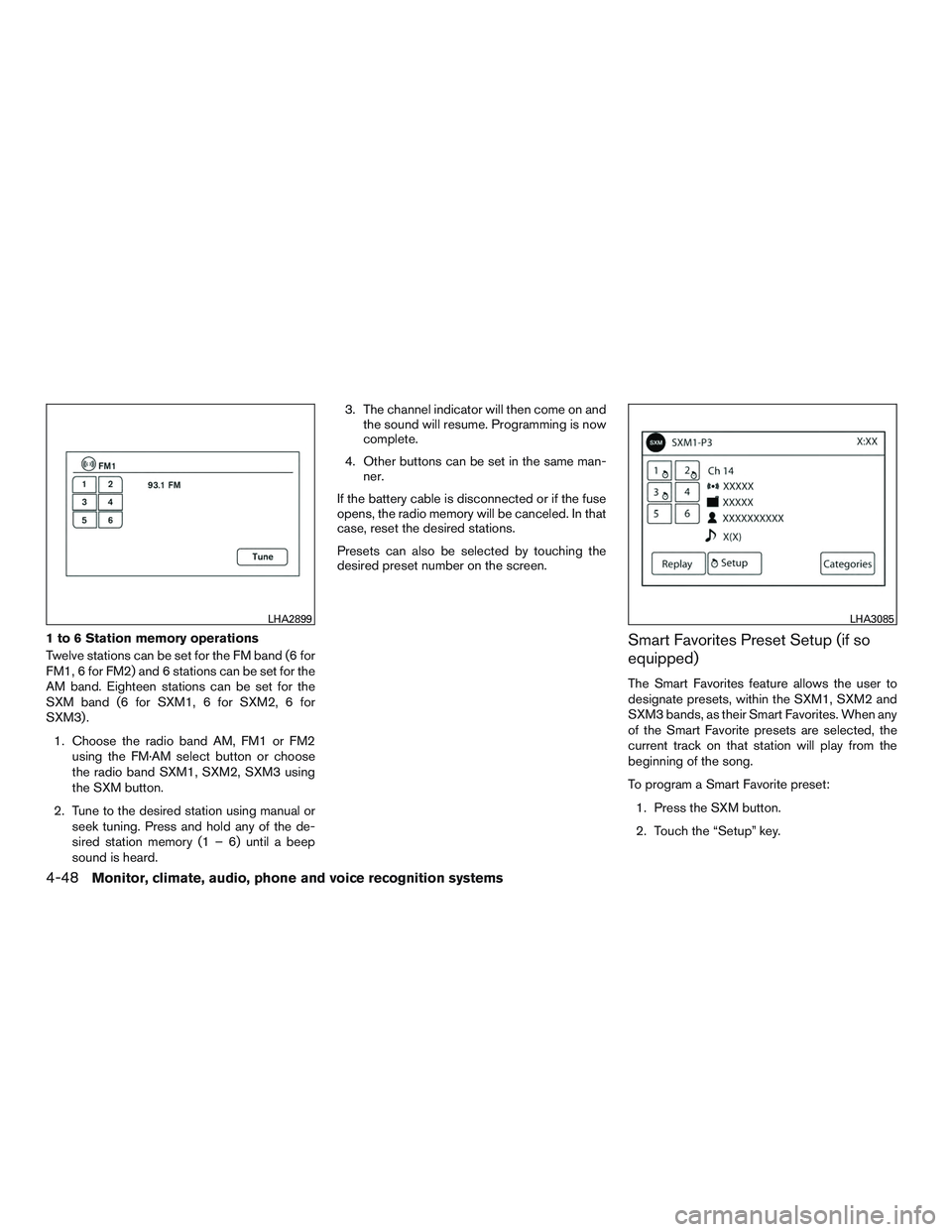
1 to 6 Station memory operations
Twelve stations can be set for the FM band (6 for
FM1, 6 for FM2) and 6 stations can be set for the
AM band. Eighteen stations can be set for the
SXM band (6 for SXM1, 6 for SXM2, 6 for
SXM3) .1. Choose the radio band AM, FM1 or FM2 using the FM·AM select button or choose
the radio band SXM1, SXM2, SXM3 using
the SXM button.
2. Tune to the desired station using manual or seek tuning. Press and hold any of the de-
sired station memory (1 – 6) until a beep
sound is heard. 3. The channel indicator will then come on and
the sound will resume. Programming is now
complete.
4. Other buttons can be set in the same man- ner.
If the battery cable is disconnected or if the fuse
opens, the radio memory will be canceled. In that
case, reset the desired stations.
Presets can also be selected by touching the
desired preset number on the screen.Smart Favorites Preset Setup (if so
equipped)
The Smart Favorites feature allows the user to
designate presets, within the SXM1, SXM2 and
SXM3 bands, as their Smart Favorites. When any
of the Smart Favorite presets are selected, the
current track on that station will play from the
beginning of the song.
To program a Smart Favorite preset:
1. Press the SXM button.
2. Touch the “Setup” key.
LHA2899LHA3085
4-48Monitor, climate, audio, phone and voice recognition systems