2016 MERCEDES-BENZ GLC-Class ad blue
[x] Cancel search: ad bluePage 197 of 222
If theNo Bluetooth Audio Device Con‐
nectedmessage appears, you have two
options to reconnect the Bluetooth®audio
device.
Option 1:
XIn the Connect Devicebasic display:
press the controller.
If COMAND can locate the Bluetooth
®
audio device, it will be connected and will
start playing.
Option 2:
XTo select Options: slide6and press the
controller.
XTo select Bluetooth Audio Devices:
press the controller.
XTo select a Bluetooth®audio device: turn
and press the controller.
If the Bluetooth
®audio device has been
authorized, playback starts.
Bluetooth®audio device and simulta-
neous search for mobile phones
i
When searching for a mobile phone or a
new Bluetooth®audio device, the connec-
tion to an already activated Bluetooth®
audio device is stopped.
In the Bluetooth
®audio basic display , you will
see the No
BluetoothAudioDeviceCon‐
nectedmessage, and the Connect Device
menu item cannot be selected.
Displaying details
XTo select a Bluetooth®audio device from
the Bluetooth®device list: turn the control-
ler.
XTo select the symbol to the right of the
Bluetooth®audio device: slide 9the
controller.
XTo select Details: turn and press the con-
troller.
The following information concerning the
selected mobile phone is shown:
RBluetooth®name
RBluetooth®address
RAvailability status (shown after an
update)
RAuthorization status
XTo close the detailed display: press the
% button.
De-authorizing (deregistering) a Blue-
tooth®audio device
XTo select a Bluetooth®audio device from
the Bluetooth®device list: turn the control-
ler.
XTo select the symbol to the right of the
Bluetooth®audio device: slide 9and
press the controller.
XTo select Deauthorize: press the control-
ler.
A prompt appears asking whether you
really wish to deauthorize this device.
XTo select YesorNo: turn and press the con-
troller.
If you select Yes
, the device is deleted from
the Bluetooth®device list.
If you select No
the process is canceled.
iBefore re-authorizing the Bluetooth®
audio device, you should also delete the
device name MB Bluetooth
from your
Bluetooth®audio device's Bluetooth®list
(see the Bluetooth®audio device's operat-
ing instructions).
Bluetooth®audio mode195
Media
Z
Page 198 of 222
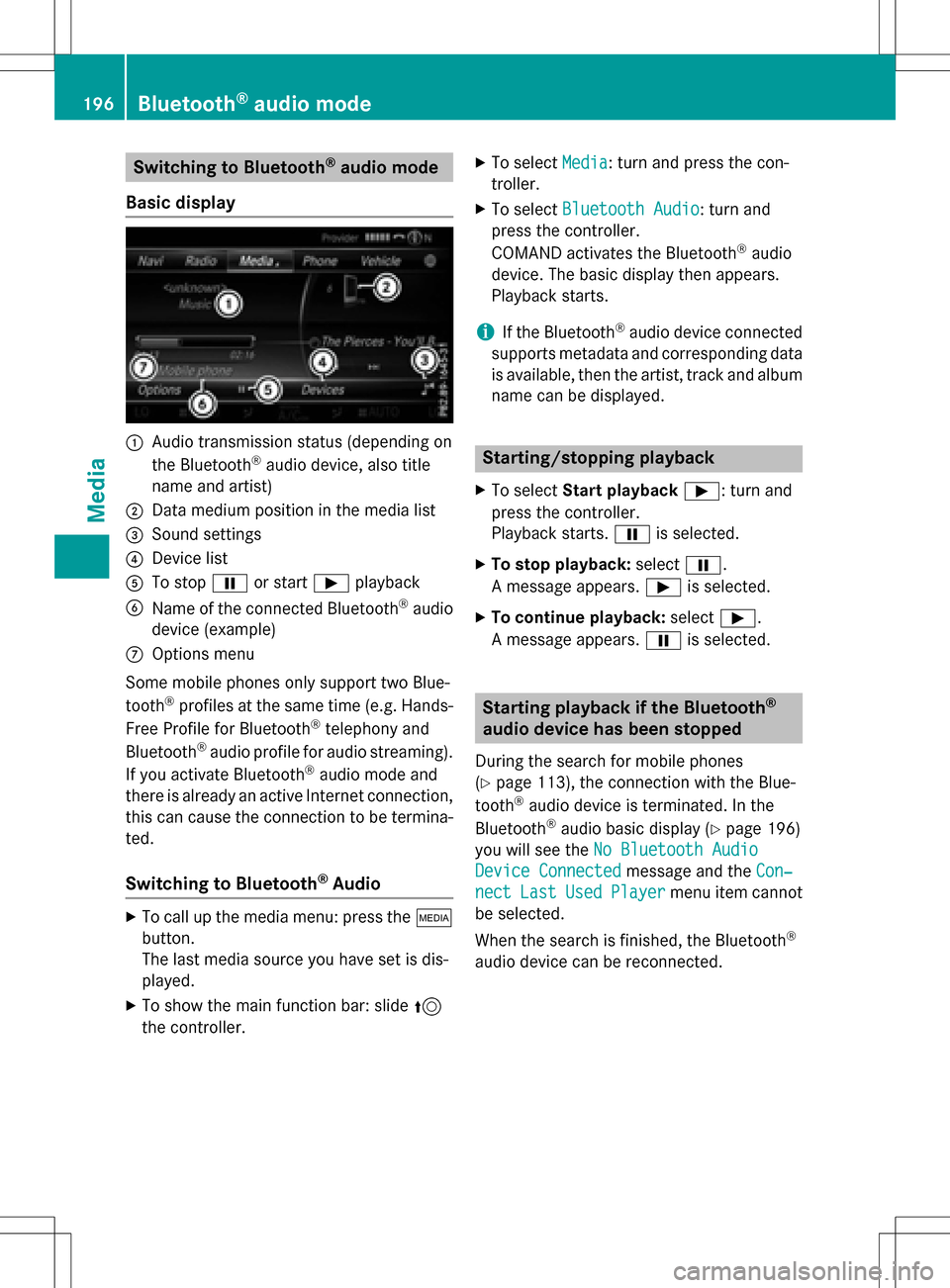
Switching to Bluetooth®audio mode
Basic display
:Audio transmission status (depending on
the Bluetooth®audio device, also title
name and artist)
;Data medium position in the media list
=Sound settings
?Device list
ATo stop Ëor start Ìplayback
BName of the connected Bluetooth®audio
device (example)
COptions menu
Some mobile phones only support two Blue-
tooth
®profiles at the same time (e.g. Hands-
Free Profile for Bluetooth®telephony and
Bluetooth®audio profile for audio streaming).
If you activate Bluetooth®audio mode and
there is already an active Internet connection, this can cause the connection to be termina-
ted.
Switching to Bluetooth®Audio
XTo call up the media menu: press the Õ
button.
The last media source you have set is dis-
played.
XTo show the main function bar: slide 5
the controller.
XTo select Media: turn and press the con-
troller.
XTo select Bluetooth Audio: turn and
press the controller.
COMAND activates the Bluetooth
®audio
device. The basic display then appears.
Playback starts.
iIf the Bluetooth®audio device connected
supports metadata and corresponding data
is available, then the artist, track and album
name can be displayed.
Starting/stopping playback
XTo select Start playback Ì: turn and
press the controller.
Playback starts. Ëis selected.
XTo stop playback: selectË.
A message appears. Ìis selected.
XTo continue playback: selectÌ.
A message appears. Ëis selected.
Starting playback if the Bluetooth®
audio device has been stopped
During the search for mobile phones
(
Ypage 113), the connection with the Blue-
tooth®audio device is terminated. In the
Bluetooth®audio basic display (Ypage 196)
you will see the No Bluetooth Audio
Device Connectedmessage and the Con‐
nectLastUsedPlayermenu item cannot
be selected.
When the search is finished, the Bluetooth
®
audio device can be reconnected.
196Bluetooth®audio mode
Media
Page 199 of 222
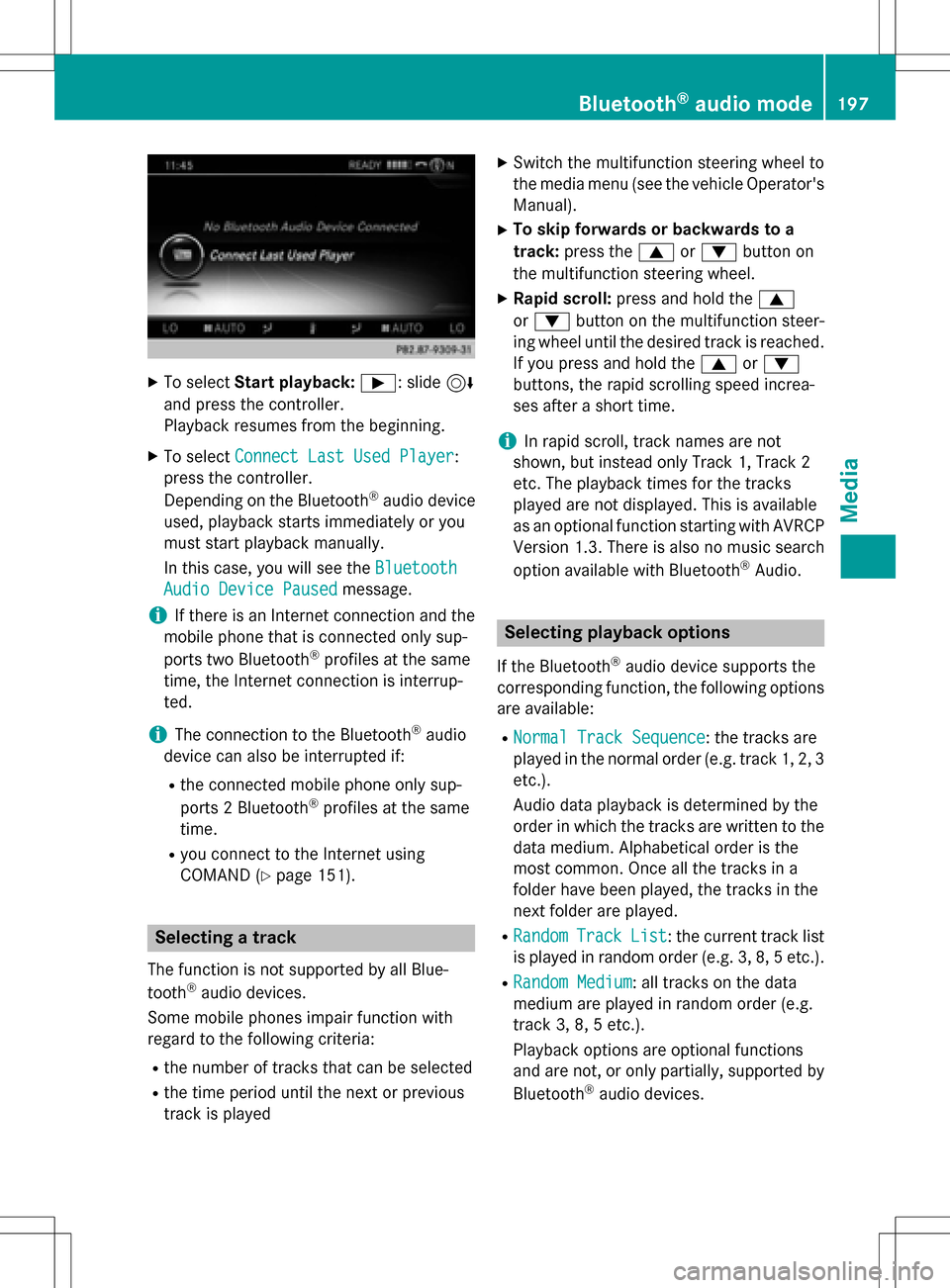
XTo selectStart playback: Ì: slide6
and press the controller.
Playback resumes from the beginning.
XTo select Connect Last Used Player:
press the controller.
Depending on the Bluetooth
®audio device
used, playback starts immediately or you
must start playback manually.
In this case, you will see the Bluetooth
Audio Device Pausedmessage.
iIf there is an Internet connection and the
mobile phone that is connected only sup-
ports two Bluetooth
®profiles at the same
time, the Internet connection is interrup-
ted.
iThe connection to the Bluetooth®audio
device can also be interrupted if:
Rthe connected mobile phone only sup-
ports 2 Bluetooth®profiles at the same
time.
Ryou connect to the Internet using
COMAND (
Ypage 151).
Selecting a track
The function is not supported by all Blue-
tooth®audio devices.
Some mobile phones impair function with
regard to the following criteria:
Rthe number of tracks that can be selected
Rthe time period until the next or previous
track is played
XSwitch the multifunction steering wheel to
the media menu (see the vehicle Operator's
Manual).
XTo skip forwards or backwards to a
track: press the 9or: button on
the multifunction steering wheel.
XRapid scroll: press and hold the 9
or : button on the multifunction steer-
ing wheel until the desired track is reached.
If you press and hold the 9or:
buttons, the rapid scrolling speed increa-
ses after a short time.
iIn rapid scroll, track names are not
shown, but instead only Track 1, Track 2
etc. The playback times for the tracks
played are not displayed. This is available
as an optional function starting with AVRCP
Version 1.3. There is also no music search
option available with Bluetooth
®Audio.
Selecting playback options
If the Bluetooth®audio device supports the
corresponding function, the following options
are available:
RNormal Track Sequence: the tracks are
played in the normal order (e.g. track 1, 2, 3
etc.).
Audio data playback is determined by the
order in which the tracks are written to the
data medium. Alphabetical order is the
most common. Once all the tracks in a
folder have been played, the tracks in the
next folder are played.
RRandomTrackList: the current track list
is played in random order (e.g. 3, 8, 5 etc.).
RRandom Medium: all tracks on the data
medium are played in random order (e.g.
track 3, 8, 5 etc.).
Playback options are optional functions
and are not, or only partially, supported by
Bluetooth
®audio devices.
Bluetooth®audio mode197
Media
Z
Page 219 of 222

Sample displays of weather data in the
map
Displaying the rain radar:
XActivate theRadar Mapdisplay level
(
Ypage 216).
The rain radar image is then displayed if
weather data is available.
iYou can call up the legend for the precip-
itation radar (
Ypage 219).
The transparency of the precipitation radar
map display level can be adjusted in five
stages.
Displaying storm characteristics:
XActivate the StormCharacteristicsdis-
play level (
Ypage 216).
If weather data is available, the weather
map will then display the storm character-
istics.
You can call up the legend for storms
(
Ypage 219).
The following information on a storm cell is
displayed (if available):
Rcharacteristics of the storm cell
Rdate and time of observation (time
stamp)
Rdirectional movement speed and path
Propagation speed: the speed at which the
storm cell is advancing.
Displaying weather fronts:
XActivate the Atmospheric Pressuredis-
play level (
Ypage 216).
If weather data is available, the weather
map will then display the weather fronts.
The example shows the position of high and
low-pressure areas (H, L), weather fronts
and isobars. Isobars are lines that show
where the air pressure is the same.
Legend: weather fronts
Weather
frontExplanation
Cold front
(blue line
with blue tri-
angles)If a cold front moves in, the
weather remains changea-
ble and there are often rain
showers and thunder-
storms. The air tempera-
ture decreases.
Warm front
(red line with
red semi-cir-
cles)A warm front may cause
more prolonged steady
rain, more cloud cover and
a slow rise in temperature.
Weather forecasts217
SIRIUS Weather
Page 220 of 222

Weather
frontExplanation
Stationary
front
(red and blue
line with red
semi-circles
and blue tri-
angles)The weather front moves
minimally. The weather
remains changeable in this
area.
Occlusion
(purple line
with purple
semi-circles
and trian-
gles)When the faster cold front
catches up and joins the
warm front ahead of it, an
occluded front is formed.
The weather remains
changeable and rainy
within an occlusion.
Displaying storm tracking information:
XActivate theTropical Storm Tracking
display level (Ypage 216).
If weather data is available, the weather
map will then display storm tracking infor-
mation.
Example: in the middle of the map you can see the current position of the tropical low-
pressure area (cyclone). To the right of this
a solid line shows the previous path with
positions and times. The forecast for the
direction of propagation is shown by a dot-
ted line with positions and times.
You can find out detailed information on a
cyclone in the Storm Guide (
Ypage 220).
Showing detailed information (if available):
Rname of the tropical storm and category
RTime stamp
Rdirectional movement speed and path
Rmaximum wind speed
Propagation speed: the speed at which the
storm cell of a tropical cyclone is advancing.
A tropical storm is separated into different
categories according to the location at which
it develops.
Region of originCategory
Atlantic, North
and South
Pacific OceansTropical Low
Press. Sys.
Atlantic, North
and South
Pacific OceansTropicalDepression
Atlantic, North
and South
Pacific OceansName of tropical storm
(Tropical Storm)
Atlantic, North
and South
Pacific OceansName of tropical storm
(Hurricane Cate‐
gory 3)
Displays hurricane cat-
egories 1 through 5
Northwestern
Pacific OceanTropical Low
Press. Sys.
Northwestern
Pacific OceanName of tropical storm
(Tropical Cyclone)
218Weather forecasts
SIRIUS Weather