2016 MERCEDES-BENZ GLC-Class ad blue
[x] Cancel search: ad bluePage 120 of 222

Redial
XTo call up the telephone menu: press the
%button.
XTo select win the telephone menu: turn
and press the controller.
The list of outgoing calls is displayed. The
most recently dialed number is at the top.
XTo select an entry and make a call: turn and
press the controller.
Further information about ending a call
(
Ypage 121).
Using call lists
XTo call up the telephone menu: press the
% button.
XTo switch to the menu bar: slide 6the
controller.
XTo select Call Lists: turn and press the
controller.
XTo select Calls ReceivedorCalls
Dialed: turn and press the controller.
The relevant list is displayed.
XTo select an entry and make a call: turn and
press the controller.
Further information about ending a call
(
Ypage 121).
Using the phone book
XTo call up the telephone menu: press the
% button.
XTo select Namein the telephone menu: turn
and press the controller.
XSearch for a contact (Ypage 122).
XTo make a call: press the controller.
Further information about ending a call
(
Ypage 121).
Using speed dial
XTo call up the telephone menu: press the
% button.
XTo highlight a number from the character
bar: turn the controller.
XPress the controller for longer than two
seconds.
The telephone menu displays the selected
entry. The number is dialed.
Further information on setting up speed dial
(
Ypage 134).
Further information about ending a call
(
Ypage 121).
Functions available during a call
Overview
:To add a call (Ypage 119)
;Person you are calling
=Symbol for active telephone connection
?To end a call
ATo switch the microphone on/off
(
Ypage 119)
BTo send DTMF tones (not possible with all
mobile phones) (
Ypage 119)
Available functions:
RAccepting a waiting call (Ypage 120)
RMaking a second call (Ypage 119)
RCall waiting (Ypage 119)
Availability depends on the network (only pos- sible in the GSM network) and on the Blue-
tooth
®mobile phone.
118Using the telephone
Telephone
Page 124 of 222
XTo call up the telephone menu: press the
%button.
XTo select Namein the telephone menu: turn
and press the controller.
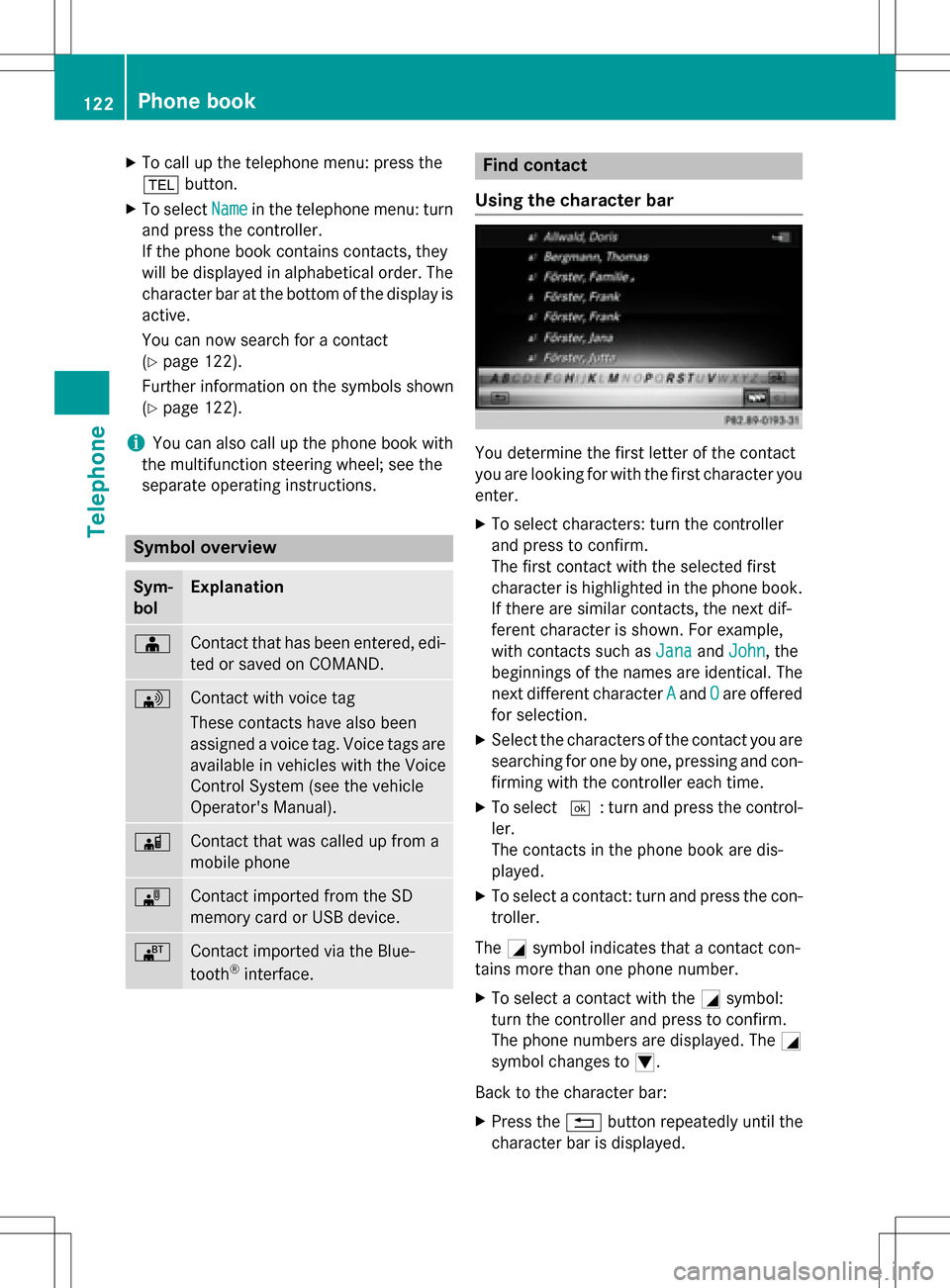
If the phone book contains contacts, they
will be displayed in alphabetical order. The character bar at the bottom of the display is
active.
You can now search for a contact
(
Ypage 122).
Further information on the symbols shown
(
Ypage 122).
iYou can also call up the phone book with
the multifunction steering wheel; see the
separate operating instructions.
Symbol overview
Sym-
bolExplanation
ÆContact that has been entered, edi-
ted or saved on COMAND.
\Contact with voice tag
These contacts have also been
assigned a voice tag. Voice tags are
available in vehicles with the Voice
Control System (see the vehicle
Operator's Manual).
ÃContact that was called up from a
mobile phone
¯Contact imported from the SD
memory card or USB device.
®Contact imported via the Blue-
tooth®interface.
Find contact
Using the character bar
You determine the first letter of the contact
you are looking for with the first character you
enter.
XTo select characters: turn the controller
and press to confirm.
The first contact with the selected first
character is highlighted in the phone book.
If there are similar contacts, the next dif-
ferent character is shown. For example,
with contacts such as Jana
andJohn, the
beginnings of the names are identical. The
next different character A
andOare offered
for selection.
XSelect the characters of the contact you are
searching for one by one, pressing and con- firming with the controller each time.
XTo select ¬: turn and press the control-
ler.
The contacts in the phone book are dis-
played.
XTo select a contact: turn and press the con-
troller.
The Gsymbol indicates that a contact con-
tains more than one phone number.
XTo select a contact with the Gsymbol:
turn the controller and press to confirm.
The phone numbers are displayed. The G
symbol changes to I.
Back to the character bar:
XPress the %button repeatedly until the
character bar is displayed.
122Phone book
Telephone
Page 132 of 222

The contacts are sorted by surname and
displayed without a comma.
RFirst Name Last Name
The contacts are sorted by first name and
displayed without a comma.
XTo select the required option: turn and
press the controller.
The contacts are sorted and displayed
according to the selection.
Automatically importing contacts
from the phone
Depending on the mobile phone used, you
can set whether the contacts should be called
up automatically after the mobile phone is
connected to COMAND.
XConnect a mobile phone (Ypage 112).
XCall up the address book (Ypage 125).
XTo show the menu bar: slide6the con-
troller.
XTo select Options: turn and press the con-
troller.
XTo select Automatically Import Con‐
tacts from Phone: turn and press the
controller.
You can allow Oor suppress ªthe auto-
matic download.
Saving a contact
Saved contacts are indicated in the phone
book by different symbols (
Ypage 122).
XCall up the address book (Ypage 125).
XTo select a contact: turn and press the con-
troller.
The details for the contact are displayed.
XTo select G: slide 9the controller.
XTo select Save: turn and press the control-
ler.
The contact has now been saved.
iIf the saved address book entry contains a
phone number, the entry is also displayed
in the phone book.
Saving or editing the contact data on
COMAND does not change the contacts on
the mobile phone. If automatic download-
ing of phone contacts is activated,
COMAND displays the copy ¥with the
changed data. To add additional data, such
as additional phone numbers or e-mail
addresses, select this contact. In this way,
you avoid creating additional copies of the
mobile phone entry.
Deleting a name
XCall up the address book (Ypage 125).
XSearch for a contact (Ypage 126).
XTo select G: slide 9the controller.
XTo select Delete Entry: turn and press
the controller.
XTo select Yes: turn and press the controller.
The contact is deleted.
or
XTo select No: turn and press the controller.
The process is canceled.
Importing contacts
Information and requirements
Contacts can be imported as vCards (vcf
files). A vCard is an electronic business card.
A memory card, USB device or a Bluetooth
®
connection can be used for importing.
iUp to 2000 entries can be imported into
the address book. A message notifies you
when the maximum number is reached. In
order to be able to then import new con-
tacts, you have to delete existing contacts
(
Ypage 130).
130Address book
Telephone
Page 133 of 222

SourcePrerequisites
Memory cardThe SD memory card is
inserted. It contains
importable contact details.
USB deviceThe USB device is inserted
into the USB port. It con-
tains importable contact
details.
Bluetooth®
connection
If the sending of vCards is
supported via Bluetooth®,
vCards can be received on
mobile phones or net-
books, for example.
Bluetooth
®must be activa-
ted in COMAND and on the
respective device (see the
manufacturer's operating
instructions).
iIf automatic calling up of the contacts is
deactivated (
Ypage 130), the Import
from Phoneoption is available.
Importing from the memory card or USB
device
Contacts imported from the memory card or
from a USB device are identified by the ¯
symbol.
The following conditions must be fulfilled in
order to import vCards:
RvCards (vcf files) may be located in the main
directory or in folders. COMAND allows you
to select the relevant folders directly.
RvCards must have the file extension "vcf".
iCOMAND supports vCards in versions 2.1
and 3.0.
XTo switch to the menu bar in the telephone
menu or the address book: slide 6the
controller.
XTo select Options: turn and press the con-
troller.
XTo select Download Contacts: turn and
press the controller.
XTo select FromMemoryCardorFromUSB
device: turn and press the controller.
Receiving vCards via Bluetooth®
COMAND
XTo switch to the menu bar in the telephone
menu or the address book: slide 6the
controller.
XTo select Options: turn and press the con-
troller.
XTo select Download Contacts: turn and
press the controller.
XTo select From Bluetooth Device: turn
and press the controller.
If COMAND is connected to a mobile
phone, the connection is terminated.
vCards can now be received by a device
(PC, mobile phone) via Bluetooth
®.
External device
XStart the data transfer (see the manufac-
turer's operating instructions).
The number of vCards received is displayed in COMAND.
COMAND
XTo cancel the transfer: press the controller.
If a mobile phone was connected, the con-
nection to the mobile phone is established
again.
Received vCards are identified by the ®
symbol in the address book.
Address book131
Telephone
Z
Page 134 of 222

iIf you switch to another main function,
e.g. navigation, while receiving vCards, the reception of vCards will be terminated.
Deleting imported contacts
XTo change to the menu bar when in the
address book or the telephone menu: slide
6 the controller.
XTo select Options: turn and press the con-
troller.
XTo select Delete Contacts: turn and
press the controller.
XSelect one of the following options:
RInternal Contacts
RImported from Storage Device
RImported from Bluetooth Devices
RDownloaded from Phone
Turn and press the controller.
XTo select Yes: turn and press the controller.
The contacts are deleted.
or
XTo select No: turn and press the controller.
The process is canceled.
Closing the address book
XPress the %button one or more times.
Call lists
Introduction
If your mobile phone supports the PBAP Blue-
tooth®profile, the call lists from the mobile
phone are displayed in COMAND. When con- necting the mobile phone, you may have to
confirm the connection for the PBAP Blue-
tooth
®profile.
If your mobile phone does not support the
PBAP Bluetooth
®profile, COMAND generates
its own call lists. These are not the same as
the call lists in your mobile phone. The Call list option is not available unless a
mobile phone is connected to COMAND.
If the contact for an incoming call is not saved
in the address book, you can use the call list
to save the telephone number. You can save
this telephone number as a new contact in the
address book or add it to an existing contact
(
Ypage 133).
iIf you connect a different mobile phone to
COMAND, the call lists from the new mobile phone are displayed.
Opening the call list and selecting an
entry
List of selected phone numbers (example)
:
Date and time (if available)
;Telephone number of the highlighted
entry and symbols (if assigned)
XTo call up the telephone menu: press the
% button.
XTo switch to the menu bar: slide 6the
controller.
XTo select Call Lists: turn and press the
controller.
XTo select Calls ReceivedorCalls
Dialed: turn and press the controller.
The relevant list is displayed.
XTo select an entry and make a call: turn and
press the controller.
132Call lists
Telephone
Page 136 of 222
Adding information to an address book
entry
XTo call up th etelephon emenu: press th e
% button.
XTo switch to th emen ubar: slide 6the
controller .
XTo select CallLists:tur nand press th e
controller .
XTo select Calls ReceivedorCalls
Dialed:tur nand press th econtroller .
The relevan tlist is displayed.
XTo highligh tth edesired telephon enumber :
tur nth econtroller .
XTo select G:slide9 thecontroller .
XTo selectSave:tur nand press th econtrol -
ler .
XSelec tAdd Phone No..
XSelec t anumber category, e.g. Home.
XSelec t atelephon ecategory, e.g. Mobile
Phone.
XSelectContinue.
The address book is displayed.
XSearc hfor th edesired contact
(
Ypage 126).
XPress th econtroller when you hav efinishe d
searching .
The telephon enumber has been saved.
A maximum of fiv etelephon enumber scan
be saved for on econtact .
If fiv enumber sare already store dfor th e
entr yyou are searching for , aprompt will
appear asking whether you wish to overwrit e
on eof th eexisting numbers.
Overwriting an entry
XTo select Yes:tur nand press th econtroller .
A list of th eexisting fiv enumber sis dis-
played.
XTo select th enumber to be overwritte n
from th elist :tur nth econtroller and press
to confirm .
The entr yis overwritte nwit hth ene wtele-
phone number . Canceling th
eoverwriting of an entry
XTo select No:tur nand press th econtroller .
The proce ssis canceled.
Deleting call lists
Call list swhic hare generated and managed
by COMAND can be deleted on COMAND .
You canno tdelet ecall list sfrom COMAND
whic hare displayed on amobile phone that
support sth ePBAP Bluetoot h
®profile.
XTo call up th etelephon emenu: pre ssthe
% button.
XTo switch to th emen ubar: slide 6the
controller .
XTo select CallLists:tur nand press th e
controller .
XSelectDelete Cal lLists.
A prompt appear s asking whether you wish
to delet eall call list s.
XTo selectYes:tur nand pre ssthecontroller .
The call list sare deleted.
or
XTo select No:tur nand press th econtroller .
The proce ssis canceled.
iIf you delet ecall list sfrom th emobile
phon e(see th emanufacturer' smobile
phon eoperating instructions), COMAND
updates th ecall list display th enext time it
connects .
Speed dial lists
Setting up
XTo call up th etelephon emenu: pre ssthe
% button.
XTo call up th emen ubar: slide 6thecon-
troller .
XTo select CallLists:tur nand press th e
controller .
XSelectSpeed Dia lPreset Lis t.
The spee ddial list is displayed.
134Speed dial lists
Telephone
Page 137 of 222
XTo highlight a memory position for the
speed dial: turn the controller.
If you highlight an entry that already existsin the speed dial list, this is overwritten with
the new entry.
XTo select G: slide 9the controller.
XSelect Assign Speed Dial Preset.
The phone book is displayed.
XSearch for a contact (Ypage 122).
XTo select a contact: turn and press the con-
troller.
The phone number has been saved as a
speed dial.
Deleting
Deleting a speed dial preset
XTo call up the telephone menu: press the
% button.
XTo call up the menu bar: slide 6the con-
troller.
XTo select Call Lists: turn and press the
controller.
XSelect Speed Dial Preset List.
The speed dial list is displayed.
XTo highlight the memory position you want
to delete: turn the controller.
XTo select G: slide 9the controller.
XTo select Delete Speed Dial Preset:
turn and press the controller.
XTo select Yes: turn and press the controller.
The speed dial preset has been deleted.
or
XTo select No: turn and press the controller.
The process is canceled.
Deleting all speed dial presets
XTo call up the telephone menu: press the
% button.
XTo call up the menu bar: slide 6the con-
troller.
XTo select Call Lists: turn and press the
controller.
XSelect Speed Dial Preset List.
The speed dial list is displayed.
XTo highlight the desired memory position:
turn the controller.
XTo select G: slide 9the controller.
XTo select Delete All Speed Dial Pre‐
sets: turn and press the controller.
XTo selectYes: turn and press the controller.
All speed dials are deleted.
or
XTo select No: turn and press the controller.
The process is canceled.
Messages (text messages and e-
mails)
General notes
New messages are identified by an audible
signal and the /symbol in the COMAND
display. Once you have read all the messages,
the symbol is no longer displayed.
COMAND displays the 100 newest text mes-
sages and e-mails.
The ú symbol is displayed when the
mobile phone's message memory is full. The
symbol is no longer displayed if you delete
messages on the mobile phone.
Function restrictions
Text messages cannot be written while the
vehicle is in motion.
Prerequisites
To use the message functions, the connected mobile phone must support the MAP Blue-
tooth
®profile. The prompt for the MAP Blue-
tooth®profile may have to be confirmed on
the mobile phone.
Messages (text messages and e-mails)135
Telephone
Z
Page 138 of 222
With some mobile phones, some settings still
have to be made after connecting to
COMAND (see the manufacturer's operating
instructions). The messages are displayed the
next time you connect to COMAND.
An e-mail account must be set up on the
mobile phone for the e-mail function (see the
manufacturer’s operating instructions).
To read and write e-mails in COMAND, the e-
mail account first needs to be configured
(
Ypage 137).
Some mobile phones with the MAP Blue-
tooth
®profile:
Ronly show new text messages.
Rdo not support the deleting or editing of
text messages.
Rdo not support the drafts folder for text
messages.
Rdo not support the sending of text mes-
sages.
Rdo not support the e-mail function.
Rdo not send messages in a locked status.
Not all mobile phones available on the market are equally suitable. You can obtain further
information about settings and supported
functions of Bluetooth
®-capable mobile
phones on the Internet at
www.mercedes-benz-mobile.com .
Or call the Mercedes-Benz Customer Assis-
tance Center at 1-800-FOR-MERCedes
(1-800-367-6372)( for the USA) or Customer
Relations at 1-800-387-0100 (for Canada).
Settings
Calling up the settings menu for mes-
sages
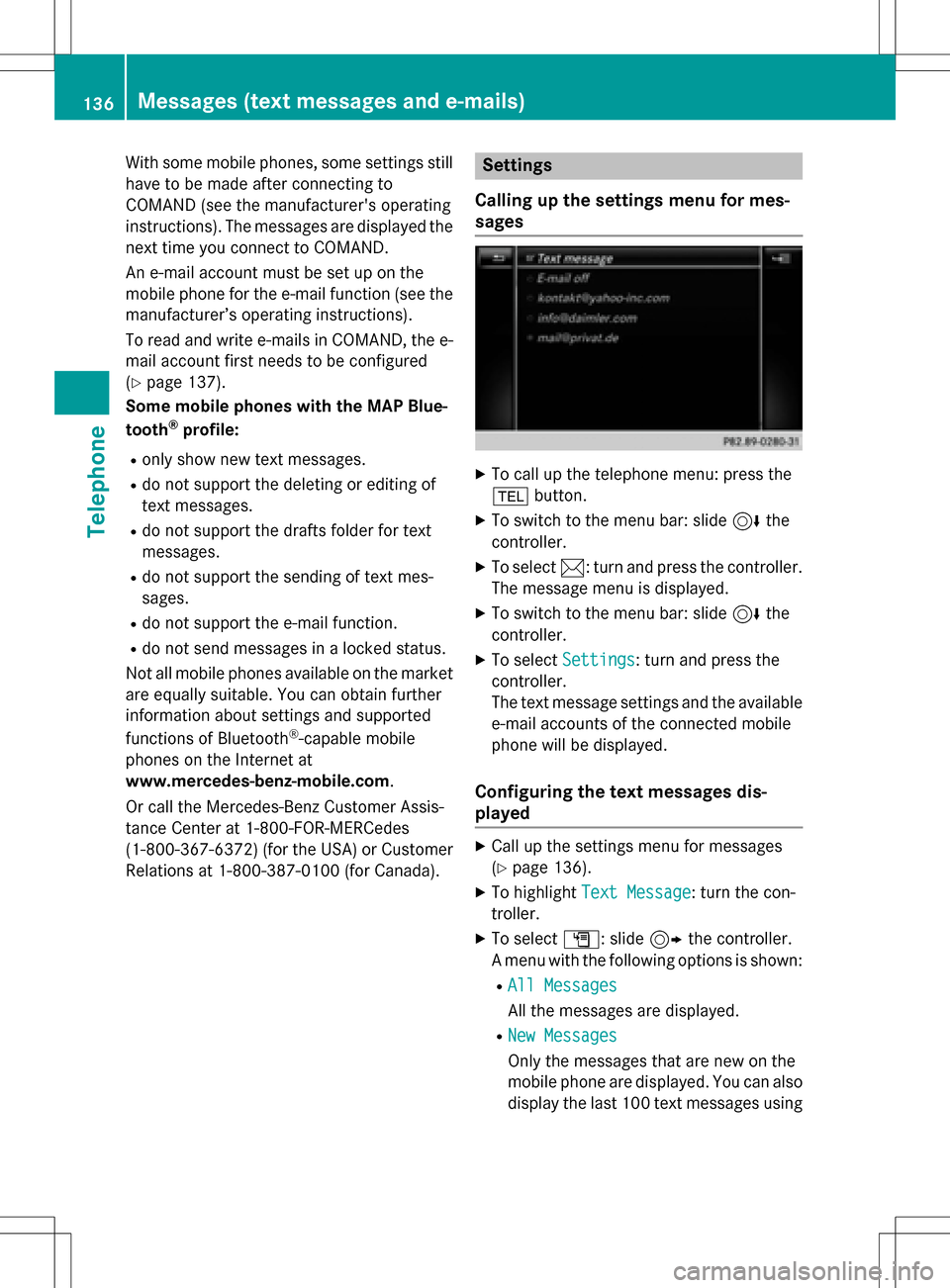
XTo call up the telephone menu: press the
% button.
XTo switch to the menu bar: slide 6the
controller.
XTo select 1: turn and press the controller.
The message menu is displayed.
XTo switch to the menu bar: slide 6the
controller.
XTo select Settings: turn and press the
controller.
The text message settings and the available
e-mail accounts of the connected mobile
phone will be displayed.
Configuring the text messages dis-
played
XCall up the settings menu for messages
(
Ypage 136).
XTo highlight Text Message: turn the con-
troller.
XTo select G: slide 9the controller.
A menu with the following options is shown:
RAll Messages
All the messages are displayed.
RNew Messages
Only the messages that are new on the
mobile phone are displayed. You can also
display the last 100 text messages using
136Messages (text messages and e-mails)
Telephone