2016 MERCEDES-BENZ E-CLASS ESTATE light
[x] Cancel search: lightPage 327 of 565
The
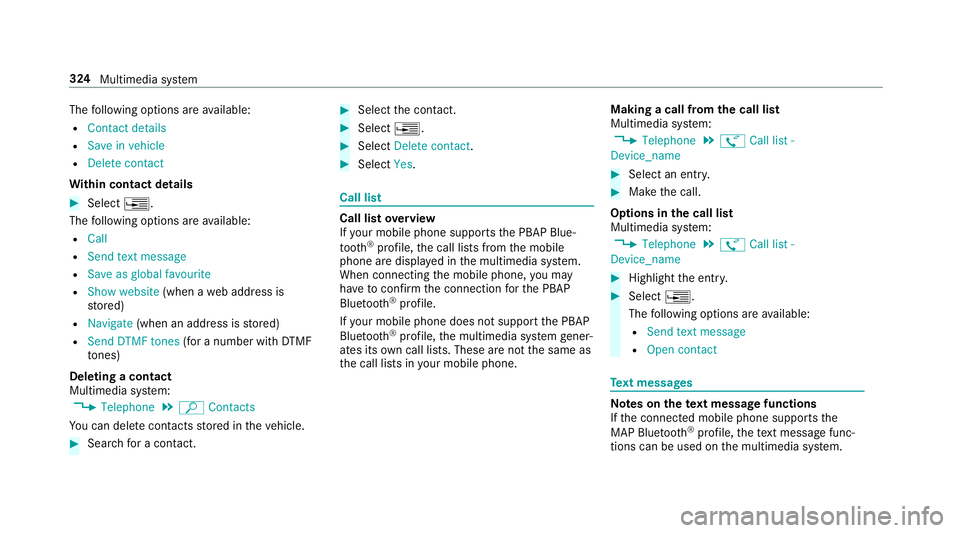
following options are available:
R Contact details
R Save in vehicle
R Delete contact
Wi thin contact details #
Select ¥.
The following options are available:
R Call
R Send text message
R Save as global favourite
R Show website (when aweb address is
st ored)
R Navigate (when an address is stored)
R Send DTMF tones (for a number with DTMF
to nes)
Deleting a contact
Multimedia sy stem:
, Telephone .
ª Contacts
Yo u can dele tecontacts stored in theve hicle. #
Sear chfor a contact. #
Select the conta ct. #
Select ¥. #
Select Delete contact . #
Select Yes. Call li
st Call list
overview
If yo ur mobile phone suppo rts th e PBAP Blue‐
tooth ®
profile, the call lists from the mobile
phone are displa yed in the multimedia sy stem.
When connecting the mobile phone, you may
ha ve toconfirm the connection forth e PBAP
Blue tooth ®
profile.
If yo ur mobile phone does not suppo rtthe PBAP
Blue tooth ®
profile, the multimedia sy stem gener‐
ates its own call li sts. These are not the same as
th e call lists in your mobile phone. Making a call from
the call list
Multimedia sy stem:
, Telephone .
ø Call list -
Device_name #
Select an entry. #
Make the call.
Options in the call list
Multimedia sy stem:
, Telephone .
ø Call list -
Device_name #
Highlight the entry. #
Select ¥.
The following options are available:
R Send text message
R Open contact Te
xt messages Note
s onthete xt message functions
If th e connected mobile phone supports the
MAP Blue tooth®
profile, thete xt messa gefunc‐
tions can be used on the multimedia sy stem. 324
Multimedia sy stem
Page 328 of 565
Yo
u can obtain fur ther information about set‐
tings and suppor ted functions of Blue tooth®
-
capable mobile phones from a Mercedes-Benz
service centre or at: http://www.mercedes-
benz.com/connect
Some mobile phones require fur ther settings
af te r being connected tothe multimedia sy stem
(see manufacturer's Owner's Manual).
New messages are identified bythe1 symbol
in the multimedia sy stem's display and an audi‐
ble signal.
R The multimedia sy stem displa ys the100
ne we sttext messa ges.
R The ú symbol is displa yed when the
mobile phone's messa gememory is full.
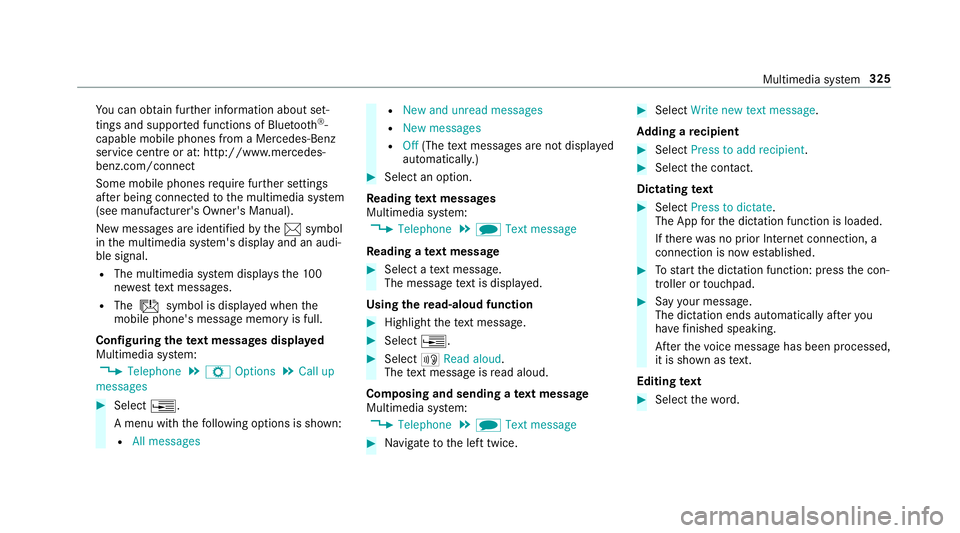
Confi guring thete xt messages displa yed
Multimedia sy stem:
, Telephone .
Z Options .
Call up
messages #
Select ¥.
A menu with thefo llowing options is shown:
R All messages R
New and unread messages
R New messages
R Off (The text messa ges are not displa yed
automaticall y.) #
Select an option.
Re ading text messages
Multimedia sy stem:
, Telephone .
i Text message
Re ading a text message #
Select a text messa ge.
The message text is displ ayed.
Using there ad-aloud function #
Highlight thete xt messa ge. #
Select ¥. #
Select +Read aloud .
The text messa geisread aloud.
Composing and sending a text message
Multimedia sy stem:
, Telephone .
i Text message #
Navigate tothe left twice. #
Select Write new text message.
Ad ding a recipient #
Select Press to add recipient. #
Select the conta ct.
Dictating text #
Select Press to dictate.
The App forth e dictation function is loaded.
If th ere was no prior Internet connection, a
connection is now es tablished. #
Tostart the dictation function: press the con‐
troller or touchpad. #
Say your message.
The dic tation ends au tomatical lyafte ryou
ha ve finished speaking.
Af terth evo ice message has been processed,
it is shown as text.
Editing text #
Select thewo rd. Multimedia sy
stem 325
Page 336 of 565
Ac
tivating the telephone module #
Select áConnect device - Mobile phone .#
Select Activate MB SAP module and confirm.
Disconnecting thete lephone module #
Select áConnect device - Mobile phone .#
Select ¥. #
Select Disconnect MB SAP module. #
Select Yes.
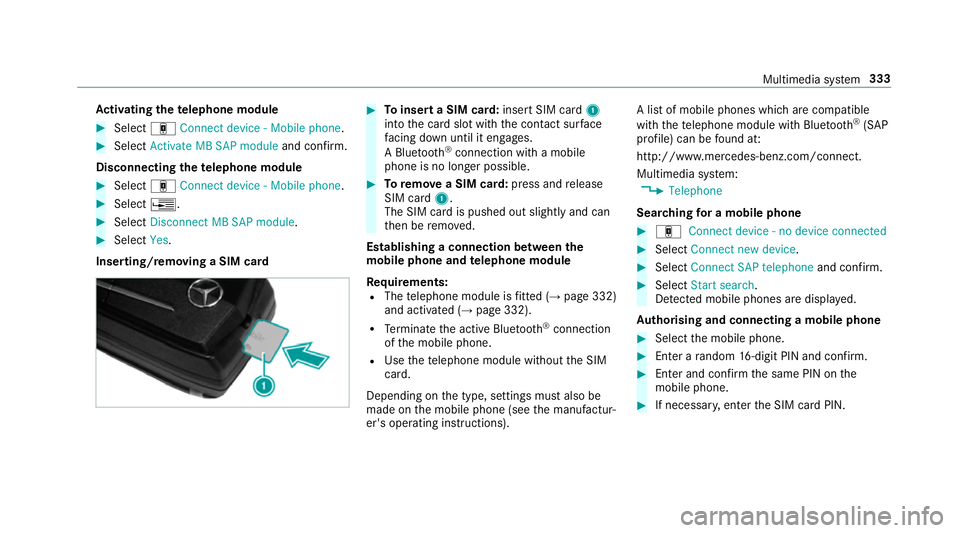
Inserting/removing a SIM card #
Toinsert a SIM card: insert SIM card1
into the card slot with the conta ct surface
fa cing down until it engages.
A Blu etoo th®
connection wi tha mobile
phone is no lon ger possible. #
Toremo vea SIM card: press andrelease
SIM card 1.
The SIM card is pushed out slightly and can
th en be remo ved.
Establishing a connection between the
mo bile phone and telephone module
Re quirements:
R The telephone module is fitted (→ page 332)
and activated (→ page 332).
R Term inate the active Blue tooth ®
connection
of the mobile phone.
R Use thete lephone module without the SIM
card.
Depending on the type, settings must also be
made on the mobile phone (see the manufactur‐
er's operating instructions). A list of mobile phones which are compatible
with thete lephone module with Blue tooth®
(SAP
profile) can be found at:
http://www.mercedes-benz.com/connect.
Multimedia sy stem:
, Telephone
Sear ching for a mobile phone #
á Connect device - no device connected #
Select Connect new device . #
Select Connect SAP telephone and confirm. #
Select Start search .
De tected mobile phones are displ ayed.
Au thorising and connecting a mobile phone #
Select the mobile phone. #
Ente r arandom 16-digit PIN and confirm. #
Enter and confirm the same PIN on the
mobile phone. #
If necessar y,enter the SIM card PIN. Multimedia sy
stem 333
Page 338 of 565
00070 Deactivates network pr
ovider
re striction
0008 1A ctivates text messa getrans fer
00080 Deactivates text messa getrans fer
00082 Sets situation-rela ted dimming of
th e indicator lamp
0008 3D oes not change the brightness of
th e indicator lamp Setting
theringtone for the telephone mod‐
ule
Multimedia sy stem:
, Telephone .
á Connect device -
Mobile phone #
Highlight a mobile phone. #
Select ¥. #
Select Ringtones. #
Select a ringtone.
The ringtone is pl ayed.
The settings are applied once youex itthe
menu. Tr
ansfer ring the phone book via thete le‐
phone module
The transfer take s place automatically once a
connection has been es tablished via Blue tooth®
:
R Ifth e mobile phone supports the PBAP
(Phone BookAccess Profile), the sy stem
gives priority toloading phone book ent ries
from the phone memor y.
R Ifth ere are no entri es inthe phone memor y,
th e phone book entri es fromthe SIM card
are impor ted.
A list of compatible mobile phones can be found
at:
http://www.mercedes-benz.com/connect
Note s onreceiving text messages when
using thete lephone module
Obser vethefo llowing no tes when using thete le‐
phone module with Blue tooth®
(SAP profile):
R it is only possible toaccess thete xt messa ge
memory of the SIM card.
R incoming text messa ges are sa ved on the
SIM card. R
depending on the mobile phone, text mes‐
sa ge s are not directly visible and must first
be selected (see the manufacturer's operat‐
ing instructions).
A list of mobile phones which are compatible
with thete lephone module with Blue tooth®
(SAP
profile) can be found on the Internet at:
http://www.mercedes-benz.com/connect
Deleting call lists in thete lephone module
Call lists are only available in thete lephone mod‐
ule if the connected mobile phone supports the
Blu etoo th®
PA P (Phonebook AccessProfile) pro‐
fi le.
Deleting call lists Nu mbe rF unction
0002 Call lists inthete le‐
phone module are
dele ted Multimedia sy
stem 335
Page 339 of 565
Te
rm inating the connection between the
mo bile phone and thete lephone module
There are two waysof disconnecting the
mo bile phone and module:
Au tomatic discon‐
nection Occu
rsafte r leaving
th ere ception range
Manual disconnec‐
tion Occu
rsby term inating
th e Blue tooth®
con‐
nection on the mobile
phone (see the manu‐
fa cturer's ope rating
instructions) Charging a mobile phone via the
telephone
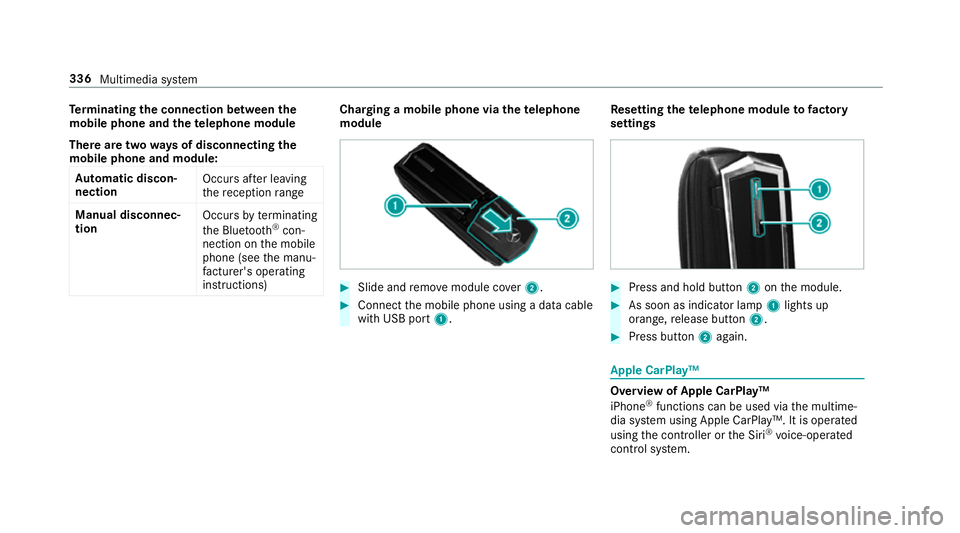
module #
Slide and remo vemodule co ver2. #
Connect the mobile phone using a data cable
with USB port 1. Re
setting thete lephone module to factory
settings #
Press and hold button 2onthe module. #
As soon as indicator lamp 1lights up
orange, release button 2. #
Press button 2again. Apple CarPlay™
Overview of Apple CarPlay™
iPhone
®
functions can be used via the multime‐
dia sy stem using Apple CarPlay™. It is operated
using the controller or the Siri ®
vo ice-operated
control sy stem. 336
Multimedia sy stem
Page 345 of 565
%
Set the access data in accordance with your
data pac kage . Otherwise, additional costs
may occu r.Yo u can contact your mobile
phone network pr ovider toobtain the precise
access data.
Switching the Blu etoo th®
pr ofile
Re quirement:
The mobile phone supports the DUN and PAN
Blu etoo th®
profiles.
Multimedia sy stem:
, System .
ö Connectivity .
Inter-
net settings #
Toswitch from DUN toPAN: select mobile
phone. #
Select ¥. #
Select Change configuration. #
Activate OAutomatic configuration.
The Internet connection is au tomatical lycon‐
fi gured using thePA N Blue tooth®
profile. #
Toswitch from PANto DUN: select mobile
phone. #
Select ¥. #
Select Change configuration . #
Deactivate ªAutomatic configuration. #
Select Configure settings using COMAND. #
Con figure the Internet connection using pre‐
set or manual access data (→ page 340)
Editing the access data
Re quirement:
The mobile phone supports the Blue tooth®
DUN
profile.
Multimedia sy stem:
, System .
ö Connectivity .
Inter-
net settings #
Highlight a mobile phone. #
Select ¥. #
Select Change configuration . #
For mobile phones with PAN and DUN:
select Configure settings using COMAND. #
Configure the Internet connection using pre‐
set or manual access data (→ page 340)Cancelling Internet access permission
for a
mobile phone
Multimedia sy stem:
, System .
ö Connectivity .
Inter-
net settings #
Highlight a mobile phone. #
Select ¥. #
Select Delete configuration. #
Select Yes.
Displaying mobile phone details
Multimedia sy stem:
, System .
ö Connectivity .
Inter-
net settings #
Highlight a mobile phone. #
Select ¥. #
Select Details.
Establishing an Internet connection
Multimedia sy stem:
, Connect #
Forex ample, select zBrowser . 342
Multimedia sy stem
Page 362 of 565
Ac
tivating Blue tooth ®
audio
Multimedia sy stem:
, Media .
à Devices #
Select áBluetooth audio.
The multimedia sy stem activates the connec‐
te d Blue tooth®
audio equipment.
Swit ching Blue tooth ®
audio equipment via
NFC
Requ irements:
Obser vethe no tes on using NFC (→ page319).
The Bluetoo th®
audio overview is displa yed
( → page 359). #
Lightly press the NFC area on the mobile
phone (see the manufacturer's operating
instructions).
If th e mobile phone has already been author‐
ised on the multimedia sy stem as Blue tooth®
audio equipment, it is now connec ted. If
th e mobile phone is authorised on the mul‐
timedia sy stem as Blue tooth®
audio equip‐
ment forth efirs t time, it is connected af ter
confirming the instructions forth e mobile
phone (see the manufacturer's operating
instructions).
De-authorising (de-regis tering) Blue tooth ®
audio equipment
Multimedia sy stem:
, Telephone .
á Connect device -
Mobile phone #
Select Blue tooth®
audio equipment. #
Select ¥De-authorise. #
Select Yes. Ra
dio Switching on the
radio Multimedia sy
stem:
, Radio #
Alternatively: press the$ button.
The radio display appears. You will hear the
last station pla yed on the last frequency
band selected. Multimedia sy
stem 359
Page 364 of 565
Setting
the frequency band Multimedia sy
stem:
, Radio .
Þ Waveband #
Select a frequency band. Selecting a
radio station Multimedia sy
stem:
, Radio #
Navigate up or down. Calling up
thera dio station list Multimedia sy
stem:
, Radio .
è #
Select a station. Sear
ching forra dio stations using station
names or direct frequency entry Multimedia sy
stem:
, Radio .
è .
è #
Ente r astation name or frequenc y. #
Select ¬.
Re sults are displa yed. #
Select a station. St
oring radio stations Multimedia sy
stem:
, Radio .
ß Presets #
Select Save current station . Editing
radio station presets Multimedia sy
stem:
, Radio .
ß Presets
Deleting stations: #
Highlight the preset entry and navigatetothe
left. #
Select Delete highlighted station. #
Select Yes.
Moving stations: #
Highlight the preset entry and navigatetothe
left. #
Select Move highlighted station. #
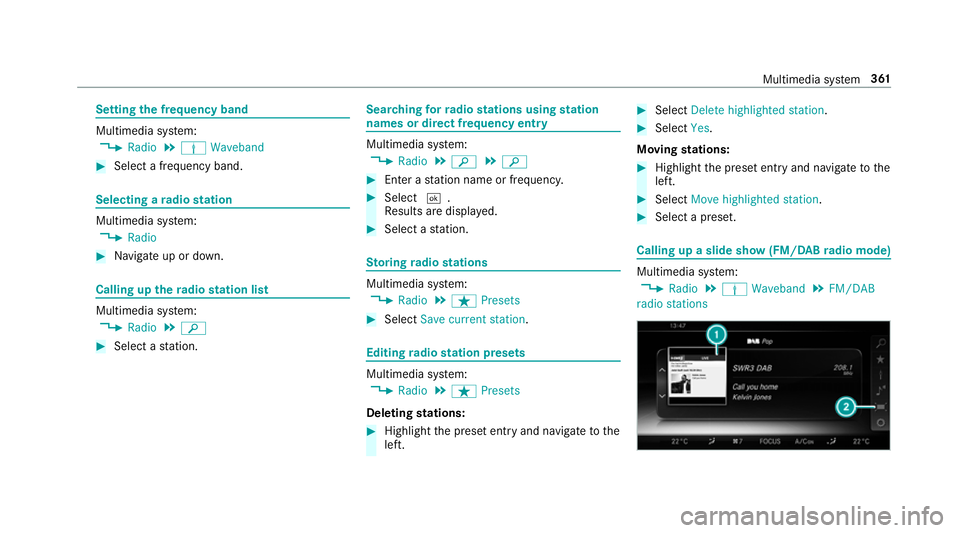
Select a preset. Calling up a slide show (FM/DAB
radio mode) Multimedia sy
stem:
, Radio .
Þ Waveband .
FM/DAB
radio stations Multimedia sy
stem 361