Page 216 of 466
4141
Features of your vehicle
(12) TUNE knob
AM/FM Mode : Changes frequency
by turning the knob left/right.
CD, USB, iPod
®, My Music Mode:
Searches songs (files) by turning the
knob left/right.
Sirius
®Radio Mode:
- Changes the station by turning the knob left/right. Press knob to select
station.
❈ When the desired song is displayed,
press the knob to play the song.
Moves focus in all selection menus
and selects menus. (13) ~ (Preset)
Radio Mode: Saves frequencies
(channels) or receives saved fre-
quencies (channels)
CD, USB, iPod
®, My Music mode
- : Repeat
- : Random
In the Radio, Media, Setup, and
Menu pop up screen, the number
menu is selected.
2 RDM
1 RPT
61
Page 220 of 466
4145
Features of your vehicle
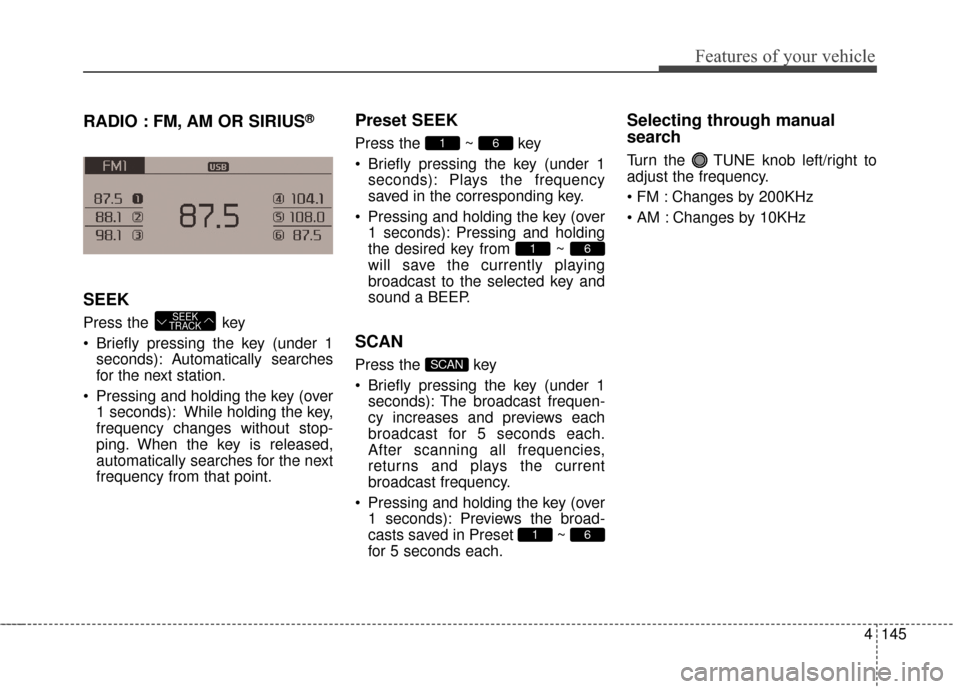
RADIO : FM, AM OR SIRIUS®
SEEK
Press the key
Briefly pressing the key (under 1seconds): Autom atically searches
for the next station.
Pressing and holding the key (over 1 seconds): While holding the key,
frequency changes without stop-
ping. When the key is released,
automatically searches for the next
frequency from that point.
Preset SEEK
Press the ~ key
Briefly pressing the key (under 1seconds): Plays the frequency
saved in the corresponding key.
Pressing and holding the key (over 1 seconds): Pressing and holding
the desired key from ~
will save the currently playing
broadcast to the selected key and
sound a BEEP.
SCAN
Press the key
Briefly pressing the key (under 1seconds): The broadcast frequen-
cy increases and previews each
broadcast for 5 seconds each.
After scanning all frequencies,
returns and plays the current
broadcast frequency.
Pressing and holding the key (over 1 seconds): Previews the broad-
casts saved in Preset ~
for 5 seconds each.
Selecting through manual
search
Turn the TUNE knob left/right to
adjust the frequency.
Changes by 200KHz
Changes by 10KHz
61
SCAN
61
61
SEEK
TRACK
Page 224 of 466
4149
Features of your vehicle
Category
Press the key Set through
the TUNE knob
The display will indicate the categorymenus, highlight the category that
the current channel belongs to.
In the Category List Mode, press the key to navigate cat-
egory list.
Press the tune knob to select the lowest channel in the highlighted
category.
❈ If channel is selected by selecting
category, then the “CATEGORY”
icon is displayed at the top of the
screen.
Preset
Press the key ~
Briefly pressing the key (under 1
seconds): Plays the frequency
saved in the corresponding key.
Pressing and holding the key (over 1 seconds): Pressing and holding
the desired key from ~
will save the current broadcast to
the selected key and sound a
BEEP.
✽ ✽ Troubleshooting
1. Antenna Error
If this message is displayed, the anten-
na or antenna cable is broken or
unplugged. Please consult with your
Kia dealership.
2. Acquiring Signal If this message is displayed, it means
that the antenna is covered and that the
SIRIUS
®Satellite Radio signal is not
available. Ensure the antenna is uncov-
ered and has a clear view of the sky.
Tune
Rotate TUNE knob : Changes
the channel number or scrolls cat-
egory list.
Press TUNE knob : Selects the menu.
Menu
Select category menu through the
TUNE knob Press the key
Select [ Info] through the TUNE
knob or key
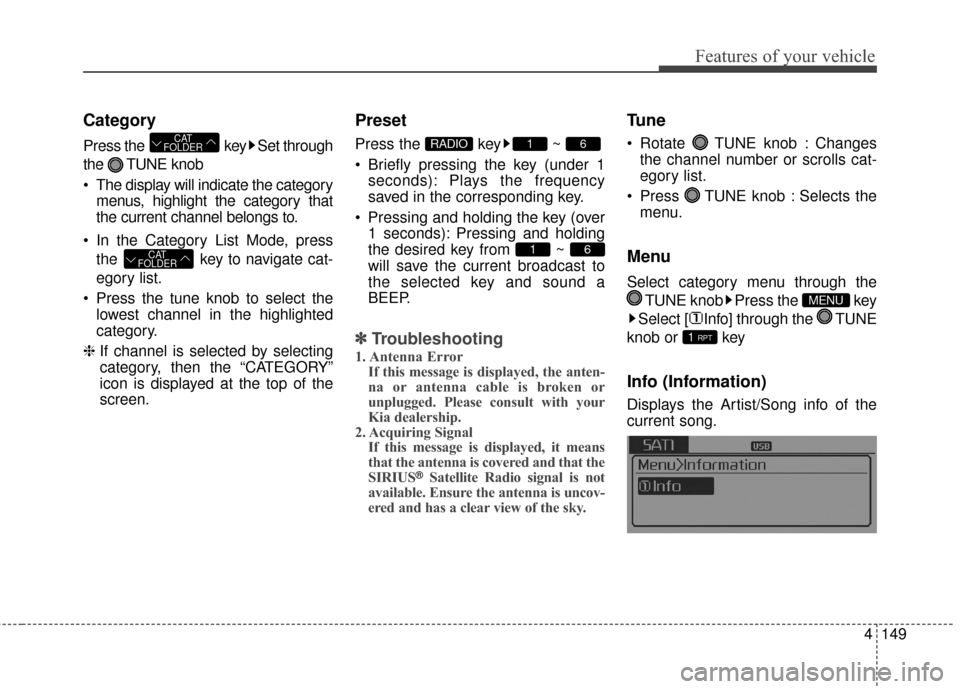
Info (Information)
Displays the Artist/Song info of the
current song.
1 RPT
MENU
61
61RADIO
CAT
FOLDER
CAT
FOLDER
Page 238 of 466
![KIA Optima Hybrid 2016 4.G Owners Manual 4163
Features of your vehicle
Pairing through [PHONE]
Setup
Press the key Select
[Phone] Select [Pair Phone]
1. The following steps are the sameas those described in the section
"When No Devices ha](/manual-img/2/2974/w960_2974-237.png "KIA Optima Hybrid 2016 4.G Owners Manual 4163
Features of your vehicle
Pairing through [PHONE]
Setup
Press the key Select
[Phone] Select [Pair Phone]
1. The following steps are the sameas those described in the section
\"When No Devices ha")
4163
Features of your vehicle
Pairing through [PHONE]
Setup
Press the key Select
[Phone] Select [Pair Phone]
1. The following steps are the sameas those described in the section
"When No Devices have been
Paired" on the previous page.
Bluetooth®Wireless Technology
features supported within the vehi-
cle are as follows. Some features
may not be supported depending
on your
Bluetooth®Wireless
Technology device.
- Outgoing/Incoming Handsfree calls
- Operations during a call (Switch to Private, Switch to call waiting,
MIC on/off)
- Downloading Call History
- Downloading Mobile Contacts
-
Bluetooth®Wireless Technology
device auto connection
- Bluetooth Audio Streaming
Up to five
Bluetooth®Wireless
Technology devices can be paired
to the Car Handsfree system.
Only one
Bluetooth®Wireless
Technology device can be con-
nected at a time.
Other devices cannot be paired while a
Bluetooth®Wireless
Technology device is connected. Only
Bluetooth®Wireless
Technology Handsfree and
Bluetooth audio related features are
supported.
Bluetooth®Wireless Technology
related operations are possible only
within devices that support
Handsfree or audio features, such
as a
Bluetooth®Wireless Technology
mobile phone or a Bluetooth audio
device.
If a connected
Bluetooth®Wireless
Technology device becomes discon-
nected due to being out of commu-
nication range, turning the device
OFF, or a
Bluetooth®Wireless
Technology communication error,
corresponding
Bluetooth®Wireless
Technology devices are automati-
cally searched and reconnected.
If the system becomes unstable due to communication errors between
the car Handsfree and the
Bluetooth®Wireless Technology
device, reset the device by turning
off and back on again. Upon reset-
ting
Bluetooth®Wireless Technology
device, the system will be restored.
SETUP
Page 252 of 466

4177
Features of your vehicle
CommandFunction
FM Preset 1~6 Plays the most recently played broadcast
saved in FM Preset 1~6.
AM Preset 1~6 Plays the broadcast saved in AM Preset 1~6.
FM 87.5~107.9 Plays the FM broadcast of the corresponding
frequency.
AM 530~1710 Plays the AM broadcast of the corresponding
frequency.
When currently listening to the SIRIUS®,
maintains the current state.
When listening to a different mode, displaysthe most recently played SIRIUS®screen.
Sirius®(Satellite) Displays the selected SIRIUS®screen.
Sirius®Channel Plays the selected SIRIUS®channel.
Media Moves to the most recently played mediascreen.
CD Plays the music saved in the CD.
USBPlays USB music.
iPod®Plays iPod®music.
Command Function
My Music Plays the music saved in My Music.
AUX (Auxiliary) Plays the connected external device.
Bluetooth
®Audio Plays the music saved in connected Bluetooth®
device.
Please repeat Repeats the most recent comment.
Mute Mutes the sound.
Cancel (Exit) Ends voice command.
0~223
1~3 Sirius
®
Page 253 of 466
Features of your vehicle
178
4
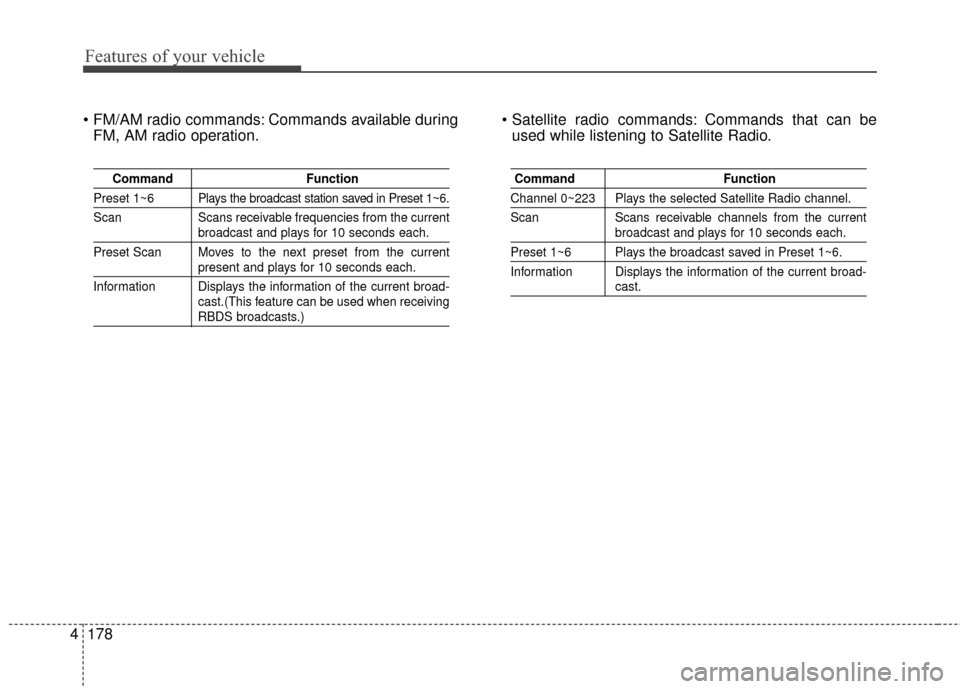
Commands available during
FM, AM radio operation. Commands that can be
used while listening to Satellite Radio.
Command Function
Preset 1~6 Plays the broadcast station saved in Preset 1~6.
Scan Scans receivable frequencies from the current
broadcast and plays for 10 seconds each.
Preset Scan Moves to the next preset from the current
present and plays for 10 seconds each.
Information Displays the information of the current broad- cast.(This feature can be used when receiving
RBDS broadcasts.)
Command Function
Channel 0~223 Plays the selected Satellite Radio channel.
Scan Scans receivable channels from the current
broadcast and plays for 10 seconds each.
Preset 1~6 Plays the broadcast saved in Preset 1~6.
Information Displays the information of the current broad-
cast.
Page 289 of 466
533
Driving your vehicle
To temporarily accelerate with
the cruise control on:
If you want to speed up temporarily
when the cruise control is on,
depress the accelerator pedal.
Increased speed will not interfere
with the cruise control operation or
change the set speed.
To return to the set speed, take your
foot off the accelerator.
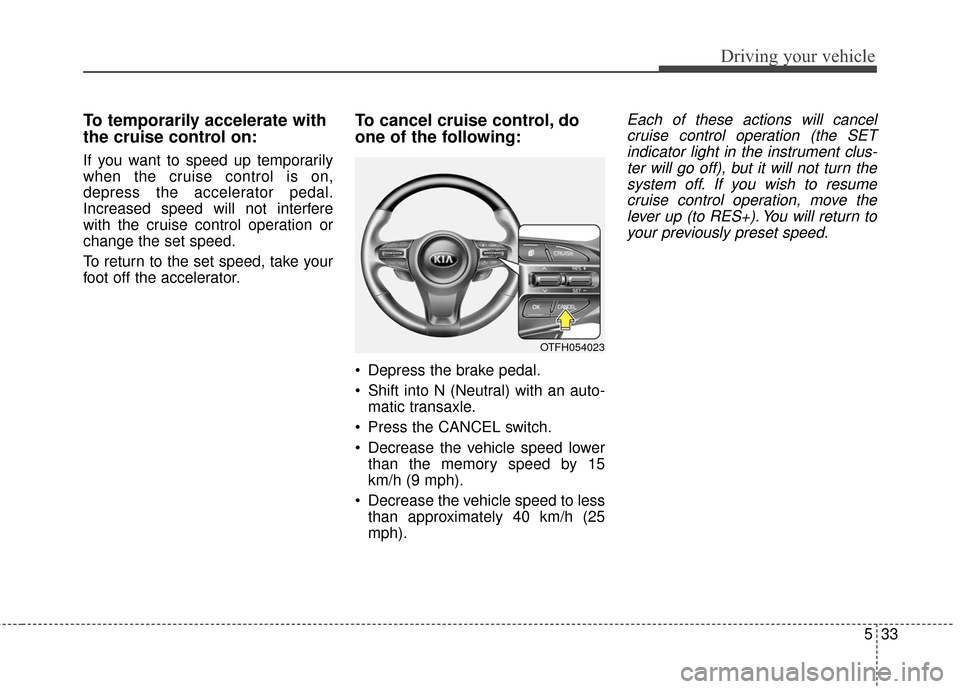
To cancel cruise control, do
one of the following:
Depress the brake pedal.
Shift into N (Neutral) with an auto-matic transaxle.
Press the CANCEL switch.
Decrease the vehicle speed lower than the memory speed by 15
km/h (9 mph).
Decrease the vehicle speed to less than approximately 40 km/h (25
mph).
Each of these actions will cancelcruise control operation (the SETindicator light in the instrument clus-ter will go off), but it will not turn thesystem off. If you wish to resumecruise control operation, move thelever up (to RES+). You will return toyour previously preset speed.
OTFH054023
Page 382 of 466

Maintenance
42
7
Battery recharging
Your vehicle has a maintenance-free,
calcium-based battery.
If the battery becomes discharged
in a short time (because, for exam-
ple, the headlights or interior lights
were left on while the vehicle was
not in use), recharge it by slow
charging (trickle) for 10 hours.
If the battery gradually discharges because of high electric load while
the vehicle is being used, recharge
it at 20-30A for two hours. When recharging the battery,
observe the following precautions:
The battery must be removed from
the vehicle and placed in an area
with good ventilation.
Watch the battery during charging, and stop or reduce the charging
rate if the battery cells begin
gassing (boiling) violently or if the
temperature of the electrolyte of
any cell exceeds 49°C (120°F).
Wear eye protection when check- ing the battery during charging.
Disconnect the battery charger in the following order.
1. Turn off the battery charger main switch.
2. Unhook the negative clamp from the negative battery terminal.
3. Unhook the positive clamp from the positive battery terminal.
Before performing maintenance or recharging the battery, turn off all
accessories and stop the engine.
The negative battery cable must be removed first and installed last
when the battery is disconnected.
Reset items
Items should be reset after the bat-
tery has been discharged or the bat-
tery has been disconnected.
Auto down window (See chapter 4)
Sunroof (See chapter 4)
Trip computer (See chapter 4)
Climate control system (See chapter 4)
Clock (See chapter 4)
Audio (See chapter 4)