2016 CHEVROLET MALIBU buttons
[x] Cancel search: buttonsPage 4 of 94
Chevrolet Malibu Limited/Cruze Limited MyLink Infotainment System
(GMNA-Localizing-U.S./Canada-9282853) - 2016 - crc - 4/16/15
Introduction 3
Before driving:
.Become familiar with the
operation, faceplate buttons, and
screen buttons.
. Set up the audio by presetting
favorite stations, setting the
tone, and adjusting the
speakers.
. Set up phone numbers in
advance so they can be called
easily by touching a single
button or by using a single voice
command if equipped with
Bluetooth phone capability.
See “Defensive Driving” in the
owner manual.
To play the infotainment system with
the ignition off, see “Retained
Accessory Power (RAP)” in the
owner manual.Customer Assistance
Assistance is available to help with
Bluetooth pairing, application
downloading and installation, other
mobile device interface, and
operation support of the
infotainment system. Specialists are
available when calling this
Customer Assistance number:
U.S. 1-855-4 SUPPORT (478-7767).
Infotainment System Overview
The infotainment system is
controlled by using the buttons,
touch screen, steering wheel
controls, and voice recognition.
See Using the System 09.
Page 6 of 94

Chevrolet Malibu Limited/Cruze Limited MyLink Infotainment System
(GMNA-Localizing-U.S./Canada-9282853) - 2016 - crc - 4/16/15
Introduction 5
Malibu Radio with Navigation
1.
5(Phone)
2. SRCE (Source) 3. HOME
4. NAV (Navigation)5. DEST (Destination)
6. RPT (Repeat)
7. TUNE/MENU
8. BACK
/
9. INFO (Information)
10. TONE
11. CONFIG (Configuration Menu)
12.
©SEEK¨
13.k(Play/Pause)
14.
H(Clock)
15. Preset Buttons (1–6)
16.
Z(Eject)
17. FAV (Favorite Pages 1–6)
18. VOL/
O(Volume/Power)
If equipped, the vehicle may have a
storage area behind the radio
display. See “Instrument Panel
Storage” in the owner manual.
Page 7 of 94

Chevrolet Malibu Limited/Cruze Limited MyLink Infotainment System
(GMNA-Localizing-U.S./Canada-9282853) - 2016 - crc - 4/16/15
6 Introduction
Cruze Radio with Navigation, Radio without Navigation Similar
1. Preset Buttons (1–6)
2. DEST (Destination)
3. NAV (Navigation)
4. Eight-Way Selector Arrows (Navigates Maps)
5. CONFIG (Configuration Menu)
6. RPT NAV (Repeat Navigation)
7. CLOCK 8. INFO (Information)
9. TONE
10. AS (Autostore)
11. MENU/SEL (Menu/Select)
12.
X(Eject)
13. BACK
14. FAV (Favorite Pages 1–6) 15.
d(Next/Fast Forward)
16.
5/>(Phone/Mute)
17. SRCE (Source)
18.
k(Play/Pause)
19. HOME
20.
g(Previous/Reverse)
21.
O(Power/Volume)
Infotainment Control Buttons
The buttons on the faceplate are
used to start primary functions while
using the infotainment system.
XorZ(Eject) : Press to eject a
disc from the CD player. See CD
Player 034.
HOME (Home Page) : Press to go
to the Home Page. See “Home
Page” later in this section.
Preset Buttons (1–6): The preset
buttons numbered one through six
can be used to select stored
stations.
Page 9 of 94

Chevrolet Malibu Limited/Cruze Limited MyLink Infotainment System
(GMNA-Localizing-U.S./Canada-9282853) - 2016 - crc - 4/16/15
8 Introduction
k(Play/Pause) :Press to pause
or resume playback. This feature is
unavailable for AM, FM, and XM (if
equipped). See CD Player034,
Pandora Internet Radio 024,
Stitcher Internet Radio 029, USB
0 35, or Bluetooth Audio 042.
AS (Autostore) : See“Autostore”
later in this section.
CLOCK : Press to set the time.
TONE : Press TONE or touch the
Tone Settings button on the Home
Page to adjust Bass, Mid
(Midrange), Treble, EQ, Fade, and
Balance. Tone settings are specific
to each source. See AM-FM Radio
0 15.
FAV (Favorites) : Press to display
the current favorite page number
above the preset buttons. Keep
pressing to scroll through the
favorites pages. The stored stations
for each list, display on the bottom
of the screen. To change the
number of preset Favorite Pages,
touch the CONFIG button on the
Home Page, then touch Radio
Settings, and then touch Number of
Favorite Pages. INFO (Information) :
Press to
display available source information.
Autostore
To use Autostore:
1. Press SRCE to select FM or AM.
2. Press and hold the AS button for two seconds.
3. The radio searches and automatically stores the
12 strongest stations.
Press the AS button to alternate
between the Autostore pages.
Autostore does not delete
previously stored favorite stations.
Press FAV on the faceplate to return
to the previously stored favorite
stations. When entering a new broadcast
area, press and hold the AS button
to refresh the autostore stations.
Autostore does not function with
SiriusXM radio stations.
Touch Screen Buttons
Touch screen buttons are on the
screen and highlighted when a
feature is available. Some toggle
screen buttons highlight when active
and gray out when inactive.
Page 10 of 94
Chevrolet Malibu Limited/Cruze Limited MyLink Infotainment System
(GMNA-Localizing-U.S./Canada-9282853) - 2016 - crc - 4/16/15
Introduction 9
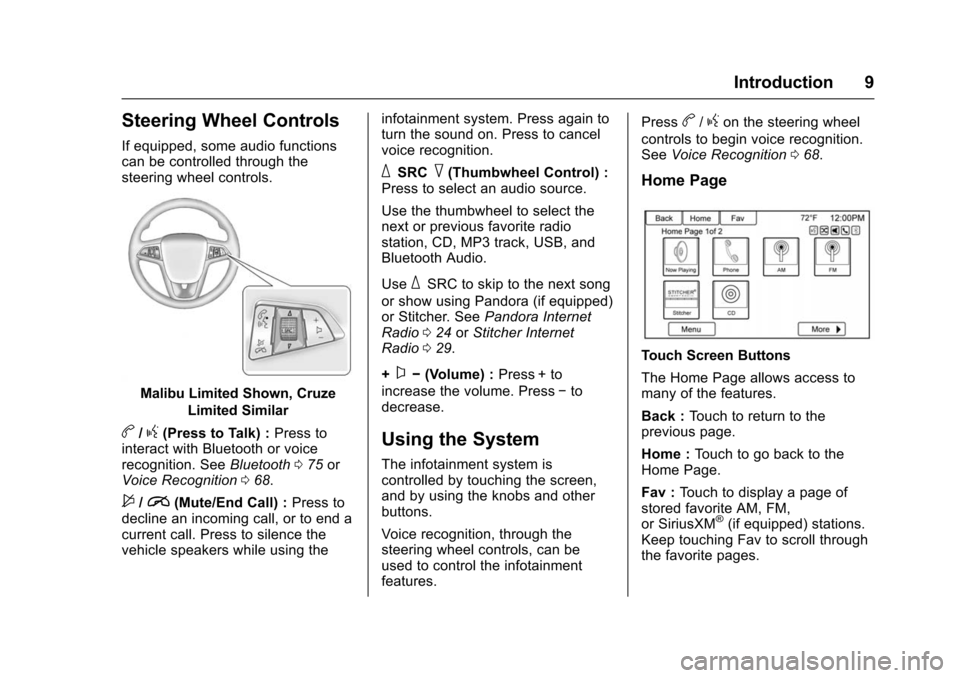
Steering Wheel Controls
If equipped, some audio functions
can be controlled through the
steering wheel controls.
Malibu Limited Shown, CruzeLimited Similar
b/g(Press to Talk) : Press to
interact with Bluetooth or voice
recognition. See Bluetooth075 or
Voice Recognition 068.
$/i(Mute/End Call) : Press to
decline an incoming call, or to end a
current call. Press to silence the
vehicle speakers while using the infotainment system. Press again to
turn the sound on. Press to cancel
voice recognition.
_SRC^(Thumbwheel Control) :
Press to select an audio source.
Use the thumbwheel to select the
next or previous favorite radio
station, CD, MP3 track, USB, and
Bluetooth Audio.
Use
_SRC to skip to the next song
or show using Pandora (if equipped)
or Stitcher. See Pandora Internet
Radio 024 orStitcher Internet
Radio 029.
+
x− (Volume) : Press + to
increase the volume. Press −to
decrease.
Using the System
The infotainment system is
controlled by touching the screen,
and by using the knobs and other
buttons.
Voice recognition, through the
steering wheel controls, can be
used to control the infotainment
features. Press
b/gon the steering wheel
controls to begin voice recognition.
See Voice Recognition 068.
Home Page
Touch Screen Buttons
The Home Page allows access to
many of the features.
Back : Touch to return to the
previous page.
Home : Touch to go back to the
Home Page.
Fav : Touch to display a page of
stored favorite AM, FM,
or SiriusXM
®(if equipped) stations.
Keep touching Fav to scroll through
the favorite pages.
Page 11 of 94

Chevrolet Malibu Limited/Cruze Limited MyLink Infotainment System
(GMNA-Localizing-U.S./Canada-9282853) - 2016 - crc - 4/16/15
10 Introduction
Morer:This button may display
depending on the number of options
stored on Home Page. Touch to go
to the next page.
qPrevious : Touch to go to the
previous page.
Next
r: Touch to go to the
next page.
Home Page Customization
The first Home Page can be
customized.
To add screen buttons:
1. Touch Menu.
2. Touch Customize. 3. Touch a screen button to add
or remove from the first Home
Page. A
hindicates it will be
displayed. The maximum
number of buttons on Home
Page 1 is eight.
4. Touch Done.
To move screen buttons:
1. Touch Sort.
2. Touch an icon to switch with another icon on the first Home
Page only.
3. Touch Done.
To restore Home Page 1 defaults: 1. Touch Menu.
2. Touch Restore Home Page Defaults.
3. Touch Yes or Cancel.
Home Page Features
Touch screen buttons are
highlighted when a feature is
available.
Various functions are disabled when
the vehicle is moving.
Touch the Now Playing screen
button to display the active source
page. The sources available are
AM, FM, XM (if equipped), CD,
USB/iPod, Pandora (if equipped),
Stitcher, Bluetooth Audio, and AUX.
See AM-FM Radio 015, Satellite
Radio 018, CD Player 034,
Pandora Internet Radio 024,
Stitcher Internet Radio 029, and
Auxiliary Devices 041.
Page 12 of 94

Chevrolet Malibu Limited/Cruze Limited MyLink Infotainment System
(GMNA-Localizing-U.S./Canada-9282853) - 2016 - crc - 4/16/15
Introduction 11
Touch the Navigation screen button
to display a map of your current
vehicle position. SeeUsing the
Navigation System 045, Maps 048,
Navigation Symbols 048, and
Configure Menu 060.
Touch the Destination screen button
to display the Destination Entry
home page or the Destination Menu.
The available screen buttons
provide easy access to a variety of
ways to enter a destination. See
Destination 050.
Touch the Phone screen button to
display the Phone main page. See
Bluetooth 075.
Touch the Config screen button to
display the Config main page. From
this display, adjust features such as
time and date, radio, phone,
navigation, vehicle, and display. See
Configure Menu 060.
Touch the Tone screen button to
display the Tone main page. Adjust
the tone and speakers by touching
the screen buttons to change the
levels of sound for treble, midrange,
bass, fade, and balance. See
AM-FM Radio 015.
Touch the Pictures screen button to
view pictures on your USB drive or
SD card. Pictures on the SD card
can only be viewed through a USB
adapter. See Pictures032.
Touch the FM screen button to
display the FM main page and play
the current or last tuned FM station.
See AM-FM Radio 015.
Page 18 of 94
Chevrolet Malibu Limited/Cruze Limited MyLink Infotainment System
(GMNA-Localizing-U.S./Canada-9282853) - 2016 - crc - 4/16/15
Radio 17
3. Touch a category and then turnthe TUNE/MENU or MENU/
SEL knob to scroll the station
list. Touch to select an option.
Storing Radio Station Presets
Up to 36 preset stations can be
stored. AM, FM, and XM (if
equipped) can be mixed.
1. From the AM, FM, or XM main page, touch and hold any of
the 1−6 buttons or one of the
preset screen buttons at the
bottom of the screen. After a
few seconds, a beep is heard
and the new preset information
displays on that screen button.
2. Repeat for each preset.
Mixed-Band Presets
Each favorite page can store
six preset stations. The presets
within a page can be different radio
bands.
To scroll through the pages, press
FAV on the faceplate or touch the
Fav screen button on the top bar.
The current page number displays above the preset buttons. The
stored stations for each favorite
page display on the preset buttons.
To change the number of favorite
pages displayed:
1. Touch the Config screen button on the Home Page.
2. Touch Radio Settings.
3. Touch Number of Favorite Pages.
Recalling a Preset Station
To recall a preset station from a
favorites page, do one of the
following:
. Touch the Fav screen button at
the top bar to display the preset
pop-up. Press one of the preset
screen buttons to go to the
selected preset station.
. In the AM, FM, or XM (if
equipped) main page, press one
of the preset screen buttons to
go to the selected preset station.
Radio Data System (RDS)
RDS features are available for use
only on FM stations that broadcast
RDS information. With RDS, the
radio can:
.Seek to stations broadcasting
the selected type of
programming.
. Receive announcements
concerning local and national
emergencies.
. Display messages from radio
stations.
This system relies on receiving
specific information from these
stations and only works when the
information is available. It is
possible that a radio station could
broadcast incorrect information that
causes the radio features to work
improperly. If this happens, contact
the radio station.
When information is broadcast from
the current FM station, the station
name or call letters display on the
audio screen. RDS can provide a