2016 CHEVROLET MALIBU buttons
[x] Cancel search: buttonsPage 29 of 94
Chevrolet Malibu Limited/Cruze Limited MyLink Infotainment System
(GMNA-Localizing-U.S./Canada-9282853) - 2016 - crc - 4/16/15
28 Radio
.For iPhone, iPod touch, or iPad
devices, check that the USB
cable is connected to the USB
port and the screen is unlocked.
. Close Pandora on the device
and launch again. Devices that
allow multitasking may require
an extra step to quit the Pandora
application. See the cell phone
manufacturer's user guide.
Thumbs Up or Thumbs Down
Error
If there is an error trying to rate a
track with the
,or-buttons, an
error message will display. Touch
OK to retry.
Loss of Audio
Loss of Pandora audio can happen
in different ways:
. Weak or lost data connection.
. Device needs to be charged.
. Application needs to be
relaunched.
. Connection between phone and
radio lost. .
The volume is too low. Turn up
the volume on the device.
. The battery saver and task
manager applications on the
phone can cause Pandora to
function incorrectly. Remove
those apps from the phone or
remove Pandora and Bluetooth
from the task lists.
If the connection is lost between the
application and device, a message
“Please Unlock the Phone or
Restart the App and Try Again” will
display. Touch OK to retry.
If touching OK does not clear the
issue on the phone, see "Please
unlock the phone or restart phone
App and try again” under "Common
Pandora Messages" following.
Common Pandora Messages
Please See Device : When not
logged in or when authentication
failed, see the device. Touch OK to
continue.
Paused or Audio Paused :
Playback is paused on the radio or
on the device. Touch
kor play on
the device. No Stations Found :
Logged in but
no stations have been created.
Touch OK to continue.
Please Unlock the Phone or
Restart Phone App and Try
Again : Communication failure
between the radio and the phone
application or the device is locked.
Devices that allow multitasking may
require an extra step to quit the
Pandora application. Close Pandora
on the device and launch again.
Unlock the phone and check that
Home Page is shown on the phone/
device.
See the cell phone manufacturer's
user guide.
See www.pandora.com/help for
more information. If the service will
not work, see your dealer for
assistance.
Page 46 of 94
Chevrolet Malibu Limited/Cruze Limited MyLink Infotainment System
(GMNA-Localizing-U.S./Canada-9282853) - 2016 - crc - 4/16/15
Navigation 45
Navigation
Using the Navigation
System
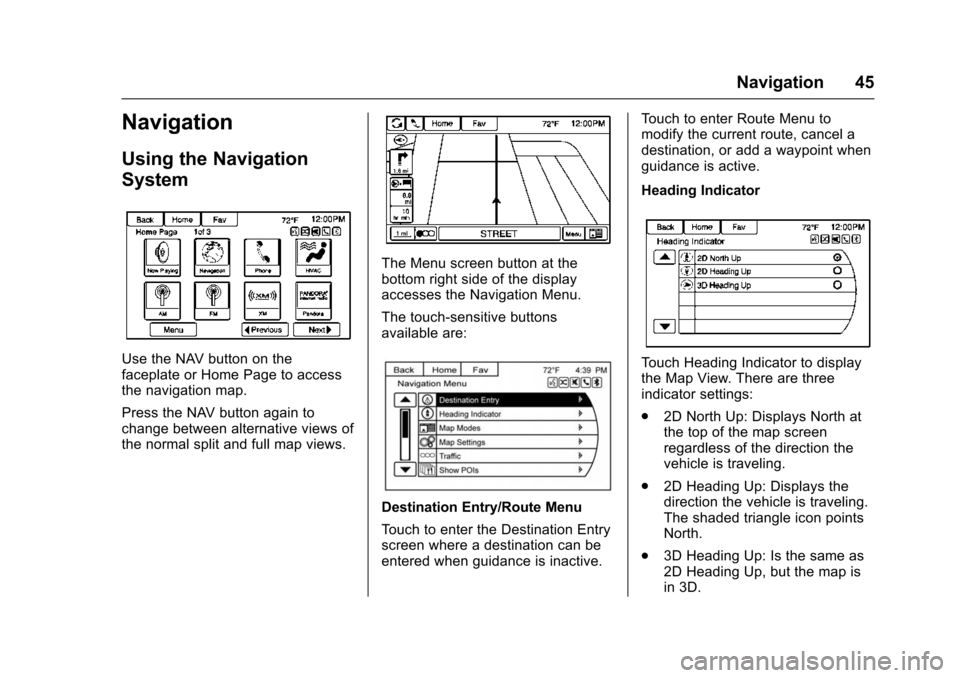
Use the NAV button on the
faceplate or Home Page to access
the navigation map.
Press the NAV button again to
change between alternative views of
the normal split and full map views.
The Menu screen button at the
bottom right side of the display
accesses the Navigation Menu.
The touch-sensitive buttons
available are:
Destination Entry/Route Menu
Touch to enter the Destination Entry
screen where a destination can be
entered when guidance is inactive.Touch to enter Route Menu to
modify the current route, cancel a
destination, or add a waypoint when
guidance is active.
Heading Indicator
Touch Heading Indicator to display
the Map View. There are three
indicator settings:
.
2D North Up: Displays North at
the top of the map screen
regardless of the direction the
vehicle is traveling.
. 2D Heading Up: Displays the
direction the vehicle is traveling.
The shaded triangle icon points
North.
. 3D Heading Up: Is the same as
2D Heading Up, but the map is
in 3D.
Page 61 of 94
Chevrolet Malibu Limited/Cruze Limited MyLink Infotainment System
(GMNA-Localizing-U.S./Canada-9282853) - 2016 - crc - 4/16/15
60 Navigation
Show on Map :Touch to display
the Map Screen.
Save : Touch to save the
downloaded destination to the
address book.
Call : Touch to initiate a call with
Bluetooth Phone or OnStar
Hands-Free Calling (if available).
Save as Home : Touch to set an
address as a home destination.
Route Guidance Active
If an OnStar destination is
downloaded while route guidance is
already active, the system displays
a pop-up screen with the following
screen function:
. Touch Start Guidance; the
navigation system adds the
downloaded destination before
the next waypoint of the existing
route (closest to the current
vehicle position).
. All other buttons on the pop-up
screen operate as described
under “Route Guidance Not
Active.” Previous Destinations
Previously downloaded OnStar
destinations are saved under
Previous Destinations in the
navigation system, where they can
be accessed or saved to the
Address Book.
Configure Menu
The Configuration Menu is used to
adjust features and preferences,
such as Sound, Radio, Nav
(Navigation), Display, or Time
Settings.
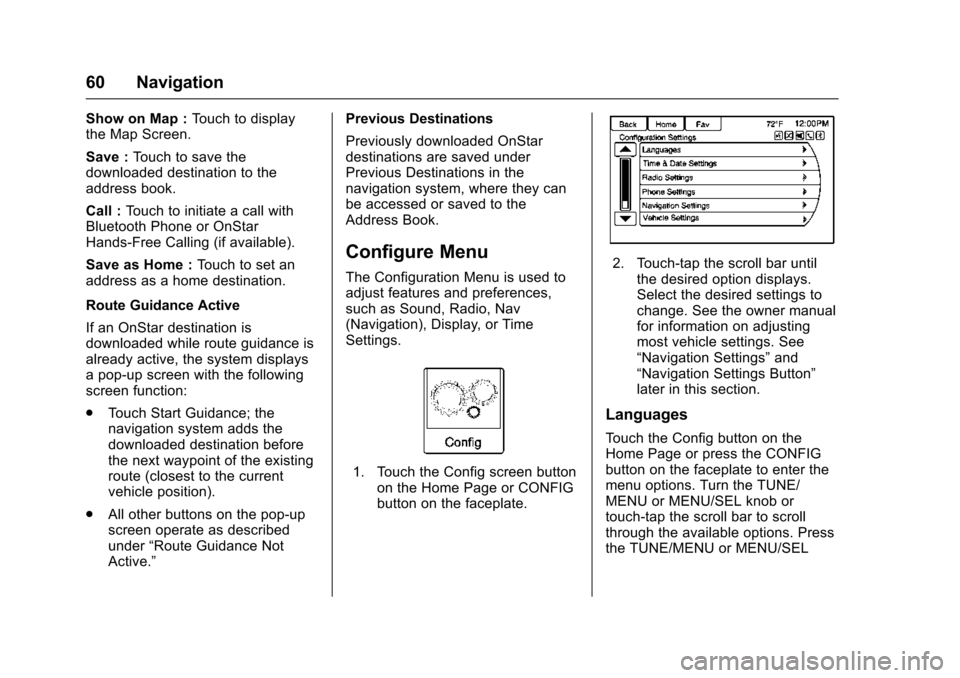
1. Touch the Config screen button
on the Home Page or CONFIG
button on the faceplate.
2. Touch-tap the scroll bar untilthe desired option displays.
Select the desired settings to
change. See the owner manual
for information on adjusting
most vehicle settings. See
“Navigation Settings” and
“Navigation Settings Button”
later in this section.
Languages
Touch the Config button on the
Home Page or press the CONFIG
button on the faceplate to enter the
menu options. Turn the TUNE/
MENU or MENU/SEL knob or
touch-tap the scroll bar to scroll
through the available options. Press
the TUNE/MENU or MENU/SEL
Page 66 of 94
Chevrolet Malibu Limited/Cruze Limited MyLink Infotainment System
(GMNA-Localizing-U.S./Canada-9282853) - 2016 - crc - 4/16/15
Navigation 65
Touch to enable the Guidance Alert
pop-up to be viewed on the map or
on the main screens such as audio,
weather, phone, etc. A checkmark
appears to indicate the guidance
alert mode is on.
Vehicle Settings
See“Vehicle Personalization” in the
owner manual.
Display Settings
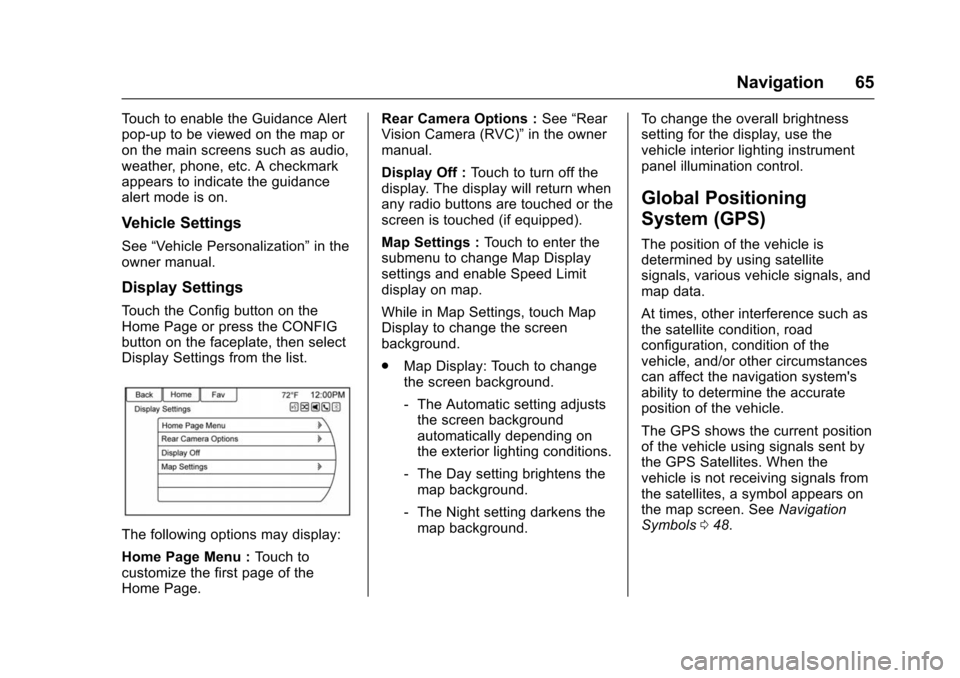
Touch the Config button on the
Home Page or press the CONFIG
button on the faceplate, then select
Display Settings from the list.
The following options may display:
Home Page Menu : Touch to
customize the first page of the
Home Page. Rear Camera Options :
See“Rear
Vision Camera (RVC)” in the owner
manual.
Display Off : Touch to turn off the
display. The display will return when
any radio buttons are touched or the
screen is touched (if equipped).
Map Settings : Touch to enter the
submenu to change Map Display
settings and enable Speed Limit
display on map.
While in Map Settings, touch Map
Display to change the screen
background.
. Map Display: Touch to change
the screen background.
‐The Automatic setting adjusts
the screen background
automatically depending on
the exterior lighting conditions.
‐ The Day setting brightens the
map background.
‐ The Night setting darkens the
map background. To change the overall brightness
setting for the display, use the
vehicle interior lighting instrument
panel illumination control.
Global Positioning
System (GPS)
The position of the vehicle is
determined by using satellite
signals, various vehicle signals, and
map data.
At times, other interference such as
the satellite condition, road
configuration, condition of the
vehicle, and/or other circumstances
can affect the navigation system's
ability to determine the accurate
position of the vehicle.
The GPS shows the current position
of the vehicle using signals sent by
the GPS Satellites. When the
vehicle is not receiving signals from
the satellites, a symbol appears on
the map screen. See
Navigation
Symbols 048.
Page 76 of 94
Chevrolet Malibu Limited/Cruze Limited MyLink Infotainment System
(GMNA-Localizing-U.S./Canada-9282853) - 2016 - crc - 4/16/15
Bluetooth Phone/Devices 75
Bluetooth Phone/
Devices
Bluetooth
Overview
For vehicles equipped with
Bluetooth capability, the system can
interact with many cell phones and
devices, allowing:
.Placing and receiving hands-free
calls.
. Sharing of the cell phone’s
address book or contact list with
the vehicle. The phone book will
only display when that phone is
connected.
. Placing outgoing calls by voice
recognition.
The system can be used while in
ON/RUN, ACC/ACCESSORY,
or Retained Accessory Power
(RAP). The range of the Bluetooth
system can be up to 9.1 m (30 ft).
The radio can connect to most Bluetooth-enabled phones.
Available features and functions
may be dependent on the device.
On a current phone call screen, an
image of the contact from your
phone's contact list can be
displayed. Not all phones are
compatible with this feature.
Bluetooth Controls
Use the buttons on the infotainment
system and the steering wheel to
operate the Bluetooth system.
Steering Wheel Controls
b/g(Press to Talk) :
Press to
answer incoming calls and start
voice recognition.
$/i(Mute/End Call) : Press to
end a call, decline an incoming call,
or cancel voice recognition.
+
x− (Volume) : Press + or−to
increase or decrease the volume.
Infotainment System Controls
For information about how to
navigate the menu system using the
infotainment controls, see
Overview 02.
5or5/>(Phone) : Press to enter
the Phone main menu.
Voice Recognition
The voice recognition system uses
commands to control the system
and dial phone numbers.
When using voice recognition:
. The system may not recognize
voice commands if there is too
much background noise.
. A tone sounds to indicate that
the system is ready for a voice
command. Wait for the tone and
then speak.
. Speak clearly in a calm and
natural voice.
See Voice Recognition 068.
Audio System
Sound comes through the vehicle's
front audio system speakers and
overrides the audio system. Use the
VOL/
Oknob during a call to change
the volume level. The adjusted
volume level remains in memory for
later calls. The system maintains a
minimum volume level.
Page 92 of 94

Chevrolet Malibu Limited/Cruze Limited MyLink Infotainment System
(GMNA-Localizing-U.S./Canada-9282853) - 2016 - crc - 4/16/15
Index 91
DevicesAuxiliary. . . . . . . . . . . . . . . . . . . . . . . . . 41
USB. . . . . . . . . . . . . . . . . . . . . . . . . . . . . 35
Display Settings . . . . . . . . . . . . . . . . . 65
Driving on a Route . . . . . . . . . . . . . . . 50
Dual Tone Multi-Frequency (DTMF) Tones . . . . . . . . . . . . . . . . . . 80
E
Ending a Call . . . . . . . . . . . . . . . . . . . . 80
Error Messages . . . . . . . . . . . . . . . . . 35
F
Finding a Station . . . . . . . . . . . . . . . . 16
FM . . . . . . . . . . . . . . . . . . . . . . . . . . . . . . 23
G
Global Positioning
System (GPS) . . . . . . . . . . . . . . . . . . 65
Gracenote . . . . . . . . . . . . . . . . . . . . . . . 86
Gracenote
®. . . . . . . . . . . . . . . . . . . . . . 35
Guidance Problems with the Route . . . . . . . . 66
H
Hands-Free Phone . . . . . . . . . . . . . . 80
Helpful Hints for SpeakingCommands . . . . . . . . . . . . . . . . . . . . . 68
Home Page . . . . . . . . . . . . . . . . . . . . . . . 9
Home Page Customization . . . . . . 10
Home Page Features . . . . . . . . . . . . 10
I
If the System Needs Service . . . . . 67
Information Quick. . . . . . . . . . . . . . . . . . . . . . . . . . . . 24
Infotainment . . . . . . . . . . . . . . . . . . . . . . 2
Infotainment Control Buttons . . . . . . 6
Infotainment System Overview . . . 3
Infotainment System Settings . . . . 15
Internet Radio Pandora. . . . . . . . . . . . . . . . . . . . . . . . . 24
Stitcher. . . . . . . . . . . . . . . . . . . . . . . . . . 29
L
Languages . . . . . . . . . . . . . . . . . . . . . . 60
Launching Pandora . . . . . . . . . . . . . . 25
Launching Stitcher . . . . . . . . . . . . . . . 29
Loading and Ejecting Discs . . . . . . 34
M
Making a Call Using PhoneBook and Infotainment
Controls . . . . . . . . . . . . . . . . . . . . . . . . 78
Making a Call Using the Infotainment Controls . . . . . . . . . . 79
Map Adjustments . . . . . . . . . . . . . . . . 47
Map Data Updates . . . . . . . . . . . . . . . 67 Map End User License
Agreement (Optional
Equipment Applies Where
Equipped) . . . . . . . . . . . . . . . . . . . . . . 86
Map Scales . . . . . . . . . . . . . . . . . . . . . . 47
Maps . . . . . . . . . . . . . . . . . . . . . . . . . . . . 48
Menu Configure. . . . . . . . . . . . . . . . . . . . . . . . 60
Menu with Route Guidance Active . . . . . . . . . . . . . . . . . . . . . . . . . . 57
Messaging
Text . . . . . . . . . . . . . . . . . . . . . . . . . . . . . 81
Mixed-Band Presets . . . . . . . . . . . . . 17
Multi-band Antenna . . . . . . . . . . . . . . 23
Muting a Call . . . . . . . . . . . . . . . . . . . . 80
My Media Commands . . . . . . . . . . . 70
N
Navigation Destination. . . . . . . . . . . . . . . . . . . . . . 50
Using the System . . . . . . . . . . . . . . . 45
Navigation Commands (If Equipped) . . . . . . . . . . . . . . . . . . . . . . 71
Navigation Settings . . . . . . . . . . . . . . 62
Navigation Settings Button . . . . . . 62
Navigation Symbols . . . . . . . . . . . . . 48
Page 93 of 94

Chevrolet Malibu Limited/Cruze Limited MyLink Infotainment System
(GMNA-Localizing-U.S./Canada-9282853) - 2016 - crc - 4/16/15
92 Index
O
OnStar System . . . . . . . . . . . . . . . . . . 44
OnStar®Destination
Download . . . . . . . . . . . . . . . . . . . . . . 59
OnStar
®with 4G LTE . . . . . . . . . . . . 44
Other Commands . . . . . . . . . . . . . . . . 71
Overview . . . . . . . . . . . . . . . . . . . . . .2, 75
P
Pairing with Infotainment Controls . . . . . . . . . . . . . . . . . . . . . . . . 76
Pairing with Voice Recognition . . . 77
Pandora (If Equipped) . . . . . . . . . . . 86
Pandora Internet Radio . . . . . . . . . . 24
Pandora Troubleshooting . . . . . . . . 27
Phone Commands . . . . . . . . . . . . . . . 70
Phone Settings . . . . . . . . . . . . . . . . . . 62
Pictures . . . . . . . . . . . . . . . . . . . . . . . . . 32
Playing an Audio CD . . . . . . . . . . . . 34
Playing from a USB . . . . . . . . . . . . . . 35
Playing from an iPhone or iPad
®. . . . . . . . . . . . . . . . . . . . . . . . 40
Playing from an iPod®. . . . . . . . . . . 39
Playing the Radio . . . . . . . . . . . . . . . . 15
Positioning
Vehicle . . . . . . . . . . . . . . . . . . . . . . . . . . 66
Problems with Route Guidance . . . . . . . . . . . . . . . . . . . . . . 66
Q
Quick Info . . . . . . . . . . . . . . . . . . . . . . . 24
R
Radio Commands . . . . . . . . . . . . . . . 69
Radio Data System (RDS) . . . . . . . 17
Radio Reception . . . . . . . . . . . . . . . . . 23
Radio Settings . . . . . . . . . . . . . . . . . . . 61
RadiosAM-FM Radio . . . . . . . . . . . . . . . . . . . 15
Satellite . . . . . . . . . . . . . . . . . . . . . . . . . 18
Recognition Voice. . . . . . . . . . . . . . . . . . . . . . . . . . . . 68
Route Options . . . . . . . . . . . . . . . . . . . 57
S
Satellite Radio . . . . . . . . . . . . . . . . . . . 18
Scroll Features . . . . . . . . . . . . . . . . . . 48
Servicing System . . . . . . . . . . . . . . . . 67
Settings Commands . . . . . . . . . . . . . 71
SiriusXM Categories . . . . . . . . . . . . . 18
SiriusXM NavTraffic
®(If
Equipped) . . . . . . . . . . . . . . . . . . . . . . 19
SiriusXM Travel Link (If Available) . . . . . . . . . . . . . . . . . . . . . . 20
SiriusXM
®Satellite Radio . . . . . . . . 18
SiriusXM®Satellite Radio
Service . . . . . . . . . . . . . . . . . . . . . . . . . 23 Software Updates . . . . . . . . . . . . . . . 14
Steering Wheel Controls . . . . . . . . . . 9
Stitcher Internet Radio . . . . . . . . . . . 29
Stitcher Troubleshooting . . . . . . . . . 31
Storing Radio Station Presets . . . 17
Symbols
Navigation. . . . . . . . . . . . . . . . . . . . . . . 48
System Global Positioning. . . . . . . . . . . . . . . 65
Infotainment. . . . . . . . . . . . . . . . . . . . . . 2
T
Text Messaging . . . . . . . . . . . . . . . . . . 81
Time and Date . . . . . . . . . . . . . . . . . . . 61
Touch Screen Buttons . . . . . . . . . . . . 8
Trademarks and LicenseAgreements . . . . . . . . . . . . . . . . . . . . 85
Transferring a Call . . . . . . . . . . . . . . . 80
TuneSelect . . . . . . . . . . . . . . . . . . . . . . 18
U
Updates Map Data . . . . . . . . . . . . . . . . . . . . . . . 67
Software . . . . . . . . . . . . . . . . . . . . . . . . 14
USB . . . . . . . . . . . . . . . . . . . . . . . . . . . . . 35
USB Media Formats . . . . . . . . . . . . . 35
USB Troubleshooting . . . . . . . . . . . . 41
Using Destination Download . . . . . 59
Using the Navigation System . . . . 45