2016 CHEVROLET MALIBU radio controls
[x] Cancel search: radio controlsPage 10 of 94
Chevrolet Malibu Limited/Cruze Limited MyLink Infotainment System
(GMNA-Localizing-U.S./Canada-9282853) - 2016 - crc - 4/16/15
Introduction 9
Steering Wheel Controls
If equipped, some audio functions
can be controlled through the
steering wheel controls.
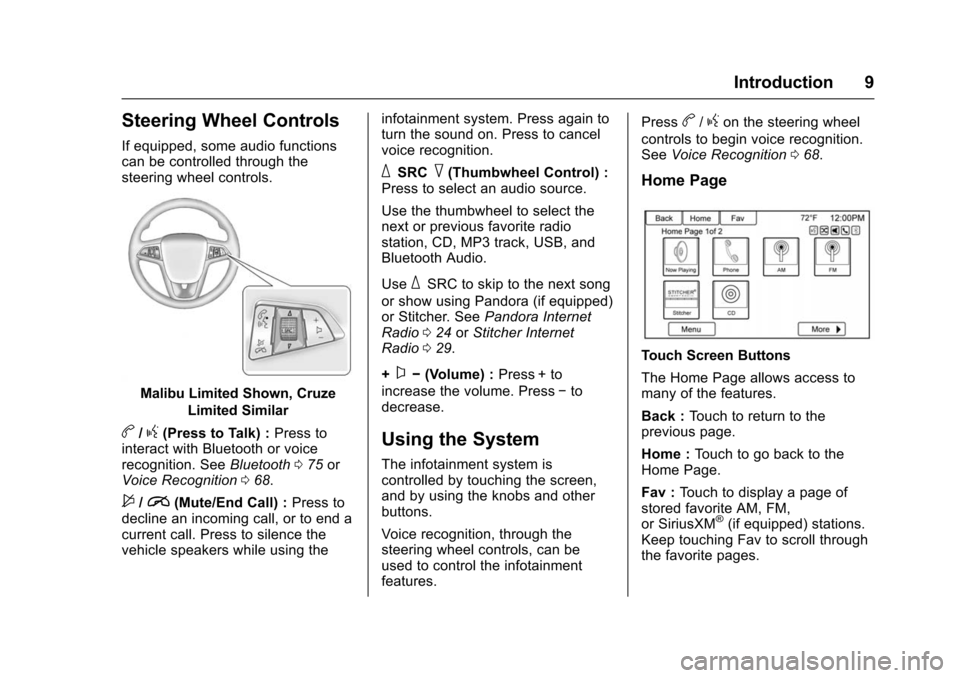
Malibu Limited Shown, CruzeLimited Similar
b/g(Press to Talk) : Press to
interact with Bluetooth or voice
recognition. See Bluetooth075 or
Voice Recognition 068.
$/i(Mute/End Call) : Press to
decline an incoming call, or to end a
current call. Press to silence the
vehicle speakers while using the infotainment system. Press again to
turn the sound on. Press to cancel
voice recognition.
_SRC^(Thumbwheel Control) :
Press to select an audio source.
Use the thumbwheel to select the
next or previous favorite radio
station, CD, MP3 track, USB, and
Bluetooth Audio.
Use
_SRC to skip to the next song
or show using Pandora (if equipped)
or Stitcher. See Pandora Internet
Radio 024 orStitcher Internet
Radio 029.
+
x− (Volume) : Press + to
increase the volume. Press −to
decrease.
Using the System
The infotainment system is
controlled by touching the screen,
and by using the knobs and other
buttons.
Voice recognition, through the
steering wheel controls, can be
used to control the infotainment
features. Press
b/gon the steering wheel
controls to begin voice recognition.
See Voice Recognition 068.
Home Page
Touch Screen Buttons
The Home Page allows access to
many of the features.
Back : Touch to return to the
previous page.
Home : Touch to go back to the
Home Page.
Fav : Touch to display a page of
stored favorite AM, FM,
or SiriusXM
®(if equipped) stations.
Keep touching Fav to scroll through
the favorite pages.
Page 16 of 94
Chevrolet Malibu Limited/Cruze Limited MyLink Infotainment System
(GMNA-Localizing-U.S./Canada-9282853) - 2016 - crc - 4/16/15
Radio 15
Radio
AM-FM Radio
Playing the Radio
OorVOL/O(Volume/Power):
. Press to turn the radio on or off.
. Turn to increase or decrease the
volume of the active source.
The steering wheel controls can
also be used to adjust the volume.
See Steering Wheel Controls 09.
Radio Operation
The radio will work when the ignition
is in ON/RUN or ACC/
ACCESSORY. When the ignition
changes from ON/RUN to LOCK/
OFF, the radio will continue to work
for 10 minutes or until the driver
door is opened.
The radio can be turned on by
pressing the power button on the
radio and will stay on for
10 minutes. Opening the driver door
will not turn the radio off when
pressing the power button. Some radios may stay on longer
and reset the time for 10 minutes if
there are any additional presses of
any radio button.
The radio can be turned off at any
time by pressing the power button.
Audio Source
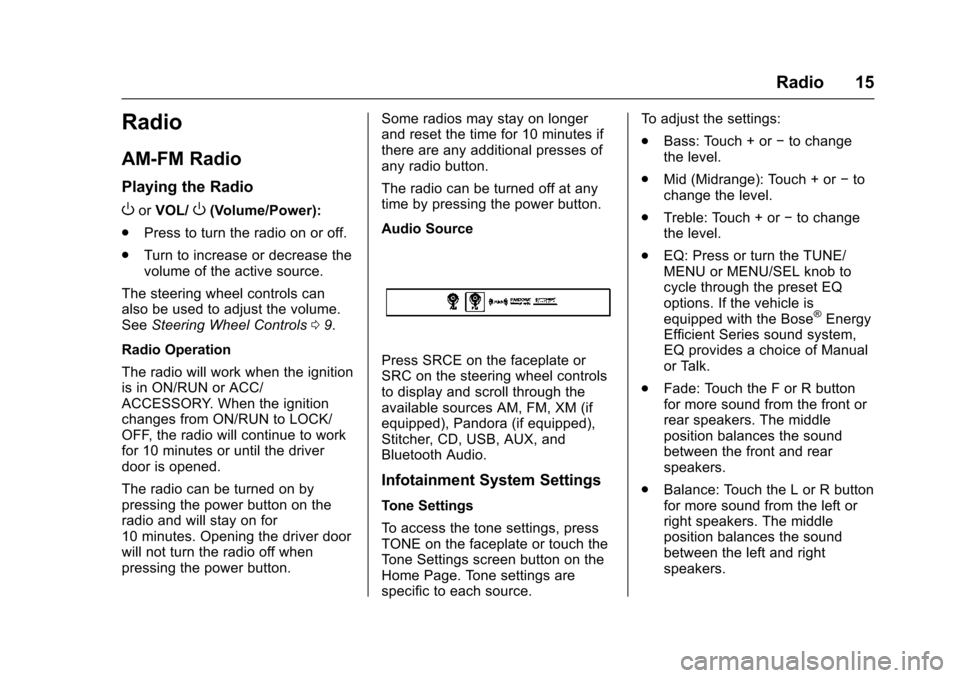
Press SRCE on the faceplate or
SRC on the steering wheel controls
to display and scroll through the
available sources AM, FM, XM (if
equipped), Pandora (if equipped),
Stitcher, CD, USB, AUX, and
Bluetooth Audio.
Infotainment System Settings
Tone Settings
To access the tone settings, press
TONE on the faceplate or touch the
Tone Settings screen button on the
Home Page. Tone settings are
specific to each source.To adjust the settings:
.
Bass: Touch + or −to change
the level.
. Mid (Midrange): Touch + or −to
change the level.
. Treble: Touch + or −to change
the level.
. EQ: Press or turn the TUNE/
MENU or MENU/SEL knob to
cycle through the preset EQ
options. If the vehicle is
equipped with the Bose
®Energy
Efficient Series sound system,
EQ provides a choice of Manual
or Talk.
. Fade: Touch the F or R button
for more sound from the front or
rear speakers. The middle
position balances the sound
between the front and rear
speakers.
. Balance: Touch the L or R button
for more sound from the left or
right speakers. The middle
position balances the sound
between the left and right
speakers.
Page 17 of 94
Chevrolet Malibu Limited/Cruze Limited MyLink Infotainment System
(GMNA-Localizing-U.S./Canada-9282853) - 2016 - crc - 4/16/15
16 Radio
Finding a Station
Press SRCE on the faceplate or
SRC on the steering wheel controls
to select AM, FM, XM (if equipped),
Pandora (if equipped), Stitcher, CD,
USB, AUX, and Bluetooth Audio.
Turn the TUNE/MENU or MENU/
SEL knob to find a radio station. To
select a preset station, press FAV
on the faceplate to scroll through
the favorite pages and then press a
preset button on the radio or the
screen button.
Seeking a Station
Press
©SEEK¨orgdto search
for a station.
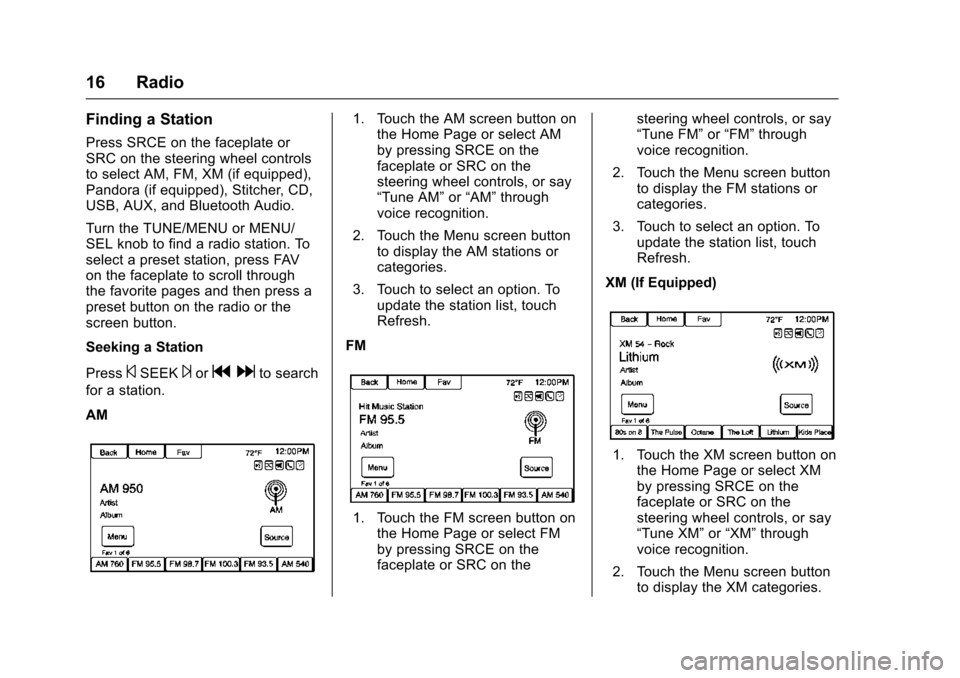
AM
1. Touch the AM screen button on the Home Page or select AM
by pressing SRCE on the
faceplate or SRC on the
steering wheel controls, or say
“Tune AM” or“AM” through
voice recognition.
2. Touch the Menu screen button to display the AM stations or
categories.
3. Touch to select an option. To update the station list, touch
Refresh.
FM
1. Touch the FM screen button on the Home Page or select FM
by pressing SRCE on the
faceplate or SRC on the steering wheel controls, or say
“Tune FM”
or“FM” through
voice recognition.
2. Touch the Menu screen button to display the FM stations or
categories.
3. Touch to select an option. To update the station list, touch
Refresh.
XM (If Equipped)
1. Touch the XM screen button on the Home Page or select XM
by pressing SRCE on the
faceplate or SRC on the
steering wheel controls, or say
“Tune XM” or“XM” through
voice recognition.
2. Touch the Menu screen button to display the XM categories.
Page 26 of 94
Chevrolet Malibu Limited/Cruze Limited MyLink Infotainment System
(GMNA-Localizing-U.S./Canada-9282853) - 2016 - crc - 4/16/15
Radio 25
Launching Pandora
Connect the iPhone, iPad, or iPod
touch to the USB port, or connect
an Android or BlackBerry through
Bluetooth. SeeAuxiliary Devices
0 41 orBluetooth 075. For first-time
use, set up stations before
connecting to the vehicle. The
Pandora icon will be available on
the Home Page and the source
pop-up displays if the latest
application is installed on the
device.
Using the iPhone, iPod touch,
or iPad
1. Plug the device into the USB port. The phone screen must
be unlocked.
2. To launch, do one of the following:
.Launch the application on
the device.
. Touch Pandora on the
Home Page.
. Press
b/gand say
“Pandora” or“Tune
Pandora.” .
Accept any notifications on
the screen of the device.
To relaunch Pandora, press SRCE
or SRC on the steering wheel
controls.
If nothing happens when the
available Pandora screen button is
touched, download the latest
Pandora application and retry.
Pandora will always be highlighted
on the Home Page when an iPhone,
iPad, or iPod touch is connected
using the USB port. To use, log into
your account.
If the “Please See Device” message
is shown, the login screen may
display on the device.
If the “Please unlock the phone or
restart the App and try again”
message is shown, then your phone
may be locked. Unlock the phone,
close the app, then restart the app
make sure the Home Page is visible
on the phone.
If Pandora is shut down on the
phone or another audio app is used,
Pandora may not start on the next ignition cycle. If iPod source is
selected, it may show iPod and then
switch to Pandora.
Using an Android Phone
1. Pair the Android phone using Bluetooth.
2. Use one of the following to launch:
.Launch the application on
the device.
. Touch Pandora on the
Home Page.
. Press
b/gand say
“Pandora” or“Tune
Pandora.”
After Pandora has been launched,
press SRCE or SRC on the steering
wheel controls to access Pandora
features.
If nothing happens when the
available Pandora screen button is
touched, download the latest
Pandora application and retry.
If the “Please See Device” message
is shown, the login screen may
display on the device.
Page 27 of 94
Chevrolet Malibu Limited/Cruze Limited MyLink Infotainment System
(GMNA-Localizing-U.S./Canada-9282853) - 2016 - crc - 4/16/15
26 Radio
If the“Please unlock the phone or
restart the App and try again”
message is shown then your phone
may be locked. Unlock the phone,
close the app, and then restart the
app to ensure proper
communication.
Using a BlackBerry Phone
The phone must be unlocked. To
launch Pandora service:
1. Pair the BlackBerry phone using Bluetooth.
2. Use one of the following to launch:
.Launch the application on
the device.
. Touch Pandora on the
Home Page.
. Press
b/gand say
“Pandora” or“Tune
Pandora.”
After Pandora has been launched,
press SRCE or SRC on the steering
wheel controls to access Pandora
features. If nothing happens when the
available Pandora screen button is
touched, download the latest
Pandora application and retry.
If the
“Please See Device” message
is shown, the login screen may
display on the device.
If the “Please unlock the phone or
restart the App and try again”
message is shown, then your phone
may be locked. Unlock the phone,
close the app, then restart the app
to ensure proper communication.
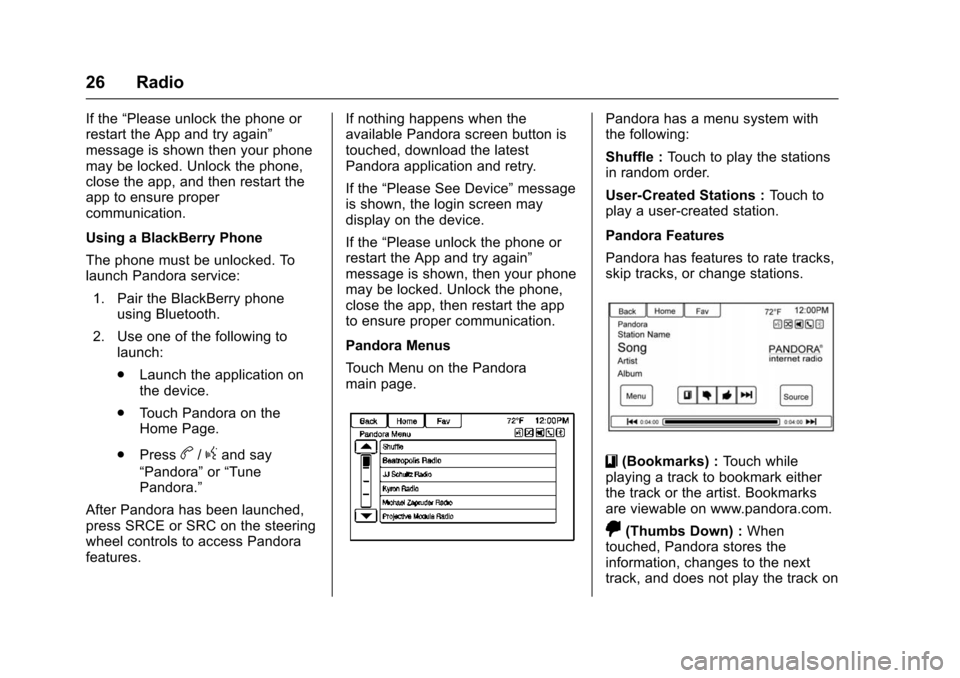
Pandora Menus
Touch Menu on the Pandora
main page.
Pandora has a menu system with
the following:
Shuffle : Touch to play the stations
in random order.
User-Created Stations : Touch to
play a user-created station.
Pandora Features
Pandora has features to rate tracks,
skip tracks, or change stations.
}(Bookmarks) : Touch while
playing a track to bookmark either
the track or the artist. Bookmarks
are viewable on www.pandora.com.
,(Thumbs Down) : When
touched, Pandora stores the
information, changes to the next
track, and does not play the track on
Page 30 of 94
Chevrolet Malibu Limited/Cruze Limited MyLink Infotainment System
(GMNA-Localizing-U.S./Canada-9282853) - 2016 - crc - 4/16/15
Radio 29
Stitcher Internet Radio
Stitcher SmartRadio®is an Internet
radio service that streams news,
sports, and entertainment shows
through the audio system. Create
personalized, on-demand stations or
discover new shows through
Stitcher's preset stations. To set up
an account, download the
application from the Android Market
or iTunes Store, or go to
www.stitcher.com.
A phone or tablet with Internet
connection is required for this
application. Personal cell phone
data plans are used. Make sure the
latest version is installed on the
device and the volume on the
device is turned up.
BlackBerry phones are not
supported for this application.
To install Stitcher:
. On an Android phone or Tablet
with Internet connection, go to
the Android Play Store, search
for Stitcher, and install to the
phone, not to the SD card. .
On an iPhone, iPad, or iPod
touch, go to the iTunes Store
and search for Stitcher.
Launching Stitcher
Connect the iPhone, iPad, or iPod
touch to the USB port, or connect
Android through Bluetooth. See
Auxiliary Devices 041 orBluetooth
0 75. For first-time use, set up the
stations before connecting to the
vehicle. The Stitcher icon will be
available on the Home Page and
source pop-up displays if the latest
application is installed on the
device.
Using the iPhone, iPod touch,
or iPad
1. Plug the device into the USB port. The phone screen must
be unlocked.
2. Use one of the following to launch:
.Touch the application on
the device.
. Touch Stitcher on the
Home Page. .
Press
b/gand say
“Stitcher” or“Tune Stitcher.”
. Accept any notifications on
the screen of the device.
3. If Stitcher does not begin playing, select a category and
then a station.
After Stitcher has been launched,
press SRCE or SRC on the steering
wheel controls to access Stitcher
features.
If nothing happens when the
available Stitcher screen button is
touched, download the latest
Stitcher application and retry.
Stitcher will always be highlighted
on the Home Page when an iPhone,
iPad, or iPod touch is connected
using the USB port. To use, log into
your account.
If the “Please See Device” message
is shown, the login screen may
display on the device.
If the “Please unlock the phone or
restart the App and try again”
message is shown, then the phone
may be locked. Unlock the phone,
Page 31 of 94
Chevrolet Malibu Limited/Cruze Limited MyLink Infotainment System
(GMNA-Localizing-U.S./Canada-9282853) - 2016 - crc - 4/16/15
30 Radio
close the app, then restart the app
and make sure the Home Page is
visible on the phone/device.
Using an Android Phone1. Pair the Android phone using Bluetooth.
2. Use one of the following to launch:
.Touch the application on
the device.
. Touch Stitcher on the
Home Page.
. Press
b/gand say
“Stitcher” or“Tune Stitcher.”
3. If Stitcher does not begin playing, select a category and
then a station.
After Stitcher has been launched,
press SRCE or SRC on the steering
wheel controls to access Stitcher
features.
If nothing happens when the
available Stitcher screen button is
touched, download the latest
Stitcher application and retry. If the
“Please See Device” message
is shown, the login screen may
display on the device.
If the “Please unlock the phone or
restart the App and try again”
message is shown, then your phone
may be locked. Unlock the phone,
close the app, then restart the app
to ensure proper communication.
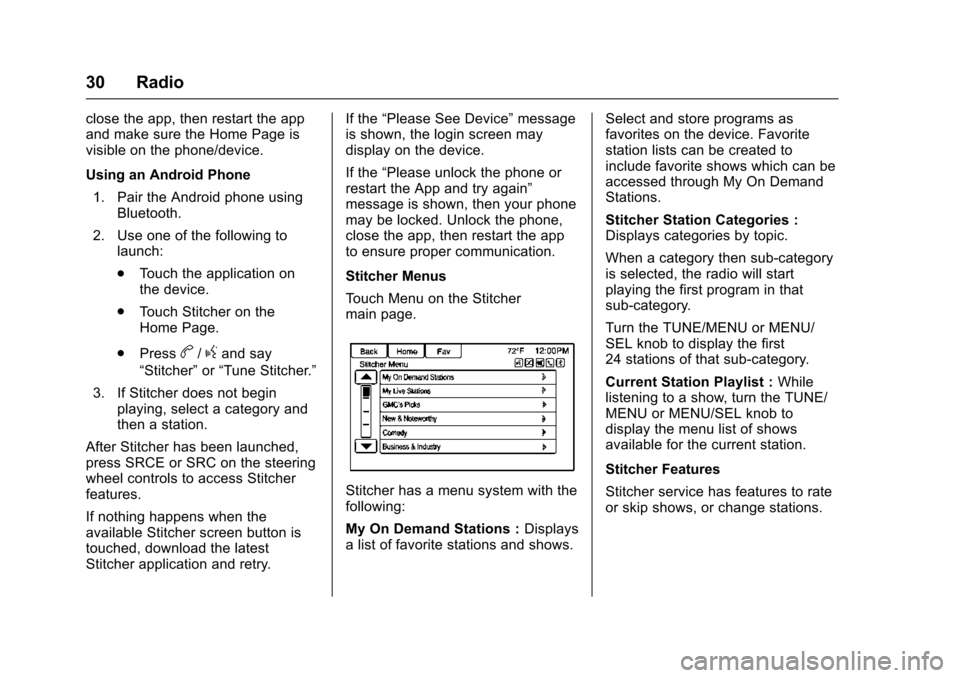
Stitcher Menus
Touch Menu on the Stitcher
main page.
Stitcher has a menu system with the
following:
My On Demand Stations : Displays
a list of favorite stations and shows. Select and store programs as
favorites on the device. Favorite
station lists can be created to
include favorite shows which can be
accessed through My On Demand
Stations.
Stitcher Station Categories :
Displays categories by topic.
When a category then sub-category
is selected, the radio will start
playing the first program in that
sub-category.
Turn the TUNE/MENU or MENU/
SEL knob to display the first
24 stations of that sub-category.
Current Station Playlist :
While
listening to a show, turn the TUNE/
MENU or MENU/SEL knob to
display the menu list of shows
available for the current station.
Stitcher Features
Stitcher service has features to rate
or skip shows, or change stations.
Page 35 of 94

Chevrolet Malibu Limited/Cruze Limited MyLink Infotainment System
(GMNA-Localizing-U.S./Canada-9282853) - 2016 - crc - 4/16/15
34 Audio Players
Audio Players
CD Player
The CD player is capable of playing:
.Most audio CDs
. CD-R
. CD-RW
. MP3, unprotected WMA, and
AAC formats
When playing any compatible
recordable disc, the sound quality
may be reduced due to the disc, the
method of recording, the quality of
the music recorded, or how the disc
has been handled.
There may be increased skipping
and difficulty reading recorded
tracks, finding tracks, and/or loading
and ejecting. If these problems
occur, check the disc for damage or
try a known good disc.
To avoid damage to the CD player:
. Do not use scratched or
damaged discs. .
Do not apply labels to discs. The
labels could get caught in the
player.
. Insert only one disc at a time.
. Keep the loading slot free of
foreign materials, liquids, and
debris.
. Use a marking pen to label the
top of the disc.
Loading and Ejecting Discs
To load a disc:
1. Turn the vehicle on.
2. Insert a disc into the slot, right side up. The player pulls it in
the rest of the way. If the disc
is damaged or improperly
loaded, there is an error and
the disc ejects.
The disc automatically plays once
loaded.
Press
ZorXto eject a disc from
the CD player. If the disc is not
removed within a short period of
time, it is automatically pulled back
into the player.
Playing an Audio CD
1. Touch the CD screen button on the Home Page or select CD
from the source pop-up to
display the CD main page.
2. Touch the Menu screen button to display the menu options.
3. Touch to select the option.
On the CD main page, the track
number displays and the Song,
Artist, and Album information
displays when available.
Use the following radio controls to
play the disc:
k(Play/Pause) : Use to pause or
resume play.