2016 CHEVROLET MALIBU window
[x] Cancel search: windowPage 15 of 94
Chevrolet Malibu Limited/Cruze Limited MyLink Infotainment System
(GMNA-Localizing-U.S./Canada-9282853) - 2016 - crc - 4/16/15
14 Introduction
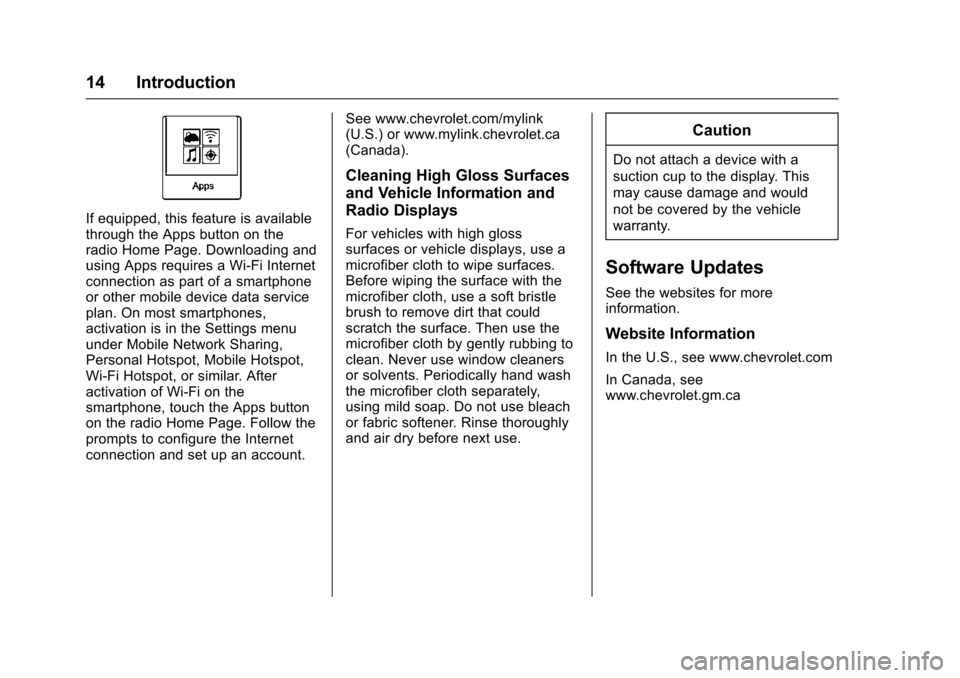
If equipped, this feature is available
through the Apps button on the
radio Home Page. Downloading and
using Apps requires a Wi-Fi Internet
connection as part of a smartphone
or other mobile device data service
plan. On most smartphones,
activation is in the Settings menu
under Mobile Network Sharing,
Personal Hotspot, Mobile Hotspot,
Wi-Fi Hotspot, or similar. After
activation of Wi-Fi on the
smartphone, touch the Apps button
on the radio Home Page. Follow the
prompts to configure the Internet
connection and set up an account.See www.chevrolet.com/mylink
(U.S.) or www.mylink.chevrolet.ca
(Canada).
Cleaning High Gloss Surfaces
and Vehicle Information and
Radio Displays
For vehicles with high gloss
surfaces or vehicle displays, use a
microfiber cloth to wipe surfaces.
Before wiping the surface with the
microfiber cloth, use a soft bristle
brush to remove dirt that could
scratch the surface. Then use the
microfiber cloth by gently rubbing to
clean. Never use window cleaners
or solvents. Periodically hand wash
the microfiber cloth separately,
using mild soap. Do not use bleach
or fabric softener. Rinse thoroughly
and air dry before next use.
Caution
Do not attach a device with a
suction cup to the display. This
may cause damage and would
not be covered by the vehicle
warranty.
Software Updates
See the websites for more
information.
Website Information
In the U.S., see www.chevrolet.com
In Canada, see
www.chevrolet.gm.ca
Page 36 of 94

Chevrolet Malibu Limited/Cruze Limited MyLink Infotainment System
(GMNA-Localizing-U.S./Canada-9282853) - 2016 - crc - 4/16/15
Audio Players 35
©SEEK (Previous/Reverse):
. Press to seek to the beginning of
the current or previous track.
If the track has been playing for
less than five seconds, it seeks
to the previous track. If longer
than five seconds, the current
track starts from the beginning.
. Press and hold to fast reverse
through a track. Release the
button to return to playing
speed. Elapsed time displays.
SEEK
¨(Next/Forward):
. Press to seek to the next track.
. Press and hold to fast forward
through a track. Release the
button to return to playing
speed. Elapsed time displays.
TUNE/MENU or MENU/SEL : Turn
to the right or left to select the next
or previous track. Press this knob to
select from the list. If a track is
selected from the menu, the system
plays the track and returns to the
CD screen.
Error Messages
If Disc Error displays and/or the disc
comes out, it could be due to:
. The disc has an invalid or
unknown format.
. The disc is very hot. Try the disc
again when the temperature
returns to normal.
. The road is very rough. Try the
disc again when the road is
smoother.
. The disc is dirty, scratched, wet,
or upside down.
. The air is very humid. Try the
disc again later.
. There was a problem while
burning the disc.
. The label is caught in the CD
player.
If the CD is not playing correctly, try
a known good CD.
If any error continues, contact your
dealer.
USB
Playing from a USB
A USB mass storage or Certified
Windows Vista®/Media Transfer
Protocol (MTP) device can be
connected to the USB port.
The USB port is in the center
console.
The USB icon displays when the
USB device is connected.
USB Media Formats
The USB port will support the
following media formats:
. MP3
. Unprotected WMA
. Unprotected AAC
Other formats may be supported.
Gracenote®
Gracenote technology embedded
into the radio helps manage and
navigate the USB device music
collection. When a USB device is
connected to the radio, Gracenote
identifies the music collection and
Page 62 of 94
Chevrolet Malibu Limited/Cruze Limited MyLink Infotainment System
(GMNA-Localizing-U.S./Canada-9282853) - 2016 - crc - 4/16/15
Navigation 61
knob or touch Languages to display
the languages. Select the desired
language.
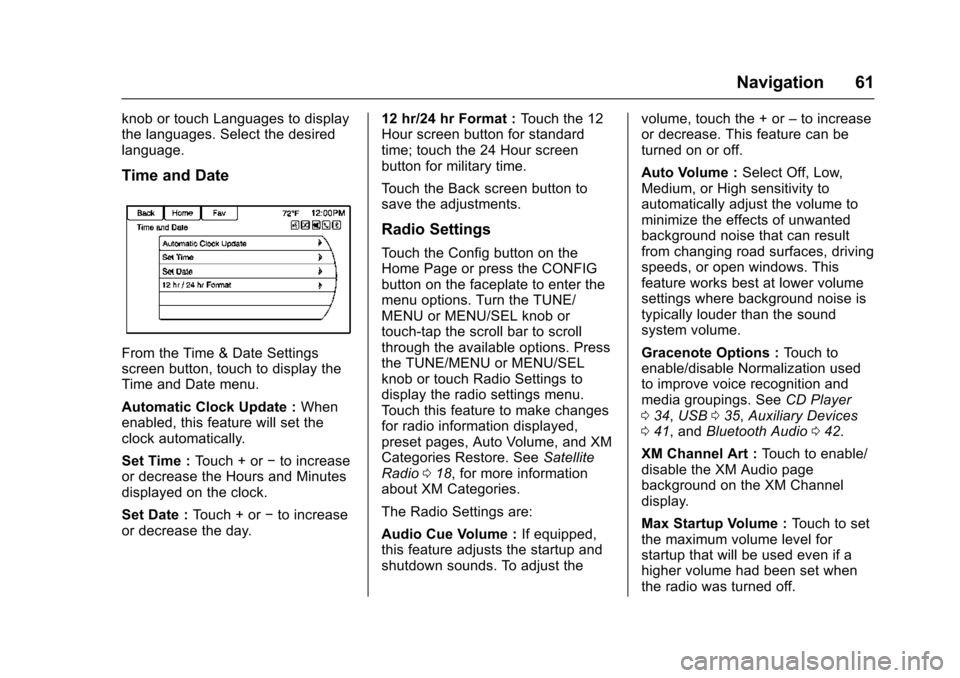
Time and Date
From the Time & Date Settings
screen button, touch to display the
Time and Date menu.
Automatic Clock Update :When
enabled, this feature will set the
clock automatically.
Set Time : Touch + or−to increase
or decrease the Hours and Minutes
displayed on the clock.
Set Date : Touch + or −to increase
or decrease the day. 12 hr/24 hr Format :
Touch the 12
Hour screen button for standard
time; touch the 24 Hour screen
button for military time.
Touch the Back screen button to
save the adjustments.
Radio Settings
Touch the Config button on the
Home Page or press the CONFIG
button on the faceplate to enter the
menu options. Turn the TUNE/
MENU or MENU/SEL knob or
touch-tap the scroll bar to scroll
through the available options. Press
the TUNE/MENU or MENU/SEL
knob or touch Radio Settings to
display the radio settings menu.
Touch this feature to make changes
for radio information displayed,
preset pages, Auto Volume, and XM
Categories Restore. See Satellite
Radio 018, for more information
about XM Categories.
The Radio Settings are:
Audio Cue Volume : If equipped,
this feature adjusts the startup and
shutdown sounds. To adjust the volume, touch the + or
–to increase
or decrease. This feature can be
turned on or off.
Auto Volume : Select Off, Low,
Medium, or High sensitivity to
automatically adjust the volume to
minimize the effects of unwanted
background noise that can result
from changing road surfaces, driving
speeds, or open windows. This
feature works best at lower volume
settings where background noise is
typically louder than the sound
system volume.
Gracenote Options : Touch to
enable/disable Normalization used
to improve voice recognition and
media groupings. See CD Player
0 34, USB 035, Auxiliary Devices
0 41, and Bluetooth Audio 042.
XM Channel Art : Touch to enable/
disable the XM Audio page
background on the XM Channel
display.
Max Startup Volume : Touch to set
the maximum volume level for
startup that will be used even if a
higher volume had been set when
the radio was turned off.
Page 69 of 94

Chevrolet Malibu Limited/Cruze Limited MyLink Infotainment System
(GMNA-Localizing-U.S./Canada-9282853) - 2016 - crc - 4/16/15
68 Voice Recognition
Voice Recognition
Voice recognition allows for
hands-free operation of the
infotainment system features.
Voice recognition can be used when
the radio is on or when Retained
Accessory Power (RAP) is active.
See“Retained Accessory Power
(RAP)” in the owner manual. The
system maintains a minimum
volume level.
Using Voice Recognition
1. Pressb/gon the steering
wheel. The audio system
mutes. A voice prompt states,
“Please say a command.” Wait
until the tone is heard before
speaking.
If there is no tone, make sure
that the volume is turned up.
While voice recognition is
active, the system displays a
g
symbol in the top right of the
screen. 2. Clearly speak one of the
commands listed later in this
section.
Press
b/gtwice on the steering
wheel to skip the voice prompt
messages.
Canceling Voice Recognition
1. Press and release$/ion
the steering wheel control to
cancel a command, if the
system response does not
match the voice command,
or say “Goodbye” or“Cancel.”
2. The system replies, “Goodbye.”
Helpful Hints for Speaking
Commands
.
When multiple commands are
available, choose the command
that works best for you.
. Words in parentheses are
optional. For example, for the
command “Tune FM
(frequency),” saying“Tune FM
87.7” or“Tune FM” are both
valid commands. .
When the command is
recognized, the system will
either perform the function or
ask to confirm the choice.
. When the system does not
recognize the command, the
system says “Pardon.”
. If experiencing difficulty with the
system recognizing a command,
confirm that the command is
correct. Try saying the command
clearly or wait for a brief moment
after the tone.
. Background noise such as a
climate control fan positioned on
high, open windows, and very
loud outside noises, even if the
windows are closed, can cause
voice commands to be
misunderstood.
. The system is able to recognize
commands in different
languages, such as English,
Canadian French, and Spanish.
The system only recognizes
commands based on the
language selected.