2016 CHEVROLET MALIBU navigation update
[x] Cancel search: navigation updatePage 20 of 94

Chevrolet Malibu Limited/Cruze Limited MyLink Infotainment System
(GMNA-Localizing-U.S./Canada-9282853) - 2016 - crc - 4/16/15
Radio 19
Adding or Removing XM
Categories
To customize which XM categories
are used and displayed in the
system:1. Touch the Config screen button on the Home Page or CONFIG
on the faceplate.
2. Select Radio Settings from the Settings Menu list.
3. Select XM Categories.
4. Select or deselect any category to be used in XM mode.
A checkmark will indicate that
the category is selected.
Touch Show All XM Categories to
restore all XM categories. XM Channel Art
SiriusXM provides updated category
background graphics and the radio
will automatically update the screen.
SiriusXM may send updated
category graphics to the vehicle.
When this happens, the background
graphics may appear to be incorrect
but the radio will update once all of
the graphics have been downloaded
from SiriusXM.
To turn SiriusXM channel art on
or off:
1. Press HOME on the faceplate.
2. Select XM.
3. Touch Menu on the XM Now Playing Screen.
4. Touch the XM Channel Art to turn on or off.
SiriusXM NavTraffic®(If
Equipped)
The navigation system might have a
SiriusXM NavTraffic receiver. It is a
subscription service provided
through SiriusXM Satellite Radio.
A service fee is required to receive
the SiriusXM NavTraffic service. Real-time traffic information is
provided to fully integrate the
navigation system to display current
traffic conditions for the chosen
route. See
“Traffic Settings” later in
this section.
A screen displays to indicate that
the SiriusXM NavTraffic subscription
is not activated.
If activated, traffic information
displays:
. Unscheduled traffic incident
data, such as accidents and
disabled vehicles.
. Scheduled traffic incident data,
such as road construction and
road closures.
. Traffic flow information (rate of
speed data). Flow data might not
be available in all markets.
Traffic information is delivered to the
vehicle by the SiriusXM Radio
satellites. SiriusXM NavTraffic
provides continuously updated
traffic information.
SiriusXM NavTraffic currently
broadcasts the traffic information for
many markets nationally. The
Page 21 of 94

Chevrolet Malibu Limited/Cruze Limited MyLink Infotainment System
(GMNA-Localizing-U.S./Canada-9282853) - 2016 - crc - 4/16/15
20 Radio
service may be available in more
cities in the future. See
www.xmnavtraffic.com for details on
local coverage.
To access the traffic features, touch
the Traffic button from the
Navigation Menu or map screen.
All Traffic Events :Touch to view a
list of reported traffic conditions for
up to approximately 100 km (70 mi).
It could take some time to display
the information received.
The information is displayed with an
arrow and distance. The arrow
indicates the distance in a straight
line and the direction of the event
from the vehicle's current position. Traffic Events on Route :
Touch to
display a list of reported traffic
conditions on the current route. The
button is grayed out if no route is
active.
Traffic Settings : Touch to
customize traffic options.
SiriusXM Travel Link (If
Available)
The infotainment system may have
SiriusXM Travel Link®. It is a
subscription service provided
through SiriusXM Satellite Radio.
A service fee is required to receive
the SiriusXM Travel Link service.
When subscribed to SiriusXM Travel
Link, one or more services may be
available.
. Travel Link Fuel Prices: Detailed
nation wide fuel price information
may be available.
. Travel Link Movie Listings:
Detailed local movie theater
listings, start times, and ratings
may be available.
. Travel Link Weather: National
and Local Weather gives current
and forecasted weather. For more detailed information and
coverage details on SiriusXM Travel
Link go to www.siriusxm.com.
SiriusXM Travel Link Fuel Pricing
When SiriusXM Travel Link
information is available, the system
will display a list of fuel stations
close to the vehicle location. The list
will include fuel station name,
direction, distance and price. The
list can be sorted by distance or
price and there are four different
fuel types to choose from. As the
vehicle is moving a direction arrow
and distance to fuel station will
update. The arrow represents the
direction to the gas station from the
current vehicle position. The
distance represents the straight line
distance between the vehicle
location and the fuel station.
From the Home Page, touch the
Fuel button. The system displays
the current weather page.
Page 22 of 94
Chevrolet Malibu Limited/Cruze Limited MyLink Infotainment System
(GMNA-Localizing-U.S./Canada-9282853) - 2016 - crc - 4/16/15
Radio 21
To change the fuel information on
screen touch the Fuel Menu
Button to:
.Sort Fuel Stations By Price or By
Distance: The default Sort
Method is By Distance.
. Choose Fuel Type: The fuel
available fuel types are Regular
(unleaded), Mid-Range,
Premium, and Diesel.
For more information on the fuel
station, select the fuel station name.
The screen will show the fuel station
name, address, phone number,
distance, amenities and the last
time the fuel price was updated. If a
fuel station does not appear in the
list it may be new or the price may
not have been updated in the past
24 hours.
If equipped with Navigation when
the fuel station is selected, see
Destination 050 for more
information of navigation routing
features.
Allow up to five minutes after turning
on the vehicle for the fuel
information to appear. SiriusXM Travel Link Movie
Listings
When SiriusXM Travel Link
information is available, the movie
feature provides movie show time
and theater information for movies
close to the vehicle location.
From the Home Page, touch the
Movie button. The system displays
the Movie and Theater search page.
To search movies:
.
Select the Movie field to choose
a movie name.
. Select the Theater field to
choose a specific theater.
. Select the Date field to choose
which date to search movie and/
or theaters.
. Touch the Search button to view
a list of movies or theaters.
When searching by movie, a list will
display movies to select. When a
movie is selected, a theater list will
appear with a direction arrow and
distance from the current vehicle
location. The direction and distance
will update every 10 seconds as the vehicle is moving. The direction
arrow represents the location of the
theater from the current vehicle
location. The distance represents
the straight line distance between
the vehicle location and the theater.
Movie details are available when a
movie is selected. The details
include Cast, Synopsis, and Theater
Information. Select the appropriate
button to display more information.
Cast and Synopsis Information
includes Playtime, Rating (G,
PG-13, R, etc.), Theater Name,
Showtimes.
Theater Information includes
address, phone number, distance,
and amenities.
SiriusXM Travel Link Weather
Whether near home or on a long
road trip, detailed weather
information is available. SiriusXM
Travel Link Weather uses the same
sources that professional pilots and
mariners rely on.
Page 62 of 94
Chevrolet Malibu Limited/Cruze Limited MyLink Infotainment System
(GMNA-Localizing-U.S./Canada-9282853) - 2016 - crc - 4/16/15
Navigation 61
knob or touch Languages to display
the languages. Select the desired
language.
Time and Date
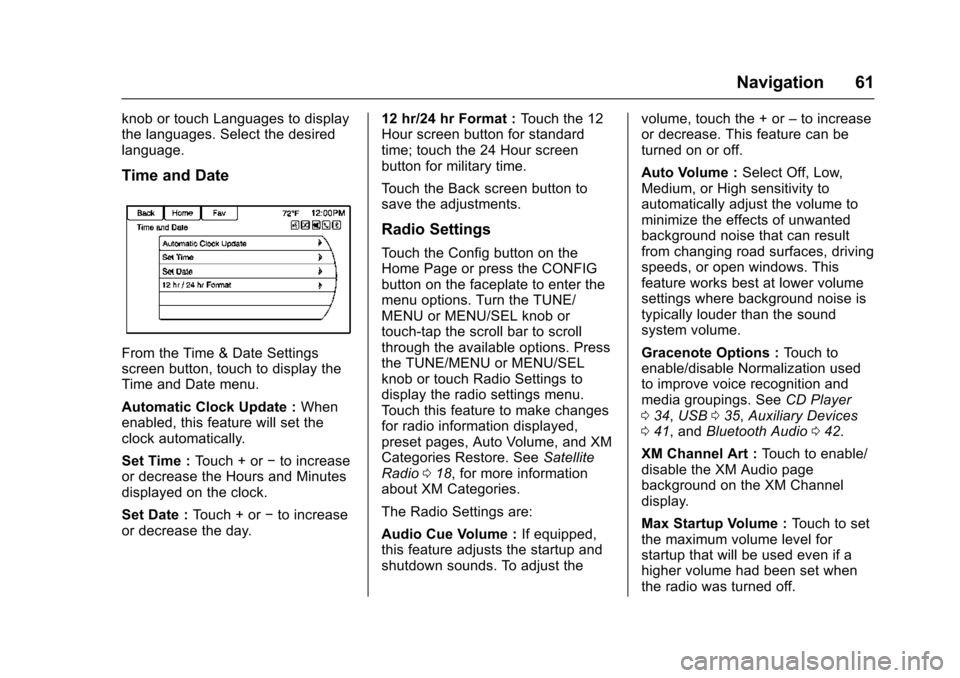
From the Time & Date Settings
screen button, touch to display the
Time and Date menu.
Automatic Clock Update :When
enabled, this feature will set the
clock automatically.
Set Time : Touch + or−to increase
or decrease the Hours and Minutes
displayed on the clock.
Set Date : Touch + or −to increase
or decrease the day. 12 hr/24 hr Format :
Touch the 12
Hour screen button for standard
time; touch the 24 Hour screen
button for military time.
Touch the Back screen button to
save the adjustments.
Radio Settings
Touch the Config button on the
Home Page or press the CONFIG
button on the faceplate to enter the
menu options. Turn the TUNE/
MENU or MENU/SEL knob or
touch-tap the scroll bar to scroll
through the available options. Press
the TUNE/MENU or MENU/SEL
knob or touch Radio Settings to
display the radio settings menu.
Touch this feature to make changes
for radio information displayed,
preset pages, Auto Volume, and XM
Categories Restore. See Satellite
Radio 018, for more information
about XM Categories.
The Radio Settings are:
Audio Cue Volume : If equipped,
this feature adjusts the startup and
shutdown sounds. To adjust the volume, touch the + or
–to increase
or decrease. This feature can be
turned on or off.
Auto Volume : Select Off, Low,
Medium, or High sensitivity to
automatically adjust the volume to
minimize the effects of unwanted
background noise that can result
from changing road surfaces, driving
speeds, or open windows. This
feature works best at lower volume
settings where background noise is
typically louder than the sound
system volume.
Gracenote Options : Touch to
enable/disable Normalization used
to improve voice recognition and
media groupings. See CD Player
0 34, USB 035, Auxiliary Devices
0 41, and Bluetooth Audio 042.
XM Channel Art : Touch to enable/
disable the XM Audio page
background on the XM Channel
display.
Max Startup Volume : Touch to set
the maximum volume level for
startup that will be used even if a
higher volume had been set when
the radio was turned off.
Page 63 of 94
Chevrolet Malibu Limited/Cruze Limited MyLink Infotainment System
(GMNA-Localizing-U.S./Canada-9282853) - 2016 - crc - 4/16/15
62 Navigation
Number of Favorite Pages :Press
to select the number of FAV pages
to be displayed.
XM Categories : Touch to
customize which available XM
Categories are used and displayed.
Software Version Information :
Touch to display information about
the system and update software if
available.
Phone Settings
See Bluetooth 075 in the “Phone”
section for more information on
phone settings.
Navigation Settings
Touch the Config button on the
Home Page to enter the setup
menu. Turn the TUNE/MENU or
MENU/SEL knob or touch-tap the
scroll bar until the Navigation
Settings option displays. Select this
feature to make changes to Voice
Prompt, Traffic Settings, Guidance
Alert, Bread Crumbs, and Delete
Saved Destinations.
Navigation Settings Button
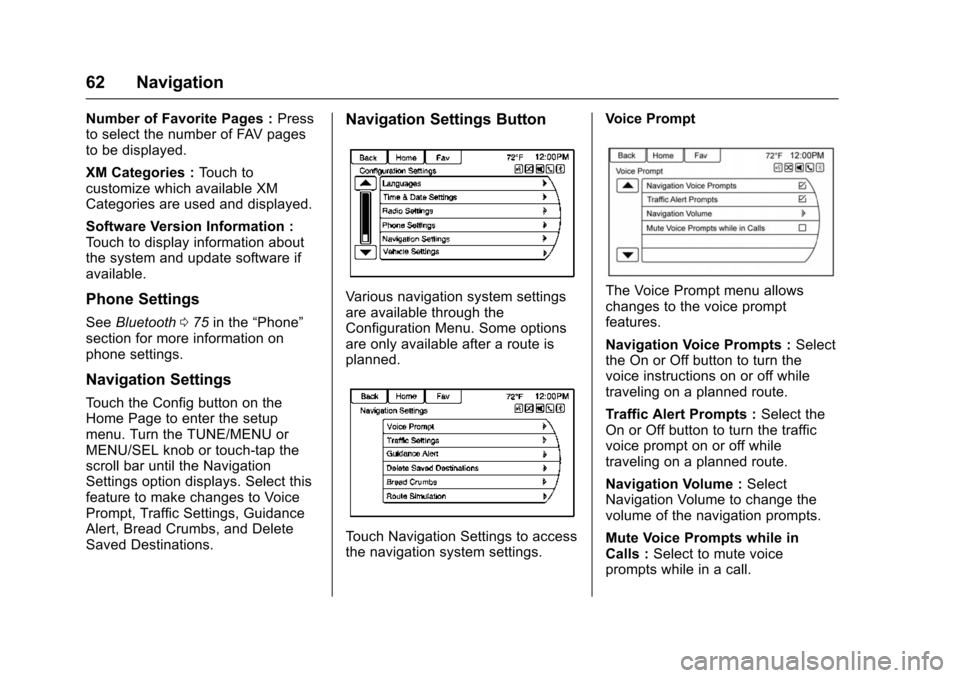
Various navigation system settings
are available through the
Configuration Menu. Some options
are only available after a route is
planned.
Touch Navigation Settings to access
the navigation system settings. Voice Prompt
The Voice Prompt menu allows
changes to the voice prompt
features.
Navigation Voice Prompts :
Select
the On or Off button to turn the
voice instructions on or off while
traveling on a planned route.
Traffic Alert Prompts : Select the
On or Off button to turn the traffic
voice prompt on or off while
traveling on a planned route.
Navigation Volume : Select
Navigation Volume to change the
volume of the navigation prompts.
Mute Voice Prompts while in
Calls : Select to mute voice
prompts while in a call.
Page 67 of 94
Chevrolet Malibu Limited/Cruze Limited MyLink Infotainment System
(GMNA-Localizing-U.S./Canada-9282853) - 2016 - crc - 4/16/15
66 Navigation
This system might not be available
or interference can occur if any of
the following are true:
.Signals are obstructed by tall
buildings, trees, large trucks,
or a tunnel.
. Satellites are being repaired or
improved.
For more information if the GPS is
not functioning properly, see
Problems with Route Guidance 066
and If the System Needs Service
0 67.
Vehicle Positioning
At times, the position of the vehicle
on the map could be inaccurate due
to one or more of the following
reasons:
.
The road system has changed.
. The vehicle is driving on slippery
road surfaces such as sand,
gravel, or snow.
. The vehicle is traveling on
winding roads or long straight
roads. .
The vehicle is approaching a tall
building or a large vehicle.
. The surface streets run parallel
to a freeway.
. The vehicle has been transferred
by a vehicle carrier or a ferry.
. The current position calibration
is set incorrectly.
. The vehicle is traveling at high
speed.
. The vehicle changes directions
more than once, or the vehicle is
turning on a turn table in a
parking lot.
. The vehicle is entering and/or
exiting a parking lot, garage, or a
lot with a roof.
. The GPS signal is not received.
. A roof carrier is installed on the
vehicle.
. Tire chains have been installed.
. The tires are replaced or worn.
. The tire pressure for the tires is
incorrect. .
This is the first navigation use
after the map data is updated.
. The 12-volt battery is
disconnected for several days.
. The vehicle is driving in heavy
traffic where driving is at low
speeds, and the vehicle is
stopped and started repeatedly.
Problems with Route
Guidance
Inappropriate route guidance can
occur under one or more of the
following conditions:
.The turn was not made on the
road indicated.
. Route guidance might not be
available when using automatic
rerouting for the next right or
left turn.
. The route might not be changed
when using automatic rerouting.
. There is no route guidance when
turning at an intersection.
. Plural names of places might be
announced occasionally.
Page 68 of 94
Chevrolet Malibu Limited/Cruze Limited MyLink Infotainment System
(GMNA-Localizing-U.S./Canada-9282853) - 2016 - crc - 4/16/15
Navigation 67
.It could take a long time to
operate automatic rerouting
during high-speed driving.
. Automatic rerouting might
display a route returning to the
set waypoint if heading for a
destination without passing
through a set waypoint.
. The route prohibits the entry of a
vehicle due to a regulation by
time or season or any other
regulation which may be given.
. Some routes might not be
searched.
. The route to the destination
might not be shown if there are
new roads, if roads have
recently changed, or if certain
roads are not listed in the map
data. See Maps048.
To recalibrate the vehicle's position
on the map, park with the vehicle
running for two to five minutes, until
the vehicle position updates. Make
sure the vehicle is parked in a location that is safe and has a clear
view of the sky and away from large
obstruction.
If the System Needs
Service
If the navigation system needs
service and the steps listed here
have been followed but there are
still problems, see your dealer for
assistance.
Map Data Updates
The map data in the vehicle is the
most up-to-date information
available when the vehicle was
produced. The map data is updated
periodically, provided that the map
information has changed.
For questions about the operation of
the navigation system or the update
process, contact the GM Nav Disc
Center toll-free phone number,
1-877-NAV-DISC (1-877-628-3472)
or go to the center
’s website, www.gmnavdisc.com. If updates are
needed, call the GM Nav Disc
Center or order a new Map Update
online.
To order map data, have the
vehicle’s Vehicle Identification
Number (VIN) available to ensure
the correct and most up-to-date map
data for the vehicle is sent. See
“Vehicle Identification Number
(VIN)”
in the owner manual.
Database Coverage
Explanations
Coverage areas vary with respect to
the level of map detail available for
any given area. Some areas feature
greater levels of detail than others.
If this happens, it does not mean
there is a problem with the system.
As the map data is updated, more
detail can become available for
areas that previously had limited
detail. See Map Data Updates 067.
Page 92 of 94

Chevrolet Malibu Limited/Cruze Limited MyLink Infotainment System
(GMNA-Localizing-U.S./Canada-9282853) - 2016 - crc - 4/16/15
Index 91
DevicesAuxiliary. . . . . . . . . . . . . . . . . . . . . . . . . 41
USB. . . . . . . . . . . . . . . . . . . . . . . . . . . . . 35
Display Settings . . . . . . . . . . . . . . . . . 65
Driving on a Route . . . . . . . . . . . . . . . 50
Dual Tone Multi-Frequency (DTMF) Tones . . . . . . . . . . . . . . . . . . 80
E
Ending a Call . . . . . . . . . . . . . . . . . . . . 80
Error Messages . . . . . . . . . . . . . . . . . 35
F
Finding a Station . . . . . . . . . . . . . . . . 16
FM . . . . . . . . . . . . . . . . . . . . . . . . . . . . . . 23
G
Global Positioning
System (GPS) . . . . . . . . . . . . . . . . . . 65
Gracenote . . . . . . . . . . . . . . . . . . . . . . . 86
Gracenote
®. . . . . . . . . . . . . . . . . . . . . . 35
Guidance Problems with the Route . . . . . . . . 66
H
Hands-Free Phone . . . . . . . . . . . . . . 80
Helpful Hints for SpeakingCommands . . . . . . . . . . . . . . . . . . . . . 68
Home Page . . . . . . . . . . . . . . . . . . . . . . . 9
Home Page Customization . . . . . . 10
Home Page Features . . . . . . . . . . . . 10
I
If the System Needs Service . . . . . 67
Information Quick. . . . . . . . . . . . . . . . . . . . . . . . . . . . 24
Infotainment . . . . . . . . . . . . . . . . . . . . . . 2
Infotainment Control Buttons . . . . . . 6
Infotainment System Overview . . . 3
Infotainment System Settings . . . . 15
Internet Radio Pandora. . . . . . . . . . . . . . . . . . . . . . . . . 24
Stitcher. . . . . . . . . . . . . . . . . . . . . . . . . . 29
L
Languages . . . . . . . . . . . . . . . . . . . . . . 60
Launching Pandora . . . . . . . . . . . . . . 25
Launching Stitcher . . . . . . . . . . . . . . . 29
Loading and Ejecting Discs . . . . . . 34
M
Making a Call Using PhoneBook and Infotainment
Controls . . . . . . . . . . . . . . . . . . . . . . . . 78
Making a Call Using the Infotainment Controls . . . . . . . . . . 79
Map Adjustments . . . . . . . . . . . . . . . . 47
Map Data Updates . . . . . . . . . . . . . . . 67 Map End User License
Agreement (Optional
Equipment Applies Where
Equipped) . . . . . . . . . . . . . . . . . . . . . . 86
Map Scales . . . . . . . . . . . . . . . . . . . . . . 47
Maps . . . . . . . . . . . . . . . . . . . . . . . . . . . . 48
Menu Configure. . . . . . . . . . . . . . . . . . . . . . . . 60
Menu with Route Guidance Active . . . . . . . . . . . . . . . . . . . . . . . . . . 57
Messaging
Text . . . . . . . . . . . . . . . . . . . . . . . . . . . . . 81
Mixed-Band Presets . . . . . . . . . . . . . 17
Multi-band Antenna . . . . . . . . . . . . . . 23
Muting a Call . . . . . . . . . . . . . . . . . . . . 80
My Media Commands . . . . . . . . . . . 70
N
Navigation Destination. . . . . . . . . . . . . . . . . . . . . . 50
Using the System . . . . . . . . . . . . . . . 45
Navigation Commands (If Equipped) . . . . . . . . . . . . . . . . . . . . . . 71
Navigation Settings . . . . . . . . . . . . . . 62
Navigation Settings Button . . . . . . 62
Navigation Symbols . . . . . . . . . . . . . 48