2015 NISSAN ARMADA display
[x] Cancel search: displayPage 281 of 510
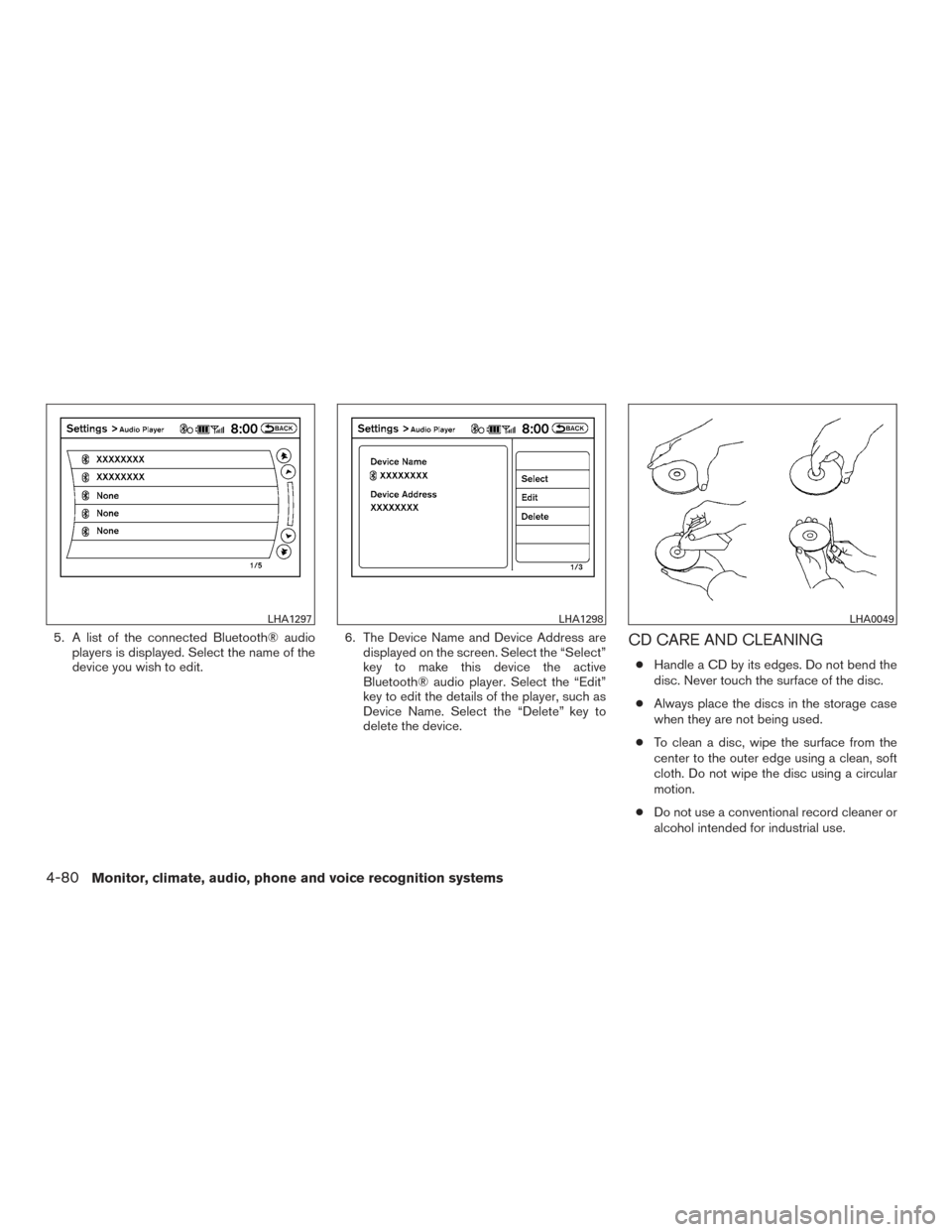
5. A list of the connected Bluetooth® audioplayers is displayed. Select the name of the
device you wish to edit. 6. The Device Name and Device Address are
displayed on the screen. Select the “Select”
key to make this device the active
Bluetooth® audio player. Select the “Edit”
key to edit the details of the player, such as
Device Name. Select the “Delete” key to
delete the device.CD CARE AND CLEANING
●Handle a CD by its edges. Do not bend the
disc. Never touch the surface of the disc.
● Always place the discs in the storage case
when they are not being used.
● To clean a disc, wipe the surface from the
center to the outer edge using a clean, soft
cloth. Do not wipe the disc using a circular
motion.
● Do not use a conventional record cleaner or
alcohol intended for industrial use.
LHA1297LHA1298LHA0049
4-80Monitor, climate, audio, phone and voice recognition systems
Page 282 of 510
●A new disc may be rough on the inner and
outer edges. Remove the rough edges by
rubbing the inner and outer edges with the
side of a pen or pencil as illustrated.
STEERING WHEEL SWITCH FOR
AUDIO CONTROL
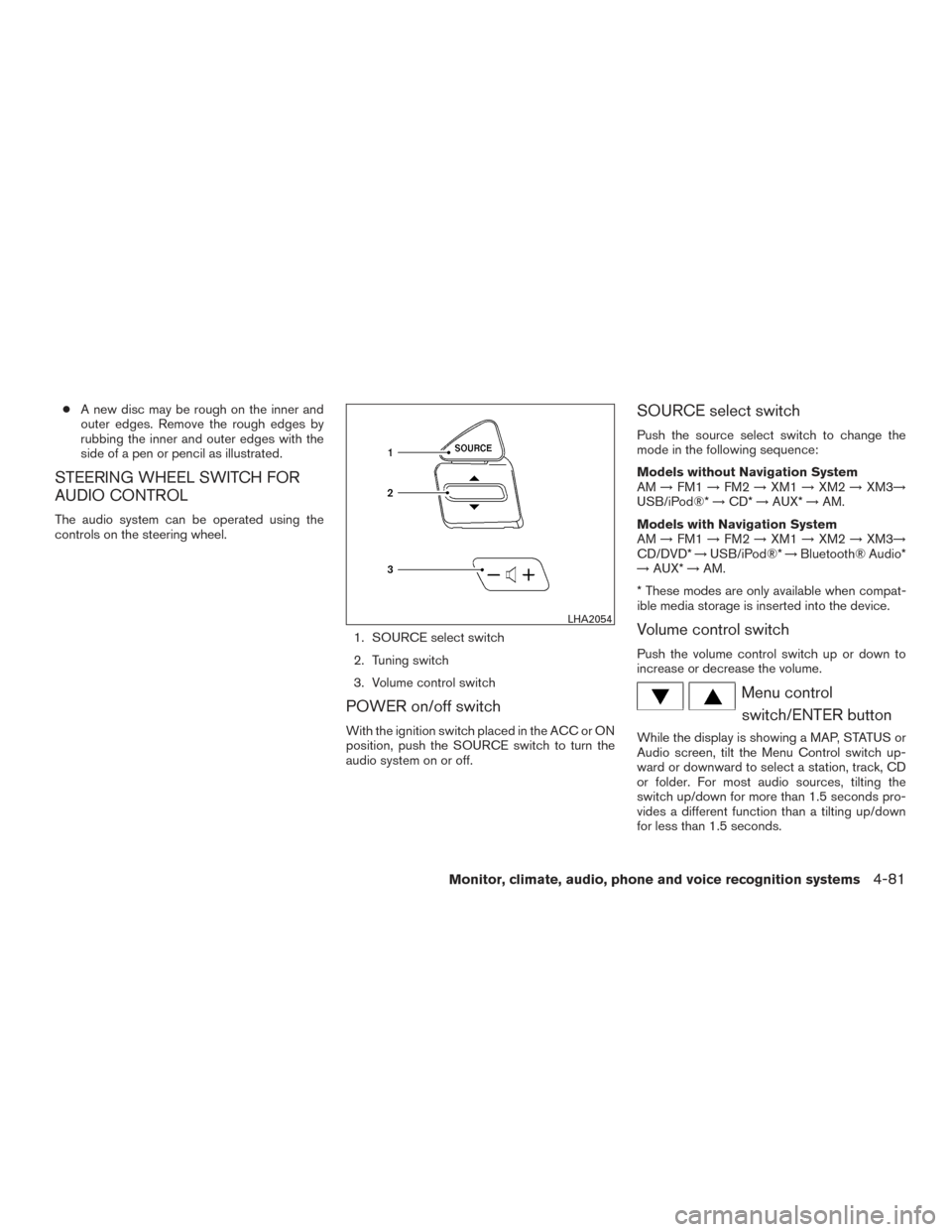
The audio system can be operated using the
controls on the steering wheel.
1. SOURCE select switch
2. Tuning switch
3. Volume control switch
POWER on/off switch
With the ignition switch placed in the ACC or ON
position, push the SOURCE switch to turn the
audio system on or off.
SOURCE select switch
Push the source select switch to change the
mode in the following sequence:
Models without Navigation System
AM→FM1 →FM2 →XM1 →XM2 →XM3→
USB/iPod®* →CD* →AUX* →AM.
Models with Navigation System
AM →FM1 →FM2 →XM1 →XM2 →XM3→
CD/DVD* →USB/iPod®* →Bluetooth® Audio*
→ AUX* →AM.
* These modes are only available when compat-
ible media storage is inserted into the device.
Volume control switch
Push the volume control switch up or down to
increase or decrease the volume.
Menu control switch/ENTER button
While the display is showing a MAP, STATUS or
Audio screen, tilt the Menu Control switch up-
ward or downward to select a station, track, CD
or folder. For most audio sources, tilting the
switch up/down for more than 1.5 seconds pro-
vides a different function than a tilting up/down
for less than 1.5 seconds.
LHA2054
Monitor, climate, audio, phone and voice recognition systems4-81
Page 283 of 510
AM and FM● Tilt up/down for less than 1.5 seconds to
increase or decrease the preset station.
● Tilt up/down for more than 1.5 seconds to
seek up or down to the next station.
● Press the ENTER button to show the list of
preset stations.
XM ● Tilt up/down for less than 1.5 seconds to
increase or decrease the preset station.
● Tilt up/down for more than 1.5 seconds to
go to the next or previous category.
● Press the ENTER button to show the XM
Menu.
iPod® ● Tilt up/down for less than 1.5 seconds to
increase or decrease the track number.
● Press the ENTER button to show the iPod
Menu. CD
● Tilt up/down for less than 1.5 seconds to
increase or decrease the track number.
● Tilt up/down for more than 1.5 seconds to
increase or decrease the folder number (if
playing compressed audio files) .
● Press the ENTER button to show the CD
Menu.
DVD (if so equipped) ● Tilt up/down for less than 1.5 seconds to
increase or decrease the track number.
● Tilt up/down for more than 1.5 seconds to
increase or decrease the title number.
● Press the ENTER button to select an item
from the DVD display.
● When the transparent operation menu ap-
pears, the switch will control the menu.
USB ● Tilt up/down for less than 1.5 seconds to
increase or decrease the track number.
● Tilt up/down for more than 1.5 seconds to
increase or decrease the folder number.
● Press the ENTER button to show the USB
Menu. Bluetooth® Audio (if so equipped)
● Tilt up/down for less than 1.5 seconds to
increase or decrease the track number.
AUX ● Press the ENTER button to show the AUX
Menu.
ANTENNA
Window antenna
The antenna pattern is printed inside the rear
passenger and driver side windows.
CAUTION
● Do not place metalized film near the
rear driver or passenger side window
glass or attach any metal parts to it. This
may cause poor reception or noise.
● When cleaning the inside of the rear
driver or passenger side window, be
careful not to scratch or damage the
window antenna. Lightly wipe along the
antenna with a dampened soft cloth.
4-82Monitor, climate, audio, phone and voice recognition systems
Page 287 of 510
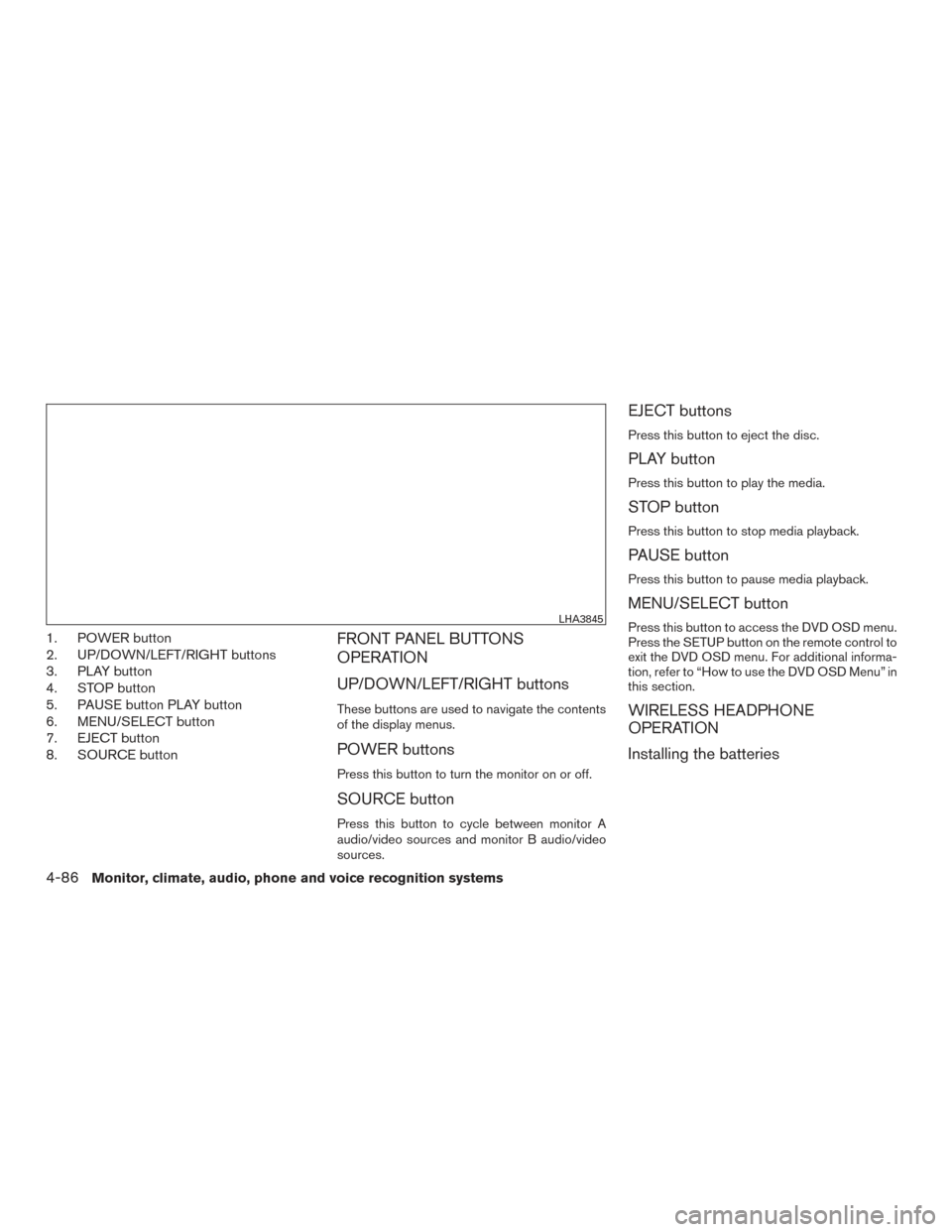
1. POWER button
2. UP/DOWN/LEFT/RIGHT buttons
3. PLAY button
4. STOP button
5. PAUSE button PLAY button
6. MENU/SELECT button
7. EJECT button
8. SOURCE buttonFRONT PANEL BUTTONS
OPERATION
UP/DOWN/LEFT/RIGHT buttons
These buttons are used to navigate the contents
of the display menus.
POWER buttons
Press this button to turn the monitor on or off.
SOURCE button
Press this button to cycle between monitor A
audio/video sources and monitor B audio/video
sources.
EJECT buttons
Press this button to eject the disc.
PLAY button
Press this button to play the media.
STOP button
Press this button to stop media playback.
PAUSE button
Press this button to pause media playback.
MENU/SELECT button
Press this button to access the DVD OSD menu.
Press the SETUP button on the remote control to
exit the DVD OSD menu. For additional informa-
tion, refer to “How to use the DVD OSD Menu” in
this section.
WIRELESS HEADPHONE
OPERATION
Installing the batteries
LHA3845
4-86Monitor, climate, audio, phone and voice recognition systems
Page 290 of 510
●Keep the batteries out of the reach of
children. Should the batteries be swal-
lowed, immediately consult a doctor.
Also, when disposing of used batteries,
please comply with governmental regu-
lations or environmental public institu-
tion rules that apply in your
country/area.
● Remove the batteries if the remote con-
trol is not used for a month or longer.
REMOTE CONTROL BUTTONS
1. SOURCE button
2. SETUP button
3. EJECT button 4. DVD-B button
5. PIX button
6. REPEAT button
7. RIGHT button
8. AUDIO button
9. ANGLE button
10. DISPLAY button
11. RANDOM button
12. 3D button
13. PBC (Video CD only) button
14. ZOOM button
15. NEXT button
16. PREV button
17. FF (Fast forward) button
18. FR (Fast rewind) button
19. STOP button
20. PLAY/PAUSE button
21. Number Keys
22. SUBTITLE button
23. TITLE button
LHA3805
Monitor, climate, audio, phone and voice recognition systems4-89
Page 291 of 510
24. DOWN button
25. RETURN button
26. ENTER button
27. LEFT button
28. UP button
29. MENU button
30. MUTE button
31. DVD-A button
32. POWER button
NOTE:
The following remote control functions do
not apply to this model: A-B and Program.
Source button
Press this button to cycle between monitor A
audio/video sources and monitor B audio/video
sources.
Setup button
Press this button to navigate the DVD OSD
menu. For additional information, refer to “How to
use the DVD OSD menu” in this section.
Eject button
Press this button to eject the disc.
DVD–B button
Press this button to transmit the remote control
codes and functions to operate monitor B.
PIX button
Press this button to access the picture adjust-
ment menu and select between BRIGHTNESS,
CONTRAST, SATURATION, HUE, SHARP-
NESS, IR HEADPHONE, LANGUAGE, and RE-
SET. Press the
orbuttons to
adjust the screen.
REPEAT button
Press this button to select between different
repeat modes.
RIGHT button
Press this button to navigate right when display-
ing a menu or file list.
AUDIO button
Press this button to select and listen to different
audio streams (this function only applies to DVD
titles that support multiple audio streams) .
ANGLE button
Press this button to select different viewing
angles (this function only applies to DVD titles
that support multiple angles) .
DISPLAY button
Press this button to display various information
including title, chapter/track, elapsed time, time
remaining, or turn off the display.
RANDOM button
Press this button to play content in a random
order.
3D button
Press this button to select between several audio
effects. DVD mode: Concert, Living Room, Hall,
Bathroom, Cave, Arena, Church, and Off.
PBC (Video CD only) button
Press this button to run the playback control on or
off.
ZOOM button
Press this button to zoom in or out when display-
ing images or playing DVDs. The zoom range for
images is from 50% to 200%. The zoom range
for DVDs is from 1/4 size to 4x the original size.
NEXT button
Press this button to select the next chapter, track,
or file.
4-90Monitor, climate, audio, phone and voice recognition systems
Page 292 of 510
PREV button
Press this button to select the previous chapter,
track, or file.
FF (Fast foward) button
Press this button to search media forwards.
FR (Fast rewind) button
Press this button to search media backwards.
STOP button
Press this button once to stop playback (press
play to resume playback) . Press this button twice
to perform a full stop (press play to start playback
from the beginning) .
PLAY/PAUSE button
Press this button to begin media playback. Press
this button again to pause media playback.
Number Keys
0—9
SUBTITLE button
Press this button to select and display subtitles
(this function only applies to DVD titles that sup-
port subtitles) .
TITLE button
Press this button to navigate the title menu if
included on the disc.
DOWN button
Press this button to navigate down when display-
ing a menu or file list.
RETURN button
Press this button to return to a previous menu
screen.
ENTER button
Press this button to make a selection or begin
playback of the media.
LEFT button
Press this button to navigate left when displaying
a menu or file list.
UP button
Press this button to navigate up when displaying
a menu or file list.
MENU button
Press this button to go to the root menu if in-
cluded on the disc.
MUTE button
Press this button to mute the audio when playing
discs or playing files from a USB device. Press
this button again to resume audio.
DVD–A button
Press this button to transmit the remote control
codes and functions to operate monitor A.
POWER button
Press this button to turn the monitor on. Press
this button again to turn the monitor off.
GENERAL OPERATING
INSTRUCTIONS
Turning the monitor ON or OFF
1. Press the POWER button on the front panelor the remote control to turn the monitor on
or off. When powered on, the front panel
controls will illuminate.
2. After the monitor has been turned on and is displaying a picture, adjust the viewing angle
by pivoting the screen to optimize the picture
quality.
3. Remember to turn the monitor off and return the LCD monitor to the fully closed (upright)
position when not in use.
Monitor, climate, audio, phone and voice recognition systems4-91
Page 293 of 510
Listening through vehicle speakers
Press the AUX button on the factory radio and
toggle through AUX screens to select VTRF —
Jack to listen to the audio from monitor A.
Sharing sources between Monitor A
and Monitor B
The source button on your monitor unit or remote
control allows viewing monitor A video on moni-
tor B and vice versa. Press the source button to
cycle through available video sources.
Disc/DVD Basic Operation
To get the most use out of each disc, make sure
you read this section completely.
For additional information, refer to “CD care and
cleaning” in this section.
Regional coding
Both the DVD player and discs are coded by
region. These regional codes must match in order
for the disc to play. The system is preset to the
region code designated for your area by the DVD
Copy Control Association. Other regions may not
be played in this system.Supported Disc Types
● DVD-Video: DVD contains video
● DVD +/- R: DVD contains video
● CD-DA: CD contains audio
● CD-Video: CD contains video
● CD-R/+RW: CD contains audio
Unsupported Disc Types
Before you load a disc, make sure that it is
compatible with the player. Note that the follow-
ing disc CANNOT be used with this system:
Optical disc- CD-1, CD-ROM, and DVD-ROM
Mini disc- CDG (audio only, not graphics) , and
Blu-ray (list is not all inclusive) .
Loading and Playing Discs
Press the POWER button to turn the monitor on.
Insert the disc about halfway into the disc com-
partment slot, with the disc’s label facing the rear
of the vehicle. Do NOT insert the disc at an angle.
The Disc must be inserted straight into the player.
The disc will load automatically and begin to play.
Some discs may start at the root menu, where
playback must be selected to start a movie. De-
pending on the disc and playback location on the
disc, a “
” icon may be displayed in the
upper-left hand corner of the screen indicating
that playback is not possible during certain times.
Additional information on Media
Compatibility
This system is compatible with the following me-
dia formats:
Format Extension
Audio MP3 .mp3
WMA .wma
Video AVI
.avi
MPEG-1 .mpg
MPEG-2 .mpg
Image JPEG .jpg
Due to ongoing technological advancements,
some USB flash drives may be incompatible with
this system.
● The text information of some audio and video
files may not be correctly displayed.
● There may be a slight delay before playback
of files using a USB flash drive with complex
folder hierarchies.
● Some audio, video, and image files may be
incompatible with this system due to file
characteristics, file format, recording soft-
ware used, directory structure, and/or the
type of audio/video encoding used.
4-92Monitor, climate, audio, phone and voice recognition systems