2015 NISSAN ARMADA display
[x] Cancel search: displayPage 239 of 510
USB (Universal Serial Bus)
Connection Port (if so equipped)
WARNING
Do not connect, disconnect, or operate the
USB device while driving. Doing so can be
a distraction. If distracted you could lose
control of your vehicle and cause an acci-
dent or serious injury.
CAUTION
●Do not force the USB device into the
USB port. Inserting the USB device
tilted or up-side-down into the port may
damage the port. Make sure that the
USB device is connected correctly into
the USB port.
● Do not grab the USB port cover (if so
equipped) when pulling the USB device
out of the port. This could damage the
port and the cover.
● Do not leave the USB cable in a place
where it can be pulled unintentionally.
Pulling the cable may damage the port.
The vehicle is not equipped with a USB device.
USB devices should be purchased separately as
necessary. This system cannot be used to format USB de-
vices. To format a USB device, use a personal
computer.
In some jurisdictions, the USB device for the front
seats plays only sound without images for regu-
latory reasons, even when the vehicle is parked.
This system supports various USB connection
port devices, USB hard drives and iPod® play-
ers. Some USB devices may not be supported by
this system.
● Partitioned USB devices may not play cor-
rectly.
● Some characters used in other languages
(Chinese, Japanese, etc.) may not appear
properly in the display. Using English lan-
guage characters with a USB device is rec-
ommended.
General notes for USB use ● Refer to your device manufacturer’s owner
information regarding the proper use and
care of the device. Notes for iPod® use
iPod® is a trademark of Apple Inc., registered in
the U.S. and other countries.
● Improperly plugging in the iPod® may cause
a checkmark to be displayed on and off
(flickering) . Always make sure that the
iPod® is connected properly.
● An iPod® nano (1st Generation) may remain
in fast forward or rewind mode if it is con-
nected during a seek operation. In this case,
please manually reset the iPod®.
● An iPod® nano (2nd Generation) will con-
tinue to fast-forward or rewind if it is discon-
nected during a seek operation.
● An incorrect song title may appear when the
Play Mode is changed while using an iPod®
nano (2nd Generation) .
● Audiobooks may not play in the same order
as they appear on an iPod®.
● Large video files cause slow responses in an
iPod®. The vehicle center display may mo-
mentarily black out, but will soon recover.
● If an iPod® automatically selects large video
files while in the shuffle mode, the vehicle
center display may momentarily black out,
but will soon recover.
4-38Monitor, climate, audio, phone and voice recognition systems
Page 241 of 510
●Sampling frequency — Sampling frequency
is the rate at which the samples of a signal
are converted from analog to digital (A/D
conversion) per second.
● Multisession — Multisession is one of the
methods for writing data to media. Writing
data once to the media is called a single
session, and writing more than once is called
a multisession.
● ID3/WMA Tag — The ID3/WMA tag is the
part of the encoded MP3 or WMA file that
contains information about the digital music
file such as song title, artist, encoding bit
rate, track time duration, etc. ID3 tag infor-
mation is displayed on the Artist/song title
line on the display.
* Windows®, Windows Media® and Windows
Vista® are registered trademarks and trade-
marks in the United States of America and other
countries of Microsoft Corporation of the USA. Playback order
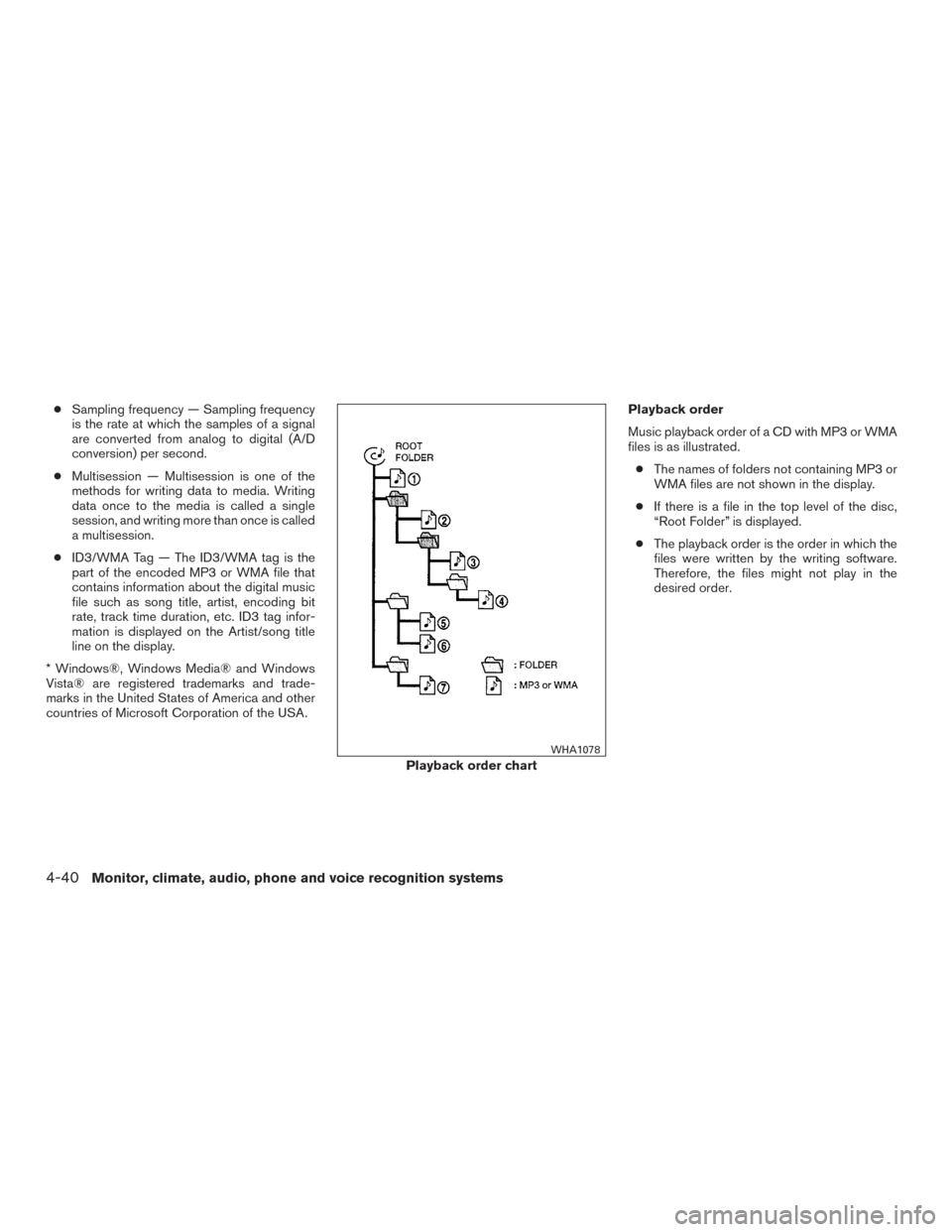
Music playback order of a CD with MP3 or WMA
files is as illustrated.
● The names of folders not containing MP3 or
WMA files are not shown in the display.
● If there is a file in the top level of the disc,
“Root Folder” is displayed.
● The playback order is the order in which the
files were written by the writing software.
Therefore, the files might not play in the
desired order.
Playback order chart
WHA1078
4-40Monitor, climate, audio, phone and voice recognition systems
Page 242 of 510
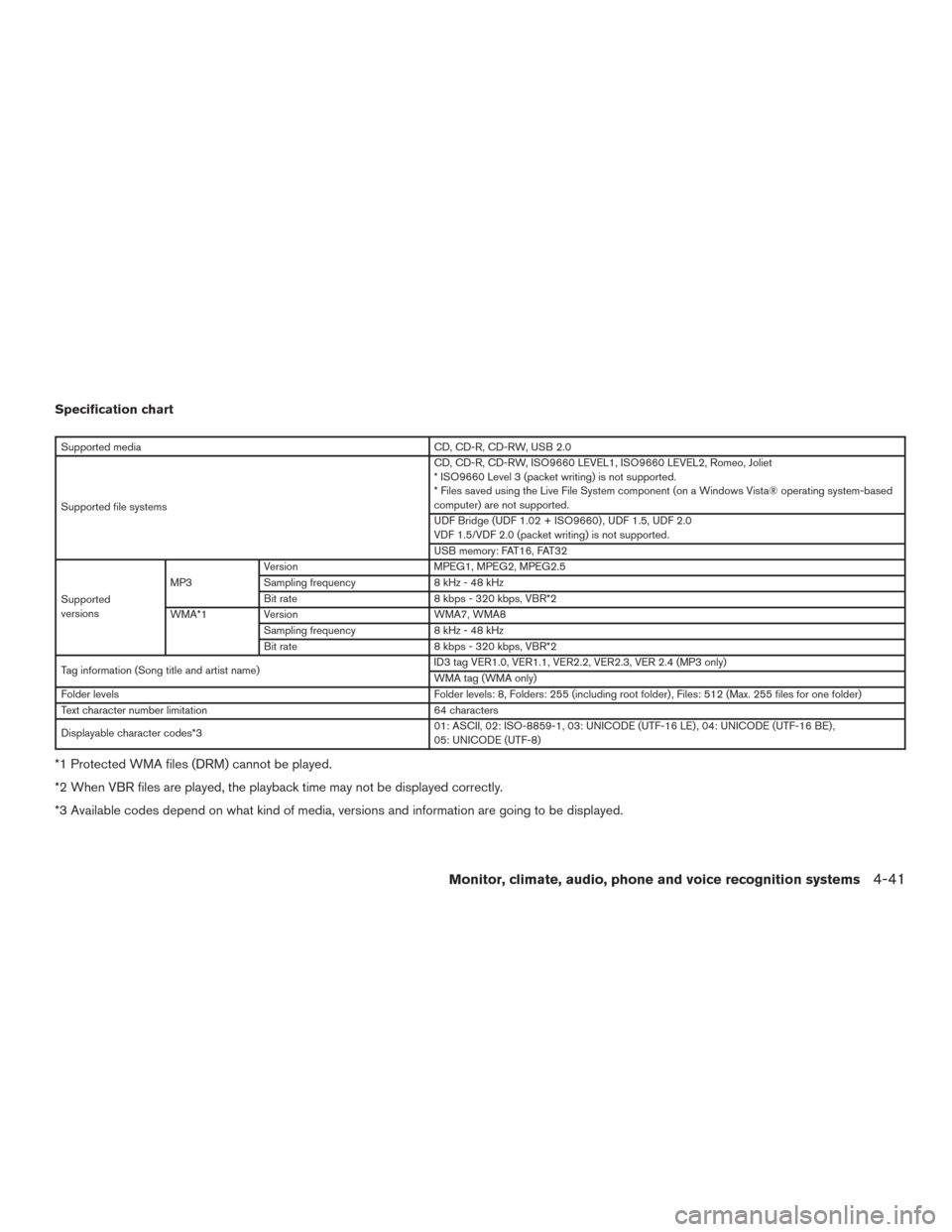
Specification chart
Supported mediaCD, CD-R, CD-RW, USB 2.0
Supported file systems CD, CD-R, CD-RW, ISO9660 LEVEL1, ISO9660 LEVEL2, Romeo, Joliet
* ISO9660 Level 3 (packet writing) is not supported.
* Files saved using the Live File System component (on a Windows Vista® operating system-based
computer) are not supported.
UDF Bridge (UDF 1.02 + ISO9660) , UDF 1.5, UDF 2.0
VDF 1.5/VDF 2.0 (packet writing) is not supported.
USB memory: FAT16, FAT32
Supported
versions MP3
Version
MPEG1, MPEG2, MPEG2.5
Sampling frequency 8 kHz - 48 kHz
Bit rate 8 kbps - 320 kbps, VBR*2
WMA*1 Version WMA7, WMA8
Sampling frequency 8 kHz - 48 kHz
Bit rate 8 kbps - 320 kbps, VBR*2
Tag information (Song title and artist name) ID3 tag VER1.0, VER1.1, VER2.2, VER2.3, VER 2.4 (MP3 only)
WMA tag (WMA only)
Folder levels Folder levels: 8, Folders: 255 (including root folder) , Files: 512 (Max. 255 files for one folder)
Text character number limitation 64 characters
Displayable character codes*3 01: ASCII, 02: ISO-8859-1, 03: UNICODE (UTF-16 LE) , 04: UNICODE (UTF-16 BE) ,
05: UNICODE (UTF-8)
*1 Protected WMA files (DRM) cannot be played.
*2 When VBR files are played, the playback time may not be displayed correctly.
*3 Available codes depend on what kind of media, versions and information are going to be displayed.
Monitor, climate, audio, phone and voice recognition systems4-41
Page 244 of 510
CD, DVD or USB with Compressed
Audio Files (models with Navigation
System)
The file types supported by this system are MP3,
WMA, AAC/M4A and ATRAC3.
Explanation of terms● MP3 — MP3 is short for Moving Pictures
Experts Group Audio Layer 3. MP3 is the
most well known compressed digital audio
file format. This format allows for near “CD
quality” sound, but at a fraction of the size of
normal audio files. MP3 conversion of an
audio track can reduce the file size by ap-
proximately 10:1 ratio (Sampling: 44.1 kHz,
Bit rate: 128 kbps) with virtually no percep-
tible loss in quality. The compression re-
duces certain parts of sound that seem in-
audible to most people.
● WMA — Windows Media Audio (WMA) is a
compressed audio format created by Micro-
soft as an alternative to MP3. The WMA
codec offers greater file compression than
the MP3 codec, enabling storage of more
digital audio tracks in the same amount of
space when compared to MP3s at the same
level of quality. ●
AAC/M4A — Advanced Audio Coding
(AAC) is a lossy audio compression format.
Audio files that have been encoded with
AAC are generally smaller in size and deliver
a higher quality of sound than MP3.
● ATRAC3, ATRAC3 Plus — Adaptive Trans-
form Acoustic Coding (ATRAC) is a lossy
audio compression format developed by
Sony.
● Bit rate — Bit rate denotes the number of
bits per second used by a digital music file.
The size and quality of a compressed digital
audio file is determined by the bit rate used
when encoding the file.
● Sampling frequency — Sampling frequency
is the rate at which the samples of a signal
are converted from analog to digital (A/D
conversion) per second.
● Multisession — Multisession is one of the
methods for writing data to media. Writing
data once to the media is called a single
session, and writing more than once is called
a multisession. ●
ID3/WMA Tag — The ID3/WMA tag is the
part of the encoded MP3 or WMA file that
contains information about the digital music
file such as song title, artist, album title,
encoding bit rate, track time duration, etc.
ID3 tag information is displayed on the
Album/Artist/Track title line on the display.
* Windows®, Windows Media® and Windows
Vista® are registered trademarks or trademarks
of Microsoft Corporation in the United States of
America and/or other countries.
Monitor, climate, audio, phone and voice recognition systems4-43
Page 245 of 510

Playback order
Music playback order of a CD, DVD or USB
device with compressed audio files is as illus-
trated.● The folder names of folders not containing
compressed audio files are not shown in the
display.
● If there is a file in the top level of the
disc/USB, “Root Folder” is displayed.
● The playback order is the order in which the
files were written by the writing software, so
the files might not play in the desired order.
Playback order chart
WHA1374
4-44Monitor, climate, audio, phone and voice recognition systems
Page 246 of 510
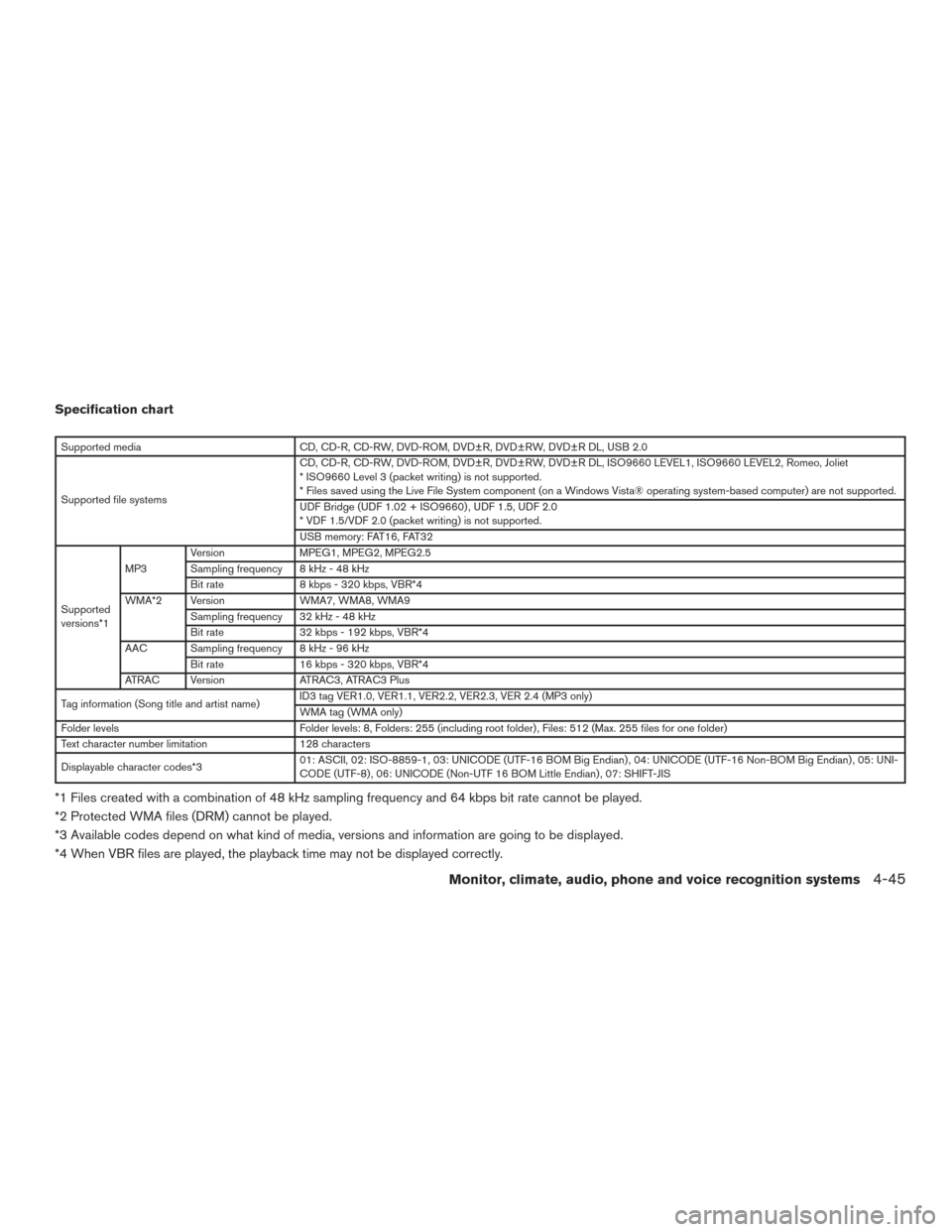
Specification chart
Supported mediaCD, CD-R, CD-RW, DVD-ROM, DVD±R, DVD±RW, DVD±R DL, USB 2.0
Supported file systems CD, CD-R, CD-RW, DVD-ROM, DVD±R, DVD±RW, DVD±R DL, ISO9660 LEVEL1, ISO9660 LEVEL2, Romeo, Joliet
* ISO9660 Level 3 (packet writing) is not supported.
* Files saved using the Live File System component (on a Windows Vista® operating system-based computer) are not supported.
UDF Bridge (UDF 1.02 + ISO9660) , UDF 1.5, UDF 2.0
* VDF 1.5/VDF 2.0 (packet writing) is not supported.
USB memory: FAT16, FAT32
Supported
versions*1 MP3
Version
MPEG1, MPEG2, MPEG2.5
Sampling frequency 8 kHz - 48 kHz
Bit rate 8 kbps - 320 kbps, VBR*4
WMA*2 Version WMA7, WMA8, WMA9
Sampling frequency 32 kHz - 48 kHz
Bit rate 32 kbps - 192 kbps, VBR*4
AAC Sampling frequency 8 kHz - 96 kHz Bit rate 16 kbps - 320 kbps, VBR*4
ATRAC Version ATRAC3, ATRAC3 Plus
Tag information (Song title and artist name) ID3 tag VER1.0, VER1.1, VER2.2, VER2.3, VER 2.4 (MP3 only)
WMA tag (WMA only)
Folder levels Folder levels: 8, Folders: 255 (including root folder) , Files: 512 (Max. 255 files for one folder)
Text character number limitation 128 characters
Displayable character codes*3 01: ASCII, 02: ISO-8859-1, 03: UNICODE (UTF-16 BOM Big Endian) , 04: UNICODE (UTF-16 Non-BOM Big Endian) , 05: UNI-
CODE (UTF-8) , 06: UNICODE (Non-UTF 16 BOM Little Endian) , 07: SHIFT-JIS
*1 Files created with a combination of 48 kHz sampling frequency and 64 kbps bit rate cannot be played.
*2 Protected WMA files (DRM) cannot be played.
*3 Available codes depend on what kind of media, versions and information are going to be displayed.
*4 When VBR files are played, the playback time may not be displayed correctly.
Monitor, climate, audio, phone and voice recognition systems4-45
Page 251 of 510
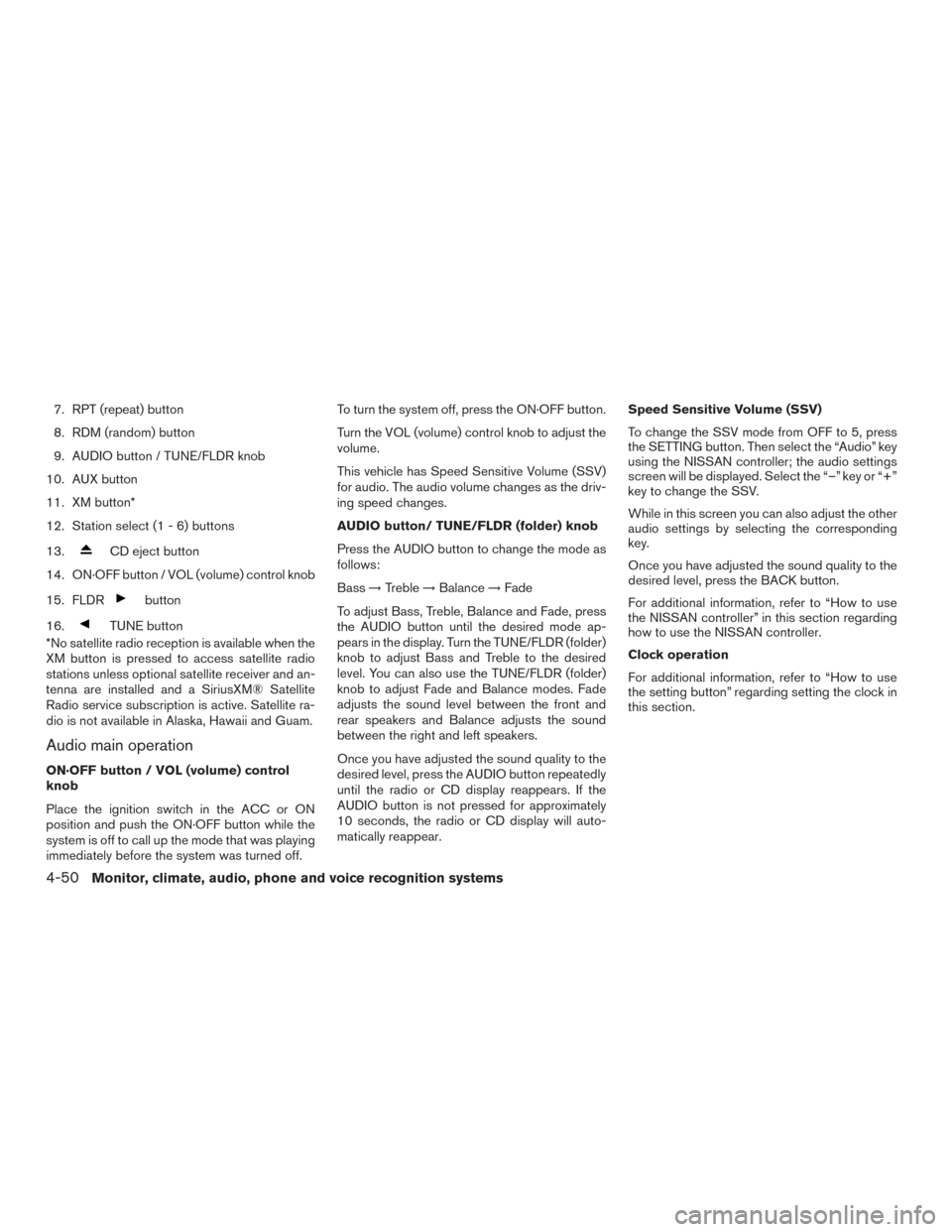
7. RPT (repeat) button
8. RDM (random) button
9. AUDIO button / TUNE/FLDR knob
10. AUX button
11. XM button*
12. Station select (1 - 6) buttons
13.
CD eject button
14. ON·OFF button / VOL (volume) control knob
15. FLDR
button
16.
TUNE button
*No satellite radio reception is available when the
XM button is pressed to access satellite radio
stations unless optional satellite receiver and an-
tenna are installed and a SiriusXM® Satellite
Radio service subscription is active. Satellite ra-
dio is not available in Alaska, Hawaii and Guam.
Audio main operation
ON·OFF button / VOL (volume) control
knob
Place the ignition switch in the ACC or ON
position and push the ON·OFF button while the
system is off to call up the mode that was playing
immediately before the system was turned off. To turn the system off, press the ON·OFF button.
Turn the VOL (volume) control knob to adjust the
volume.
This vehicle has Speed Sensitive Volume (SSV)
for audio. The audio volume changes as the driv-
ing speed changes.
AUDIO button/ TUNE/FLDR (folder) knob
Press the AUDIO button to change the mode as
follows:
Bass
→Treble →Balance →Fade
To adjust Bass, Treble, Balance and Fade, press
the AUDIO button until the desired mode ap-
pears in the display. Turn the TUNE/FLDR (folder)
knob to adjust Bass and Treble to the desired
level. You can also use the TUNE/FLDR (folder)
knob to adjust Fade and Balance modes. Fade
adjusts the sound level between the front and
rear speakers and Balance adjusts the sound
between the right and left speakers.
Once you have adjusted the sound quality to the
desired level, press the AUDIO button repeatedly
until the radio or CD display reappears. If the
AUDIO button is not pressed for approximately
10 seconds, the radio or CD display will auto-
matically reappear. Speed Sensitive Volume (SSV)
To change the SSV mode from OFF to 5, press
the SETTING button. Then select the “Audio” key
using the NISSAN controller; the audio settings
screen will be displayed. Select the “–” key or “+”
key to change the SSV.
While in this screen you can also adjust the other
audio settings by selecting the corresponding
key.
Once you have adjusted the sound quality to the
desired level, press the BACK button.
For additional information, refer to “How to use
the NISSAN controller” in this section regarding
how to use the NISSAN controller.
Clock operation
For additional information, refer to “How to use
the setting button” regarding setting the clock in
this section.
4-50Monitor, climate, audio, phone and voice recognition systems
Page 252 of 510
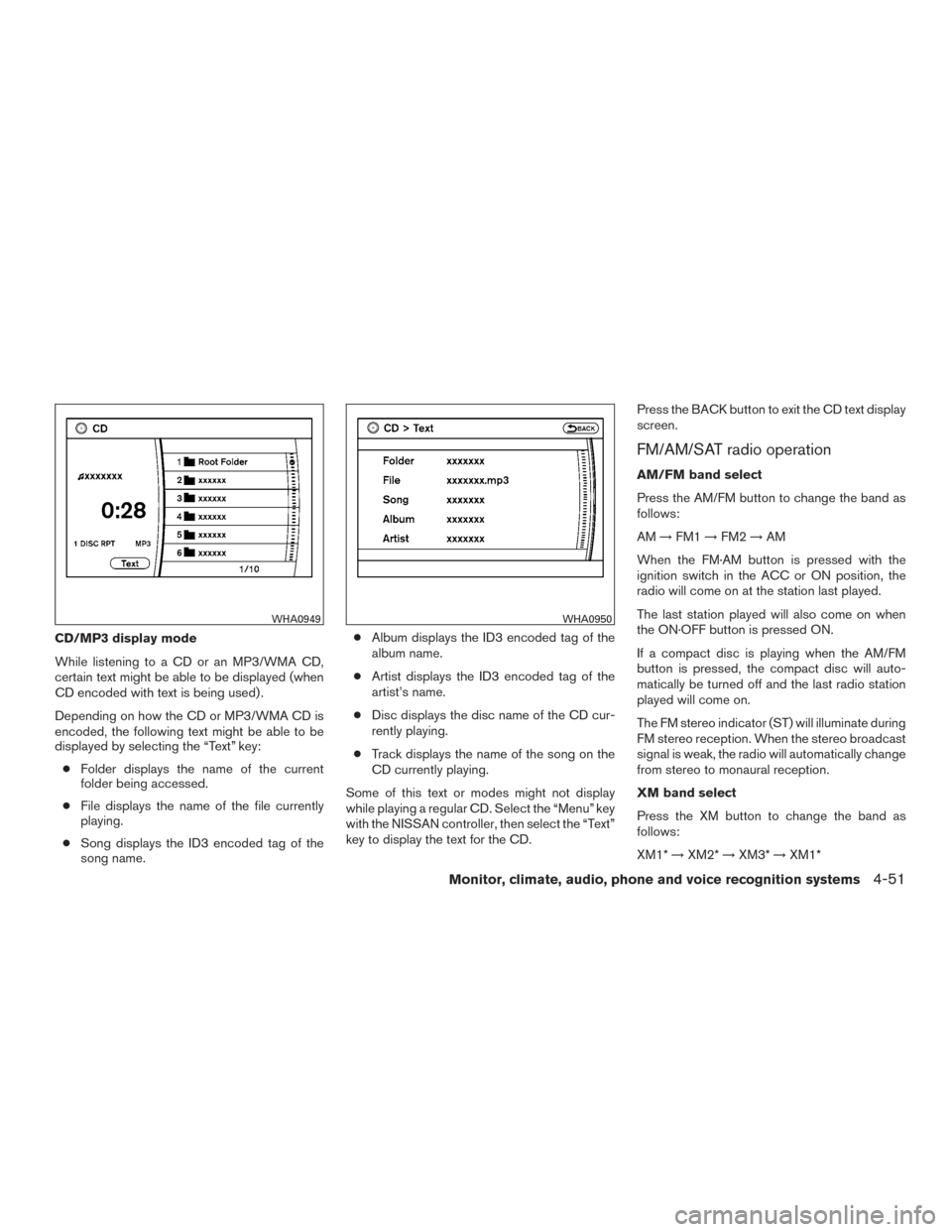
CD/MP3 display mode
While listening to a CD or an MP3/WMA CD,
certain text might be able to be displayed (when
CD encoded with text is being used) .
Depending on how the CD or MP3/WMA CD is
encoded, the following text might be able to be
displayed by selecting the “Text” key:● Folder displays the name of the current
folder being accessed.
● File displays the name of the file currently
playing.
● Song displays the ID3 encoded tag of the
song name. ●
Album displays the ID3 encoded tag of the
album name.
● Artist displays the ID3 encoded tag of the
artist’s name.
● Disc displays the disc name of the CD cur-
rently playing.
● Track displays the name of the song on the
CD currently playing.
Some of this text or modes might not display
while playing a regular CD. Select the “Menu” key
with the NISSAN controller, then select the “Text”
key to display the text for the CD. Press the BACK button to exit the CD text display
screen.
FM/AM/SAT radio operation
AM/FM band select
Press the AM/FM button to change the band as
follows:
AM
→FM1 →FM2 →AM
When the FM·AM button is pressed with the
ignition switch in the ACC or ON position, the
radio will come on at the station last played.
The last station played will also come on when
the ON·OFF button is pressed ON.
If a compact disc is playing when the AM/FM
button is pressed, the compact disc will auto-
matically be turned off and the last radio station
played will come on.
The FM stereo indicator (ST) will illuminate during
FM stereo reception. When the stereo broadcast
signal is weak, the radio will automatically change
from stereo to monaural reception.
XM band select
Press the XM button to change the band as
follows:
XM1* →XM2* →XM3* →XM1*
WHA0949WHA0950
Monitor, climate, audio, phone and voice recognition systems4-51