Page 355 of 653
4-144
Multimedia System
Bluetooth®Wireless Technology
AUDIO
What is Bluetooth®Wireless
Technology
?
Bluetooth®Wireless Technology allows
devices to be connected in a short dis-
tance, including hands-free devices,
stereo headsets, wireless remote con-
trollers, etc. For more information, visit
the Bluetooth®Wireless Technology
website at www.Bluetooth.com
Before using Bluetooth®Wireless
Technology audio features
Bluetooth®Wireless Technology
audio may not be supported depending on the compatibility of
your
Bluetooth®Wireless
Technology mobile phone.
In order to use
Bluetooth®Wireless
Technology audio, you must first
pair and connect the
Bluetooth®
Wireless Technology mobile phone.
The
Bluetooth®word mark and
logos are registered trademarks
owned by
Bluetooth®SIG, Inc. and
any use of such marks is under
license. Other trademarks and
trade names are those of their
respective owners. A
Bluetooth®
enabled cell phone is required touse
Bluetooth®Wireless
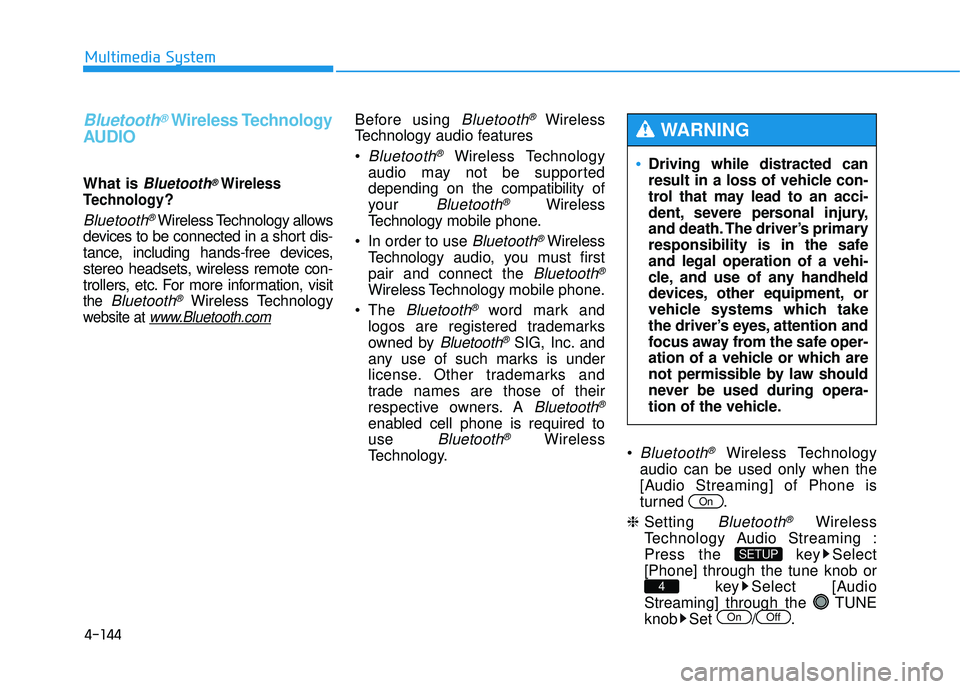
Technology. Bluetooth®Wireless Technology
audio can be used only when the
[Audio Streaming] of Phone is
turned .
❈ Setting
Bluetooth®Wireless
Technology Audio Streaming :
Press the key Select[Phone] through the tune knob or key Select [Audio
Streaming] through the TUNE
knob Set / .
OffOn
4
SETUP
On
Driving while distracted can
result in a loss of vehicle con-
trol that may lead to an acci-
dent, severe personal injury,
and death. The driver’s primary
responsibility is in the safeand legal operation of a vehi-
cle, and use of any handheld
devices, other equipment, or
vehicle systems which take
the driver’s eyes, attention and
focus away from the safe oper-
ation of a vehicle or which are
not permissible by law should
never be used during opera-
tion of the vehicle.
WARNING
Page 358 of 653
4-147
Multimedia System
4
Pairing a Bluetooth®Wireless
Technology Device
What is Bluetooth®Wireless
Technology Pairing?
Pairing refers to the process of syn-
chronizing your
Bluetooth®Wireless
Technology phone or device with the
car audio system for connection.
Pairing is necessary to connect anduse the
Bluetooth®Wireless
Technology feature.
Driving while distracted can
result in a loss of vehicle con-
trol that may lead to an acci-
dent, severe personal injury,
and death. The driver’s primary
responsibility is in the safeand legal operation of a vehi-
cle, and use of any handheld
devices, other equipment, or
vehicle systems which take
the driver’s eyes, attention and
focus away from the safe oper-
ation of a vehicle or which are
not permissible by law should
never be used during opera-
tion of the vehicle.
WARNING
Page 361 of 653
4-150
Multimedia System
(Continued)
Bluetooth related operations arepossible only within devices that
support Handsfree or audio fea-
tures, such as a Bluetooth®
Wireless Technology mobile phone
or a Bluetooth audio device.
If a connected Bluetooth®
Wireless
Technology device becomes discon-
nected due to being out of commu-
nication range, turning the device
OFF, or a Bluetooth®
Wireless
Technology communication error,
corresponding Bluetooth®
Wireless
Technology devices are automati-
cally searched and reconnected.
If the system becomes unstable due to communication errors between
the car Handsfree and the
Bluetooth ®
Wireless Technology
device, reset the device by turning
off and back on again. Upon reset-
ting Bluetooth ®
Wireless Technology
device, the system will be restored. (Continued)(Continued)
After pairing is complete, a con-
tacts download request is sent once
to the mobile phone. Some mobile
phones may require confirmation
upon receiving a download
request, ensure your mobile phone
accepts the connection. Refer to
your phones user’s manual for
additional information regarding
phone pairing and connections.
Page 368 of 653
4-157
Multimedia System
4
Bluetooth®Wireless
Technology Setting
The Bluetooth®word mark and logos
are registered trademarks owned by
Bluetooth SIG, Inc. and any use of
such marks is under license. Other
trademarks and trade names are
those of their respective owners. A
Bluetooth®enabled cell phone is
required to use
Bluetooth®wireless
technology.
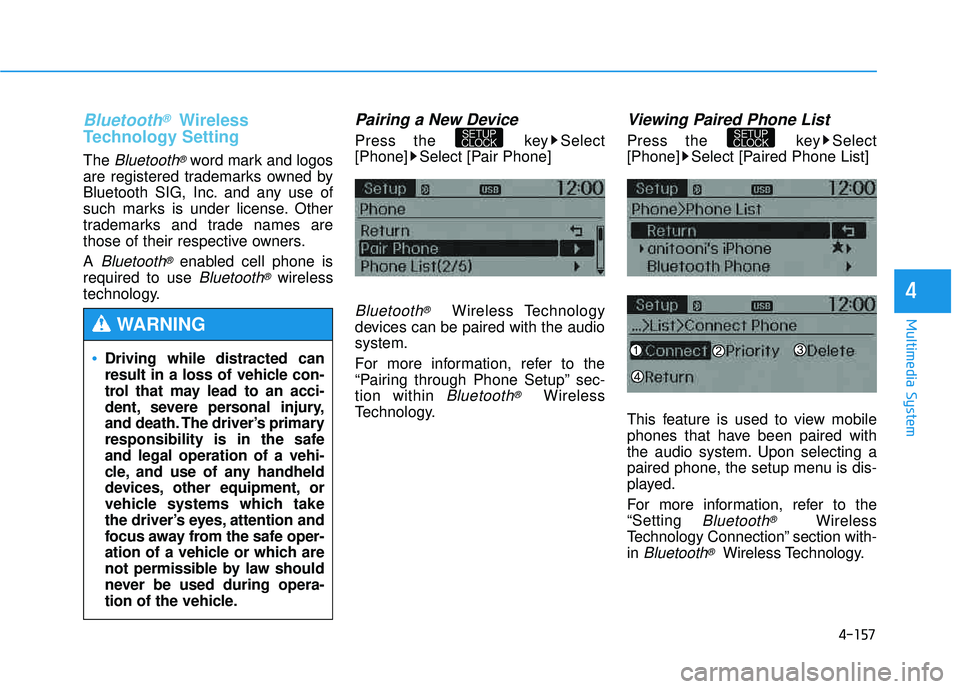
Pairing a New Device
Press the key Select
[Phone] Select [Pair Phone]
Bluetooth®Wireless Technology
devices can be paired with the audiosystem.
For more information, refer to the
“Pairing through Phone Setup” sec-tion within
Bluetooth®Wireless
Technology.
Viewing Paired Phone List
Press the key Select
[Phone] Select [Paired Phone List]
This feature is used to view mobile
phones that have been paired with
the audio system. Upon selecting a
paired phone, the setup menu is dis-
played.
For more information, refer to the “Setting
Bluetooth®Wireless
Technology Connection” section with-in
Bluetooth®Wireless Technology.
SETUP
CLOCKSETUP
CLOCK
Driving while distracted can
result in a loss of vehicle con-
trol that may lead to an acci-
dent, severe personal injury,
and death. The driver’s primary
responsibility is in the safeand legal operation of a vehi-
cle, and use of any handheld
devices, other equipment, or
vehicle systems which take
the driver’s eyes, attention and
focus away from the safe oper-
ation of a vehicle or which are
not permissible by law should
never be used during opera-
tion of the vehicle.
WARNING
Page 369 of 653
4-158
Multimedia System
1) Connect/Disconnect Phone :Connect/ disconnects currently selected phone
2) Change Priority : Sets currently selected phone to highest connec-
tion priority
3) Delete : Deletes the currently selected phone
4) Return : Moves to the previous screen
✽✽ NOTICE BEFORE DOWN-
LOADING CONTACTS
To learn more about whether your mobile phone supports contacts
downloads, refer to your mobile
phone user’s manual.
The contacts for only the connect- ed phone can be downloaded.
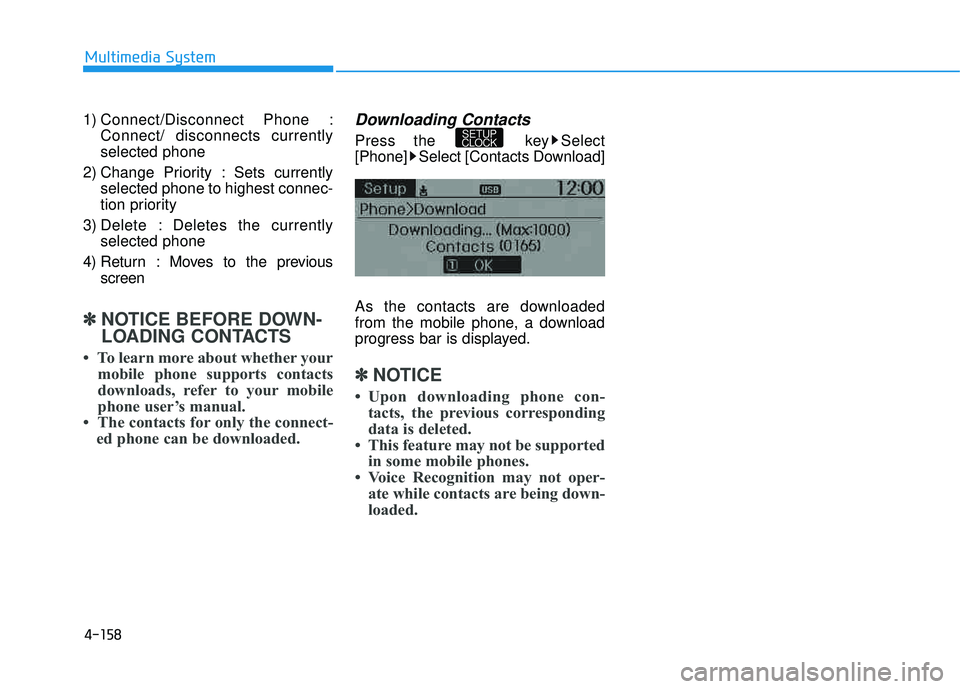
Downloading Contacts
Press the key Select
[Phone] Select [Contacts Download]
As the contacts are downloaded
from the mobile phone, a download
progress bar is displayed.
✽✽ NOTICE
Upon downloading phone con- tacts, the previous corresponding
data is deleted.
This feature may not be supported in some mobile phones.
Voice Recognition may not oper- ate while contacts are being down-
loaded.
SETUP
CLOCK
Page 374 of 653
4-163
Multimedia System
4
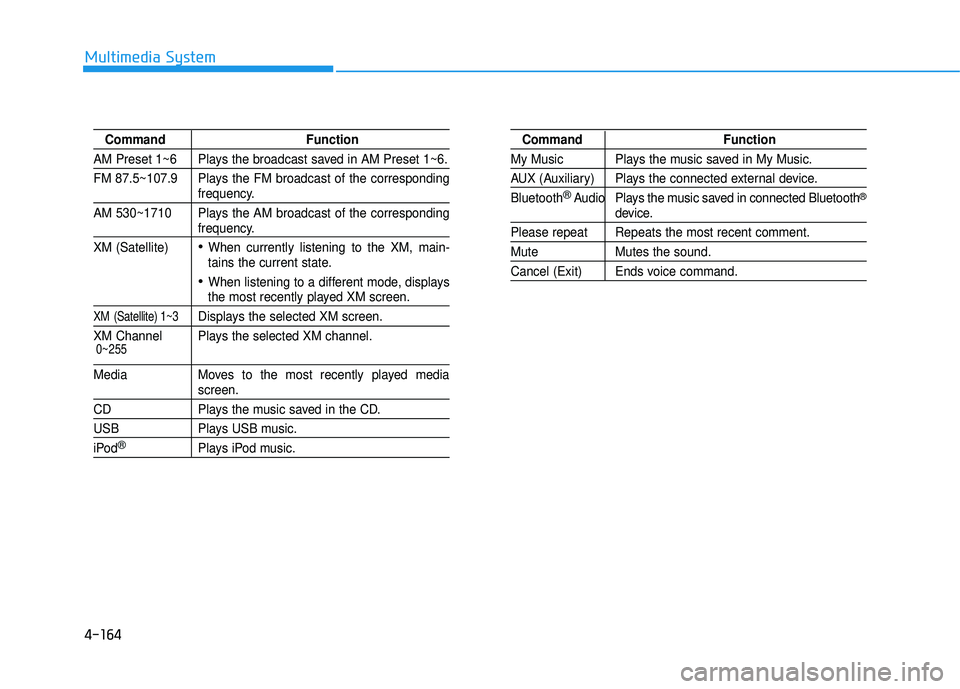
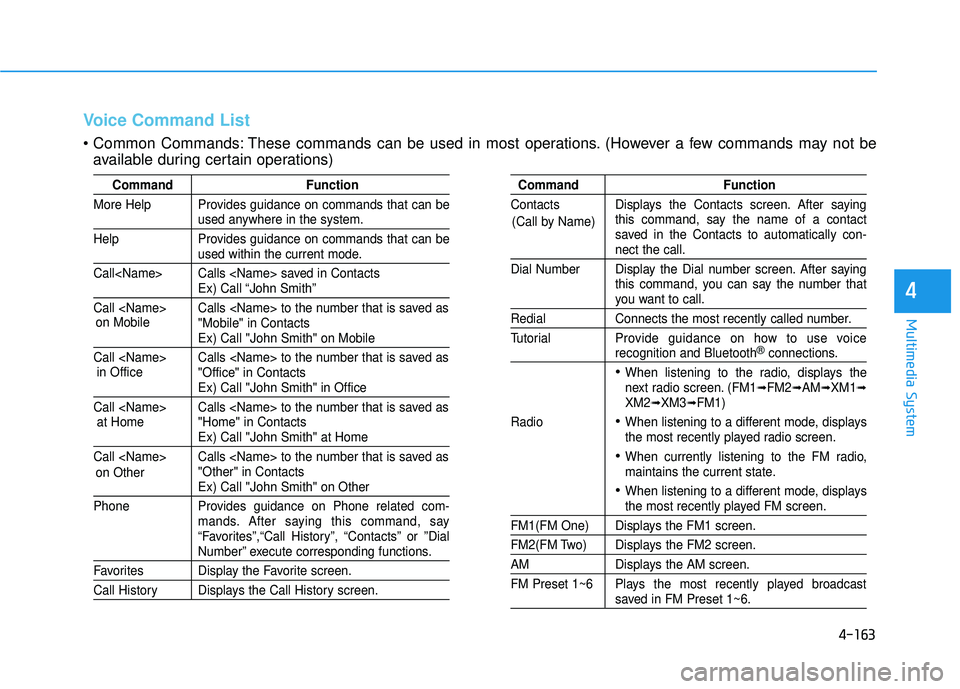
Voice Command List
These commands can be used in most operations. (However a few commands may not beavailable during certain operations)
Command Function
More Help Provides guidance on commands that can be
used anywhere in the system.
Help Provides guidance on commands that can be
used within the current mode.
Call Calls saved in Contacts
Ex) Call “John Smith”
Call Calls to the number that is saved as "Mobile" in Contacts
Ex) Call "John Smith" on Mobile
Call Calls to the number that is saved as "Office" in Contacts
Ex) Call "John Smith" in Office
Call Calls to the number that is saved as "Home" in Contacts
Ex) Call "John Smith" at Home
Call Calls to the number that is saved as "Other" in Contacts
Ex) Call "John Smith" on Other
Phone Provides guidance on Phone related com- mands. After saying this command, say
“Favorites”,“Call History”, “Contacts” or ”Dial
Number” execute corresponding functions.
Favorites Display the Favorite screen.
Call History Displays the Call History screen.
Command Function
Contacts Displays the Contacts screen. After saying this command, say the name of a contact
saved in the Contacts to automatically con-
nect the call.
Dial Number Display the Dial number screen. After saying this command, you can say the number that
you want to call.
Redial Connects the most recently called number.
Tutorial Pro vide guidance on how to use voice
recognition and Bluetooth®connections.
When listening to the radio, displays the
next radio screen. (FM1➟FM2➟AM➟XM1➟XM2➟XM3➟FM1)
Radio
When listening to a different mode, displays
the most recently played radio screen.
When currently listening to the FM radio,
maintains the current state.
When listening to a different mode, displaysthe most recently played FM screen.
FM1(FM One) Displays the FM1 screen.
FM2(FM Two) Displays the FM2 screen.
AM Displays the AM screen.
FM Preset 1~6 Plays the most recently played broadcast
saved in FM Preset 1~6.
(Call by Name)
on Mobile
in Officeat Home
on Other
Page 375 of 653
4-164
Multimedia System
Command Function
AM Preset 1~6 Plays the broadcast saved in AM Preset 1~6.
FM 87.5~107.9 Plays the FM broadcast of the corresponding
frequency.
AM 530~1710 Plays the AM broadcast of the corresponding
frequency.
XM (Satellite)
When currently listening to the XM, main-
tains the current state.
When listening to a different mode, displaysthe most recently played XM screen.
XM (Satellite) 1~3Displays the selected XM screen.
XM Channel Plays the selected XM channel.
Media Moves to the most recently played mediascreen.
CD Plays the music saved in the CD.
USB Plays USB music.
iPod®Plays iPod music.
Command Function
My Music Plays the music saved in My Music.
AUX (Auxiliary) Plays the connected external device. Bluetooth
®Audio Plays the music saved in connected Bluetooth®
device.
Please repeat Repeats the most recent comment.
Mute Mutes the sound.
Cancel (Exit) Ends voice command.
0~255
Page 383 of 653
4-172
Multimedia System
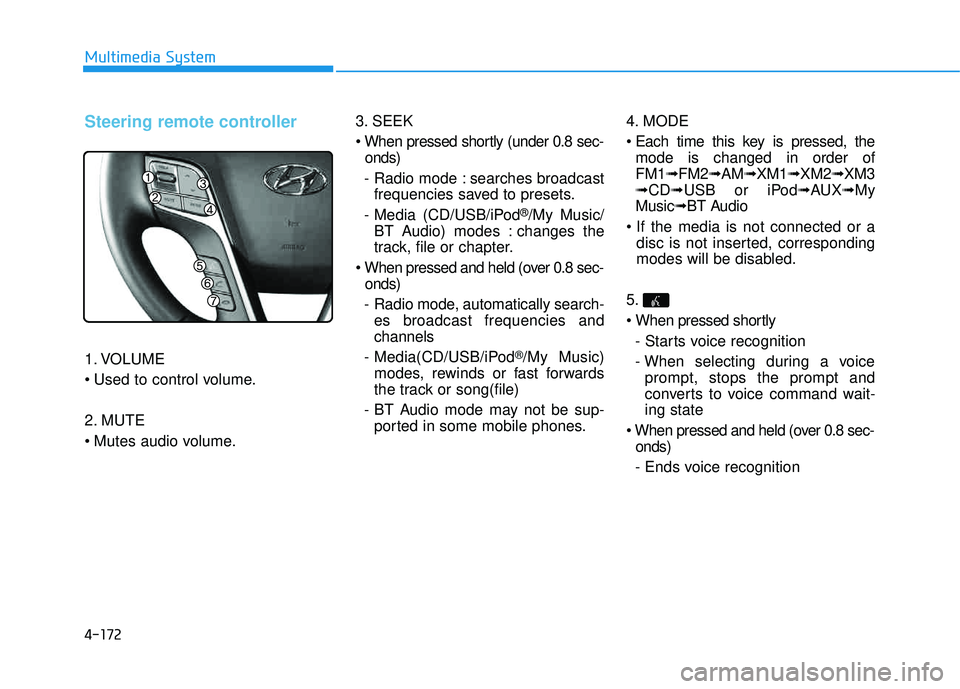
Steering remote controller
1. VOLUME
2. MUTE
3. SEEK
onds)
- Radio mode : searches broadcast frequencies saved to presets.
- Media (CD/USB/iPod
®/My Music/
BT Audio) modes : changes the
track, file or chapter.
onds)
- Radio mode, automatically search- es broadcast frequencies andchannels
- Media(CD/USB/iPod
®/My Music)
modes, rewinds or fast forwards
the track or song(file)
- BT Audio mode may not be sup- ported in some mobile phones. 4. MODE
mode is changed in order of FM1 ➟FM2 ➟AM ➟XM1 ➟XM2 ➟XM3
➟ CD ➟USB or iPod ➟AUX ➟My
Music ➟BT Audio
disc is not inserted, corresponding
modes will be disabled.
5.
- Starts voice recognition
- When selecting during a voice prompt, stops the prompt and
converts to voice command wait-ing state
onds)
- Ends voice recognition