2015 FORD FOCUS ELECTRIC audio
[x] Cancel search: audioPage 132 of 369

REAR PARKING AID (If Equipped)
WARNINGS
The parking aid system can only
assist you to detect objects when
your vehicle is moving at parking
speeds. Take care when using the system
to avoid personal injury. The parking aid system may not
prevent contact with small or moving
objects that are close to the ground.
The parking aid system gives an audible
warning when it detects a large object
helping to avoid damage to your vehicle.
To help avoid personal injury you must take
care when using the parking aid system. Traffic control systems, inclement
weather, air brakes and external
motors and fans may affect correct
operation of the sensing system; this may
include reduced performance or a false
alerts. Rear Sensing System
When the parking aid system produces an
audible warning, the audio system may
reduce the set volume to a predetermined
level.
Note:
Some add-on equipment can cause
reduced performance or a false alert. For
example, large trailer hitches, bike or
surfboard racks.
Note: Keep the sensors free from snow, ice
and large accumulations of dirt. If the
sensors are blocked system accuracy may
be affected. Do not clean the sensors with
sharp objects.
Note: If your vehicle sustains damage
leaving the sensors misaligned, this will
cause inaccurate measurements or false
alerts. Parking aid automatically turns on when
you shift into reverse (R). When your
vehicle approaches an object, a warning
tone sounds. When your vehicle moves
closer to an object, the warning tone
repeat rate will increase. The warning tone
sounds continuously when an object is 12 in
(30 cm)
or less from the rear bumper.
Sensor coverage area is up to 71
in (180 cm) from the rear
bumper.
A
Note: There is decreased coverage at the
outer corners.
The system will detect objects when you
shift into reverse (R) and:
• Your vehicle is moving backward at low
speed.
• Your vehicle is stationary but an object
is approaching the rear of your vehicle
at a low speed.
• Your vehicle is moving backward at low
speed and an object is approaching the
rear of your vehicle at a low speed.
Note: If your vehicle remains stationary for
two seconds the audible tone will mute. If
your vehicle moves backward, you will hear
the tone again.
129
Focus (CDH), enUSA, First Printing Parking AidsE130178
Page 167 of 369
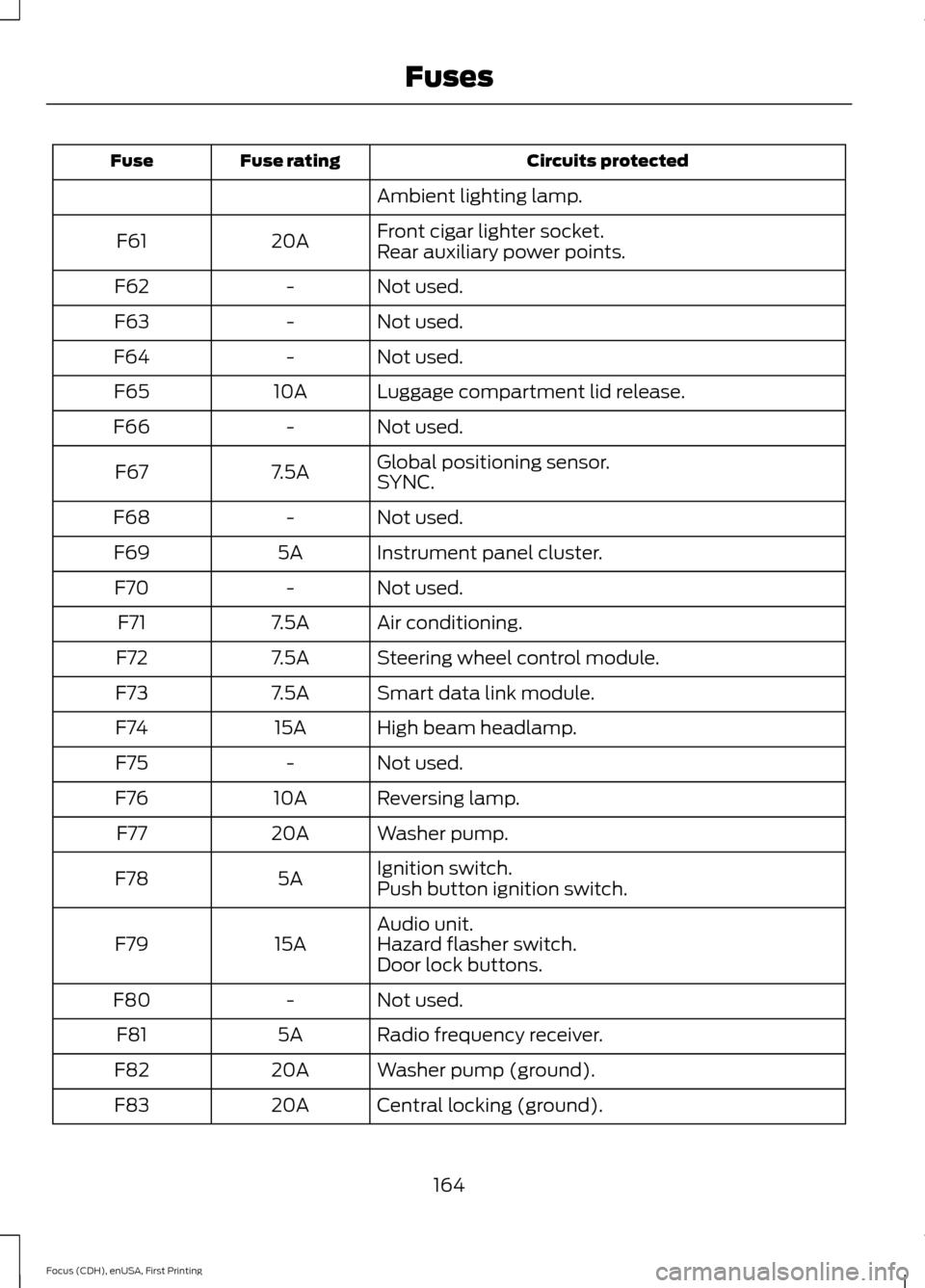
Circuits protected
Fuse rating
Fuse
Ambient lighting lamp.
Front cigar lighter socket.
20A
F61
Rear auxiliary power points.
Not used.
-
F62
Not used.
-
F63
Not used.
-
F64
Luggage compartment lid release.
10A
F65
Not used.
-
F66
Global positioning sensor.
7.5A
F67
SYNC.
Not used.
-
F68
Instrument panel cluster.
5A
F69
Not used.
-
F70
Air conditioning.
7.5A
F71
Steering wheel control module.
7.5A
F72
Smart data link module.
7.5A
F73
High beam headlamp.
15A
F74
Not used.
-
F75
Reversing lamp.
10A
F76
Washer pump.
20A
F77
Ignition switch.
5A
F78
Push button ignition switch.
Audio unit.
15A
F79 Hazard flasher switch.
Door lock buttons.
Not used.
-
F80
Radio frequency receiver.
5A
F81
Washer pump (ground).
20A
F82
Central locking (ground).
20A
F83
164
Focus (CDH), enUSA, First Printing Fuses
Page 177 of 369
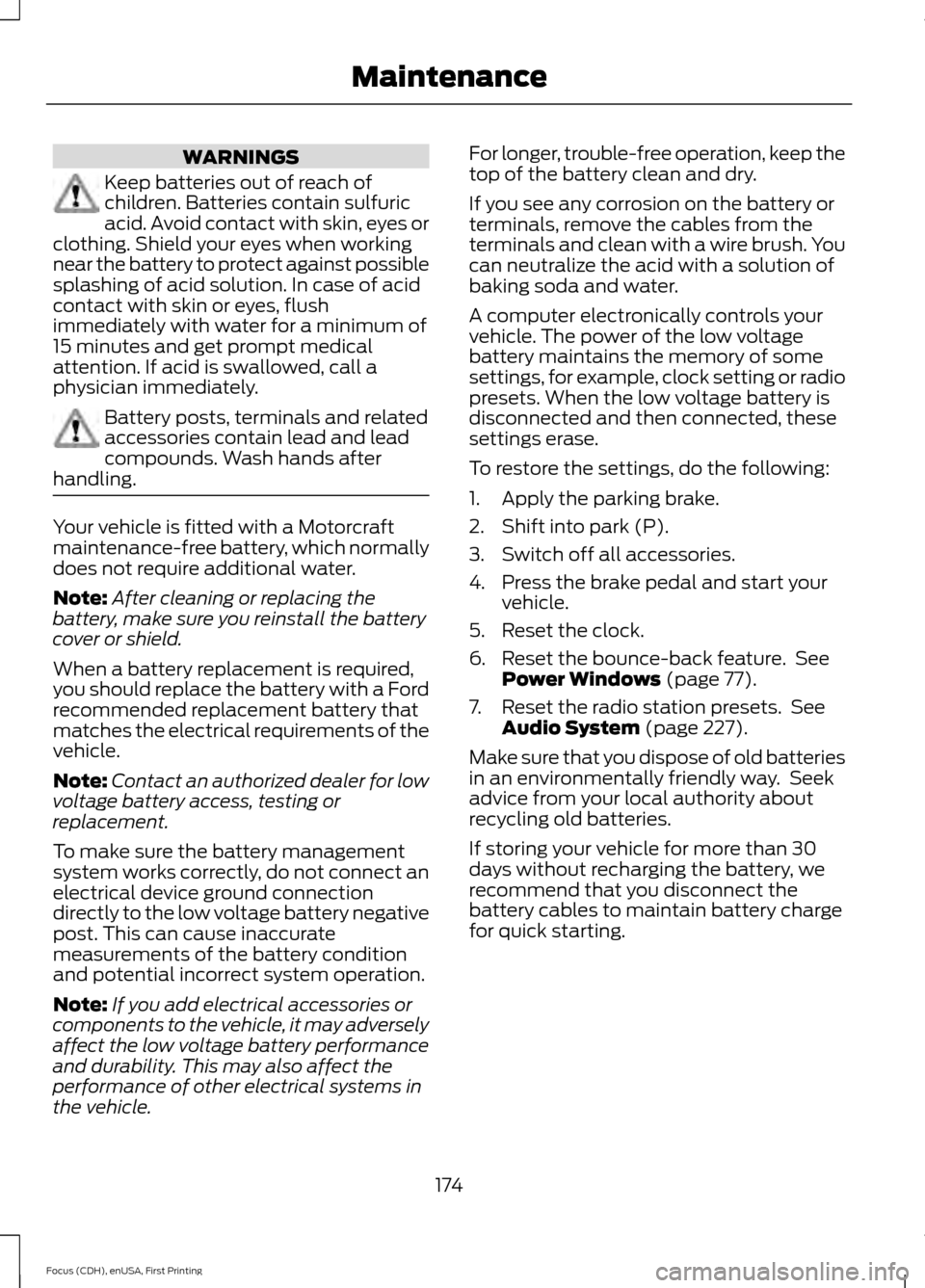
WARNINGS
Keep batteries out of reach of
children. Batteries contain sulfuric
acid. Avoid contact with skin, eyes or
clothing. Shield your eyes when working
near the battery to protect against possible
splashing of acid solution. In case of acid
contact with skin or eyes, flush
immediately with water for a minimum of
15 minutes and get prompt medical
attention. If acid is swallowed, call a
physician immediately. Battery posts, terminals and related
accessories contain lead and lead
compounds. Wash hands after
handling. Your vehicle is fitted with a Motorcraft
maintenance-free battery, which normally
does not require additional water.
Note:
After cleaning or replacing the
battery, make sure you reinstall the battery
cover or shield.
When a battery replacement is required,
you should replace the battery with a Ford
recommended replacement battery that
matches the electrical requirements of the
vehicle.
Note: Contact an authorized dealer for low
voltage battery access, testing or
replacement.
To make sure the battery management
system works correctly, do not connect an
electrical device ground connection
directly to the low voltage battery negative
post. This can cause inaccurate
measurements of the battery condition
and potential incorrect system operation.
Note: If you add electrical accessories or
components to the vehicle, it may adversely
affect the low voltage battery performance
and durability. This may also affect the
performance of other electrical systems in
the vehicle. For longer, trouble-free operation, keep the
top of the battery clean and dry.
If you see any corrosion on the battery or
terminals, remove the cables from the
terminals and clean with a wire brush. You
can neutralize the acid with a solution of
baking soda and water.
A computer electronically controls your
vehicle. The power of the low voltage
battery maintains the memory of some
settings, for example, clock setting or radio
presets. When the low voltage battery is
disconnected and then connected, these
settings erase.
To restore the settings, do the following:
1. Apply the parking brake.
2. Shift into park (P).
3. Switch off all accessories.
4. Press the brake pedal and start your
vehicle.
5. Reset the clock.
6. Reset the bounce-back feature. See Power Windows (page 77).
7. Reset the radio station presets. See Audio System
(page 227).
Make sure that you dispose of old batteries
in an environmentally friendly way. Seek
advice from your local authority about
recycling old batteries.
If storing your vehicle for more than 30
days without recharging the battery, we
recommend that you disconnect the
battery cables to maintain battery charge
for quick starting.
174
Focus (CDH), enUSA, First Printing Maintenance
Page 230 of 369
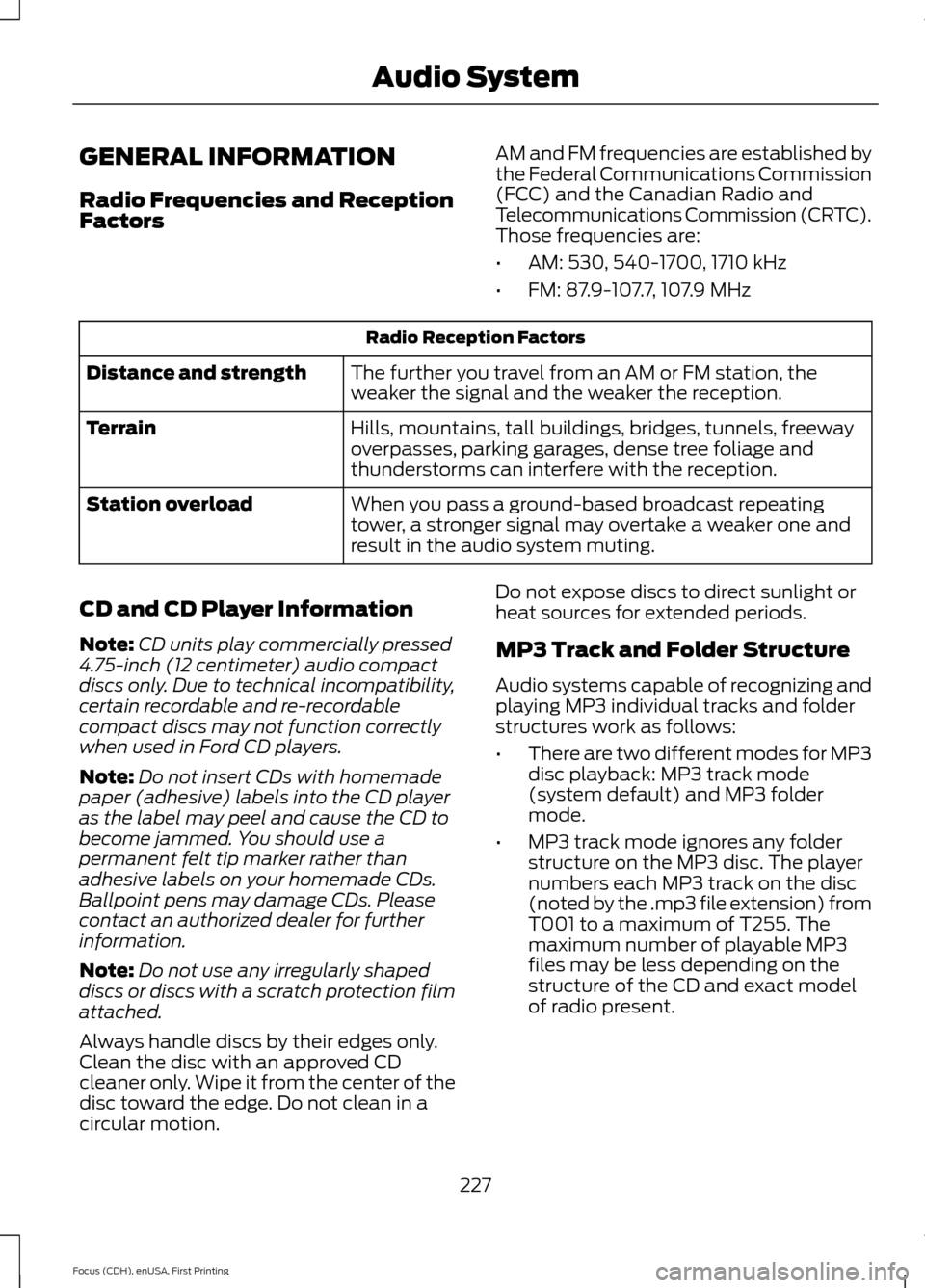
GENERAL INFORMATION
Radio Frequencies and Reception
Factors
AM and FM frequencies are established by
the Federal Communications Commission
(FCC) and the Canadian Radio and
Telecommunications Commission (CRTC).
Those frequencies are:
•
AM: 530, 540-1700, 1710 kHz
• FM: 87.9-107.7, 107.9 MHz Radio Reception Factors
The further you travel from an AM or FM station, the
weaker the signal and the weaker the reception.
Distance and strength
Hills, mountains, tall buildings, bridges, tunnels, freeway
overpasses, parking garages, dense tree foliage and
thunderstorms can interfere with the reception.
Terrain
When you pass a ground-based broadcast repeating
tower, a stronger signal may overtake a weaker one and
result in the audio system muting.
Station overload
CD and CD Player Information
Note: CD units play commercially pressed
4.75-inch (12 centimeter) audio compact
discs only. Due to technical incompatibility,
certain recordable and re-recordable
compact discs may not function correctly
when used in Ford CD players.
Note: Do not insert CDs with homemade
paper (adhesive) labels into the CD player
as the label may peel and cause the CD to
become jammed. You should use a
permanent felt tip marker rather than
adhesive labels on your homemade CDs.
Ballpoint pens may damage CDs. Please
contact an authorized dealer for further
information.
Note: Do not use any irregularly shaped
discs or discs with a scratch protection film
attached.
Always handle discs by their edges only.
Clean the disc with an approved CD
cleaner only. Wipe it from the center of the
disc toward the edge. Do not clean in a
circular motion. Do not expose discs to direct sunlight or
heat sources for extended periods.
MP3 Track and Folder Structure
Audio systems capable of recognizing and
playing MP3 individual tracks and folder
structures work as follows:
•
There are two different modes for MP3
disc playback: MP3 track mode
(system default) and MP3 folder
mode.
• MP3 track mode ignores any folder
structure on the MP3 disc. The player
numbers each MP3 track on the disc
(noted by the .mp3 file extension) from
T001 to a maximum of T255. The
maximum number of playable MP3
files may be less depending on the
structure of the CD and exact model
of radio present.
227
Focus (CDH), enUSA, First Printing Audio System
Page 231 of 369
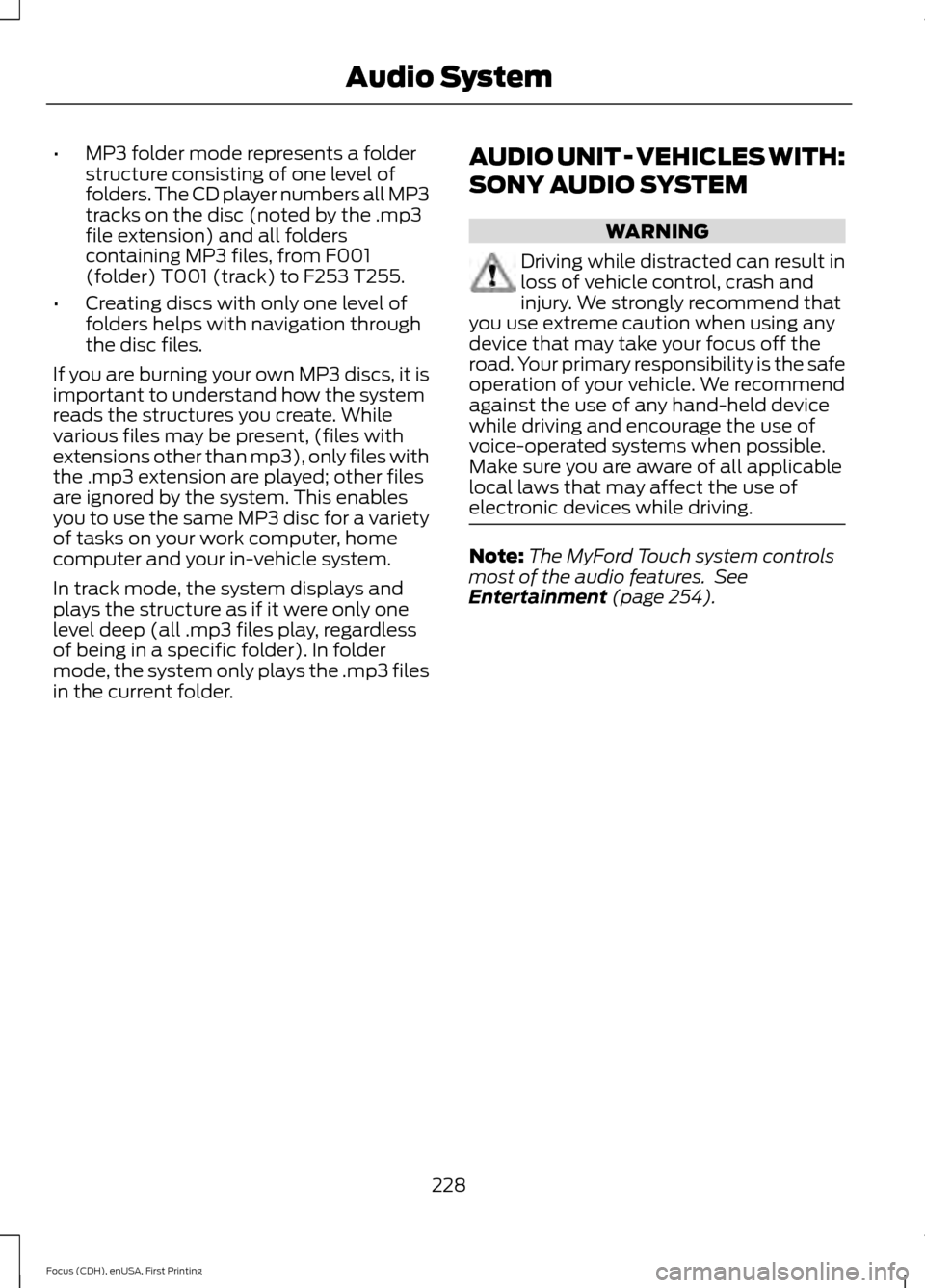
•
MP3 folder mode represents a folder
structure consisting of one level of
folders. The CD player numbers all MP3
tracks on the disc (noted by the .mp3
file extension) and all folders
containing MP3 files, from F001
(folder) T001 (track) to F253 T255.
• Creating discs with only one level of
folders helps with navigation through
the disc files.
If you are burning your own MP3 discs, it is
important to understand how the system
reads the structures you create. While
various files may be present, (files with
extensions other than mp3), only files with
the .mp3 extension are played; other files
are ignored by the system. This enables
you to use the same MP3 disc for a variety
of tasks on your work computer, home
computer and your in-vehicle system.
In track mode, the system displays and
plays the structure as if it were only one
level deep (all .mp3 files play, regardless
of being in a specific folder). In folder
mode, the system only plays the .mp3 files
in the current folder. AUDIO UNIT - VEHICLES WITH:
SONY AUDIO SYSTEM WARNING
Driving while distracted can result in
loss of vehicle control, crash and
injury. We strongly recommend that
you use extreme caution when using any
device that may take your focus off the
road. Your primary responsibility is the safe
operation of your vehicle. We recommend
against the use of any hand-held device
while driving and encourage the use of
voice-operated systems when possible.
Make sure you are aware of all applicable
local laws that may affect the use of
electronic devices while driving. Note:
The MyFord Touch system controls
most of the audio features. See
Entertainment (page 254).
228
Focus (CDH), enUSA, First Printing Audio System
Page 232 of 369
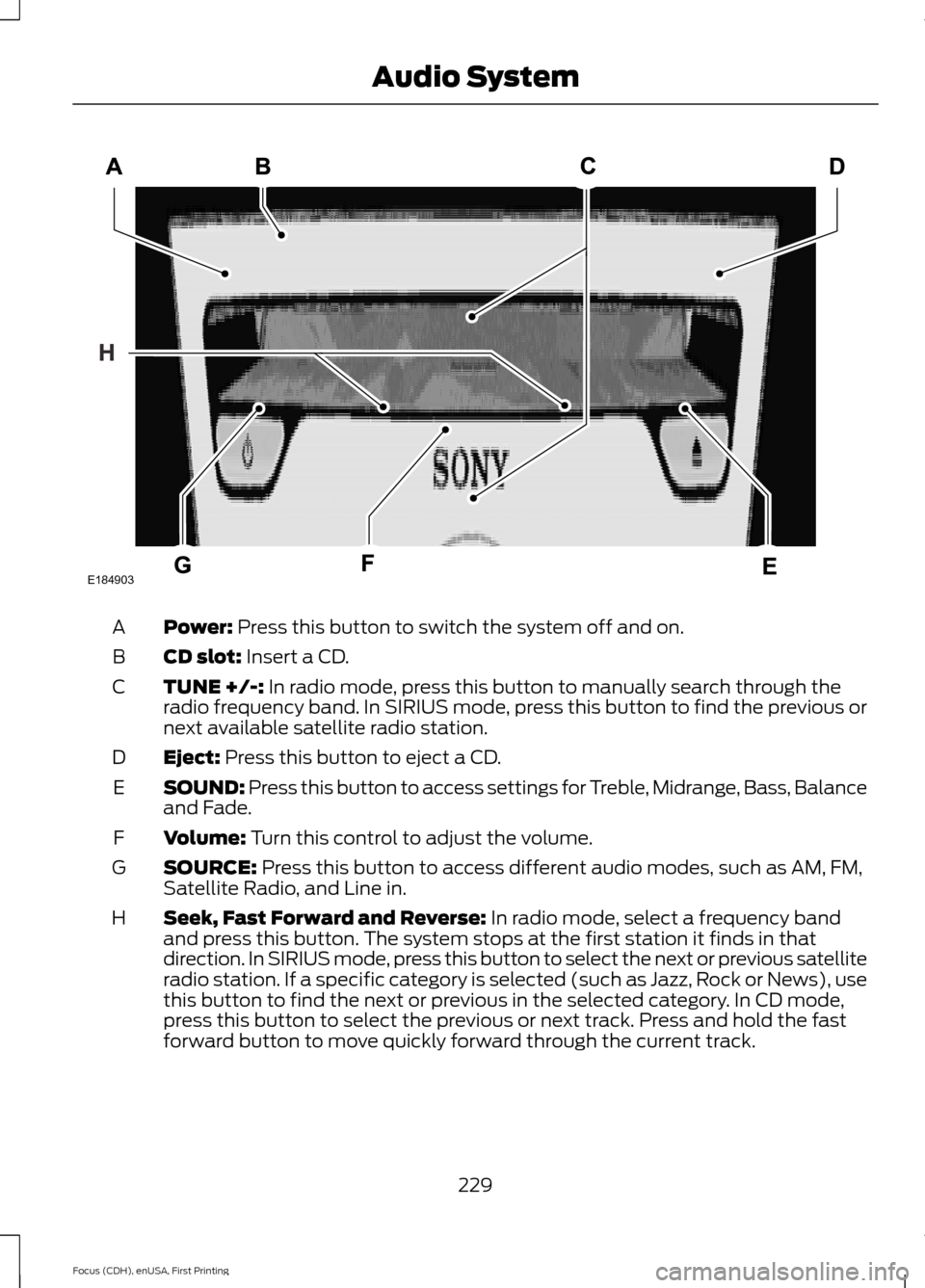
Power: Press this button to switch the system off and on.
A
CD slot:
Insert a CD.
B
TUNE +/-:
In radio mode, press this button to manually search through the
radio frequency band. In SIRIUS mode, press this button to find the previous or
next available satellite radio station.
C
Eject:
Press this button to eject a CD.
D
SOUND: Press this button to access settings for Treble, Midrange, Bass, Balance
and Fade.
E
Volume:
Turn this control to adjust the volume.
F
SOURCE:
Press this button to access different audio modes, such as AM, FM,
Satellite Radio, and Line in.
G
Seek, Fast Forward and Reverse:
In radio mode, select a frequency band
and press this button. The system stops at the first station it finds in that
direction. In SIRIUS mode, press this button to select the next or previous satellite
radio station. If a specific category is selected (such as Jazz, Rock or News), use
this button to find the next or previous in the selected category. In CD mode,
press this button to select the previous or next track. Press and hold the fast
forward button to move quickly forward through the current track.
H
229
Focus (CDH), enUSA, First Printing Audio SystemE184903
Page 233 of 369
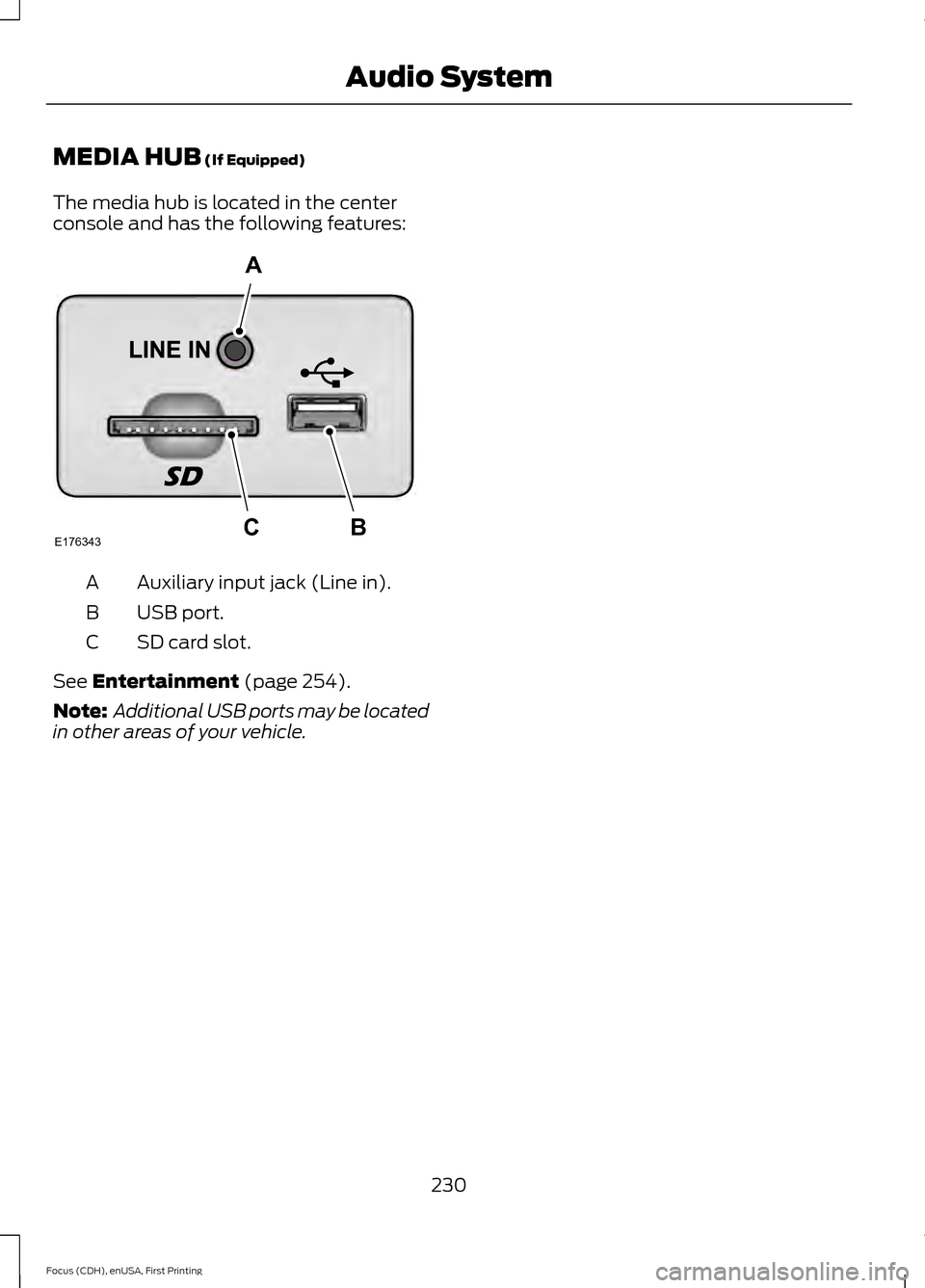
MEDIA HUB (If Equipped)
The media hub is located in the center
console and has the following features: Auxiliary input jack (Line in).
A
USB port.
B
SD card slot.
C
See
Entertainment (page 254).
Note: Additional USB ports may be located
in other areas of your vehicle.
230
Focus (CDH), enUSA, First Printing Audio SystemE176343
A
BC
Page 236 of 369
EV Information
Press to access features
specific to your electric vehicle.
Home Press to access the home
screen.
Note: Depending on your vehicle ’s option
package and software, the screens may vary
in appearance from the descriptions in this
section. The features may also be limited
depending on the market. Check with an
authorized dealer for availability.
Information Press to select any of the following:
Message
Services
Travel Link
Alerts
Calendar
Apps
Entertainment
Press to select any of the following: Message
AM
FM
SIRIUS
CD
USB
BT Stereo
SD Card
Line In
Using the Audio Controls
Depending on your vehicle, it may also have the following controls: Action and Description
Message
Switch the media features on or off.
Power
Adjust the volume of playing media.
Vol:
Use as you normally would in media modes.
Tune
Eject a CD from the entertainment system.
Eject
233
Focus (CDH), enUSA, First Printing MyFord Touch
™E161716 E142613 E142608