2015 FORD FOCUS ELECTRIC audio
[x] Cancel search: audioPage 267 of 369
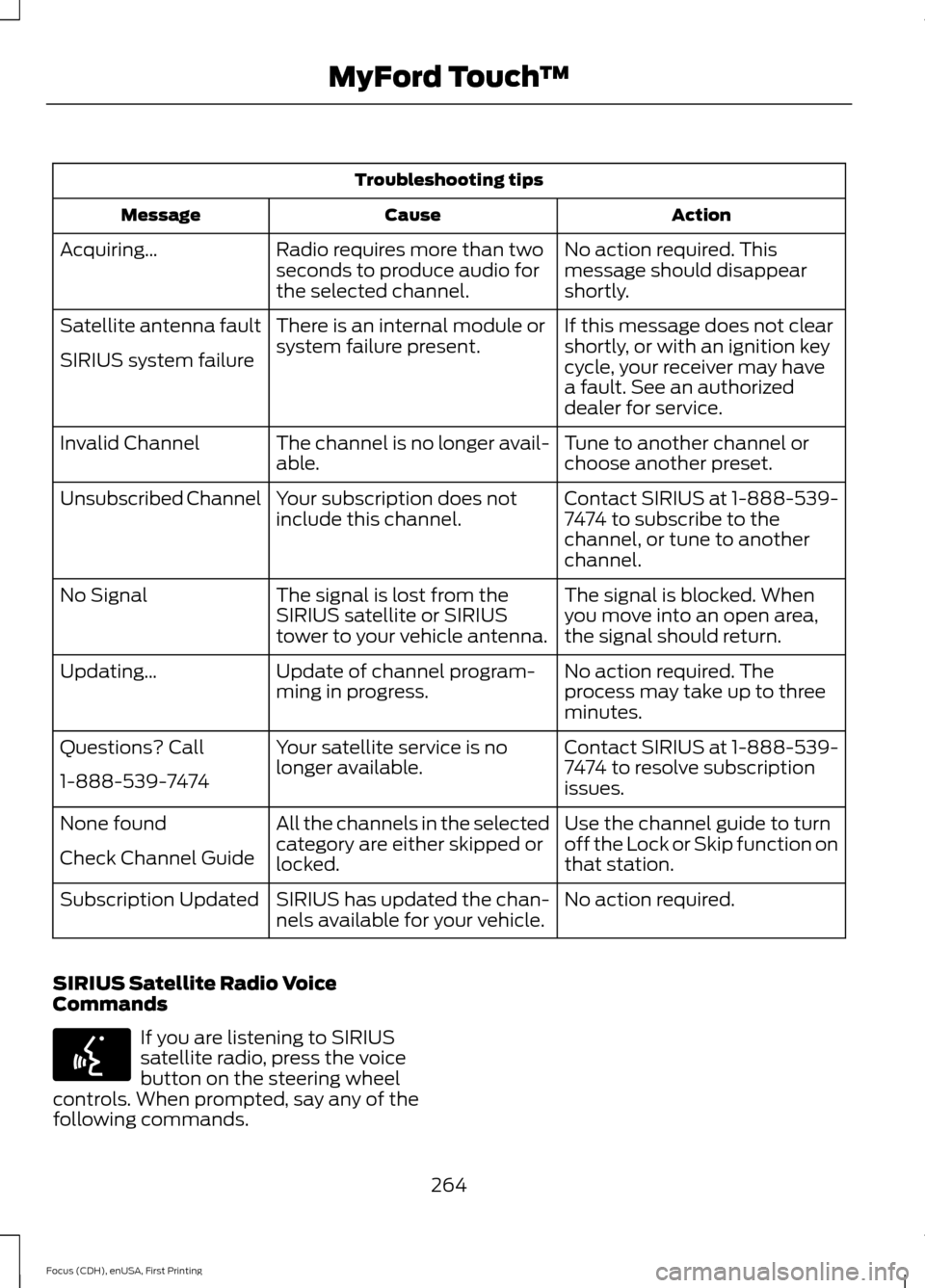
Troubleshooting tips
Action
Cause
Message
No action required. This
message should disappear
shortly.
Radio requires more than two
seconds to produce audio for
the selected channel.
Acquiring…
If this message does not clear
shortly, or with an ignition key
cycle, your receiver may have
a fault. See an authorized
dealer for service.
There is an internal module or
system failure present.
Satellite antenna fault
SIRIUS system failure
Tune to another channel or
choose another preset.
The channel is no longer avail-
able.
Invalid Channel
Contact SIRIUS at 1-888-539-
7474 to subscribe to the
channel, or tune to another
channel.
Your subscription does not
include this channel.
Unsubscribed Channel
The signal is blocked. When
you move into an open area,
the signal should return.
The signal is lost from the
SIRIUS satellite or SIRIUS
tower to your vehicle antenna.
No Signal
No action required. The
process may take up to three
minutes.
Update of channel program-
ming in progress.
Updating…
Contact SIRIUS at 1-888-539-
7474 to resolve subscription
issues.
Your satellite service is no
longer available.
Questions? Call
1-888-539-7474
Use the channel guide to turn
off the Lock or Skip function on
that station.
All the channels in the selected
category are either skipped or
locked.
None found
Check Channel Guide
No action required.
SIRIUS has updated the chan-
nels available for your vehicle.
Subscription Updated
SIRIUS Satellite Radio Voice
Commands If you are listening to SIRIUS
satellite radio, press the voice
button on the steering wheel
controls. When prompted, say any of the
following commands.
264
Focus (CDH), enUSA, First Printing MyFord Touch
™E142599
Page 272 of 369
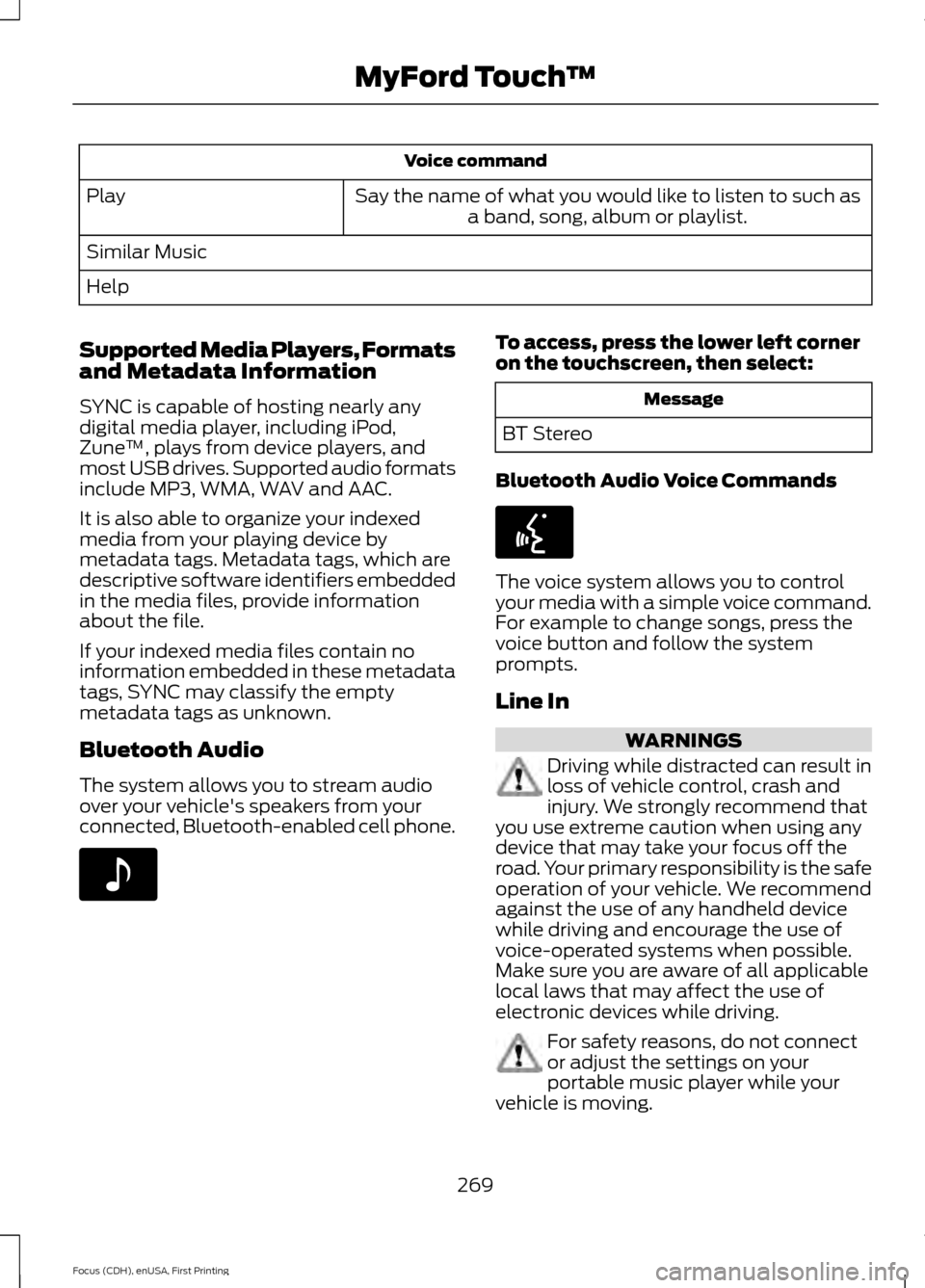
Voice command
Say the name of what you would like to listen to such as a band, song, album or playlist.
Play
Similar Music
Help
Supported Media Players, Formats
and Metadata Information
SYNC is capable of hosting nearly any
digital media player, including iPod,
Zune ™, plays from device players, and
most USB drives. Supported audio formats
include MP3, WMA, WAV and AAC.
It is also able to organize your indexed
media from your playing device by
metadata tags. Metadata tags, which are
descriptive software identifiers embedded
in the media files, provide information
about the file.
If your indexed media files contain no
information embedded in these metadata
tags, SYNC may classify the empty
metadata tags as unknown.
Bluetooth Audio
The system allows you to stream audio
over your vehicle's speakers from your
connected, Bluetooth-enabled cell phone. To access, press the lower left corner
on the touchscreen, then select:
Message
BT Stereo
Bluetooth Audio Voice Commands The voice system allows you to control
your media with a simple voice command.
For example to change songs, press the
voice button and follow the system
prompts.
Line In
WARNINGS
Driving while distracted can result in
loss of vehicle control, crash and
injury. We strongly recommend that
you use extreme caution when using any
device that may take your focus off the
road. Your primary responsibility is the safe
operation of your vehicle. We recommend
against the use of any handheld device
while driving and encourage the use of
voice-operated systems when possible.
Make sure you are aware of all applicable
local laws that may affect the use of
electronic devices while driving. For safety reasons, do not connect
or adjust the settings on your
portable music player while your
vehicle is moving.
269
Focus (CDH), enUSA, First Printing MyFord Touch
™E142611 E142599
Page 273 of 369
WARNINGS
Store the portable music player in a
secure location, such as the center
console or the glove box, when your
vehicle is moving. Hard objects may
become projectiles in a crash or sudden
stop, which may increase the risk of serious
injury. The audio extension cable must be
long enough to allow the portable music
player to be safely stored while your
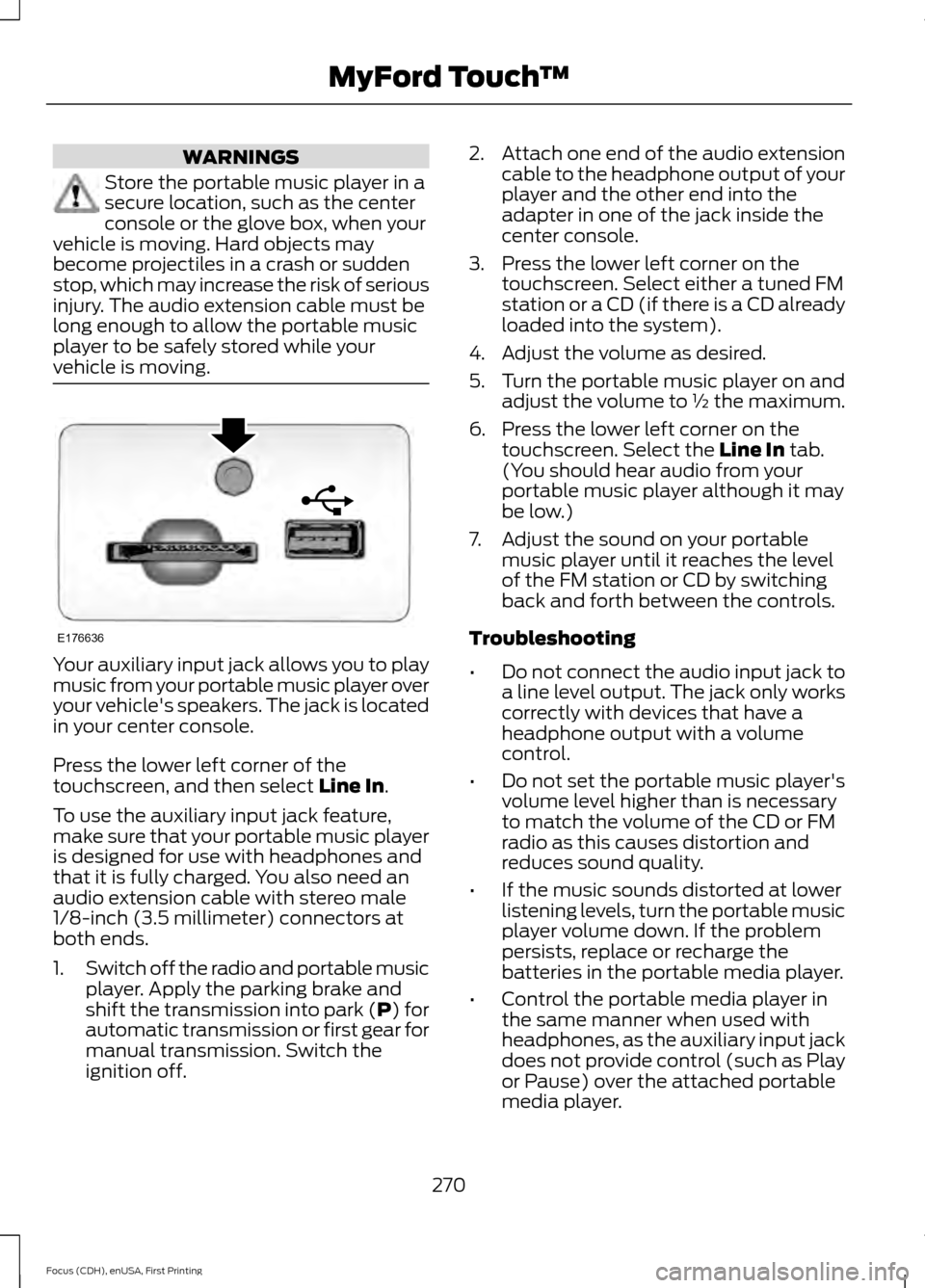
vehicle is moving. Your auxiliary input jack allows you to play
music from your portable music player over
your vehicle's speakers. The jack is located
in your center console.
Press the lower left corner of the
touchscreen, and then select Line In.
To use the auxiliary input jack feature,
make sure that your portable music player
is designed for use with headphones and
that it is fully charged. You also need an
audio extension cable with stereo male
1/8-inch (3.5 millimeter) connectors at
both ends.
1. Switch off the radio and portable music
player. Apply the parking brake and
shift the transmission into park (P) for
automatic transmission or first gear for
manual transmission. Switch the
ignition off. 2.
Attach one end of the audio extension
cable to the headphone output of your
player and the other end into the
adapter in one of the jack inside the
center console.
3. Press the lower left corner on the touchscreen. Select either a tuned FM
station or a CD (if there is a CD already
loaded into the system).
4. Adjust the volume as desired.
5. Turn the portable music player on and adjust the volume to ½ the maximum.
6. Press the lower left corner on the touchscreen. Select the
Line In tab.
(You should hear audio from your
portable music player although it may
be low.)
7. Adjust the sound on your portable music player until it reaches the level
of the FM station or CD by switching
back and forth between the controls.
Troubleshooting
• Do not connect the audio input jack to
a line level output. The jack only works
correctly with devices that have a
headphone output with a volume
control.
• Do not set the portable music player's
volume level higher than is necessary
to match the volume of the CD or FM
radio as this causes distortion and
reduces sound quality.
• If the music sounds distorted at lower
listening levels, turn the portable music
player volume down. If the problem
persists, replace or recharge the
batteries in the portable media player.
• Control the portable media player in
the same manner when used with
headphones, as the auxiliary input jack
does not provide control (such as Play
or Pause) over the attached portable
media player.
270
Focus (CDH), enUSA, First Printing MyFord Touch
™E176636
Page 298 of 369
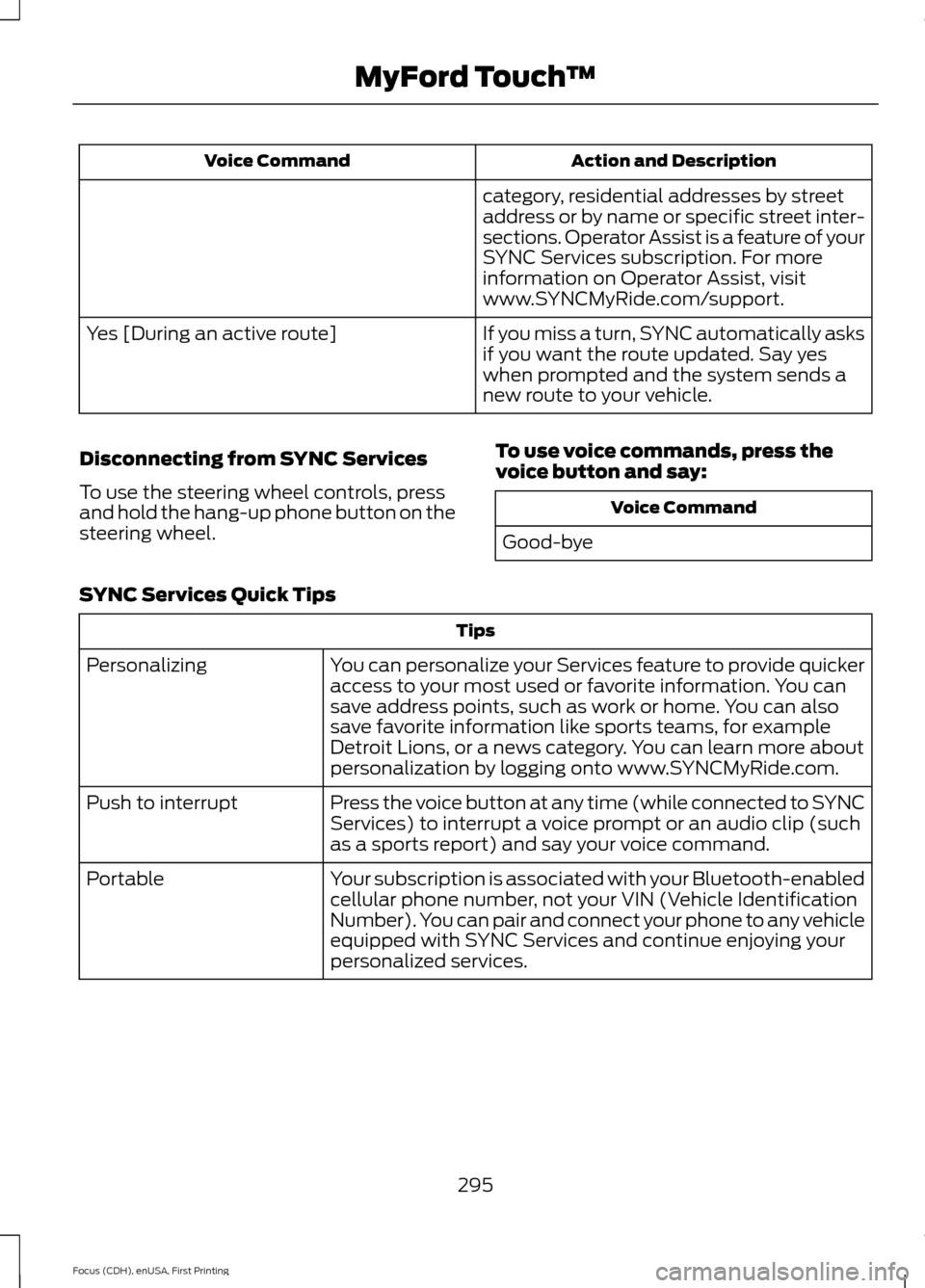
Action and Description
Voice Command
category, residential addresses by street
address or by name or specific street inter-
sections. Operator Assist is a feature of your
SYNC Services subscription. For more
information on Operator Assist, visit
www.SYNCMyRide.com/support.
If you miss a turn, SYNC automatically asks
if you want the route updated. Say yes
when prompted and the system sends a
new route to your vehicle.
Yes [During an active route]
Disconnecting from SYNC Services
To use the steering wheel controls, press
and hold the hang-up phone button on the
steering wheel. To use voice commands, press the
voice button and say: Voice Command
Good-bye
SYNC Services Quick Tips Tips
You can personalize your Services feature to provide quicker
access to your most used or favorite information. You can
save address points, such as work or home. You can also
save favorite information like sports teams, for example
Detroit Lions, or a news category. You can learn more about
personalization by logging onto www.SYNCMyRide.com.
Personalizing
Press the voice button at any time (while connected to SYNC
Services) to interrupt a voice prompt or an audio clip (such
as a sports report) and say your voice command.
Push to interrupt
Your subscription is associated with your Bluetooth-enabled
cellular phone number, not your VIN (Vehicle Identification
Number). You can pair and connect your phone to any vehicle
equipped with SYNC Services and continue enjoying your
personalized services.
Portable
295
Focus (CDH), enUSA, First Printing MyFord Touch
™
Page 318 of 369
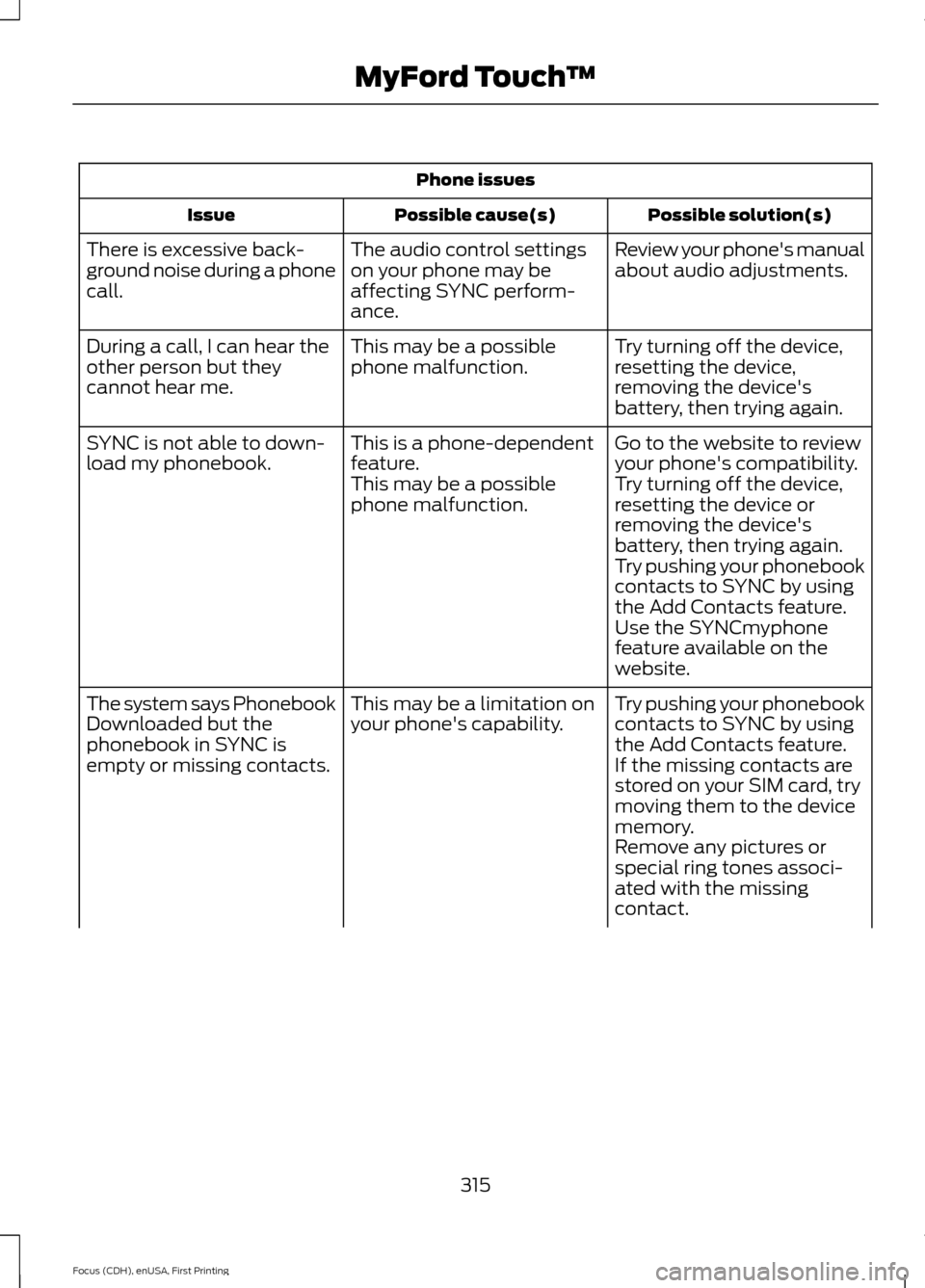
Phone issues
Possible solution(s)
Possible cause(s)
Issue
Review your phone's manual
about audio adjustments.
The audio control settings
on your phone may be
affecting SYNC perform-
ance.
There is excessive back-
ground noise during a phone
call.
Try turning off the device,
resetting the device,
removing the device's
battery, then trying again.
This may be a possible
phone malfunction.
During a call, I can hear the
other person but they
cannot hear me.
Go to the website to review
your phone's compatibility.
This is a phone-dependent
feature.
SYNC is not able to down-
load my phonebook.
Try turning off the device,
resetting the device or
removing the device's
battery, then trying again.
This may be a possible
phone malfunction.
Try pushing your phonebook
contacts to SYNC by using
the Add Contacts feature.
Use the SYNCmyphone
feature available on the
website.
Try pushing your phonebook
contacts to SYNC by using
the Add Contacts feature.
This may be a limitation on
your phone's capability.
The system says Phonebook
Downloaded but the
phonebook in SYNC is
empty or missing contacts.
If the missing contacts are
stored on your SIM card, try
moving them to the device
memory.
Remove any pictures or
special ring tones associ-
ated with the missing
contact.
315
Focus (CDH), enUSA, First Printing MyFord Touch
™
Page 320 of 369
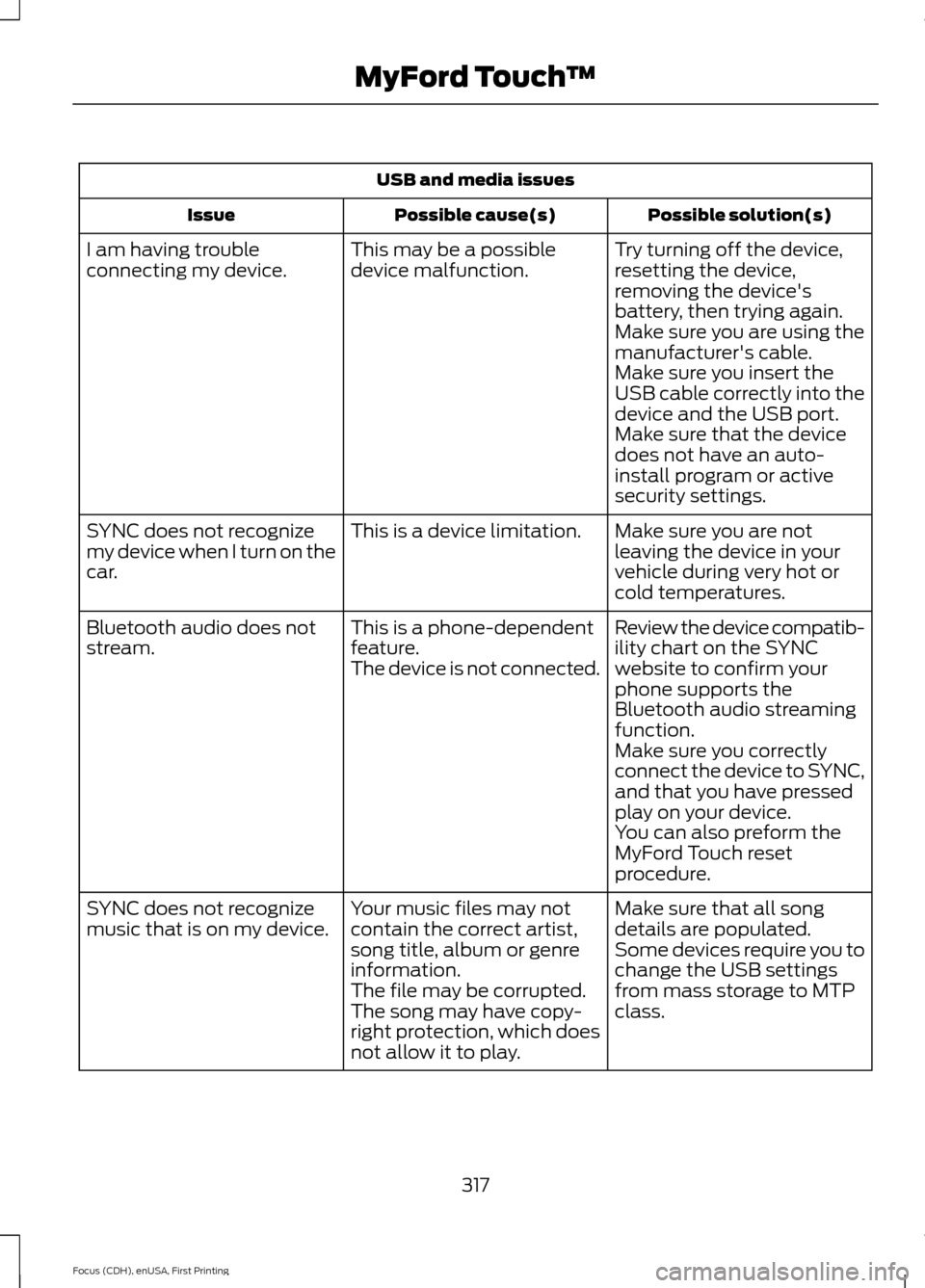
USB and media issues
Possible solution(s)
Possible cause(s)
Issue
Try turning off the device,
resetting the device,
removing the device's
battery, then trying again.
This may be a possible
device malfunction.
I am having trouble
connecting my device.
Make sure you are using the
manufacturer's cable.
Make sure you insert the
USB cable correctly into the
device and the USB port.
Make sure that the device
does not have an auto-
install program or active
security settings.
Make sure you are not
leaving the device in your
vehicle during very hot or
cold temperatures.
This is a device limitation.
SYNC does not recognize
my device when I turn on the
car.
Review the device compatib-
ility chart on the SYNC
website to confirm your
phone supports the
Bluetooth audio streaming
function.
This is a phone-dependent
feature.
The device is not connected.
Bluetooth audio does not
stream.
Make sure you correctly
connect the device to SYNC,
and that you have pressed
play on your device.
You can also preform the
MyFord Touch reset
procedure.
Make sure that all song
details are populated.
Your music files may not
contain the correct artist,
song title, album or genre
information.
SYNC does not recognize
music that is on my device.
Some devices require you to
change the USB settings
from mass storage to MTP
class.
The file may be corrupted.
The song may have copy-
right protection, which does
not allow it to play.
317
Focus (CDH), enUSA, First Printing MyFord Touch
™
Page 329 of 369
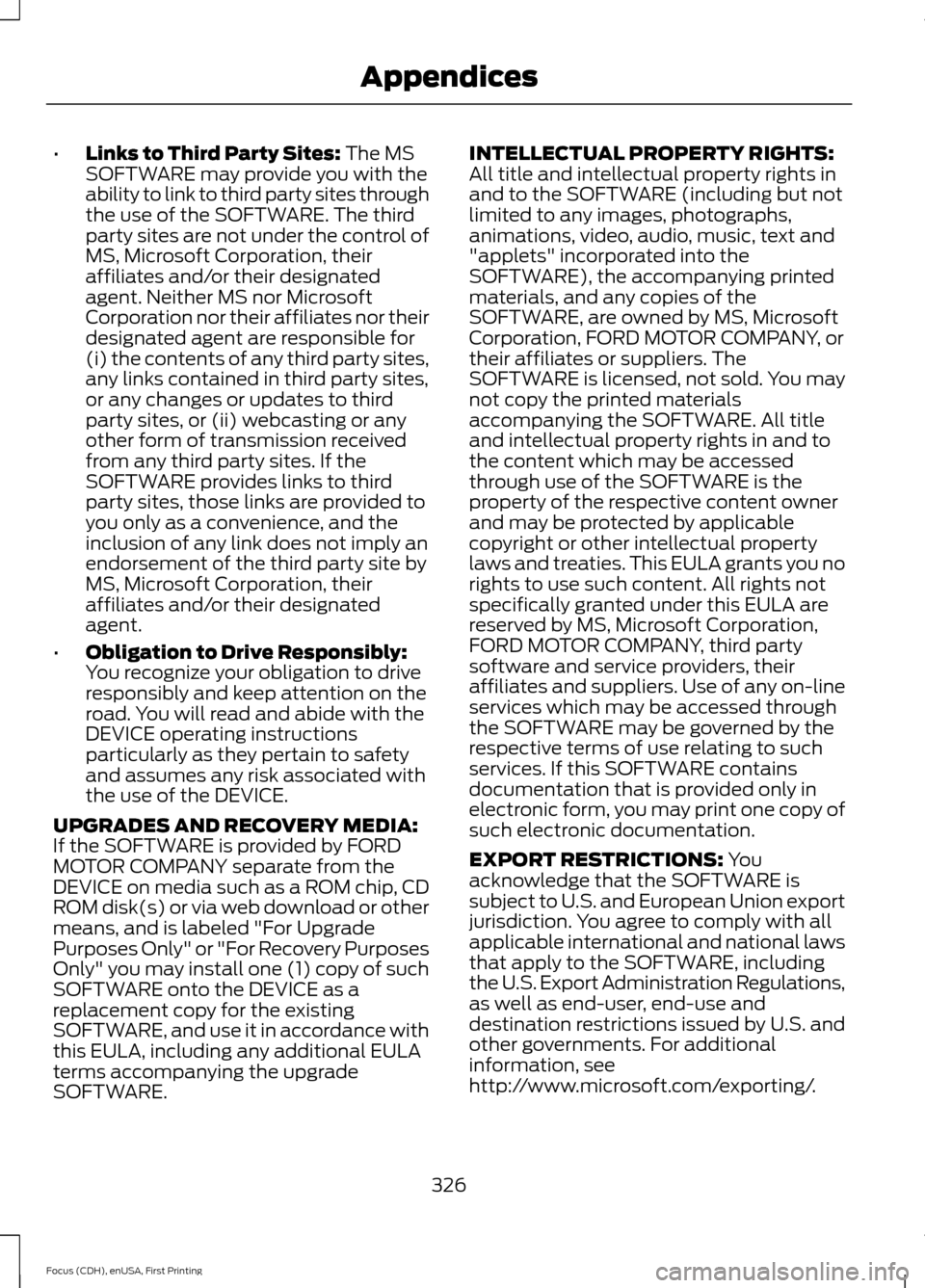
•
Links to Third Party Sites: The MS
SOFTWARE may provide you with the
ability to link to third party sites through
the use of the SOFTWARE. The third
party sites are not under the control of
MS, Microsoft Corporation, their
affiliates and/or their designated
agent. Neither MS nor Microsoft
Corporation nor their affiliates nor their
designated agent are responsible for
(i) the contents of any third party sites,
any links contained in third party sites,
or any changes or updates to third
party sites, or (ii) webcasting or any
other form of transmission received
from any third party sites. If the
SOFTWARE provides links to third
party sites, those links are provided to
you only as a convenience, and the
inclusion of any link does not imply an
endorsement of the third party site by
MS, Microsoft Corporation, their
affiliates and/or their designated
agent.
• Obligation to Drive Responsibly:
You recognize your obligation to drive
responsibly and keep attention on the
road. You will read and abide with the
DEVICE operating instructions
particularly as they pertain to safety
and assumes any risk associated with
the use of the DEVICE.
UPGRADES AND RECOVERY MEDIA:
If the SOFTWARE is provided by FORD
MOTOR COMPANY separate from the
DEVICE on media such as a ROM chip, CD
ROM disk(s) or via web download or other
means, and is labeled "For Upgrade
Purposes Only" or "For Recovery Purposes
Only" you may install one (1) copy of such
SOFTWARE onto the DEVICE as a
replacement copy for the existing
SOFTWARE, and use it in accordance with
this EULA, including any additional EULA
terms accompanying the upgrade
SOFTWARE. INTELLECTUAL PROPERTY RIGHTS:
All title and intellectual property rights in
and to the SOFTWARE (including but not
limited to any images, photographs,
animations, video, audio, music, text and
"applets" incorporated into the
SOFTWARE), the accompanying printed
materials, and any copies of the
SOFTWARE, are owned by MS, Microsoft
Corporation, FORD MOTOR COMPANY, or
their affiliates or suppliers. The
SOFTWARE is licensed, not sold. You may
not copy the printed materials
accompanying the SOFTWARE. All title
and intellectual property rights in and to
the content which may be accessed
through use of the SOFTWARE is the
property of the respective content owner
and may be protected by applicable
copyright or other intellectual property
laws and treaties. This EULA grants you no
rights to use such content. All rights not
specifically granted under this EULA are
reserved by MS, Microsoft Corporation,
FORD MOTOR COMPANY, third party
software and service providers, their
affiliates and suppliers. Use of any on-line
services which may be accessed through
the SOFTWARE may be governed by the
respective terms of use relating to such
services. If this SOFTWARE contains
documentation that is provided only in
electronic form, you may print one copy of
such electronic documentation.
EXPORT RESTRICTIONS:
You
acknowledge that the SOFTWARE is
subject to U.S. and European Union export
jurisdiction. You agree to comply with all
applicable international and national laws
that apply to the SOFTWARE, including
the U.S. Export Administration Regulations,
as well as end-user, end-use and
destination restrictions issued by U.S. and
other governments. For additional
information, see
http://www.microsoft.com/exporting/.
326
Focus (CDH), enUSA, First Printing Appendices
Page 333 of 369
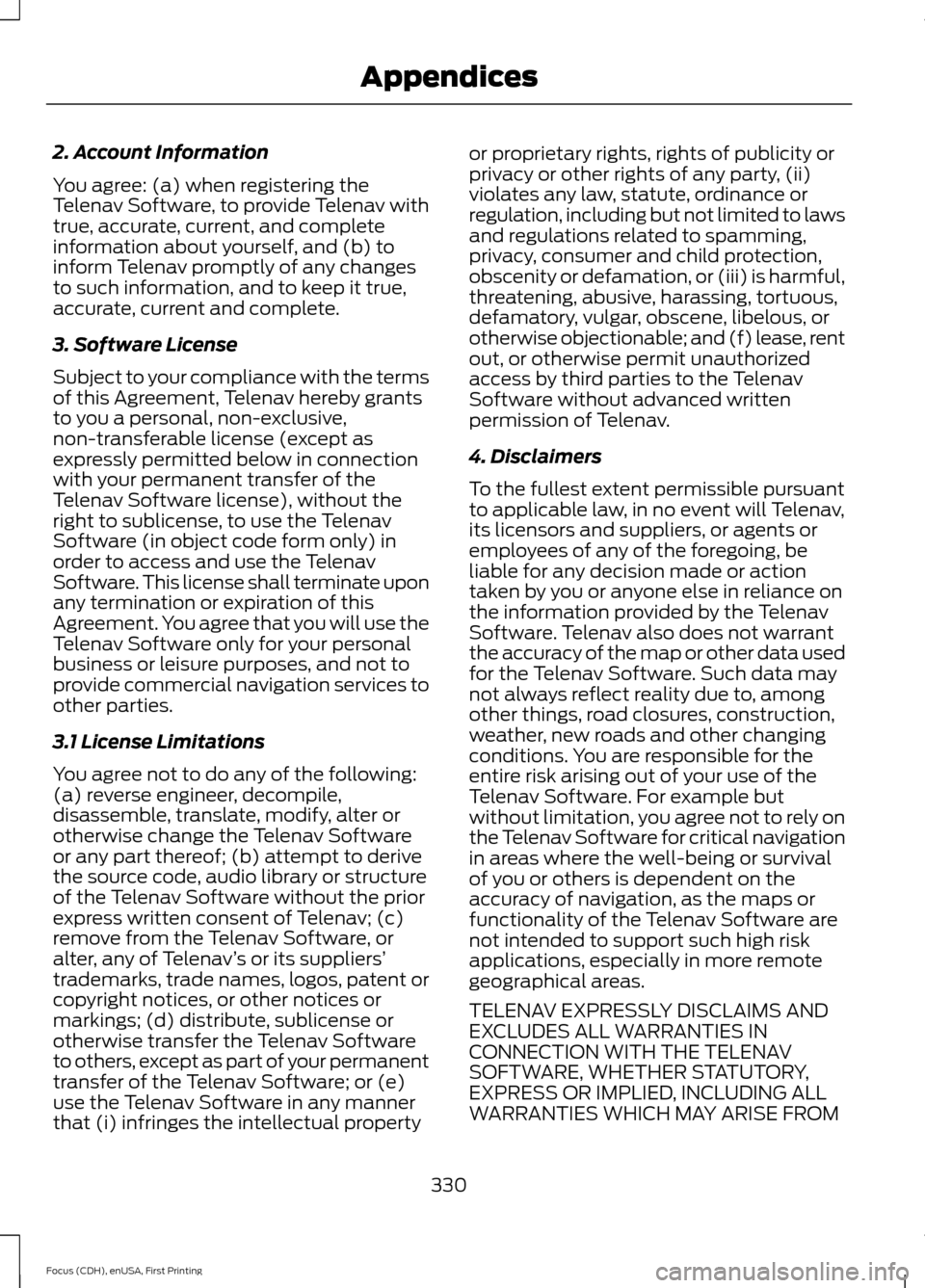
2. Account Information
You agree: (a) when registering the
Telenav Software, to provide Telenav with
true, accurate, current, and complete
information about yourself, and (b) to
inform Telenav promptly of any changes
to such information, and to keep it true,
accurate, current and complete.
3. Software License
Subject to your compliance with the terms
of this Agreement, Telenav hereby grants
to you a personal, non-exclusive,
non-transferable license (except as
expressly permitted below in connection
with your permanent transfer of the
Telenav Software license), without the
right to sublicense, to use the Telenav
Software (in object code form only) in
order to access and use the Telenav
Software. This license shall terminate upon
any termination or expiration of this
Agreement. You agree that you will use the
Telenav Software only for your personal
business or leisure purposes, and not to
provide commercial navigation services to
other parties.
3.1 License Limitations
You agree not to do any of the following:
(a) reverse engineer, decompile,
disassemble, translate, modify, alter or
otherwise change the Telenav Software
or any part thereof; (b) attempt to derive
the source code, audio library or structure
of the Telenav Software without the prior
express written consent of Telenav; (c)
remove from the Telenav Software, or
alter, any of Telenav
’s or its suppliers’
trademarks, trade names, logos, patent or
copyright notices, or other notices or
markings; (d) distribute, sublicense or
otherwise transfer the Telenav Software
to others, except as part of your permanent
transfer of the Telenav Software; or (e)
use the Telenav Software in any manner
that (i) infringes the intellectual property or proprietary rights, rights of publicity or
privacy or other rights of any party, (ii)
violates any law, statute, ordinance or
regulation, including but not limited to laws
and regulations related to spamming,
privacy, consumer and child protection,
obscenity or defamation, or (iii) is harmful,
threatening, abusive, harassing, tortuous,
defamatory, vulgar, obscene, libelous, or
otherwise objectionable; and (f) lease, rent
out, or otherwise permit unauthorized
access by third parties to the Telenav
Software without advanced written
permission of Telenav.
4. Disclaimers
To the fullest extent permissible pursuant
to applicable law, in no event will Telenav,
its licensors and suppliers, or agents or
employees of any of the foregoing, be
liable for any decision made or action
taken by you or anyone else in reliance on
the information provided by the Telenav
Software. Telenav also does not warrant
the accuracy of the map or other data used
for the Telenav Software. Such data may
not always reflect reality due to, among
other things, road closures, construction,
weather, new roads and other changing
conditions. You are responsible for the
entire risk arising out of your use of the
Telenav Software. For example but
without limitation, you agree not to rely on
the Telenav Software for critical navigation
in areas where the well-being or survival
of you or others is dependent on the
accuracy of navigation, as the maps or
functionality of the Telenav Software are
not intended to support such high risk
applications, especially in more remote
geographical areas.
TELENAV EXPRESSLY DISCLAIMS AND
EXCLUDES ALL WARRANTIES IN
CONNECTION WITH THE TELENAV
SOFTWARE, WHETHER STATUTORY,
EXPRESS OR IMPLIED, INCLUDING ALL
WARRANTIES WHICH MAY ARISE FROM
330
Focus (CDH), enUSA, First Printing Appendices