Page 290 of 429
Uconnect® 8.4AN — If Equipped
CONTENTS
!Uconnect® 8.4AN SYSTEM................291
!RADIO MODE.........................292
▫Setting Presets........................295
▫SiriusXM Satellite Radio Mode — If Equipped . .296
▫Audio..............................304
!MEDIA MODE.........................306
▫Disc Mode — If Equipped...............306
▫USB/iPod® Mode.....................308
▫AUX Mode..........................309
▫SD Card Mode — If Equipped............310
▫Bluetooth® Mode.....................312
!Uconnect® PHONE.....................314
▫Overview...........................314
▫Operation...........................317
▫Phone Call Features...................327
▫Advanced Phone Connectivity............332
▫Things You Should Know About Your Uconnect®
Phone.............................333
▫General Information...................339
!NAVIGATION.........................339
4
Page 294 of 429

Press the RADIO button on the touchscreen, bottom left
corner, to enter the Radio Mode. The different tuner
modes; AM, FM, and SXM, can then, be selected by
pressing the corresponding buttons in the Radio mode.
VOLUME/MUTE Control
Push the VOLUME/MUTE control knob to mute the
radio. Push the VOLUME/MUTE control knob a second
time to unmute the radio.
The electronic volume control turns continuously (360
degrees) in either direction, without stopping. Turning
the VOLUME/MUTE control knob clockwise increases
the volume, and counterclockwise decreases it.
TUNE/SCROLL Control
When the audio system is turned on, the sound will be
set at the same volume level as last played.
Turn the rotary TUNE/SCROLL control knob clockwise
to increase or counterclockwise to decrease the radio
station frequency. Push the ENTER/BROWSE button to
choose a selection.
Screen Close
The X button on the touchscreen at the top right, provides
a means to close the Direct Tune Screen. The Direct Tune
Screen also auto closes if no activity occurs within 10
seconds.
HD Radio
HD Radio technology (available on Uconnect 8.4AN in
the U.S. market) works similar to conventional radio
except it allows broadcasters to transmit a high-quality
digital signal. With an HD radio receiver, the listener is
provided with a clear sound that enhances the listening
experience. HD radio can also transmit data such as song
title or artist.
4
Uconnect® 8.4AN — If Equipped 293
Page 295 of 429

Seek And Direct Tune Functions
The Seek Up and Down functions are activated by
pressing the double arrow buttons on the touchscreen to
the right and left of the radio station display, or by
pressing the left “Steering Wheel Audio Control” (if
equipped) up or down.
Seek Up
Press and release the “Seek Up”button on the
touchscreen to tune the radio to the next listenable
station or channel. During a Seek Up function, if the
radio reaches the starting station after passing through
the entire band two times, the radio will stop at the
station where it began.
Fast Seek Up
Press and hold the “Seek Up”button on the touch-
screen to advance the radio through the available
stations or channels at a faster rate, the radio stops at
the next available station or channel when the button
on the touchscreen is released.
Seek Down
Press and release the “Seek Down”button on the
touchscreen to tune the radio to the next listenable
station or channel. During a Seek Down function, if
the radio reaches the starting station after passing
through the entire band two times, the radio will stop
at the station where it began.
Fast Seek Down
Press and hold the “Seek Down”button on the
touchscreen to advance the radio through the avail-
able stations or channel at a faster rate, the radio stops
at the next available station or channel when the
button on the touchscreen is released.
294 Uconnect® 8.4AN — If Equipped
Page 300 of 429

Tuning is done by operating the Tune Knob or by Direct
Tune, similar to other Radio Bands, see Presets, browse,
Tune Knob, and Direct Tune.
In addition to the tuning Operation functions common to
all Radio modes, the replay, Traffic/Weather Jump, and
fav button functions are available in SiriusXM Mode.
Replay
The replay function provides a means to store and replay
up to 22 minutes of music audio and 48 minutes of talk
radio. Once the channel is switched, content in replay
memory is lost.
Press the “Replay” button on the touchscreen. The play/
pause, rewind/forward and live buttons will display at
the top of the screen, along with the replay time.
You can exit by pressing the “Replay” button on the
touchscreen, any time during the Replay mode.
Play/Pause
Press the “Pause/Play” button on the touchscreen to
pause the playing of live or rewound content at any time.
Play can be resumed again by pressing of the “Pause/
Play” button on the touchscreen.
Rewind
Press the “RW” button on the touchscreen to rewind the
content in steps of five seconds. Pressing the “RW”
button on the touchscreen for more than two seconds
rewinds the content. The Radio begins playing the con-
tent at the point at which the press is released.
Forward
Each press of the “FW” button on the touchscreen
forwards the content in steps of five seconds. Forwarding
of the content can only be done when the content is
previously rewound, and therefore, can not be done for
live content. A continuous press of the “FW” button on
4
Uconnect® 8.4AN — If Equipped 299
Page 305 of 429
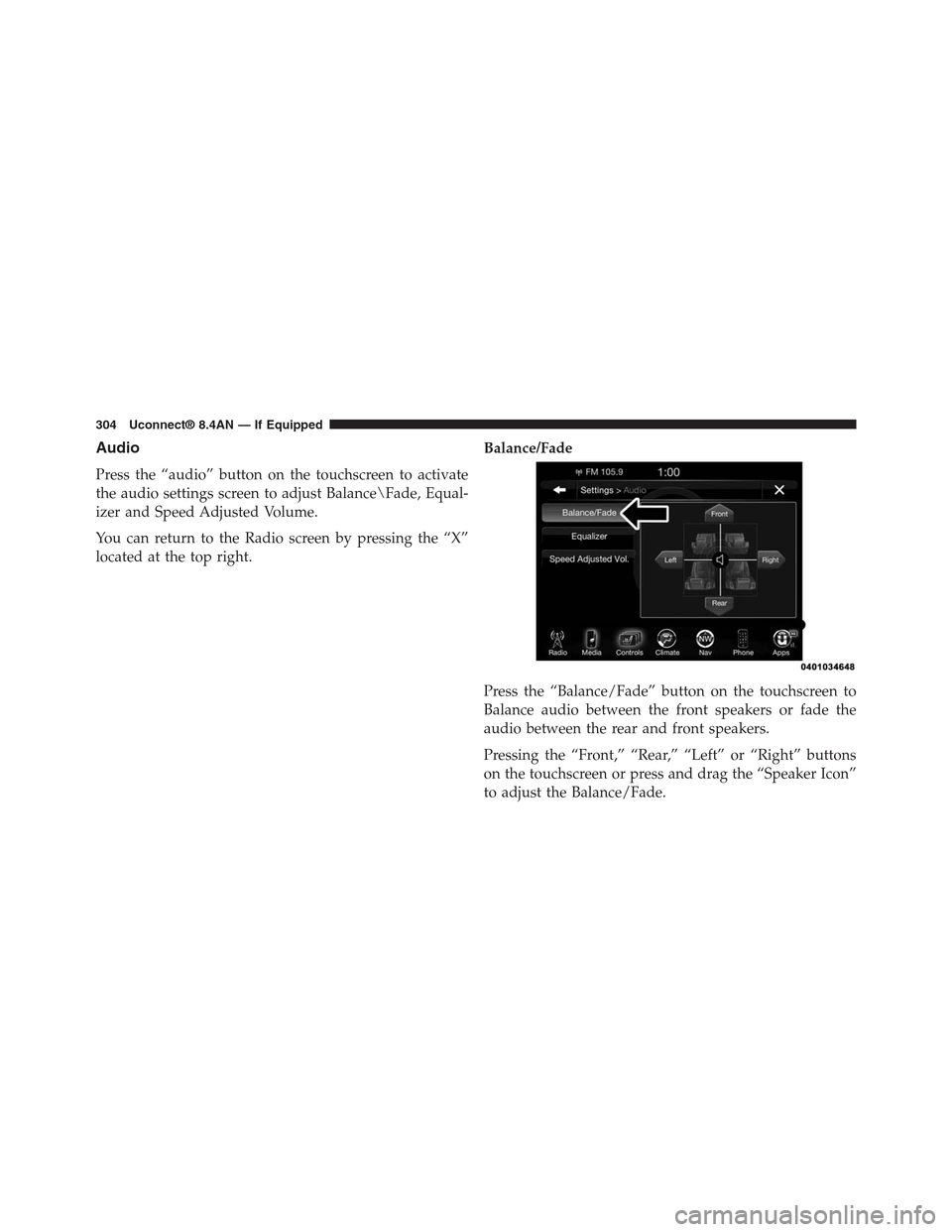
Audio
Press the “audio” button on the touchscreen to activate
the audio settings screen to adjust Balance\Fade, Equal-
izer and Speed Adjusted Volume.
You can return to the Radio screen by pressing the “X”
located at the top right.
Balance/Fade
Press the “Balance/Fade” button on the touchscreen to
Balance audio between the front speakers or fade the
audio between the rear and front speakers.
Pressing the “Front,” “Rear,” “Left” or “Right” buttons
on the touchscreen or press and drag the “Speaker Icon”
to adjust the Balance/Fade.
304 Uconnect® 8.4AN — If Equipped
Page 307 of 429
the audio volume with variation to vehicle speed. Vol-
ume increases automatically as speed increase to com-
pensate for normal road noise.
Surround System — If Equipped
Press the “On” button on the touchscreen to activate
Surround Sound. Press “Off” to deactivate this feature.
When Surround Sound is On, you can hear audio coming
from every direction as in a movie theatre or home
theatre system.
MEDIA MODE
Disc Mode — If Equipped
Overview
Disc Mode is entered by either inserting a Disc or
pressing the “Disc” button on the left side of the display.
Once in Media Mode, press the “Source” button on the
touchscreen and select “Disc.”
A “Insert Disc” message will be displayed on the screen
in the Disc mode when a Disc is not present in the Radio.
Seek Up/Seek Down
Press and release the Seek Upbutton on the touch-
screen for the next selection on the Disc. Press and
release the Seek Downbutton on the touchscreen to
return to the beginning of the current selection, or to
return to the beginning of the previous selection if the
Disc is within the first three seconds of the current
selection.
Browse
Press the “Browse” button on the touchscreen to display
the browse window. The left side of the browse window
displays a list of ways you can browse through the
contents of the Disc. If supported by the device, you can
browse by Folders, Artists, Playlists, Albums, Songs, etc.
Press the desired button on the touchscreen on the left
side of the screen. The center of the browse window
306 Uconnect® 8.4AN — If Equipped
Page 308 of 429

shows items and it’s sub-functions, which can be scrolled
by pressing the “Up” and “Down” buttons to the right.
The TUNE/SCROLL knob can also be used to scroll.
Media Mode
Press the “Media” button on the touchscreen to select the
desired audio source: Disc.
Repeat
Press the “Repeat” button on the touchscreen to toggle
the repeat functionality. The Repeat button on the touch-
screen is highlighted when active. The Radio will con-
tinue to play the current track, repeatedly, as long as the
repeat is active.
Shuffle
Press the “Shuffle” button on the touchscreen to play the
selections on the compact disc in random order to
provide an interesting change of pace. Press the button
on the touchscreen a second time to turn this feature off.
Info
Press the “Info” button on the touchscreen to display the
current track information. Press the “Info” button on the
touchscreen a second time to cancel this feature.
Tracks
Press the “trks” button on the touchscreen to display a
pop up with the Song List. The currently playing song is
indicated by an arrow and lines above and below the
song title. When in the Tracks List screen you can rotate
the TUNE/SCROLL knob to highlight a track (indicated
by the line above and below the track name) and then
push the ENTER/BROWSE knob to start playing that
track.
Pressing the “trks” button on the touchscreen while the
pop up is displayed will close the pop up.
4
Uconnect® 8.4AN — If Equipped 307
Page 309 of 429

USB/iPod® Mode
Overview
USB/iPod® Mode is entered by either inserting a USB
device or iPod® and cable into the USB Port or press the
“iPod®” button on the left side of the display.
Seek Up/Seek Down
Press and release the Seek Upbutton on the touch-
screen for the next selection on the USB device/iPod®.
Press and release the Seek Downbutton on the
touchscreen to return to the beginning of the current
selection, or to return to the beginning of the previous
selection if the USB device/iPod® is within the first
three seconds of the current selection.
Browse
Press the “Browse” button on the touchscreen to display
the browse window. The left side of the browse window
displays a list of ways you can browse through the
contents of the USB device/iPod®. If supported by the
device, you can browse by Folders, Artists, Playlists,
Albums, Songs, etc. Press the desired button on the left
side of the screen. The center of the browse window
shows items and it’s sub-functions, which can be scrolled
by pressing the “Up” and “Down” buttons to the right.
The TUNE/SCROLL knob can also be used to scroll.
Media Mode
Press the “Media” button on the touchscreen to select the
desired audio source: USB.
Repeat
Press the “Repeat” button on the touchscreen to toggle
the repeat functionality. The Repeat button on the touch-
screen is highlighted when active. The Radio will con-
tinue to play the current track, repeatedly, as long as the
repeat is active.
308 Uconnect® 8.4AN — If Equipped