Page 195 of 429

To access Bluetooth® mode, press the “Bluetooth®”
button on the left side of the display.
Seek Up/Down
Press and release the “Right Arrow”button on the
touchscreen for the next selection on the Bluetooth®
device. Press and release the “Left Arrow”button
on the touchscreen to return to the beginning of the
current selection, or return to the beginning of the
previous selection if the Bluetooth® device is within
the first second of the current selection.
Source
Press the “Select Source” button on the touchscreen to
select the desired audio source, USB/iPod®, SD Card,
AUX or Bluetooth®. This screen will time out after a few
seconds and return to the main radio screen if no
selection is made.
Tracks
If the Bluetooth® device supports this feature, press the
“trks” button on the touchscreen to display a pop up with
the Song List. The currently playing song is indicated by
a blue arrow and lines above and below the song title.
Pressing the “trks” button on the touchscreen while the
pop up is displayed will close the pop up.
194 Uconnect® 8.4A — If Equipped
Page 268 of 429
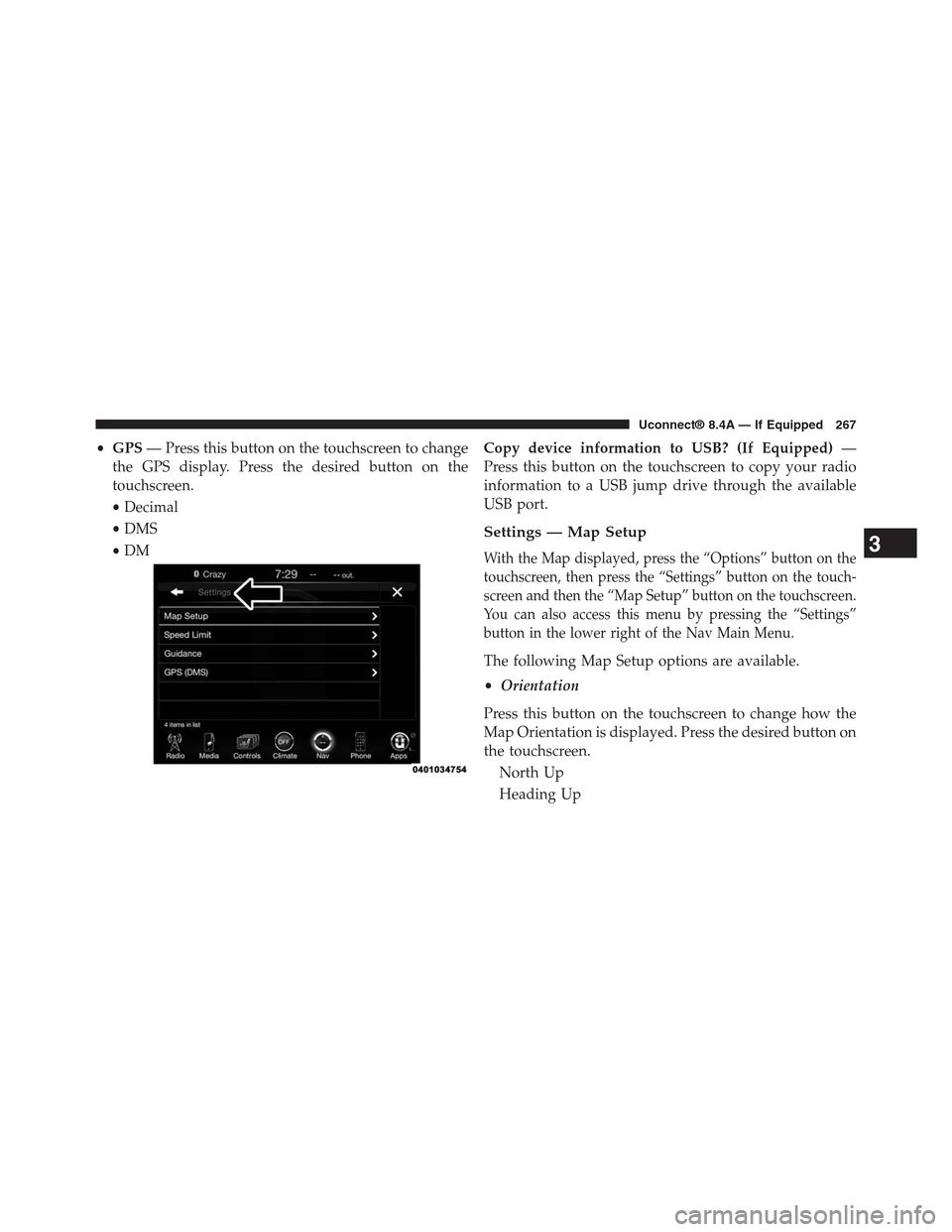
•GPS— Press this button on the touchscreen to change
the GPS display. Press the desired button on the
touchscreen.
•Decimal
•DMS
•DM
Copy device information to USB? (If Equipped)—
Press this button on the touchscreen to copy your radio
information to a USB jump drive through the available
USB port.
Settings — Map Setup
With the Map displayed, press the “Options” button on the
touchscreen, then press the “Settings” button on the touch-
screen and then the “Map Setup” button on the touchscreen.
You can also access this menu by pressing the “Settings”
button in the lower right of the Nav Main Menu.
The following Map Setup options are available.
•Orientation
Press this button on the touchscreen to change how the
Map Orientation is displayed. Press the desired button on
the touchscreen.
North Up
Heading Up
3
Uconnect® 8.4A — If Equipped 267
Page 290 of 429
Uconnect® 8.4AN — If Equipped
CONTENTS
!Uconnect® 8.4AN SYSTEM................291
!RADIO MODE.........................292
▫Setting Presets........................295
▫SiriusXM Satellite Radio Mode — If Equipped . .296
▫Audio..............................304
!MEDIA MODE.........................306
▫Disc Mode — If Equipped...............306
▫USB/iPod® Mode.....................308
▫AUX Mode..........................309
▫SD Card Mode — If Equipped............310
▫Bluetooth® Mode.....................312
!Uconnect® PHONE.....................314
▫Overview...........................314
▫Operation...........................317
▫Phone Call Features...................327
▫Advanced Phone Connectivity............332
▫Things You Should Know About Your Uconnect®
Phone.............................333
▫General Information...................339
!NAVIGATION.........................339
4
Page 292 of 429
Uconnect® 8.4AN SYSTEM
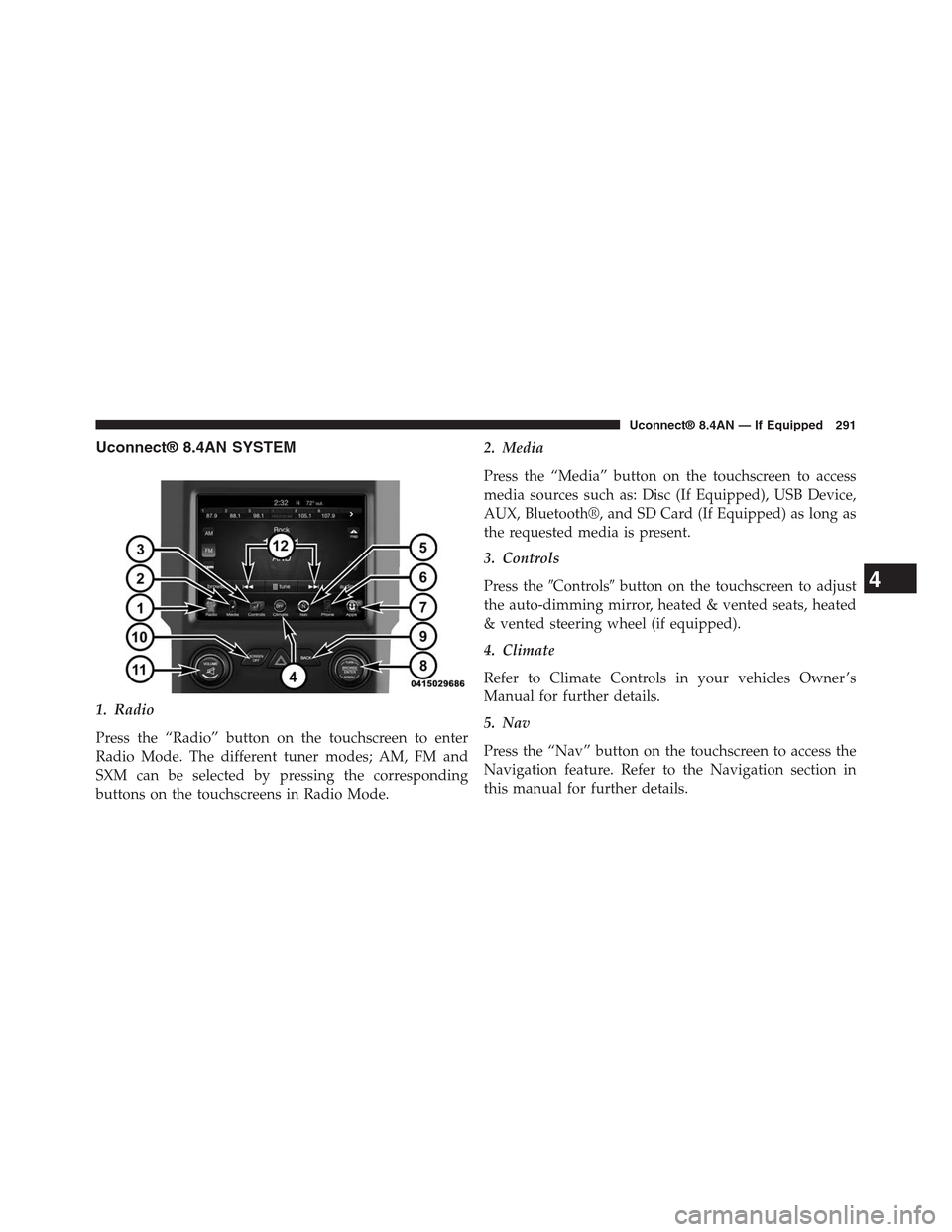
1. Radio
Press the “Radio” button on the touchscreen to enter
Radio Mode. The different tuner modes; AM, FM and
SXM can be selected by pressing the corresponding
buttons on the touchscreens in Radio Mode.
2. Media
Press the “Media” button on the touchscreen to access
media sources such as: Disc (If Equipped), USB Device,
AUX, Bluetooth®, and SD Card (If Equipped) as long as
the requested media is present.
3. Controls
Press the#Controls#button on the touchscreen to adjust
the auto-dimming mirror, heated & vented seats, heated
& vented steering wheel (if equipped).
4. Climate
Refer to Climate Controls in your vehicles Owner ’s
Manual for further details.
5. Nav
Press the “Nav” button on the touchscreen to access the
Navigation feature. Refer to the Navigation section in
this manual for further details.
4
Uconnect® 8.4AN — If Equipped 291
Page 309 of 429

USB/iPod® Mode
Overview
USB/iPod® Mode is entered by either inserting a USB
device or iPod® and cable into the USB Port or press the
“iPod®” button on the left side of the display.
Seek Up/Seek Down
Press and release the Seek Upbutton on the touch-
screen for the next selection on the USB device/iPod®.
Press and release the Seek Downbutton on the
touchscreen to return to the beginning of the current
selection, or to return to the beginning of the previous
selection if the USB device/iPod® is within the first
three seconds of the current selection.
Browse
Press the “Browse” button on the touchscreen to display
the browse window. The left side of the browse window
displays a list of ways you can browse through the
contents of the USB device/iPod®. If supported by the
device, you can browse by Folders, Artists, Playlists,
Albums, Songs, etc. Press the desired button on the left
side of the screen. The center of the browse window
shows items and it’s sub-functions, which can be scrolled
by pressing the “Up” and “Down” buttons to the right.
The TUNE/SCROLL knob can also be used to scroll.
Media Mode
Press the “Media” button on the touchscreen to select the
desired audio source: USB.
Repeat
Press the “Repeat” button on the touchscreen to toggle
the repeat functionality. The Repeat button on the touch-
screen is highlighted when active. The Radio will con-
tinue to play the current track, repeatedly, as long as the
repeat is active.
308 Uconnect® 8.4AN — If Equipped
Page 310 of 429
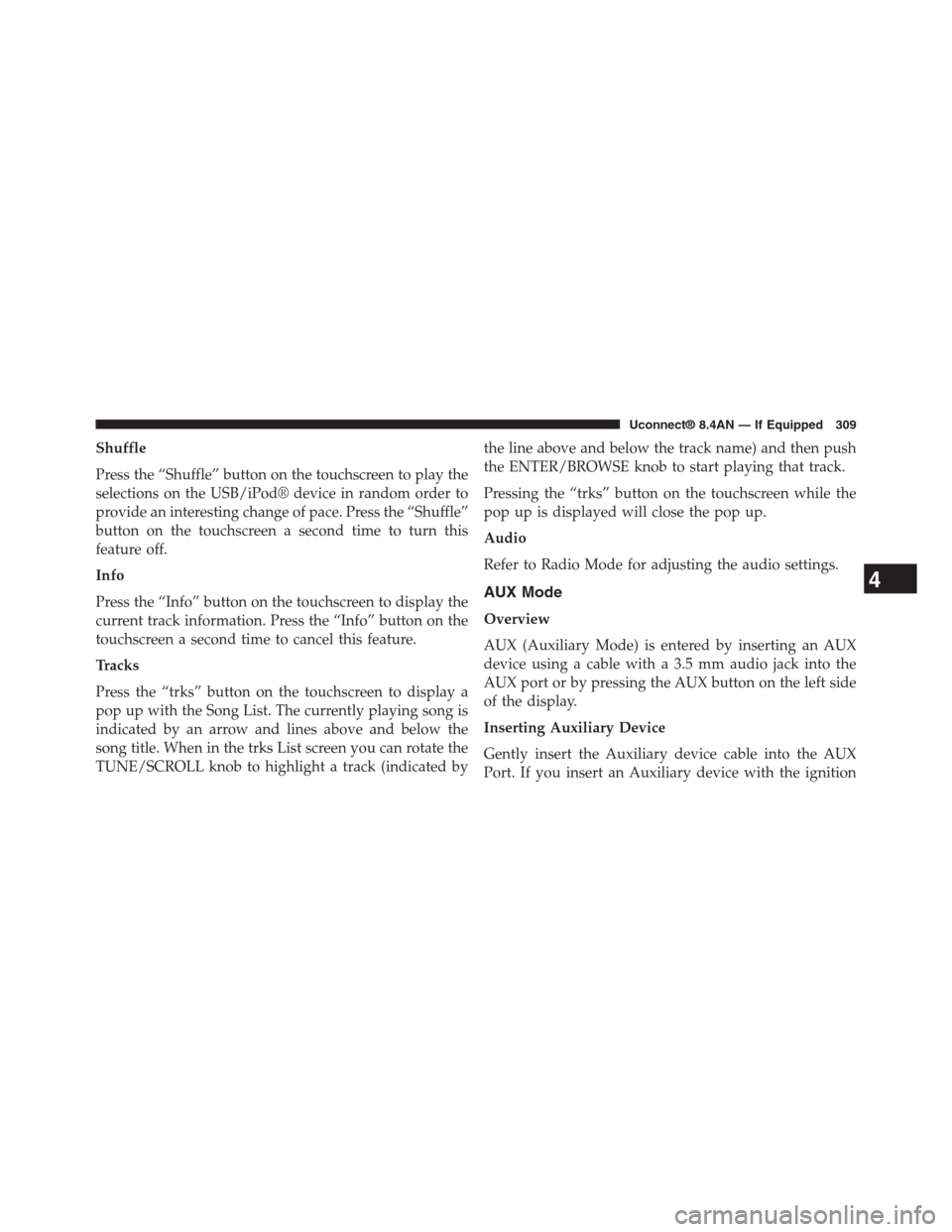
Shuffle
Press the “Shuffle” button on the touchscreen to play the
selections on the USB/iPod® device in random order to
provide an interesting change of pace. Press the “Shuffle”
button on the touchscreen a second time to turn this
feature off.
Info
Press the “Info” button on the touchscreen to display the
current track information. Press the “Info” button on the
touchscreen a second time to cancel this feature.
Tracks
Press the “trks” button on the touchscreen to display a
pop up with the Song List. The currently playing song is
indicated by an arrow and lines above and below the
song title. When in the trks List screen you can rotate the
TUNE/SCROLL knob to highlight a track (indicated by
the line above and below the track name) and then push
the ENTER/BROWSE knob to start playing that track.
Pressing the “trks” button on the touchscreen while the
pop up is displayed will close the pop up.
Audio
Refer to Radio Mode for adjusting the audio settings.
AUX Mode
Overview
AUX (Auxiliary Mode) is entered by inserting an AUX
device using a cable with a 3.5 mm audio jack into the
AUX port or by pressing the AUX button on the left side
of the display.
Inserting Auxiliary Device
Gently insert the Auxiliary device cable into the AUX
Port. If you insert an Auxiliary device with the ignition
4
Uconnect® 8.4AN — If Equipped 309
Page 413 of 429
Media
Uconnect® offers connections via USB, SD, Bluetooth®
and auxiliary ports. Voice operation is only available for
connected USB and iPod® devices. (Remote CD player
optional and not available on all vehicles.)
Press the VR button. After the beep, say one of the
following commands and follow the prompts to
switch your media source or choose an artist.
•Change source to Bluetooth®
•Change sourceto iPod®
•Change sourceto USB
•Play artistBeethoven;Play albumGreatest Hits;Play
songMoonlight Sonata;Play genreClassical
TIP:Press the Browse button on the touchscreen to see all
of the music on your iPod® or USB device. Your Voice
Command must matchexactlyhow the artist, album,
song and genre information is displayed.
412 Uconnect® 8.4A/8.4AN VOICE RECOGNITION QUICK TIPS
Page 426 of 429

•Permanent hearing loss may occur if you play your
music or the system at loud volumes. Exercise caution
when setting the volume on your system.
•Keep drinks, rain, and other sources of moisture away
from your system. Besides damage to your system,
moisture can cause electric shocks as with any elec-
tronic device.
NOTE:Many features of this system are speed depen-
dent. For your own safety, it is not possible to use some
of the touchscreen features while the vehicle is in motion.
Touchscreen
•Do NOT attach any object to the touchscreen, doing
so can result in damage to the touchscreen.
•Do not press the screen with any hard or sharp objects
(pen, USB stick, jewelry, etc.) which could scratch the
touchscreen surface!
•Do not spray any liquid or caustic chemicals directly
on the screen! Use a clean and dry micro fiber lens
cleaning cloth in order to clean the touchscreen.
•If necessary, use a lint-free cloth dampened with a
cleaning solution, such as isopropyl alcohol, or an
isopropyl alcohol and water solution ratio of 50:50. Be
sure to follow the solvent manufacturer’s precautions
and directions.
Disc Drive
•Do not insert any damaged, warped, scratched or dirty
Discs into the Disc player.
•Discs that have been modified with an adhesive label
should not be used in the Disc player.
•Do not insert more than one Disc at a time into the
drive slot.
6
SAFETY GUIDELINES 425
Page:
< prev 1-8 9-16 17-24