Page 115 of 429

3.Will my vehicle be safe if I lose my smartphone?
People sometimes lose their phone, which is why
security measures have been engineered into the
Uconnect® Access App. Asking for your username,
password and Uconnect® Security PIN help to ensure
that nobody can start your vehicle if they happen to
find your smartphone.
4.Can someone drive off with my vehicle using the
App?No. Driving your vehicle still requires the keys
to be in the vehicle. The Remote Start feature simply
starts the engine to warm-up or cool down the interior
before you arrive, you cannot drive away without the
keys.
5.Can I stop a vehicle that is being driven by canceling
the engine start command?No. If a vehicle is driving
down the road the cancel Remote Start button will not
stop it. It simply cancels or ends a Remote Start of the
engine.
6.Why can’t all phones use the Uconnect® Access
App?The Uconnect® Access App has been designed
to work on most smartphones with the Apple and
Android operating systems. The capabilities of these
smartphone allows us to remotely command your
vehicle. Other operating systems may be supported in
the future.
Remote Horn And Lights
Can’t Find Your Vehicle In The Parking Lot? Sound The
Horn And Flash The Lights On Your Vehicle To Locate
It.
Description
It is easy to locate a vehicle in a dark, crowded or noisy
parking area by activating the horn and lights. It may
also help if you need to draw attention to your vehicle for
any reason. You can send a request to your vehicle in one
of three ways:
11 4 A L L A B O U T U c o n n e c t ® A C C E S S
Page 116 of 429
•Using the Uconnect® Access App from a compatible
smartphone
•From the Mopar Owner Connect website
(moparownerconnect.com)
•Contacting Uconnect® Care
If you want, you can set-up notifications for your account
to receive an email or text (SMS) message every time a
command is sent to turn on the horn and lights.
How It Works
1. Download the Uconnect® Access App to a compatible
smartphone and login using your username and pass-
word.
2. To turn on the horn and lights, press the “trumpet
icon.” To turn-off the horn and lights, press the
“trumpet icon” again.
3. A pop-up screen will appear asking for your
Uconnect® Security PIN (this is the same 4- digit code
established when your registered your Uconnect®
Access system). Enter the Uconnect® Security PIN on
the keypad and press “OK.”
4. The Uconnect® Access App will confirm if your
command was sent (or not). Press “OK” to close the
pop-up screen.
5. It will take a little while for the command to go
through to your vehicle. The time it takes depends on
a number of technical conditions
6. A message will appear on the screen to let you know
if the command was received by your vehicle.
2
ALL ABOUT Uconnect® ACCESS 115
Page 117 of 429
Mopar Owner Connect website:
1. Log on to the Mopar Owner Connect website
(moparownerconnect.com) using the username and
password you used when registering your Uconnect®
Access system.
•If you forgot your username or password, links are
provided on the website to help you retrieve them.
2. If you have more than one vehicle registered into the
Mopar Owner Connect website
(moparownerconnect.com), select the vehicle you
want to send the command by clicking on its image
along the top.
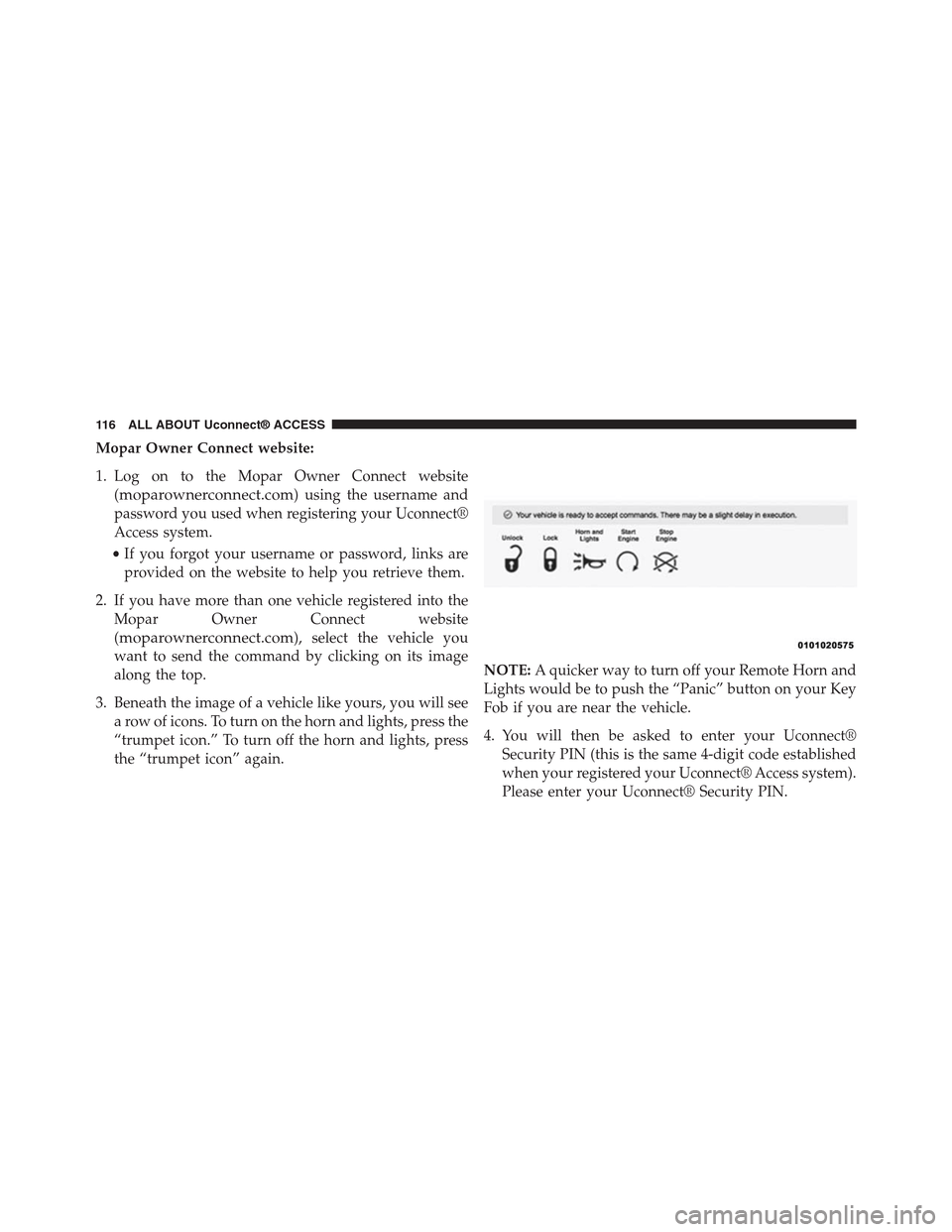
3. Beneath the image of a vehicle like yours, you will see
a row of icons. To turn on the horn and lights, press the
“trumpet icon.” To turn off the horn and lights, press
the “trumpet icon” again.
NOTE:A quicker way to turn off your Remote Horn and
Lights would be to push the “Panic” button on your Key
Fob if you are near the vehicle.
4. You will then be asked to enter your Uconnect®
Security PIN (this is the same 4-digit code established
when your registered your Uconnect® Access system).
Please enter your Uconnect® Security PIN.
11 6 A L L A B O U T U c o n n e c t ® A C C E S S
Page 119 of 429

•Push the button to sound your vehicle’s horn and flash
the lights.
•Your request will typically take about to three minutes
to process. If your vehicle has been parked for a while
it can take up to 30 minutes for the request to reach
your vehicle and perform the task.
Requirements
•Vehicle must be properly equipped with the
Uconnect® Access System.
•Vehicle must be in range of a usable and authorized
cellular signal.
•Vehicle must be registered with Uconnect® Access and
have an active subscription that includes the appli-
cable feature or App.
•If using the Uconnect® Access App to command your
vehicle, your smartphone must be compatible and in
range of a cellular signal.
•An ignition cycle is required for some remote com-
mands such as Remote Vehicle Start and Remote Door
Lock/Unlock if following a Remote Horn and Lights
activation
CAUTION!
The Remote Horn and Lights feature is designed
to be loud and get noticed. Please keep in mind the
surroundings when using this feature.
11 8 A L L A B O U T U c o n n e c t ® A C C E S S
Page 120 of 429

FAQs
1.How long does it take to sound my horn and flash
the lights?Depending on various conditions, it can
take three minutes or more for the request to get
through to your vehicle, although Uconnect® is al-
ways striving to improve performance.
2.Which is faster, my Key Fob or the Uconnect® Access
App?Your Key Fob will sound the horn and flash the
lights quicker; however its range is limited.
3.Will my vehicle be safe if I lose my smartphone?
People sometimes lose their phone, which is why
security measures have been engineered into the
Uconnect® Access App. Asking for your username,
password and Uconnect® Security PIN help to ensure
that nobody can access your vehicle if they happen to
find your smartphone.
4.How do I turn off the horn and lights after I turn
them on?By pressing the “horn icon” a second time
on your Uconnect® Access App, a second command
will be sent to shutoff the horn and lights. Alterna-
tively, if you are close enough to the vehicle you can
use the Key Fob to turn off the horn and lights by
pressing the “Panic” button.
5.Why can’t all phones use the Uconnect® Access
App?The Uconnect® Access App has been designed
to work on most smartphones with the Apple and
Android operating systems. The capabilities of these
smartphone allows us to remotely command your
vehicle. Other operating systems may be supported in
the future.
2
ALL ABOUT Uconnect® ACCESS 119
Page 162 of 429

1.How Do I Register For My Uconnect® Access Ac-
count?Press the “Apps” button on the in-vehicle
touchscreen, then select Uconnect® Registration.
2.Why Do I Need An Email Address?Without an email
address, customers cannot register for Uconnect®
Access. Customers need to register so they can sub-
scribe to receive additional services and create a
Uconnect® Security PIN for remote command re-
quests.
3.How Do I Create A Uconnect® Security PIN?Set up
your Uconnect® Security PIN during the registration
process. The Uconnect® Security PIN will be required
to authenticate you when accessing your account via
Uconnect® Care or performing any remote services
such as Remote Door Lock/Unlock, Remote Horn &
Lights, or Remote Vehicle Start.
4.What If I Forgot My Uconnect® Security PIN?If
you’ve already registered and forgot your Uconnect®
Security PIN, you can reset the pin by selecting Edit
Profile on the Mopar Owner Connect website
(moparownerconnect.com), or you can call
Uconnect® Care at 855-792-4241.
5.How Do I Create A Uconnect® Payment PIN?Log
into the Mopar Owner Connect website
(moparownerconnect.com) with your username and
password. Select Edit Profile > Uconnect® Payment
Account to create an account (and PIN) (if you have a
Uconnect® Access equipped vehicle).
6.What Is A Uconnect® Payment PIN?A Uconnect®
Payment PIN is a unique 4-digit code that you create
to gain access to your payment information – your
credit cards, billing address, payment history and
more. It is required in order to purchase Uconnect®
Access packages and Apps.
2
ALL ABOUT Uconnect® ACCESS 161
Page 418 of 429
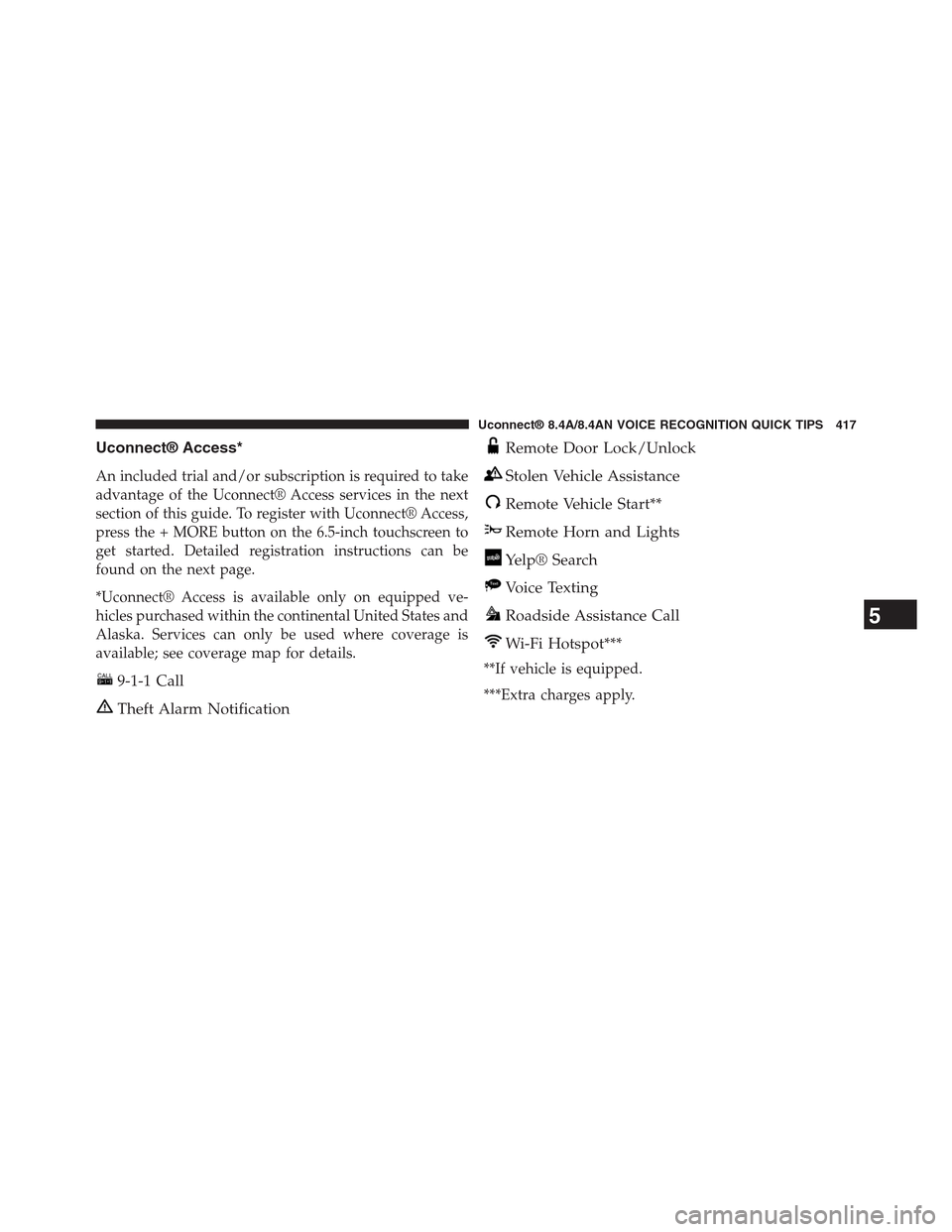
Uconnect® Access*
An included trial and/or subscription is required to take
advantage of the Uconnect® Access services in the next
section of this guide. To register with Uconnect® Access,
press the + MORE button on the 6.5-inch touchscreen to
get started. Detailed registration instructions can be
found on the next page.
*Uconnect® Access is available only on equipped ve-
hicles purchased within the continental United States and
Alaska. Services can only be used where coverage is
available; see coverage map for details.
9-1-1 Call
Theft Alarm Notification
Remote Door Lock/Unlock
Stolen Vehicle Assistance
Remote Vehicle Start**
Remote Horn and Lights
Yelp® Search
Voice Texting
Roadside Assistance Call
Wi-Fi Hotspot***
**If vehicle is equipped.
***Extra charges apply.
5
Uconnect® 8.4A/8.4AN VOICE RECOGNITION QUICK TIPS 417