Page 285 of 429
6. If a connection between the vehicle and a 9-1-1 opera-
tor is made, the 9-1-1 Call system may transmit certain
vehicle information to a 9-1-1 operator, including the
last known GPS coordinates of your vehicle. If a
connection is made between a 9-1-1 operator and your
vehicle, you understand and agree that 9-1-1 operators
may record conversations and sounds in your car
upon connection and consent to such recordings. Your
vehicle MUST have a working electrical system for the
9-1-1 Call system, among others, to operate. IF YOUR
VEHICLE LOSES BATTERY POWER FOR ANY REA-
SON (INCLUDING DURING OR AFTER AN ACCI-
DENT) THE 9-1-1 CALL SYSTEM, AMONG OTHER
VEHICLES SYSTEMS, WILL NOT OPERATE.
WARNING!
If anyone in the vehicle could be in danger (e.g.,
fire or smoke is visible, dangerous road conditions
(Continued)
WARNING!(Continued)
or location), do not wait for voice contact from a
9-1-1 operator. All occupants should exit the ve-
hicle immediately and move to a safe location.
WARNING!
Do not add any aftermarket electrical equipment
to the vehicle’s electrical system. This may prevent
your vehicle from sending a signal to initiate an
emergency call. To avoid interference that can
cause the 9-1-1 Call system to fail, never add
aftermarket equipment (e.g., two way mobile ra-
dio, CB radio, data recorder, etc.) to your vehicle’s
electrical system or modify the antennas on your
vehicle.
284 Uconnect® 8.4A — If Equipped
Page 290 of 429
Uconnect® 8.4AN — If Equipped
CONTENTS
!Uconnect® 8.4AN SYSTEM................291
!RADIO MODE.........................292
▫Setting Presets........................295
▫SiriusXM Satellite Radio Mode — If Equipped . .296
▫Audio..............................304
!MEDIA MODE.........................306
▫Disc Mode — If Equipped...............306
▫USB/iPod® Mode.....................308
▫AUX Mode..........................309
▫SD Card Mode — If Equipped............310
▫Bluetooth® Mode.....................312
!Uconnect® PHONE.....................314
▫Overview...........................314
▫Operation...........................317
▫Phone Call Features...................327
▫Advanced Phone Connectivity............332
▫Things You Should Know About Your Uconnect®
Phone.............................333
▫General Information...................339
!NAVIGATION.........................339
4
Page 292 of 429
Uconnect® 8.4AN SYSTEM
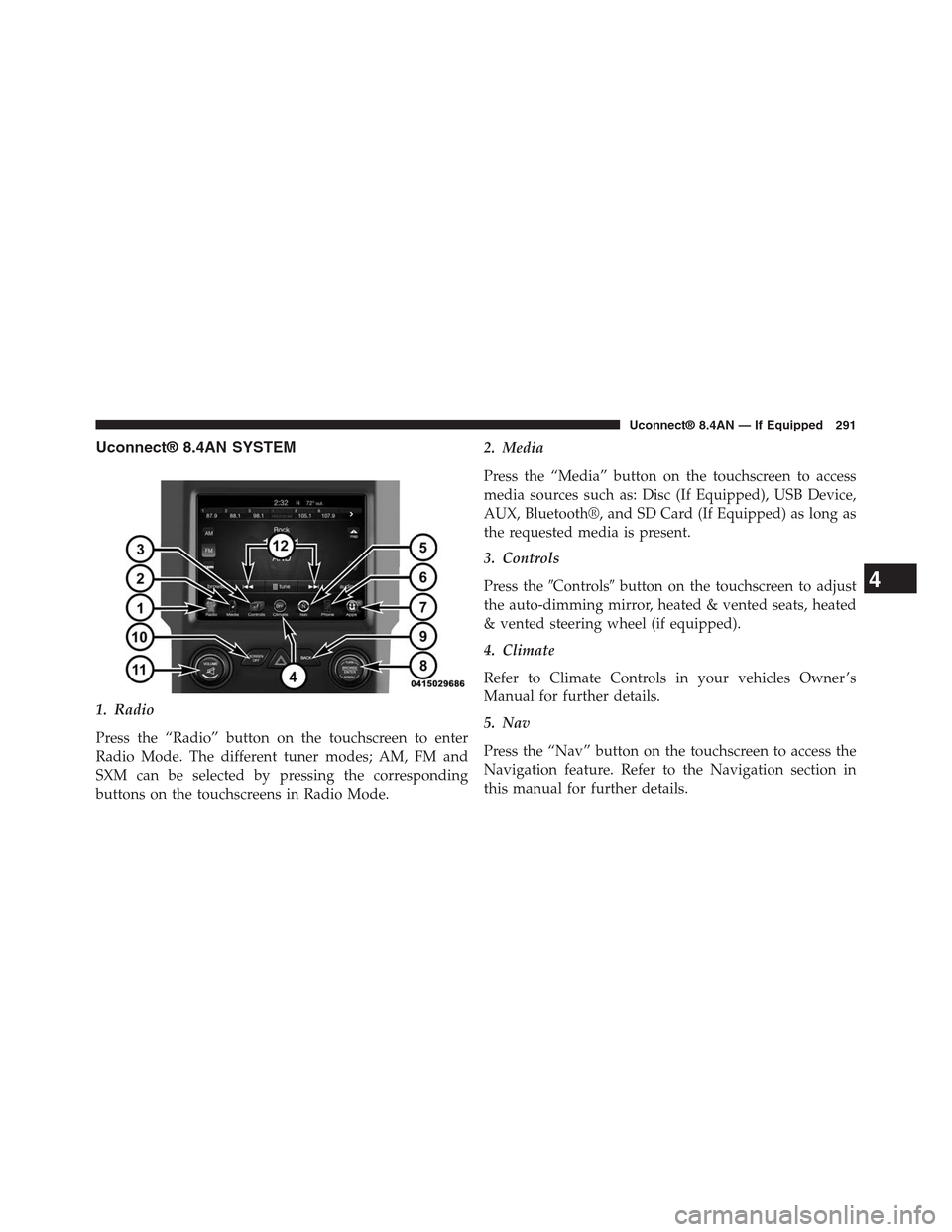
1. Radio
Press the “Radio” button on the touchscreen to enter
Radio Mode. The different tuner modes; AM, FM and
SXM can be selected by pressing the corresponding
buttons on the touchscreens in Radio Mode.
2. Media
Press the “Media” button on the touchscreen to access
media sources such as: Disc (If Equipped), USB Device,
AUX, Bluetooth®, and SD Card (If Equipped) as long as
the requested media is present.
3. Controls
Press the#Controls#button on the touchscreen to adjust
the auto-dimming mirror, heated & vented seats, heated
& vented steering wheel (if equipped).
4. Climate
Refer to Climate Controls in your vehicles Owner ’s
Manual for further details.
5. Nav
Press the “Nav” button on the touchscreen to access the
Navigation feature. Refer to the Navigation section in
this manual for further details.
4
Uconnect® 8.4AN — If Equipped 291
Page 293 of 429
6. Phone
Press the “Phone” button on the touchscreen to access the
Uconnect® Phone feature.
7. Apps
Press the “Apps” button on the touchscreen to access
Smartphone and Connected vehicle options.
8. ENTER/BROWSE & TUNE/SCROLL
Push the ENTER/BROWSE button to accept a high-
lighted selection on the screen. Rotate the TUNE/
SCROLL rotary knob to scroll through a list or tune a
radio station.
9. BACK
Push the BACK button to return to a previous menu or
screen.
10. SCREEN OFF
Push the SCREEN OFF button to turn the touchscreen
OFF. To turn the screen back ON, just press the screen.
11. VOLUME/MUTE
Rotate the rotary knob to adjust the Volume. Push the
VOLUME/MUTE button to mute the system.
12. SEEK
Press the double arrow buttons on the touchscreen to
control the seek feature.
RADIO MODE
The radio is equipped with the following modes:
•AM
•FM
•SiriusXM Satellite Radio (if equipped)
292 Uconnect® 8.4AN — If Equipped
Page 294 of 429

Press the RADIO button on the touchscreen, bottom left
corner, to enter the Radio Mode. The different tuner
modes; AM, FM, and SXM, can then, be selected by
pressing the corresponding buttons in the Radio mode.
VOLUME/MUTE Control
Push the VOLUME/MUTE control knob to mute the
radio. Push the VOLUME/MUTE control knob a second
time to unmute the radio.
The electronic volume control turns continuously (360
degrees) in either direction, without stopping. Turning
the VOLUME/MUTE control knob clockwise increases
the volume, and counterclockwise decreases it.
TUNE/SCROLL Control
When the audio system is turned on, the sound will be
set at the same volume level as last played.
Turn the rotary TUNE/SCROLL control knob clockwise
to increase or counterclockwise to decrease the radio
station frequency. Push the ENTER/BROWSE button to
choose a selection.
Screen Close
The X button on the touchscreen at the top right, provides
a means to close the Direct Tune Screen. The Direct Tune
Screen also auto closes if no activity occurs within 10
seconds.
HD Radio
HD Radio technology (available on Uconnect 8.4AN in
the U.S. market) works similar to conventional radio
except it allows broadcasters to transmit a high-quality
digital signal. With an HD radio receiver, the listener is
provided with a clear sound that enhances the listening
experience. HD radio can also transmit data such as song
title or artist.
4
Uconnect® 8.4AN — If Equipped 293
Page 295 of 429

Seek And Direct Tune Functions
The Seek Up and Down functions are activated by
pressing the double arrow buttons on the touchscreen to
the right and left of the radio station display, or by
pressing the left “Steering Wheel Audio Control” (if
equipped) up or down.
Seek Up
Press and release the “Seek Up”button on the
touchscreen to tune the radio to the next listenable
station or channel. During a Seek Up function, if the
radio reaches the starting station after passing through
the entire band two times, the radio will stop at the
station where it began.
Fast Seek Up
Press and hold the “Seek Up”button on the touch-
screen to advance the radio through the available
stations or channels at a faster rate, the radio stops at
the next available station or channel when the button
on the touchscreen is released.
Seek Down
Press and release the “Seek Down”button on the
touchscreen to tune the radio to the next listenable
station or channel. During a Seek Down function, if
the radio reaches the starting station after passing
through the entire band two times, the radio will stop
at the station where it began.
Fast Seek Down
Press and hold the “Seek Down”button on the
touchscreen to advance the radio through the avail-
able stations or channel at a faster rate, the radio stops
at the next available station or channel when the
button on the touchscreen is released.
294 Uconnect® 8.4AN — If Equipped
Page 296 of 429
Direct Tune
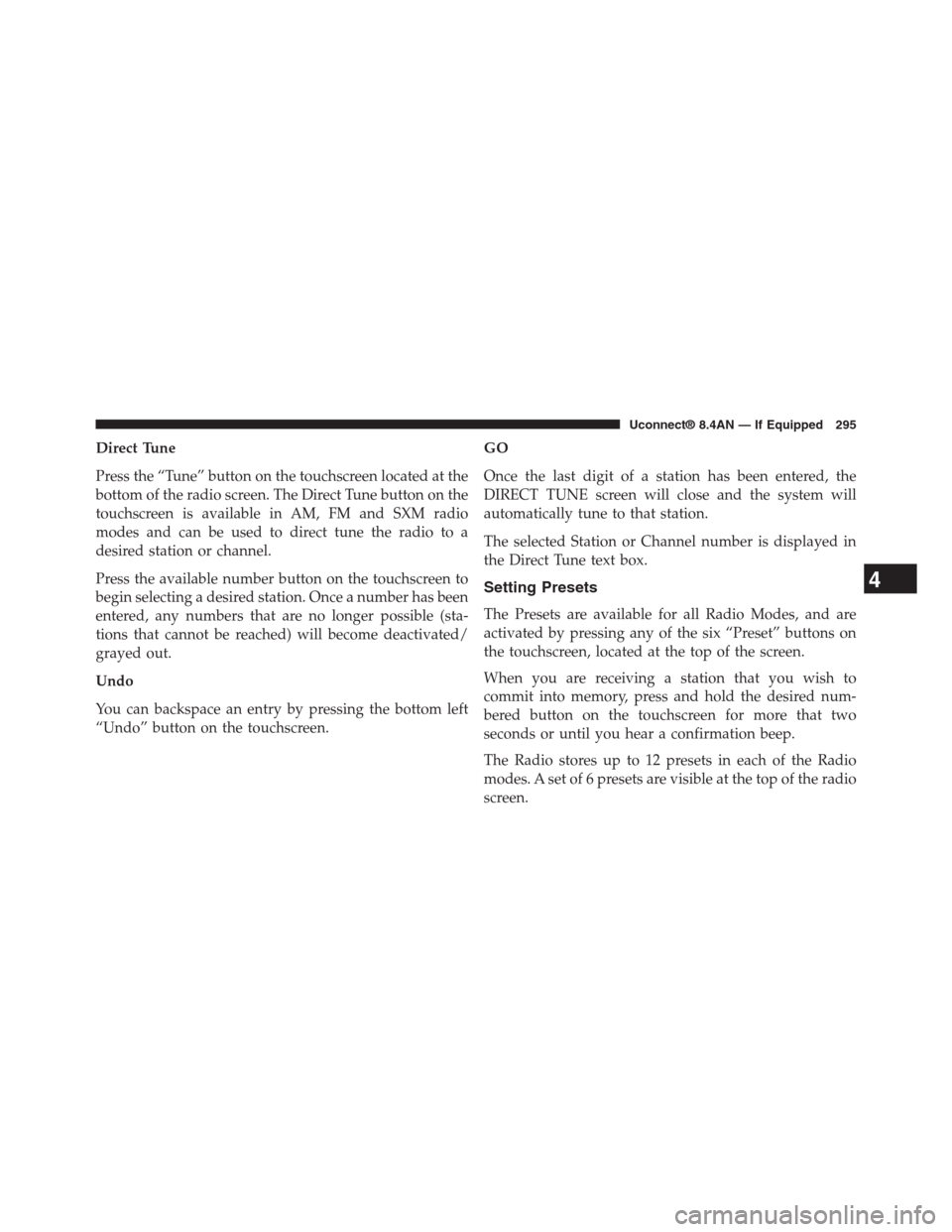
Press the “Tune” button on the touchscreen located at the
bottom of the radio screen. The Direct Tune button on the
touchscreen is available in AM, FM and SXM radio
modes and can be used to direct tune the radio to a
desired station or channel.
Press the available number button on the touchscreen to
begin selecting a desired station. Once a number has been
entered, any numbers that are no longer possible (sta-
tions that cannot be reached) will become deactivated/
grayed out.
Undo
You can backspace an entry by pressing the bottom left
“Undo” button on the touchscreen.
GO
Once the last digit of a station has been entered, the
DIRECT TUNE screen will close and the system will
automatically tune to that station.
The selected Station or Channel number is displayed in
the Direct Tune text box.
Setting Presets
The Presets are available for all Radio Modes, and are
activated by pressing any of the six “Preset” buttons on
the touchscreen, located at the top of the screen.
When you are receiving a station that you wish to
commit into memory, press and hold the desired num-
bered button on the touchscreen for more that two
seconds or until you hear a confirmation beep.
The Radio stores up to 12 presets in each of the Radio
modes. A set of 6 presets are visible at the top of the radio
screen.
4
Uconnect® 8.4AN — If Equipped 295
Page 297 of 429
You can switch between the two radio presets by pressing
the “arrow button” located in the upper right of the radio
touchscreen.
Browse In AM/FM
When in either AM or FM, the Browse Screen provides a
means to edit the Presets List and is entered by pushing
the ENTER/BROWSE button.
Scrolling Preset List
Once in the Browse Presets screen, you can scroll the
preset list by rotation of the TUNE/SCROLL knob, or by
pressing the “Up and Down” arrow keys, located on the
right of the screen.
Preset Selection From List
A Preset can be selected by pressing any of the listed
Presets, or by pushing the ENTER/BROWSE button on
the TUNE/SCROLL knob to select the currently high-
lighted Preset.
When selected, the radio tunes to the station stored in the
Preset and returns to the main radio screen.
Deleting Presets
A Preset can be deleted in the Presets Browse screen by
pressing the “Trash Can” icon for the corresponding
Preset.
Return To Main Radio Screen
You can return to the Main Radio Screen, by pressing the
“X” button on the touchscreen when in the Browse
Presets screen.
SiriusXM Satellite Radio Mode — If Equipped
SiriusXM Satellite Radio uses direct satellite-to-receiver
broadcasting technology to provide clear, coast to coast
radio content. SiriusXM is a subscription based service.
296 Uconnect® 8.4AN — If Equipped