Page 260 of 620
260
3-2. Using the audio system
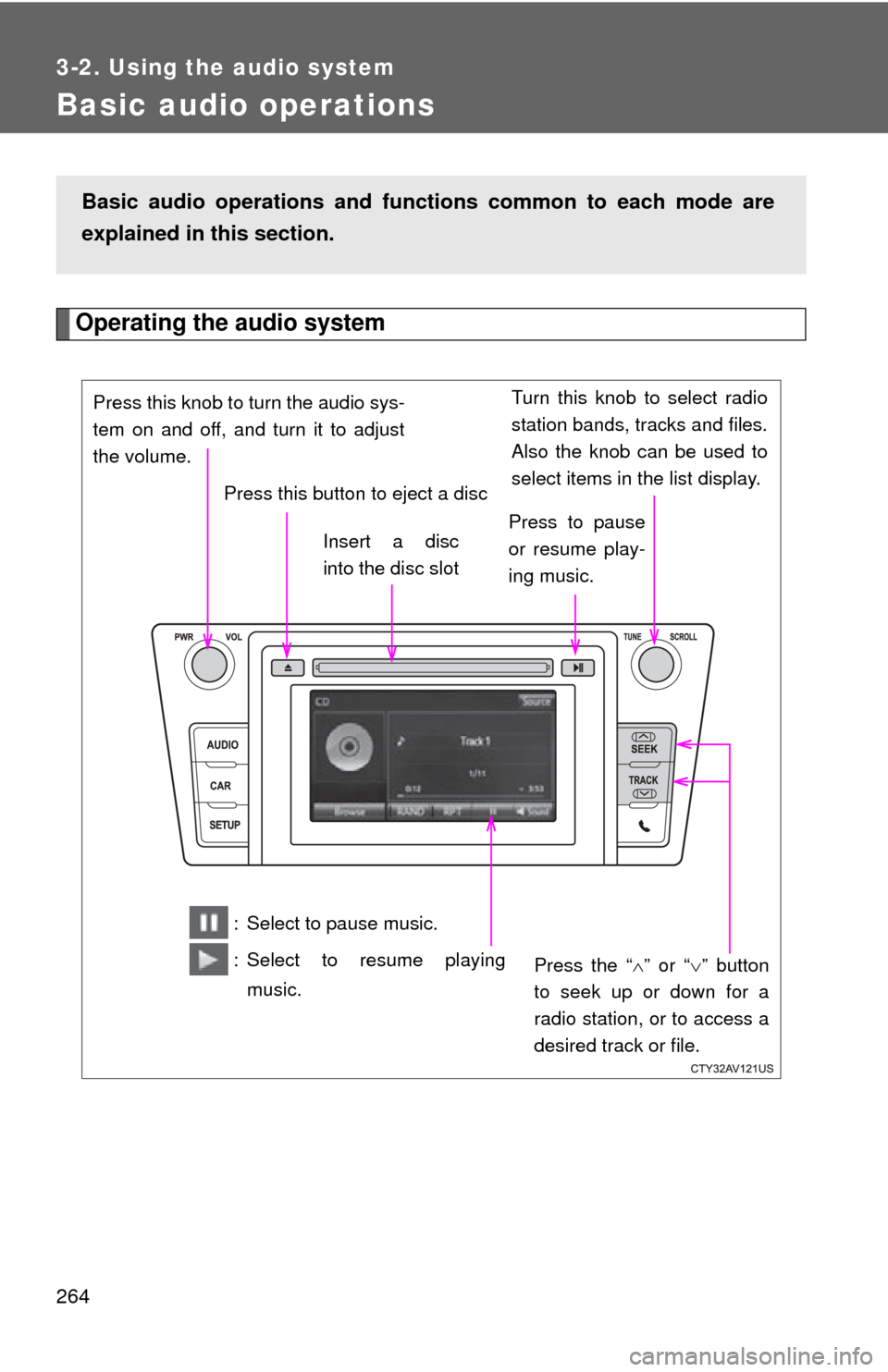
Steering wheel audio switches
Operating the audio system using the steering wheel switchesVolume switch
• Increases/decreases vol-
ume
• Press and hold: Continu-
ously increases/decreases
volume
Back switch
• Returns to the previous screen
Cursor switch
• Selects (radio stations/radio presets/tracks/files/songs)
• Moves cursor
• Press and hold: Seek up/
down (radio stations)
• Fast up/down (tracks/files)
Enter switch
• Displays the preset/list screen
• Selects items
Some audio features can be cont rolled using the switches on the
steering wheel.
Operation may differ depending on th e type of audio system or navi-
gation system. For details, refer to the manual provided with the
audio system or navigation system.
Page 264 of 620
264
3-2. Using the audio system
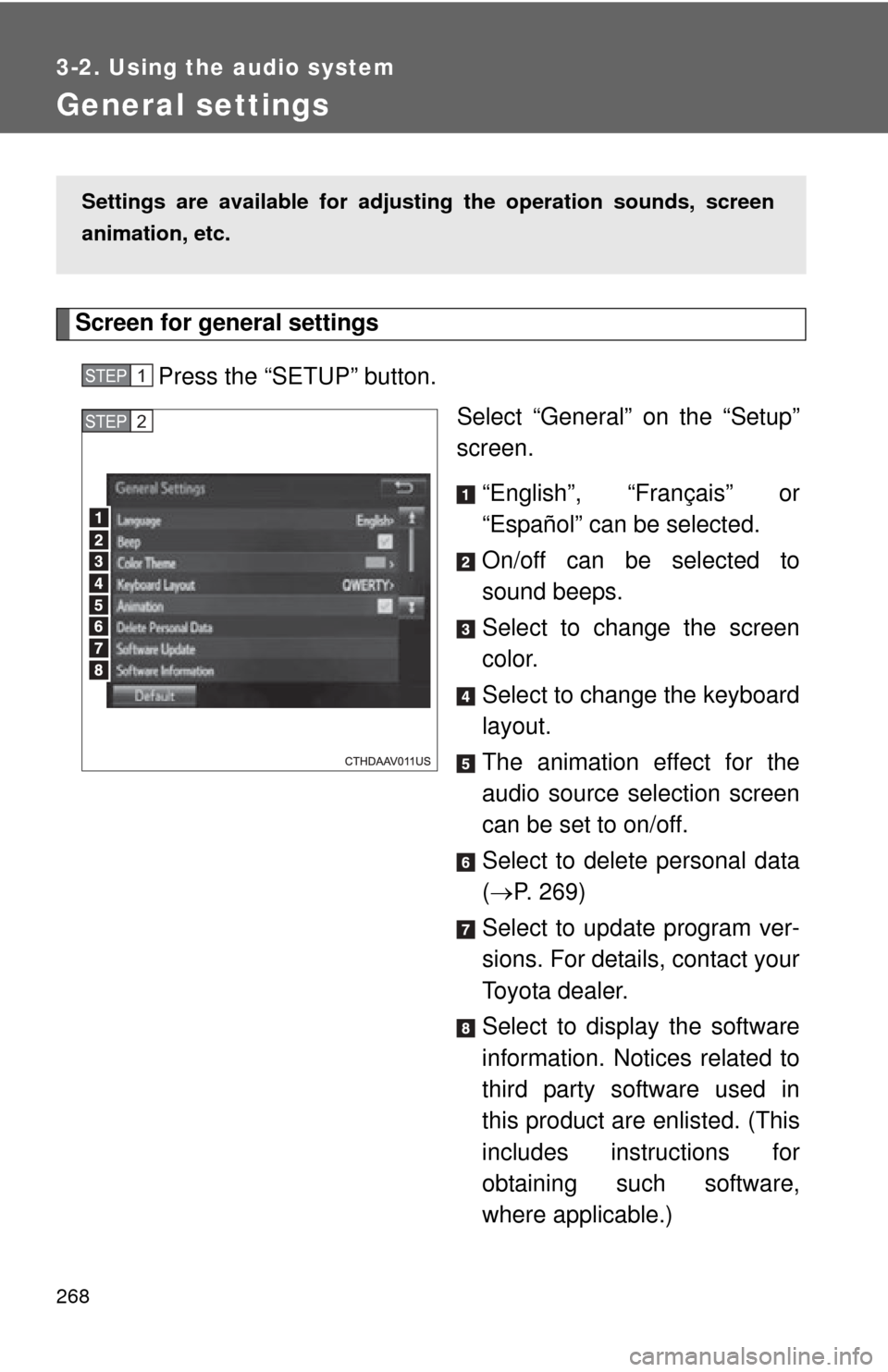
Basic audio operations
Operating the audio system
Basic audio operations and functions common to each mode are
explained in this section.
Press the “ ” or “” button
to seek up or down for a
radio station, or to access a
desired track or file.
Press this knob to turn the audio sys-
tem on and off, and turn it to adjust
the volume.
Press this button to eject a disc
Press to pause
or resume play-
ing music.
Insert a disc
into the disc slot
: Select to pause music.
: Select to resume playing
music.
Turn this knob to select radio
station bands, tracks and files.
Also the knob can be used to
select items in the list display.
Page 267 of 620
267
3-2. Using the audio system
3
Interior features
Setup menu
Display “Setup” screenPress the “SETUP” button to display the “Setup” screen. Select to adjust the settings
for operation sounds, screen
animation, etc. (P. 268)
Select to set the voice set-
tings. ( P. 273)
Select to adjust the settings
for contrast and brightness of
the screen. ( P. 271)
Select to adjust the settings
for registering, removing, con-
necting and disconnecting
Bluetooth
® devices. ( P. 314)
Select to adjust the settings
for phone sound, phonebook,
etc. ( P. 337)
Select to set radio and exter-
nal media settings. ( P. 270)
Select to turn the screen off.
Select to set the vehicle cus-
tomization. ( P. 581)
You can adjust the audio system to your desired settings.
Page 268 of 620
268
3-2. Using the audio system
General settings
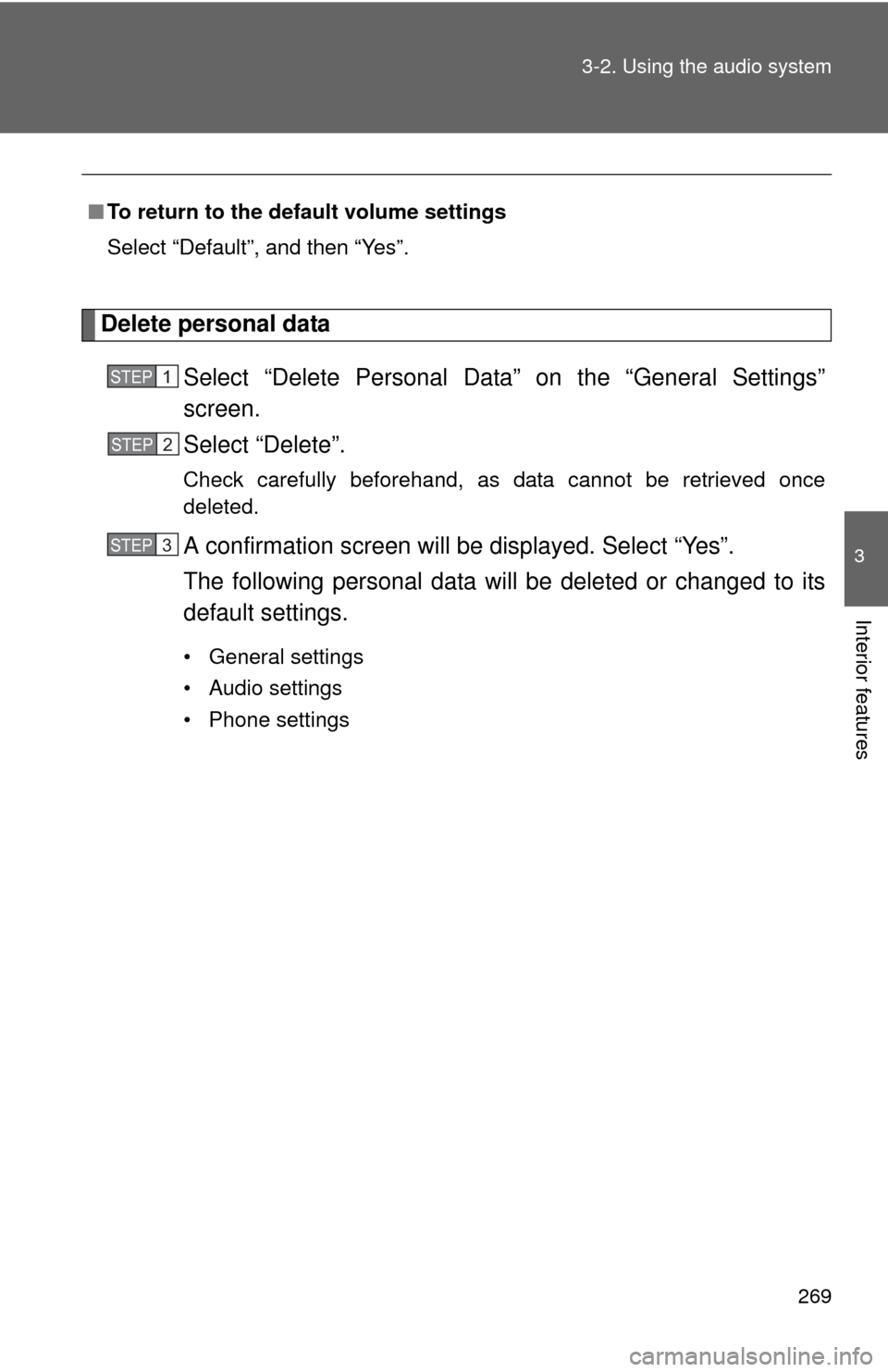
Screen for general settingsPress the “SETUP” button. Select “General” on the “Setup”
screen.
“English”, “Français” or
“Español” can be selected.
On/off can be selected to
sound beeps.
Select to change the screen
color.
Select to change the keyboard
layout.
The animation effect for the
audio source selection screen
can be set to on/off.
Select to delete personal data
( P. 269)
Select to update program ver-
sions. For details, contact your
Toyota dealer.
Select to display the software
information. Notices related to
third party software used in
this product are enlisted. (This
includes instructions for
obtaining such software,
where applicable.)
Settings are available for adjusting the operation sounds, screen
animation, etc.
STEP1
STEP2
Page 269 of 620
269
3-2. Using the audio system
3
Interior features
Delete personal data
Select “Delete Personal Data” on the “General Settings”
screen.
Select “Delete”.
Check carefully beforehand, as data cannot be retrieved once
deleted.
A confirmation screen will be displayed. Select “Yes”.
The following personal data will be deleted or changed to its
default settings.
• General settings
• Audio settings
• Phone settings
■
To return to the default volume settings
Select “Default”, and then “Yes”.
STEP1
STEP2
STEP3
Page 270 of 620
270
3-2. Using the audio system
Audio settings
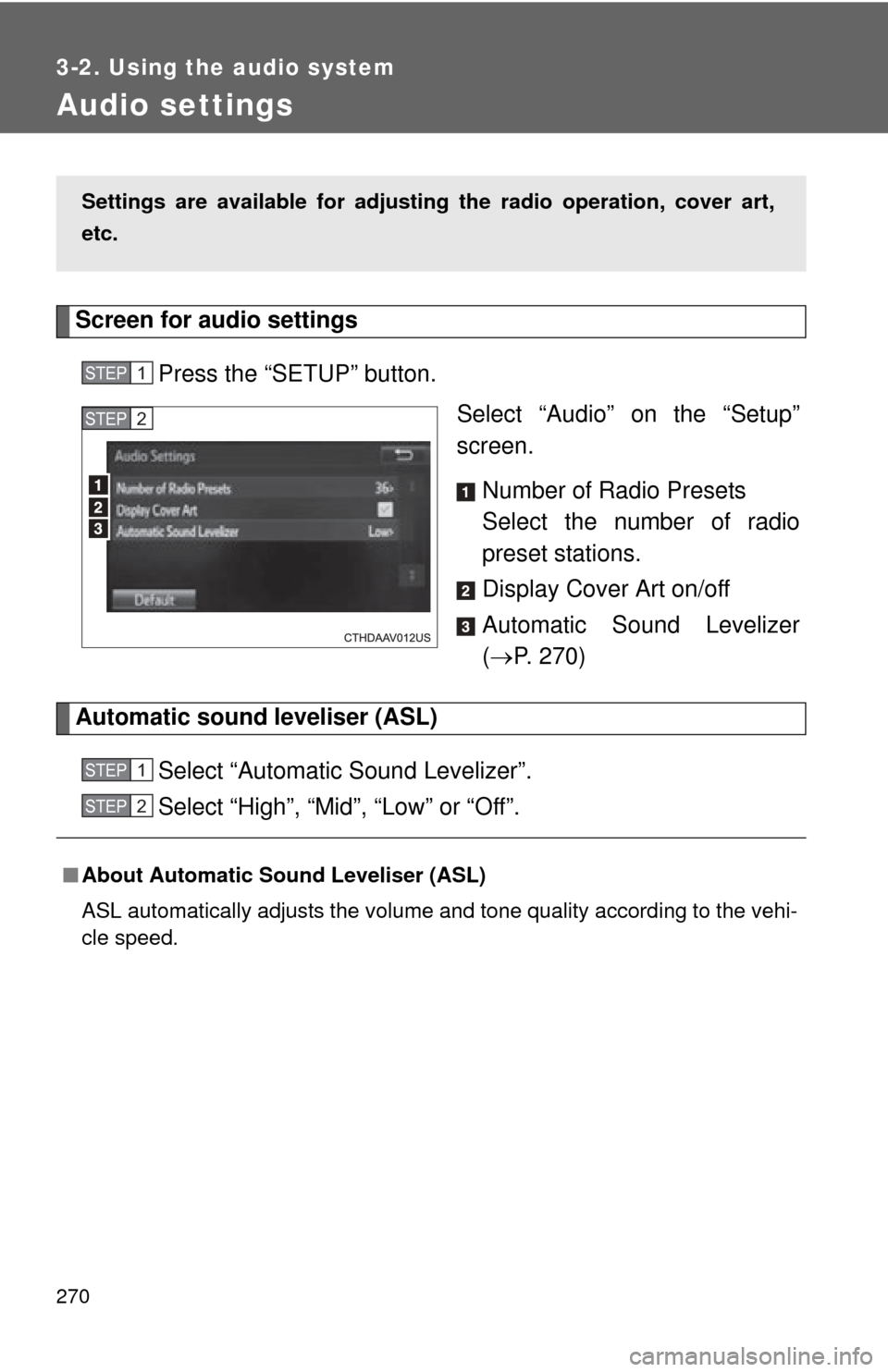
Screen for audio settingsPress the “SETUP” button. Select “Audio” on the “Setup”
screen.
Number of Radio Presets
Select the number of radio
preset stations.
Display Cover Art on/off
Automatic Sound Levelizer
( P. 270)
Automatic sound leveliser (ASL)
Select “Automatic Sound Levelizer”.
Select “High”, “Mid”, “Low” or “Off”.
Settings are available for adjusting the radio operation, cover art,
etc.
STEP1
STEP2
■About Automatic Sound Leveliser (ASL)
ASL automatically adjusts the volume and tone quality according to the vehi-
cle speed.
STEP1
STEP2
Page 271 of 620
271
3-2. Using the audio system
3
Interior features
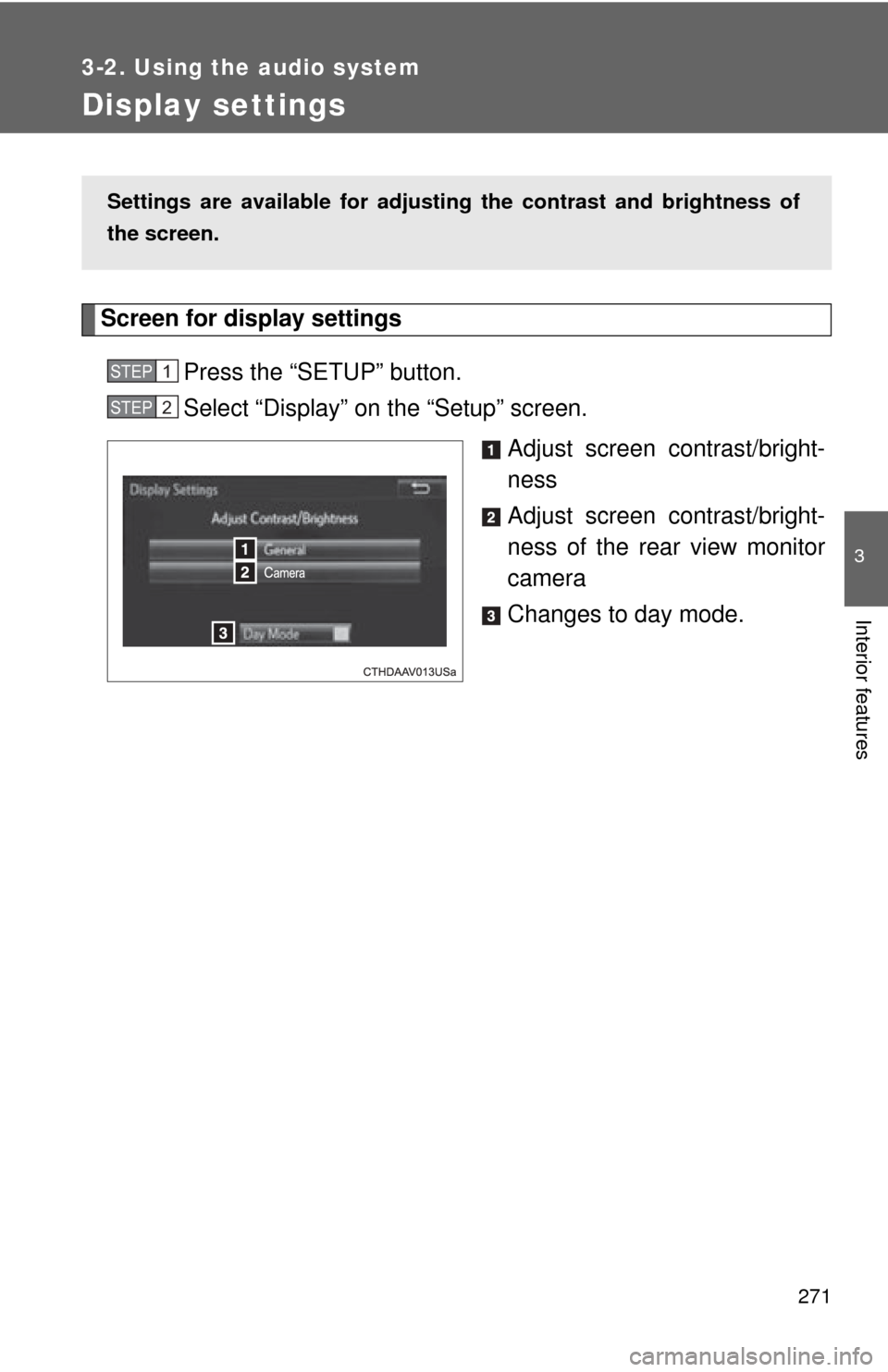
Display settings
Screen for display settingsPress the “SETUP” button.
Select “Display” on the “Setup” screen. Adjust screen contrast/bright-
ness
Adjust screen contrast/bright-
ness of the rear view monitor
camera
Changes to day mode.
Settings are available for adjusti ng the contrast and brightness of
the screen.
STEP1
STEP2
Page 272 of 620
272 3-2. Using the audio system
Adjusting the screen contrast/brightnessSelect “General” or “Camera” on the “Display Settings”
screen.
Adjust the display as desired by selecting “+” or “-”.
Day modeWhen the headlights are turned on, the screen dims.
However, the screen can be switc hed to day mode by selecting “Day
Mode”.
The screen will stay in day mode when the headlights are turned on until
“Day Mode” is selected again.
STEP1
STEP2