Page 309 of 620
309
3-2. Using the audio system
3
Interior features
Connecting a Bluetooth® device
Press the “SETUP” button.
Select “Bluetooth*”.
*: Bluetooth is a registered trademark of Bluetooth SIG, Inc.
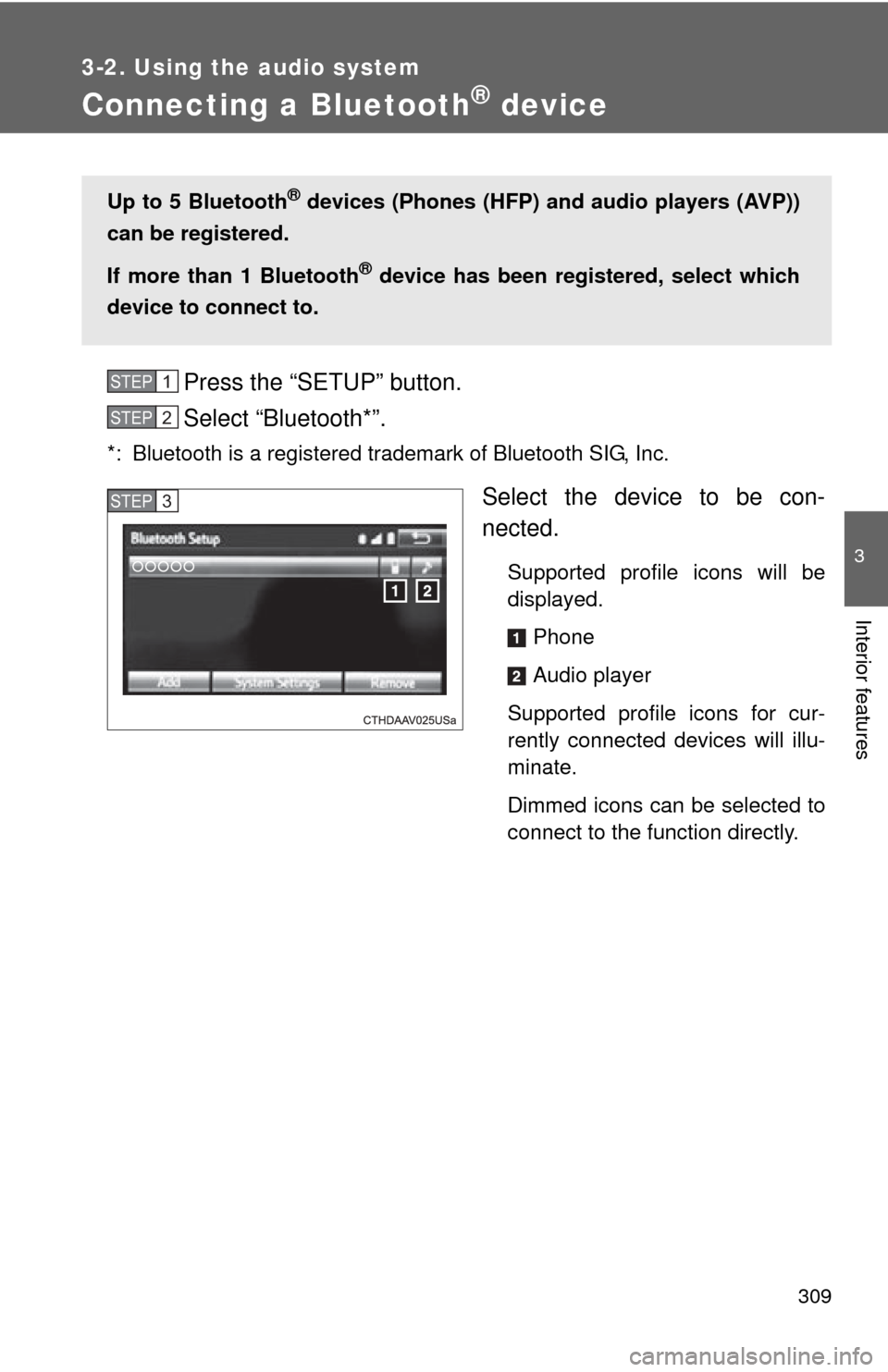
Select the device to be con-
nected.
Supported profile icons will be
displayed.Phone
Audio player
Supported profile icons for cur-
rently connected devices will illu-
minate.
Dimmed icons can be selected to
connect to the function directly.
Up to 5 Bluetooth® devices (Phones (HFP) and audio players (AVP))
can be registered.
If more than 1 Bluetooth
® device has been registered, select which
device to connect to.
STEP1
STEP2
STEP3
Page 310 of 620
310 3-2. Using the audio system
Auto connectionTo turn auto connection mode on, set “Bluetooth* Power” to on.
( P. 314)
When you register a phone, auto connection will be activated. Always
set it to this mode and leave the Bluetooth
® phone in a place where a
connection can be established.
Vehicles with a smart key system
When the “ENGINE START STOP” switch is turned to ACCESSORY or
IGNITION ON mode, the system will search for a nearby cellular phone
you have registered.
Vehicles without a smart key system
When the engine switch is turned to “ACC” or “ON” mode, the system will
search for a nearby cellular phone you have registered.
Next, the system automatically connects with the most recent of the
phones connected to in the past. Then, the connection result is displayed.
Manual connection
When auto connection has failed or “Bluetooth* Power” is turned off,
you must connect the Bluetooth
® device manually.
*: Bluetooth is a registered trademark of Bluetooth SIG, Inc.
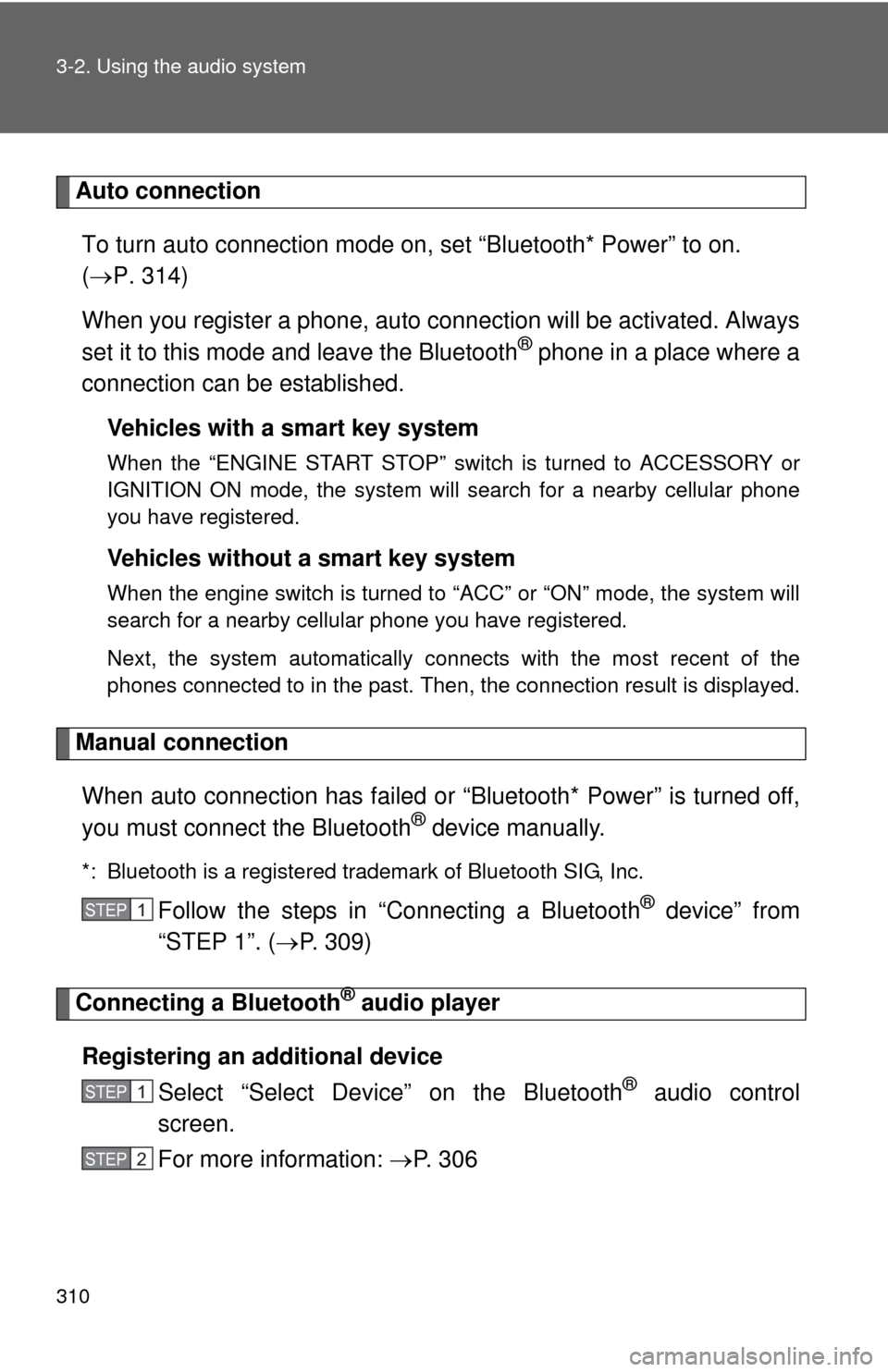
Follow the steps in “Connecting a Bluetooth® device” from
“STEP 1”. ( P. 309)
Connecting a Bluetooth® audio player
Registering an additional device Select “Select Devi ce” on the Bluetooth
® audio control
screen.
For more information: P. 3 0 6
STEP1
STEP1
STEP2
Page 312 of 620
312
3-2. Using the audio system
Displaying a Bluetooth® device details
Bluetooth® device registration status
Display the “Bluetooth* Setup” screen. ( P. 303)
*: Bluetooth is a registered trademark of Bluetooth SIG, Inc.
Select the device.
Select “Device Info”.
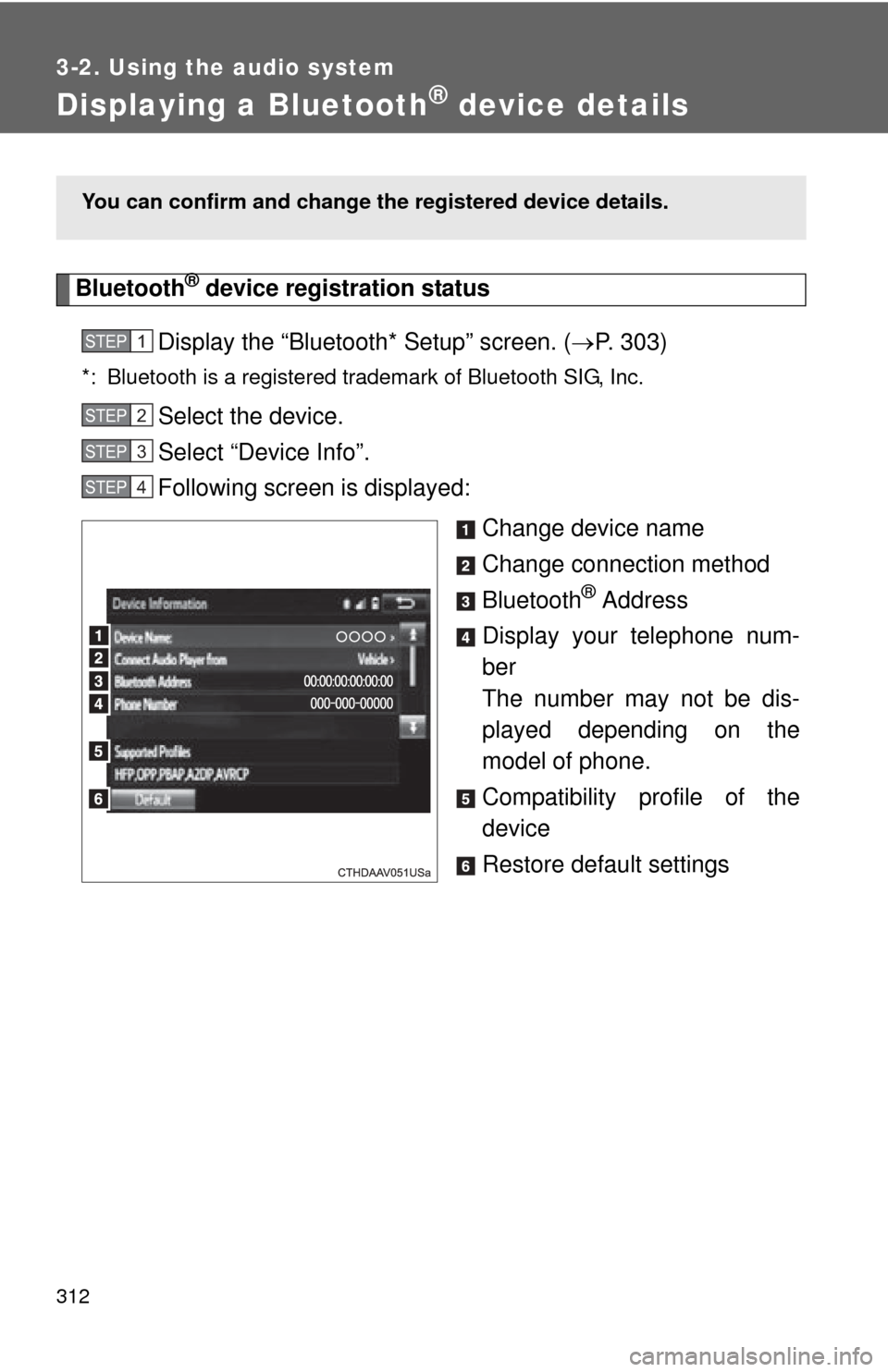
Following screen is displayed:
Change device name
Change connection method
Bluetooth
® Address
Display your telephone num-
ber
The number may not be dis-
played depending on the
model of phone.
Compatibility profile of the
device
Restore default settings
You can confirm and change th e registered device details.
STEP1
STEP2
STEP3
STEP4
Page 314 of 620
314
3-2. Using the audio system
Detailed Bluetooth® system settings
How to check and change detailed Bluetooth® settings
Display the “Bluetooth* Setup” screen. ( P. 303)
Select “System Settings”.
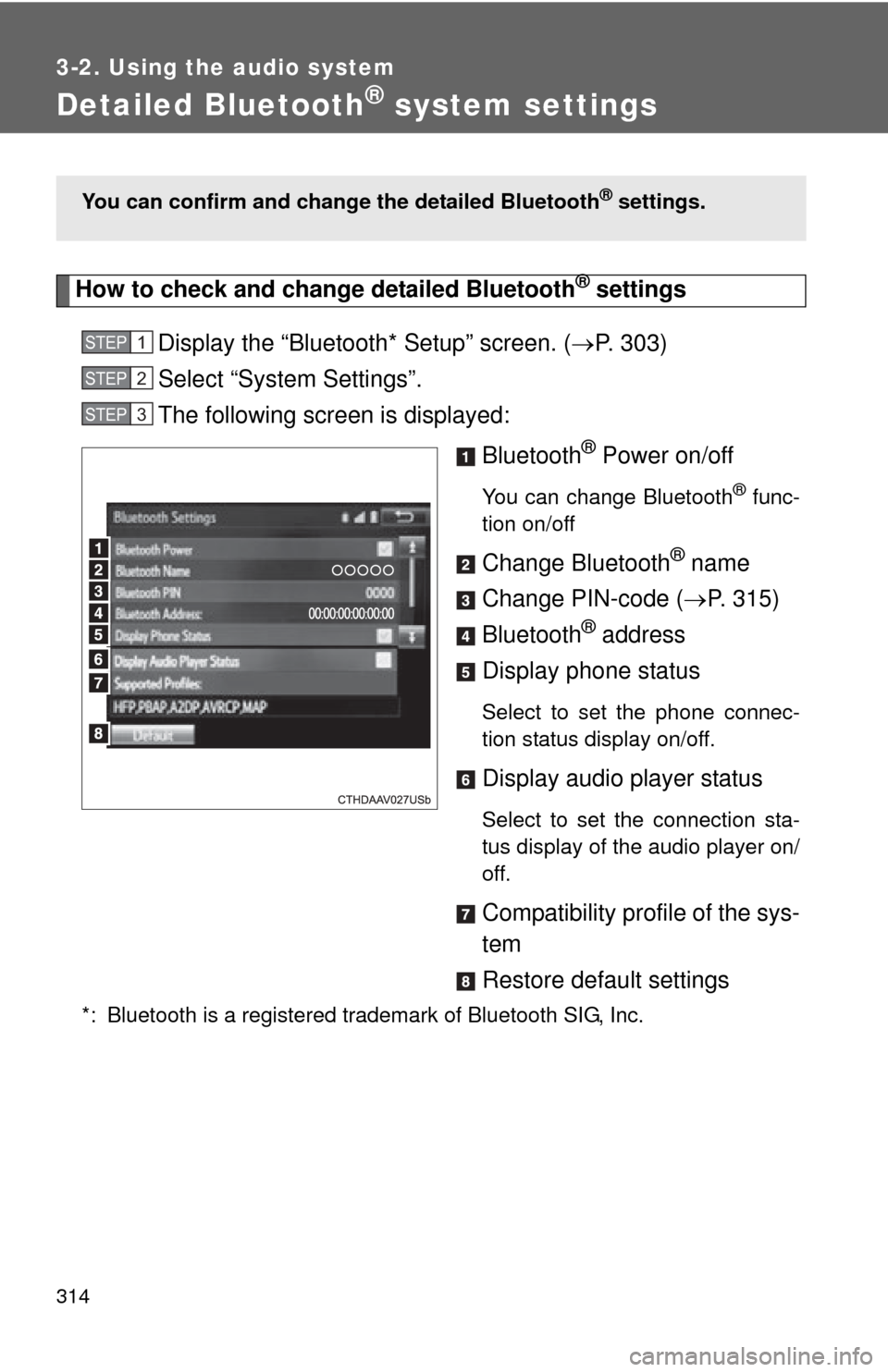
The following screen is displayed:
Bluetooth
® Power on/off
You can change Bluetooth® func-
tion on/off
Change Bluetooth® name
Change PIN-code ( P. 315)
Bluetooth
® address
Display phone status
Select to set the phone connec-
tion status display on/off.
Display audio player status
Select to set the connection sta-
tus display of the audio player on/
off.
Compatibility profile of the sys-
tem
Restore default settings
*: Bluetooth is a registered trademark of Bluetooth SIG, Inc.
You can confirm and change the detailed Bluetooth® settings.
STEP1
STEP2
STEP3
Page 316 of 620
316
3-2. Using the audio system
Listening to Bluetooth® audio
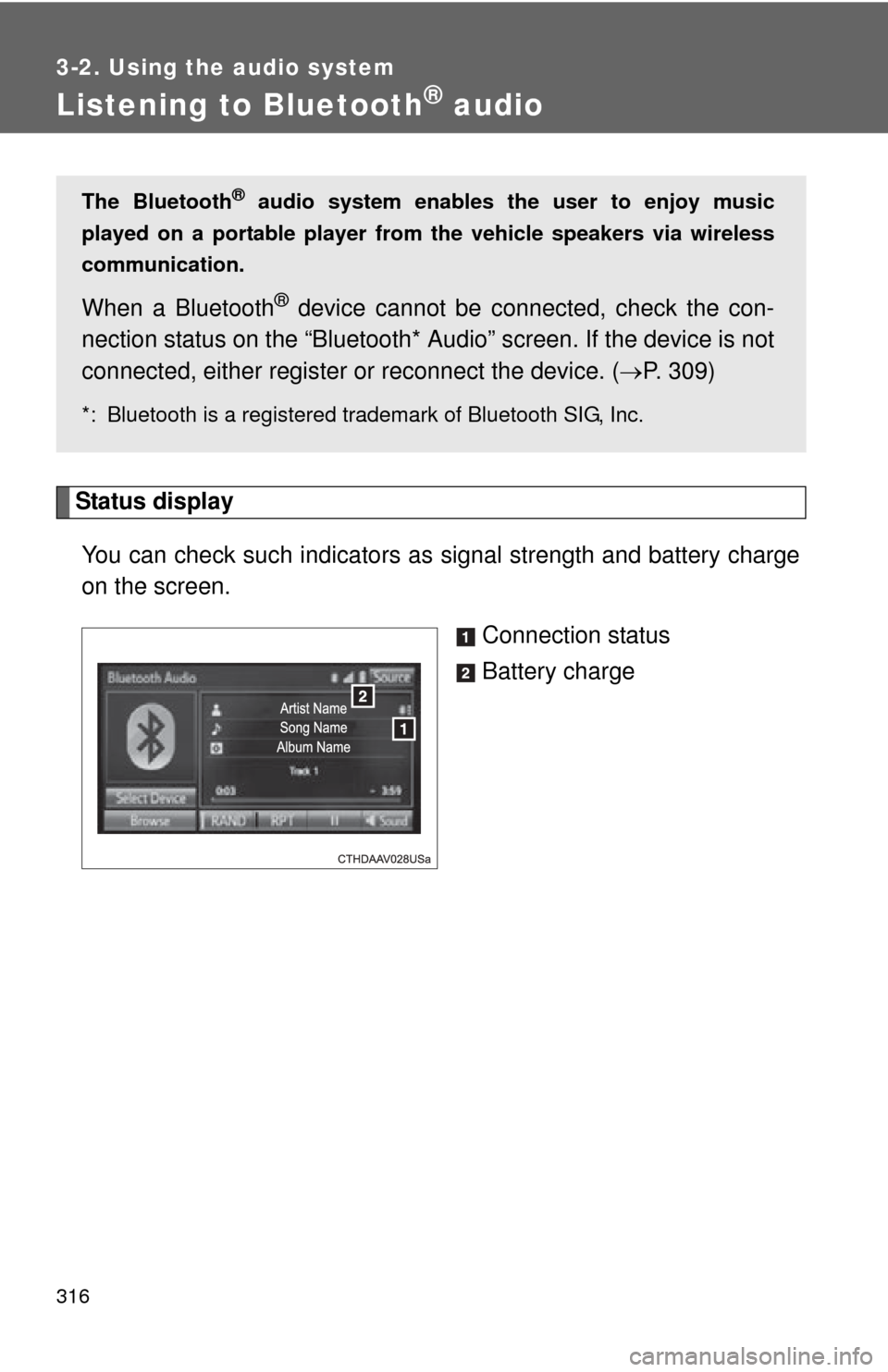
Status displayYou can check such indicators as signal strength and battery charge
on the screen.
Connection status
Battery charge
The Bluetooth® audio system enables the user to enjoy music
played on a portable player from the vehicle speakers via wireless
communication.
When a Bluetooth® device cannot be con nected, check the con-
nection status on the “Bluetooth* Audio” screen. If the device is not
connected, either register or reconnect the device. ( P. 309)
*: Bluetooth is a registered trademark of Bluetooth SIG, Inc.
Page 318 of 620
318
3-2. Using the audio system
Using a Bluetooth® phone
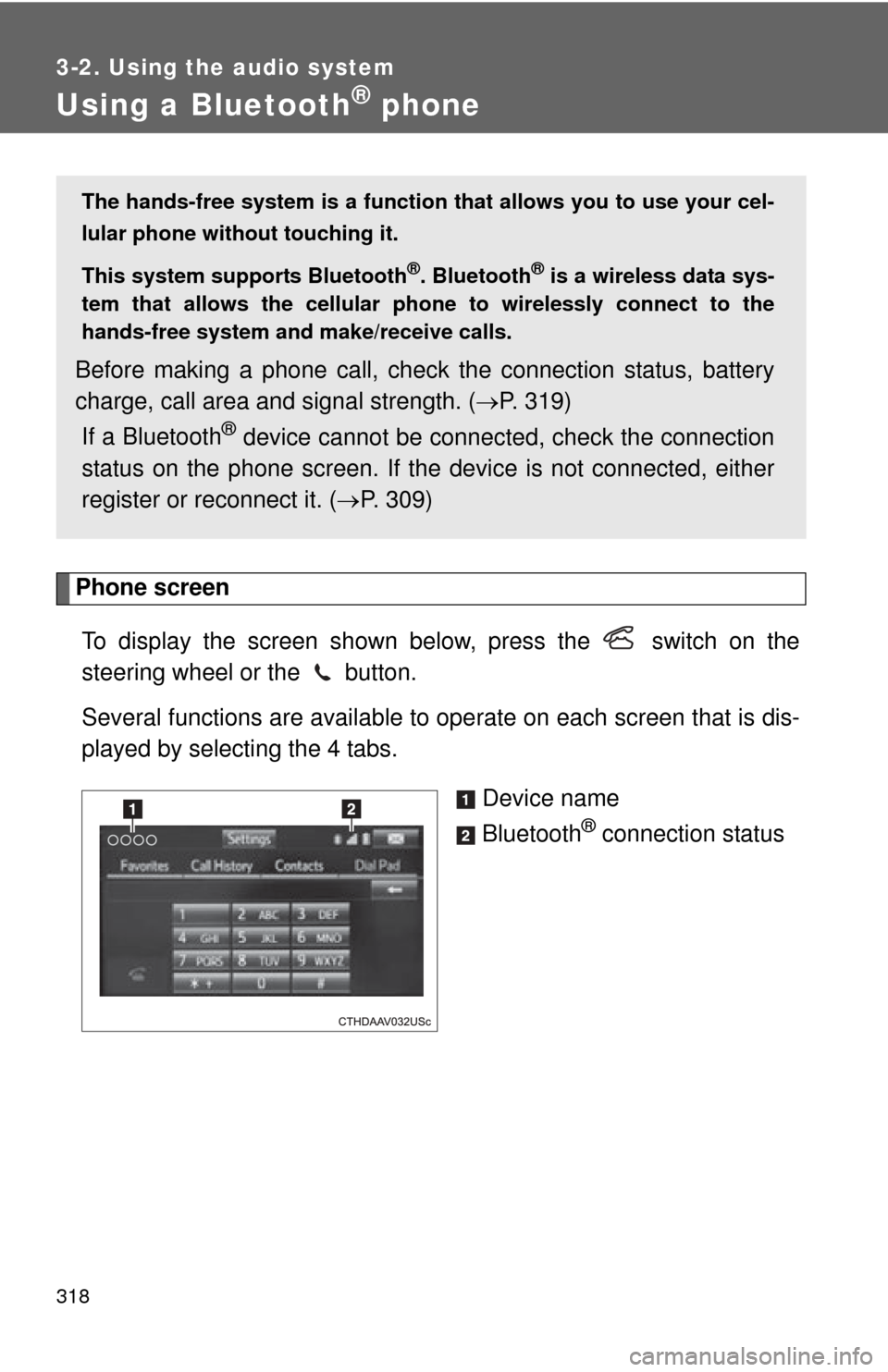
Phone screenTo display the screen shown below, press the switch on the
steering wheel or the button.
Several functions are available to ope rate on each screen that is dis-
played by selecting the 4 tabs.
Device name
Bluetooth
® connection status
The hands-free system is a function th at allows you to use your cel-
lular phone without touching it.
This system supports Bluetooth
®. Bluetooth® is a wireless data sys-
tem that allows the cellular phone to wirelessly connect to the
hands-free system and make/receive calls.
Before making a phone call, check the connection status, battery
charge, call area and signal strength. ( P. 319)
If a Bluetooth
® device cannot be connec ted, check the connection
status on the phone screen. If the de vice is not connected, either
register or reconnect it. ( P. 309)
Page 319 of 620
319
3-2. Using the audio system
3
Interior features
■
Telephone switch ( P. 334)
■ Microphone
The vehicle’s built in microphone
is used when talking on the
phone.
The person you are speaking to
can be heard from the front
speakers.
To use the hands-free system, yo u must register your Bluetooth
®
phone in the system. (P. 306)
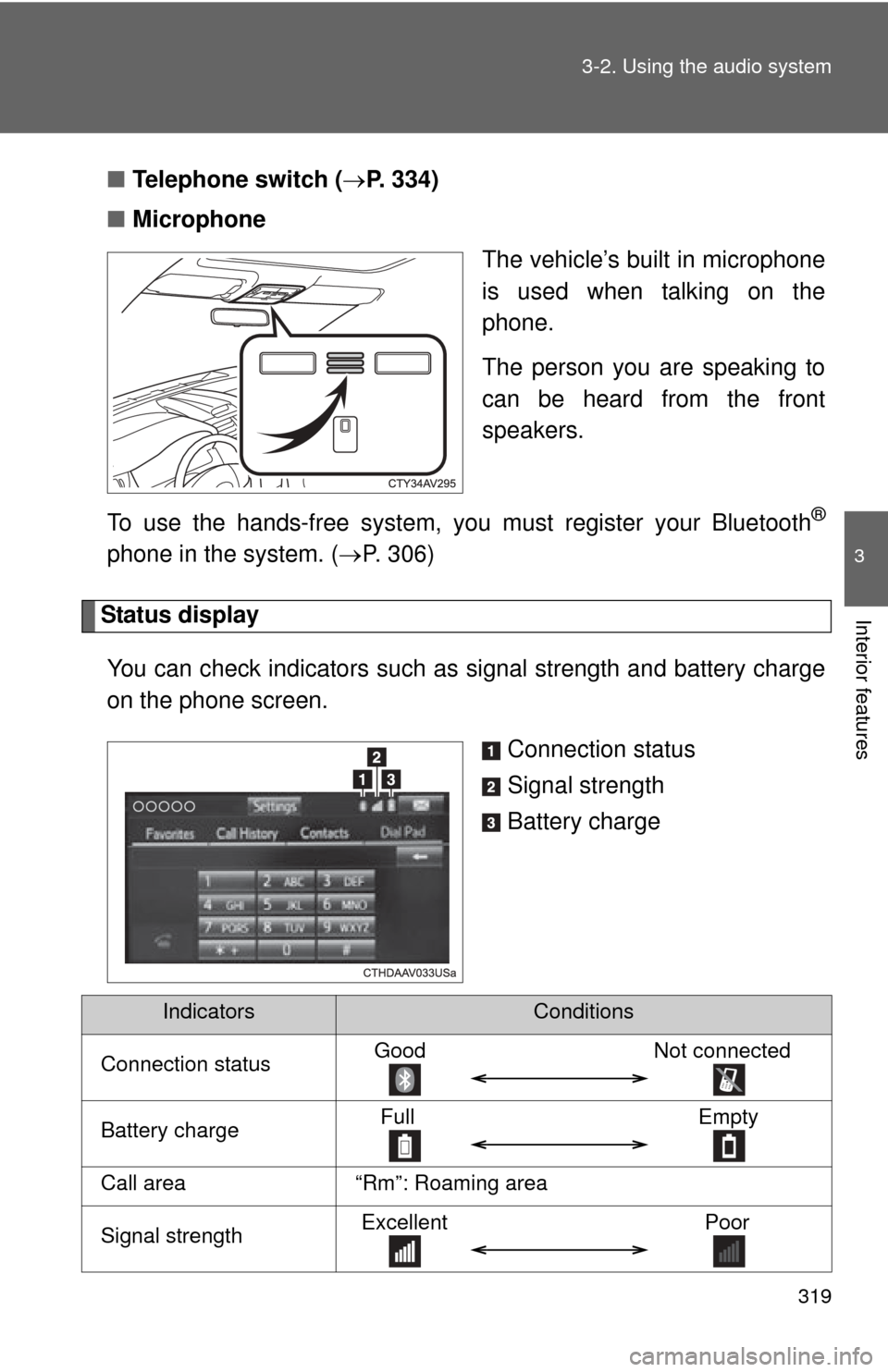
Status display
You can check indicators such as signal strength and battery charge
on the phone screen.
Connection status
Signal strength
Battery charge
IndicatorsConditions
Connection statusGoodNot connected
Battery chargeFull Empty
Call area“Rm”: Roaming area
Signal strengthExcellent Poor
Page 320 of 620
320
3-2. Using the audio system
Making a call
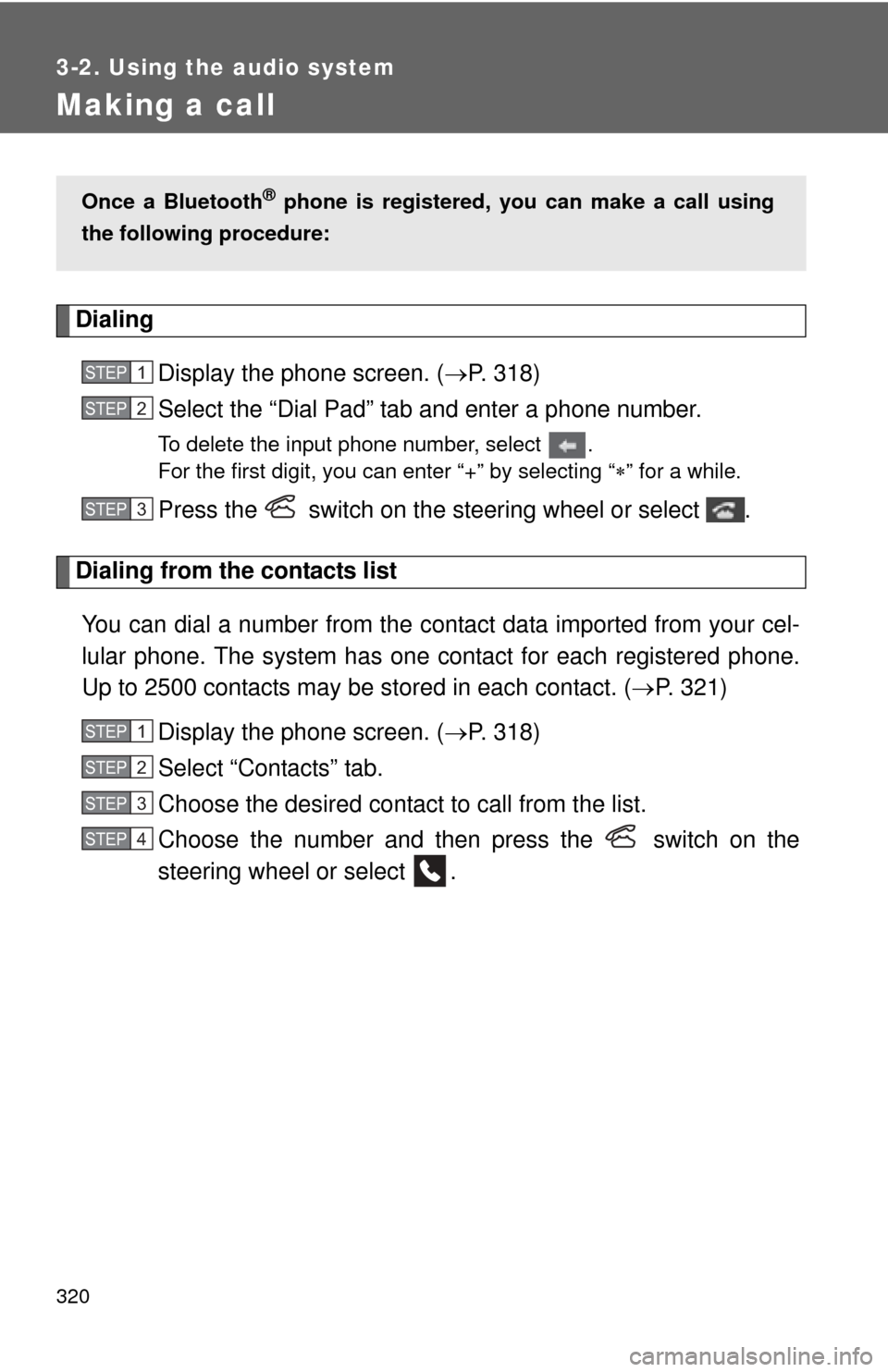
DialingDisplay the phone screen. ( P. 318)
Select the “Dial Pad” tab and enter a phone number.
To delete the input phone number, select .
For the first digit, you can enter “+” by selecting “ ” for a while.
Press the switch on the steering wheel or select .
Dialing from the contacts list
You can dial a number from the c ontact data imported from your cel-
lular phone. The system has one contact for each registered phone.
Up to 2500 contacts may be stored in each contact. ( P. 321)
Display the phone screen. ( P. 318)
Select “Contacts” tab.
Choose the desired contact to call from the list.
Choose the number and then press the switch on the
steering wheel or select .
Once a Bluetooth® phone is registered, you can make a call using
the following procedure:
STEP1
STEP2
STEP3
STEP1
STEP2
STEP3
STEP4