2014 MERCEDES-BENZ S-Class Comand
[x] Cancel search: ComandPage 231 of 434
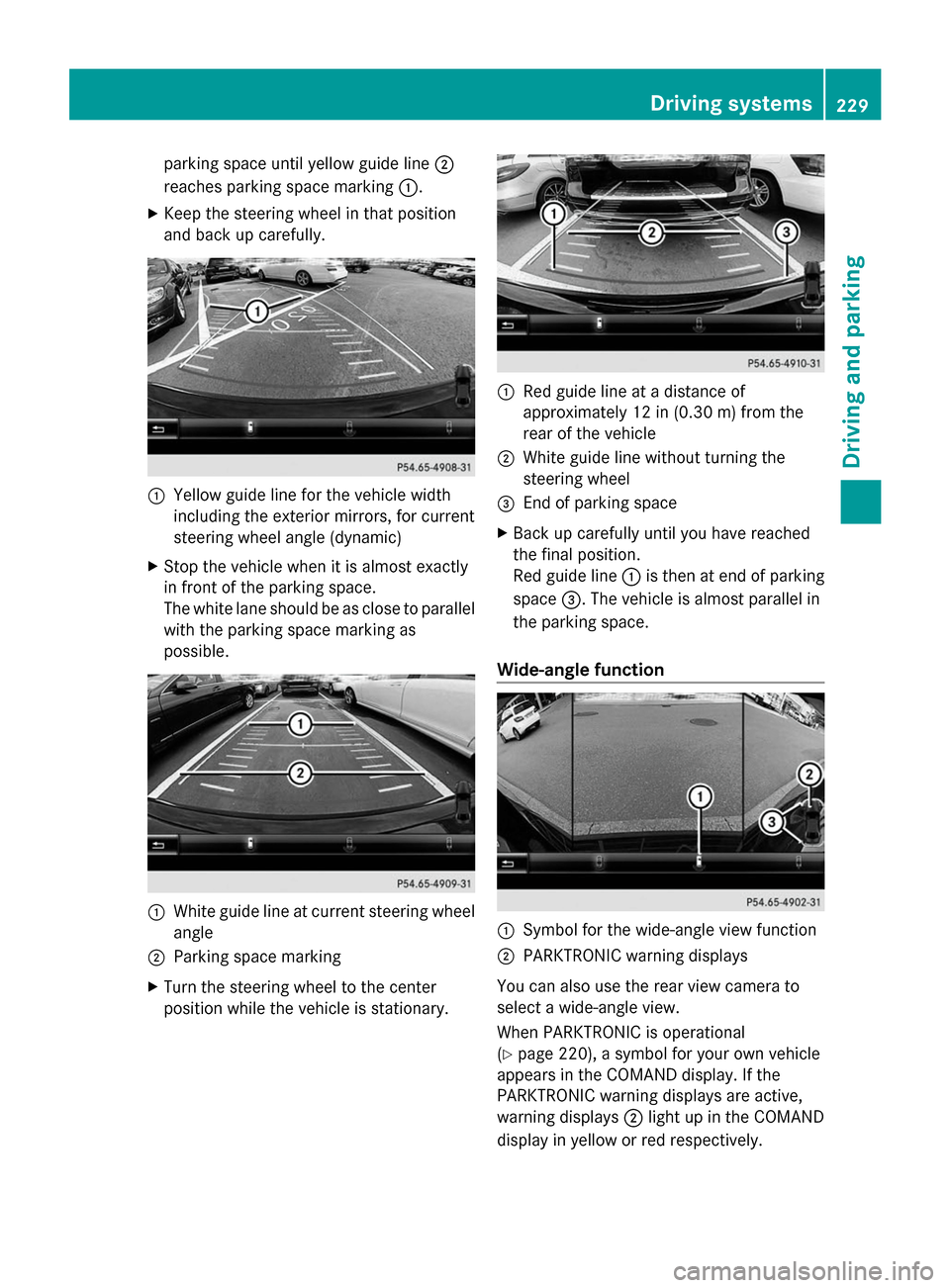
parking space until yellow guide line
0044
reaches parking space marking 0043.
X Keep the steering wheel in that position
and back up carefully. 0043
Yellow guide line for the vehicle width
including the exterior mirrors, for current
steering wheel angle (dynamic)
X Stop the vehicle when it is almost exactly
in front of the parking space.
The white lane should be as close to parallel
with the parking space marking as
possible. 0043
White guide line at current steering wheel
angle
0044 Parking space marking
X Turn the steering wheel to the center
position while the vehicle is stationary. 0043
Red guide line at a distance of
approximately 12 in (0.30 m) from the
rear of the vehicle
0044 White guide line without turning the
steering wheel
0087 End of parking space
X Back up carefully until you have reached
the final position.
Red guide line 0043is then at end of parking
space 0087. The vehicle is almost parallel in
the parking space.
Wide-angle function 0043
Symbol for the wide-angle view function
0044 PARKTRONIC warning displays
You can also use the rear view camera to
select a wide-angle view.
When PARKTRONIC is operational
(Y page 220), a symbol for your own vehicle
appears in the COMAND display. If the
PARKTRONIC warning displays are active,
warning displays 0044light up in the COMAND
display in yellow or red respectively. Driving systems
229Driving and parking Z
Page 232 of 434
Object detection
The rear view camera can detect moving and
stationary objects. If, for example, a
pedestrian or another vehicle is detected,
these objects are marked with bars. The
system is only able to detect and mark
stationary objects when your vehicle is
moving. By contrast, stationary objects will
always be detected and marked.
To ensure that you can use the function, it
must be switched on in COMAND (see the
separate operating instructions). 360° camera (surround view)
General notes The 360° camera is a system consisting of
four cameras.
The system analyzes images from the
following cameras:
R Rear view camera
R Front camera
R Two cameras in the exterior rear view
mirrors
The cameras capture the immediate
surroundings of the vehicle. The system
supports you, e.g. when parking or if vision is
restricted at an exit.
The 360° camera images can be shown in full
screen mode or in seven different split-screen
views on the COMAND display. A split-screen
view also includes a top view of the vehicle.
This view is calculated from the data supplied
by the installed cameras (virtual camera).
The six split-screen views are:
R top view and picture from the rear view
camera (130° viewing angle)
R top view and image from the front camera
(130° viewing angle without displaying the
maximum steering wheel angle)
R top view and enlarged rear view
R top view and enlarged front view R
top view and pictures from the rearward
facing mirror cameras (rear wheel view)
R top view and pictures from the forward
facing mirror cameras (front wheel view)
When the function is active and you shift the
transmission from position Dor Rto N, you
see the view which was active before the
360° view in the COMAND display. The
dynamic guidelines are hidden.
When you change between transmission
positions Dand R, you see the previously
selected front or rear view.
Important safety notes The 360°camera is only an aid and may show
a distorted view of obstacles, show them
incorrectly or not at all. The 360°camera is
not a substitute for attentive driving.
You are always responsible for safe
maneuvering and parking. When
maneuvering or parking, make sure that there
are no persons, animals or objects in the area
in which you are maneuvering.
You are always responsible for safety, and
must always pay attention to your
surroundings when parking and
maneuvering. This applies to the areas
behind, in front of and beside the vehicle. You
could otherwise endanger yourself and
others.
The 360° camera will not function or will
function in a limited manner:
R
if the doors are open
R if the exterior mirrors are folded in
R if the trunk lid is open
R in heavy rain, snow or fog
R at night or in very dark places
R if the cameras are exposed to very bright
light
R if the area is lit by fluorescent light or LED
lighting (the display may flicker)
R if the camera lenses fog up, e.g. when
driving into a heated garage in winter,
causing a rapid change in temperature 230
Driving systemsDriving and parking
Page 233 of 434
R
if the camera lenses are dirty or covered
R if the vehicle components in which the
cameras are installed are damaged. In this
event, have the camera position and setting
checked at a qualified specialist workshop.
Do not use the 360° camera in this case. You
can otherwise injure others or cause damage
to objects or the vehicle.
Guide lines are always shown at road level.
The cameras in the front and in the rear area
are each protected by a flap. These flaps are
opened when the 360° camera is activated.
Observe the notes on cleaning
(Y page 358). For technical reasons, the flaps
may remain open briefly after the 360°
camera has been deactivated.
Activation conditions The 360° camera image can be displayed if:
R COMAND is switched on (see the separate
operating instructions)
R the 360° Camera 360° Camera function is activated
i If the 360° camera is activated at speeds
above 19 mph (30 km/h) a warning
message appears.
The warning message disappears if:
R the vehicle's speed falls below 19 mph
(30 km/h). The 360° camera is then
activated.
R the message is confirmed with the
0076 button. Activating the 360° camera using the
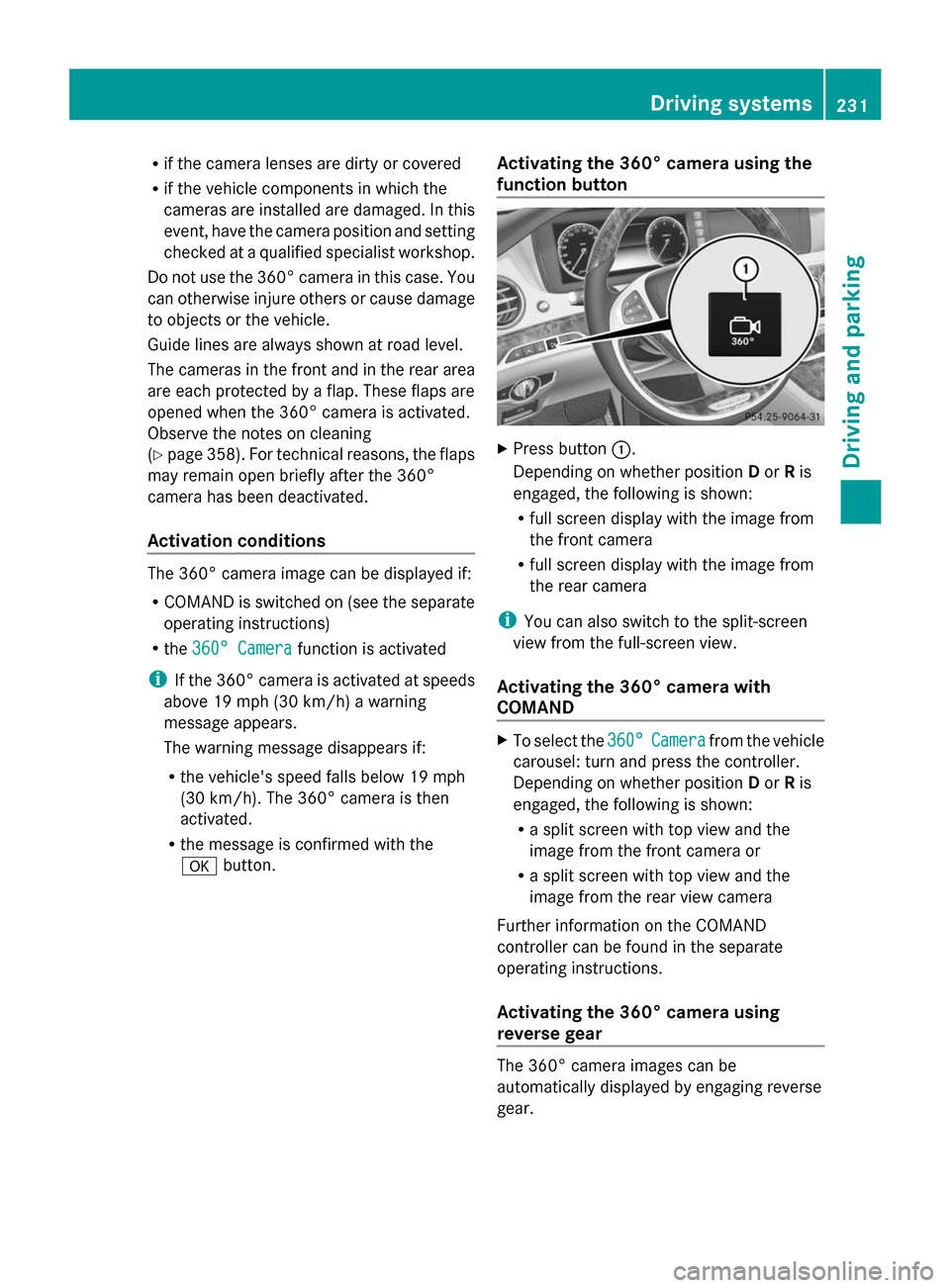
function button X
Press button 0043.
Depending on whether position Dor Ris
engaged, the following is shown:
R full screen display with the image from
the front camera
R full screen display with the image from
the rear camera
i You can also switch to the split-screen
view from the full-screen view.
Activating the 360° camera with
COMAND X
To select the 360°
360° Camera Camera from the vehicle
carousel: turn and press the controller.
Depending on whether position Dor Ris
engaged, the following is shown:
R a split screen with top view and the
image from the front camera or
R a split screen with top view and the
image from the rear view camera
Further information on the COMAND
controller can be found in the separate
operating instructions.
Activating the 360° camera using
reverse gear The 360° camera images can be
automatically displayed by engaging reverse
gear. Driving systems
231Driving and parking Z
Page 234 of 434
X
Make sure that the SmartKey is in position
2 in the ignition lock.
X Make sure that the Activation by R
Activation by R
gear
gear function is selected in COMAND (see
the separate operating instructions).
X To show the 360° camera image: engage
reverse gear.
The area behind the vehicle is shown in the
COMAND display in split-screen mode. You
see the top view of the vehicle and the
image from the rear view camera.
Selecting the split-screen and full
screen displays Switching between split screen views:
X
To switch to the line with the vehicle icons:
slide the controller 00970052.
X To select a vehicle icon: turn the controller.
Switching to full screen mode:
X Turn and press the controller to select
Fullscreen
Fullscreen.
i The full screen option is only available in
the following views:
R Top view with picture from the rear view
camera
R Top view with picture from the front
camera
Displays in the COMAND display Important safety notes
The camera system may show a distorted
view of obstacles, show them incorrectly or
not at all. Obstacles are not shown by the
system in the following locations:
R under the front and rear bumpers
R very close to the front and rear bumpers
R in close range above the handle on the
trunk lid
R very close to the exterior mirrors
R in the transitional areas between the
various cameras in the virtual top view !
Objects not at ground level may appear to
be further away than they actually are, e.g.:
R the bumper of a parked vehicle
R the drawbar of a trailer
R the ball coupling of a trailer tow hitch
R the rear section of an HGV
R a slanted post
Use the guidelines only for orientation.
Approach objects no further than the
bottom-most guideline.
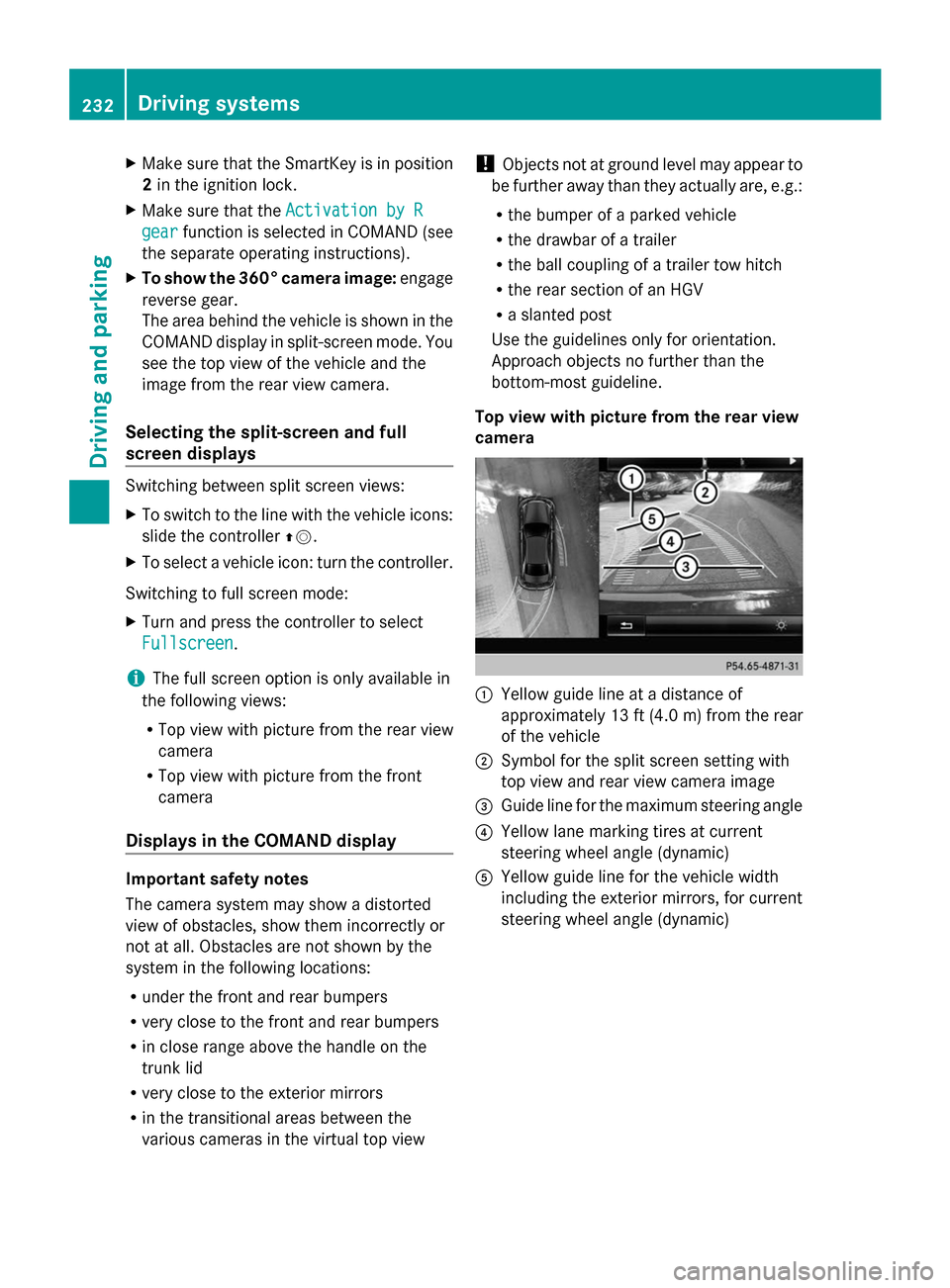
Top view with picture from the rear view
camera 0043
Yellow guide line at a distance of
approximately 13 ft (4.0 m) from the rear
of the vehicle
0044 Symbol for the split screen setting with
top view and rear view camera image
0087 Guide line for the maximum steering angle
0085 Yellow lane marking tires at current
steering wheel angle (dynamic)
0083 Yellow guide line for the vehicle width
including the exterior mirrors, for current
steering wheel angle (dynamic) 232
Driving systemsDriving and parking
Page 236 of 434
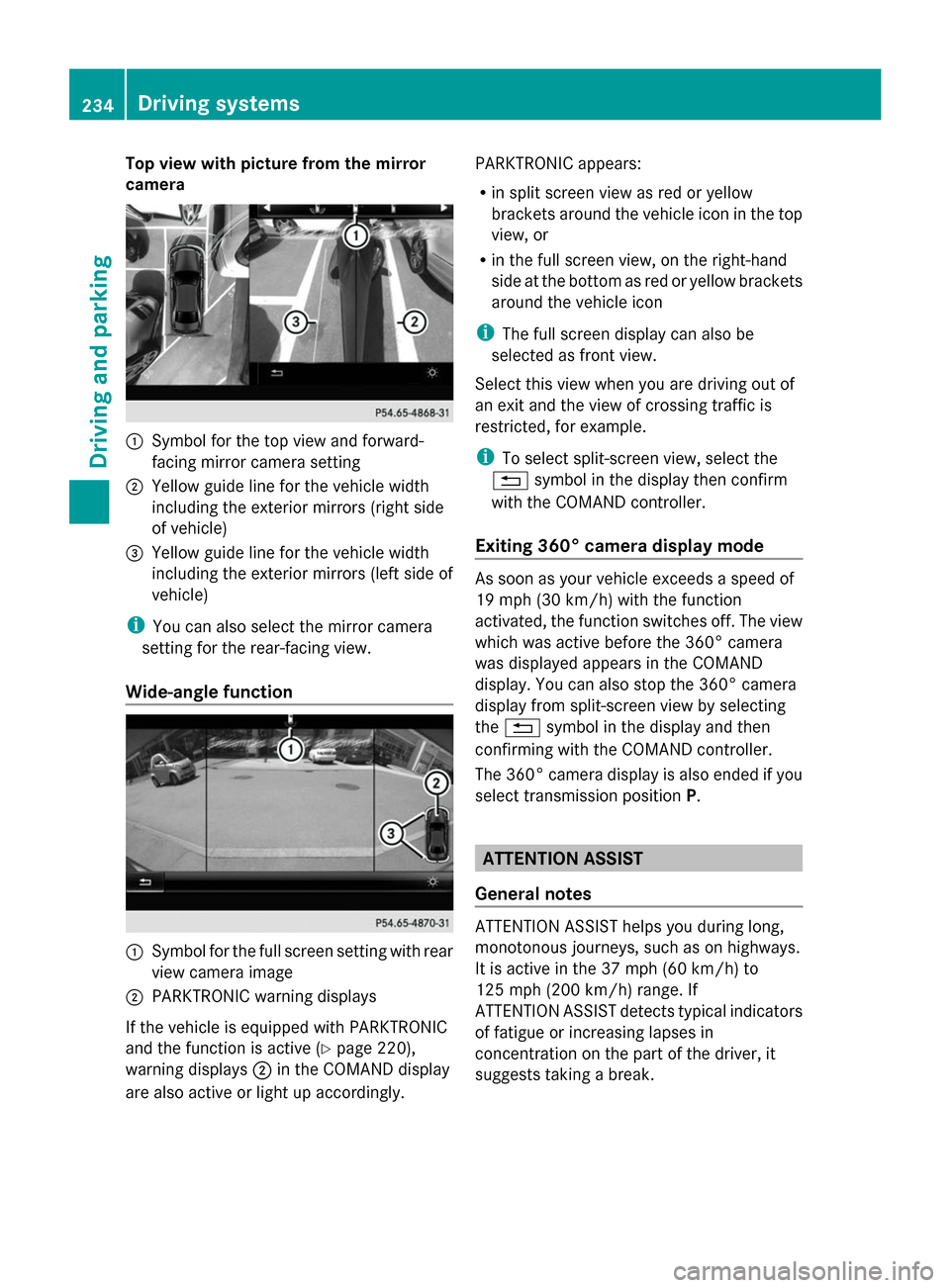
Top view with picture from the mirror
camera 0043
Symbol for the top view and forward-
facing mirror camera setting
0044 Yellow guide line for the vehicle width
including the exterior mirrors (right side
of vehicle)
0087 Yellow guide line for the vehicle width
including the exterior mirrors (left side of
vehicle)
i You can also select the mirror camera
setting for the rear-facing view.
Wide-angle function 0043
Symbol for the full screen setting with rear
view camera image
0044 PARKTRONIC warning displays
If the vehicle is equipped with PARKTRONIC
and the function is active ( Ypage 220),
warning displays 0044in the COMAND display
are also active or light up accordingly. PARKTRONIC appears:
R
in split screen view as red or yellow
brackets around the vehicle icon in the top
view, or
R in the full screen view, on the right-hand
side at the bottom as red or yellow brackets
around the vehicle icon
i The full screen display can also be
selected as front view.
Select this view when you are driving out of
an exit and the view of crossing traffic is
restricted, for example.
i To select split-screen view, select the
0038 symbol in the display then confirm
with the COMAND controller.
Exiting 360° camera display mode As soon as your vehicle exceeds a speed of
19 mph (30 km/h) with the function
activated, the function switches off. The view
which was active before the 360° camera
was displayed appears in the COMAND
display. You can also stop the 360° camera
display from split-screen view by selecting
the 0038 symbol in the display and then
confirming with the COMAND controller.
The 360° camera display is also ended if you
select transmission position P. ATTENTION ASSIST
General notes ATTENTION ASSIST helps you during long,
monotonous journeys, such as on highways.
It is active in the 37 mph (60 km/h) to
125 mph (200 km/h) range. If
ATTENTION ASSIST detects typical indicators
of fatigue or increasing lapses in
concentration on the part of the driver, it
suggests taking a break.234
Driving systemsDriving an
d parking
Page 238 of 434

When ATTENTION ASSIST is deactivated, the
00AD symbol and OFF appear in the
multifunction display in the assistance
display when the engine is running.
When ATTENTION ASSIST has been
deactivated, it is automatically reactivated
after the engine has been stopped. The
sensitivity selected corresponds to the last
selection activated (standard/sensitive).
Warning in the multifunction display If fatigue or increasing lapses in
concentration are detected, a warning
appears in the multifunction display:
Attention Assist: Take a Break! Attention Assist: Take a Break!
In addition to the message shown in the
multifunction display, you will then hear a
warning tone.
X If necessary, take a break.
X Confirm the message by pressing the
0076 button on the steering wheel.
On long journeys, take regular breaks in good
time to allow yourself to rest properly. If you
do not take a break and ATTENTION ASSIST
continues to detect increasing lapses in
concentration, you will be warned again after
15 minutes at the earliest. This will only
happen if ATTENTION ASSIST still detects
typical indicators of fatigue or increasing
lapses in concentration.
If a warning is output in the multifunction
display, a service station search is performed
in COMAND. You can select a service station
and navigation to this service station will then
begin. This function can be activated and
deactivated in COMAND. Night View Assist Plus
General notes In addition to the illumination provided by the
normal headlamps, Night View Assist Plus
uses infrared light to illuminate the road.
Night View Assist Plus camera 0044picks up
the infrared light and displays a monochrome
image in the multifunction display. The image
shown in the display corresponds to a road lit
up by high-beam headlamps. This enables you
to see the road's course and any obstacles in
good time. When pedestrian recognition is
active, pedestrians recognized by the system
are visually highlighted in color in the Night
View Assist Plus display with small frame
corners.
i Infrared light is not visible to the human
eye and therefore does not glare. Night
View Assist Plus can therefore remain
switched on even if there is oncoming
traffic.
In addition, thermal imaging camera 0043is
integrated in the radiator grill. The camera
helps detect pedestrians and animals.
Observe the notes on cleaning the thermal
imaging camera (Y page 359).
Important safety notes Night View Assist Plus is only an aid and is not
a substitute for attentive driving. Do not rely
on the Night View Assist Plus display. You are
responsible for the distance to the vehicle in
front, for vehicle speed and for braking in
good time. Drive carefully and always adapt236
Driving systemsDriving and parking
Page 255 of 434
X
Switch on COMAND; see the separate
operating instructions.
X Use 00E2 on the steering wheel to call up
the list of menus.
X Press the 0064or0063 button on the
steering wheel to select the Navi
Navi menu.
X Confirm by pressing 0076on the steering
wheel.
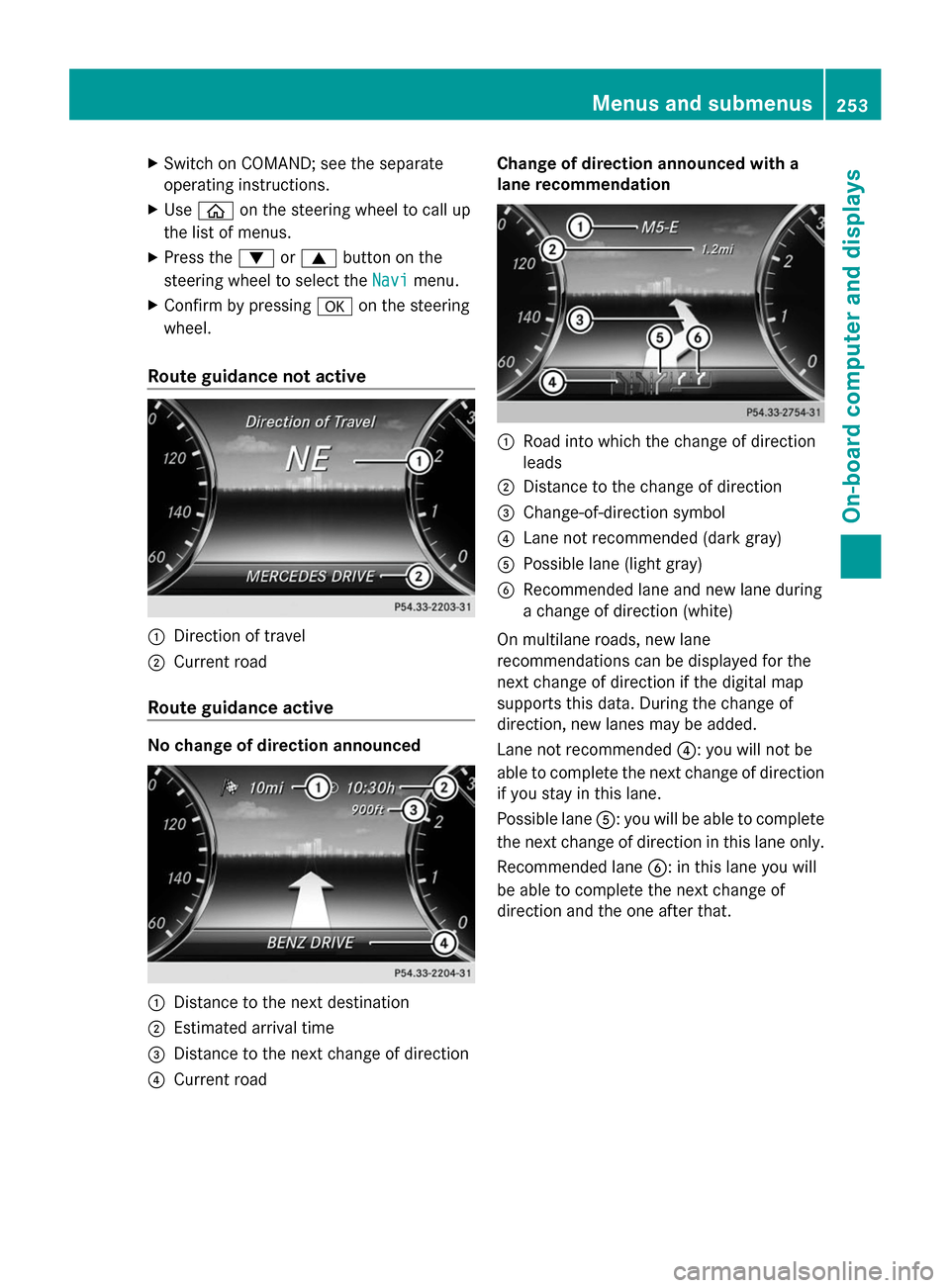
Route guidance not active 0043
Direction of travel
0044 Current road
Route guidance active No change of direction announced
0043
Distance to the next destination
0044 Estimated arrival time
0087 Distance to the next change of direction
0085 Current road Change of direction announced with a
lane recommendation
0043
Road into which the change of direction
leads
0044 Distance to the change of direction
0087 Change-of-direction symbol
0085 Lane not recommended (dark gray)
0083 Possible lane (light gray)
0084 Recommended lane and new lane during
a change of direction (white)
On multilane roads, new lane
recommendations can be displayed for the
next change of direction if the digital map
supports this data. During the change of
direction, new lanes may be added.
Lane not recommended 0085: you will not be
able to complete the next change of direction
if you stay in this lane.
Possible lane 0083: you will be able to complete
the next change of direction in this lane only.
Recommended lane 0084: in this lane you will
be able to complete the next change of
direction and the one after that. Menus and submenus
253On-board computer and displays Z
Page 257 of 434
Station
0044is displayed with the station
frequency or station name. The memory
position is only displayed along with
station 0044if this has been stored.
X Switch on COMAND (see the separate
operating instructions).
X Use 00E2 on the steering wheel to call up
the list of menus.
X Press the 0064or0063 button on the
steering wheel to select the Radio
Radio menu.
X Confirm by pressing 0076on the steering
wheel.
Currently selected station 0044appears in
the multifunction display.
X To open the station list: press0064or
0063 briefly.
X To select a station from the station
list: press 0064or0063 briefly.
X To select a station from the station list
using rapid scrolling: press and briefly
hold the 0064or0063 button.
X To select a waveband or station
memory: press0076briefly.
X Use 0064 or0063 to select the waveband
or station memory.
X Press 0076to confirm.
i To store a station, see the separate
operating instructions.
i SIRIUS XM satellite radio functions like a
normal radio.
For more information on satellite radio
operation, see the separate operating
instructions. Media menu
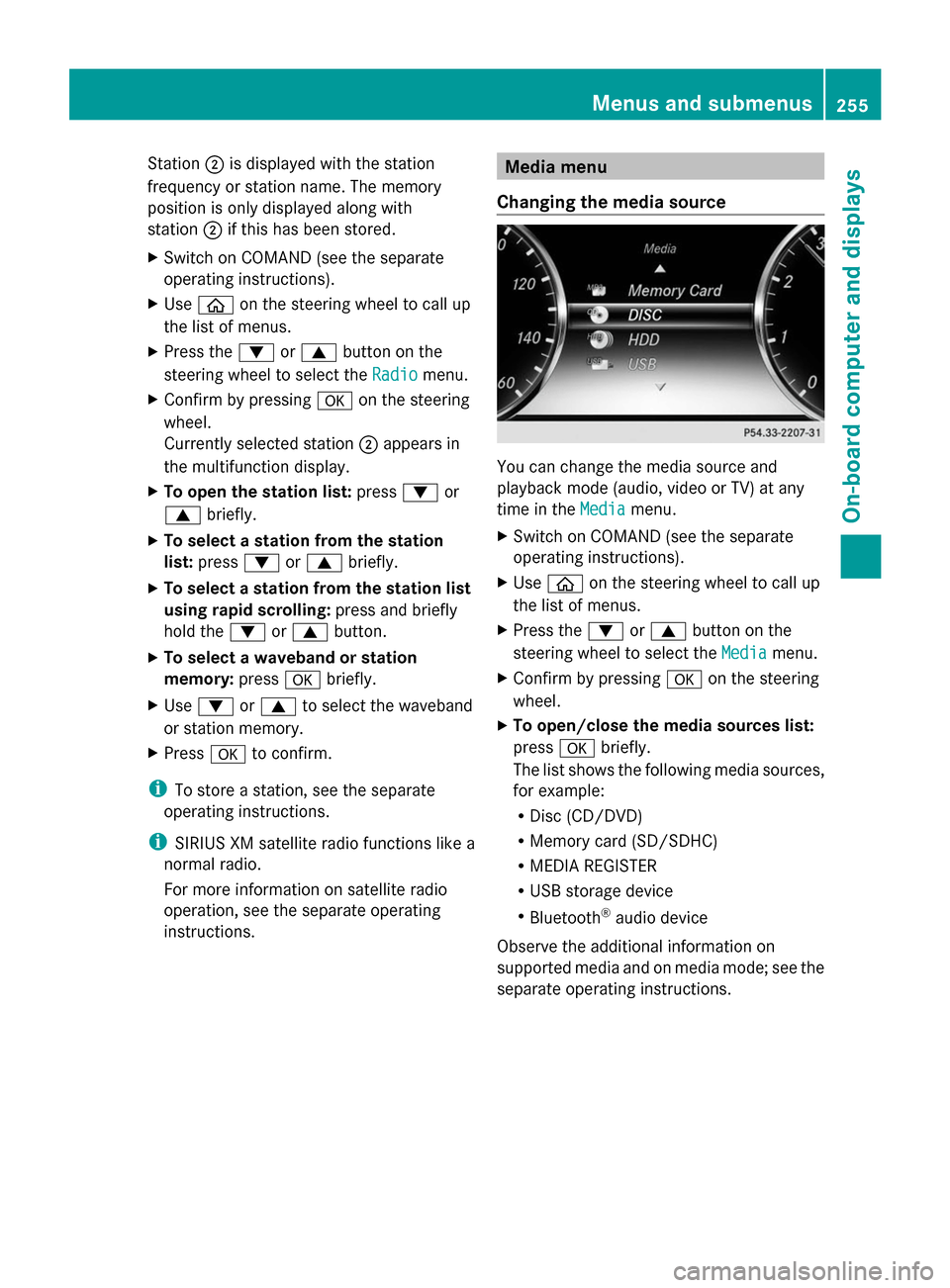
Changing the media source You can change the media source and
playback mode (audio, video or TV) at any
time in the
Media
Media menu.
X Switch on COMAND (see the separate
operating instructions).
X Use 00E2 on the steering wheel to call up
the list of menus.
X Press the 0064or0063 button on the
steering wheel to select the Media Mediamenu.
X Confirm by pressing 0076on the steering
wheel.
X To open/close the media sources list:
press 0076briefly.
The list shows the following media sources,
for example:
R Disc (CD/DVD)
R Memory card (SD/SDHC)
R MEDIA REGISTER
R USB storage device
R Bluetooth ®
audio device
Observe the additional information on
supported media and on media mode; see the
separate operating instructions. Menus and submenus
255On-board computer and displays Z