2014 FORD MONDEO audio
[x] Cancel search: audioPage 376 of 446

Downloaded from www.Manualslib.com manuals search engine WARNINGS
against the use of any handheld devicewhile driving and encourage the use ofvoice-operated systems when possible.Make sure you are aware of all applicablelocal laws that may affect the use ofelectronic devices while driving.
For safety reasons, do not connector adjust the settings on yourportable music player while yourvehicle is moving.
Store the portable music player in asecure location, such as the centerconsole or the glove box, when yourvehicle is moving. Hard objects maybecome projectiles in a crash or suddenstop, which may increase the risk of seriousinjury. The audio extension cable must belong enough to allow the portable musicplayer to be safely stored while yourvehicle is moving.
The A/V inputs allow you to connect anauxiliary audio/video source (for examplegaming systems or a personal camcorder)by connecting RCA cords (not included)to these input jacks. The jacks are yellow,red and white and are located eitherbehind a small access door on theinstrument panel or in your center console.
You can also use the A/V inputs as anauxiliary input jack to play music from yourportable music player over your vehicle'sspeakers. Plug in your 1/8 inch (3.5millimeter) RCA adapter into the two leftA/V input jacks (red and white).
To use the auxiliary input jack feature,make sure that your portable music playeris designed for use with headphones andthat it is fully charged. You also need anaudio extension cable with stereo male1/8-inch (3.5 millimeter) connectors at oneend and a RCA jack at the other.
1.Switch off the engine, radio andportable music player. Set the parkingbrake and put the transmission inposition P.
2.Attach one end of the audio extensioncable to the headphone output of yourplayer and the other end into theadapter in one of the two left A/V inputjacks (white or red) inside the centerconsole.
3.Press the lower left corner on thetouchscreen. Select a tuned FM station.
4.Adjust the volume as desired.
5.Switch the portable music player onand adjust the volume to ½ themaximum.
6.Press the lower left corner on thetouchscreen, then select:
Menu Item
You should hear audiofrom your portable musicplayer although it may below.
A/V In
374Mondeo (CNG) Vehicles Built From: 08-09-2014 Vehicles Built Up To: 19-04-2015, CG3633en enGBR, Edition date: 10/2014, First PrintingSYNC™ 2
Page 377 of 446
Downloaded from www.Manualslib.com manuals search engine Menu Item
Adjust the sound on yourportable music player untilit reaches the level of theFM station by switchingback and forth betweenthe controls.
In order to playback video from your iPodor iPhone, you must have a specialcombination USB/RCA composite videocable (which you can buy from Apple).When you connect the cable to your iPodor iPhone, plug the other end into both theRCA jacks and the USB port.
Troubleshooting
•Do not connect the audio input jack toa line level output. The jack only workscorrectly with devices that have aheadphone output with a volumecontrol.
•Do not set the portable music player'svolume level higher than is necessaryto match the volume of the FM radioas this causes distortion and reducessound quality.
•If the music sounds distorted at lowerlistening levels, turn the portable musicplayer volume down. If the problempersists, replace or recharge thebatteries in the portable media player.
•Control the portable media player inthe same manner when used withheadphones, as the auxiliary input jackdoes not provide control (such as Playor Pause) over the attached portablemedia player.
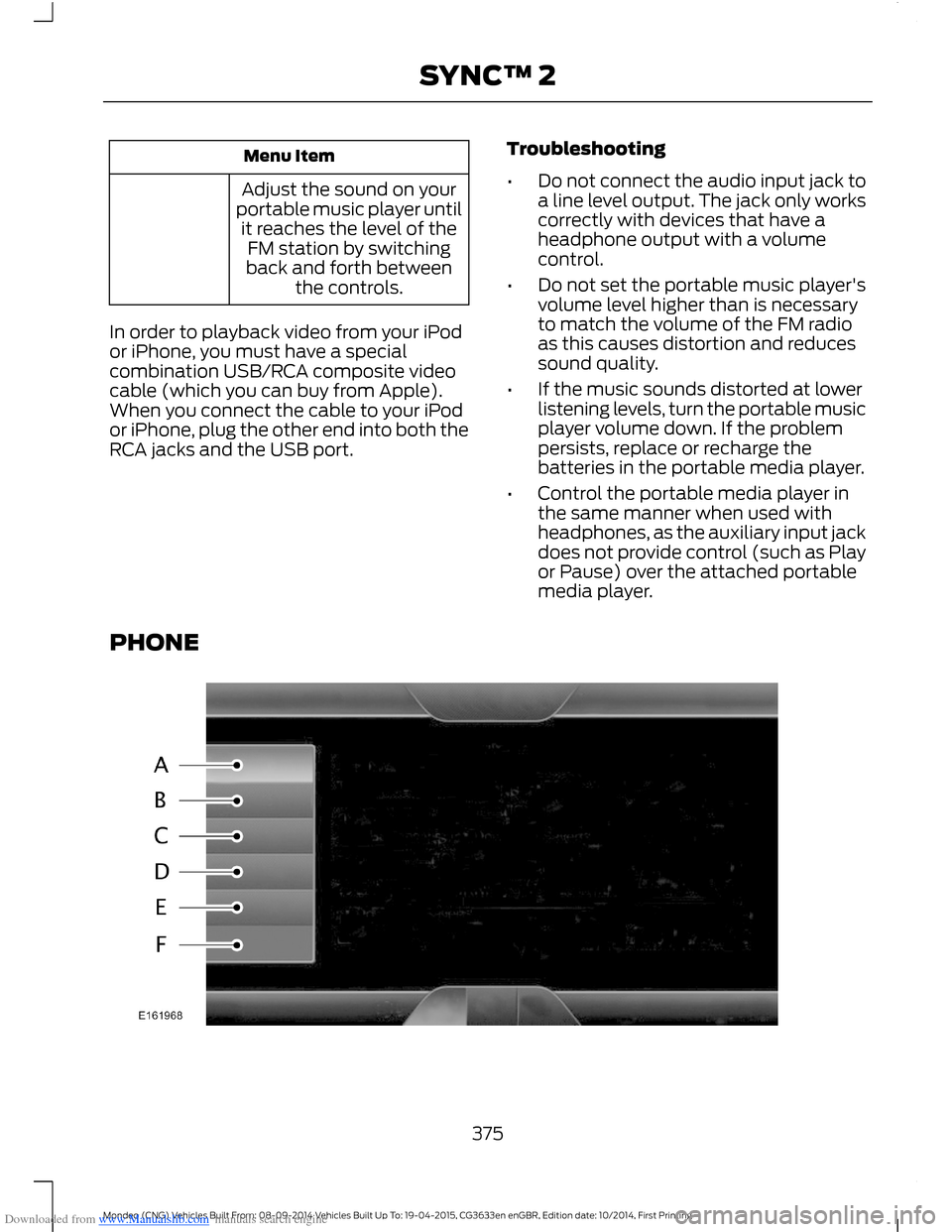
PHONE
375Mondeo (CNG) Vehicles Built From: 08-09-2014 Vehicles Built Up To: 19-04-2015, CG3633en enGBR, Edition date: 10/2014, First PrintingSYNC™ 2
Page 402 of 446

Downloaded from www.Manualslib.com manuals search engine One-shot Destination Street Address
To set a destination with voicecommands, you can say:
Action and Descrip-tionVoice Command
The system asksyou to say the fulladdress. Thesystem displays anexample on-screen.
Find an Address
You can then speak the address naturally,such as "One two three four Main Street,Anytown".
SYNC™ TROUBLESHOOTING
Your SYNC system is easy to use. However,should questions arise, please refer to thetables below.
To check your cell phone's compatibility,visit the regional Ford website.
Cell phone issues
Possible solutionPossible causeIssue
Refer to your device's manual about audioadjustments.
The audio controlsettings on your cellphone may be affectingSYNC performance.
A lot of back-ground noiseduring a phonecall.
Try switching off your cell phone, resettingit or removing the battery, then trying again.Possible cell phonemalfunction.
During a call, Ican hear theother personbut they cannothear me.
Make sure that the microphone for SYNCis not set to off.
Check your cell phone's compatibility.This is a cell phone-dependent feature.
SYNC is notable to down-load my phone-book.
Try switching off your cell phone, resettingit or removing the battery, then trying again.
Possible cell phonemalfunction.
Try pushing your phonebook contacts toSYNC by selecting the option to add.
You must switch on your cell phone andthe automatic phonebook downloadfeature on SYNC.
400Mondeo (CNG) Vehicles Built From: 08-09-2014 Vehicles Built Up To: 19-04-2015, CG3633en enGBR, Edition date: 10/2014, First PrintingSYNC™ 2
Page 405 of 446
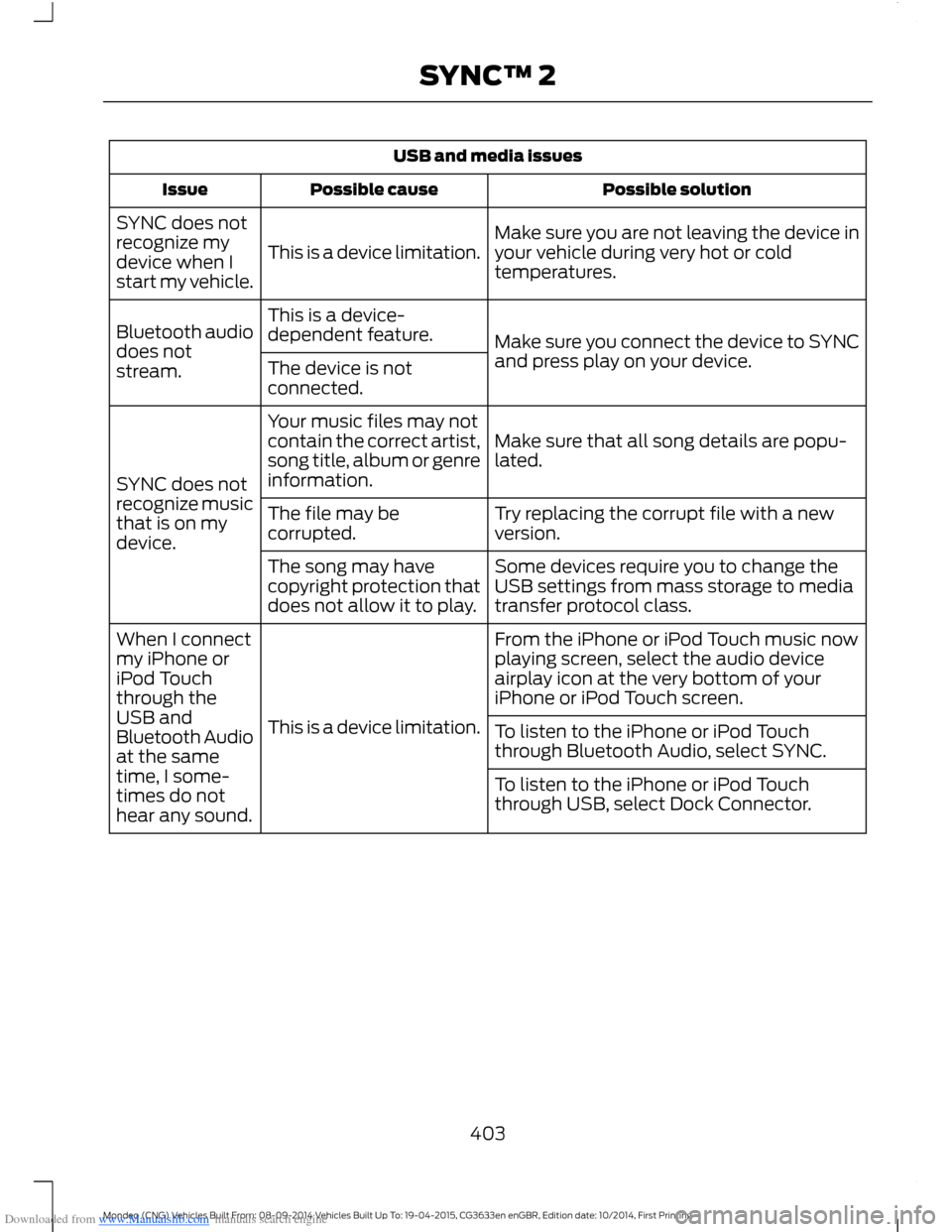
Downloaded from www.Manualslib.com manuals search engine USB and media issues
Possible solutionPossible causeIssue
Make sure you are not leaving the device inyour vehicle during very hot or coldtemperatures.This is a device limitation.
SYNC does notrecognize mydevice when Istart my vehicle.
Make sure you connect the device to SYNCand press play on your device.
This is a device-dependent feature.Bluetooth audiodoes notstream.The device is notconnected.
Make sure that all song details are popu-lated.
Your music files may notcontain the correct artist,song title, album or genreinformation.SYNC does notrecognize musicthat is on mydevice.
Try replacing the corrupt file with a newversion.The file may becorrupted.
Some devices require you to change theUSB settings from mass storage to mediatransfer protocol class.
The song may havecopyright protection thatdoes not allow it to play.
From the iPhone or iPod Touch music nowplaying screen, select the audio deviceairplay icon at the very bottom of youriPhone or iPod Touch screen.
This is a device limitation.
When I connectmy iPhone oriPod Touchthrough theUSB andBluetooth Audioat the sametime, I some-times do nothear any sound.
To listen to the iPhone or iPod Touchthrough Bluetooth Audio, select SYNC.
To listen to the iPhone or iPod Touchthrough USB, select Dock Connector.
403Mondeo (CNG) Vehicles Built From: 08-09-2014 Vehicles Built Up To: 19-04-2015, CG3633en enGBR, Edition date: 10/2014, First PrintingSYNC™ 2
Page 406 of 446
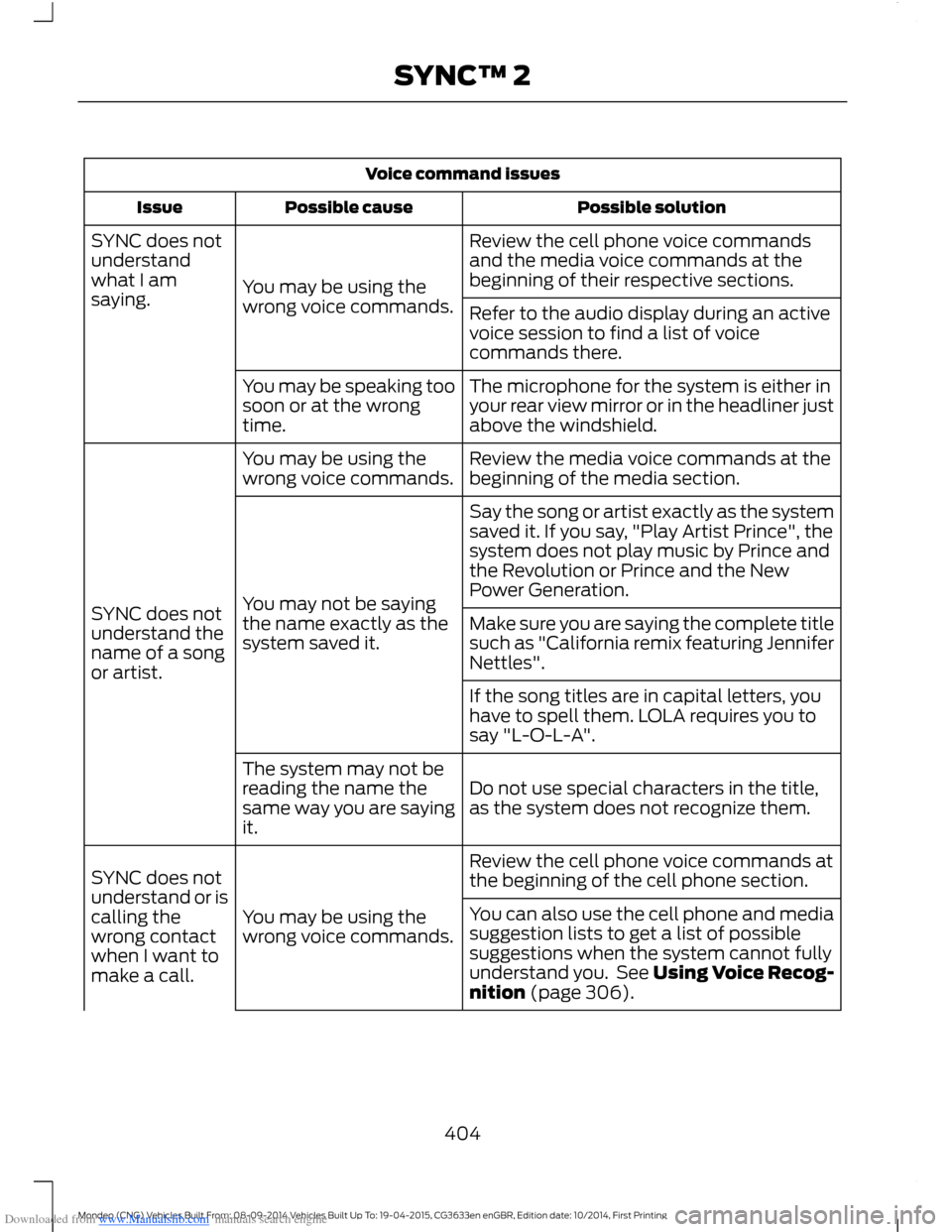
Downloaded from www.Manualslib.com manuals search engine Voice command issues
Possible solutionPossible causeIssue
Review the cell phone voice commandsand the media voice commands at thebeginning of their respective sections.You may be using thewrong voice commands.
SYNC does notunderstandwhat I amsaying.Refer to the audio display during an activevoice session to find a list of voicecommands there.
The microphone for the system is either inyour rear view mirror or in the headliner justabove the windshield.
You may be speaking toosoon or at the wrongtime.
Review the media voice commands at thebeginning of the media section.You may be using thewrong voice commands.
SYNC does notunderstand thename of a songor artist.
Say the song or artist exactly as the systemsaved it. If you say, "Play Artist Prince", thesystem does not play music by Prince andthe Revolution or Prince and the NewPower Generation.You may not be sayingthe name exactly as thesystem saved it.Make sure you are saying the complete titlesuch as "California remix featuring JenniferNettles".
If the song titles are in capital letters, youhave to spell them. LOLA requires you tosay "L-O-L-A".
Do not use special characters in the title,as the system does not recognize them.
The system may not bereading the name thesame way you are sayingit.
Review the cell phone voice commands atthe beginning of the cell phone section.
You may be using thewrong voice commands.
SYNC does notunderstand or iscalling thewrong contactwhen I want tomake a call.
You can also use the cell phone and mediasuggestion lists to get a list of possiblesuggestions when the system cannot fullyunderstand you. See Using Voice Recog-nition (page 306).
404Mondeo (CNG) Vehicles Built From: 08-09-2014 Vehicles Built Up To: 19-04-2015, CG3633en enGBR, Edition date: 10/2014, First PrintingSYNC™ 2
Page 409 of 446
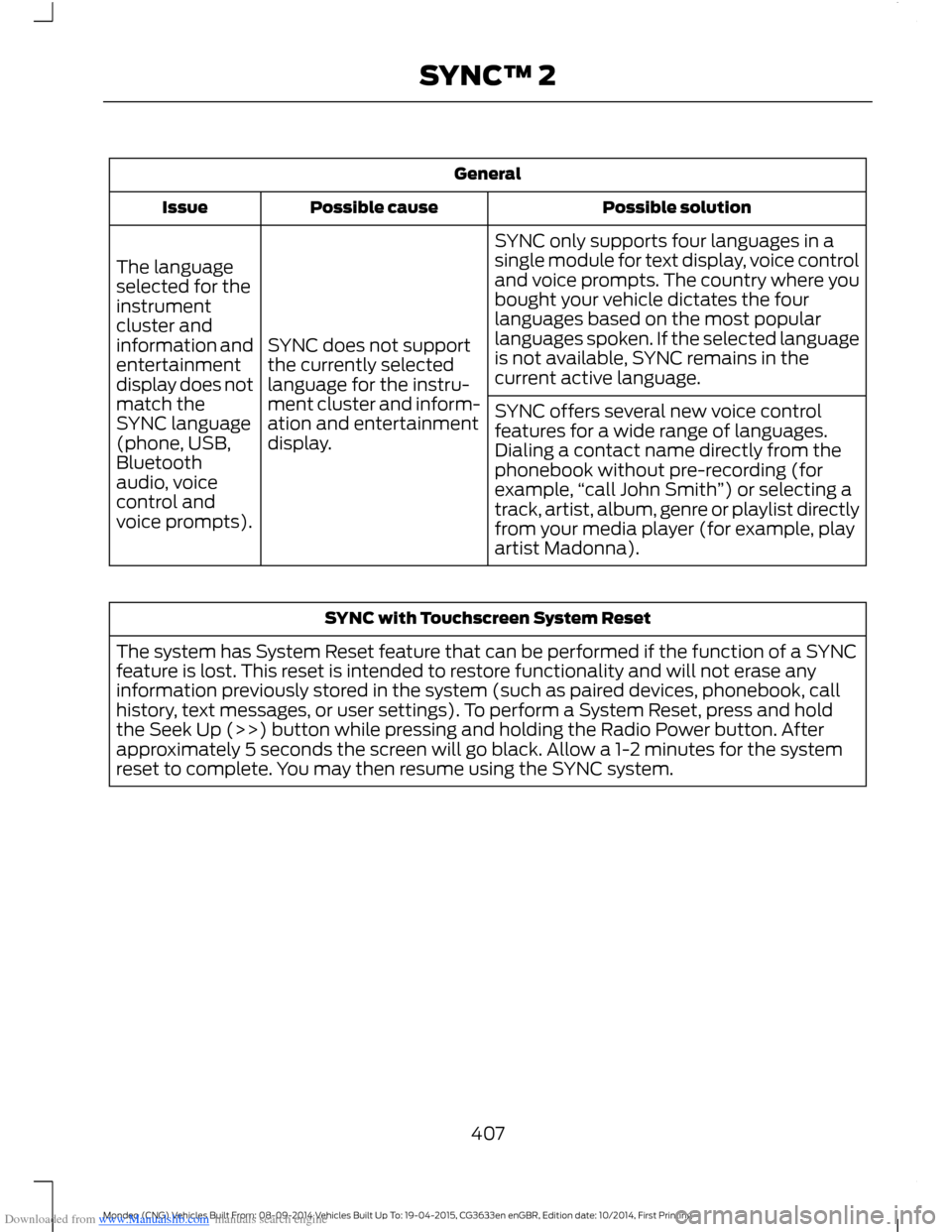
Downloaded from www.Manualslib.com manuals search engine General
Possible solutionPossible causeIssue
SYNC only supports four languages in asingle module for text display, voice controland voice prompts. The country where youbought your vehicle dictates the fourlanguages based on the most popularlanguages spoken. If the selected languageis not available, SYNC remains in thecurrent active language.
SYNC does not supportthe currently selectedlanguage for the instru-ment cluster and inform-ation and entertainmentdisplay.
The languageselected for theinstrumentcluster andinformation andentertainmentdisplay does notmatch theSYNC language(phone, USB,Bluetoothaudio, voicecontrol andvoice prompts).
SYNC offers several new voice controlfeatures for a wide range of languages.Dialing a contact name directly from thephonebook without pre-recording (forexample,“call John Smith”) or selecting atrack, artist, album, genre or playlist directlyfrom your media player (for example, playartist Madonna).
SYNC with Touchscreen System Reset
The system has System Reset feature that can be performed if the function of a SYNCfeature is lost. This reset is intended to restore functionality and will not erase anyinformation previously stored in the system (such as paired devices, phonebook, callhistory, text messages, or user settings). To perform a System Reset, press and holdthe Seek Up (>>) button while pressing and holding the Radio Power button. Afterapproximately 5 seconds the screen will go black. Allow a 1-2 minutes for the systemreset to complete. You may then resume using the SYNC system.
407Mondeo (CNG) Vehicles Built From: 08-09-2014 Vehicles Built Up To: 19-04-2015, CG3633en enGBR, Edition date: 10/2014, First PrintingSYNC™ 2
Page 415 of 446
Downloaded from www.Manualslib.com manuals search engine SOFTWARE onto the DEVICE as areplacement copy for the existingSOFTWARE, and use it in accordance withthis EULA, including any additional EULAterms accompanying the upgradeSOFTWARE.
INTELLECTUAL PROPERTY RIGHTS:All title and intellectual property rights inand to the SOFTWARE (including but notlimited to any images, photographs,animations, video, audio, music, text and"applets" incorporated into theSOFTWARE), the accompanying printedmaterials, and any copies of theSOFTWARE, are owned by MS, MicrosoftCorporation, FORD MOTOR COMPANY, ortheir affiliates or suppliers. TheSOFTWARE is licensed, not sold. You maynot copy the printed materialsaccompanying the SOFTWARE. All titleand intellectual property rights in and tothe content which may be accessedthrough use of the SOFTWARE is theproperty of the respective content ownerand may be protected by applicablecopyright or other intellectual propertylaws and treaties. This EULA grants you norights to use such content. All rights notspecifically granted under this EULA arereserved by MS, Microsoft Corporation,FORD MOTOR COMPANY, third partysoftware and service providers, theiraffiliates and suppliers. Use of any on-lineservices which may be accessed throughthe SOFTWARE may be governed by therespective terms of use relating to suchservices. If this SOFTWARE containsdocumentation that is provided only inelectronic form, you may print one copy ofsuch electronic documentation.
EXPORT RESTRICTIONS: Youacknowledge that the SOFTWARE issubject to U.S. and European Union exportjurisdiction. You agree to comply with allapplicable international and national lawsthat apply to the SOFTWARE, including
the U.S. Export Administration Regulations,as well as end-user, end-use anddestination restrictions issued by U.S. andother governments. For additionalinformation, seehttp://www.microsoft.com/exporting/.
TRADEMARKS: This EULA does not grantyou any rights in connection with anytrademarks or service marks of FORDMOTOR COMPANY, MS, MicrosoftCorporation, third party software or serviceproviders, their affiliates or suppliers.
PRODUCT SUPPORT: Product supportfor the SOFTWARE is not provided by MS,its parent corporation MicrosoftCorporation, or their affiliates orsubsidiaries. For product support, pleaserefer to FORD MOTOR COMPANYinstructions provided in the documentationfor the DEVICE. Should you have anyquestions concerning this EULA, or if youdesire to contact FORD MOTORCOMPANY for any other reason, pleaserefer to the address provided in thedocumentation for the DEVICE.
No Liability for Certain Damages:EXCEPT AS PROHIBITED BY LAW, FORDMOTOR COMPANY, ANY THIRD PARTYSOFTWARE OR SERVICES SUPPLIERS,MS, MICROSOFT CORPORATION ANDTHEIR AFFILIATES SHALL HAVE NOLIABILITY FOR ANY INDIRECT, SPECIAL,CONSEQUENTIAL OR INCIDENTALDAMAGES ARISING FROM OR INCONNECTION WITH THE USE ORPERFORMANCE OF THE SOFTWARE. THISLIMITATION SHALL APPLY EVEN IF ANYREMEDY FAILS OF ITS ESSENTIALPURPOSE. IN NO EVENT SHALL MS,MICROSOFT CORPORATION AND/ORTHEIR AFFILIATES BE LIABLE FOR ANYAMOUNT IN EXCESS OF U.S. TWOHUNDRED FIFTY DOLLARS (U.S.$250.00).
413Mondeo (CNG) Vehicles Built From: 08-09-2014 Vehicles Built Up To: 19-04-2015, CG3633en enGBR, Edition date: 10/2014, First PrintingAppendices
Page 418 of 446
Downloaded from www.Manualslib.com manuals search engine conditions, all of whom shall also be boundby this Agreement. Additionally, all of youraccount information, as well as otherpayment and personal informationprovided by you to Telenav (directly orthrough the use of the Telenav Software,is subject to Telenav’s privacy policylocated at http://www.telenav.com.
Telenav may revise this Agreement andthe privacy policy at any time, with orwithout notice to you. You agree to visithttp://www.telenav.com from time to timeto review the then current version of thisAgreement and of the privacy policy.
1. Safe and Lawful Use
You acknowledge that devoting attentionto the Telenav Software may pose a riskof injury or death to you and others insituations that otherwise require yourundivided attention, and you thereforeagree to comply with the following whenusing the Telenav Software: (a) observeall traffic laws and otherwise drive safely;(b) use your own personal judgment whiledriving. If you feel that a route suggestedby the Telenav Software instructs you toperform an unsafe or illegal maneuver,places you in an unsafe situation, or directsyou into an area that you consider to beunsafe, do not follow such instructions; (c)do not input destinations, or otherwisemanipulate the Telenav Software, unlessyour vehicle is stationary and parked; (d)do not use the Telenav Software for anyillegal, unauthorized, unintended, unsafe,hazardous, or unlawful purposes, or in anymanner inconsistent with this Agreement;(e) arrange all GPS and wireless devicesand cables necessary for use of theTelenav Software in a secure manner inyour vehicle so that they will not interferewith your driving and will not prevent theoperation of any safety device (such as anairbag).
You agree to indemnify and hold Telenavharmless against all claims resulting fromany dangerous or otherwise inappropriateuse of the Telenav Software in any movingvehicle, including as a result of your failureto comply with the directions above.
2. Account Information
You agree: (a) when registering theTelenav Software, to provide Telenav withtrue, accurate, current, and completeinformation about yourself, and (b) toinform Telenav promptly of any changesto such information, and to keep it true,accurate, current and complete.
3. Software License
Subject to your compliance with the termsof this Agreement, Telenav hereby grantsto you a personal, non-exclusive,non-transferable license (except asexpressly permitted below in connectionwith your permanent transfer of theTelenav Software license), without theright to sublicense, to use the TelenavSoftware (in object code form only) inorder to access and use the TelenavSoftware. This license shall terminate uponany termination or expiration of thisAgreement. You agree that you will use theTelenav Software only for your personalbusiness or leisure purposes, and not toprovide commercial navigation services toother parties.
3.1 License Limitations
You agree not to do any of the following:(a) reverse engineer, decompile,disassemble, translate, modify, alter orotherwise change the Telenav Softwareor any part thereof; (b) attempt to derivethe source code, audio library or structureof the Telenav Software without the priorexpress written consent of Telenav; (c)remove from the Telenav Software, oralter, any of Telenav’s or its suppliers’trademarks, trade names, logos, patent or
416Mondeo (CNG) Vehicles Built From: 08-09-2014 Vehicles Built Up To: 19-04-2015, CG3633en enGBR, Edition date: 10/2014, First PrintingAppendices