2014 FORD FUSION (AMERICAS) ECO mode
[x] Cancel search: ECO modePage 305 of 458

CD Settings
Select to scan all disc selections.Scan All
Select to scan all music in the current MP3 folder.Scan Folder
Select to bring soft and loud passages together for a moreconsistent listening level.CD Compression
Clock Settings
Select to set the time.Set Time
Select to set the calendar date.Set Date
Select to view clock time in a 12-hour mode or 24-hourmode.24h Mode
Display Settings
Select to change display brightness.Dimming
Select to display the language in English, French orSpanish.Language
Select to display the outside temperature in Fahrenheitor Celsius.Temp. setting
DIGITAL RADIO
Note:HD Radio broadcasts are notavailable in all markets.
HD Radio technology is the digitalevolution of analog AM/FM radio. Yoursystem has a special receiver that allowsit to receive digital broadcasts (whereavailable) in addition to the analogbroadcasts, it already receives. Digitalbroadcasts provide a better sound quality
than analog broadcasts with free,crystal-clear audio and no static ordistortion. For more information, and aguide to available stations andprogramming, please visitwww.hdradio.com.
When HD Radio is on and you tune to astation broadcasting HD Radio technology,you may notice the HD Radio logo on yourscreen. When this logo is available, youmay also see Title and Artist fieldson-screen.
302Fusion (CC7) , enUSAAudio System
Page 309 of 458
SIRIUS satellite radio is asubscription-based satellite radio servicethat broadcasts a variety of music, sports,news, weather, traffic and entertainmentprogramming. Your factory-installedSIRIUS satellite radio system includeshardware and a limited subscription term,which begins on the date of sale or leaseof your vehicle. See an authorized dealerfor availability.
For more information on extendedsubscription terms (a service fee isrequired), the online media player and acomplete list of SIRIUS satellite radiochannels, and other features, please visitwww.siriusxm.com in the United States,www.sirius.ca in Canada, or call SIRIUS at1-888-539-7474.
Satellite Radio Electronic SerialNumber (ESN)
You need your ESN to activate, modify ortrack your satellite radio account. When insatellite radio mode, press Options.
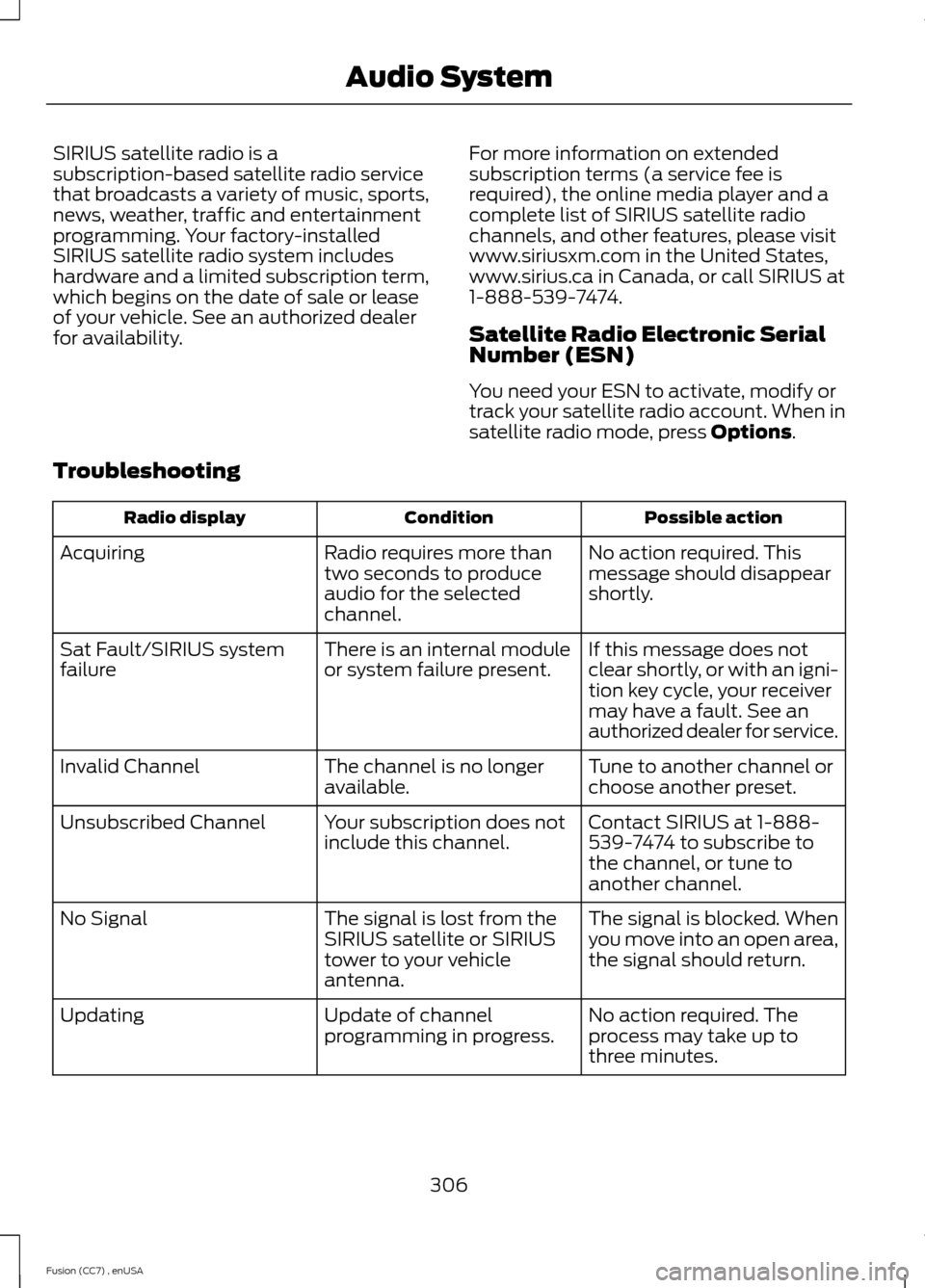
Troubleshooting
Possible actionConditionRadio display
No action required. Thismessage should disappearshortly.
Radio requires more thantwo seconds to produceaudio for the selectedchannel.
Acquiring
If this message does notclear shortly, or with an igni-tion key cycle, your receivermay have a fault. See anauthorized dealer for service.
There is an internal moduleor system failure present.Sat Fault/SIRIUS systemfailure
Tune to another channel orchoose another preset.The channel is no longeravailable.Invalid Channel
Contact SIRIUS at 1-888-539-7474 to subscribe tothe channel, or tune toanother channel.
Your subscription does notinclude this channel.Unsubscribed Channel
The signal is blocked. Whenyou move into an open area,the signal should return.
The signal is lost from theSIRIUS satellite or SIRIUStower to your vehicleantenna.
No Signal
No action required. Theprocess may take up tothree minutes.
Update of channelprogramming in progress.Updating
306Fusion (CC7) , enUSAAudio System
Page 314 of 458

System data cannot be accessed withoutspecial equipment and access to thevehicle's SYNC module. Ford MotorCompany and Ford of Canada will notaccess the system data for any purposeother than as described absent consent, acourt order, or where required by lawenforcement, other governmentauthorities, or other third parties actingwith lawful authority. Other parties mayseek to access the informationindependently of Ford Motor Company andFord of Canada. For further privacyinformation, see the sections on 911 Assist,Vehicle Health Report, and Traffic,Directions and Information.
USING VOICE RECOGNITION
This system helps you control manyfeatures using voice commands. Thisallows you to keep your hands on thewheel and focus on what is in front of you.
Initiating a Voice Session
Push the voice icon. A tonesounds and Listening appears inthe display. Say any of thefollowing:
If You Want ToSay
Stream audio from your phone."Bluetooth audio"
Cancel the requested action."Cancel"
Access the device connected to the auxiliary input jack."Line in"
Access mobile applications."Mobile apps" *
Make calls."Phone"
Access the SYNC Services portal."Services" *
Return to the main menu."SYNC"
Access the device connected to your USB port."USB"
Run a vehicle health report."Vehicle health report" *
Adjust the level of voice interaction and feedback."Voice settings"
Hear a list of voice commands available in the currentmode."Help"
* This is an optional feature and available in the United States only.
311Fusion (CC7) , enUSASYNC™E142599
Page 315 of 458
System Interaction and Feedback
The system provides feedback throughaudible tones, prompts, questions andspoken confirmations depending on thesituation and the chosen level ofinteraction (voice settings). You cancustomize the voice recognition system toprovide more or less instruction andfeedback.
The default setting is to a higher level ofinteraction in order to help you learn to usethe system. You can change these settingsat any time.
Adjusting the Interaction Level
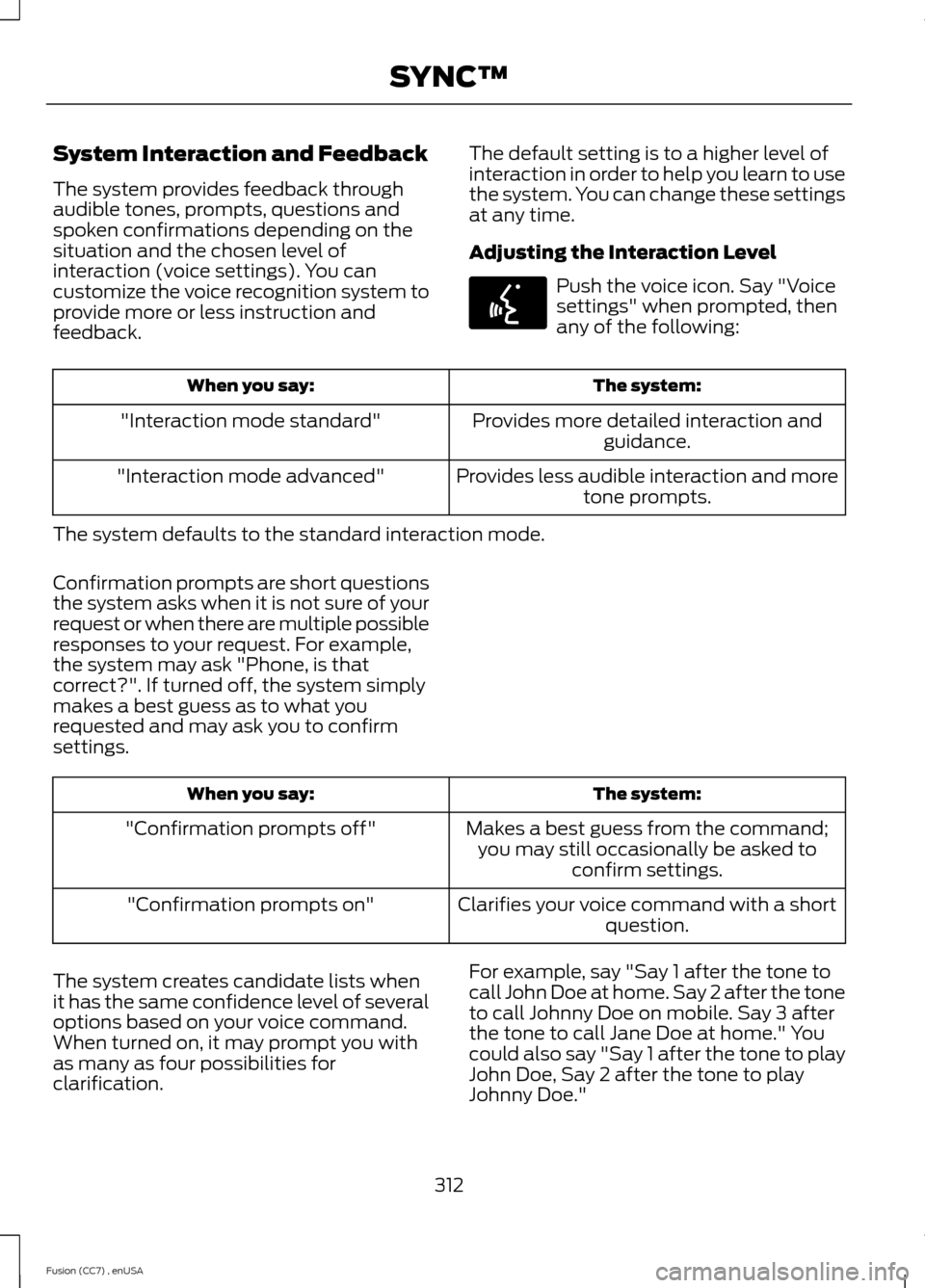
Push the voice icon. Say "Voicesettings" when prompted, thenany of the following:
The system:When you say:
Provides more detailed interaction andguidance."Interaction mode standard"
Provides less audible interaction and moretone prompts."Interaction mode advanced"
The system defaults to the standard interaction mode.
Confirmation prompts are short questionsthe system asks when it is not sure of yourrequest or when there are multiple possibleresponses to your request. For example,the system may ask "Phone, is thatcorrect?". If turned off, the system simplymakes a best guess as to what yourequested and may ask you to confirmsettings.
The system:When you say:
Makes a best guess from the command;you may still occasionally be asked toconfirm settings.
"Confirmation prompts off"
Clarifies your voice command with a shortquestion."Confirmation prompts on"
The system creates candidate lists whenit has the same confidence level of severaloptions based on your voice command.When turned on, it may prompt you withas many as four possibilities forclarification.
For example, say "Say 1 after the tone tocall John Doe at home. Say 2 after the toneto call Johnny Doe on mobile. Say 3 afterthe tone to call Jane Doe at home." Youcould also say "Say 1 after the tone to playJohn Doe, Say 2 after the tone to playJohnny Doe."
312Fusion (CC7) , enUSASYNC™E142599
Page 316 of 458

The system:When you say:
Makes a best guess from the mediacandidate list. You may still occasionallybe asked questions.
"Media candidate lists off"
Clarifies your voice command for mediacandidates."Media candidate lists on"
Makes a best guess from the phonecandidate list. You may still occasionallybe asked questions.
"Phone candidate lists off"
Clarifies your voice command for phonecandidates"Phone candidate lists on"
Helpful Hints
•Make sure the interior of your vehicle isas quiet as possible. Wind noise fromopen windows and road vibrations mayprevent the system from correctlyrecognizing spoken commands.
•After pressing the voice icon, wait untilafter the tone sounds and Listeningappears before saying a command. Anycommand spoken before this does notregister with the system.
•Speak naturally, without long pausesbetween words.
•At any time, you can interrupt thesystem while it is speaking by pressingthe voice icon.
USING SYNC™ WITH YOUR
PHONE
Hands-free calling is one of the mainfeatures of SYNC. While the systemsupports a variety of features, many aredependent on your cellular phone'sfunctionality. At a minimum, most cellularphones with Bluetooth wireless technologysupport the following functions:
•Answering an incoming call.
•Ending a call.
•Using privacy mode.
•Dialing a number.
•Redialing.
•Call waiting notification.
•Caller ID.
Other features, such as text messagingusing Bluetooth and automatic phonebookdownload, are phone-dependent features.To check your phone's compatibility, seeyour phone's manual and visitwww.SYNCMyRide.com,www.SYNCMyRide.ca orwww.syncmaroute.ca.
313Fusion (CC7) , enUSASYNC™
Page 321 of 458

You can:When you select:
Note: The system attempts to automatically re-downloadyour phonebook and call history each time your phoneconnects to SYNC (if the auto download feature is on andyour Bluetooth-enabled cellular phone supports thisfeature).
Access and call any contacts in your previously down-loaded phonebook.Phonebook1,2
1. Press OK to confirm and enter. If your phonebook hasfewer than 255 listings, they appear alphabetically in flatfile mode. If there are more than 255 entries, the systemorganizes them into alphabetical categories.2. Scroll until the desired contact appears, then press OK.3. Press OK or the phone button.
Send, download and delete text messages.Text Message1
View your phone's status, set ring tones, select yourmessage notification, change phone book entries andautomatically download your cellular phone among otherfeatures.
Phone Settings 1
Access the SYNC Services portal where you can requestvarious types of information, traffic reports and directions.SYNC Services3
Place an emergency call to a 911 operator for you after anaccident, when used properly.911 Assist4
Create and receive a diagnostic report card on your vehicle.Vehicle Health Report3
Interact with SYNC-capable mobile applications on yoursmartphone.Mobile Apps3
Access Bluetooth Devices menu listings (Add, Connect,Set as Primary, On and Off, Delete) as well as Advancedmenu listings (prompts, languages, defaults, master reset,install application and system information).
System Settings
Exit the phone menu by pressing OK.Exit Phone Menu
1 This is a phone-dependent feature.2 This is a phone-dependent and speed-dependent feature.3 This is an optional feature and available in the United States only.4 This is an optional feature and available in the United States and Canada only.
318Fusion (CC7) , enUSASYNC™
Page 340 of 458
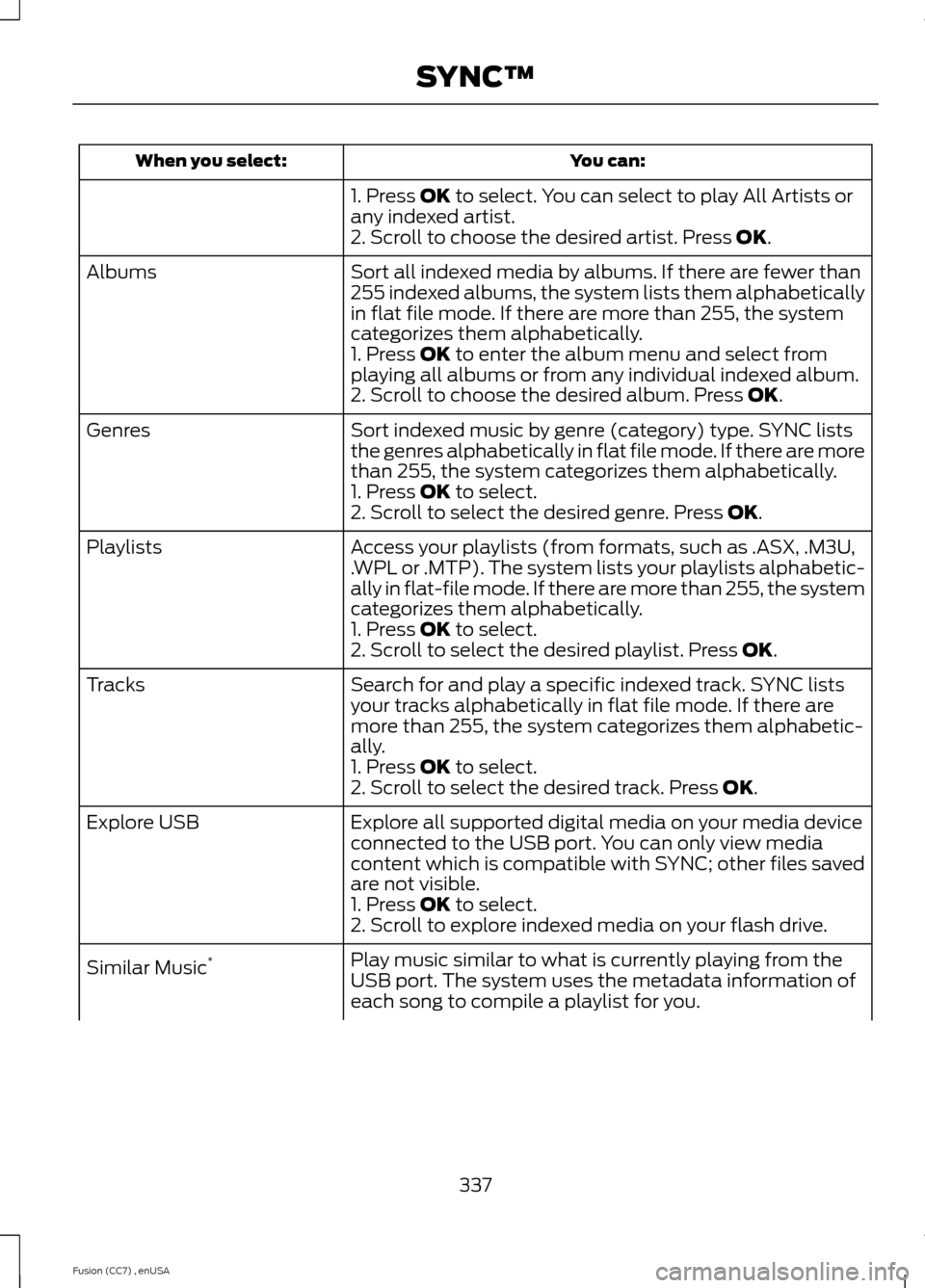
You can:When you select:
1. Press OK to select. You can select to play All Artists orany indexed artist.2. Scroll to choose the desired artist. Press OK.
Sort all indexed media by albums. If there are fewer than255 indexed albums, the system lists them alphabeticallyin flat file mode. If there are more than 255, the systemcategorizes them alphabetically.
Albums
1. Press OK to enter the album menu and select fromplaying all albums or from any individual indexed album.2. Scroll to choose the desired album. Press OK.
Sort indexed music by genre (category) type. SYNC liststhe genres alphabetically in flat file mode. If there are morethan 255, the system categorizes them alphabetically.
Genres
1. Press OK to select.2. Scroll to select the desired genre. Press OK.
Access your playlists (from formats, such as .ASX, .M3U,.WPL or .MTP). The system lists your playlists alphabetic-ally in flat-file mode. If there are more than 255, the systemcategorizes them alphabetically.
Playlists
1. Press OK to select.2. Scroll to select the desired playlist. Press OK.
Search for and play a specific indexed track. SYNC listsyour tracks alphabetically in flat file mode. If there aremore than 255, the system categorizes them alphabetic-ally.
Tracks
1. Press OK to select.2. Scroll to select the desired track. Press OK.
Explore all supported digital media on your media deviceconnected to the USB port. You can only view mediacontent which is compatible with SYNC; other files savedare not visible.
Explore USB
1. Press OK to select.2. Scroll to explore indexed media on your flash drive.
Play music similar to what is currently playing from theUSB port. The system uses the metadata information ofeach song to compile a playlist for you.
Similar Music*
337Fusion (CC7) , enUSASYNC™
Page 341 of 458
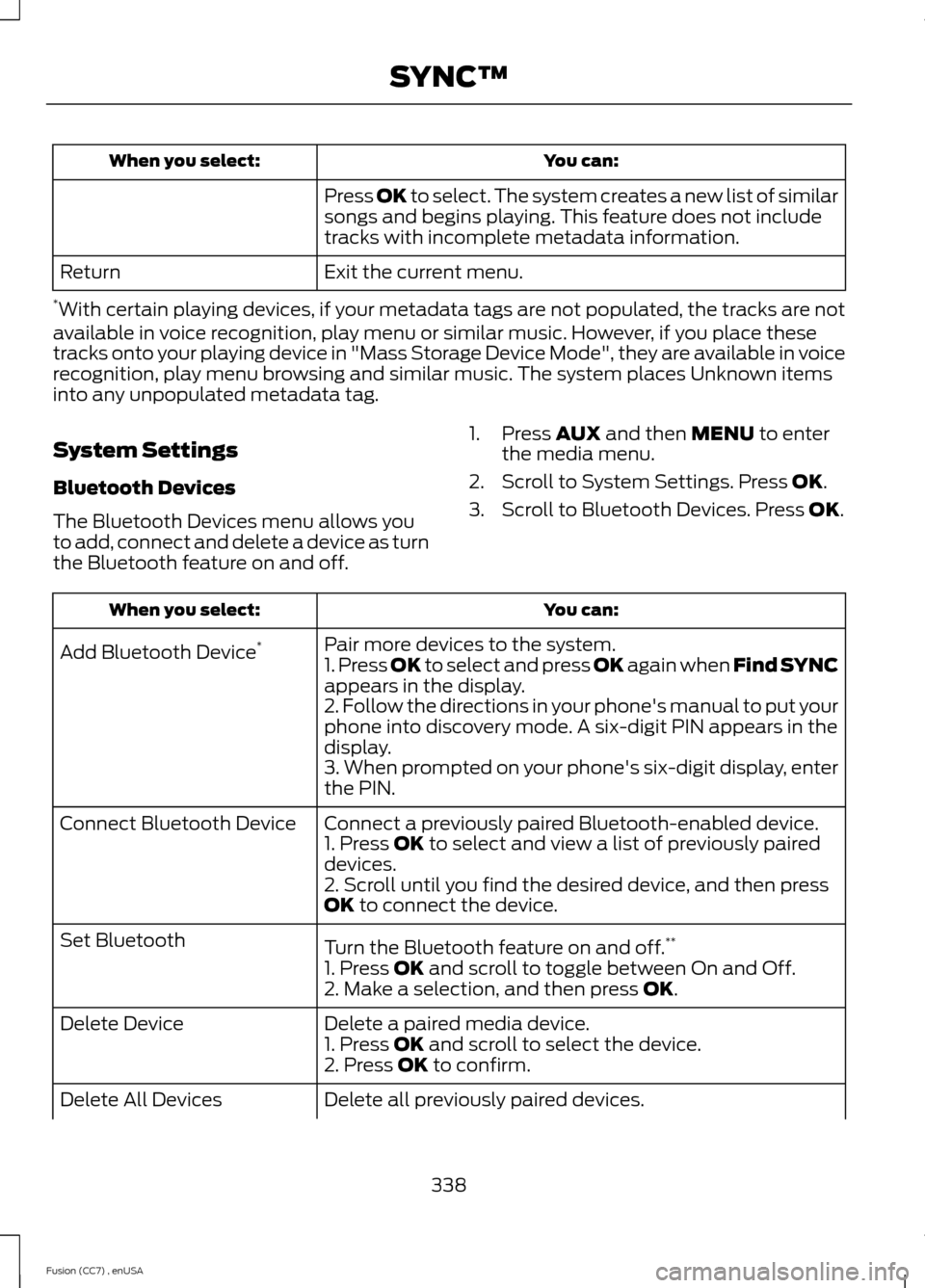
You can:When you select:
Press OK to select. The system creates a new list of similarsongs and begins playing. This feature does not includetracks with incomplete metadata information.
Exit the current menu.Return
*With certain playing devices, if your metadata tags are not populated, the tracks are notavailable in voice recognition, play menu or similar music. However, if you place thesetracks onto your playing device in "Mass Storage Device Mode", they are available in voicerecognition, play menu browsing and similar music. The system places Unknown itemsinto any unpopulated metadata tag.
System Settings
Bluetooth Devices
The Bluetooth Devices menu allows youto add, connect and delete a device as turnthe Bluetooth feature on and off.
1.Press AUX and then MENU to enterthe media menu.
2.Scroll to System Settings. Press OK.
3.Scroll to Bluetooth Devices. Press OK.
You can:When you select:
Pair more devices to the system.Add Bluetooth Device*1. Press OK to select and press OK again when Find SYNCappears in the display.2. Follow the directions in your phone's manual to put yourphone into discovery mode. A six-digit PIN appears in thedisplay.3. When prompted on your phone's six-digit display, enterthe PIN.
Connect a previously paired Bluetooth-enabled device.Connect Bluetooth Device1. Press OK to select and view a list of previously paireddevices.2. Scroll until you find the desired device, and then pressOK to connect the device.
Turn the Bluetooth feature on and off.**Set Bluetooth
1. Press OK and scroll to toggle between On and Off.2. Make a selection, and then press OK.
Delete a paired media device.Delete Device1. Press OK and scroll to select the device.2. Press OK to confirm.
Delete all previously paired devices.Delete All Devices
338Fusion (CC7) , enUSASYNC™