2013 Lancia Voyager radio
[x] Cancel search: radioPage 206 of 360

Using The Touch-Screen Radio
Controls
1. Press the MENU hard-key on the
radio faceplate.
2. Touch the Rear VES soft-key to
display the Rear VES Controls. If a
channel list is displayed, press the
HIDE LIST soft-key to display the
Rear VES Controls screen.
3. Touch the 1 or 2 soft-key based on
the channel you want to change and
then the DISC soft-key in the MEDIA
column. To exit touch the back arrow
at the top left of the screen.
NOTE:
To view a DVD on the radiopress the RADIO/MEDIA hard-
key, on the radio faceplate, then
touch the DISC tab soft-key and
then the VIEW VIDEO soft-key.
Viewing a DVD on the Touch- Screen radio screen is not avail-
able in all states/provinces, and
the vehicle must be stopped, and
the shift lever must be in the
PARK position for vehicles with automatic transmission. In ve-
hicles with manual transmission
the parking brake must be
engaged.
Touching the screen on a Touch- Screen radio while a DVD is
playing brings up basic remote
control functions for DVD play
such as scene selection, Play,
Pause, FF, RW, and Stop. Press-
ing the X in the upper corner
will turn off the remote control
screen functions.
Play A DVD Using The
VES™ Player (for
versions/markets, where
provided)
1. Insert the DVD with the label fac-
ing up. The VES™ player automati-
cally selects the appropriate mode af-
ter the disc is recognized and starts
playing the DVD.
NOTE: The VES™ player has
basic DVD control function such
as Menu, Play, Pause, FF, RW and
Stop 2. To watch a DVD on Screen 1 for
second row passengers, ensure the Re-
mote Control and Headphone switch
is on Channel 1.
3. To watch a DVD on Screen 2 for
third row passengers, ensure the Re-
mote Control and Headphone switch
is on Channel 2.
Using The Remote Control
1. Press the MODE button on the Re-
mote Control.
2. While looking at Screen 1 or 2,
highlight VES DISC by either press-
ing Up/Down/Left/Right buttons or
by repeatedly pressing the MODE
button, then press ENTER on the Re-
mote Control.
NOTE:
Channel/Screen 1 select mode
information is shown on the left
side of the screen.
Channel/Screen 2 select mode information is shown on the
right side of the screen.
200
Page 207 of 360

The VES™ will retain the lastsetting when turned off.
Using The Touch-Screen Radio
Controls
1. Press the MENU hard-key on the
radio faceplate.
2. Touch the Rear VES soft-key to
display the Rear VES Controls. If a
channel list is displayed, touch the
HIDE LIST soft-key to display the
Rear VES Controls screen.
3. Touch the 1 or 2 soft-key and then
the DISC soft-key in the VES column.
To exit touch the back arrow soft-key
at the top left of the screen.
NOTE:
To view a DVD on the radio press the RADIO/MEDIA hard-
key, on the radio faceplate, then
touch the DISC tab soft-key and
then the VIEW VIDEO soft-key.
Viewing a DVD on the Touch- Screen radio screen is not avail-
able in all states/provinces, and
the vehicle must be stopped, and
the shift lever must be in the PARK position for vehicles with
automatic transmission. In ve-
hicles with manual transmission
the parking brake must be en-
gaged.
Listen To An Audio Source
While A Video Is Playing
Ensure the Remote Control and
Headphone switch are on the same
channel. If watching a video on
Screen 1 (second row), then Channel
2 could be used for audio. If watching
a video on Screen 2 (third row), then
Channel 1 could be used for audio.
Using The Remote Control
1. Press the MODE button on the Re-
mote Control and the Mode Select
Screen will display, unless a video is
playing then only a small banner will
appear on the bottom of the screen.
2. While looking at the video screen,
either press Up/Down/Left/Right on
the Remote Control to highlight the
desired audio source or repeatedly
press the MODE button on the remote
until the desired audio source appears
on the screen. Using The Touch-Screen Radio
Controls
1. Press the MENU hard-key on the
radio faceplate.
2. Touch the Rear VES soft-key to
display the Rear VES Controls. If a
channel list is displayed, press the
HIDE LIST soft-key to display the
Rear VES Controls screen.
Select FM Mode On The VES Screen
Rear VES Soft-Key
201
Page 209 of 360

3. Light – Turns the remote control
backlighting on or off. The remote
backlighting turns off automatically
after five seconds.
4. Channel/Screen Selector Switch -
Indicates which channel is being con-
trolled by the remote control. When
the selector switch is in the Channel 1
position, the remote controls the func-
tionality of headphone Channel 1
(right side of the screen). When the
selector switch is in the Channel 2,
position the remote controls the func-
tionality of headphone Channel 2 (left
side of the screen).
5.►► – In radio modes, press to
seek the next tunable station. In disc
modes, press and hold to fast forward
through the current audio track or
video chapter. In menu modes use to
navigate in the menu.
6. ▼/ Prev – In radio modes, press to
select to the previous station. In disc
modes, press to advance to the start of
the current or previous audio track or
video chapter. In menu modes, use to
navigate in the menu. 7. MENU – Press to return to the
main menu of a DVD disc, to select a
satellite audio channel from the Sta-
tion list, or select playback modes
(SCAN/RANDOM for a CD).
8.
►/||
(Play/Pause) – Begin/resume
or pause disc play.
9. ▪(Stop) – Stops disc play
10. PROG Up/Down – When listen-
ing to a radio mode, pressing PROG
Up selects the next preset and press-
ing PROG Down selects the previous
preset stored in the radio. When lis-
tening to compressed audio on a data
disc, PROG Up selects the next direc-
tory and PROG Down selects the pre-
vious directory. When listening to a
disc in a radio with a multiple-disc
changer, PROG Up selects the next
disc and PROG Down selects the pre-
vious disc.
11. MUTE – Press to mute the head-
phone audio output for the selected
channel.
12. SLOW – Press to slow playback
of a DVD disc. Press play (►) to
resume normal play. 13. STATUS – Press to display the
current status.
14. MODE – Press to change the
mode of the selected channel. See the
Mode Selection section of this manual
for details on changing modes.
15. SETUP – When in a video mode,
press the SETUP button to access the
display settings (see the display set-
tings section) to access the DVD setup
menu, select the menu button on the
radio. When a disc is loaded in the
DVD player (if equipped) and the
VES™ mode is selected and the disc is
stopped, press the SETUP button to
access the DVD Setup menu. (see the
DVD Setup Menu of this manual.)
16. BACK – When navigating in
menu mode, press to return to the
previous screen. When navigating a
DVDs disc menu, the operation de-
pends on the disc’s contents.
17.
◄◄ – In radio modes, press to
seek to the previous tunable station.
In disc modes, press and hold to fast
rewind through the current audio
203
Page 210 of 360
track or video chapter. In menu
modes use to navigate in the menu.
18. ENTER – Press to select the
highlighted option in a menu.
19.▲/ NEXT – In radio modes,
press to select to the next station. In
disc modes, press to advance to the
next audio track or video chapter. In
menu modes, use to navigate in the
menu.
Remote Control Storage
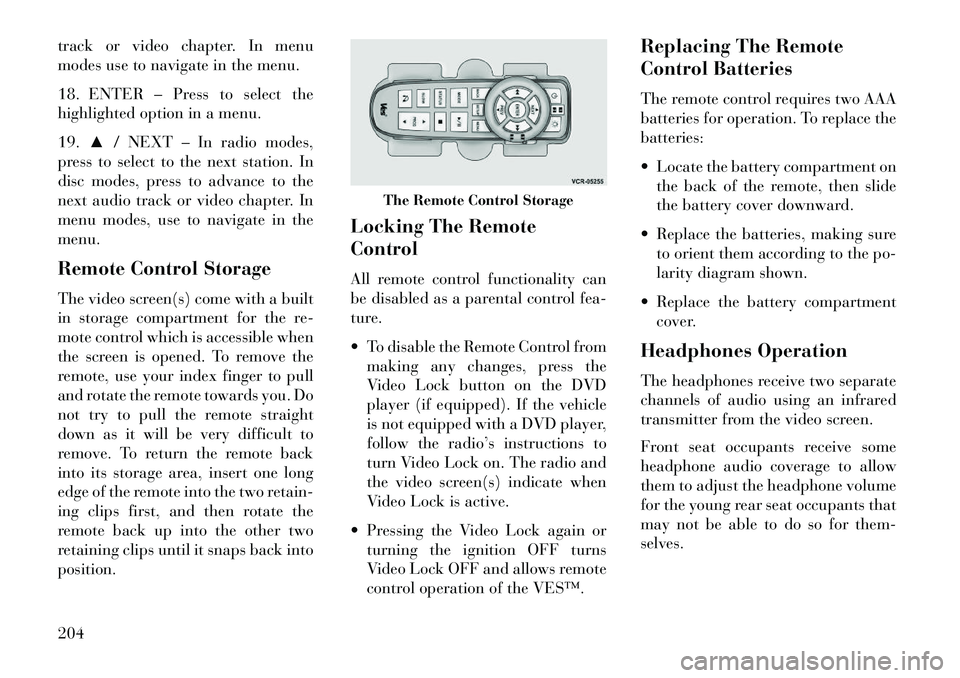
The video screen(s) come with a built
in storage compartment for the re-
mote control which is accessible when
the screen is opened. To remove the
remote, use your index finger to pull
and rotate the remote towards you. Do
not try to pull the remote straight
down as it will be very difficult to
remove. To return the remote back
into its storage area, insert one long
edge of the remote into the two retain-
ing clips first, and then rotate the
remote back up into the other two
retaining clips until it snaps back into
position. Locking The Remote
Control
All remote control functionality can
be disabled as a parental control fea-
ture.
To disable the Remote Control from
making any changes, press the
Video Lock button on the DVD
player (if equipped). If the vehicle
is not equipped with a DVD player,
follow the radio’s instructions to
turn Video Lock on. The radio and
the video screen(s) indicate when
Video Lock is active.
Pressing the Video Lock again or turning the ignition OFF turns
Video Lock OFF and allows remote
control operation of the VES™. Replacing The Remote
Control Batteries
The remote control requires two AAA
batteries for operation. To replace the
batteries:
Locate the battery compartment on
the back of the remote, then slide
the battery cover downward.
Replace the batteries, making sure to orient them according to the po-
larity diagram shown.
Replace the battery compartment cover.
Headphones Operation
The headphones receive two separate
channels of audio using an infrared
transmitter from the video screen.
Front seat occupants receive some
headphone audio coverage to allow
them to adjust the headphone volume
for the young rear seat occupants that
may not be able to do so for them-
selves.
The Remote Control Storage
204
Page 212 of 360
Replace the batteries, making sureto orient them according to the po-
larity diagram shown.
Replace the battery compartment cover.
Unwired® Stereo
Headphone Lifetime
Limited Warranty
Who Does This Warranty Cover?
This warranty covers the initial user
or purchaser ("you" or "your") of this
particular Unwired Technology LLC
("Unwired") wireless headphone
("Product"). The warranty is not
transferable.
How Long Does The Coverage
Last? This warranty lasts as long as
you own the Product.
What Does This Warranty Cover?
Except as specified below, this war-
ranty covers any Product that in nor-
mal use is defective in workmanship
or materials.What Does This Warranty Not
Cover? This warranty does not cover
any damage or defect that results from misuse, abuse or modification of the
Product other than by Unwired. Foam
earpieces, which will wear over time
through normal use, are specifically
not covered (replacement foam is
available for a nominal charge). UN-
WIRED TECHNOLOGY IS NOT LI-
ABLE FOR ANY INJURIES OR DAM-
AGES TO PERSONS OR PROPERTY
RESULTING FROM THE USE OF,
OR ANY FAILURE OR DEFECT IN,
THE PRODUCT, NOR IS UNWIRED
LIABLE FOR ANY GENERAL, SPE-
CIAL, DIRECT, INDIRECT, INCI-
DENTAL, CONSEQUENTIAL, EX-
EMPLARY, PUNITIVE OR OTHER
DAMAGES OF ANY KIND OR NA-
TURE WHATSOEVER. Some states
and jurisdictions may not allow the
exclusion or limitation of incidental or
consequential damages, so the above
limitation may not apply to you. This
warranty gives you specific legal
rights. You may also have other rights,
which vary from jurisdiction to juris-
diction.
What Will Unwired® Do?
Un-
wired®, at its option, will repair or replace any defective Product. Un-
wired® reserves the right to replace
any discontinued Product with a com-
parable model. THIS WARRANTY IS
THE SOLE WARRANTY FOR THIS
PRODUCT, SETS FORTH YOUR
EXCLUSIVE REMEDY REGARD-
ING DEFECTIVE PRODUCTS, AND
IS IN LIEU OF ALL OTHER WAR-
RANTIES (EXPRESS OR IMPLIED),
INCLUDING ANY WARRANTY OR
MERCHANTABILITY OR FITNESS
FOR A PARTICULAR PURPOSE.
System Information
Shared Modes
This allows the VES™ to output radio
sources to the headphones and the
radio to output VES™ sources to the
vehicle speakers. When the radio and
VES™ channel 1 or 2 are in the same
(shared) mode, a VES™ icon will be
visible on the radio’s display for that
channel, and the shared icon will be
visible on the VES™ screen. When in
shared mode, the same audio source is
heard in the shared headphone chan-
nel 1 or channel 2.
206
Page 213 of 360

If the radio functions (FM, AM, or
SAT) are in the shared mode with the
VES™, only the radio is able to con-
trol the radio functions. In this case,
VES™ can share the radio mode, but
not change stations until the radio
mode is changed to a mode that is
different from the VES™ selected ra-
dio mode. When shared, the radio has
priority over the VES™ or all radio
modes (FM, AM, and SAT). The
VES™ has the ability to switch tuner
(AM/FM), SEEK, SCAN, TUNE, and
recall presets in radio modes as long
as it is not in shared mode.
When in shared disc mode both the
radio and the VES™ have control of
the video functions. The VES™ has
the ability to control the following
video modes:
1. CD: Ability to Fast Forward, Re-
wind, Scan, and Track Up/Down.
2. CD Changer (in radio): Ability to
Disk Up/Down and program all listed
CD controls (Fast Forward, Rewind,
Scan, and Track Up/Down).The VES™ can even control radio
modes or video modes while the radio
is turned off. The VES™ can access
the radio modes or disc modes by
navigating to those modes on the
VES™ and activating a radio mode or
disc mode.
Information Mode Display
1. Channel 1 Mode
2. Channel 1 Shared Status
3. Channel 1 Audio Only/Mute
4. Channel 2 Mode
5. Channel 2 Shared Status
6. Channel 2 Audio Only/Mute7. Channel 1 ENTER Button Action
8. Channel 2 ENTER Button Action
9. Clock
10. Video Lock
11. Not Available / Error
12. Disc Changer Status
Numeric Keypad Menu
When the display for either Channel 1
or Channel 2 shows DIRECT TUNE,
pressing the remote control’s ENTER
button activates a numeric keypad
menu. This screen makes it easy to
enter a specific tuner frequency, satel-
lite channel, or track number. To en-
ter the desired digit:
1. Press the remote control’s naviga-
tion buttons (▲,
▼,►,◄) to navi-
gate to the desired digit.
2. When the digit is highlighted,
press the remote control’s ENTER
button to select the digit. Repeat these
steps until all digits are entered.
3. To delete the last digit, navigate to
the Del button and press the remote
control’s ENTER button.
Information Mode Video Screen Display
207
Page 216 of 360

The player recognizes a maximumof 512 files and 99 folders per
CD-R and CD-RW disc.
Mixed media recordable DVD for- mats will only play the Video_TS
portion of the disc.
If you are still having trouble writing a
disc that is playable in the VES™
DVD player, check with the disc re-
cording software publisher for more
information about burning playable
discs.
The recommended method for label-
ing recordable discs (CD-R, CD-RW,
and DVD-R) is with a permanent
marker. Do not use adhesive labels as
they may separate from the disc, be-
come stuck, and cause permanent
damage to the DVD player.
Compressed Audio Files (MP3 and
WMA)
The DVD player is capable of playing
MP3 (MPEG-1 Audio Layer 3) and
WMA (Windows Media Audio) files
from a CD Data disc (usually a CD-R
or CD-RW). The DVD player always uses the
file extension to determine the au-
dio format, so MP3 files must al-
ways end with the extension
".mp3" or ".MP3" and WMA files
must always end with the extension
".wma" or ".WMA". To prevent in-
correct playback, do not use these
extensions for any other types of
files.
For MP3 files, only version 1 ID3 tag data (such as artist name, track
title, album, etc.) are supported.
Any file that is copy protected (such as those downloaded from many
online music stores) will not play.
The DVD player will automatically
skip the file and begin playing the
next available file.
Other compression formats such as AAC, MP3 Pro, Ogg Vorbis, and
ATRAC3 will not play. The DVD
player will automatically skip the
file and begin playing the next
available file. If you are creating your own files,
the recommended fixed bit rate for
MP3 files is between 96 and
192Kbps and the recommended
fixed bit rate for WMA files is be-
tween 64 and 192Kbps. Variable
bit rates are also supported. For
both formats, the recommended
sample rate is either 44.1kHz or
48kHz.
To change the current file, use the remote control’s or DVD player’s ▲
button to advance to the next file,
or the ▼button to return to the
start of the current or previous file.
To change the current directory, use the remote control’s PROG Up and
Down buttons.
Disc Errors
If the DVD player is unable to read the
disc, a "Disc Error" message is dis-
played on the VES™ and Radio dis-
plays and the disc is automatically
ejected. A dirty, damaged, or incom-
patible disc format are all potential
causes for a "Disc Error" message.
210
Page 217 of 360
If a disc has a damaged track which
results in audible or visible errors that
persists for 2.0 seconds, the DVD
player will attempt to continue play-
ing the disc by skipping forward 1.0
to 3.0 seconds at a time. If the end of
the disc is reached, the DVD player
will return to the beginning of the disc
and attempt to play the start of the
first track.
The DVD player may shut down dur-
ing extremely hot conditions, such as
when the vehicle’s interior tempera-
ture is above 48°C . When this occurs,
the DVD player will display "VES
High Temp" and will shut off the
VES™ displays until a safe tempera-
ture is reached. This shutdown is nec-
essary to protect the optics of the DVD
player.Display
Other Language Setup
All of the Language settings have a
special "Other" setting to accommo-
date languages other than Japanese or
English. These languages are selected
using a special four-digit code.
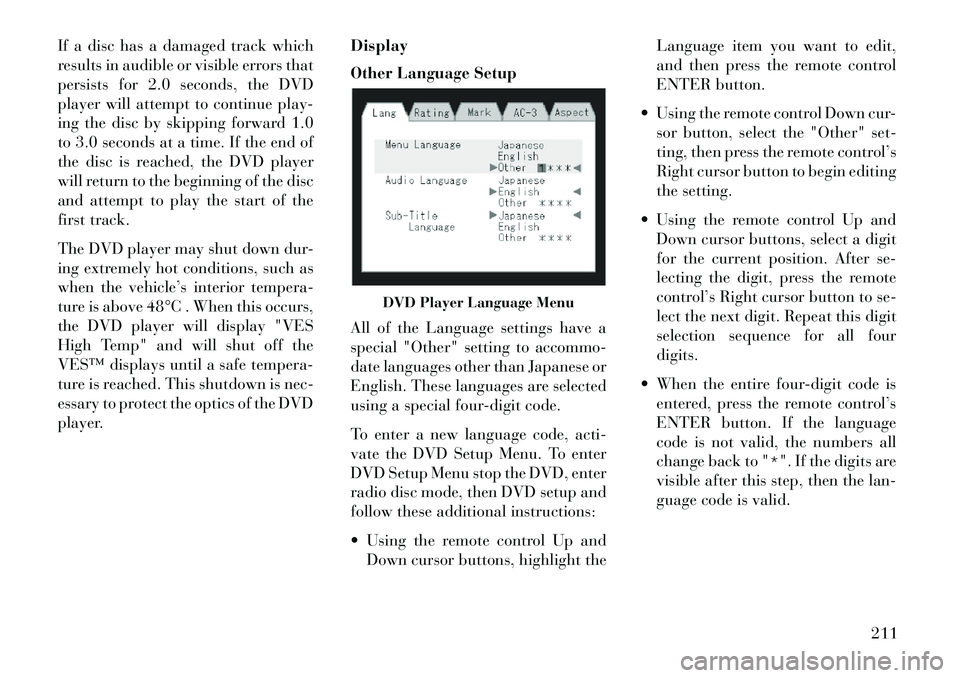
To enter a new language code, acti-
vate the DVD Setup Menu. To enter
DVD Setup Menu stop the DVD, enter
radio disc mode, then DVD setup and
follow these additional instructions:
Using the remote control Up and
Down cursor buttons, highlight the Language item you want to edit,
and then press the remote control
ENTER button.
Using the remote control Down cur- sor button, select the "Other" set-
ting, then press the remote control’s
Right cursor button to begin editing
the setting.
Using the remote control Up and Down cursor buttons, select a digit
for the current position. After se-
lecting the digit, press the remote
control’s Right cursor button to se-
lect the next digit. Repeat this digit
selection sequence for all four
digits.
When the entire four-digit code is entered, press the remote control’s
ENTER button. If the language
code is not valid, the numbers all
change back to "*". If the digits are
visible after this step, then the lan-
guage code is valid.
DVD Player Language Menu
211