2013 FORD SUPER DUTY navigation
[x] Cancel search: navigationPage 526 of 563
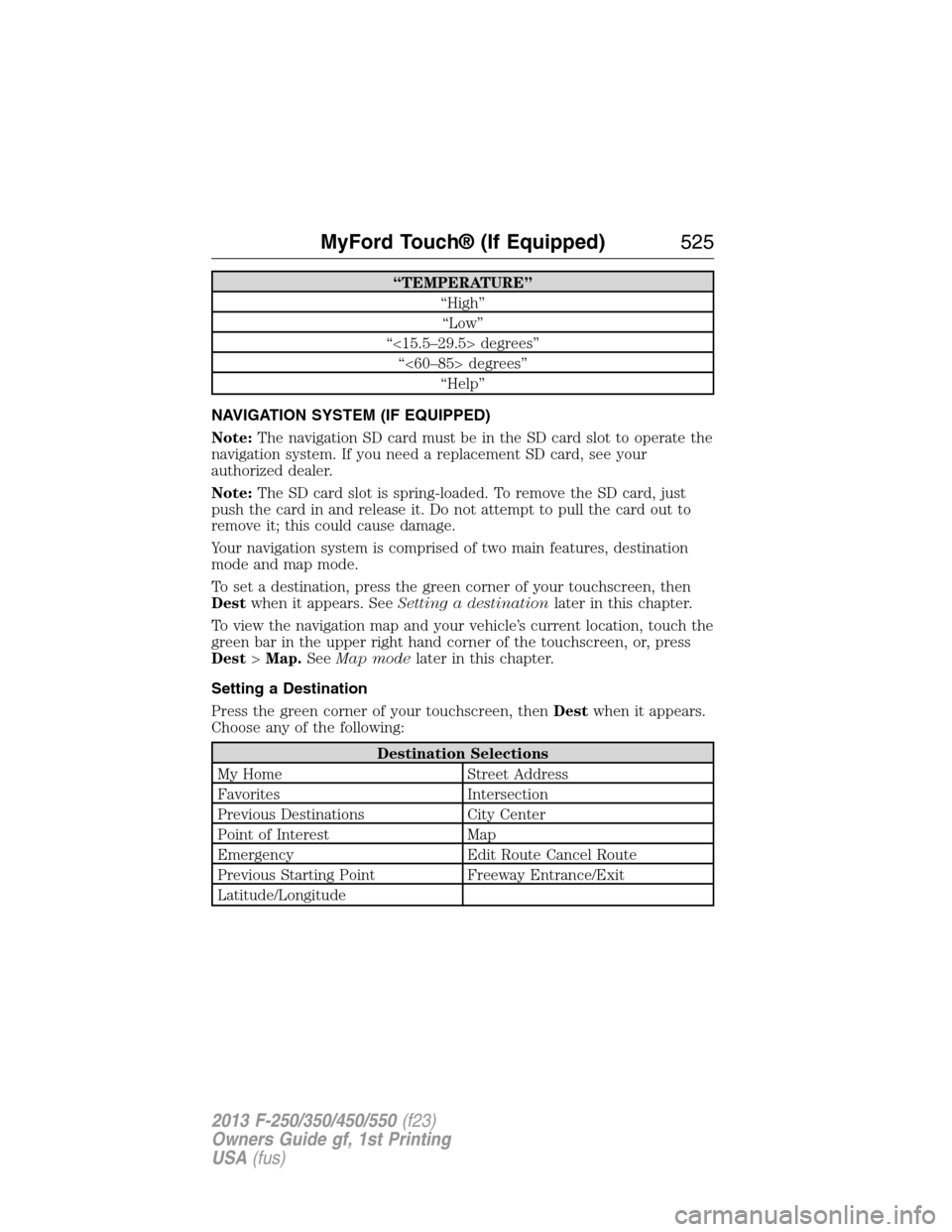
“TEMPERATURE”
“High”
“Low”
“<15.5–29.5> degrees”
“<60–85> degrees”
“Help”
NAVIGATION SYSTEM (IF EQUIPPED)
Note:The navigation SD card must be in the SD card slot to operate the
navigation system. If you need a replacement SD card, see your
authorized dealer.
Note:The SD card slot is spring-loaded. To remove the SD card, just
push the card in and release it. Do not attempt to pull the card out to
remove it; this could cause damage.
Your navigation system is comprised of two main features, destination
mode and map mode.
To set a destination, press the green corner of your touchscreen, then
Destwhen it appears. SeeSetting a destinationlater in this chapter.
To view the navigation map and your vehicle’s current location, touch the
green bar in the upper right hand corner of the touchscreen, or, press
Dest>Map.SeeMap modelater in this chapter.
Setting a Destination
Press the green corner of your touchscreen, thenDestwhen it appears.
Choose any of the following:
Destination Selections
My Home Street Address
Favorites Intersection
Previous Destinations City Center
Point of Interest Map
Emergency Edit Route Cancel Route
Previous Starting Point Freeway Entrance/Exit
Latitude/Longitude
MyFord Touch® (If Equipped)525
2013 F-250/350/450/550(f23)
Owners Guide gf, 1st Printing
USA(fus)
Page 527 of 563
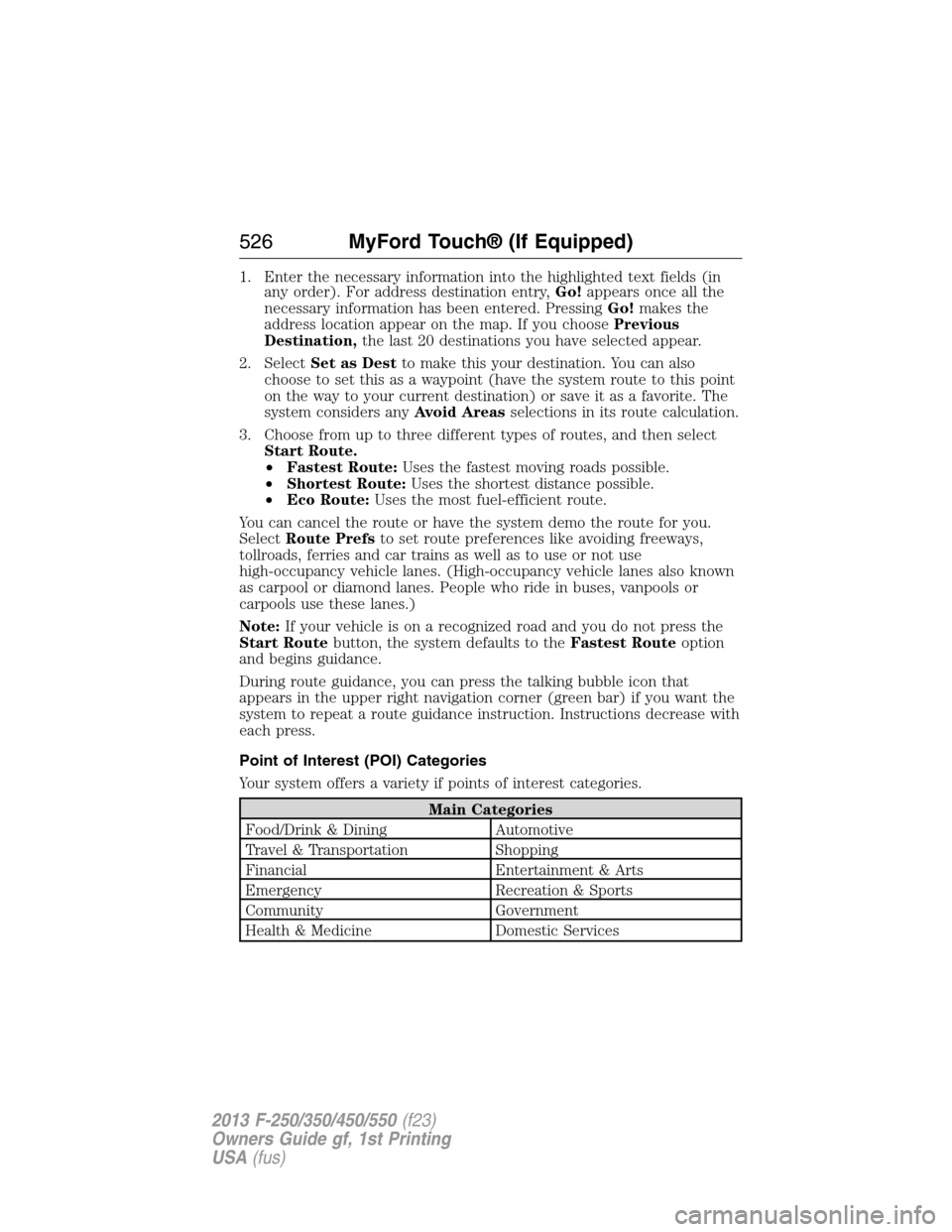
1. Enter the necessary information into the highlighted text fields (in
any order). For address destination entry,Go!appears once all the
necessary information has been entered. PressingGo!makes the
address location appear on the map. If you choosePrevious
Destination,the last 20 destinations you have selected appear.
2. SelectSet as Destto make this your destination. You can also
choose to set this as a waypoint (have the system route to this point
on the way to your current destination) or save it as a favorite. The
system considers anyAvoid Areasselections in its route calculation.
3. Choose from up to three different types of routes, and then select
Start Route.
•Fastest Route:Uses the fastest moving roads possible.
•Shortest Route:Uses the shortest distance possible.
•Eco Route:Uses the most fuel-efficient route.
You can cancel the route or have the system demo the route for you.
SelectRoute Prefsto set route preferences like avoiding freeways,
tollroads, ferries and car trains as well as to use or not use
high-occupancy vehicle lanes. (High-occupancy vehicle lanes also known
as carpool or diamond lanes. People who ride in buses, vanpools or
carpools use these lanes.)
Note:If your vehicle is on a recognized road and you do not press the
Start Routebutton, the system defaults to theFastest Routeoption
and begins guidance.
During route guidance, you can press the talking bubble icon that
appears in the upper right navigation corner (green bar) if you want the
system to repeat a route guidance instruction. Instructions decrease with
each press.
Point of Interest (POI) Categories
Your system offers a variety if points of interest categories.
Main Categories
Food/Drink & Dining Automotive
Travel & Transportation Shopping
Financial Entertainment & Arts
Emergency Recreation & Sports
Community Government
Health & Medicine Domestic Services
526MyFord Touch® (If Equipped)
2013 F-250/350/450/550(f23)
Owners Guide gf, 1st Printing
USA(fus)
Page 530 of 563
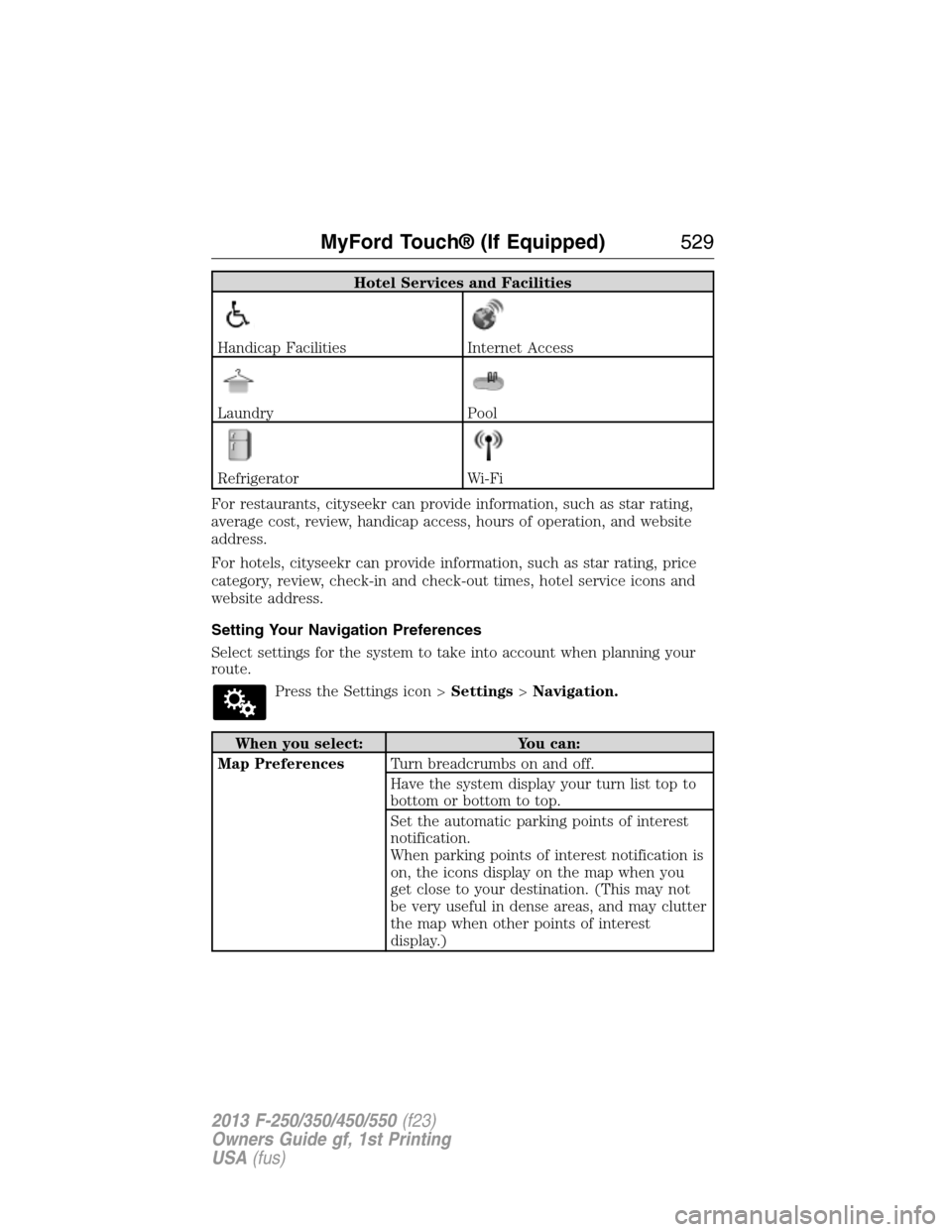
Hotel Services and Facilities
Handicap FacilitiesInternet Access
LaundryPool
RefrigeratorWi-Fi
For restaurants, cityseekr can provide information, such as star rating,
average cost, review, handicap access, hours of operation, and website
address.
For hotels, cityseekr can provide information, such as star rating, price
category, review, check-in and check-out times, hotel service icons and
website address.
Setting Your Navigation Preferences
Select settings for the system to take into account when planning your
route.
Press the Settings icon >Settings>Navigation.
When you select: You can:
Map PreferencesTurn breadcrumbs on and off.
Have the system display your turn list top to
bottom or bottom to top.
Set the automatic parking points of interest
notification.
When parking points of interest notification is
on, the icons display on the map when you
get close to your destination. (This may not
be very useful in dense areas, and may clutter
the map when other points of interest
display.)
MyFord Touch® (If Equipped)529
2013 F-250/350/450/550(f23)
Owners Guide gf, 1st Printing
USA(fus)
Page 531 of 563
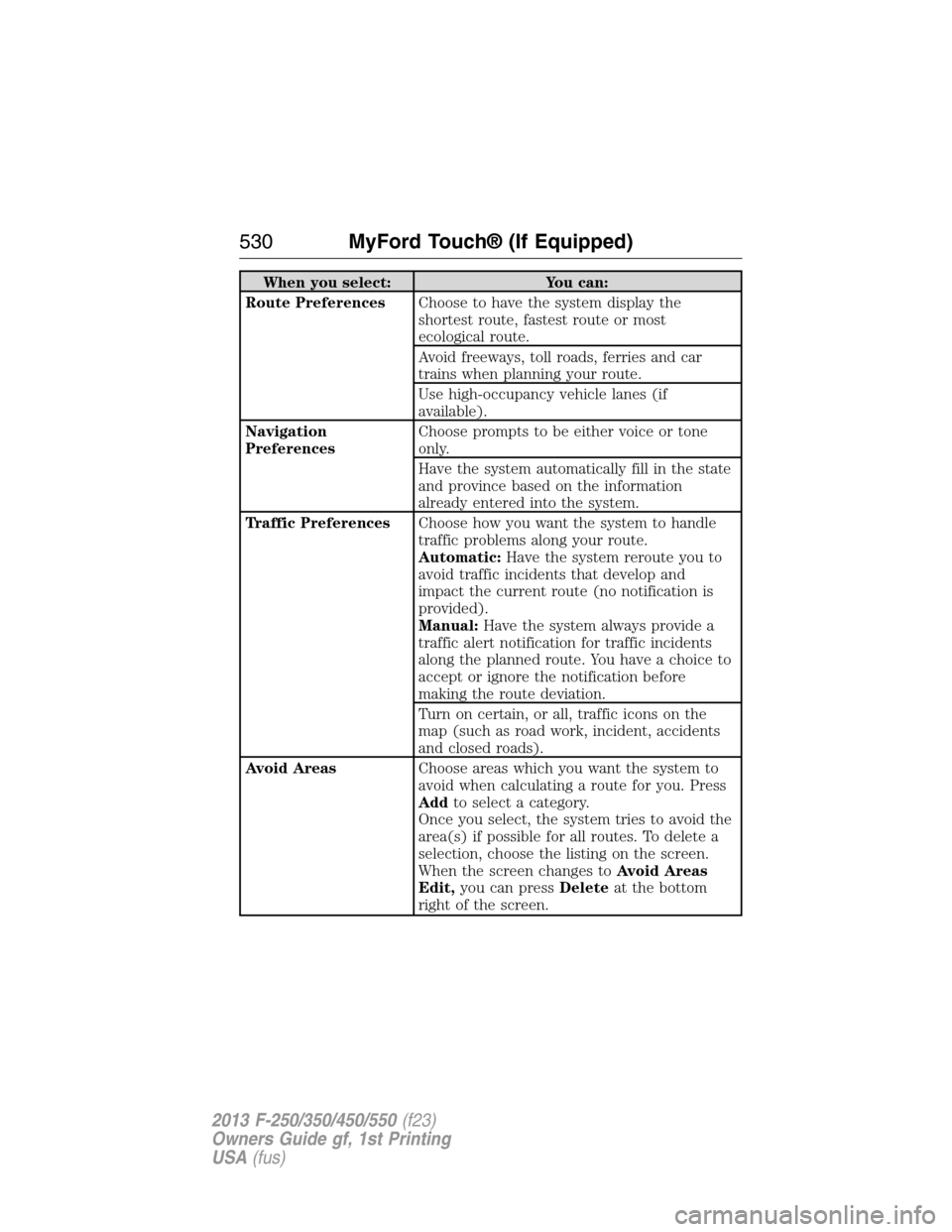
When you select: You can:
Route PreferencesChoose to have the system display the
shortest route, fastest route or most
ecological route.
Avoid freeways, toll roads, ferries and car
trains when planning your route.
Use high-occupancy vehicle lanes (if
available).
Navigation
PreferencesChoose prompts to be either voice or tone
only.
Have the system automatically fill in the state
and province based on the information
already entered into the system.
Traffic PreferencesChoose how you want the system to handle
traffic problems along your route.
Automatic:Have the system reroute you to
avoid traffic incidents that develop and
impact the current route (no notification is
provided).
Manual:Have the system always provide a
traffic alert notification for traffic incidents
along the planned route. You have a choice to
accept or ignore the notification before
making the route deviation.
Turn on certain, or all, traffic icons on the
map (such as road work, incident, accidents
and closed roads).
Avoid AreasChoose areas which you want the system to
avoid when calculating a route for you. Press
Addto select a category.
Once you select, the system tries to avoid the
area(s) if possible for all routes. To delete a
selection, choose the listing on the screen.
When the screen changes toAvoid Areas
Edit,you can pressDeleteat the bottom
right of the screen.
530MyFord Touch® (If Equipped)
2013 F-250/350/450/550(f23)
Owners Guide gf, 1st Printing
USA(fus)
Page 535 of 563
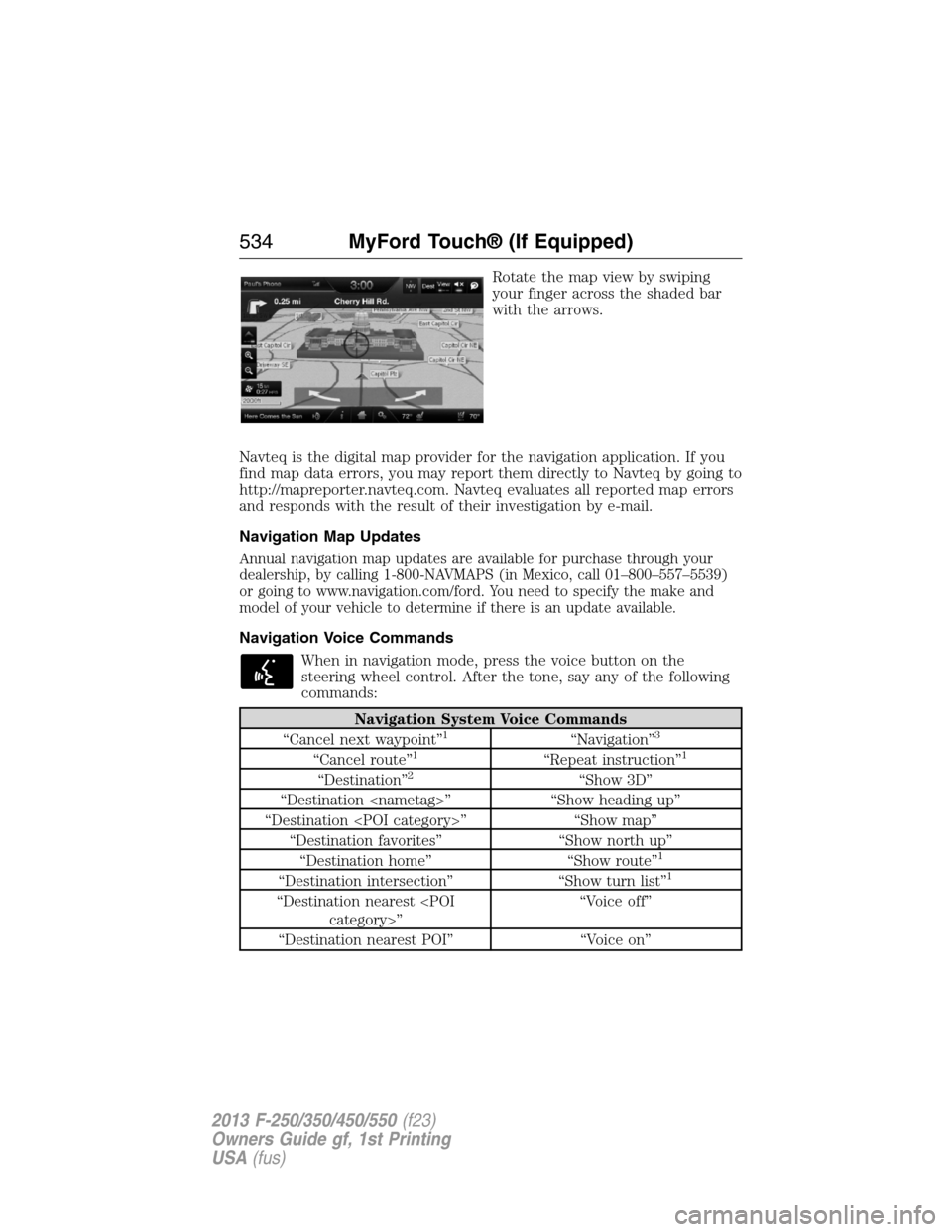
Rotate the map view by swiping
your finger across the shaded bar
with the arrows.
Navteq is the digital map provider for the navigation application. If you
find map data errors, you may report them directly to Navteq by going to
http://mapreporter.navteq.com. Navteq evaluates all reported map errors
and responds with the result of their investigation by e-mail.
Navigation Map Updates
Annual navigation map updates are available for purchase through your
dealership, by calling 1-800-NAVMAPS (in Mexico, call 01–800–557–5539)
or going to www.navigation.com/ford. You need to specify the make and
model of your vehicle to determine if there is an update available.
Navigation Voice Commands
When in navigation mode, press the voice button on the
steering wheel control. After the tone, say any of the following
commands:
Navigation System Voice Commands
“Cancel next waypoint”1“Navigation”3
“Cancel route”1“Repeat instruction”1
“Destination”2“Show 3D”
“Destination
“Destination
“Destination favorites” “Show north up”
“Destination home” “Show route”
1
“Destination intersection” “Show turn list”1
“Destination nearest
“Destination nearest POI” “Voice on”
534MyFord Touch® (If Equipped)
2013 F-250/350/450/550(f23)
Owners Guide gf, 1st Printing
USA(fus)
Page 536 of 563
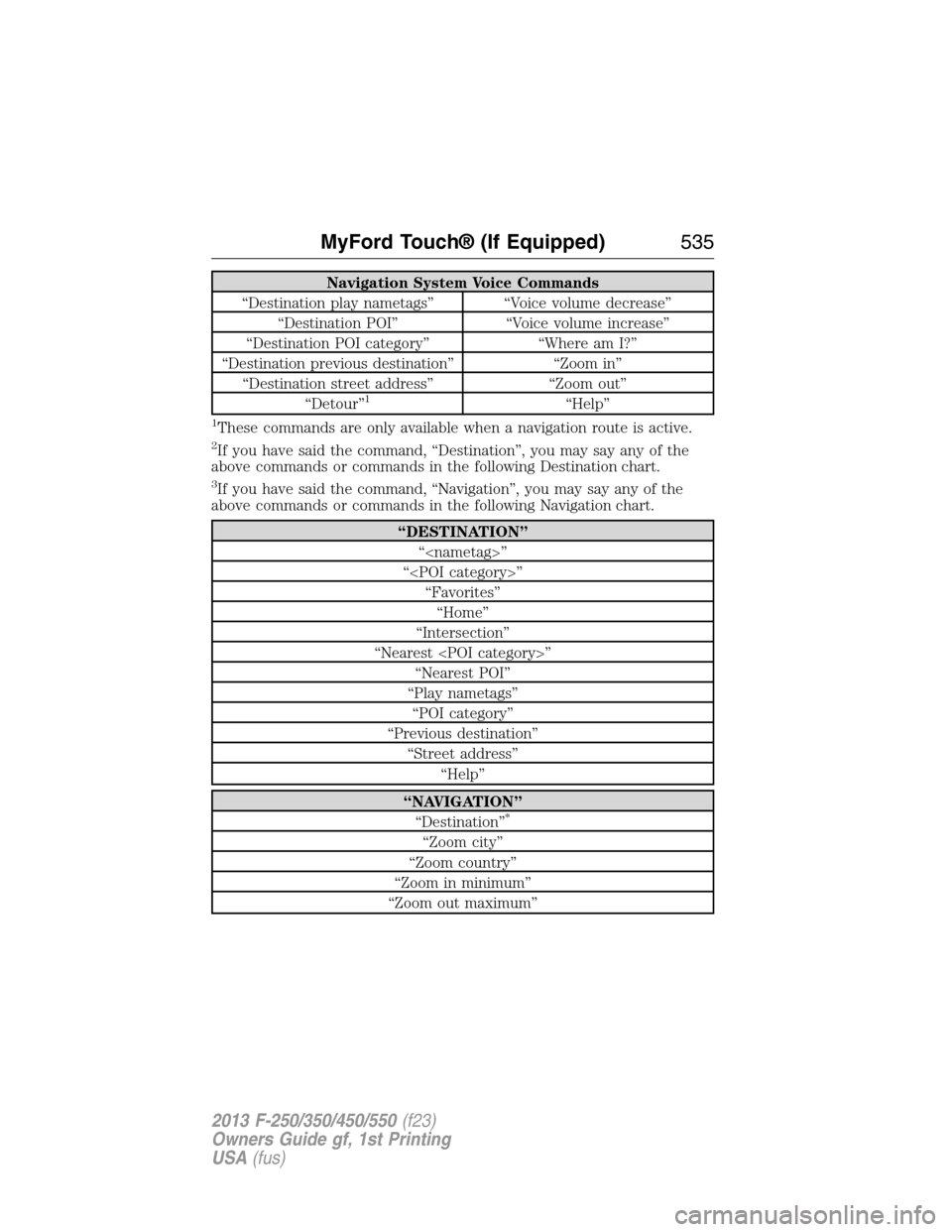
Navigation System Voice Commands
“Destination play nametags” “Voice volume decrease”
“Destination POI” “Voice volume increase”
“Destination POI category” “Where am I?”
“Destination previous destination” “Zoom in”
“Destination street address” “Zoom out”
“Detour”
1“Help”
1These commands are only available when a navigation route is active.
2If you have said the command, “Destination”, you may say any of the
above commands or commands in the following Destination chart.
3If you have said the command, “Navigation”, you may say any of the
above commands or commands in the following Navigation chart.
“DESTINATION”
“
“
“Favorites”
“Home”
“Intersection”
“Nearest
“Nearest POI”
“Play nametags”
“POI category”
“Previous destination”
“Street address”
“Help”
“NAVIGATION”
“Destination”*
“Zoom city”
“Zoom country”
“Zoom in minimum”
“Zoom out maximum”
MyFord Touch® (If Equipped)535
2013 F-250/350/450/550(f23)
Owners Guide gf, 1st Printing
USA(fus)
Page 537 of 563
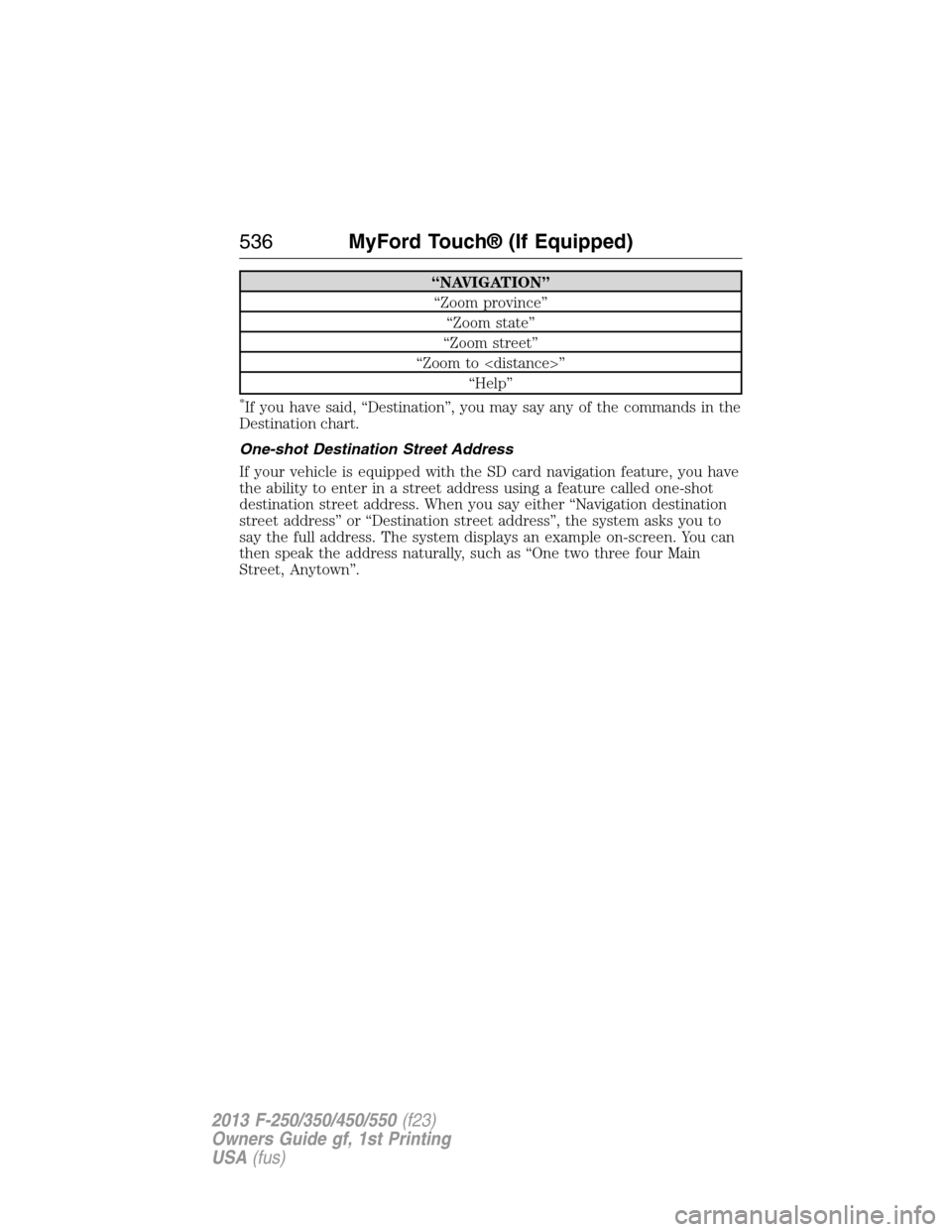
“NAVIGATION”
“Zoom province”
“Zoom state”
“Zoom street”
“Zoom to
“Help”
*If you have said, “Destination”, you may say any of the commands in the
Destination chart.
One-shot Destination Street Address
If your vehicle is equipped with the SD card navigation feature, you have
the ability to enter in a street address using a feature called one-shot
destination street address. When you say either “Navigation destination
street address” or “Destination street address”, the system asks you to
say the full address. The system displays an example on-screen. You can
then speak the address naturally, such as “One two three four Main
Street, Anytown”.
536MyFord Touch® (If Equipped)
2013 F-250/350/450/550(f23)
Owners Guide gf, 1st Printing
USA(fus)
Page 544 of 563

attempting to access a function of the system requiring prolonged
attention. Even occasional short scans to the screen may be hazardous if
your attention has been diverted away from your driving task at a critical
time.
Volume Setting
Do not raise the volume excessively. Keep the volume at a level where
you can still hear outside traffic and emergency signals while driving.
Driving while unable to hear these sounds could cause an accident.
Use of Speech Recognition Functions
Speech recognition software is inherently a statistical process which is
subject to errors. It is your responsibility to monitor any speech
recognition functions included in the system and address any errors.
Navigation Features
Any navigation features included in the system are intended to provide
turn by turn instructions to get you to a desired destination. Please make
certain all persons using this system carefully read and follow
instructions and safety information fully.
Distraction Hazard
Any navigation features may require manual (non-verbal) setup.
Attempting to perform such set-up or insert data while driving can
seriously distract your attention and could cause an accident or other
serious consequences. Stop the vehicle in a safe and legal manner before
attempting these operations.
Let Your Judgment Prevail
Any navigation features are provided only as an aid. Make your driving
decisions based on your observations of local conditions and existing
traffic regulations. Any such feature is not a substitute for your personal
judgment. Any route suggestions made by this system should never
replace any local traffic regulations or your personal judgment or
knowledge of safe driving practices.
Route Safety
Do not follow the route suggestions if doing so would result in an unsafe
or illegal maneuver, if you would be placed in an unsafe situation, or if
you would be directed into an area that you consider unsafe. The driver
is ultimately responsible for the safe operation of the vehicle and
therefore, must evaluate whether it is safe to follow the suggested
directions.
Appendices543
2013 F-250/350/450/550(f23)
Owners Guide gf, 1st Printing
USA(fus)