2013 FORD SUPER DUTY navigation
[x] Cancel search: navigationPage 463 of 563
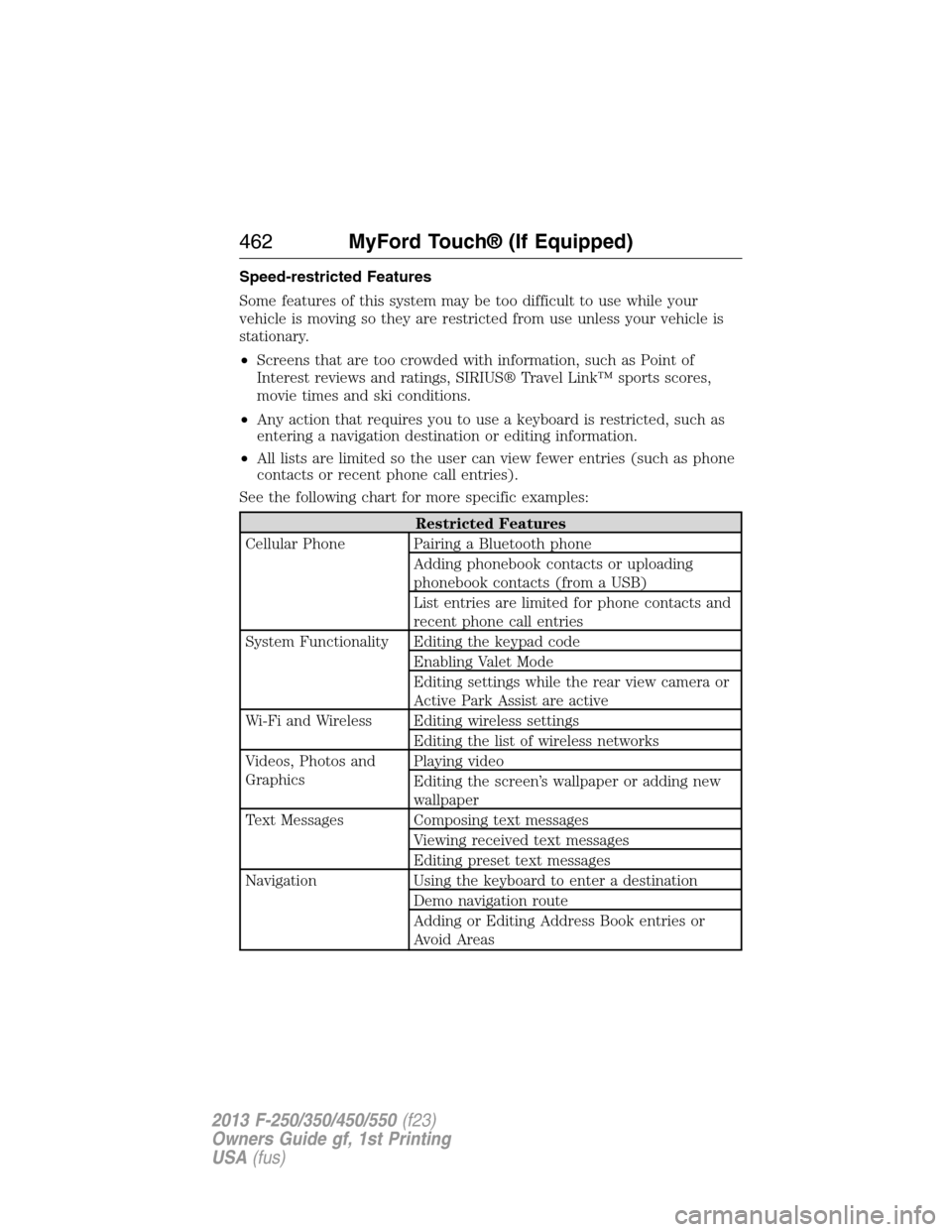
Speed-restricted Features
Some features of this system may be too difficult to use while your
vehicle is moving so they are restricted from use unless your vehicle is
stationary.
•Screens that are too crowded with information, such as Point of
Interest reviews and ratings, SIRIUS® Travel Link™ sports scores,
movie times and ski conditions.
•Any action that requires you to use a keyboard is restricted, such as
entering a navigation destination or editing information.
•All lists are limited so the user can view fewer entries (such as phone
contacts or recent phone call entries).
See the following chart for more specific examples:
Restricted Features
Cellular Phone Pairing a Bluetooth phone
Adding phonebook contacts or uploading
phonebook contacts (from a USB)
List entries are limited for phone contacts and
recent phone call entries
System Functionality Editing the keypad code
Enabling Valet Mode
Editing settings while the rear view camera or
Active Park Assist are active
Wi-Fi and Wireless Editing wireless settings
Editing the list of wireless networks
Videos, Photos and
GraphicsPlaying video
Editing the screen’s wallpaper or adding new
wallpaper
Text Messages Composing text messages
Viewing received text messages
Editing preset text messages
Navigation Using the keyboard to enter a destination
Demo navigation route
Adding or Editing Address Book entries or
Avoid Areas
462MyFord Touch® (If Equipped)
2013 F-250/350/450/550(f23)
Owners Guide gf, 1st Printing
USA(fus)
Page 466 of 563

Accessing a List of Available Commands
•If you use the touchscreen, press the Settings icon >Help>Voice
Command List.
•If you use the steering wheel control, press the voice icon. After the
tone, speak your command clearly.
Voice command list
“Audio list of commands”
“Bluetooth audio list of commands”
“Browse list of commands”
“CD list of commands”
“Climate control list of commands”
“List of commands”
“Navigation list of commands”
“Phone list of commands”
“Radio list of commands”
“SD card list of commands”
“Sirius satellite list of commands”
“Travel link list of commands”
“USB list of commands”
“Voice instructions list of commands”
“Voice settings list of commands”
“Help”
Voice Settings
Voice settings allow you to customize the level of system interaction,
help and feedback. The system defaults to standard interaction that uses
candidate lists and confirmation prompts as these provide the highest
level of guidance and feedback.
Interaction Mode:Novice mode provides detailed interaction and
guidance while the advanced mode has less audible interaction and more
tone prompts.
Confirmation Prompts:The system uses these short questions to
confirm your voice request. If turned off, the system simply makes a best
guess as to what you requested. The system may still occasionally ask
you to confirm settings.
MyFord Touch® (If Equipped)465
2013 F-250/350/450/550(f23)
Owners Guide gf, 1st Printing
USA(fus)
Page 467 of 563
Phone/Media Candidate Lists:Candidate lists are lists of possible
results from your voice commands. The system creates these lists when
it has the same confidence level of several options based on your voice
command.
To access these settings using the touchscreen:
1. Press theSettingsicon >Settings>Voice Control.
2. Select from:
•Interaction Mode
•Confirmation Prompts
•Media Candidate Lists
•Phone Candidate Lists
•Voice Control Volume.
To access these settings using voice commands:
Press the voice icon. Wait for the prompt “Please say a
command”. Another tone sounds to let you know the system is
listening.
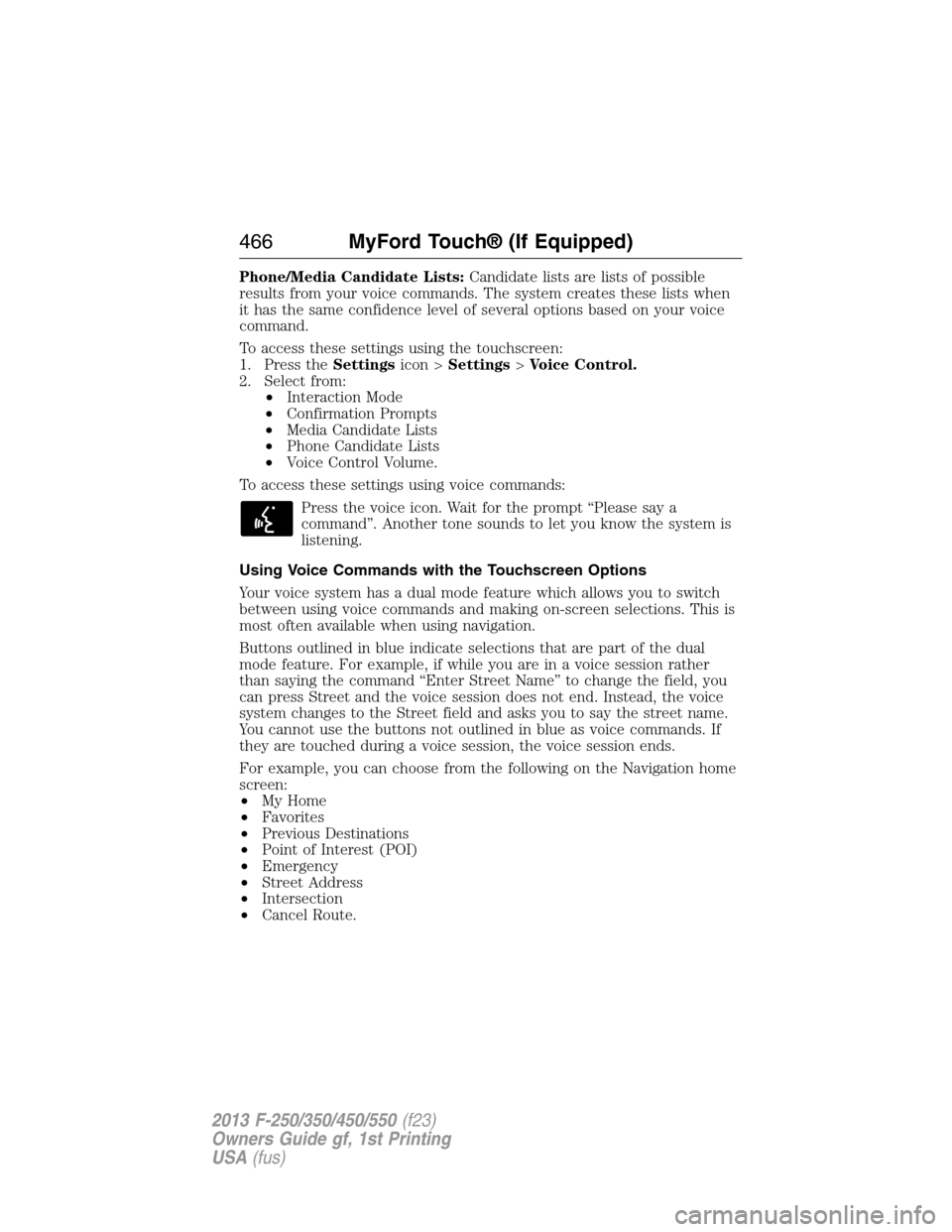
Using Voice Commands with the Touchscreen Options
Your voice system has a dual mode feature which allows you to switch
between using voice commands and making on-screen selections. This is
most often available when using navigation.
Buttons outlined in blue indicate selections that are part of the dual
mode feature. For example, if while you are in a voice session rather
than saying the command “Enter Street Name” to change the field, you
can press Street and the voice session does not end. Instead, the voice
system changes to the Street field and asks you to say the street name.
You cannot use the buttons not outlined in blue as voice commands. If
they are touched during a voice session, the voice session ends.
For example, you can choose from the following on the Navigation home
screen:
•My Home
•Favorites
•Previous Destinations
•Point of Interest (POI)
•Emergency
•Street Address
•Intersection
•Cancel Route.
466MyFord Touch® (If Equipped)
2013 F-250/350/450/550(f23)
Owners Guide gf, 1st Printing
USA(fus)
Page 468 of 563
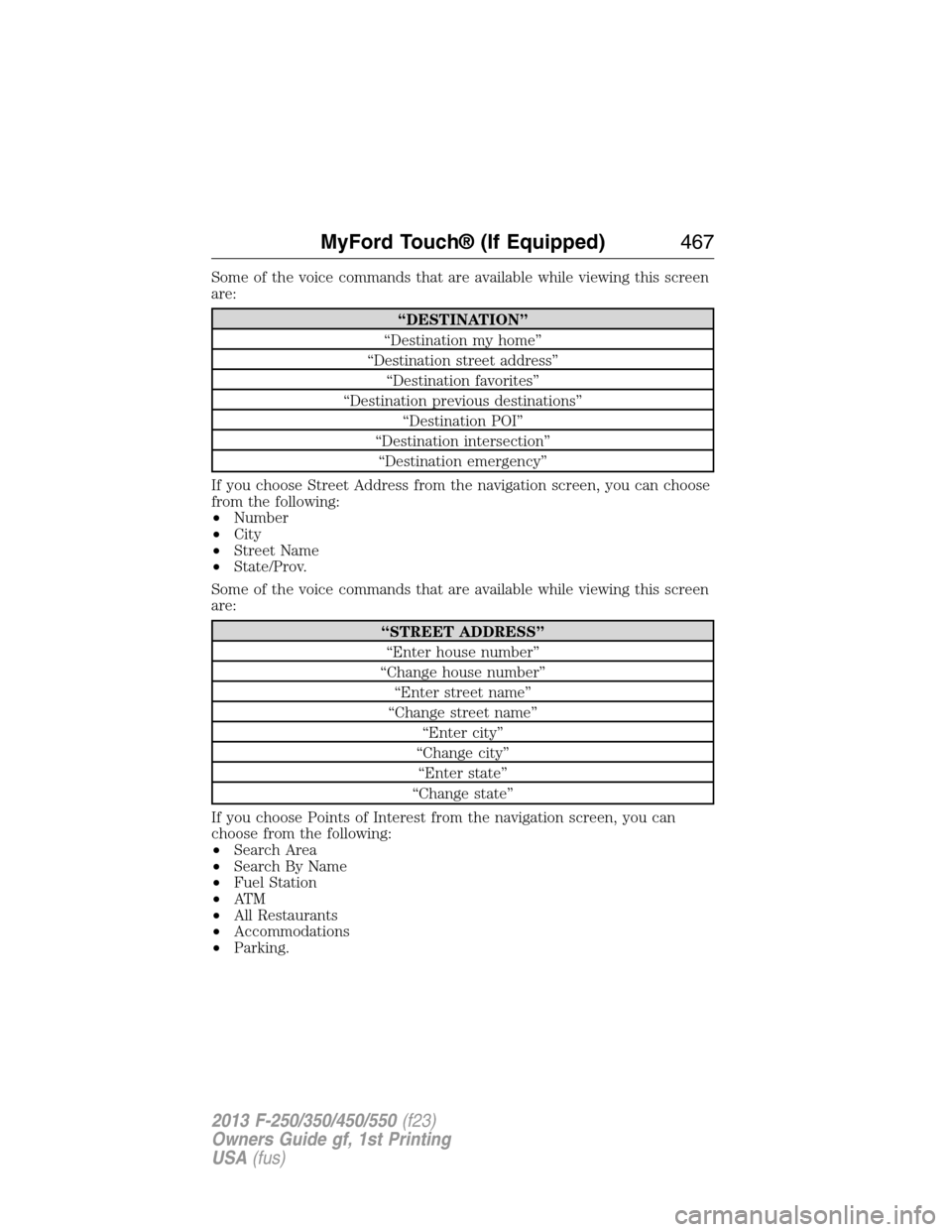
Some of the voice commands that are available while viewing this screen
are:
“DESTINATION”
“Destination my home”
“Destination street address”
“Destination favorites”
“Destination previous destinations”
“Destination POI”
“Destination intersection”
“Destination emergency”
If you choose Street Address from the navigation screen, you can choose
from the following:
•Number
•City
•Street Name
•State/Prov.
Some of the voice commands that are available while viewing this screen
are:
“STREET ADDRESS”
“Enter house number”
“Change house number”
“Enter street name”
“Change street name”
“Enter city”
“Change city”
“Enter state”
“Change state”
If you choose Points of Interest from the navigation screen, you can
choose from the following:
•Search Area
•Search By Name
•Fuel Station
•AT M
•All Restaurants
•Accommodations
•Parking.
MyFord Touch® (If Equipped)467
2013 F-250/350/450/550(f23)
Owners Guide gf, 1st Printing
USA(fus)
Page 469 of 563
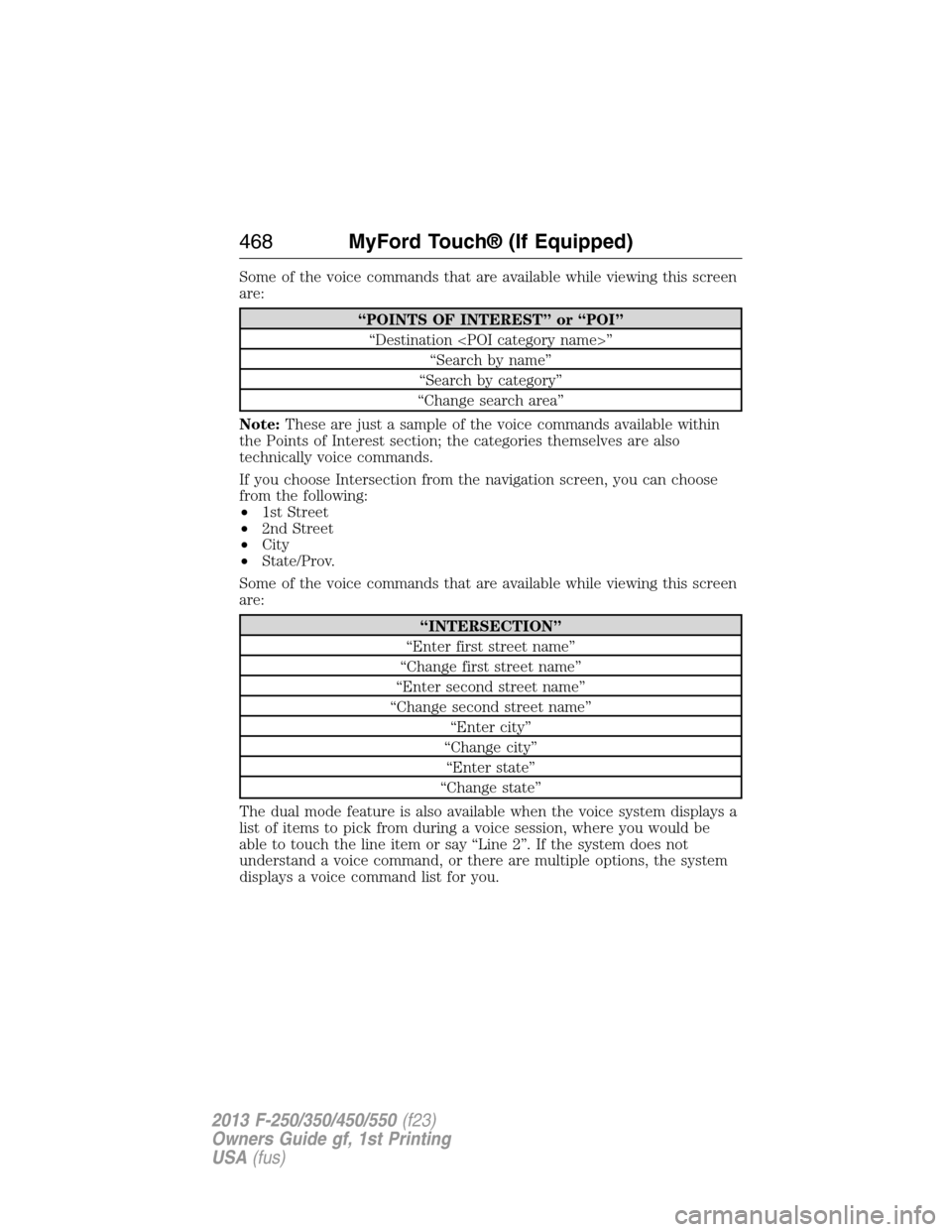
Some of the voice commands that are available while viewing this screen
are:
“POINTS OF INTEREST” or “POI”
“Destination
“Search by name”
“Search by category”
“Change search area”
Note:These are just a sample of the voice commands available within
the Points of Interest section; the categories themselves are also
technically voice commands.
If you choose Intersection from the navigation screen, you can choose
from the following:
•1st Street
•2nd Street
•City
•State/Prov.
Some of the voice commands that are available while viewing this screen
are:
“INTERSECTION”
“Enter first street name”
“Change first street name”
“Enter second street name”
“Change second street name”
“Enter city”
“Change city”
“Enter state”
“Change state”
The dual mode feature is also available when the voice system displays a
list of items to pick from during a voice session, where you would be
able to touch the line item or say “Line 2”. If the system does not
understand a voice command, or there are multiple options, the system
displays a voice command list for you.
468MyFord Touch® (If Equipped)
2013 F-250/350/450/550(f23)
Owners Guide gf, 1st Printing
USA(fus)
Page 484 of 563
CD Voice Commands
If you are listening to a CD, press the voice button on the
steering wheel control. When prompted, say any of the
commands in the following chart.
If you are not listening to a CD, press the voice button and, after the
tone, say “CD”, then any of the commands in the following chart.
“CD”
“Pause” “Repeat off”
“Play” “Repeat track”
“Play next track” “Shuffle”
“Play previous track” “Shuffle CD”
*
“Play track <1–512>” “Shuffle folder”*
“Repeat” “Shuffle off”
“Repeat folder”*“Help”
*This applies to WMA or MP3 files only.
SD Card Slot and USB Port
SD Card Slot
Note:Your SD card slot is spring-loaded. To remove the SD card, press
the card in and the system ejects it. Do not attempt to pull the card to
remove it as this could cause damage.
Note:The navigation system also uses this card slot. SeeNavigation
systemlater in this chapter for more information.
The slot is located either in the center console
or behind a small access door in the
instrument panel. To access and play music
from your SD card slot, press the lower left
corner of the touchscreen.
SD logo is a trademark of SD-3C,
LLC.
MyFord Touch® (If Equipped)483
2013 F-250/350/450/550(f23)
Owners Guide gf, 1st Printing
USA(fus)
Page 498 of 563
“PHONE”
“Call
“Call
“Call
“Call voicemail” “Privacy on”*
“Dial” “Reply to text messages”
“Do not disturb off” “Turn ringer off”
“Do not disturb on” “Turn ringer on”
“Forward text messages” “Unmute call”
*
“Go to hands free”*“Help”
*These commands are only available during an active call.
**If you have said “Messages”, see the following “Messages” chart.
“MESSAGES”
“Call”
“Forward text messages”
“Listen to text message <#>”
“Listen to text messages”
“Reply to text messages”
“Help”
INFORMATION
Under the Information menu, you can access features, such as:
•SYNC® Services
•SIRIUS® Travel Link™
•Alerts
•Calendar
•SYNC Applications.
If your vehicle is equipped with Navigation, press the i (Information)
button to access these features. If your vehicle is not equipped with
Navigation, press the corner of the touchscreen with the green tab.
MyFord Touch® (If Equipped)497
2013 F-250/350/450/550(f23)
Owners Guide gf, 1st Printing
USA(fus)
Page 499 of 563

SYNC Services (If Equipped, U.S. Only)
Note:SYNC Services requires activation before use. Visit
www.SYNCMyRide.com to register and check your eligibility for
complimentary services. Standard phone and message rates may apply.
Subscription may be required. You must also have the active SYNC
Services Bluetooth-enabled cellular phone paired and connected to the
system in order to connect to, and use, SYNC Services. (SeePhone
earlier in this chapter for pairing instructions.)
Note:This feature does not function properly if you have enabled caller
ID blocking on your mobile phone. Make sure your mobile phone is not
blocking caller ID before using SYNC Services.
Note:The driver is ultimately responsible for the safe operation of the
vehicle, and therefore, must evaluate whether it is safe to follow the
suggested directions. Any navigation features are provided only as an aid.
Make your driving decisions based on your observations of local
conditions and existing traffic regulations. Do not follow the route
suggestions if doing so would result in an unsafe or illegal maneuver, if
you would be placed in an unsafe situation, or if you would be directed
into an area that you consider unsafe. Maps used by this system may be
inaccurate because of errors, changes in roads, traffic conditions or
driving conditions.
Note:When you connect, the service uses GPS technology and advanced
vehicle sensors to collect your vehicle’s current location, travel direction
and speed to help provide you with the directions, traffic reports, or
business searches you request. Further, to provide the services you
request, for continuous improvement, the service may collect and record
call details and voice communications. For more information, see SYNC
Services Terms and Conditions at www.SYNCMyRide.com. If you do not
want Ford or its service providers to collect your vehicle travel
information or other information identified in the Terms and Conditions,
do not subscribe or use the service.
SYNC Services uses advanced vehicle sensors, integrated GPS technology
and comprehensive map and traffic data, to give you personalized traffic
reports, precise turn-by-turn directions, business search, news, sports,
weather and more. For a complete list of services, or to learn more,
please visit www.SYNCMyRide.com.
498MyFord Touch® (If Equipped)
2013 F-250/350/450/550(f23)
Owners Guide gf, 1st Printing
USA(fus)