2013 FORD SUPER DUTY navigation
[x] Cancel search: navigationPage 500 of 563
Connecting to SYNC Services Using Voice Commands
1. Press the voice button.
2. When prompted, say “Services”. This initiates an outgoing call to
SYNC Services using your paired and connected Bluetooth-enabled
cellular phone.
3. Once you connect to the service, follow the voice prompts to request
the desired service, such as “Traffic” or “Directions”. You can also
say, “What are my choices?” to receive a list of available services
from which to choose.
4. Say, “Services” to return to the Services main menu or for help, say,
“Help”.
Connecting to SYNC Services Using the Touchscreen
If your vehicle is equipped with the Navigation, press theInformation
button.
If your vehicle is not equipped with Navigation, press the green tab on
your touchscreen.
1. SelectConnect to Servicesto initiate an outgoing call to SYNC
Services using your paired and connected Bluetooth-enabled cellular
phone.
2. Once you connect to the service, follow the voice prompts to request
the desired service, such as “Traffic” or “Directions”. You can also
say, “What are my choices?” to receive a list of available services
from which to choose.
3. Say, “Services” to return to the Services main menu or for help, say,
“Help”.
Receiving Turn-by-Turn Directions
1. When connected to SYNC Services, say “Directions” or “Business
Search”. To find the closest business or type of business to your
current location, just say “Business Search” and then “Search Near
Me”. If you need further assistance in finding a location, you can say
“Operator” at any time within a Directions or Business search to
speak with a live operator. The system may prompt you to speak with
an operator when it has difficulty matching your voice request. The
live operator can assist you by searching for businesses by name or
by category, residential addresses by street address or by name or
specific street intersections. Operator Assist is a feature of your
SYNC Services subscription. For more information on Operator
Assist, visit www.SYNCMyRide.com/support.
2. Follow the voice prompts to select your Destination. After the route
download is finished, the phone call automatically ends.
MyFord Touch® (If Equipped)499
2013 F-250/350/450/550(f23)
Owners Guide gf, 1st Printing
USA(fus)
Page 501 of 563
If your vehicle is not equipped with Navigation:
•Turn-by-turn directions appear in the information display, in the
status bar of your touchscreen system and on the SYNC Services
screen. You also receive driving instructions from audible prompts.
•When on an active route, you can selectRoute SummaryorRoute
Statususing the touchscreen controls or voice commands to view
theRoute Summary Turn Listor theRoute Status ETA.You can
also turn voice guidance on or off, cancel the route or update the
route.
If you miss a turn, SYNC automatically asks if you want the route
updated. Just say, “Yes” when prompted and the system delivers a new
route to your vehicle.
If your vehicle is equipped with Navigation, SYNC Services downloads
your requested destination to the navigation system. The navigation
system then calculates the route and provides driving instructions. See
theNavigation systemsection for more information.
Disconnecting from SYNC Services
1. Press and hold the phone button on the steering wheel.
2. Say “Goodbye” from the SYNC Services main menu.
SYNC Services Quick Tips
PersonalizingYou can personalize your Services feature to
provide quicker access to your most used or
favorite information. You can save address
points, such as work or home. You can also
save favorite information like sports teams,
such as Detroit Lions, or a news category. You
can learn more about personalization by
logging onto www.SYNCMyRide.com.
Push to interruptPress the voice button at any time (while
connected to SYNC TDI Services) to interrupt
a voice prompt or an audio clip (such as a
sports report) and say your voice command.
500MyFord Touch® (If Equipped)
2013 F-250/350/450/550(f23)
Owners Guide gf, 1st Printing
USA(fus)
Page 502 of 563
SYNC Services Quick Tips
PortableYour subscription is associated with your
Bluetooth-enabled cellular phone number, not
your VIN (Vehicle Identification Number). You
can pair and connect your phone to any
vehicle equipped with Traffic, Directions and
Information and continue enjoying your
personalized services.
SYNC Services Voice Commands
When a route has been downloaded (non-navigation systems),
press the voice button on the steering wheel control. When
prompted, say any of the following commands:
“SERVICES”
“Cancel route”
“Navigation voice off”
“Navigation voice on”
“Next turn”
“Route status”
“Route summary”
“Services”
“Update route”
“Help”
SIRIUS Travel Link (If Equipped and If Activated)
WARNING:Driving while distracted can result in loss of vehicle
control, accident and injury. Ford strongly recommends that
drivers use extreme caution when using any device or feature that may
take their focus off the road. Your primary responsibility is the safe
operation of the vehicle. We recommend against the use of any
handheld device while driving, encourage the use of voice-operated
systems when possible and that you become aware of applicable state
and local laws that may affect use of electronic devices while driving.
Note:In order to use SIRIUS Travel Link, your vehicle must be equipped
with navigation and your navigation SD card must be in the SD card slot.
MyFord Touch® (If Equipped)501
2013 F-250/350/450/550(f23)
Owners Guide gf, 1st Printing
USA(fus)
Page 503 of 563
Note:A paid subscription is required to access and use these features.
Go to www.siriusxm.com/travellink for more information.
Note:Visit www.siriusxm.com/traffic# and click on Coverage map and
details for a complete listing of all traffic areas covered by SIRIUS Travel
Link.
Note:Neither SIRIUS nor Ford is responsible for any errors or
inaccuracies in the SIRIUS Travel Link services or its use in vehicles.
When you subscribe to SIRIUS Travel Link, it can help you locate the
best gas prices, find movie listings, get current traffic alerts, view the
current weather map, get accurate ski conditions and see scores to
current sports games.
Press theInformationbutton >Sirius Travel Link,and then
choose from any of the following services:
When you select: You can:
Traffic On RouteIdentify traffic incidents on your route, nearby
your vehicle’s current location or near any of
your favorite places (if programmed). Traffic Nearby
Fuel PricesView fuel prices at stations close to your
vehicle’s location or on an active navigation
route.
Movie ListingsView nearby movie theaters and their show
times (if available).
WeatherView the nearby weather, current weather, or
the five day forecast for the chosen area.
SelectMapto see the weather map, which
can show storms, radar information, charts
and winds. SelectAreato select from a
listing of weather locations.
Sports InfoView scores and schedules from a variety of
sports. You can also save up to 10 favorite
teams for easier access. The score
automatically refreshes when a game is in
progress.
Ski ConditionsView ski conditions for a specific area.
502MyFord Touch® (If Equipped)
2013 F-250/350/450/550(f23)
Owners Guide gf, 1st Printing
USA(fus)
Page 504 of 563
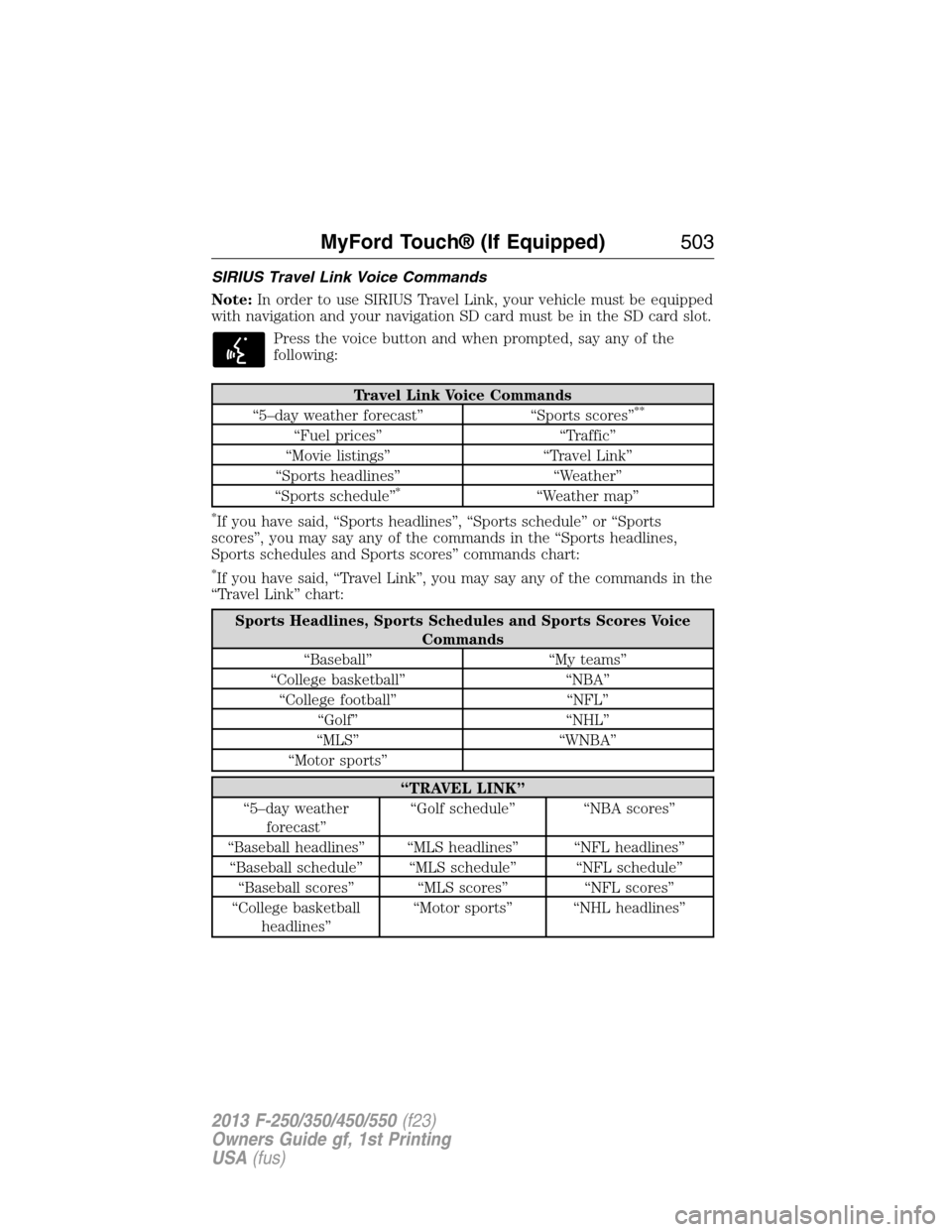
SIRIUS Travel Link Voice Commands
Note:In order to use SIRIUS Travel Link, your vehicle must be equipped
with navigation and your navigation SD card must be in the SD card slot.
Press the voice button and when prompted, say any of the
following:
Travel Link Voice Commands
“5–day weather forecast” “Sports scores”**
“Fuel prices” “Traffic”
“Movie listings” “Travel Link”
“Sports headlines” “Weather”
“Sports schedule”
*“Weather map”
*If you have said, “Sports headlines”, “Sports schedule” or “Sports
scores”, you may say any of the commands in the “Sports headlines,
Sports schedules and Sports scores” commands chart:
*If you have said, “Travel Link”, you may say any of the commands in the
“Travel Link” chart:
Sports Headlines, Sports Schedules and Sports Scores Voice
Commands
“Baseball” “My teams”
“College basketball” “NBA”
“College football” “NFL”
“Golf” “NHL”
“MLS” “WNBA”
“Motor sports”
“TRAVEL LINK”
“5–day weather
forecast”“Golf schedule” “NBA scores”
“Baseball headlines” “MLS headlines” “NFL headlines”
“Baseball schedule” “MLS schedule” “NFL schedule”
“Baseball scores” “MLS scores” “NFL scores”
“College basketball
headlines”“Motor sports” “NHL headlines”
MyFord Touch® (If Equipped)503
2013 F-250/350/450/550(f23)
Owners Guide gf, 1st Printing
USA(fus)
Page 513 of 563
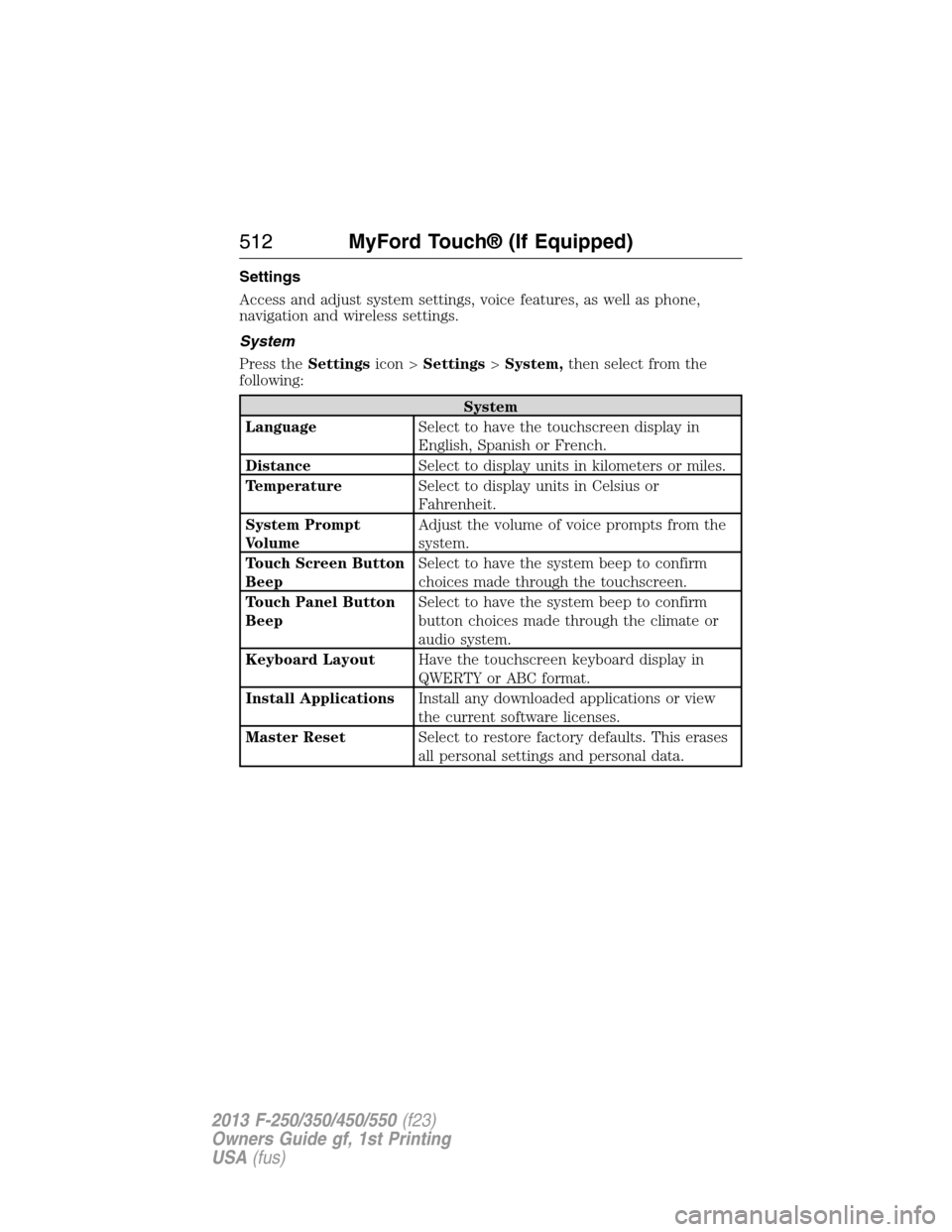
Settings
Access and adjust system settings, voice features, as well as phone,
navigation and wireless settings.
System
Press theSettingsicon >Settings>System,then select from the
following:
System
LanguageSelect to have the touchscreen display in
English, Spanish or French.
DistanceSelect to display units in kilometers or miles.
TemperatureSelect to display units in Celsius or
Fahrenheit.
System Prompt
VolumeAdjust the volume of voice prompts from the
system.
Touch Screen Button
BeepSelect to have the system beep to confirm
choices made through the touchscreen.
Touch Panel Button
BeepSelect to have the system beep to confirm
button choices made through the climate or
audio system.
Keyboard LayoutHave the touchscreen keyboard display in
QWERTY or ABC format.
Install ApplicationsInstall any downloaded applications or view
the current software licenses.
Master ResetSelect to restore factory defaults. This erases
all personal settings and personal data.
512MyFord Touch® (If Equipped)
2013 F-250/350/450/550(f23)
Owners Guide gf, 1st Printing
USA(fus)
Page 516 of 563
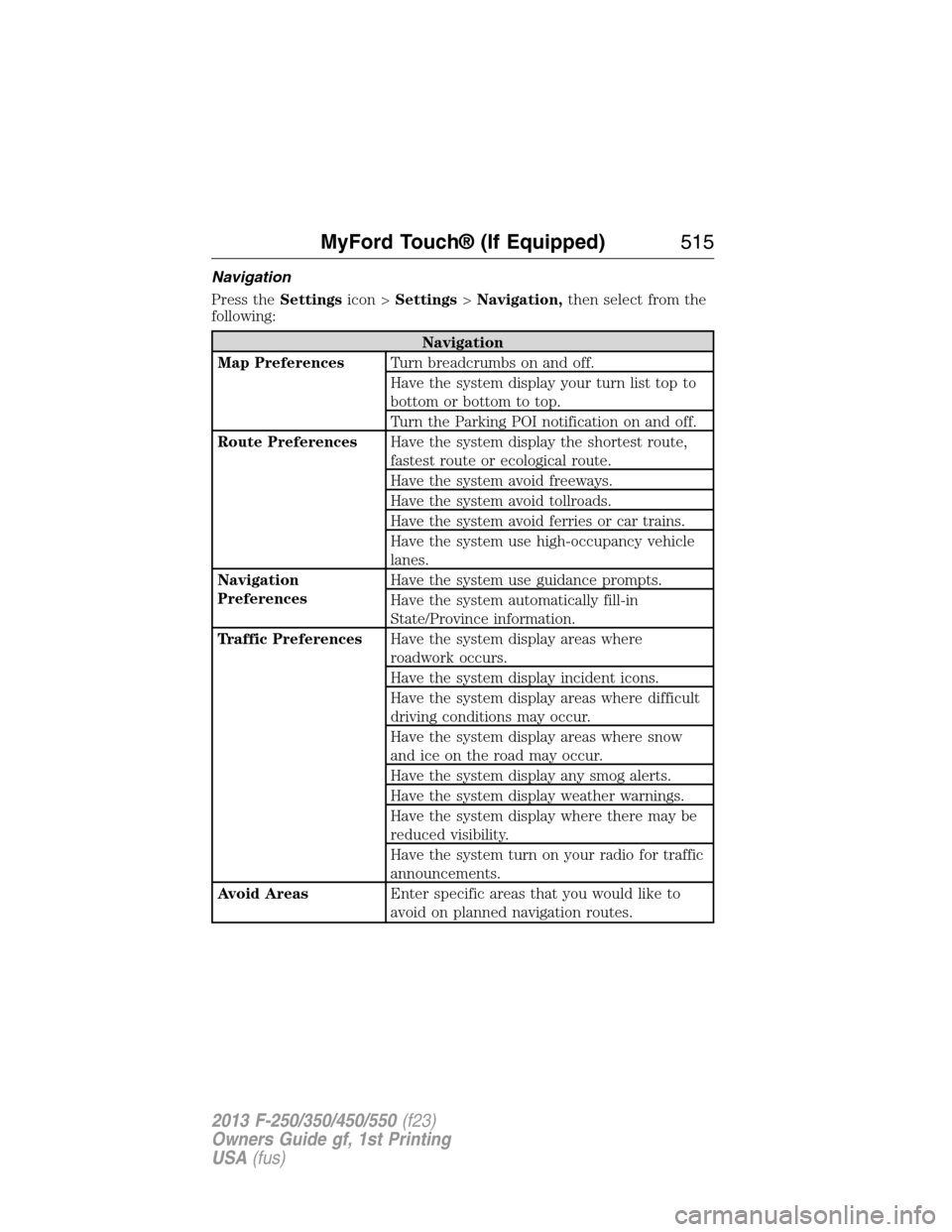
Navigation
Press theSettingsicon >Settings>Navigation,then select from the
following:
Navigation
Map PreferencesTurn breadcrumbs on and off.
Have the system display your turn list top to
bottom or bottom to top.
Turn the Parking POI notification on and off.
Route PreferencesHave the system display the shortest route,
fastest route or ecological route.
Have the system avoid freeways.
Have the system avoid tollroads.
Have the system avoid ferries or car trains.
Have the system use high-occupancy vehicle
lanes.
Navigation
PreferencesHave the system use guidance prompts.
Have the system automatically fill-in
State/Province information.
Traffic PreferencesHave the system display areas where
roadwork occurs.
Have the system display incident icons.
Have the system display areas where difficult
driving conditions may occur.
Have the system display areas where snow
and ice on the road may occur.
Have the system display any smog alerts.
Have the system display weather warnings.
Have the system display where there may be
reduced visibility.
Have the system turn on your radio for traffic
announcements.
Avoid AreasEnter specific areas that you would like to
avoid on planned navigation routes.
MyFord Touch® (If Equipped)515
2013 F-250/350/450/550(f23)
Owners Guide gf, 1st Printing
USA(fus)
Page 522 of 563

Help
Press theSettingsicon >Help,then select from the following:
Help
Where Am I?View your vehicle’s current location, if your
vehicle is equipped with navigation. If your
vehicle is not equipped with navigation,
nothing displays.
System InformationTouchscreen system serial number.
Your vehicle identification number (VIN).
Touchscreen system software version.
Navigation system version.
Map database version.
Sirius satellite radio electronic serial number
(ESN).
Gracenote® Database Information and Library
version.
Software LicensesView the licenses for any software and
applications installed on your system.
Driving RestrictionsCertain features are not accessible when your
vehicle is moving.
911 AssistTurn on and turn off the 911 Assist feature.
See911 Assistin theSYNC applications
and servicessection.
In Case of Emergency (ICE) Speed Dial
allows you to save up to two numbers as ICE
contacts for quick access if there is an
emergency. SelectEditto access your
phonebook and then select the desired
contacts. The numbers then appear as options
on this screen for the ICE 1 and ICE 2
buttons. The ICE contacts you select appear
at the end of the 911 Assist call process.
Voice Command ListView categorized lists of voice commands.
To access Help using the voice commands, press the voice button, then,
after the tone, say “Help”. The system provides allowable voice
commands for the current mode.
MyFord Touch® (If Equipped)521
2013 F-250/350/450/550(f23)
Owners Guide gf, 1st Printing
USA(fus)