Page 429 of 576
USING YOUR VOICE RECOGNITION SYSTEM
This system helps you control many features using voice commands. This
allows you to keep your hands on the wheel and focus on what is in front
of you.
Initiating a Voice Session
Push the voice icon; a tone sounds and “Listening” appears in
the display. Say any of the following:
Say: If you want to:
“Phone” Make calls.
“USB” Access the device connected to your USB
port.
“Bluetooth Audio” Stream audio from your phone.
“Line in” Access the device connected to the auxiliary
input jack.
“Cancel” Cancel the requested action.
“SYNC” Return to the main menu.
“Voice settings” Adjust the level of voice interaction and
feedback.
“Vehicle Health Report” Run a vehicle health report.*
“Services” Access the SYNC Services portal.*
“Mobile Apps” Access mobile applications.*
“Help” Hear a list of voice commands available in the
current mode.
*If equipped, U.S. only
SYNC�429
2013 Explorer(exp)
Owners Guide gf, 1st Printing
USA(fus)
Page 448 of 576
5. Press OK when the desired option appears in the radio display. Set
On or Set Off appears in the display as confirmation.
Off selections include: Off with reminder and Off without reminder. Off
with reminder provides a display and voice reminder at phone connection
at vehicle start. Off without reminder provides a display reminder only
without a voice reminder at phone connection.
To make sure that 911 Assist™ works properly:
•SYNC�must be powered and working properly at the time of the
incident and throughout feature activation and use.
•SYNC�911 Assist™ feature must be set on prior to the incident.
•A Bluetooth-enabled and compatible phone has to be paired and
connected to SYNC�.
•A connected Bluetooth-enabled phone must have the ability to make
and maintain an outgoing call at the time of the incident.
•A connected Bluetooth-enabled phone must have adequate network
coverage, battery power and signal strength.
•The vehicle must have battery power and be located in the U.S.,
Canada or in a territory in which 911 is the emergency number.
In the Event of a Crash
Not all crashes deploy an airbag or activate the fuel pump shut-off (which
would activate 911 Assist™); however, if 911 Assist™ is triggered, SYNC�
tries to contact emergency services. If a connected phone is damaged or
loses connection to SYNC�, SYNC�searches for, and tries to connect to,
any available previously paired phone and tries to make the call to 911.
Before making the call:
•SYNC�provides a short window of time (about 10 seconds) to cancel
the call. Failure to cancel the call results in SYNC�attempting to dial
911.
•SYNC�says the following, or a similar message: “SYNC�will attempt
to call 911, to cancel the call, press Cancel on your screen or press
and hold the phone button on your steering wheel.”
If the call is not cancelled and a successful call is made, a pre-recorded
message is played for the 911 operator, then the occupant(s) in the
vehicle is able to talk with the operator. Be prepared to provide your
name, phone number and location immediately, because not all 911
systems are capable of receiving this information electronically.
448SYNC�
2013 Explorer(exp)
Owners Guide gf, 1st Printing
USA(fus)
Page 453 of 576
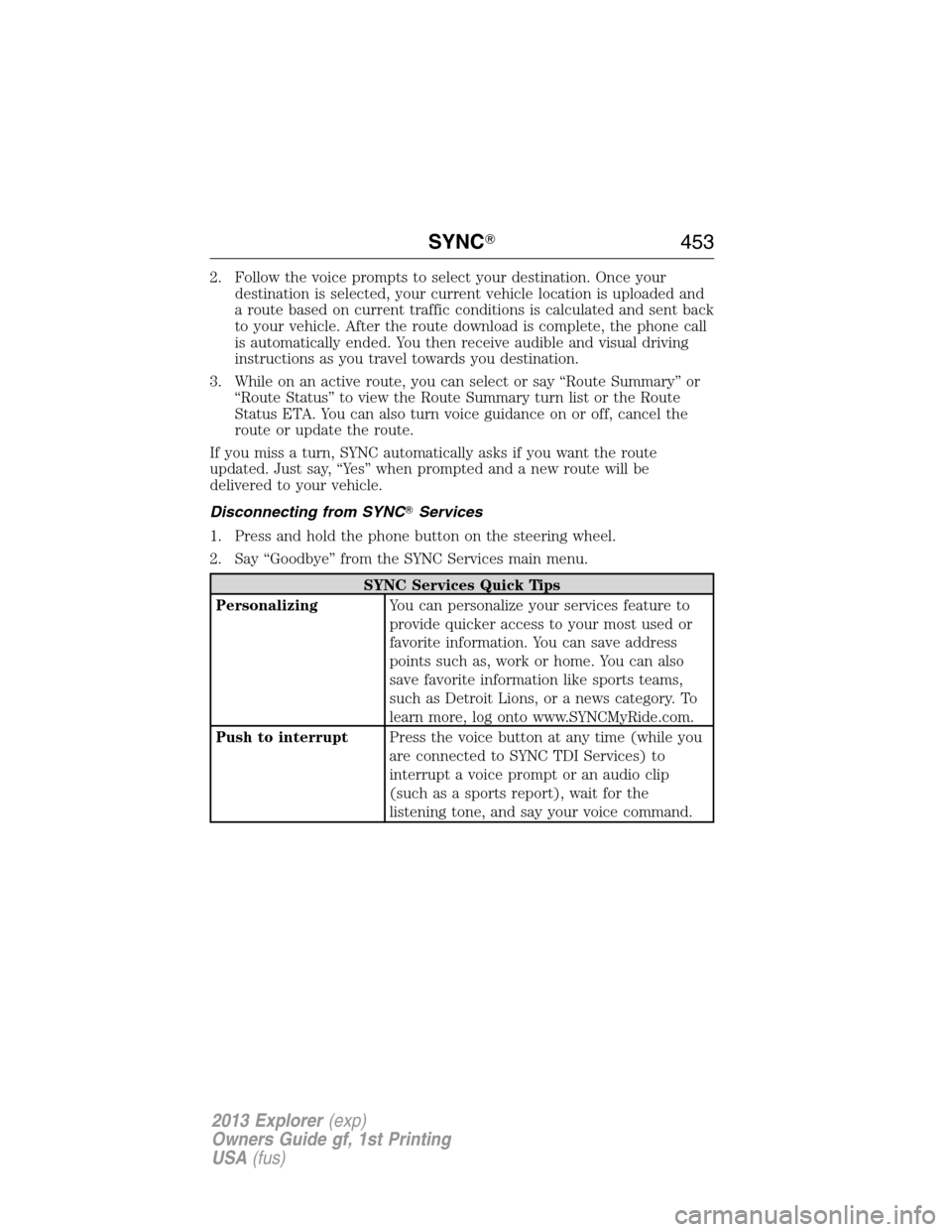
2. Follow the voice prompts to select your destination. Once your
destination is selected, your current vehicle location is uploaded and
a route based on current traffic conditions is calculated and sent back
to your vehicle. After the route download is complete, the phone call
is automatically ended. You then receive audible and visual driving
instructions as you travel towards you destination.
3. While on an active route, you can select or say “Route Summary” or
“Route Status” to view the Route Summary turn list or the Route
Status ETA. You can also turn voice guidance on or off, cancel the
route or update the route.
If you miss a turn, SYNC automatically asks if you want the route
updated. Just say, “Yes” when prompted and a new route will be
delivered to your vehicle.
Disconnecting from SYNC�Services
1. Press and hold the phone button on the steering wheel.
2. Say “Goodbye” from the SYNC Services main menu.
SYNC Services Quick Tips
PersonalizingYou can personalize your services feature to
provide quicker access to your most used or
favorite information. You can save address
points such as, work or home. You can also
save favorite information like sports teams,
such as Detroit Lions, or a news category. To
learn more, log onto www.SYNCMyRide.com.
Push to interruptPress the voice button at any time (while you
are connected to SYNC TDI Services) to
interrupt a voice prompt or an audio clip
(such as a sports report), wait for the
listening tone, and say your voice command.
SYNC�453
2013 Explorer(exp)
Owners Guide gf, 1st Printing
USA(fus)
Page 479 of 576
ACCESSING AND ADJUSTING MODES THROUGH YOUR
INFOTAINMENT DISPLAY (IF EQUIPPED)
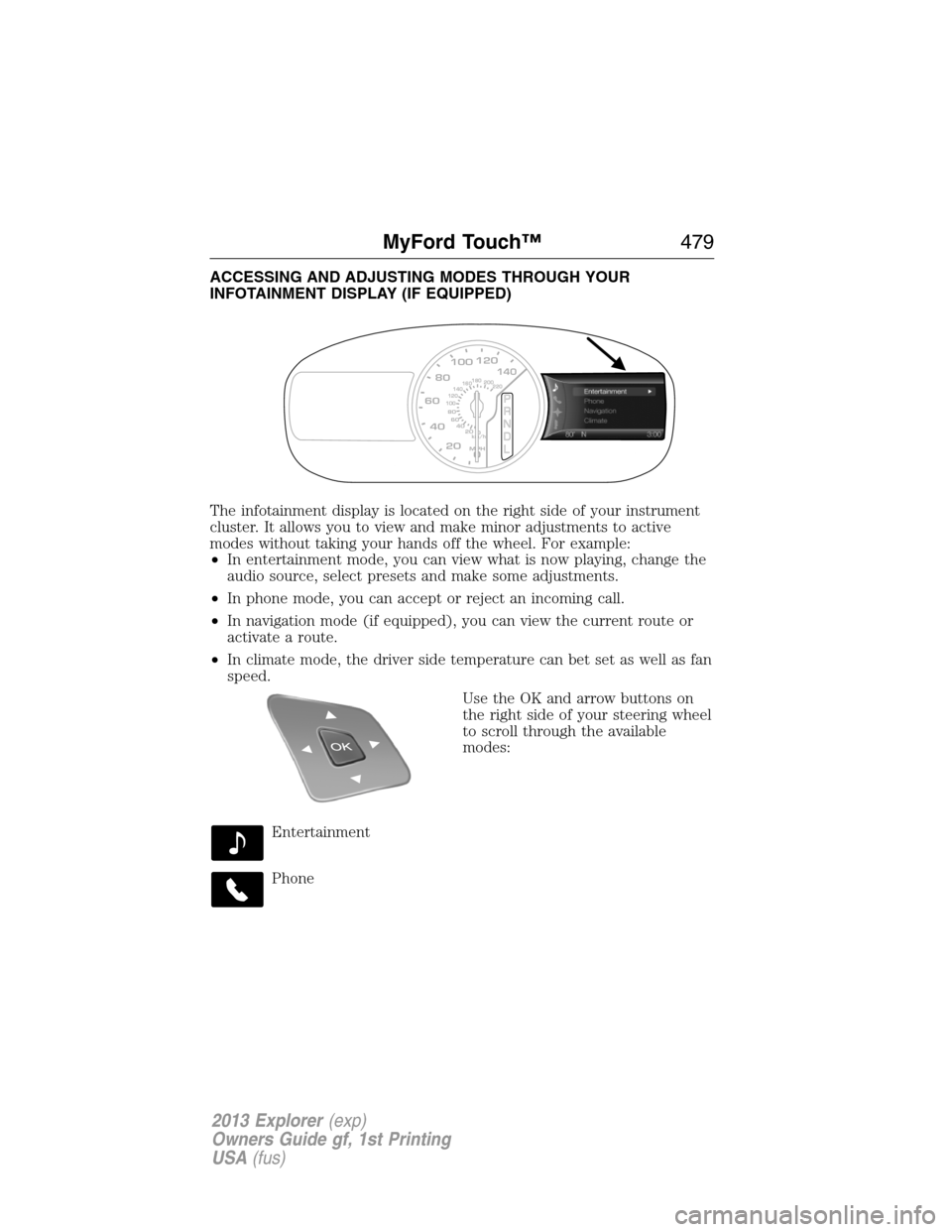
The infotainment display is located on the right side of your instrument
cluster. It allows you to view and make minor adjustments to active
modes without taking your hands off the wheel. For example:
•In entertainment mode, you can view what is now playing, change the
audio source, select presets and make some adjustments.
•In phone mode, you can accept or reject an incoming call.
•In navigation mode (if equipped), you can view the current route or
activate a route.
•In climate mode, the driver side temperature can bet set as well as fan
speed.
Use the OK and arrow buttons on
the right side of your steering wheel
to scroll through the available
modes:
Entertainment
Phone
km/h
80
60
40
20
0
20
0 40 60 80
100120140160180
200
220
100120140
MPH
MyFord Touch™479
2013 Explorer(exp)
Owners Guide gf, 1st Printing
USA(fus)
Page 480 of 576
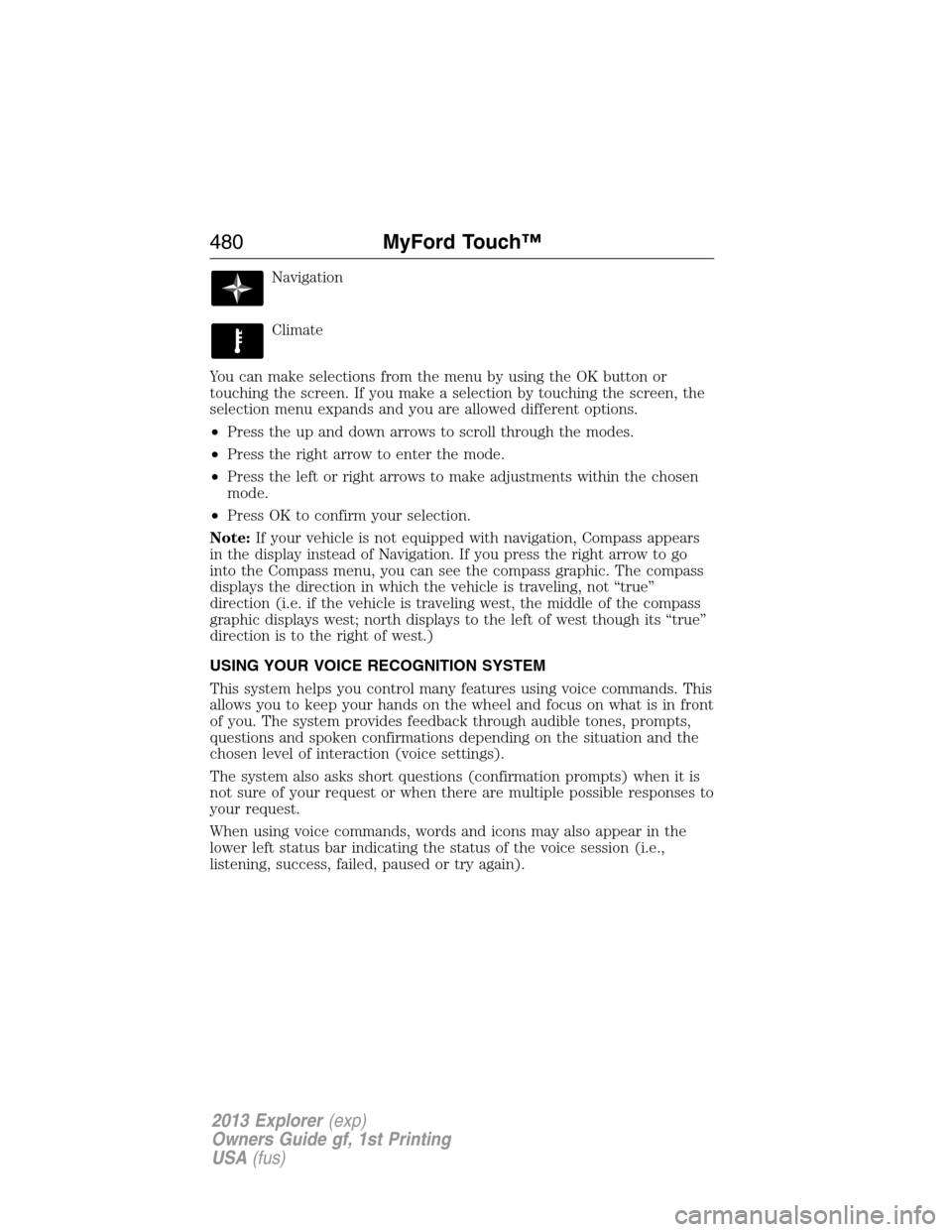
Navigation
Climate
You can make selections from the menu by using the OK button or
touching the screen. If you make a selection by touching the screen, the
selection menu expands and you are allowed different options.
•Press the up and down arrows to scroll through the modes.
•Press the right arrow to enter the mode.
•Press the left or right arrows to make adjustments within the chosen
mode.
•Press OK to confirm your selection.
Note:If your vehicle is not equipped with navigation, Compass appears
in the display instead of Navigation. If you press the right arrow to go
into the Compass menu, you can see the compass graphic. The compass
displays the direction in which the vehicle is traveling, not “true”
direction (i.e. if the vehicle is traveling west, the middle of the compass
graphic displays west; north displays to the left of west though its “true”
direction is to the right of west.)
USING YOUR VOICE RECOGNITION SYSTEM
This system helps you control many features using voice commands. This
allows you to keep your hands on the wheel and focus on what is in front
of you. The system provides feedback through audible tones, prompts,
questions and spoken confirmations depending on the situation and the
chosen level of interaction (voice settings).
The system also asks short questions (confirmation prompts) when it is
not sure of your request or when there are multiple possible responses to
your request.
When using voice commands, words and icons may also appear in the
lower left status bar indicating the status of the voice session (i.e.,
listening, success, failed, paused or try again).
480MyFord Touch™
2013 Explorer(exp)
Owners Guide gf, 1st Printing
USA(fus)
Page 486 of 576
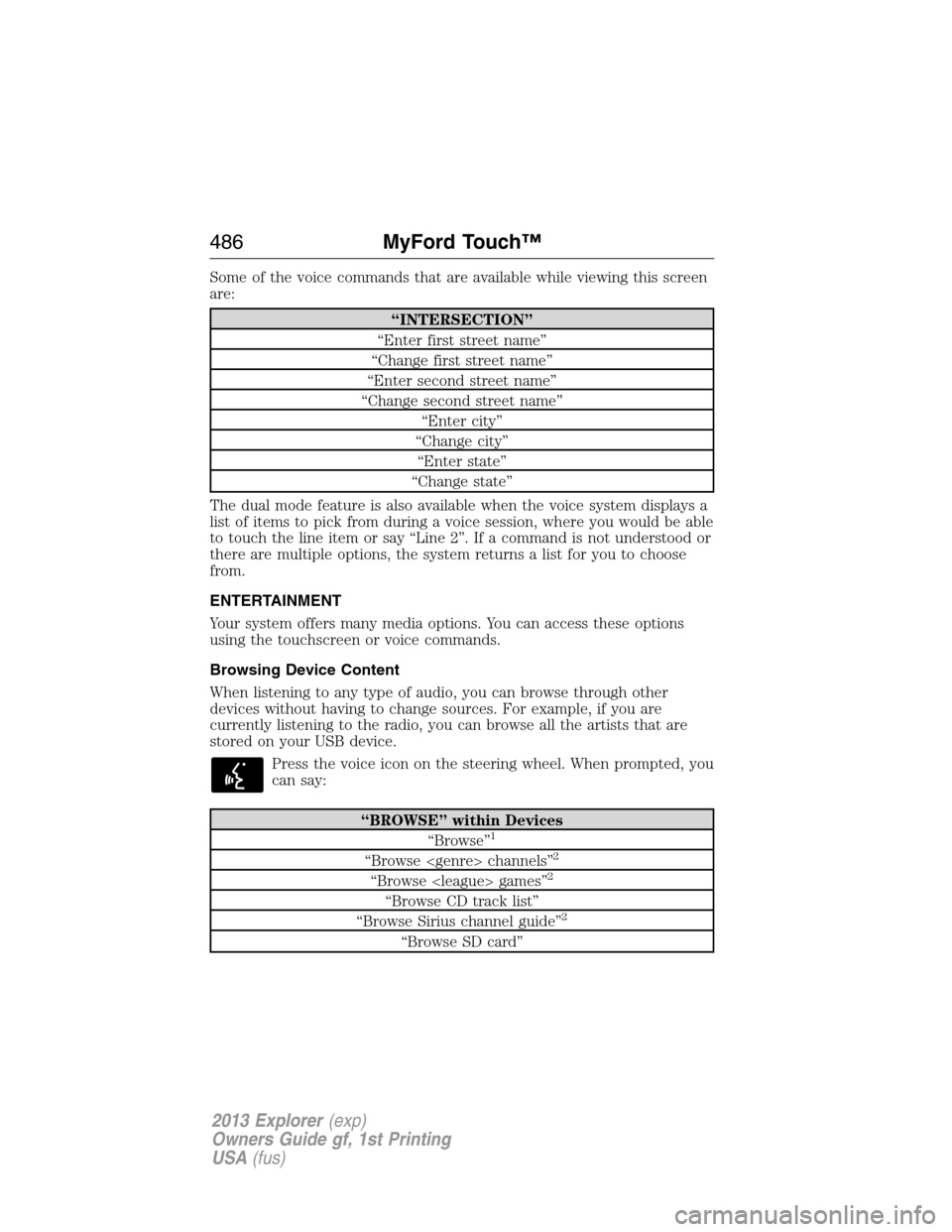
Some of the voice commands that are available while viewing this screen
are:
“INTERSECTION”
“Enter first street name”
“Change first street name”
“Enter second street name”
“Change second street name”
“Enter city”
“Change city”
“Enter state”
“Change state”
The dual mode feature is also available when the voice system displays a
list of items to pick from during a voice session, where you would be able
to touch the line item or say “Line 2”. If a command is not understood or
there are multiple options, the system returns a list for you to choose
from.
ENTERTAINMENT
Your system offers many media options. You can access these options
using the touchscreen or voice commands.
Browsing Device Content
When listening to any type of audio, you can browse through other
devices without having to change sources. For example, if you are
currently listening to the radio, you can browse all the artists that are
stored on your USB device.
Press the voice icon on the steering wheel. When prompted, you
can say:
“BROWSE” within Devices
“Browse”1
“Browse channels”2
“Browse games”2
“Browse CD track list”
“Browse Sirius channel guide”2
“Browse SD card”
486MyFord Touch™
2013 Explorer(exp)
Owners Guide gf, 1st Printing
USA(fus)
Page 493 of 576
HD Radio™ Technology manufactured under license from iBiquity Digital
Corp. U.S. and foreign patents. HD Radio™ and the HD and HD Radio
logos are proprietary trademarks of iBiquity Digital Corp. Ford Motor
Company and iBiquity Digital Corp. are not responsible for the content
sent using HD Radio technology. Content may be changed, added or
deleted at any time at the station owner’s discretion.
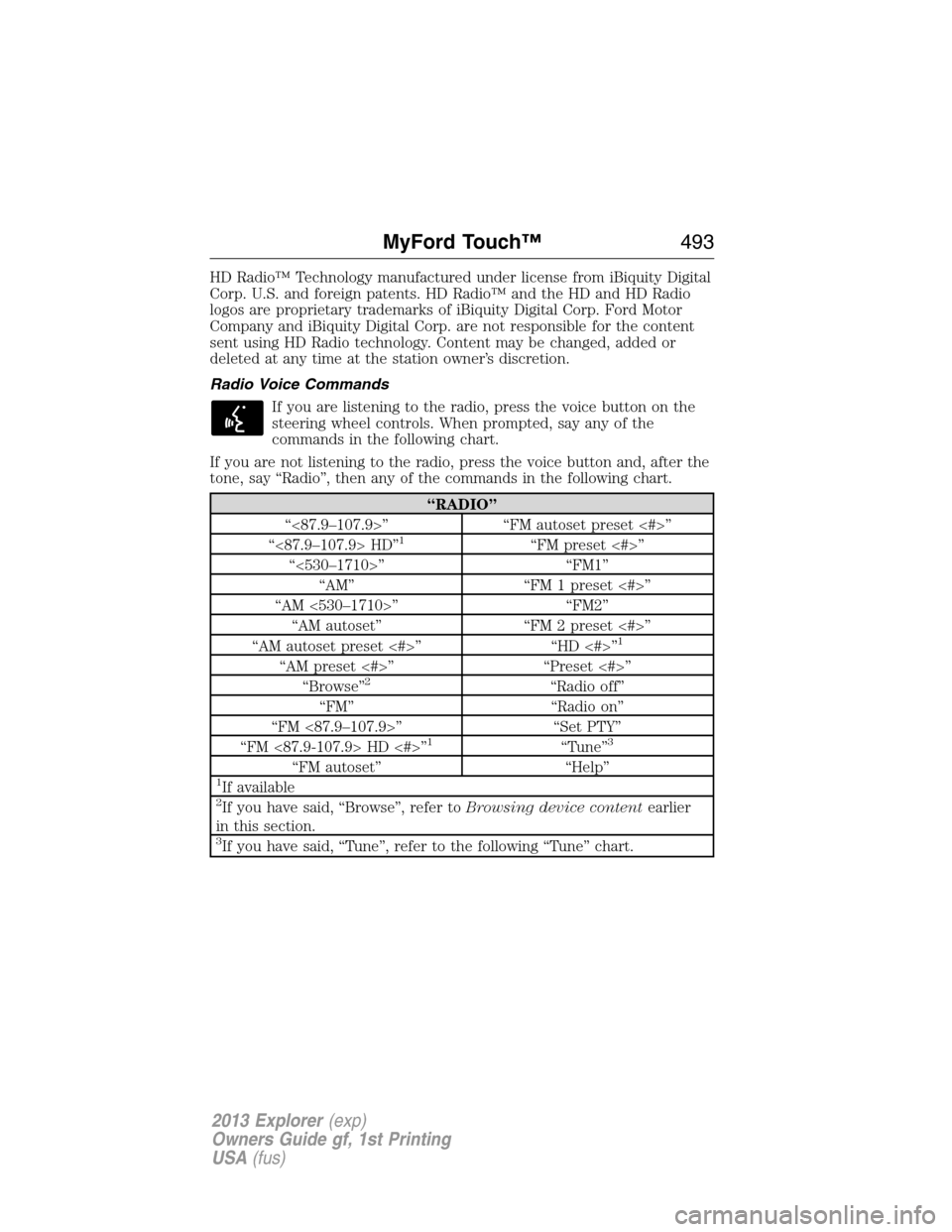
Radio Voice Commands
If you are listening to the radio, press the voice button on the
steering wheel controls. When prompted, say any of the
commands in the following chart.
If you are not listening to the radio, press the voice button and, after the
tone, say “Radio”, then any of the commands in the following chart.
“RADIO”
“<87.9–107.9>” “FM autoset preset <#>”
“<87.9–107.9> HD”
1“FM preset <#>”
“<530–1710>” “FM1”
“AM” “FM 1 preset <#>”
“AM <530–1710>” “FM2”
“AM autoset” “FM 2 preset <#>”
“AM autoset preset <#>” “HD <#>”
1
“AM preset <#>” “Preset <#>”
“Browse”2“Radio off”
“FM” “Radio on”
“FM <87.9–107.9>” “Set PTY”
“FM <87.9-107.9> HD <#>”
1“Tune”3
“FM autoset” “Help”1If available2If you have said, “Browse”, refer toBrowsing device contentearlier
in this section.
3If you have said, “Tune”, refer to the following “Tune” chart.
MyFord Touch™493
2013 Explorer(exp)
Owners Guide gf, 1st Printing
USA(fus)
Page 497 of 576
SIRIUS Satellite Radio Voice Commands
If you are listening to SIRIUS satellite radio, press the voice
button on the steering wheel controls. When prompted, say any
of the commands in the following chart.
If you are not listening to SIRIUS satellite radio, press the voice button
and, after the tone, say “Sirius”, then any of the commands in the
following chart.
“SIRIUS”
“<0–233>” “SAT 3”
“” “SAT 3 preset <#>”
“Preset <#>” “SAT preset <#>”
“SAT” “Sirius off”
“SAT 1” “Sirius on”
“SAT 1 preset <#>” “Sports game”
1
“SAT 2” “Tune”2
“SAT 2 preset <#>” “Help”1Late availability:If you have said, “Sports game”, refer to the
following “Sports game” chart.
2If you have said, “Tune”, refer to the following “Tune” chart.
“SPORTS GAME”
“Tune to the game”
“Tune to the game”
“Tune to the game”
“Tune to the game”
“Help”
“TUNE”
“<0–233>”
“”
“Preset <#>”
“SAT”
“SAT 1”
“SAT 1 preset <#>”
“SAT 2”
MyFord Touch™497
2013 Explorer(exp)
Owners Guide gf, 1st Printing
USA(fus)