2013 FORD ESCAPE ECO mode
[x] Cancel search: ECO modePage 175 of 423

One or both systems can also be switched
off permanently at your authorized dealer.
Once switched off, switching it back on
must also be done at your authorized
dealer.
ECO MODE
This system assists you in driving more
efficiently by constantly monitoring
characteristics of gear changing,
anticipation of traffic conditions and
speeds while driving.
The value of these characteristics is
represented by petals shown in the display,
with five petals being the most efficient.
The more efficiently you drive, the better
the rating, and the better your overall fuel
economy
Note:These efficiency values do not result
in a defined fuel consumption figure. It might
vary as it is not only related to these driving
habits, but also influenced by many other
factors such as short trips and cold starts.
Note: Frequent short trips, where the engine
does not fully warm up, will also increase
fuel consumption
The system is accessed using the
information display control. See General
Information (page 84). Type 1
Anticipation
A
Efficient speed
B
Anticipation
Adjust your vehicle speed and the distance
to other vehicles to avoid the need for
heavy braking or acceleration to improve
fuel economy.
Efficient speed
Reduce your cruising speed on open roads
to improve economy. Higher speeds use
more fuel.
Type 2 and 3
The relevant information is shown in the
display.
Resetting Eco Mode
Reset the average fuel consumption by
using the information display control.
Note: New values may take a short time to
calculate
175
Driving Aids
ABE142444
Page 194 of 423

BREAKING-IN
You need to break in new tires for
approximately 300 miles (480
kilometers). During this time, your vehicle
may exhibit some unusual driving
characteristics.
Avoid driving too fast during the first 1000
miles (1600 kilometers). Vary your speed
frequently and change up through the
gears early. Do not labor the engine.
Do not tow during the first 1000 miles
(1600 kilometers).
ECONOMICAL DRIVING
Fuel economy is affected by several things
such as how you drive, the conditions you
drive under and how you maintain your
vehicle.
There are some things to keep in mind that
may improve your fuel economy:
•Accelerate and slow down in a smooth,
moderate fashion.
• Drive at steady speeds without
stopping.
• Anticipate stops; slowing down may
eliminate the need to stop.
• Combine errands and minimize
stop-and-go driving.
• Close the windows for high-speed
driving.
• Drive at reasonable speeds (traveling
at 55 mph [88 km/h] uses 15% less
fuel than traveling at 65 mph [105
km/h]).
• Keep the tires properly inflated and use
only the recommended size.
• Use the recommended engine oil.
• Perform all regularly scheduled
maintenance. There are also some things you may not
want to do because they may reduce your
fuel economy:
•
Sudden accelerations or hard
accelerations.
• Rev the engine before turning it off.
• Idle for periods longer than one minute.
• Warm up your vehicle on cold
mornings.
• Use the air conditioner or front
defroster.
• Use the speed control in hilly terrain.
• Rest your foot on the brake pedal while
driving.
• Drive a heavily loaded vehicle or tow a
trailer.
• Carry unnecessary weight
(approximately 1 mpg [0.4 km/L] is
lost for every 400 lb [180 kg] of weight
carried).
• Add particular accessories to your
vehicle (e.g. bug deflectors,
rollbars/light bars, running boards, ski
racks).
• Drive with the wheels out of alignment.
DRIVING THROUGH WATER
Note: Driving through deep water above
the recommended levels can cause vehicle
damage.
Note: Once through the water, always dry
the brakes by moving your vehicle slowly
while applying light pressure on the brake
pedal. Wet brakes do not stop the vehicle
as quickly as dry brakes.
194
Driving Hints
Page 198 of 423

Canadian customers who need to obtain
roadside information, call
1-800-665-2006 or visit our website at
www.ford.ca.
HAZARD WARNING FLASHERS
Note:With extended use, the flashers may
run down your battery.
The hazard flasher control is
located on the instrument panel
by the radio. Use it when your
vehicle is disabled and is creating a safety
hazard for other motorists.
• Press the flasher control and all front
and rear direction signals will flash.
• Press the flasher control again to turn
them off.
FUEL CUT-OFF SWITCH
WARNING
Failure to inspect and if necessary
repair fuel leaks after a collision may
increase the risk of fire and serious
injury. Ford Motor Company recommends
that the fuel system be inspected by an
authorized dealer after any collision.
In the event of a moderate to severe
collision, this vehicle is equipped with a
fuel pump shut-off feature that stops the
flow of fuel to the engine. Not every impact
will cause a shut-off.
Should your vehicle shut off after a
collision, you may restart your vehicle by
doing the following:
1. Turn the ignition off.
2. Turn the ignition on.
3. Repeat steps 1 and 2 to re-enable fuel pump. Note:
If your vehicle has the push button
start system, press the stop/start button
twice to reactivate the fuel system.
JUMP-STARTING THE VEHICLE
WARNINGS
The gases around the battery can
explode if exposed to flames, sparks,
or lit cigarettes. An explosion could
result in injury or vehicle damage.
Batteries contain sulfuric acid which
can burn skin, eyes and clothing, if
contacted.
Do not attempt to push-start your
automatic transmission vehicle. Automatic
transmissions do not have push-start
capability. Attempting to push-start a
vehicle with an automatic transmission
may cause transmission damage.
Preparing Your Vehicle
Note: Use only a 12-volt supply to start your
vehicle.
Note: Do not disconnect the battery of the
disabled vehicle as this could damage the
vehicle's electrical system.
1. Park the booster vehicle close to the hood of the disabled vehicle making
sure the two vehicles do not touch. Set
the parking brake on both vehicles and
stay clear of the engine cooling fan and
other moving parts.
2. Check all battery terminals and remove
any excessive corrosion before you
attach the battery cables. Ensure that
vent caps are tight and level.
3. Turn the heater fan on in both vehicles
to protect from any electrical surges.
Turn all other accessories off.
198
Roadside Emergencies
Page 199 of 423
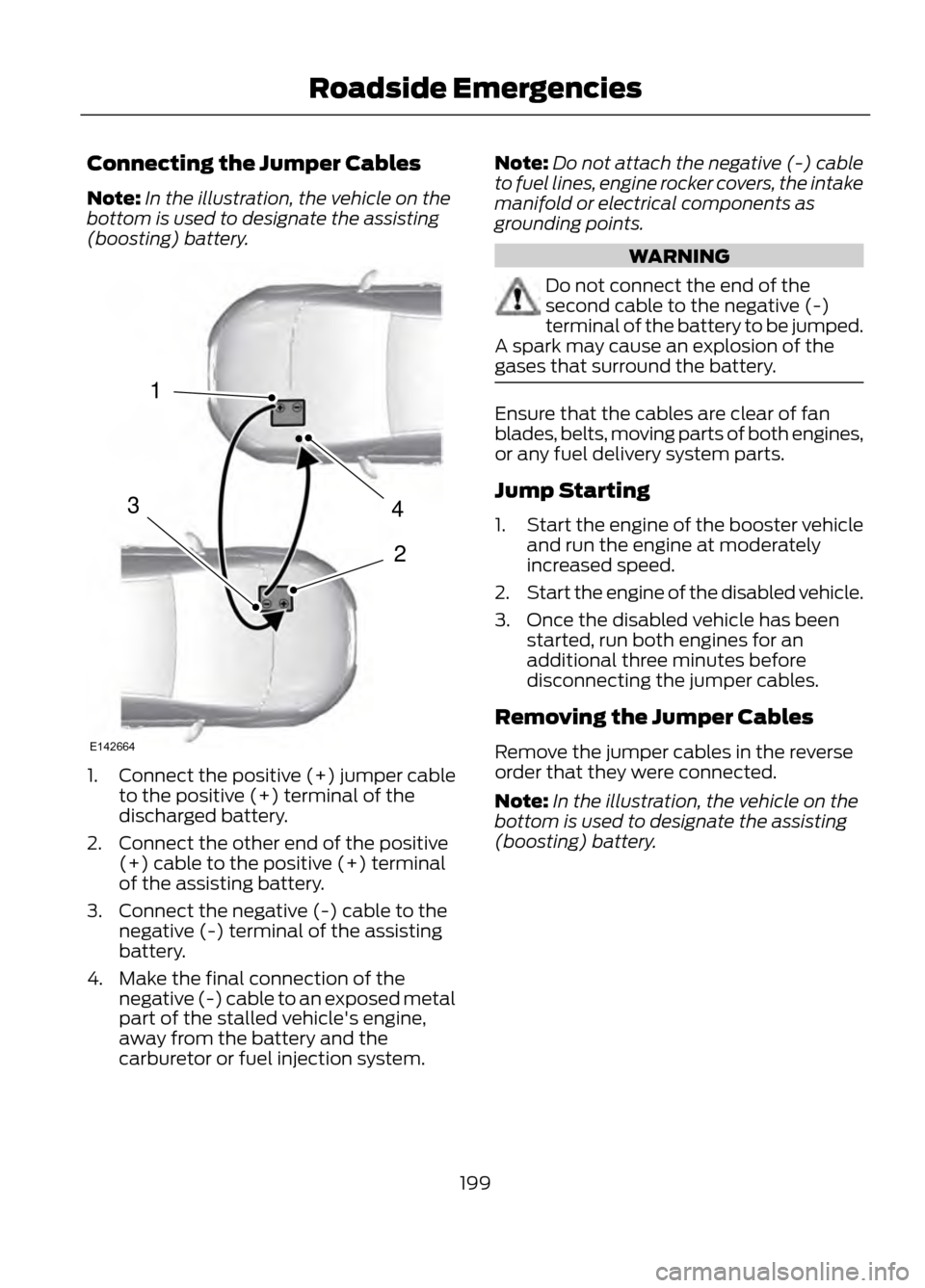
Connecting the Jumper Cables
Note:In the illustration, the vehicle on the
bottom is used to designate the assisting
(boosting) battery.
1. Connect the positive (+) jumper cable
to the positive (+) terminal of the
discharged battery.
2. Connect the other end of the positive (+) cable to the positive (+) terminal
of the assisting battery.
3. Connect the negative (-) cable to the negative (-) terminal of the assisting
battery.
4. Make the final connection of the negative (-) cable to an exposed metal
part of the stalled vehicle's engine,
away from the battery and the
carburetor or fuel injection system. Note:
Do not attach the negative (-) cable
to fuel lines, engine rocker covers, the intake
manifold or electrical components as
grounding points.
WARNING
Do not connect the end of the
second cable to the negative (-)
terminal of the battery to be jumped.
A spark may cause an explosion of the
gases that surround the battery.
Ensure that the cables are clear of fan
blades, belts, moving parts of both engines,
or any fuel delivery system parts.
Jump Starting
1. Start the engine of the booster vehicle
and run the engine at moderately
increased speed.
2. Start the engine of the disabled vehicle.
3. Once the disabled vehicle has been started, run both engines for an
additional three minutes before
disconnecting the jumper cables.
Removing the Jumper Cables
Remove the jumper cables in the reverse
order that they were connected.
Note: In the illustration, the vehicle on the
bottom is used to designate the assisting
(boosting) battery.
199
Roadside Emergencies
4
2
1
3
E142664
Page 282 of 423
If You Want To
Say
Adjust the level of voice interaction and feedback.
"Voice settings"
Hear a list of voice commands available in the current
mode.
"Help"
* If equipped, U.S. only
System Interaction and Feedback
The system provides feedback through
audible tones, prompts, questions and
spoken confirmations depending on the
situation and the chosen level of
interaction (voice settings). You can
customize the voice recognition system to
provide more or less instruction and
feedback. The default setting is to a higher level of
interaction in order to help you learn to use
the system. You can change these settings
at any time.
Adjusting the Interaction Level
Push the voice icon. Say "Voice
settings" when prompted, then
any of the following:
The System
When You Say
Provides less audible interaction and moretone prompts.
"Interaction mode advanced"
Provides more detailed interaction andguidance.
"Interaction mode standard"
The system defaults to the standard interaction mode.
Confirmation prompts are short questions
the system asks when it is not sure of your
request or when there are multiple possible
responses to your request. For example,
the system may ask "Phone, is that
correct?".
The System
When You Say
Makes a best guess from the command;you may still occasionally be asked to confirm settings.
"Confirmation prompts off"
Clarifies your voice command with a shortquestion.
"Confirmation prompts on"
282
SYNC®
E142599
Page 286 of 423
Note:To exit dial mode, press and hold the
phone button or press Menu to go to the
Phone menu.
"MENU"
"(Phone) connections"
"(Phone) settings (message) notification off" "(Phone) settings (message) notification on" "(Phone) settings (set) phone ringer""(Phone) settings (set) ringer 1"
"(Phone) settings (set) ringer 2"
"(Phone) settings (set) ringer 3"
"(Phone) settings (set) ringer off" "Battery"
"Phone name" "Signal"
"Text message inbox"
Words in ( ) are optional and do not have to be spoken for the system to understand
the command.
Making Calls
Press the voice icon and when prompted
say:
1. Say "Call
2. When the system confirms the number,
say "Dial" again to initiate the call.
To erase the last spoken digit, say "Delete"
or press the left arrow button. To erase all
spoken digits, say "Clear" or press and hold
the left arrow button.
To end the call, press and hold the phone
button. Receiving Calls
When receiving a call, you can:
•
Answer the call by pressing the phone
button.
• Reject the call by pressing and holding
the phone button.
• Ignore the call by doing nothing.
Phone Options during an Active
Call
During an active call, you have additional
menu features which become available
such as putting a call on hold, joining calls,
etc. Use the arrow buttons to scroll through
the menu options.
286
SYNC®
Page 306 of 423

You Can
When You Select
· Search for and play a specific track which has been
indexed. SYNC lists your tracks alphabetically in flat-file
mode. If there are more than 255, SYNC automatically
organizes them into alphabetical categories.
Tracks
· Press OK to select. Scroll to select the desired track, then
press OK.
· Explore all supported digital media on your media device
connected to the USB port. You can only view media
content which is compatible with SYNC; other files saved
are not visible.
Explore USB
· Press OK to select. Scroll to explore indexed media on
your flash drive.
· Play music similar to what is currently playing from the
USB port. The system uses the metadata information of
each song to compile a playlist for you.
Similar Music
· Press OK to select. The system creates a new list of
similar songs and begin playing. The metadata tags must
be populated for this feature to include each track.
· With certain playing devices, if your metadata tags are
not populated, the tracks won't be available in voice
recognition, play menu or similar music. However, if you
place these tracks onto your playing device in Mass
Storage Device Mode they are available in voice recogni-
tion,Play menu browsing and Similar Music. Unknowns
are placed into any unpopulated metadata tag.
Exit the current menu.
Return
System Settings
System settings provide access to your
Bluetooth Devices and Advanced menu
features.
The Bluetooth Devices menu allows you
to add, connect and delete a device as turn
the Bluetooth feature on and off.
The Advanced menu allows you to access
and set prompts, languages, defaults and
perform a master reset. Bluetooth Devices Menu Options
1. Press AUX and then MENU to enter
the Media menu.
2. Scroll until System Settings appears
and select OK, then press OK.
3. Scroll until Bluetooth Devices appears.
4. Press OK and then scroll to select from:
306
SYNC®
Page 315 of 423

GENERAL INFORMATION
WARNING
Driving while distracted can result in
loss of vehicle control, accident and
injury. Ford strongly recommends
that drivers use extreme caution when
using any device or feature that may take
their focus off the road. Your primary
responsibility is the safe operation of the
vehicle. We recommend against the use
of any handheld device while driving,
encourage the use of voice-operated
systems when possible and that you
become aware of applicable state and
local laws that may affect use of electronic
devices while driving.
Note: Some features are not available while
the vehicle is moving.
Note: You can also directly access the
Home screen and Information screen by
pressing the Home ("house" icon) and
Information ("i" icon) buttons on your
steering wheel controls.
This system uses a four-corner strategy to
provide quick access to vehicle features
and settings. The comprehensive
touchscreen provides easy interaction with
your mobile phone, multimedia, climate
control and navigation system. The corners
display any active modes within those
menus, such as your phone being
connected or the climate temperature.
MENU
Press to select any of the following:
• Clock
• Sound
• Settings
• Display •
Vehicle
• Help
INFORMATION
Press to select any of the following:
• SYNC® Services
• Notifications
• SYNC Apps
• SIRIUS® Travel Link ™
• Calendar
PHONE
Press to select any of the following:
• Quick Dial
• Call History
• Settings
• Phonebook
• Text Messaging
• Making and Receiving Calls
NAVIGATION
Press to select any of the following:
• My Home
• Previous Destinations
• Emergency
• Intersection
• Map
• Favorites
• Point of Interest
• Street Address
• City Center
ENTERTAINMENT
Press to select any of the following:
• AM or FM
• CD
• BT Stereo
• SD Card
• SIRIUS
315
MyFord Touch®
E142607