2013 FORD ESCAPE ECO mode
[x] Cancel search: ECO modePage 60 of 423

KEYLESS ENTRY (IF EQUIPPED)
SECURICODE™ KEYLESS ENTRY
KEYPAD
You can use the keypad to:
•lock or unlock the doors
• recall memory seat and mirror
positions (if equipped)
• program and erase user codes
• arm and disarm the anti-theft alarm.
The keypad can be operated with the
factory set 5-digit entry code. The code is
located on the owner ’s wallet card in the
glove box and is available from your
authorized dealer. You can also create up
to five of your own 5-digit personal entry
codes.
Programming a Personal Entry Code
To create your own personal entry code:
1. Enter the factory set code.
2. Press the 1·2 on the keypad within five seconds.
3. Enter your personal 5-digit code. Each number must be entered within five
seconds of each other. 4. For memory recall feature, enter the
sixth digit 1·2 to store driver 1 settings
or 3·4 to store driver 2 settings.
Note: Pressing 5·6, 7·8, or 9·0 keypad
numbers as a sixth digit will not recall a
driver memory setting.
Note: The factory-set code cannot be
associated with a memory setting.
5. The doors will lock then unlock to confirm that your personal entry code
has been programmed.
You may also program a personal entry
code through the MyFord Touch® system
(if equipped). See General Information
(page 326).
Tips:
• Do not set a code that uses five of the
same number.
• Do not use five numbers in sequential
order.
• The factory set code will work even if
you have set your own personal code.
Erasing a Personal Code
1. Enter the factory set 5-digit code.
2. Press and release the 1·2 on the keypad
within five seconds.
3. Press and hold the 1·2 for two seconds.
This must be done within five seconds
of completing Step 2.
All personal codes are now erased and only
the factory set 5–digit code will work.
Anti-Scan Feature
The keypad will go into an anti-scan mode
if the wrong code has been entered seven
times (35 consecutive button presses).
This mode disables the keypad for one
minute and the keypad lamp will flash.
60
Locks
1 2
3 4
5 6
7 8
9 0
E138637
Page 82 of 423

Information (If Equipped)
It will illuminate when a new
message is stored in the
information display. It will be red
or amber in color depending on the severity
of the message and will remain on until the
cause of the message has been rectified.
See Information Messages (page 87).
Low Fuel Level
It will illuminate when the fuel
level is low or the fuel tank is
nearly empty. Refuel as soon as
possible.
Low Tire Pressure Warning
It will illuminate when your tire
pressure is low. If the lamp
remains on with the engine
running or when driving, check
your tire pressure as soon as possible.
It will also illuminate momentarily when
you switch the ignition on to confirm the
lamp is functional. If it does not illuminate
when you switch the ignition on, or begins
to flash at any time, have the system
checked by your authorized dealer.
Parking Lamps
It will illuminate when you switch
the parking lamps on. Service Engine Soon
If the service engine soon
indicator light stays illuminated
after the engine is started, it
indicates that the On Board Diagnostics
system (OBD) has detected a malfunction
of the vehicle emissions control system.
Refer to On board diagnostics (OBD) in
the Fuel and Refueling chapter for more
information about having your vehicle
serviced. See Emission Control System
(page 143).
If the light is blinking, engine misfire is
occurring which could damage your
catalytic converter. Drive in a moderate
fashion (avoid heavy acceleration and
deceleration) and have your vehicle
serviced immediately.
Note: Under engine misfire conditions,
excessive exhaust temperatures could
damage the catalytic converter or other
vehicle components.
The service engine soon indicator light
illuminates when the ignition is first turned
on prior to engine start to check the bulb
and to indicate whether the vehicle is ready
for Inspection/Maintenance (I/M) testing.
Normally, the service engine soon light will
stay on until the engine is cranked, then
turn itself off if no malfunctions are
present. However, if after 15 seconds the
service engine soon light blinks eight times,
it means that the vehicle is not ready for
I/M testing. See Emission Control
System (page 143).
82
Instrument Cluster
Page 84 of 423

GENERAL INFORMATION
WARNING
Driving while distracted can result in
loss of vehicle control, accident and
injury. Ford strongly recommends
that drivers use extreme caution when
using any device or feature that may take
their focus off the road. Your primary
responsibility is the safe operation of the
vehicle. We recommend against the use
of any handheld device while driving and
that you comply with all applicable laws.
Various systems on your vehicle can be
controlled using the information display
controls on the steering wheel.
Corresponding information is displayed in
the information display.
Information Display Controls
• Press the up and down arrow buttons
to scroll through and highlight the
options within a menu.
• Press the right arrow button to enter a
sub-menu.
• Press the left arrow button to exit a
menu.
• Press and hold the left arrow button at
any time to return to the main menu
display (escape button).
• Press the OK button to choose and
confirm settings or messages.
Menu Structure - Information
Display
All Vehicles
You can access the menu using the
information display control.
Note: Some options may appear slightly
different or not at all if the items are
optional.
Trip 1 and 2 1
Distance to E
Trip 1 or 2
Trip timer Anticipation
Ford EcoMode
Average fuel
84
Information Displays
E138659
Page 85 of 423

Trip 1 and 21
Speed
Ford EcoMode 2
1 See Trip Computer (page 86).
2 See Eco Mode (page 175).
Information
Intelligent 4WD
MyKey Dist.
MyKey Info
Settings On or Off
Traction Ctrl
Driver Assist
On or Off
Blind spot
On or Off
Cross traffic alert
On or Off
Hill Start Assist
On or Off
Rear Park Aid
On or Off
Rain Light
Lighting
Auto or Manual
Dimming
Off or xx Seconds
Autolamp delay
Always off, On guidance or Always on
Navigation info
Display
Choose your applicable setting
Language
Choose your applicable setting
Distance
Choose your applicable setting
Temperature
Park Slot Information Warning
Chimes
On or Off
Display
Compass
(non–navigation
systems only)
Convenience
Zone (1–15)
Set Zone
85
Information Displays
Page 97 of 423

GENERAL INFORMATION
Radio Frequencies and Reception
FactorsAM and FM frequencies are established by
the Federal Communications Commission
(FCC) and the Canadian Radio and
Telecommunications Commission (CRTC).
Those frequencies are:
•
AM: 530, 540-1700, 1710 kHz
• FM: 87.9-107.7, 107.9 MHz
Radio Reception Factors
The further you travel from an FM station, the weaker the
signal and the weaker the reception.
Distance/Strength
Hills, mountains, tall buildings, bridges, tunnels, freeway
overpasses, parking garages, dense tree foliage and
thunderstorms can interfere with your reception.
Terrain
When you pass a ground-based broadcast repeating
tower, a stronger signal may overtake a weaker one and
result the audio system muting.
Station overload
CD and CD Player Information
Note: CD units are designed to play
commercially-pressed 4.75 inch (12
centimeter) audio compact discs only. Due
to technical incompatibility, certain
recordable and re-recordable compact discs
may not function correctly when used in
Ford CD players.
Note: CDs with homemade paper
(adhesive) labels should not be inserted
into the CD player as the label may peel and
cause the CD to become jammed. It is
recommended that homemade CDs be
identified with permanent felt tip marker
rather than adhesive labels. Ballpoint pens
may damage CDs. Please contact your
authorized dealer for further information.
Note: Do not use any irregularly shaped
discs or discs with a scratch protection film
attached. Always handle discs by their edges only.
Clean the disc with an approved CD
cleaner only, wiping from the center of the
disc toward the edge. Do not clean in a
circular motion.
Do not expose discs to direct sunlight or
heat sources for extended periods of time.
MP3 Track and Folder Structure
Audio systems capable of recognizing and
playing MP3 individual tracks and folder
structures work as follows:
•
There are two different modes for MP3
disc playback: MP3 track mode
(system default) and MP3 folder
mode.
• MP3 track mode ignores any folder
structure on the MP3 disc. The player
numbers each MP3 track on the disc
(noted by the .mp3 file extension) from
T001 to a maximum of T255. The
maximum number of playable MP3
files may be less depending on the
structure of the CD and exact model
of radio present.
97
Audio System
Page 98 of 423

•MP3 folder mode represents a folder
structure consisting of one level of
folders. The CD player numbers all MP3
tracks on the disc (noted by the .mp3
file extension) and all folders
containing MP3 files, from F001
(folder) T001 (track) to F253 T255.
• Creating discs with only one level of
folders helps with navigation through
the disc files.
If you are burning your own MP3 discs, it is
important to understand how the system
reads the structures you create. While
various files may be present, (files with
extensions other than mp3), only files with
the .mp3 extension are played; other files
are ignored by the system. This enables
you to use the same MP3 disc for a variety
of tasks on your work computer, home
computer and your in-vehicle system. In track mode, the system displays and
plays the structure as if it were only one
level deep (all .mp3 files are played,
regardless of being in a specific folder). In
folder mode, the system only plays the
.mp3 files in the current folder.
AUDIO UNIT - VEHICLES WITH:
AM/FM/CD
WARNING
Driving while distracted can result in
loss of vehicle control, accident and
injury. Ford strongly recommends
that you use extreme caution when using
any device or feature that may take your
focus off the road. Your primary
responsibility is the safe operation of the
vehicle. We recommend against the use
of any handheld device while driving,
encourage the use of voice-operated
systems when possible and that you
become aware of applicable state and
local laws that may affect use of electronic
devices while driving.
98
Audio System
Page 102 of 423
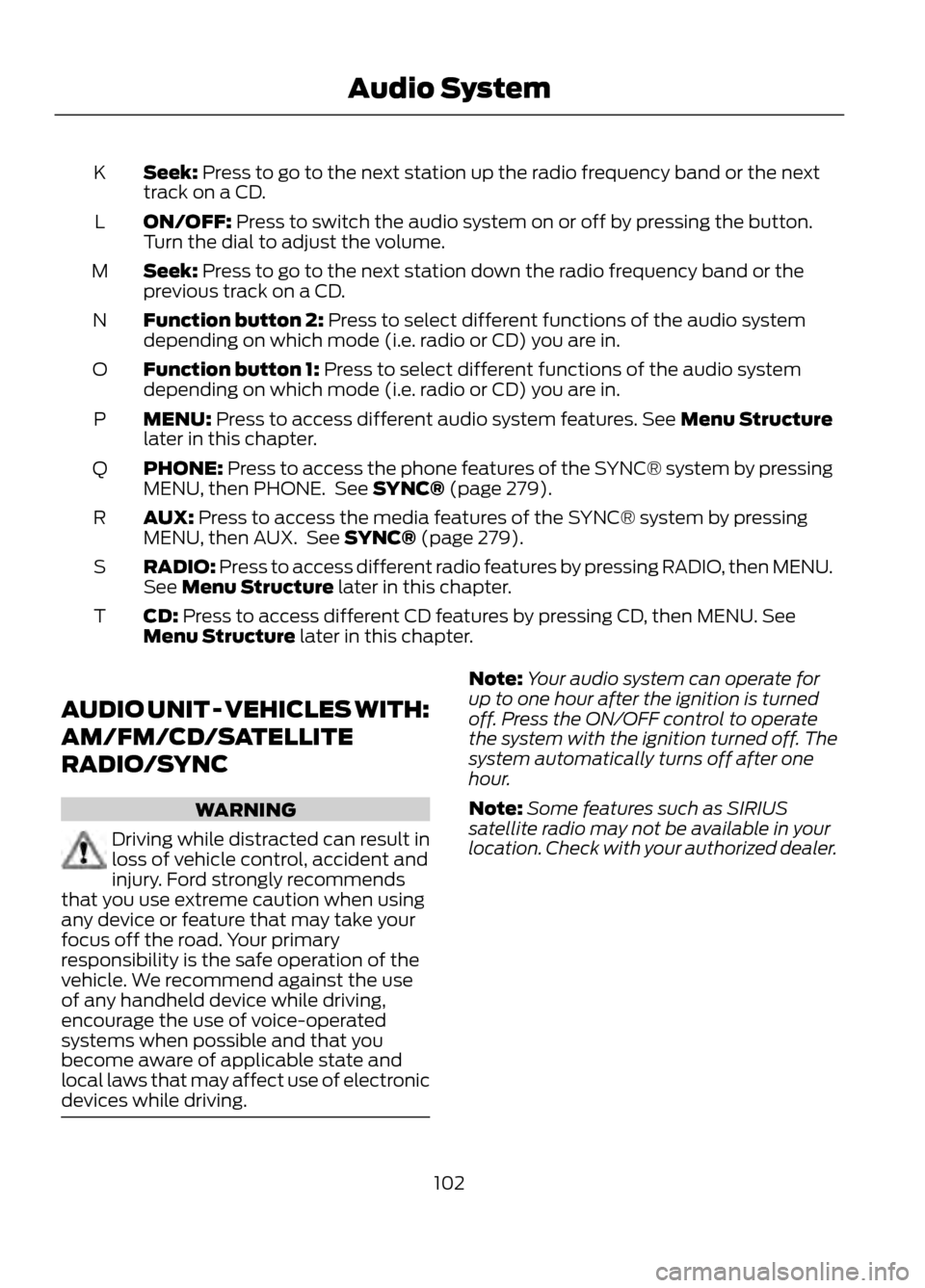
Seek: Press to go to the next station up the radio frequency band or the next
track on a CD.
K
ON/OFF: Press to switch the audio system on or off by pressing the button.
Turn the dial to adjust the volume.
L
Seek: Press to go to the next station down the radio frequency band or the
previous track on a CD.
M
Function button 2: Press to select different functions of the audio system
depending on which mode (i.e. radio or CD) you are in.
N
Function button 1: Press to select different functions of the audio system
depending on which mode (i.e. radio or CD) you are in.
O
MENU: Press to access different audio system features. See Menu Structure
later in this chapter.
P
PHONE: Press to access the phone features of the SYNC® system by pressing
MENU, then PHONE. See SYNC® (page 279).
Q
AUX: Press to access the media features of the SYNC® system by pressing
MENU, then AUX. See SYNC® (page 279).
R
RADIO: Press to access different radio features by pressing RADIO, then MENU.
See Menu Structure later in this chapter.
S
CD: Press to access different CD features by pressing CD, then MENU. See
Menu Structure later in this chapter.
T
AUDIO UNIT - VEHICLES WITH:
AM/FM/CD/SATELLITE
RADIO/SYNC
WARNING
Driving while distracted can result in
loss of vehicle control, accident and
injury. Ford strongly recommends
that you use extreme caution when using
any device or feature that may take your
focus off the road. Your primary
responsibility is the safe operation of the
vehicle. We recommend against the use
of any handheld device while driving,
encourage the use of voice-operated
systems when possible and that you
become aware of applicable state and
local laws that may affect use of electronic
devices while driving.
Note: Your audio system can operate for
up to one hour after the ignition is turned
off. Press the ON/OFF control to operate
the system with the ignition turned off. The
system automatically turns off after one
hour.
Note: Some features such as SIRIUS
satellite radio may not be available in your
location. Check with your authorized dealer.
102
Audio System
Page 106 of 423
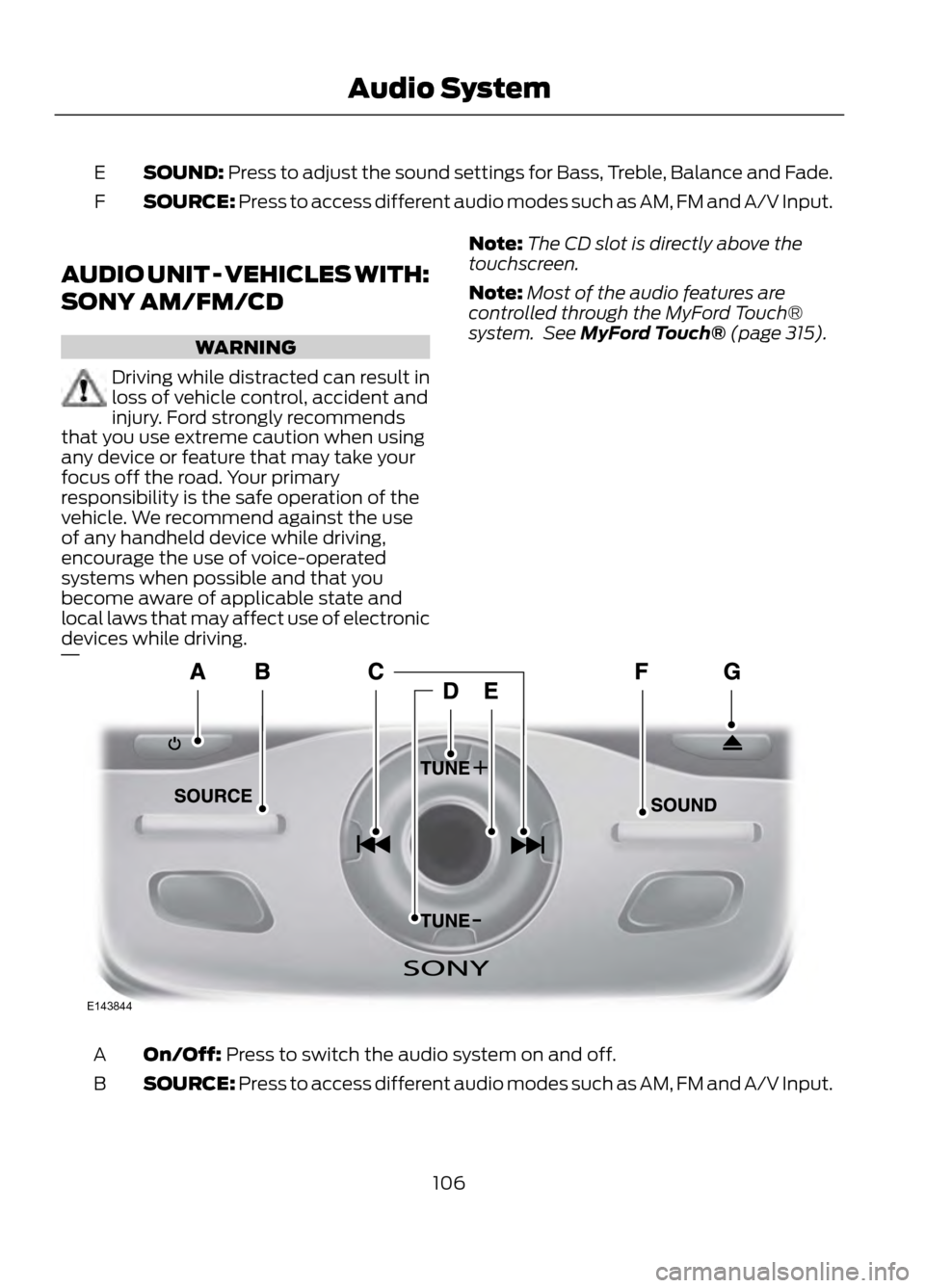
SOUND: Press to adjust the sound settings for Bass, Treble, Balance and Fade.
E
SOURCE: Press to access different audio modes such as AM, FM and A/V Input.
F
AUDIO UNIT - VEHICLES WITH:
SONY AM/FM/CD
WARNING
Driving while distracted can result in
loss of vehicle control, accident and
injury. Ford strongly recommends
that you use extreme caution when using
any device or feature that may take your
focus off the road. Your primary
responsibility is the safe operation of the
vehicle. We recommend against the use
of any handheld device while driving,
encourage the use of voice-operated
systems when possible and that you
become aware of applicable state and
local laws that may affect use of electronic
devices while driving.
Note: The CD slot is directly above the
touchscreen.
Note: Most of the audio features are
controlled through the MyFord Touch®
system. See MyFord Touch® (page 315).
On/Off: Press to switch the audio system on and off.
A
SOURCE: Press to access different audio modes such as AM, FM and A/V Input.
B
106
Audio System
E143844