2012 MINI COUPE ROADSTER CONVERTIBLE CD player
[x] Cancel search: CD playerPage 161 of 283
ENTERTAINMENTExternal devices
160
Adjusting volume
1."CD/Multimedia"
2. "External devices" if applicable
3. "AUX front"
4. "Volume"
5. Turn MINI joystick until the desired volume
is set and then press the MINI joystick.
USB audio interface/
mobile phone audio
interface
Overview
It is possible to connect external audio devices.
They are operated using the onboard computer.
Sound is output over the vehicle speakers.
Options for connecting external devices
>Connection via USB audio interface: Apple
devices, USB devices such as MP3 players,
USB memory sticks, or mobile phones that
are supported by the USB audio interface.
> Connection via the sn ap-in adapter, when
equipped with extended connectivity of the
music player in the mobile phone: Apple
iPhone or mobile phon es. Playback is only
possible if no plug is present in the USB
audio interface.
Because of the large number of audio devices
available on the market, an operation via the
vehicle cannot be guaranteed for every audio
device/mobile phone. Ask your MINI dealer for suitable audio devices/
mobile phones.
File systems
Popular file systems for USB devices are
supported. The manufacturer of your MINI
recommends the FAT 32 format.
Audio files
Playback of standard au
dio files is possible,
depending on the vehicle equipment:
> MP3
> WMA
> WAV (PCM)
> AAC, M4A
> Without voice activation system: playback
lists: M3U
> With voice activation sy stem: playback lists:
M3U, WPL, PLS
Video files
Playback of standard video files with a
compatible Apple device is possible:
> MPEG4
> H.264
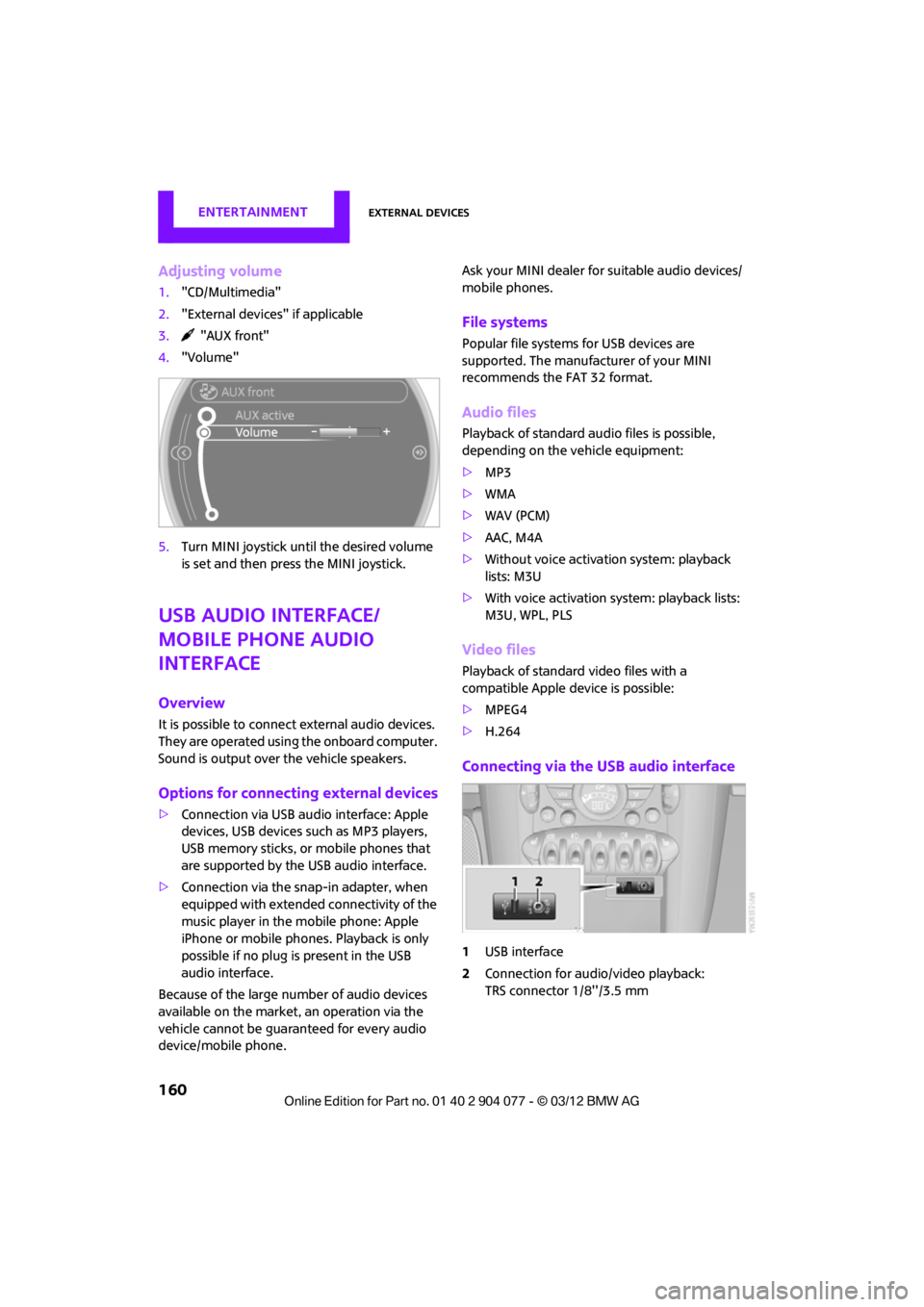
Connecting via the USB audio interface
1USB interface
2 Connection for audi o/video playback:
TRS connector 1/8''/3.5 mm
00320051004F004C00510048000300280047004C0057004C005200510003
Page 163 of 283
ENTERTAINMENTExternal devices
162
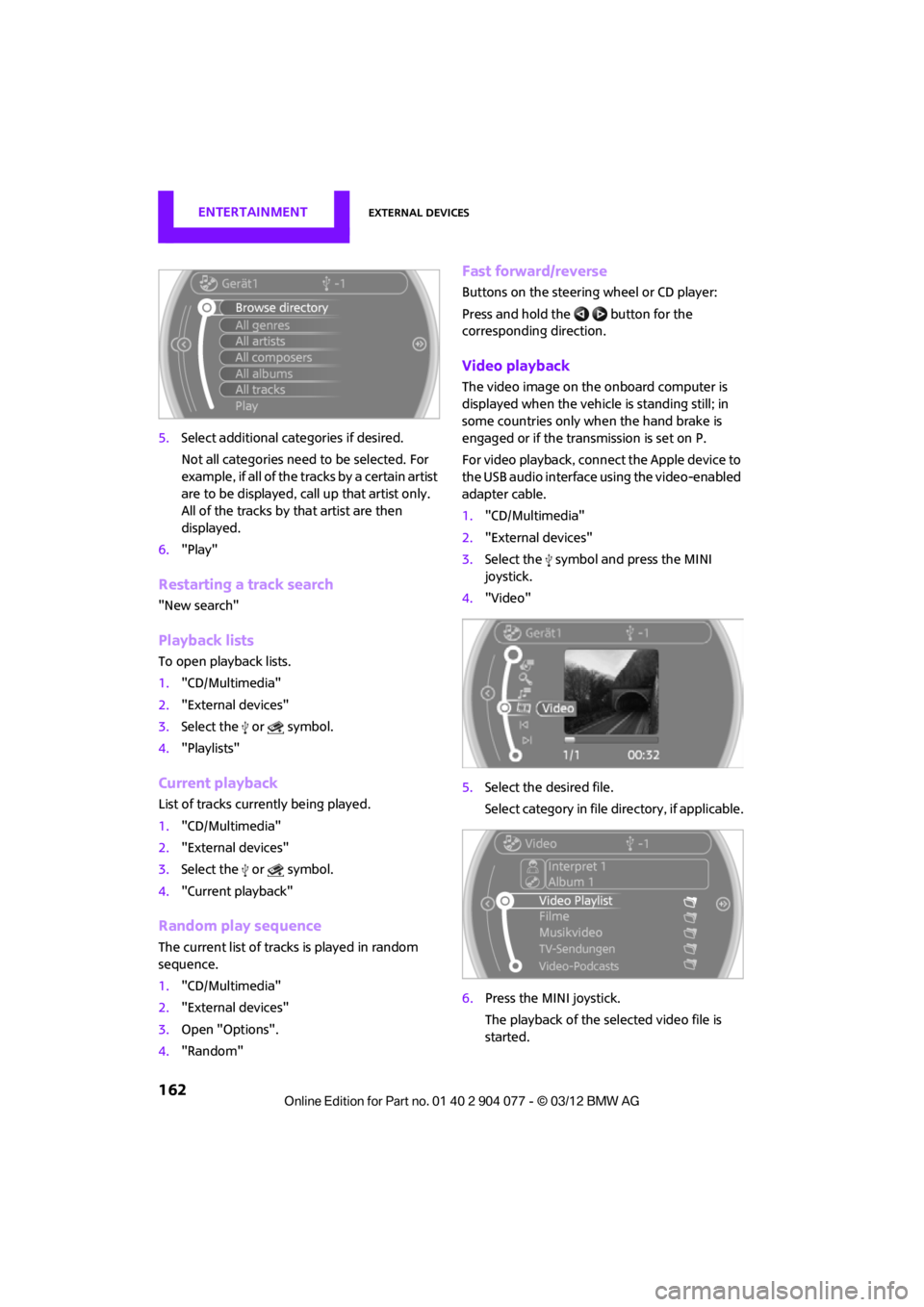
5.Select additional ca tegories if desired.
Not all categories need to be selected. For
example, if all of the tracks by a certain artist
are to be displayed, call up that artist only.
All of the tracks by that artist are then
displayed.
6. "Play"
Restarting a track search
"New search"
Playback lists
To open playback lists.
1."CD/Multimedia"
2. "External devices"
3. Select the or symbol.
4. "Playlists"
Current playback
List of tracks curre ntly being played.
1. "CD/Multimedia"
2. "External devices"
3. Select the or symbol.
4. "Current playback"
Random play sequence
The current list of tracks is played in random
sequence.
1."CD/Multimedia"
2. "External devices"
3. Open "Options".
4. "Random"
Fast forward/reverse
Buttons on the steering wheel or CD player:
Press and hold the button for the
corresponding direction.
Video playback
The video image on the onboard computer is
displayed when the vehicle is standing still; in
some countries only when the hand brake is
engaged or if the transmission is set on P.
For video playback, connect the Apple device to
the USB audio interface using the video-enabled
adapter cable.
1."CD/Multimedia"
2. "External devices"
3. Select the symbol and press the MINI
joystick.
4. "Video"
5. Select the desired file.
Select category in file directory, if applicable.
6. Press the MINI joystick.
The playback of the selected video file is
started.
00320051004F004C00510048000300280047004C0057004C005200510003
Page 166 of 283

External devicesENTERTAINMENT
165
4.Select the symbol.
5. Select the desired track from the list.
Playback menu
Depending on the device, all functions may not
be available.
Track search
Depending on the device, it is possible to search
by track.
1."CD/Multimedia"
2. "External devices"
3. Select the symbol.
4. "Search device content"
5. "A-Z search"
6. Select desired entry or directory.
Player program
Depending on the device, there may be various
programs for playing music files.
1."CD/Multimedia"
2. "External devices"
3. Select the symbol.
4. Open "Options".
5. "Select player"
6. Select the desired program.
Disconnecting an audio connection
1."CD/Multimedia"
2. "Bluetooth® (audio)"
3. Select the desired device from the list of
connected devices.
4. Open "Options".
5. "Configure phone"
6. Deactivate "Audio".
7. "OK"
With a mobile phone, only the audio connection
is disconnected. All ot her connections remain
active.
Unpairing device
1. "CD/Multimedia"
2. "Bluetooth® (audio)"
3. "Bluetooth® audio" if applicable
4. Highlight the device to be unpaired.
5. Open "Options".
6. "Remove phone from list"
SymbolFunction
Next track
Fast forward: press and hold the
symbol.
Previous track
Reverse: press and hold the
symbol.
00320051004F004C00510048000300280047004C0057004C005200510003
Page 167 of 283

ENTERTAINMENTExternal devices
166
What to do if…
Information about suitable devices is available
at www.mini.com/connectivity.
Suitable mobile phones, refer to page 180.
Device not supported by vehicle.
> If necessary, perform a software update;
refer to page 166.
Device could not be paired or connected.
> Do the Bluetooth passkeys on the device
and vehicle match? Enter the same passkey
on the device and via the onboard
computer.
> A multi-digit passkey may be required.
> Is the passkey input taking longer than
30 seconds? Repeat th e pairing procedure.
> Are too many Bluetoot h devices connected
to the device or to the vehicle? If necessary,
delete the connections with other devices.
> Is the mobile phone in power economy
mode or does it only have a small amount of
battery charge remaining? Charge the
mobile phone in the snap-in adapter or via a
charging cable.
> Depending on the mobile phone, it may only
be possible to connect one device to the
vehicle. Unpair the connected device from
the vehicle and only pair and connect one
device.
> Is the device no longer responding? Switch
the device off an d back on again.
> Repeat the pairing procedure.
No music can be played.
> Start the program for playing music files on
the device and if necessary, select a track via
the device.
> Activate and deactivate the radio mute on
the radio control panel.
Music files only play quietly.
> Adjust volume settings on the device.
Videos cannot be played or can only be played
with a delayed audio output. >
Check the device compatibility. Information
is available at www.mini.com/connectivity.
Playback is interrupted by the press of a button
or other messages on the device.
> Switch off key tones and other acoustic
signal on the device.
Playback is interrupted by a phone call or traffic
report and does not automatically continue.
> Activate and deactivate the radio mute on
the radio control panel.
Playback is not possible when the mobile phone
is connected via Blueto oth audio and at the
same time via the extended connectivity of the
music player in the mobile phone.
> Disconnect one of the two connections, e.g.
the audio connection, refer to page 165,
and start playback again.
If you have gone through all items in the list and
still cannot activate the desired function please
contact the Hotline or your MINI dealer.
Software update
The vehicle supports various external devices,
depending on the software it is currently using.
A software update can enable the vehicle to
support, for example, new mobile phones or
new external devices.
Software updates and a ssociated, up-to-date
instructions are availa ble on the web page
www.mini.com/c onnectivity.
Displaying current version
The currently installed software is displayed.
1."Settings"
2. "Software update"
3. "Show current version"
Select the desired versio n to display additional
information.
00320051004F004C00510048000300280047004C0057004C005200510003
Page 181 of 283
COMMUNICATIONSMobile phone preparation Bluetooth
180
Mobile phone preparation Bluetooth
Vehicle equipment
In this chapter, all production, country, and
optional equipment that is offered in the model
range is described. Equipment is also described
that is not available because of, for example,
selected options or coun try version. This also
applies to safety relate d functions and systems.
Overview
The concept
Mobile phones or other external devices, e.g.
audio players, can be connected to the vehicle
via Bluetooth.
Bluetooth® is a registered trademark of Blue-
tooth® SIG, Inc.
After being paired once, when the ignition is
switched on, these devices are automatically
detected as soon as they are present in the
vehicle and can be controlled via the onboard
computer, the buttons on the steering wheel,
and by voice.
Depending on whether they are functioning as a
telephone and/or as an audio source, external
devices can be used via the vehicle. The tele-
phone functions will be described below. Oper-
ation of audio functions, refer to page 163.
It may be necessary for some functions to be
activated by the mobile phone provider.
Only make entries when traffic conditions
permit. Do not hold the mobile phone in
your hand while you are driving; use the hands-
free system instead. If you do not observe this
precaution, your being distracted can endanger
vehicle occupants and other road users. <
Snap-in adapter
The snap-in adapter, refer to page191, makes it
possible to:
> Accommodate the mobile phone.
> Recharge its battery.
> Connect it to an exte rnal antenna of the
vehicle.
This assures a better network connection
and constant sound quality.
A mobile phone that is connected to the vehicle
should not be operated via the mobile phone
keypad; otherwise, ma lfunctions may occur.
Suitable mobile phones
For precise information as to which mobile
phones and external devices with Bluetooth
interfaces are supported by the mobile phone
preparation package, go to www.mini.com/
connectivity.
With a certain software version, these suitable
mobile phones support the vehicle functions
described below.
With other mobile phones or software versions,
malfunctions may occur.
It is possible to perform a software update, refer
to page 166.
Displaying vehicle identification number
and software part number
Checking which mobile phones are supported
by the mobile phone preparation requires the
vehicle identification number and software part
number. The software version of the mobile
phone may also be required.
1."Telephone"
2. Open "Options".
3. "Bluetooth® info"
4. "Display system information"
00320051004F004C00510048000300280047004C0057004C005200510003
Page 271 of 283

REFERENCEEverything from A to Z
270
Carpets, care230
Car phone
– installation location, refer to Center armrest 108
– refer to Telephone 108
Car phone, refer to Telephone 170,180
Car radio, refer to Radio 149
Car wash, care 227
Car washes 227
Catalytic conver ter, refer to
Hot exhaust system 115
CD, audio playback 157
CD player 157
– controls 146
– fast forward/reverse 158
– random order 158
– selecting a track 157
– switching on/off 146
– tone control 147
– volume 147
Center armrest 108
Center brake lamp 236
Center console, refer to Around the center
console 14
Central locking system 29
– Comfort Access 36
– from inside 32
– from outside 29
Changing bulbs 232
Changing the language on the Control Display 80
Changing the measurement units on the Control
Display 74
Changing wheels 239
Charging the battery 241
Chassis number, refer to
Engine compartment 221
Check Control 77
Child restraint fixing system
LATCH 57
Child restraint systems 56
Child seats 56 Chrome parts, care
229
Chrome parts, refer to Care 227
Cigarette lighter 109
Cleaning headlamps 67
– washer fluid 67
Clock
– setting time 76
– 12 h/24 h mode 76
Closing
– from inside 32
– from outside 29
Cl ot
hes hooks 108
Cockpit 10
Cold start, refer to Starting the engine 61
Comfort Access 36
– replacing the battery 38
– what to observe before
entering a car wash 37
Comfort area, refer to Around the center console 14
Compartment for remote control, refer to Ignition
lock 60
Computer 71
– displays on Control Display 73
Condensation, refer to When the vehicle is parked 116
Condition Based Service CBS 225
Configuring settings, refer to
Personal Profile 28
Connecting vacuum cleaner, refer to Connecting electrical
appliances 110
Consumption, refer to Average fuel consumption 72
Contact editing 178
Contacts 177,194
– new contact 195
Continuing route guidance 135
Control Display
– settings 73 Control Display, refer to iDrive
– switching on/off
17
Control Display, refer to Onboard computer 17
Controls and displays 10
Control stick, refer to Onboard computer 17
Control unit, refer to Onboard computer 17
Convenience operation
– convertible top 32
– windows 30
Convenient access, refer to
Comfort Access 36
Convenient star t, refer to
Starting the engine 61
Convertible top 39
– manual 44
– mechanical 44
Coolant 224
– checking level 224
– filling 224
Coolant temperature 224
Cooling, maximum 104
Cooling fluid, refer to
Coolant 224
Copyright 2
Corneri n
g li
ght, refer to
Adaptive Light Control 97
Criteria for route 135
Cruise control
– indicator lamp 13
Cruising range 71
Cupholders 109
Curb weight, refer to Weights 257
Current fuel consumption 72
Current playback
– external devices 162
D
Dashboard, refer to Cockpit 10
Dashboard instruments, refer to Displays 12
Dashboard lighting, refer to Instrument lighting 99
00320051004F004C00510048000300280047004C0057004C005200510003
Page 272 of 283

Everything from A to ZREFERENCE
271
Data250
– capacities 259
– dimensions 251
– engine 250
– weights 257
Data memory 226
Date
– setting 77
– setting format 77
Daytime running lights 97
DBC Dynamic Brake Control, refer to Brake Assist 83
Deactivating front passenger
airbags 93
Deadlocking, refer to Locking 30
Defect
– door lock 32
– fuel filler flap 206
Defining a home address 195
Defogging windows 103,105
Defrosting windows 103,105
Defrosting windows and removing condensation
– air conditioner 103
– automatic climate control 105
Defrosting windshield, refer to
Defrosting
windows 103,105
Defrost position, refer to Defrosting
windows 103,105
Deleting contacts 179,196
Destination address
– entering 126,132
Destination for navigation
– entering 126
– entering via map 131
Differential, breaking in 114
Digital radio, refer to HD Radio 150
Dimensions 251
Dipstick, engine oil 222
Directional indicators, refer to
Turn signals 65 Direction announcements,
refer to Voice
instructions 139
Direction instructions, refer to
Voice instructions 139
Directory for navigation, refer to Address book 128
Displacement, re fer to Engine
data 250
Display, refer to Onboard
computer controls 17
Disp laying cont
act
pictures 196
Displaying contacts 178
Displaying special destinations 131
Display lighting, refer to Instrument lighting 99
Displays 12
– instrument cluster 12
– on the Control Display 17
Displays, care 230
Displays and controls 10
Disposal
– of coolant 224
– remote control battery 38
– vehicle battery 242
Distance remaining to service,
refer to Service
requirements 75
Distance warning, refer to Park Distance Control PDC 82
Door key, refer to Integrated
key/remote control 28
Door lock 31
Door lock, confirmation
signals 30
Doors, manual operation 32
DOT Quality Grades 217
Drinks holders, refer to Cupholders 109
Drive-off assistant, refer to Hill
Assist 85
Driving dynamics control, refer to Sport button 85
Driving lamps, refer to Parking lamps/low beams 96Driving notes
114
Driving off on inclines, refer to Hill Assist 85
Driving stability control
systems 83
Driving through water 115
Driving tips, refer to Driving
notes 114
Dry air, refer to Cooling function 105
DSC Dynamic Stability Control 83
DTC Dynamic Traction
Control 84
Dynamic Brake Control DBC, refer to Brake Assist 83
Dynamic route guidance 142
Dynamic Stability Control DSC 83
Dynamic Traction Control DTC 84
E
Eject button, refer to Buttons
on the CD player 146
Electrical malfunction
– convertible top 41,48
– door lock 32
– fuel filler flap 206
– tailgate 33
Electric power windows
– initializing 39
Electronic brake-force distribution 83
Electronic Stability Program
ESP, refer to Dynamic
Stability Control DSC 83
E-mail 197
Emergency operation, refer to Manual operation
– convertible top 41,48
– door lock 32
– fuel filler flap 206
– tailgate 33
– transmission lock, automatic transmission 64
00320051004F004C00510048000300280047004C0057004C005200510003
Page 273 of 283

REFERENCEEverything from A to Z
272
Emergency services, refer to Roadside Assistance 243
Emergency unlocking 34
Ending a call 174,186
Engine
– breaking in 114
– data 250
– overheated, refer to Coolant temperature 224
– speed 250
– starting, Comfort Access 36
Engine compartment 221
Engine coolant, refer to
Coolant 224
Engine malfunction
– indicator lamp 13
Engine oil
– additives, refer to Approved engine oils 223
– alternative oil types 223
– approved engine oils 223
– capacity 223
– checking level 222
– dipstick 222
– intervals between changes,
refer to Service
requirements 75
– MINI Maintenance
System 225
Engine oil level, checking 222
Engine output, refer to Engine data 250
Engine starti ng, refer to
Starting the engine 61
Entering destination 126
Entering intersection 127
Entertainment sound output on/off 146
Entry map for destination 131
ESP Electronic Stability Program, refer to Dynamic
Stability Control DSC 83
Exhaust system, refer to Hot exhaust system 115 Exterior mirrors
54
– adjusting 54
– automatic heating 54
– folding in and out 54
External audio device 108
External audio de vice, refer to
AUX-In connection 159
External care 227
External devices
– random play sequence 162
– software update 166
External temperature display
– change units of measure 74
– in the onboard computer 74
Eyes
– for tow-starting and towing
away 245
– for tying down loads 119
F
Failure messages, refer to
Check Control 77
Failure of an electrical consumer 242
Fastening safety belts, refer to Safety belts 53
Fastest route for
navigation 135
Fast forward
– CD player 158
Fault messages, refer to Check Control 77
Filter
– microfilter/activated- charcoal filter for automatic
climate control 105
– microfilter for air conditioner 103
Fine wood, care 230
First aid pouch 243
Fixture for remote control,
refer to Ignition lock 60
Flash when locking/ unlocking 30 Flat tire
– run-flat tires
218
– Tire Pressure Monitor TPM 89
Flat Tire Monitor FTM 87
– indicating a flat tire 88
– initializing the system 87
– snow chains 87
– system limits 87
Flat tires, refer to Tire condition 217
Floor mats, care 230
FM, waveband 149
Fog lamps
– replacing bulb 234,236
Folding roof, refer to Convertible top with
integrated sliding sunroof 39
Footbrake, refer to Braking safely 115
Footwell lamps 99
For your own safety 5
Front airbags 93
Front fog lamps 98,99
– replacing bulb 234
Front seat adjustment 51
Frost on windows, refer to Defrosting
windows 103,105
FTM, refer to Flat Tire Monitor 87
Fuel 207
– gauge 70
– high-quality brands 207
– quality 207
– specifications 207
– tank
capaci
ty 259
Fuel clock, refer to Fuel gauge 70
Fuel consumption display
– average fuel consumption 72
Fuel display, refer to Fuel gauge 70
Fuel filler flap 206
– releasing in the event of electrical malfunction 206
Fuses 242
00320051004F004C00510048000300280047004C0057004C005200510003