2012 MINI COUPE ROADSTER CONVERTIBLE USB
[x] Cancel search: USBPage 16 of 283

CockpitAT A GLANCE
15
5Switches in the center console 6
USB audio interface 160
7 Buttons on the center console
8 Changing to a differen t menu on the Control
Display
9 MINI joystick 17
Move in four directions, turn or press
10 Accessing the main me nu on the Control
Display 18
Air distribution to the footwell
Automatic air distribution and flow
rate
Maximum cooling
or Cooling function
Defrosting windows
Rear window defroster
Windshield heating
Air flow rate
Seat heating
53
Power windows 38
MINI Convertible: central power
window unit 39
Rear fog lamp 98
Front fog lamps 98
Central locking system, inside 32
Sport button85
Driving stability control systems
Dynamic Stability Control DSC 83
Dynamic Traction Control DTC 84
00320051004F004C00510048000300280047004C0057004C005200510003
Page 108 of 283
Practical interior accessoriesCONTROLS
107
Practical interior accessories
Vehicle equipment
In this chapter, all production, country, and
optional equipment that is offered in the model
range is described. Equipment is also described
that is not available because of, for example,
selected options or count ry version. This also
applies to safety related functions and systems.
Glove compartment
Opening
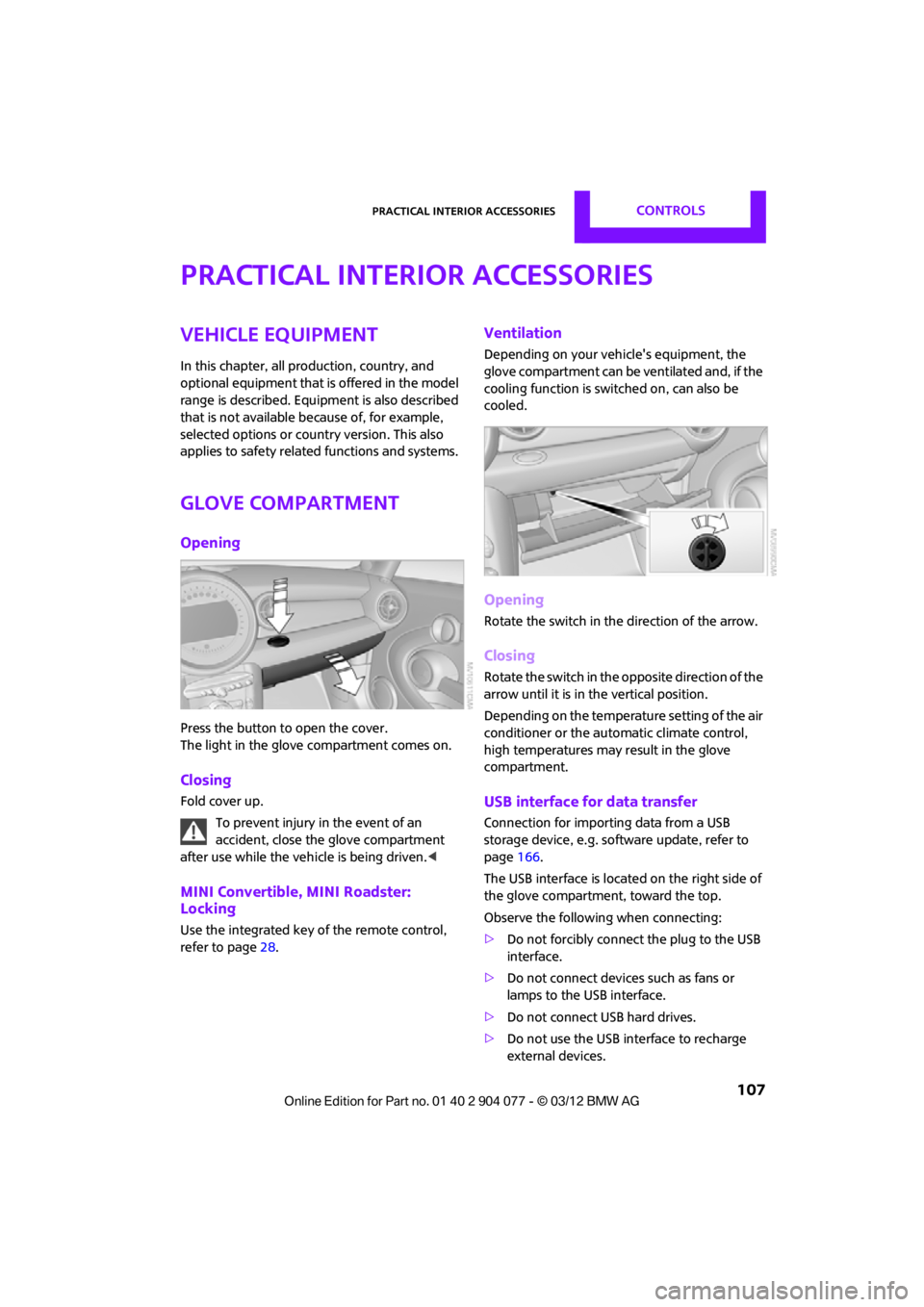
Press the button to open the cover.
The light in the glove compartment comes on.
Closing
Fold cover up.
To prevent injury in the event of an
accident, close the glove compartment
after use while the vehi cle is being driven.<
MINI Convertible, MINI Roadster:
Locking
Use the integrated key of the remote control,
refer to page28.
Ventilation
Depending on your vehicle's equipment, the
glove compartment can be ventilated and, if the
cooling function is swit ched on, can also be
cooled.
Opening
Rotate the switch in the direction of the arrow.
Closing
Rotate the switch in the opposite direction of the
arrow until it is in the vertical position.
Depending on the temperature setting of the air
conditioner or the automatic climate control,
high temperatures may result in the glove
compartment.
USB interface for data transfer
Connection for importing data from a USB
storage device, e.g. soft ware update, refer to
page 166.
The USB interface is locate d on the right side of
the glove compartment, toward the top.
Observe the following when connecting:
> Do not forcibly connect the plug to the USB
interface.
> Do not connect devices such as fans or
lamps to the USB interface.
> Do not connect USB hard drives.
> Do not use the USB interface to recharge
external devices.
00320051004F004C00510048000300280047004C0057004C005200510003
Page 126 of 283

Navigation systemNAVIGATION
125
To update
1.Insert USB storage device with navigation
data
>Into the USB interface in the glove
compartment
> Into the USB audio interface.
2. Follow the instructions on the onboard
computer.
3. Enter the activation code of the USB storage
device.
4. Begin driving.
After you begin to drive, the system restarts and
updates the navigation data as you drive.
00320051004F004C00510048000300280047004C0057004C005200510003
Page 160 of 283

External devicesENTERTAINMENT
159
External devices
Vehicle equipment
In this chapter, all production, country, and
optional equipment that is offered in the model
range is described. Equipment is also described
that is not available because of, for example,
selected options or count ry version. This also
applies to safety related functions and systems.
Overview
AUX-In connection
Overview
> It is possible to connect audio devices, e.g.
MP3 players. Sound is output over the
vehicle speakers.
> Recommended settings: mid-level tone and
volume settings on th e audio device. Tone
may depend on the quality of the audio files.
Connecting
1 USB interface
2 Connection for audio playback:
TRS connector 1/8''/3.5 mm
For audio playback over the vehicle speakers,
connect the headphones or line-out connection
of the device to the AUX-In connection 2.
Starting audio playback
The audio device must be switched on.
1. "CD/Multimedia"
2. "External devices" if applicable
3. "AUX front"
Sound is output on the vehicle loudspeakers.
Volume
The volume of the sound output depends on the
audio device. If this volume differs markedly
from the volume of the other audio sources, it is
advisable to adju st the volumes.
SymbolMeaning
USB audio interface
Mobile phone audio interface
Bluetooth audio
AUX-In connection
00320051004F004C00510048000300280047004C0057004C005200510003
Page 161 of 283
ENTERTAINMENTExternal devices
160
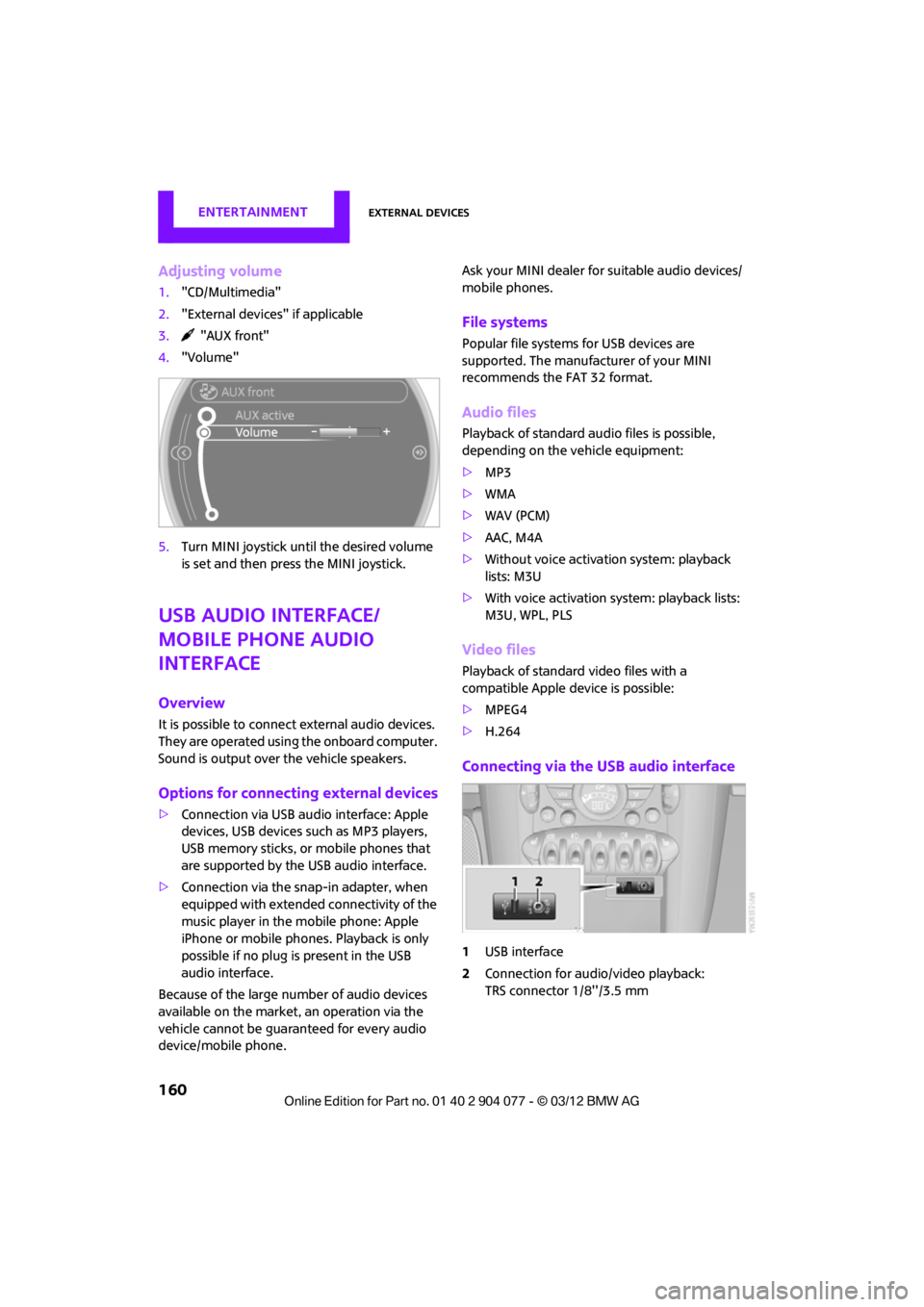
Adjusting volume
1."CD/Multimedia"
2. "External devices" if applicable
3. "AUX front"
4. "Volume"
5. Turn MINI joystick until the desired volume
is set and then press the MINI joystick.
USB audio interface/
mobile phone audio
interface
Overview
It is possible to connect external audio devices.
They are operated using the onboard computer.
Sound is output over the vehicle speakers.
Options for connecting external devices
>Connection via USB audio interface: Apple
devices, USB devices such as MP3 players,
USB memory sticks, or mobile phones that
are supported by the USB audio interface.
> Connection via the sn ap-in adapter, when
equipped with extended connectivity of the
music player in the mobile phone: Apple
iPhone or mobile phon es. Playback is only
possible if no plug is present in the USB
audio interface.
Because of the large number of audio devices
available on the market, an operation via the
vehicle cannot be guaranteed for every audio
device/mobile phone. Ask your MINI dealer for suitable audio devices/
mobile phones.
File systems
Popular file systems for USB devices are
supported. The manufacturer of your MINI
recommends the FAT 32 format.
Audio files
Playback of standard au
dio files is possible,
depending on the vehicle equipment:
> MP3
> WMA
> WAV (PCM)
> AAC, M4A
> Without voice activation system: playback
lists: M3U
> With voice activation sy stem: playback lists:
M3U, WPL, PLS
Video files
Playback of standard video files with a
compatible Apple device is possible:
> MPEG4
> H.264
Connecting via the USB audio interface
1USB interface
2 Connection for audi o/video playback:
TRS connector 1/8''/3.5 mm
00320051004F004C00510048000300280047004C0057004C005200510003
Page 162 of 283
External devicesENTERTAINMENT
161
Apple device
A special adapter cable is available for connect-
ing the Apple device. The adapter cable is
required for a proper connection.
Further information:
>At: www.mini.com/connectivity
> At your MINI dealer.
For audio playback over the vehicle speakers,
connect the Apple device using the special
adapter cable with AV-In connection 2 and USB
interface 1 or using a flexible adapter cable with
a USB interface 1.
The USB audio interface supports the menu
structure of the Apple device.
USB device
To protect the USB interface and USB device
from mechanical damage, connect them with a
flexible adapter cable.
Connect the USB device to the USB interface 1.
After initial connection
Track information, e.g. ar tist or music style and
the playlists of the USB device are imported into
the vehicle. This process can take some time.
The time required is dependent on the USB
device and on the number of tracks.
During transmission, the tracks can be accessed
via the file directory.
Number of tracks
The data from up to four USB devices or for
approx. 26,000 tracks can be stored in the
vehicle. If a fifth device is connected or if more
than 26,000 tracks are stored, then the data of
existing tracks may be deleted.
Copy protection
Music tracks with integrated Digital Rights
Management (DRM) cannot be played.
Audio playback
Starting audio playback
1. "CD/Multimedia"
2. "External devices"
3. Select the or symbol and press the
MINI joystick.
Playback begins with the first track.
Track search
Selection is possible via:
> Playback lists
> Information: musi c style, artist; if applicable,
composer, album, track.
> Additionally for USB device s: file directory; if
applicable, composer.
Track titles are displayed if they have been
stored in the Latin alphabet.
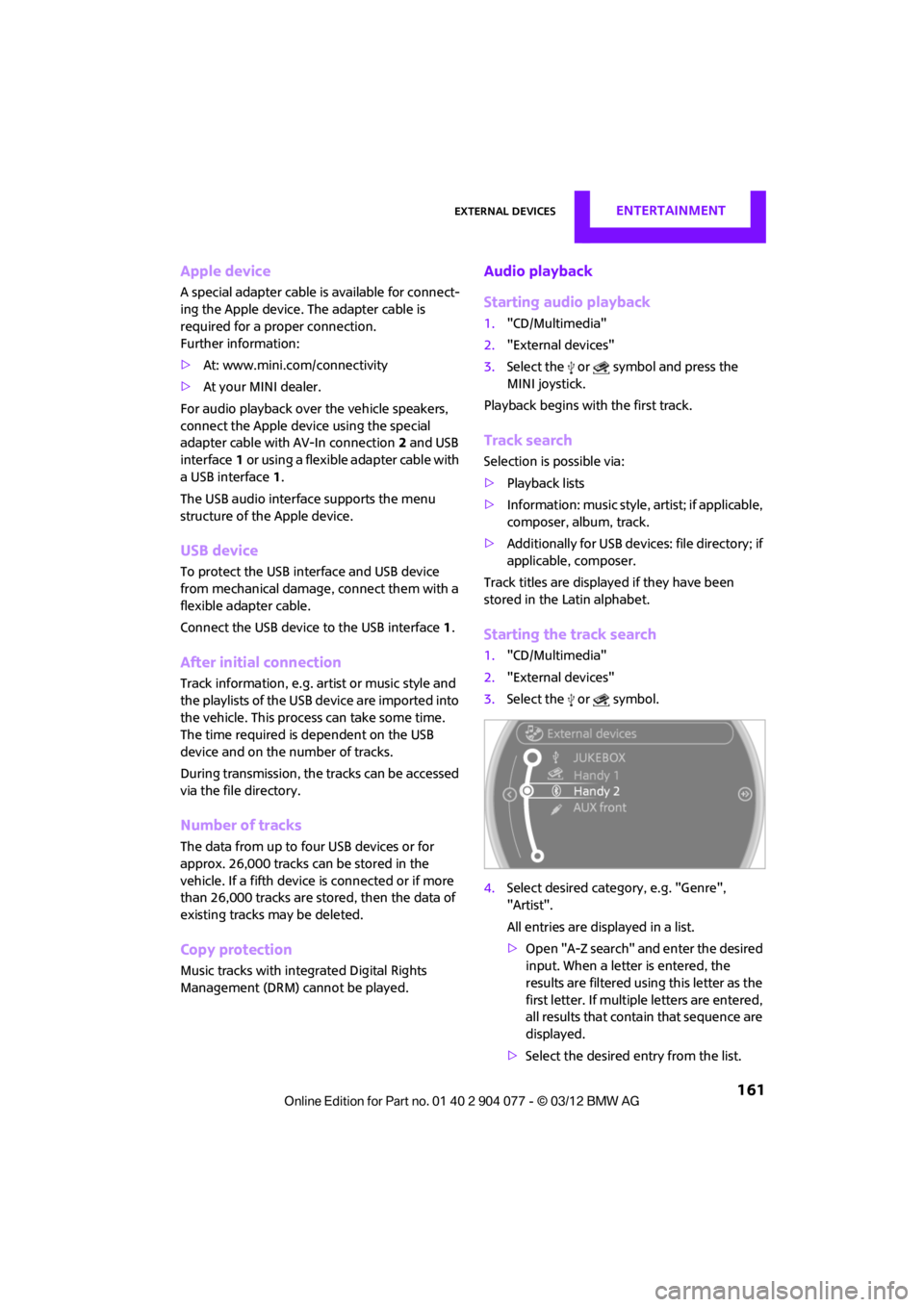
Starting the track search
1. "CD/Multimedia"
2. "External devices"
3. Select the or symbol.
4. Select desired catego ry, e.g. "Genre",
"Artist".
All entries are displayed in a list.
> Open "A-Z search" and enter the desired
input. When a letter is entered, the
results are filtered using this letter as the
first letter. If multiple letters are entered,
all results that contain that sequence are
displayed.
> Select the desired entry from the list.
00320051004F004C00510048000300280047004C0057004C005200510003
Page 163 of 283
ENTERTAINMENTExternal devices
162
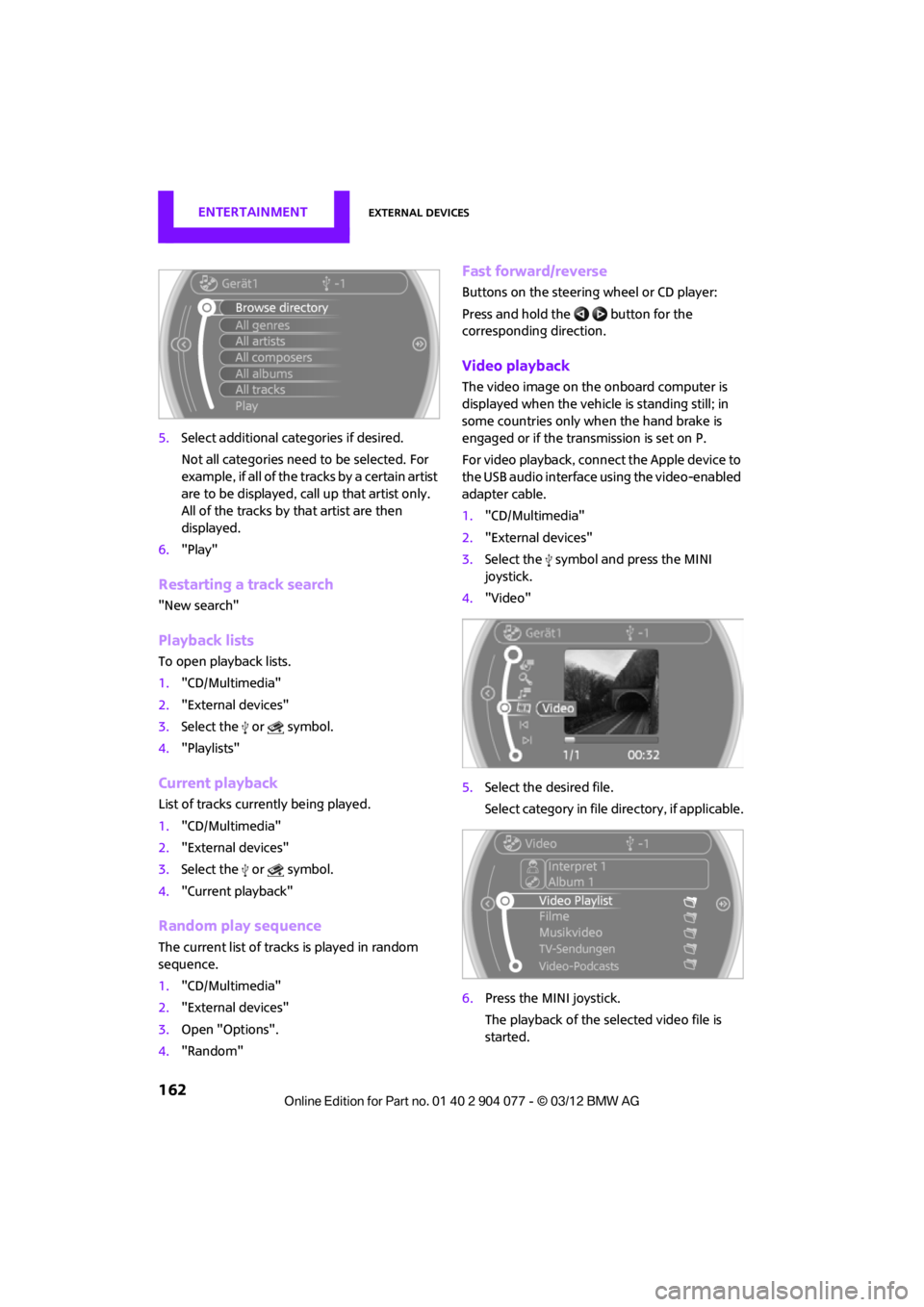
5.Select additional ca tegories if desired.
Not all categories need to be selected. For
example, if all of the tracks by a certain artist
are to be displayed, call up that artist only.
All of the tracks by that artist are then
displayed.
6. "Play"
Restarting a track search
"New search"
Playback lists
To open playback lists.
1."CD/Multimedia"
2. "External devices"
3. Select the or symbol.
4. "Playlists"
Current playback
List of tracks curre ntly being played.
1. "CD/Multimedia"
2. "External devices"
3. Select the or symbol.
4. "Current playback"
Random play sequence
The current list of tracks is played in random
sequence.
1."CD/Multimedia"
2. "External devices"
3. Open "Options".
4. "Random"
Fast forward/reverse
Buttons on the steering wheel or CD player:
Press and hold the button for the
corresponding direction.
Video playback
The video image on the onboard computer is
displayed when the vehicle is standing still; in
some countries only when the hand brake is
engaged or if the transmission is set on P.
For video playback, connect the Apple device to
the USB audio interface using the video-enabled
adapter cable.
1."CD/Multimedia"
2. "External devices"
3. Select the symbol and press the MINI
joystick.
4. "Video"
5. Select the desired file.
Select category in file directory, if applicable.
6. Press the MINI joystick.
The playback of the selected video file is
started.
00320051004F004C00510048000300280047004C0057004C005200510003
Page 164 of 283

External devicesENTERTAINMENT
163
Notes
Do not subject the audio device to
extreme environmental conditions, e.g.
extremely high temperatures, refer to the
operating instructions for the audio device.
Otherwise the audio device may be damaged,
impairing driving safety while driving. <
Depending on the config uration of the audio
files, e.g. bit rates greater than 256 Kbit/s,
proper playback cannot always be ensured.
Information on connection
> The connected audio device is supplied with
a max. power of 500 mA if supported by the
device. Therefore, do not connect the device
to the power socket in the vehicle.
> Do not use force when plugging the
connector into the USB interface.
> Do not connect any devices, e.g. fans or
lamps, to the USB audio interface.
> Do not connect USB hard drives.
> Do not use the USB audio interface to
recharge external devices.
Bluetooth audio
Overview
>It is possible to use Bluetooth to play music
files from external devices, e.g. audio
devices or mobile phones.
> Bluetooth® is a registered trademark of
Bluetooth® SIG, Inc.
> Sound is output over the vehicle speakers.
> The volume of the sound output depends on
the device. If necessary, change the volume
setting on the device.
> Up to four external devices can be paired
with the vehicle.
Requirements
>Suitable device. Information is available at
www.mini.com/connectivity.
> Device operational.
> Ignition switched on.
> Bluetooth activated in vehicle, refer to
page 181, and in the device.
> Bluetooth presets in the device are required,
e.g. connection not confirmed or visible,
refer to Owner's Ma nual for the device.
> A number with at least 4 and at most
16 digits has been established as the
Bluetooth passkey. Only required once for
pairing.
Pairing and connecting
Only pair the device when the vehicle is
stopped; otherwise, inattention may lead
to endangerment of passengers or other road
users. <
1. "CD/Multimedia"
2. "Bluetooth® (audio)"
3. "Bluetooth® audio" if applicable
4. "Add new phone"
The Bluetooth name of the vehicle is
displayed.
5. To perform other operations on the device,
refer to the operating instructions for the
device: e.g. search for and connect Blue-
tooth device or a new device.
The Bluetooth name of the vehicle appears
on the device's display.
00320051004F004C00510048000300280047004C0057004C005200510003